Keychange — one layout per keyboard

2 min read Original article ↗

Keychange

Assign a layout to each of your keyboards. Keychange sits in your menu bar and switches the moment your hands do.

or brew install dennistimmermann/tap/keychange

Support me on Ko-fi

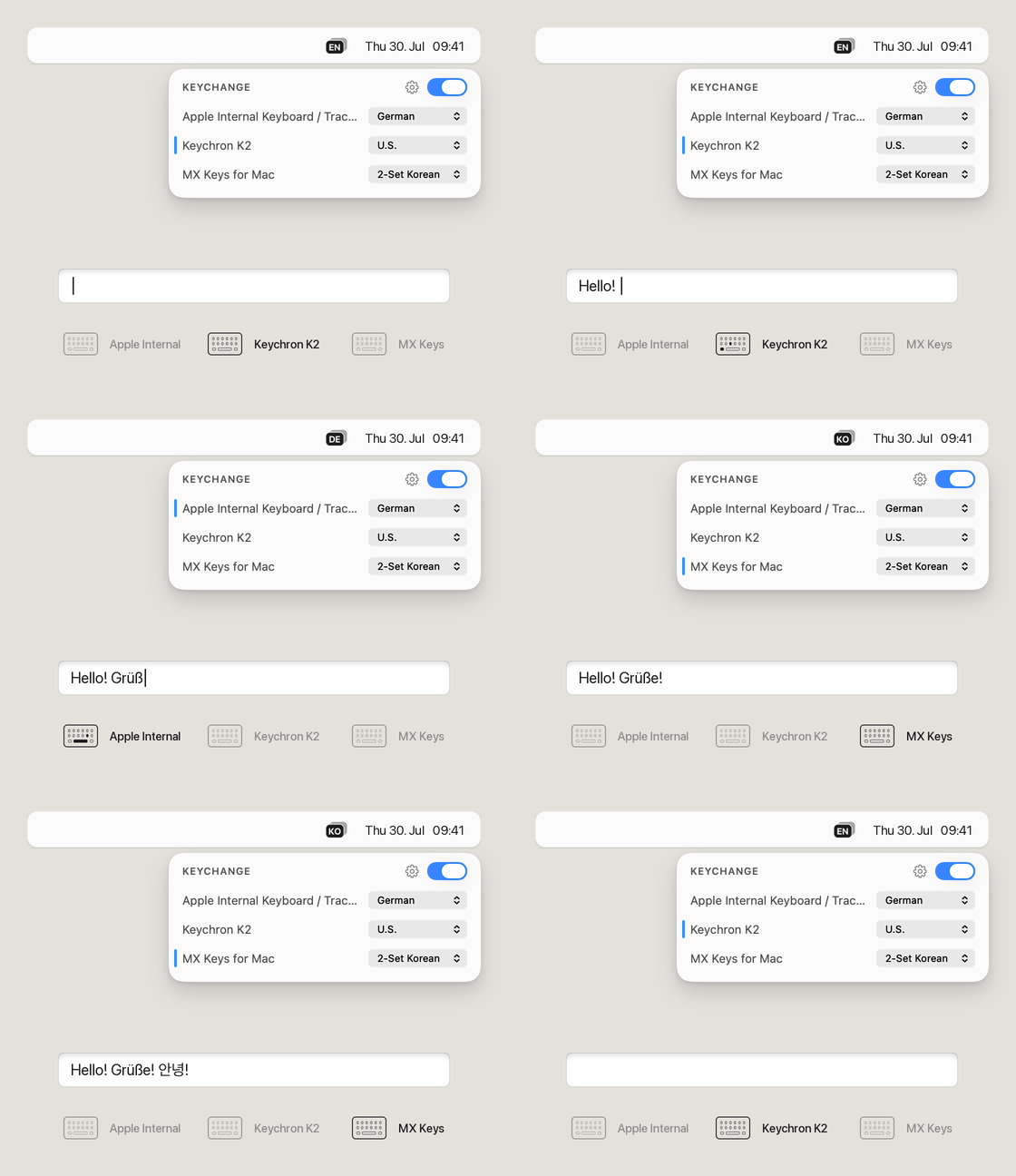
One text field, three keyboards: “Hello!” typed on a Keychron K2 set to U.S., “Grüße!” on the built-in keyboard set to German, and “안녕!” on MX Keys set to 2-Set Korean. The menu bar badge changes from EN to DE to KO as each keyboard is used, and the popover marks whichever one is being typed on.

01

One layout per keyboard

macOS can switch input sources — its name for keyboard layouts — per app or by shortcut, but never per keyboard. Keychange adds the missing option: assign a layout to each keyboard, and the system follows whichever one you’re typing on.

02

Switching becomes automatic

After launch, Keychange changes the input source for you the moment you go from one keyboard to another. Set it to start at login and it’s always there.

03

Nothing is recorded

Keychange asks for Input Monitoring permissions so it can detect which keyboard you’re typing on. It keeps nothing: what you type is never stored or sent anywhere. The code is public if you want to check.

Features

Every keyboard, its own choice

The dropdown next to a keyboard holds:

  • Input sources — every layout you have enabled in System Settings. Pick the one that fits your keyboard.
  • Don’t switch — Keychange leaves the input source as is while you type on this keyboard.
  • Hidden — the keyboard drops out of the list, and stops switching with it. For the mice and dongles that report themselves as keyboards.

Switch early, or switch light

Keychange can switch on either side of the key event:

  • After key press — detection happens just after a key has been sent. Less intrusive, but as a consequence the very first character will still print in the old layout.
  • Before key press — Keychange instead intercepts the key press and changes the layout on the fly, so that first character is right too.

Out of the way, on your terms

Keychange can react to external changes. How is up to you:

  • Disable — off until you turn it back on.
  • Pause — off, then back on by itself once the input source matches your keyboard again.
  • Ignore — your choice stands until you switch keyboards.
  • Reset — your choice stands until your next key press.

Also

Momentary A second function for your modifier keys

Gives ⌃ ⌥ ⇧ ⌘ modifiers a second function. Tap for your own key, hold for the modifier. Any modifier, any key.

dennistimmermann.github.io/momentary ↗