Last updated:
Dec 2025 - updated with improvements thanks to Vladimir (@erus.dev on bsky)
One of the most exciting developments in the last few years when it comes to testing is definitely Vitest Browser Mode . In this article I am going to tell you everything you need to know.
And this is such a big change in the JS testing ecosystem - I believe that within a year or two, all frontend engineers will need to know what Vitest Browser Mode is just like we all have to at least be aware of Jest/Vitest test runners, Cypress/Playwright E2E tests etc.
What are Jest, Vitest, Playwright or Cypress? (Show details)
Good questions!
- Jest and Vitest are test runners. They are very similar. This is where you run your
expect(val).toBe(expectedVal)sort of tests. When testing React components in these, they run in your terminal with a fake simulated DOM.- Note: Vitest comes from the team that released Vite which is a tool for building frontend JS apps.
- Playwright/Cypress are end to end (E2E) frameworks, which runs in headless mode in real browsers (Chrome etc)
This blog post is about Vitest Browser Mode - it is a special way of running tests within Vitest.
If you are very new to all of this, check out my completely free 19 lessons on Vitest fundamentals
Vitest Browser Mode combines several powerful features:
- Real browser testing... runs tests in Chrome, Firefox, and other real browsers, similar to E2E frameworks like Playwright
- Component isolation... test single components at a time, just like normal Vitest/Jest tests
- Visual preview... easily see the rendered components that you are testing
- Fast execution... despite running in a real browser, which at first might seem like it would be slow - it is actually really fast.
- Built-in Visual Regression screenshots... take screenshots of your components and check that they are rendering the same in future test runs
This is different to running E2E (End to end) tests directly in Playwright.
With Vitest browser mode we are still testing individual components by themselves. Just with a real browser. So all the web APIs like session storage, cookies, local storage, fetch requests, URL manipulation, clipboard API, geolocation, web workers and more just work out of the box now!
If you are new to this site: hi! I am a software engineer who loves writing tests.
I created this site to help onboard people into writing tests (specifically frontend tests).
You're on the blog, where I try to only post high quality deep dives (like this one!).
Very quick overview of Vitest Browser Mode and how it is different to normal Vitest or E2E tests
- Write your tests in a way that is similar to React Testing Library and Playwright (it is like a mix of both). A lot more async behaviour!
- Can test a single component at a time
- It runs in a real browser. No need to mock web APIs! Which can mean much more realistic testing.
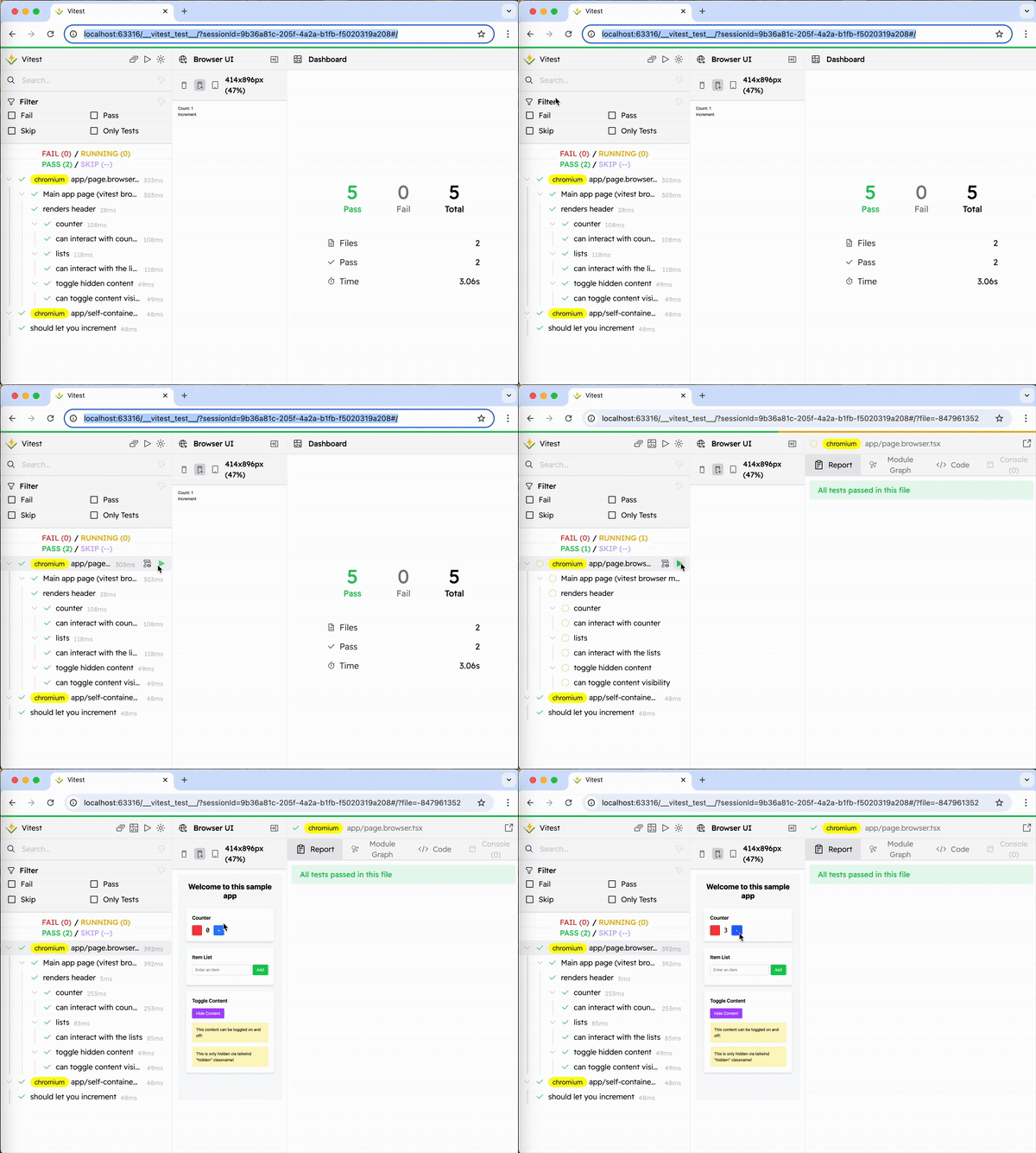
- As it is in a real browser, you can preview what your tests are rendering in a UI - this helps a lot with debugging when your tests are failing
- And of course you can run it on your CI/CD pipelines just like 'regular' tests
Here is a demo of the UI for it (but remember - it can run in your terminal as well in headless mode):
My prediction - Vitest Browser Mode will be a standard part of FE testing soon!
It is the end of November 2025 right now. Vitest came out with version 4 last month, which marked Vitest Browser Mode as stable. So it is quite new.
I predict that by November 2027 Vitest Browser Mode will become a standard part of testing frontend React applications. I do not think it will completely replace the typical way (Vitest/Jest with React Testing Library) by then, but it will be part of our standard set of tools we use. I'll come back in a couple of years and see how this turned out...
Anyway, onto the rest of this Vitest Browser Mode introduction/tutorial/setup guide!
How Vitest Browser Mode works
When you test React components with 'regular' Vitest (or Jest), you will normally mount/render your components in a simulated DOM (often jsdom ).
This is (very!) good for most components. But it isn't completely realistic.
If you have ever wanted to test components which use Web APIs like:
window.sessionStorageorwindow.localStorage- things like
MutationObserver,IntersectionObserverorResizeObserver - copying and pasting with
navigator.clipboard window.locationand URL manipulation
...then you've probably come across some limitations of these 'fake' DOMs that run in your terminal.
You normally end up either manually mocking them, or adding a npm package (which will just mock it for you).
Also, if a test breaks it can be quite awkward with seeing the rendered HTML and figuring out why it isn't working as expected.
Of course, we've always had End-to-end (E2E) test frameworks (Playwright and Cypress are two of the most popular tools). They will run a headless browser (Chrome, Firefox etc) on a full page, and of course this means it has access to test all the real web APIs.
Vitest basically runs (headless or in UI mode) a real browser, and runs your component inside an iframe. So you can control the viewport size, and you get all the real CSS and Web API support.
(To be clear: on a typical E2E test you'd be testing an entire page. In standard React Testing Library tests, you would be testing a single component. In Vitest Browser Mode you will be testing a single component at a time).
Your test file can interact directly with the DOM (although it is recommended to use helper functions and not directly interact with the DOM), as your test code/assertions run in the same context in the (headless) browser.
You can use all the normal Vitest syntax, plus the special DOM matcher assertions functions and rendering functions to ensure you can fully control what happens in the browser rendering your component.
What you need to know to write tests for Vitest Browser Mode
Vitest Browser Mode tests look familiar to typical React tests. You will see functions like .getByRole(), .getByTestId().
However, the syntax is more similar to Playwright.
In fact, they are based on Playwright's locators, which are implemented via a library called ivya .
If you have used Playwright, you will recognise a lot of these!
As this site heavily covers React Testing Library, I will make quite a few comparisons of testing in React Testing Library vs Vitest Browser Mode
In the rest of this section I'll go over the core concepts of writing a test in Vitest Browser Mode to test a React component.
Rendering your component with Vitest Browser Mode
- Import a
render()function fromvitest-browser-react, - Pass in your component like this:
render(<YourComponent/>) - Remember that
render()function is async (unlike in React Testing Library) - When you call the render function,
awaitit's return value- (This returned value will have functions like
.getByText()to query for elements)
- (This returned value will have functions like
- Common convention is to call the returned value
screen
import { render } from 'vitest-browser-react';

test('can render', async () => {
  const screen = await render(
    <YourComponent />
  );
  // ... rest of test here
});
(Note: You can also import page from
vitest/browser, which also has these
functions like page.getByText(...).
If you import from page, you can simple just await the render call and not set its return value as a variable.
Querying for elements, making assertions on them, and performing actions (like clicking)
Ok so now you have rendered your React component.
You now need to find elements to make assertions, and perform interactive actions (like clicking).
When you want to find rendered elements, use functions like screen.getByText('something') or screen.getByRole('button').
What functions can you call from screen object? (Show details)
With either the page import, or the return value from calling render(), you
have access to these functions:
- getByRole(),
- getByAltText(),
- getByLabelText(),
- getByPlaceholder(),
- getByText(),
- getByTitle()
- and getByTestId()
IMPORTANT >> These getBy functions return a Locator, not the HTMLElement directly.
These Locator objects are immediately returned from the getBy functions (no await needed).
const screen = await render(
  <YourComponent />
);

// no await needed here
const locator = screen.getByText(
  'click here'
);
There are then a few ways to use these Locator objects.
You can pass a Locator straight into expect(...) and use DOM matchers like .toHaveTextContent(...) and it will work.
const Component = () => {
  return <h1>some heading</h1>;
};

test('can get a heading', async () => {
  const screen = await render(
    <Component />
  );

  const locator =
    screen.getByRole('heading');

  // pass it straight into expect(...) and run
  // an assertion function against it:
  expect(locator).toHaveTextContent(
    'some heading'
  );
});
Remember: The returned object from the getBy... functions is actually a lazy, synchronous locator. This means we can use it to get multiple elements, or for async behaviour (where the element might not be there yet). You will see this when we start to use await expect.element() to test async behaviour.
So what can we use Locators for?
If this use of Locator objects is new to you, you might be asking what they're for...
Using Locator objects to find elements asynchronously
The use of Locators lets you find elements that were rendered in an asynchronous way.
In the following example, after 100ms the state value changes. We can use expect.element(...) to asynchronously retry until it passes (or times out)
When used with await expect.element(..) it will keep
retrying until the whole assertion
passes. It isn't just retrying until
it finds an element (so it is similar
to but not exactly like RTL's await findBy...() functions.**
const Component = () => {
  const [headingText, setHeadingText] =
    useState('initial');

  useEffect(() => {
    window.setTimeout(
      () => setHeadingText('updated'),
      100
    );
  }, []);

  return <h1>{headingText}</h1>;
};

test('sees updated heading value', async () => {
  const screen = await render(
    <Component />
  );

  // no async here...
  const headingLocator =
    screen.getByRole('heading');

  // no async here either
  expect(
    headingLocator
  ).toHaveTextContent('initial');

  // but now we want to assert it against the updated value
  // we can do that with `await expect.element()` which will poll until the
  // assertion passes:
  await expect
    .element(headingLocator)
    .toHaveTextContent('updated');
});
expect.element(locator) is a
shorthand for expect.poll(() => locator.element()).
You can kind of think of React Testing Library's waitFor(...) as equivalent to expect.poll(...), but only for Locator objects.
Use Locator objects to find multiple elements
When writing tests with React Testing Library, there are different functions to get a single element (findByText() for example) vs finding multiple findAllByText())
In Vitest Browser Mode there is only the getBy... functions (no getAllBy...).
In Vitest Browser Mode, a Locator can be used to find multiple elements that match:
const MultipleButtons = () => {
  return (
    <div>
      <button>First button</button>
      <button>Second button</button>
    </div>
  );
};

test('multiple buttons render', async () => {
  const screen = await render(
    <MultipleButtons />
  );

  // using the same getBy... function to get a locator
  const locator =
    screen.getByRole('button');

  // this locator will have 2 elements in it
  expect(locator).toHaveLength(2);

  // you can access the elements like this with nth()

  const firstButton = locator.nth(0);
  expect(firstButton).toHaveTextContent(
    'First button'
  );

  // or with first()/last():
  expect(
    locator.first()
  ).toHaveTextContent('First button');
  expect(
    locator.last()
  ).toHaveTextContent('Second button');

  // or like this:
  const allButtonsFromLocator =
    locator.elements();
  expect(
    allButtonsFromLocator[0]
  ).toHaveTextContent('First button');
  expect(
    allButtonsFromLocator[1]
  ).toHaveTextContent('Second button');
});
If there was some async behaviour (such as the second button appearing after some state change/duration), then you could also use await expect.element(...) like this:
await expect
  .element(locator)
  .toHaveLength(2);
This works because await expect.element(...) will retry until the assertion function passes (or until it times out).
Use Locator objects to assert an element is NOT in the DOM
In React Testing Library it is common to make use of the queryBy... functions to check an element is not rendered in the DOM:
// THIS IS FOR REACT TESTING LIBRARY - not Vitest Browser Mode
test('clicking will hide an element', async () => {
  render(<SomeComponent />);
  expect(
    screen.getByText('click me')
  ).toBeInTheDocument();

  // trigger something to hide an element
  await userEvent.click(
    screen.getByRole('button')
  );

  // use queryBy to assert it isn't visible
  expect(
    screen.queryByText('click me')
  ).not.toBeInTheDocument();
  // or:
  expect(
    screen.queryByText('click me')
  ).toBeNull();
});
With Vitest Browser Mode, there is no special queryBy... function. Only the getBy... functions.
You can instead just use getBy with an assertion like .not.toBeInTheDocument()
const HideHeadingWhenClicked = () => {
  const [visible, setVisible] =
    useState(true);

  return (
    <div>
      <button
        onClick={() =>
          setVisible(false)
        }
      >
        Click me
      </button>

      {visible && <h1>welcome</h1>}
    </div>
  );
};

test('hides a welcome message when clicked', async () => {
  const screen = await render(
    <HideHeadingWhenClicked />
  );

  const button =
    screen.getByRole('button');
  const heading =
    screen.getByRole('heading');

  expect(heading).toBeInTheDocument();

  await button.click();
  await expect
    .element(
      screen.getByRole('heading')
    )
    .not.toBeInTheDocument();
  // note: using .toBeNull() wouldn't work here!
});
Use Locator objects to perform actions (like clicking) on the underlying element
Each Locator object has a bunch of interaction functions that will look familiar to anyone who has used userEvent (from React Testing Library).
So once you have a Locator (with exactly one element in it!) you can call these functions!
Some things to know about calling the interaction methods on Locator objects:
- These functions (like
.click()) are async - No need to wrap your calls in React's
act()function - Calling
.click()is NOT the same as calling theclick()method directly on a HTMLElement . You are calling.click()on theLocator(which will then trigger a click on the underlying HTML element). - If a
Locatorhas multiple elements in it, you have to narrow it down to just one. (with something likelocator.first().click()- note that there are a bunch of helper methods for this )
const ClickAButton = ({
  handlerFn,
}) => {
  return (
    <div>
      <button onClick={handlerFn}>
        Click me
      </button>
    </div>
  );
};

test('when clicking button, the passed in prop is triggerered', async () => {
  const fn = vi.fn();
  const screen = await render(
    <ClickAButton handlerFn={fn} />
  );

  const locator =
    screen.getByRole('button');
  await locator.click();

  expect(fn).toHaveBeenCalledTimes(1);
});
The main functions you will probably want to use are:
.click(),.fill()(for filling in textbox inputs),.selectOptions()(for selecting<select>options)
If you want to see the full list check it out here
Basically - if a function like screen.getByText(...) returns exactly one element, you can just await screen.getByText('click me').click()
Types of DOM assertions on Locator
(As everything is quite intertwined, some of the previous examples also covered this)
There are lots of built in DOM assertion functions that you can use with Locator objects.
And there are a few ways to run the assertions on them.
List of all the assertion functions (Show details)
toBeDisabled()toBeEnabled()toBeEmptyDOMElement()toBeInTheDocument()toBeInvalid()toBeRequired()toBeValid()toBeVisible()toBeInViewport()toContainElement()toContainHTML()toHaveAccessibleDescription()toHaveAccessibleErrorMessage()toHaveAccessibleName()toHaveAttribute()toHaveClass()toHaveFocus()toHaveFormValues()toHaveStyle()toHaveTextContent()toHaveValue()toHaveDisplayValue()toBeChecked()toBePartiallyChecked()toHaveRole()toHaveSelection()toMatchScreenshot()
If a Locator has exactly one element (without any async behaviour to 'wait' for) then just use it in the most simple way:
// <button>hello</button>
const buttonLocator =
  screen.getByRole('button');

expect(buttonLocator).toHaveTextContent(
  'hello'
);
If after some re-render(s), a Locator will have exactly one element (e.g. after some state change/timeout), then you can pass the Locator into await expect.element(...)
const buttonLocator =
  screen.getByRole('button');

await expect
  .element(buttonLocator)
  .toHaveTextContent('hello');
Larger example of a test
I'm trying to keep the blog post quite simple and easy to read, but if you want to see a slightly more complex test here is a counter component and its Vitest Browser Mode test:
import { expect, it } from 'vitest';
import { render } from 'vitest-browser-react';
import { page } from 'vitest/browser';
import { useState } from 'react';

const CounterComponent = () => {
  const [count, setCount] = useState(0);
  return (
    <div>
      <h1>Count: {count}</h1>
      <button
        onClick={() =>
          setCount(count + 1)
        }
      >
        Increment
      </button>
    </div>
  );
};

it('should let you increment', async () => {
  await render(<CounterComponent />);

  const headingLocator =
    page.getByRole('heading');

  // no need to await expect.element(), as there is no async requirement for this assertion
  expect(
    headingLocator
  ).toHaveTextContent('Count: 0');

  // get a locator for a button, then await the click() method on it:
  const button =
    page.getByRole('button');
  await button.click(); // << awaited after the click

  // can make assertion  without any await here BTW
  expect(
    page.getByRole('heading')
  ).toHaveTextContent('Count: 1');

  // note: if there was other async behaviour (such as a timeout) or we didn't await our .click()
  // call, then you could also make use of await expect.element
  await expect
    .element(page.getByRole('heading'))
    .toHaveTextContent('Count: 1');
});
Configuring Vitest Browser Mode (and setting it up for the first time)
The above introduction hopefully helped understand how to write (and read) a Vitest Browser Mode test. Now let's move onto the initial setup and configuration of Vitest Browser Mode.
Vitest Browser Mode Providers
A provider in this context means where/how you actually run your tests in the browser.
There are three providers to choose from right now - but you should almost definitely use the playwright one
Here are the options:
- playwright - this is my recommended provider. You use Playwright to control browsers (headless or not) like Chrome. It works well locally as well on CI/CD.
- preview - good for initial setup and for local only tests. It is a bit easier to configure (it just works out of the box), but it won't work on CI/CD (like Github Actions), has no headless support, doesn't support multiple browser instances and more. It is not recommended to use, really
- webdriverio - useful mainly if you use WebdriverIO already. If you don't already use WebdriverIO, I would not recommend using it for Vitest Browser Mode
So despite the choice of 3 - your best bet is to stick with Playwright.
Packages to install for Vitest Browser Mode
I am assuming you already have Vitest installed. (If not: there are tons of guides out there. Basically just install vitest and set up your vitest.config.ts file.
Once you have Vitest installed, you should install these packages to get Vitest Browser mode working. I am going to continue this demo to get it set up for a React based app (including for a NextJS app).
npm install --save-dev @vitest/browser-playwright @vitest/ui vitest vitest-browser-react
The specific versions of all related packages that I am using for this demo are:
- @vitejs/plugin-react: 5.1.1
- @vitest/browser-playwright: 4.0.13
- Installing a Playwright package because we are going to use Playwright as the provider to run the headless browser control
- Note: this will install as a sub-dependency: @vitest/browser
- @vitest/ui: 4.0.13
- Optional, but useful to be able to run it in UI mode locally so you can preview what is happening in your tests
- vitest-browser-react: 2.0.2
- (this is used to give us a render function so we can call
await render(<YourComponent/>)).
- (this is used to give us a render function so we can call
And these are some related ones that you may already have installed:
- react
- react-dom
- vite-tsconfig-paths (so our tsconfig path aliases continue to work)
- and of course the underlying main vitest package.
Vitest browser mode config file
If you already have a Vitest config (Show details)
-
In this tutorial I am using completely different Vitest configuration file just for browser mode. This does mean some duplication. See the note below on project configs.
-
The way I prefer to set it up is to have your normal
vitest.config.ts, and then make another one calledvitest.browser.config.ts(or.mtsfile endings)
If you don't have an existing Vitest config (Show details)
-
You can follow along, just create a
vitest.browser.config.ts(orvitest.browser.config.mts) -
You can definitely run Vitest Browser Mode in an app that normally uses Jest. You will use Vitest just for the Browser Mode tests.
To simplify things and keep the Vitest Browser Mode tests separate to the other test files, I've gone with a *.browser.ts and *.browser.tsx filename for your tests.
This is entirely up to you. You can
also use a mix of include and
exclude to manage which types of
tests run under Browser Mode or normal
mode.
This is so that you can easily filter test files just for the browser mode config, leaving you existing tests (which are probably named *.test.tsx or *.spec.tsx) alone.
You can change these settings to whatever suits your need.
Sometimes *.spec.ts are used for e2e tests, so that convention could also work for Browser Mode tests.
As far as I can tell there is no standard way yet that most projects follow - if you know of one, please reach out to me and I'll update this blog post.
This is my vitest.browser.config.ts:
import { defineConfig } from 'vitest/config';
import react from '@vitejs/plugin-react';
import tsconfigPaths from 'vite-tsconfig-paths';
import { playwright } from '@vitest/browser-playwright';

export default defineConfig({
  plugins: [tsconfigPaths(), react()],
  test: {
    // run this before each test. In this case
    // it is used to ensure that the CSS is loaded
    // Note: you will need to create this file
    // see the repo link for an example
    setupFiles: [
      'vitest.browser.setup.ts', // or whatever filename you gave your setup file
    ],

    // list of file name extensions used for browser tests:
    include: [
      './**/*.browser.{js,mjs,cjs,ts,mts,cts,jsx,tsx}',
    ],
    // note: you may want to use `exclude` on your
    // non-Browser Mode config to exclude them there

    // so we don't have to import describe, expect, etc:
    globals: true,

    // config for browser mode:
    browser: {
      enabled: true,
      headless:
        process.env.CI === 'true',
      provider: playwright(),
      screenshotDirectory:
        'vitest-test-results',
      instances: [
        // Playwright supports Chromium, Firefox, or WebKit
        { browser: 'chromium' },
      ],
    },
  },
});
I also created a vitest.browser.setup.ts file, which runs before any tests (because of the setupFiles config). This is used in my demo starter repo to import the CSS - see the file here .
In my examples here I am using separate Vitest config files (it is a bit easier to follow along with) but the recommended way to configure Vitest is with test projects
Running the tests
Before running the tests you have to remember to install Playwright browsers (Chromium etc). You only have to do this once.
If you are using yarn, the command is:
yarn playwright install --with-deps
Then to run the browser mode tests on your machine, run this (or vitest.browser.config.mts if you name it that):
yarn vitest --browser --config=vitest.browser.config.ts --ui
If you have followed along with the config files above, this will look for all files ending in *.browser.tsx.
If you want a demo test file that will pass tests, pull this Vitest Browser Mode test into your codebase.
More commands to run (Show details)
If you are looking for a few more options (put these in a scripts script in your package.json):
- The basic command is just
vitest --browser - To run it in a UI when you have
headless:truein the config, usevitest --browser --ui - To run it with npx:
npx vitest --browser - To run in a specific browser:
npx vitest --browser=chromiumornpx vitest --browser=chromium --ui - If you have a custom config file for your Vitest tests then run
vitest --config=vitest.browser.config.ts
To see them in action, check out package.json in my Vitest Browser Mode starter repo.
See some example tests
In my sample starter kit repo on Github for Vitest + React, I have two test files:
- this one is using normal Vitest and React Testing Library
- and this one is testing the same functionality, but using Vitest Browser Mode
As React Testing Library (RTL) is so popular, I will assume many readers of this blog are familiar with it. So I will compare writing a test in Vitest Browser Mode and how you would have done the same with React Testing Library.
This blog post is meant to be a guide to show the basics, and hopefully get you excited about this new way of testing. If you want to learn the ins and outs of Vitest Browser Mode, check out my full course with multiple lessons on each feature of Vitest Browser Mode.
Vitest Browser Mode FAQs
- Do I need to replace my existing tests with Vitest Browser Mode tests?
- No! You can add new tests that use Browser Mode when it makes sense to, alongside your regular/existing tests (see my github repo for an example of running them side by side)
- Is it slower?
- In theory yes. But I have been consistently impressed and surprised by just how quick and comparable it is to running tests in normal Vitest (with JSDom etc)
- Is Vitest Browser Mode only for React?
- All of my examples are with React. But it works well with Vue, Svelte and other frameworks.
- Is Vitest Browser Mode ready for production use
- Yes! It is stable, and has been used in production on many apps for a long time now. I have yet to find any reason to not use this in production.
How to start using Vitest Browser Mode in your project today
Until recently it wasn't really stable (even though for most users it would be fine). But since Vitest v4 it is marked as stable. You can start using it right now on your local machine and on your CI/CD pipeline (like GitHub Actions).
You can also start using it alongside any existing tests (Vitest, Jest, etc.). The only thing to consider is to make sure that your tests for Vitest Browser Mode are unique enough (so I've gone with *.browser.tsx for my Browser Mode test files).
You can follow the instructions above - they cover the basics.
I have a Github Action workflow here that I think is the easiest way to get set up. Just copy over the config files.
Most of the useful parts are in:
Confused by this or want to learn more?
This blog post is meant as an intro to help you grasp the very basics.
If you have any questions please reach out to me.