Prerequisite:1. A domain (Example.com), purchased externally via Godaddy, BigRock etc2. AWS elastic beanstalk server. If you don’t have an Elastic beanstalk server, create one using this link
Steps:1. goto AWS certificate manager
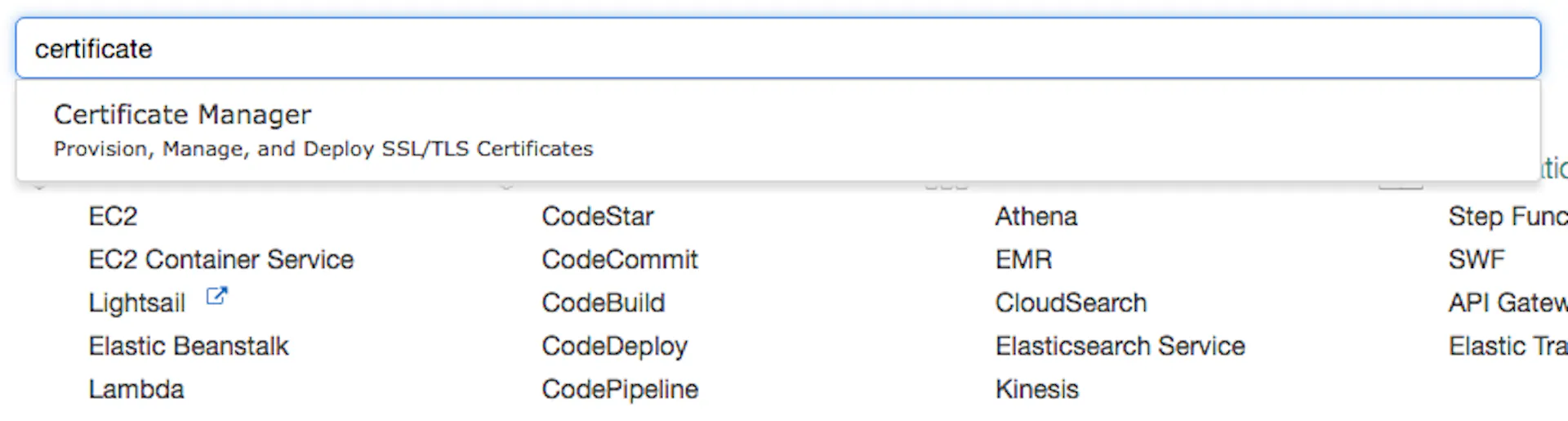
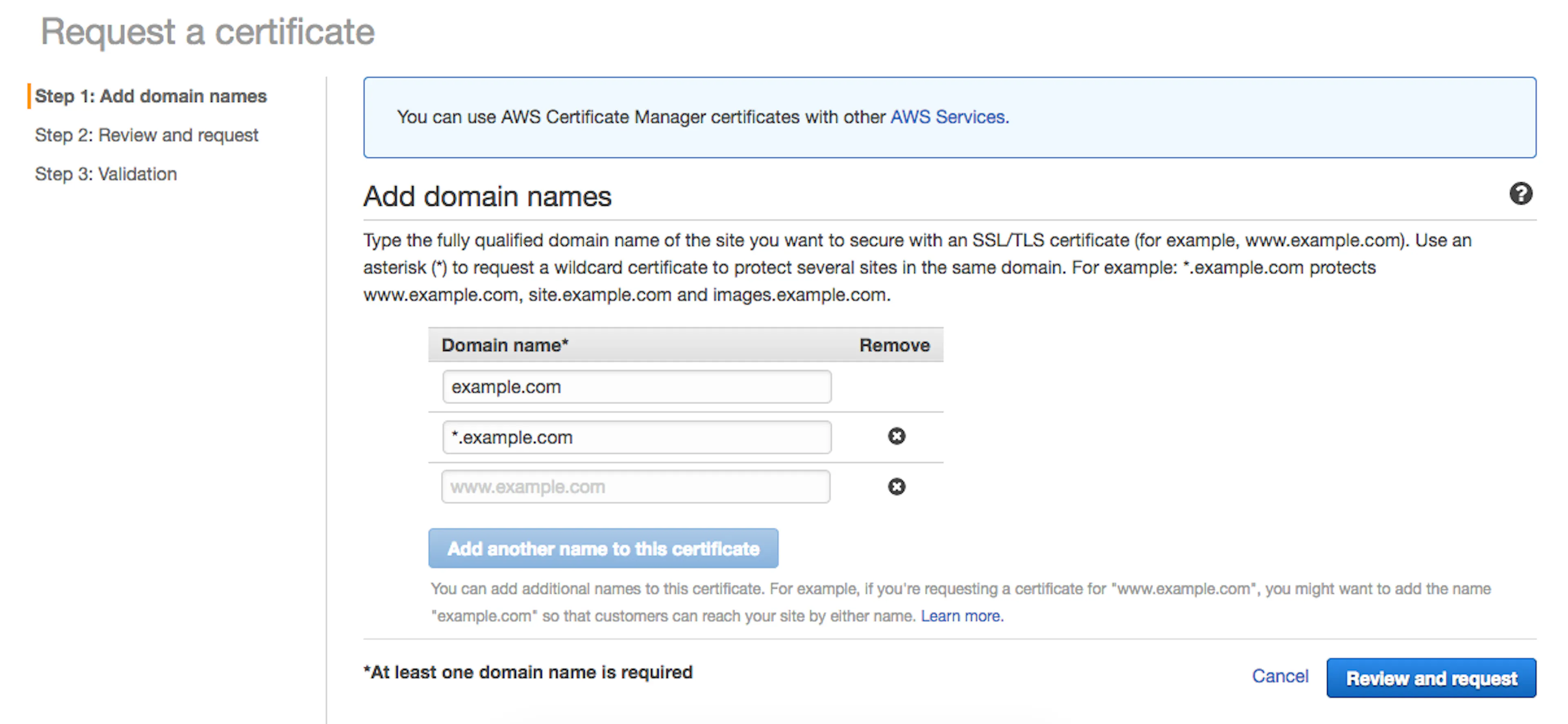
2. Click on “Request a certificate”. Create a certificate for your domain. Add 2 domain extensions. Ex:- example.com, *.example.com
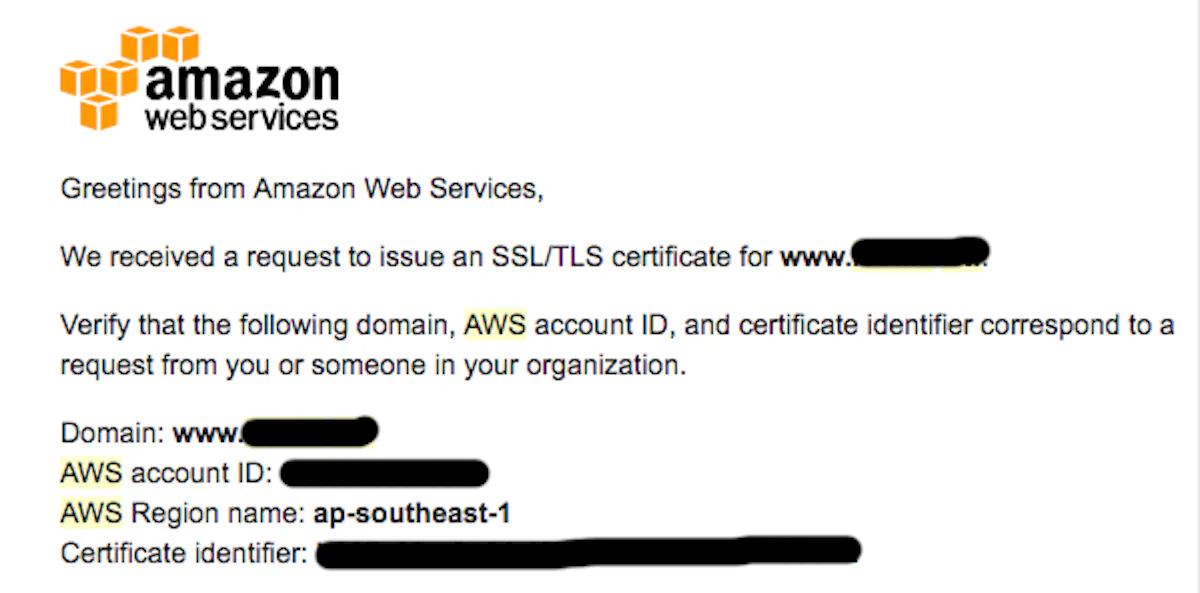
3. You will receive a confirmation email once Amazon issues a SSL certificate
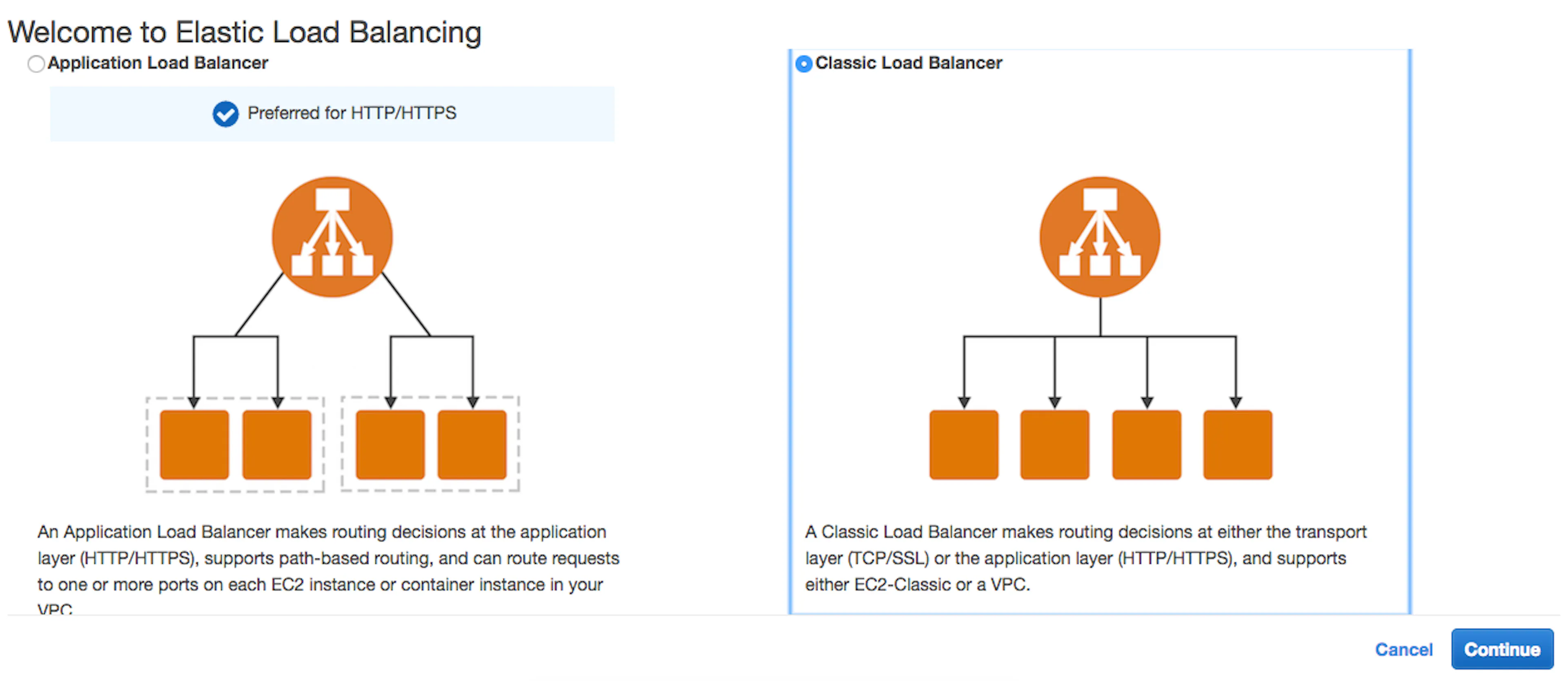
4. Now goto EC2 dashboard. Create a new load balancer (You can find it in left side menu). Select classic load balancer
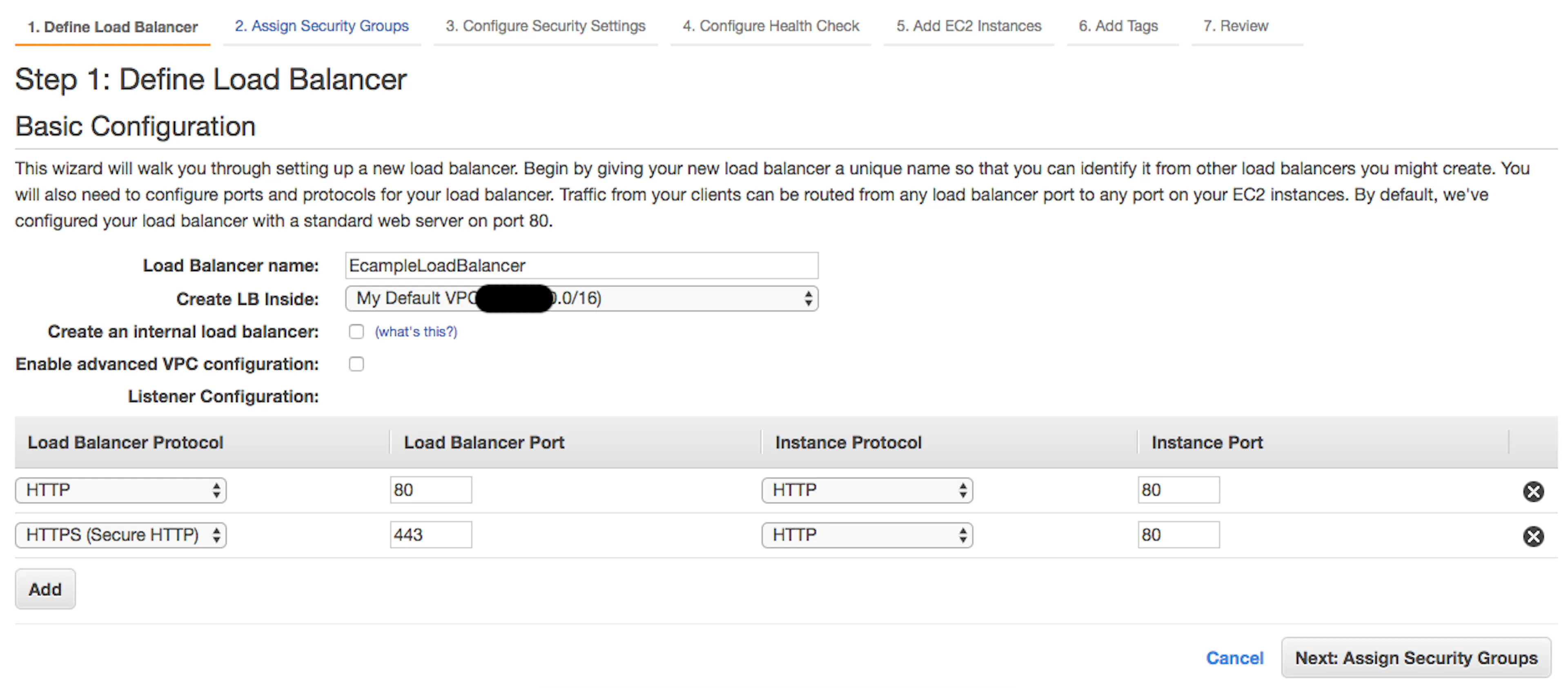
Note: Add HTTPS protocol
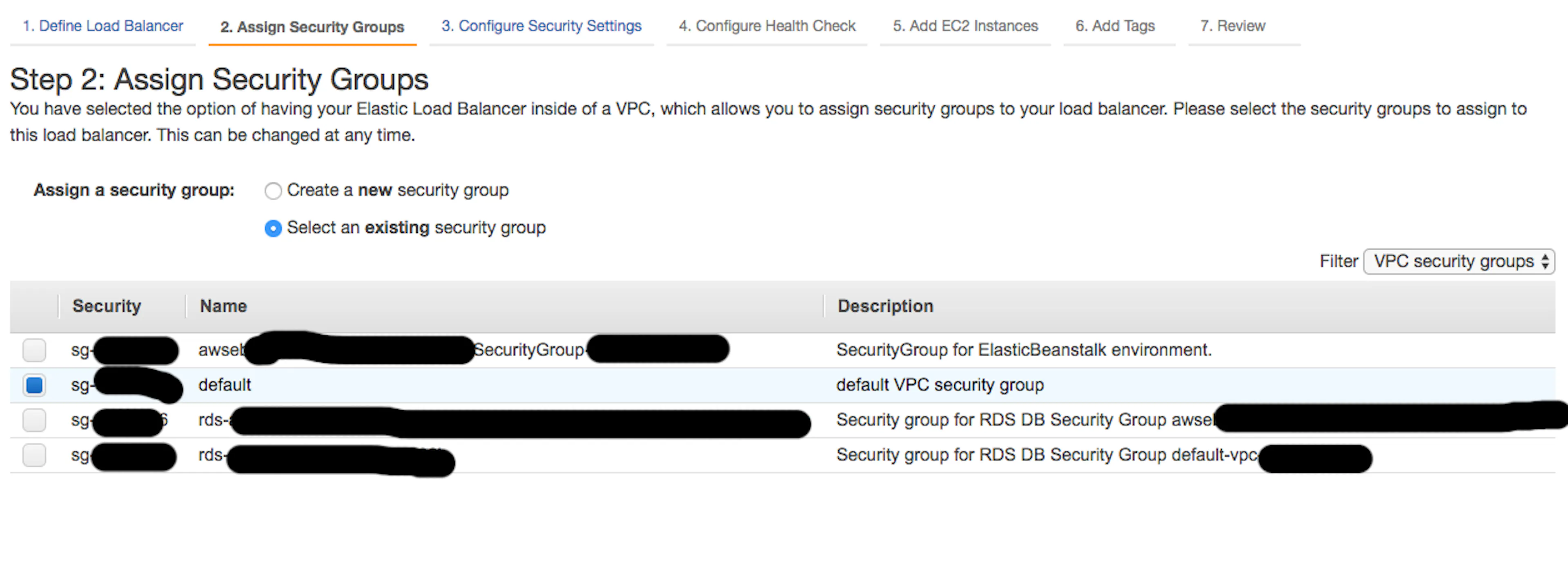
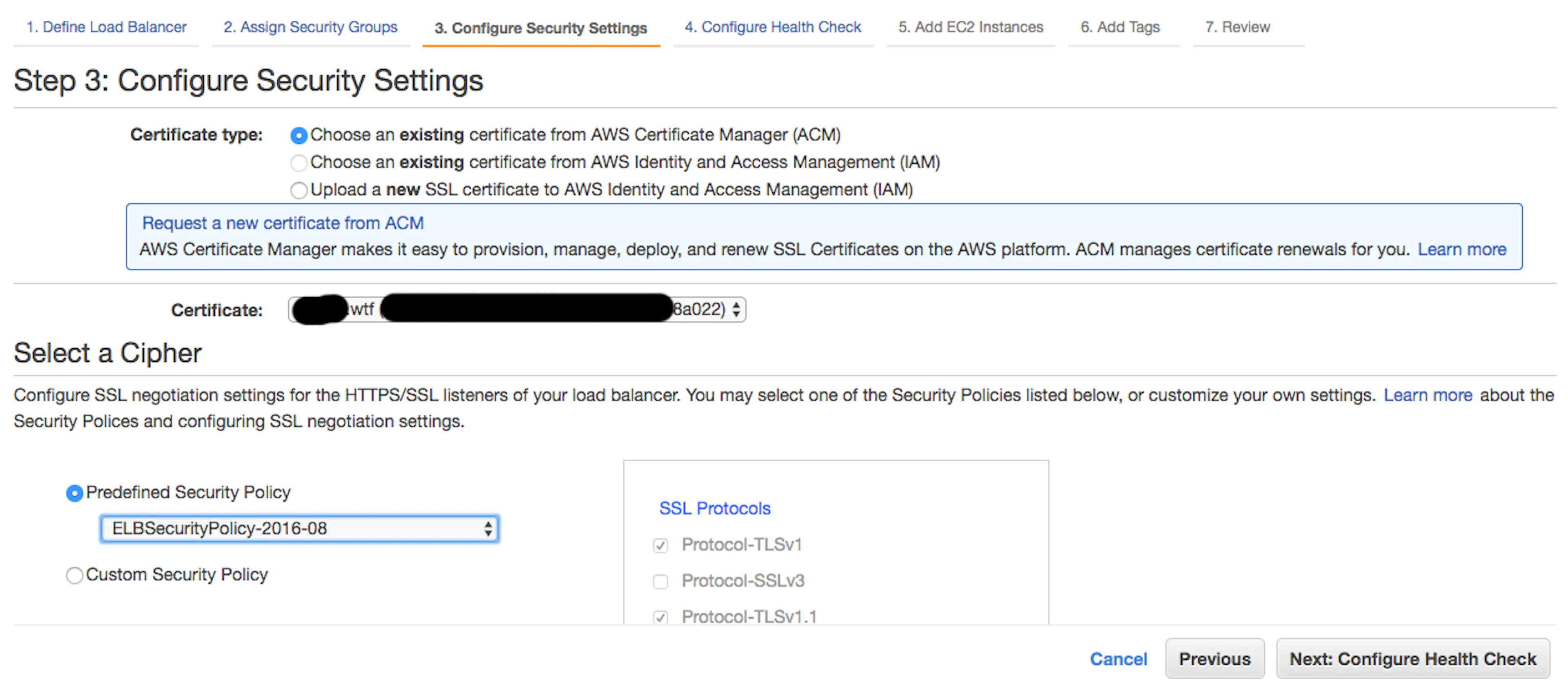
Note: Select existing SSL certificate & Select the latest ELBSecurityPolicy
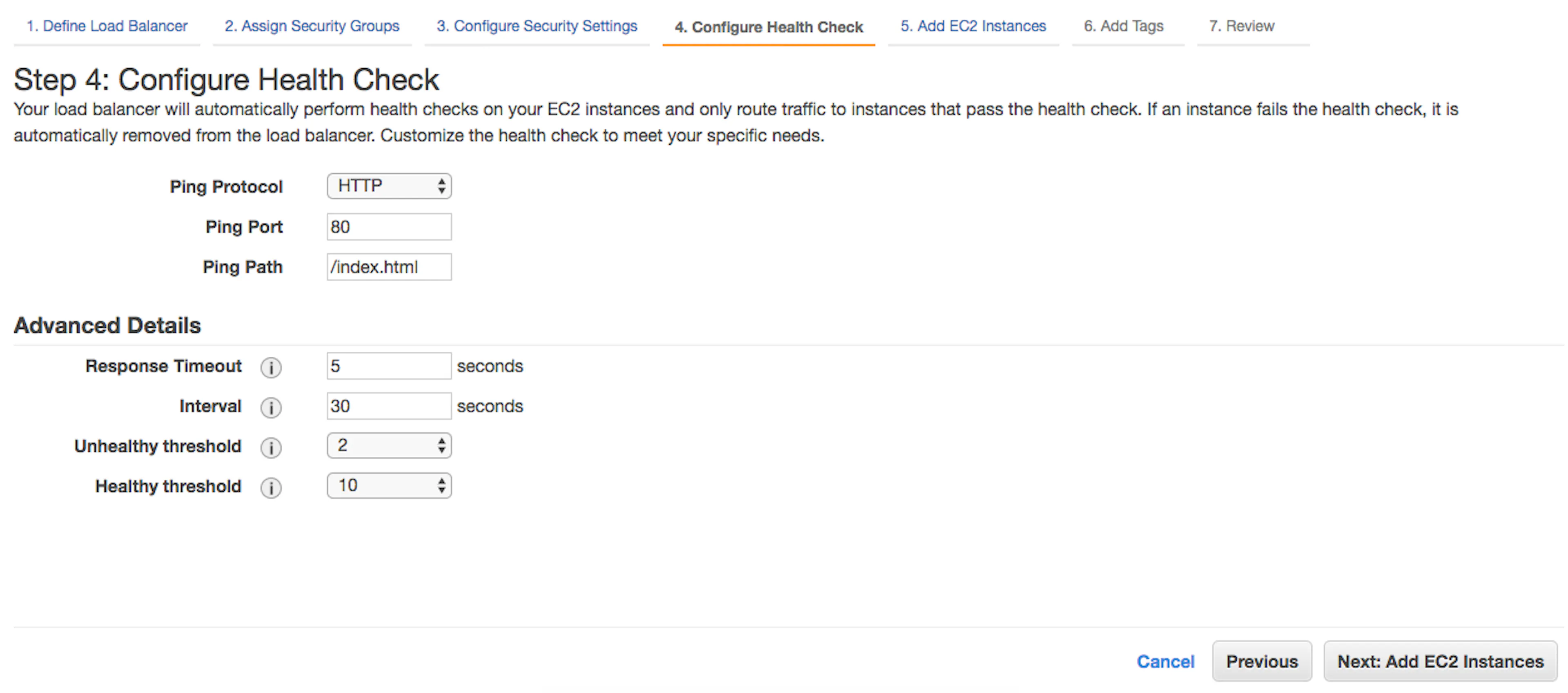
Note: Make sure you have an “Index.html” loaded into your Elastic beanstalk server. Follow this link
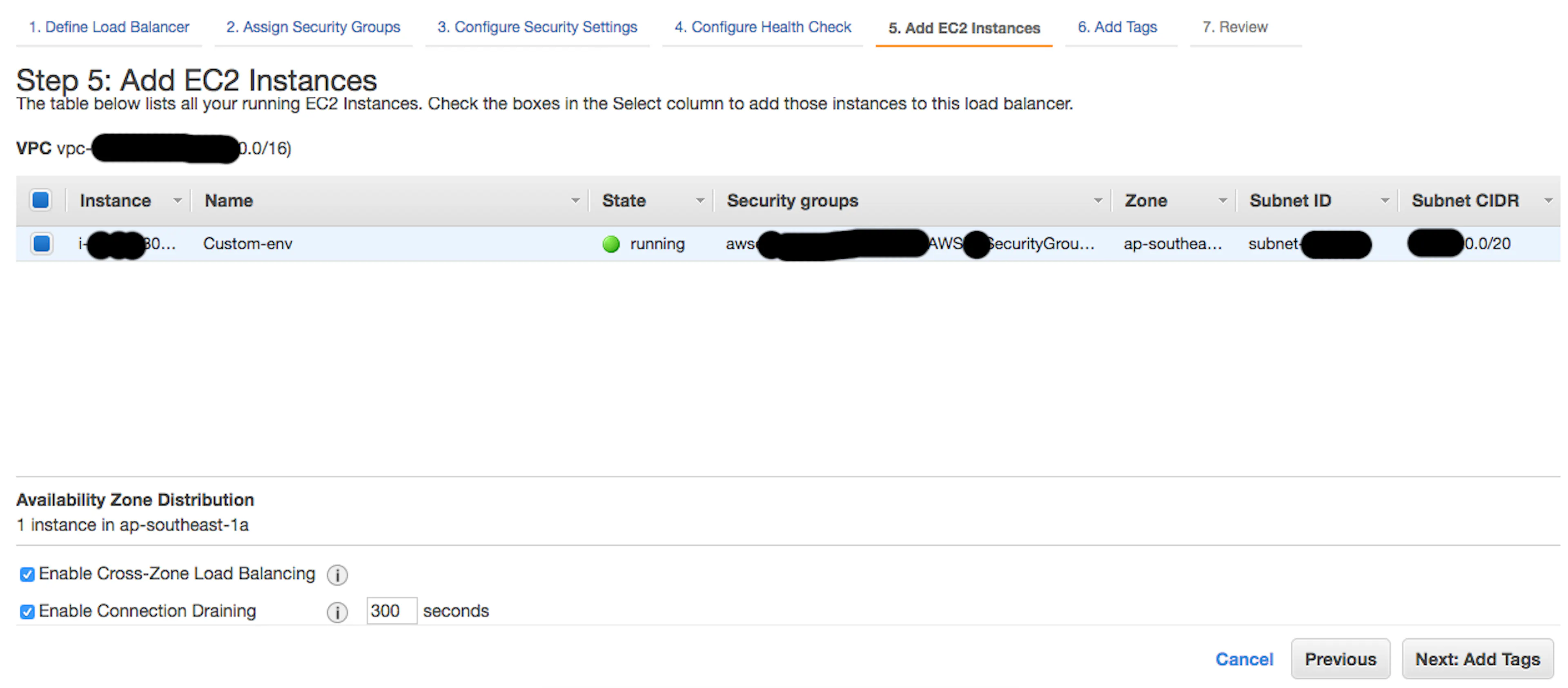
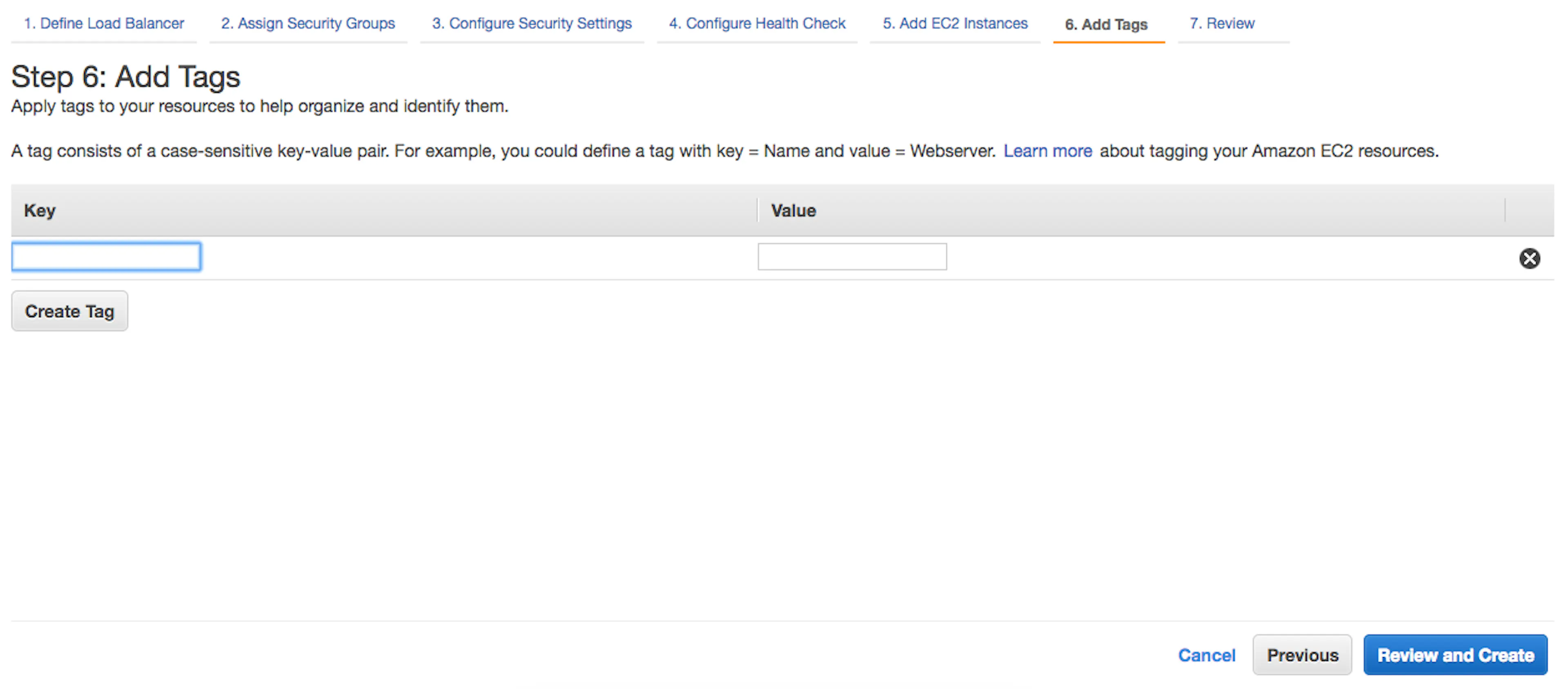
Note: Leave add tags empty
8. Add https Inbound entry to security group to which elastic beanstalk is associated.
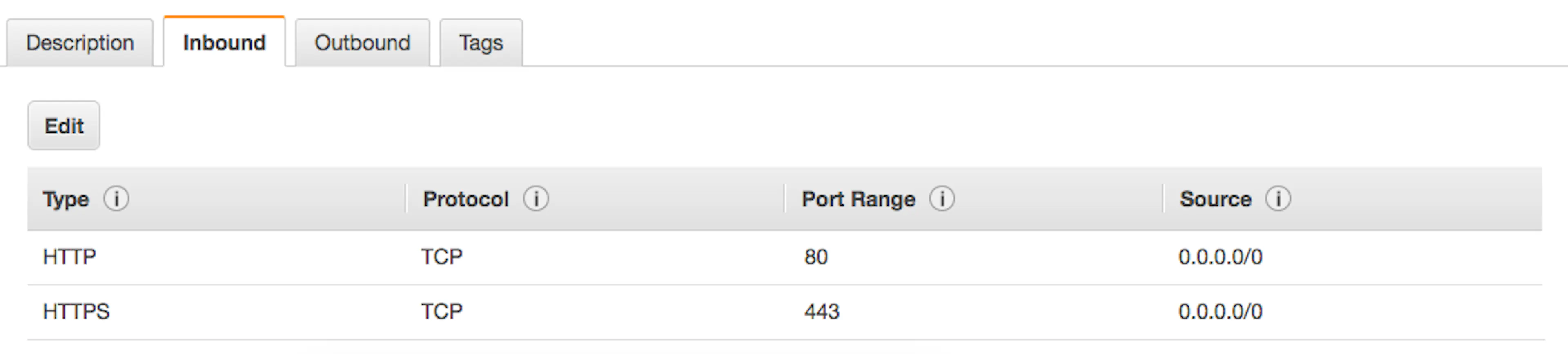
9. Copy the DNS name of load balancer
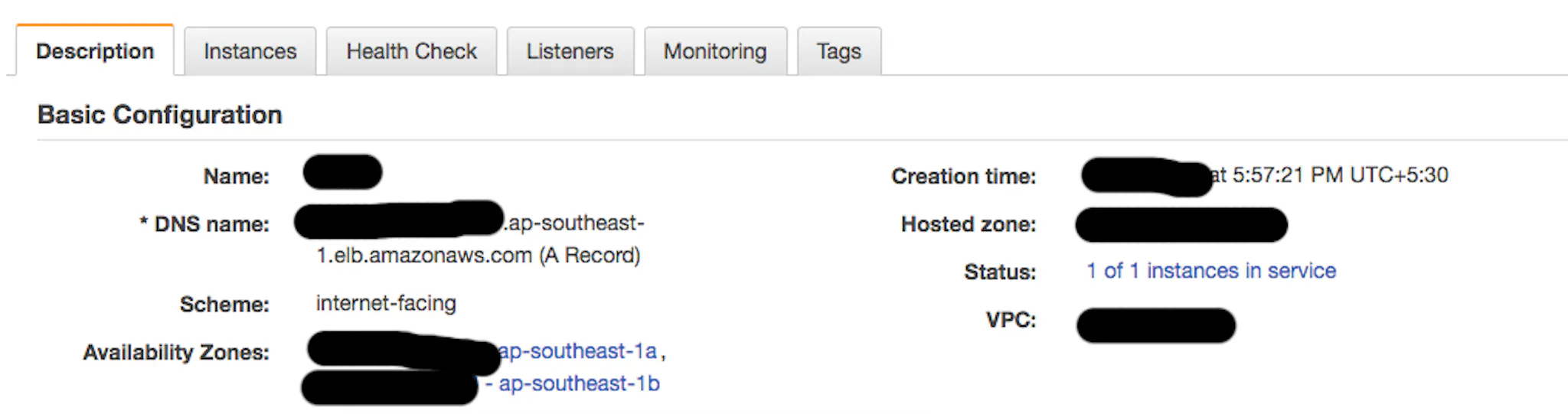
10. Map it on Godaddy. Add a CNAME record. I have added a CNAME as bots. Hence my URL will look something like this “https://bots.example.com”
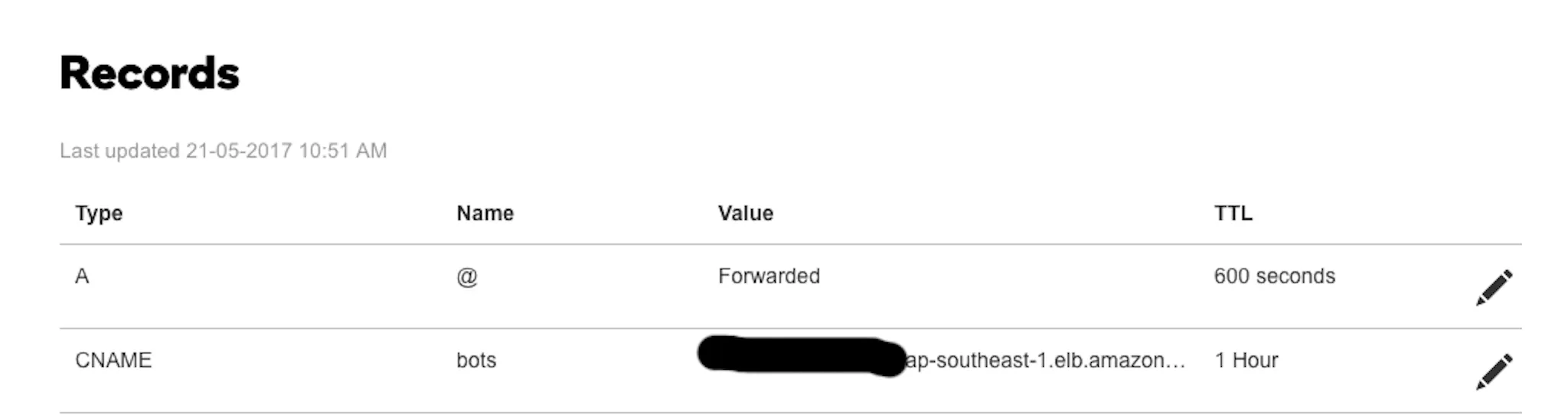
11. Wait for few minutes! Your domain is now HTTPS!! Cheers!
Thanks for reading! :) If you enjoyed this article, hit that heart button below ❤ Would mean a lot to me and it helps other people see the story.
Say Hello OnInstagram | Twitter | Facebook | LinkedIN