01
Install Glint
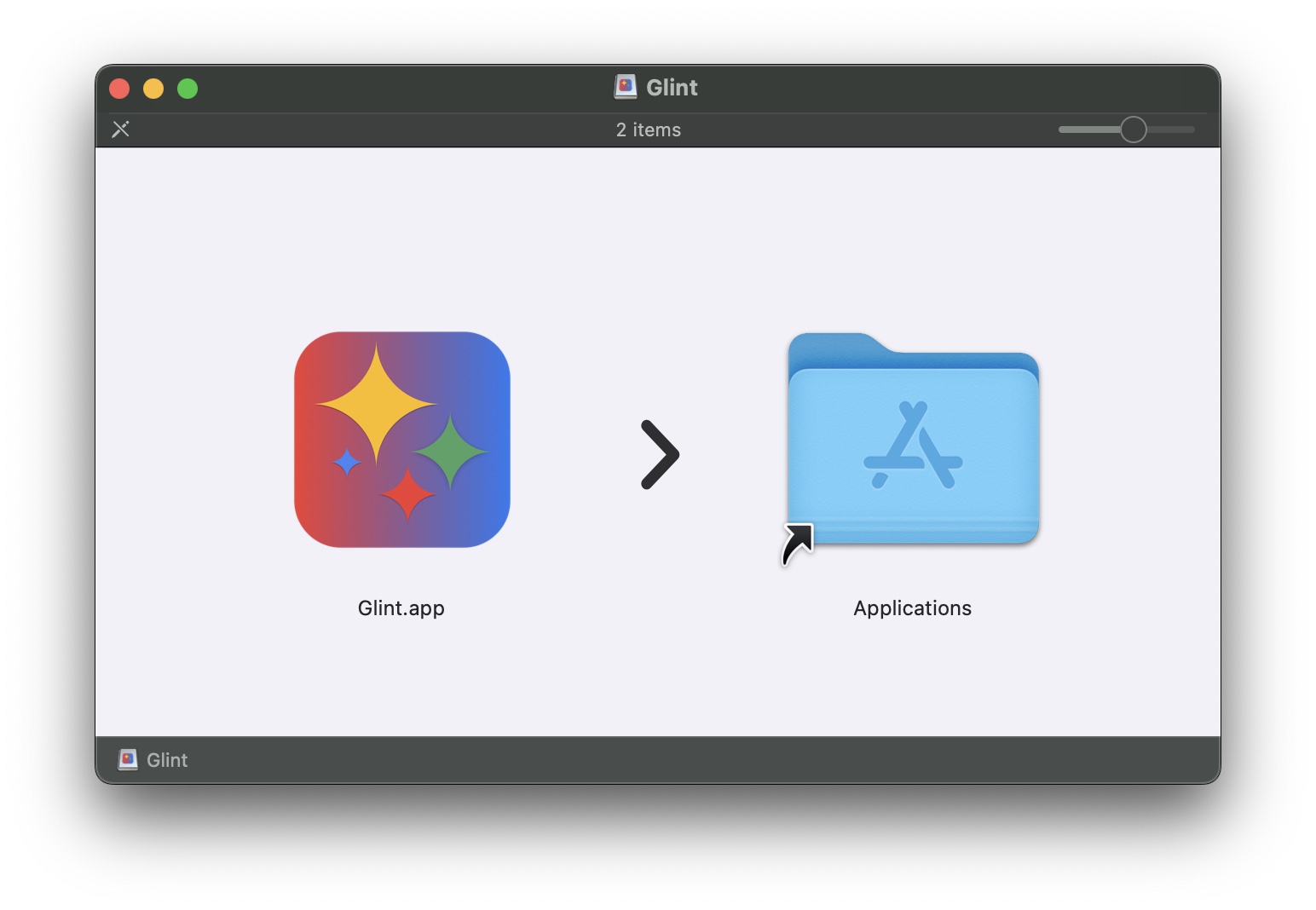
Download the app, move it to Applications, and allow it in macOS when prompted.
01
Download the app, move it to Applications, and allow it in macOS when prompted.
02
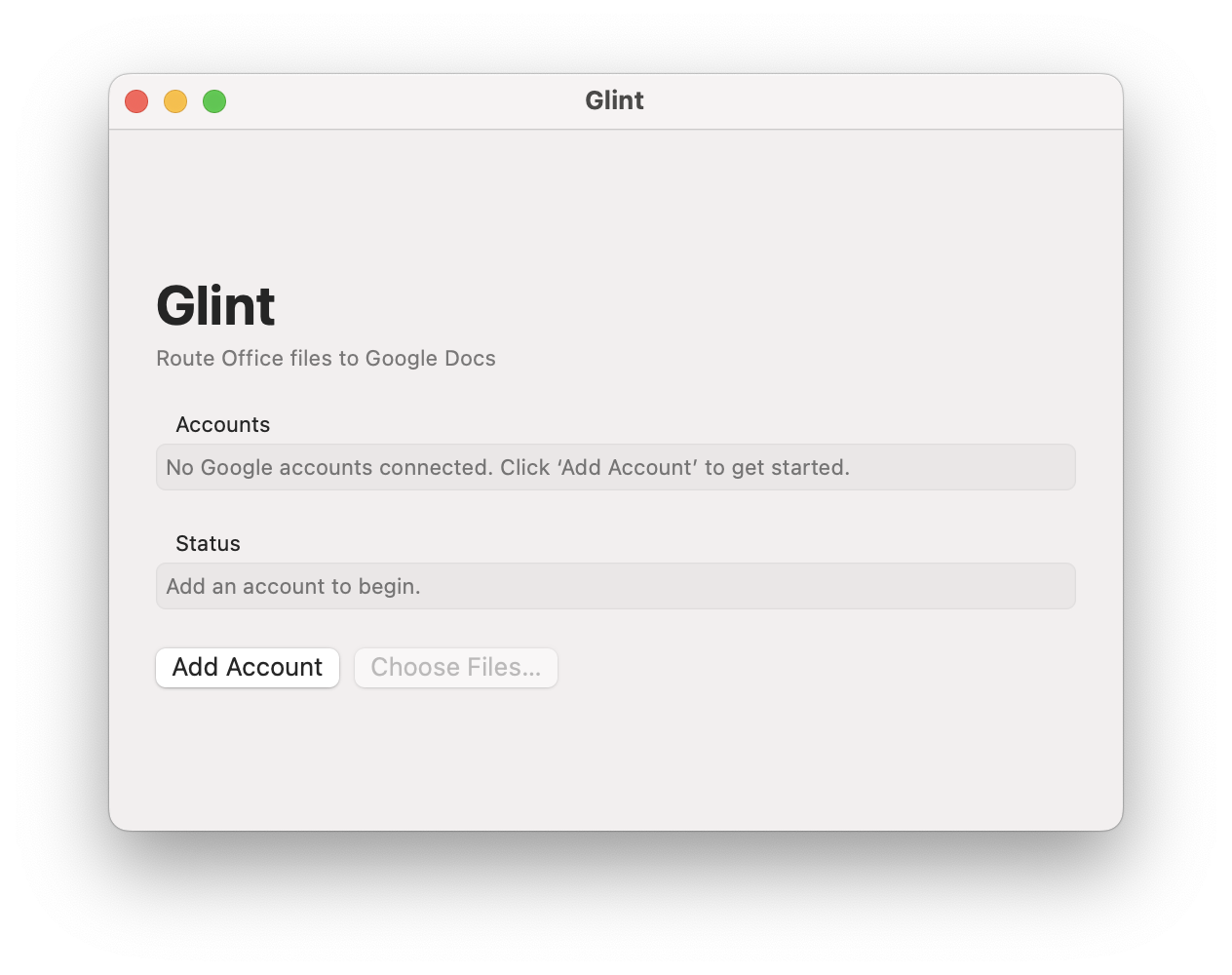
Go to Launchpad and run Glint. Add your Google account.
03
Authorize Glint with Google. You need to do this only once.

04
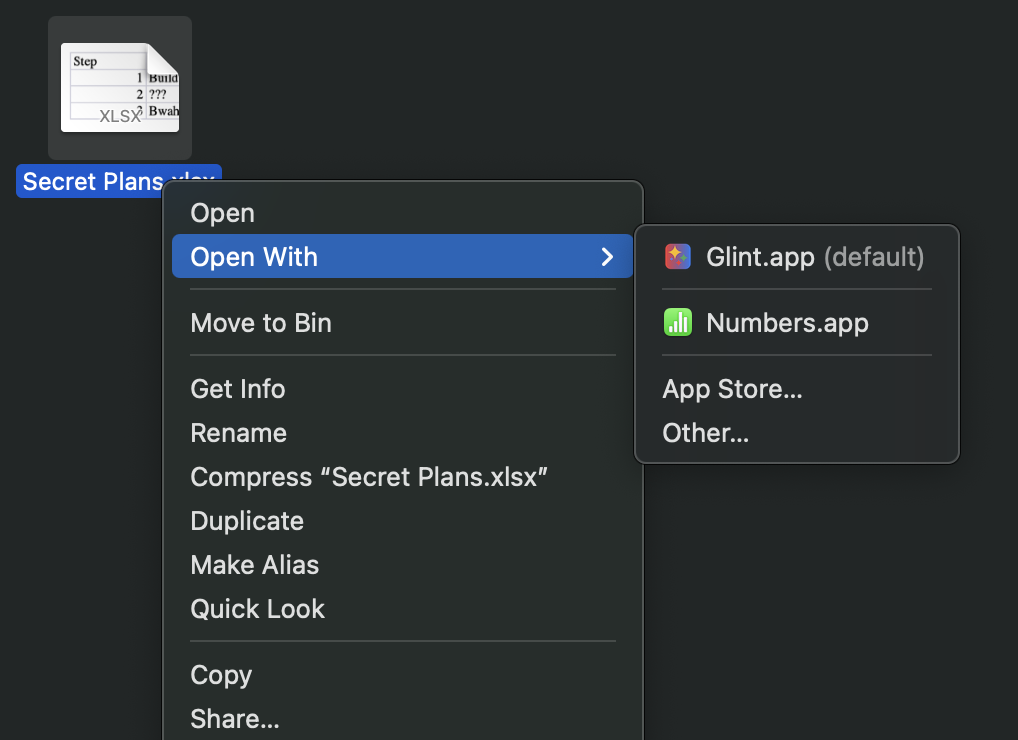
In Finder, click a supported Microsoft Office file you want to work on. Use the context menu to open with Glint. You can also drag files into the app or into the Dock icon.
05
Your document gets uploaded and opens in Google Docs. (Opening the same file again goes back to the same document in Google Docs without re-uploading it)
06
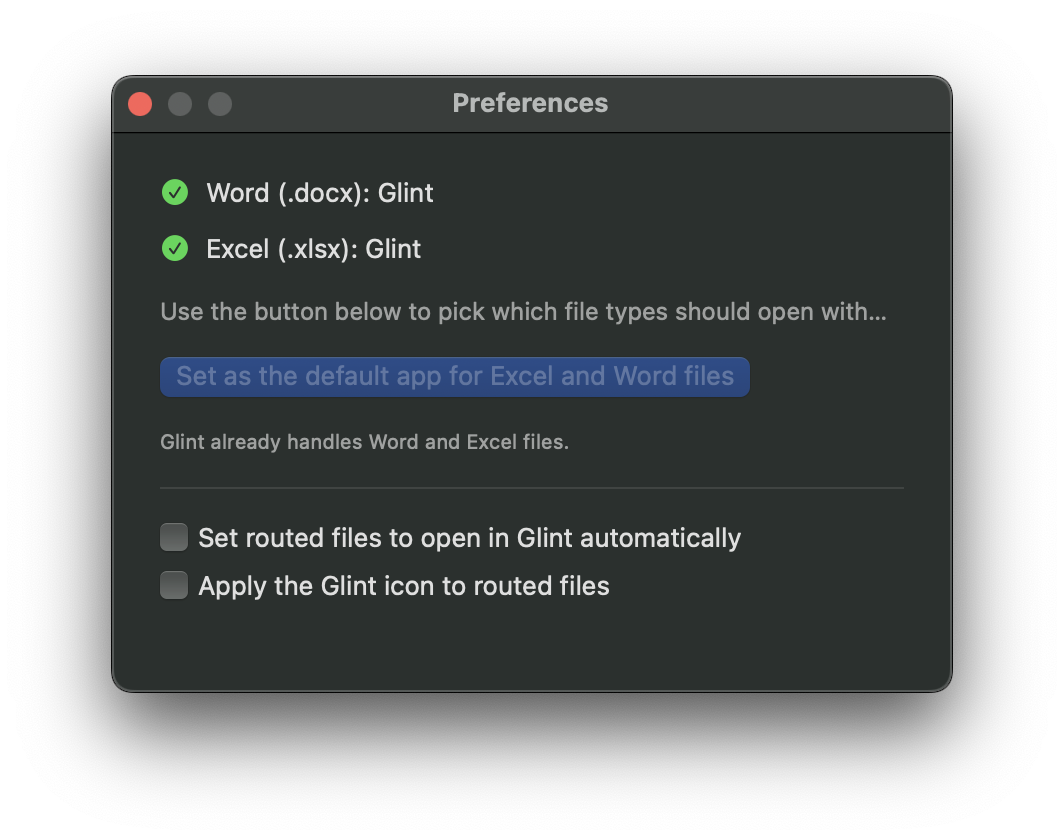
Set Glint as the default app for opening documents under preferences. So you just need to double-click your files to open in Google Docs. Hit Cmd+, to get the preferences panel.