


Remove noise from audio and video files using DeepFilterNet. This CLI tool (dfm) provides a simple interface for applying state-of-the-art deep learning-based noise reduction to multimedia files.
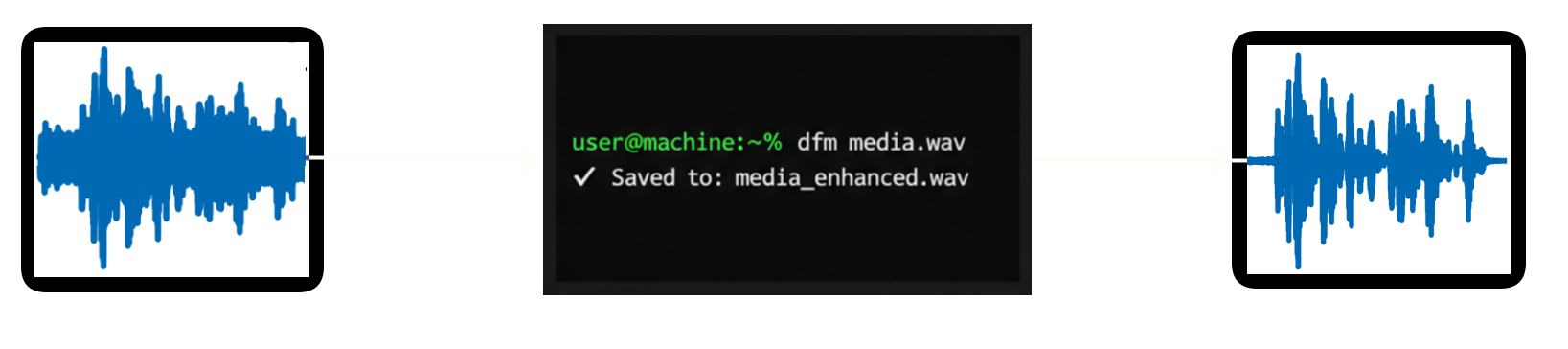
Features
- Audio Support: WAV, MP3, FLAC, OGG, M4A, AAC, WMA
- Video Support: MP4, MKV, AVI, MOV, WebM, FLV, WMV, M4V
- Easy CLI: Simple command-line interface (
dfm) - Auto-detection: Automatically detects file type
- Batch Processing: Process multiple files at once
Installation
From PyPI
pip install deepfilter-multimedia
From Source
# Clone the repository
git clone https://github.com/svemyh/deepfilter-multimedia.git
cd deepfilter-multimedia

# Install dependencies
pip install -e .
Requirements
- Python 3.8+
- PyTorch 1.9+
- FFmpeg (for video processing)
- DeepFilterNet
Install FFmpeg:
# Ubuntu/Debian
sudo apt install ffmpeg

# macOS
brew install ffmpeg

# Windows
# Download from https://ffmpeg.org/download.html
Usage
Basic Usage
Process a single audio or video file:
The enhanced file will be saved to output/input_enhanced.mp4.
Specify Output Path
dfm input.mp4 -o output/clean.mp4
Process Multiple Files
dfm video1.mp4 video2.mkv audio1.wav
All files will be saved to the output/ directory.
Quiet Mode
Disable progress messages:
Help
Examples
Clean noisy interview recording
dfm noisy_interview.mp4 -o clean_interview.mp4
Process podcast audio
Batch process multiple videos
dfm video1.mkv video2.mp4 video3.avi
Use as Python module
from deepfilter_multimedia.core import process_file

# Process a file
output_path = process_file("noisy_video.mp4", "clean_video.mp4")
print(f"Enhanced video saved to: {output_path}")
How It Works
-
For Videos:
- Extracts audio track (48kHz, stereo)
- Applies DeepFilterNet noise reduction
- Reassembles video with enhanced audio
- Keeps original video quality
-
For Audio:
- Loads audio file
- Applies DeepFilterNet noise reduction
- Saves enhanced audio
Important Notes
Sample Rate: DeepFilterNet is optimized for 48kHz audio. Input files at other sample rates (16kHz, 44.1kHz, etc.) will be automatically resampled to 48kHz before processing. Output files are saved at 48kHz.
- Quality: The model works best with 48kHz audio as it was trained on this sample rate
- Upsampling: Files below 48kHz (e.g., 16kHz phone recordings) will be upsampled - results may vary
- Downsampling: Files above 48kHz (e.g., 96kHz studio recordings) will be downsampled - some high-frequency information may be lost
Model Download: On first run, DeepFilterNet will download the pretrained model (~50MB). This may take a few moments.
Attribution
This project is based on DeepFilterNet by Hendrik Schröter et al.
If you use this tool, please cite the original DeepFilterNet papers:
@inproceedings{schroeter2022deepfilternet,
  title={{DeepFilterNet}: A Low Complexity Speech Enhancement Framework for Full-Band Audio based on Deep Filtering},
  author={Schröter, Hendrik and Escalante-B., Alberto N. and Rosenkranz, Tobias and Maier, Andreas},
  booktitle={ICASSP 2022 IEEE International Conference on Acoustics, Speech and Signal Processing (ICASSP)},
  year={2022},
  organization={IEEE}
}
License
This project is licensed under the MIT License - see the LICENSE file for details.
DeepFilterNet is dual-licensed under MIT and Apache 2.0 licenses.
Contributing
Contributions are welcome! Please feel free to submit a Pull Request.
Links
Troubleshooting
Sample Rate Issues
Q: My audio is 44.1kHz (CD quality). Will it work?
A: Yes! It will be automatically resampled to 48kHz. Quality should be excellent since you're only changing sample rate slightly.
Q: My recording is 16kHz (phone/voice). Will noise reduction work?
A: Yes, but results may vary. The model is trained on 48kHz, so upsampling from 16kHz may not capture all the detail the model expects. Try it and see - many users report good results even with lower sample rates.
Q: Why is my output always 48kHz?
A: DeepFilterNet is specifically trained on 48kHz audio and cannot operate at other sample rates. This is a fundamental limitation of the model architecture.
FFmpeg Issues
FFmpeg not found:
Make sure FFmpeg is installed and available in your PATH:
CUDA/GPU Support
For GPU acceleration, install PyTorch with CUDA support:
pip install torch torchaudio --index-url https://download.pytorch.org/whl/cu118