ADK Memory Bot with Vertex AI Integration
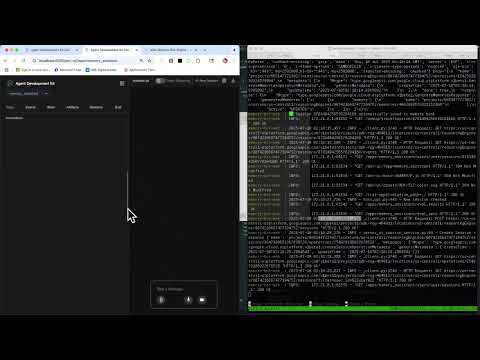
A conversational AI agent built with Google's Agent Development Kit (ADK) that maintains persistent memory across conversations using Vertex AI Memory Bank.
Features
- Persistent Memory: Conversations are stored in Vertex AI Memory Bank for long-term recall
- Multiple Interfaces: Web UI and API server modes via standard ADK commands
- Session Management: Automatic session creation and management
- Memory Search: Semantic search across conversation history
- Google Cloud Integration: Built on Vertex AI and Google Cloud Platform
- Dockerized Deployment: Easy container-based deployment
Architecture
adk-with-memorybank/
├── agents/
│   └── memory_assistant/
│       ├── __init__.py          # Agent module imports
│       └── agent.py             # Main agent definition with PreloadMemoryTool
├── .env                         # Environment configuration
├── requirements.txt             # Python dependencies
├── docker-compose.yml           # Container orchestration
└── Dockerfile                   # Container build instructions
Prerequisites
- Google Cloud Project with Vertex AI enabled
- Google Cloud CLI installed and configured
- Authentication set up (ADC or service account)
- Python 3.11+ installed (for local development)
- Docker & Docker Compose (for containerized deployment)
- Required permissions for Vertex AI and Agent Engine
Google Cloud Setup
1. Install Google Cloud CLI
macOS:
# Using Homebrew
brew install google-cloud-sdk

# Using installer
curl https://sdk.cloud.google.com | bash
Linux:
# Using snap
sudo snap install google-cloud-cli --classic

# Using installer
curl https://sdk.cloud.google.com | bash
Windows: Download the installer from Google Cloud SDK
2. Initialize and Authenticate
# Initialize gcloud CLI
gcloud init

# This will:
# - Log you into Google Cloud
# - Set your default project
# - Configure your default compute region/zone

# Verify authentication
gcloud auth list
gcloud config list project
3. Application Default Credentials (ADC)
Why use ADC?
- Security: No need to manage service account keys manually
- Convenience: Works seamlessly with Google Cloud libraries
- Best Practice: Recommended authentication method for development
- Automatic: Libraries automatically discover and use credentials
Set up ADC:
# Create Application Default Credentials
gcloud auth application-default login

# This creates credentials at:
# - Linux/macOS: ~/.config/gcloud/application_default_credentials.json
# - Windows: %APPDATA%\gcloud\application_default_credentials.json
Verify ADC setup:
# Test ADC
gcloud auth application-default print-access-token

# Should return an access token
4. Enable Required APIs
# Enable Vertex AI API
gcloud services enable aiplatform.googleapis.com

# Enable other required APIs
gcloud services enable compute.googleapis.com
gcloud services enable storage.googleapis.com
Installation
Option 1: Docker Deployment (Recommended)
- Clone the repository:
git clone <repository-url>
cd adk-with-memorybank
- Set up environment variables:
# Create .env file in project root
cat > .env << EOF
GOOGLE_CLOUD_PROJECT=your-project-id
GOOGLE_CLOUD_LOCATION=us-central1
AGENT_ENGINE_ID=
EOF

# Also export for local commands
export GOOGLE_CLOUD_PROJECT=your-project-id
export GOOGLE_CLOUD_LOCATION=us-central1
export GOOGLE_GENAI_USE_VERTEXAI=TRUE
- Create Agent Engine (Required):
# Create the Agent Engine first (ensure you have GOOGLE_CLOUD_PROJECT set)
docker-compose run --rm memory-bot-web python create_agent_engine.py

# This will:
# 1. Create a new Agent Engine in Google Cloud
# 2. Update your .env file with the AGENT_ENGINE_ID
# 3. Show you the Agent Engine details
- Choose Authentication Method:
Option A: Use Application Default Credentials (Recommended)
# Set up ADC (see Google Cloud Setup section above)
gcloud auth application-default login

# Update docker-compose.yml to mount ADC
# (see Docker Credential Mounting section below)
Option B: Use Service Account Key
# Create service account
gcloud iam service-accounts create adk-memory-bot \
  --display-name="ADK Memory Bot Service Account"

# Grant necessary permissions
gcloud projects add-iam-policy-binding your-project-id \
  --member="serviceAccount:adk-memory-bot@your-project-id.iam.gserviceaccount.com" \
  --role="roles/aiplatform.user"

# Create and download key
gcloud iam service-accounts keys create credentials/service-account.json \
  --iam-account=adk-memory-bot@your-project-id.iam.gserviceaccount.com

# Create credentials directory
mkdir -p credentials
- Start the services:
# Start web interface
docker-compose up memory-bot-web

# OR start API server
docker-compose up memory-bot-api

# OR start both
docker-compose up
Note: The
agentsdirectory is mounted directly to/app/agentsin the containers, and logs are mounted to/app/logs. This focused mounting approach ensures ADK finds your agents while keeping the container clean.
Expected Output: When successful, you should see:
ADK Web Server started

For local testing, access at http://localhost:8000.
Docker Credential Mounting
Method 1: Application Default Credentials (Recommended)
Update your docker-compose.yml to mount ADC:
services:
  memory-bot-web:
    # ... other configuration
    volumes:
      - ~/.config/gcloud:/root/.config/gcloud:ro  # Mount ADC
      - ./logs:/app/logs
    environment:
      # Remove GOOGLE_APPLICATION_CREDENTIALS if using ADC
      GOOGLE_CLOUD_PROJECT: ${GOOGLE_CLOUD_PROJECT}
      GOOGLE_CLOUD_LOCATION: ${GOOGLE_CLOUD_LOCATION}
      GOOGLE_GENAI_USE_VERTEXAI: "TRUE"
For different operating systems:
Linux/macOS:
volumes:
  - ~/.config/gcloud:/root/.config/gcloud:ro
Windows:
volumes:
  - %APPDATA%\gcloud:/root/.config/gcloud:ro
Method 2: Service Account Key
Keep the existing configuration:
services:
  memory-bot-web:
    # ... other configuration
    volumes:
      - ./credentials:/app/credentials:ro
      - ./logs:/app/logs
    environment:
      GOOGLE_APPLICATION_CREDENTIALS: /app/credentials/service-account.json
Method 3: Environment Variable Key (Not Recommended)
For CI/CD or when file mounting is not possible:
services:
  memory-bot-web:
    # ... other configuration
    environment:
      GOOGLE_APPLICATION_CREDENTIALS_JSON: ${GOOGLE_SERVICE_ACCOUNT_KEY_JSON}
Verification
Test your Docker authentication:
# Test with ADC
docker-compose run memory-bot-web gcloud auth application-default print-access-token

# Test with service account
docker-compose run memory-bot-web gcloud auth activate-service-account --key-file=/app/credentials/service-account.json
Quick Test
Verify the agent structure is correct:
# Test agents directory structure
docker-compose run --rm memory-bot-web ls -la /app/agents/

# Should show: memory_assistant/ directory and __init__.py

# Test agent loading (ADK-compatible)
docker-compose run --rm memory-bot-web python -c "
import sys
sys.path.append('/app')
from agents import root_agent
print('Agent loaded successfully:', root_agent.name)
"

# Test ADK can find the agent
docker-compose run --rm memory-bot-web adk list agents

# Should output: agents (your mounted agents directory)
Logs and Development
- Agents: Changes to agents are immediately reflected in running containers
- Logs: Created in
/app/logsinside containers and visible in your local./logsdirectory - Development: Clean, focused mounting ensures ADK works correctly while keeping development files accessible
Understanding Memory Persistence: Deep Dive
How Sessions and Memory Work Together
The ADK memory system uses a two-tier approach for optimal performance and long-term memory:
1. Session Service (VertexAiSessionService) - Immediate State
- Purpose: Real-time conversation storage
- Data Structure: Events array with user/agent message exchanges
- Lifecycle: Created per conversation, active during chat
- Access: Direct retrieval by session ID
- Performance: Fast, immediate access to current conversation
2. Memory Bank (VertexAiMemoryBankService) - Long-term Storage
- Purpose: Semantic memory across all conversations
- Data Structure: Processed, searchable memory chunks
- Lifecycle: Persistent, grows over time
- Access: Semantic search using vector embeddings
- Performance: Intelligent context retrieval from history
The Automatic Memory Transfer System
The memory_assistant agent includes an after_agent_callback that automatically handles memory persistence:
async def auto_save_to_memory_callback(callback_context):
    """Automatically save completed sessions to memory bank"""
    # Extract session information from callback context
    session_id = callback_context._invocation_context.session.id
    user_id = callback_context._invocation_context.user_id
    app_name = callback_context._invocation_context.session.app_name

    # Get session directly from invocation context (has current events)
    session = callback_context._invocation_context.session

    # Check if session has meaningful content (at least 2 events)
    if hasattr(session, 'events') and len(session.events) >= 2:
        # Transfer to memory bank
        await memory_service.add_session_to_memory(session)
        print(f"✅ Session {session_id} automatically saved to memory bank")
Critical Technical Details
Why Direct Session Access Works
Problem: When using session_service.get_session(), the retrieved session often has empty events because the callback runs before the session is fully persisted.
Solution: The callback context contains the live session with all current events:
# ❌ Wrong - retrieves from service (may be empty)
session = await session_service.get_session(app_name, user_id, session_id)

# ✅ Correct - uses live session from context
session = callback_context._invocation_context.session
Session Structure Understanding
Sessions contain an events array, not contents:
# Check for meaningful content
if hasattr(session, 'events') and session.events:
    content_count = len(session.events)
    has_content = content_count >= 2  # User message + agent response
Memory Transfer Timing
The callback runs immediately after the agent completes its response, ensuring:
- Immediate availability: New conversations are instantly available for memory recall
- No data loss: Every conversation is automatically preserved
- Seamless integration: No manual intervention required
Memory Usage Flow (Detailed)
- User sends message → Stored in VertexAiSessionService as event
- PreloadMemoryTool searches → Memory Bank for relevant context
- Agent processes → Combines current context with retrieved memories
- Agent responds → Response stored in VertexAiSessionService as event
- Callback triggers →
auto_save_to_memory_callbackexecutes - Session transferred → Automatically moved to Memory Bank
- Future conversations → Can access this memory through semantic search
Troubleshooting Memory Issues
Common Problems and Solutions
1. PreloadMemoryTool Not Working
- Symptom: Tool returns code instead of executing
- Cause: No memories exist yet, or memory transfer failed
- Solution: Ensure automatic memory transfer is working (check logs)
2. Empty Session Events
- Symptom: Sessions appear empty in callback
- Cause: Using session service retrieval instead of callback context
- Solution: Use
callback_context._invocation_context.session
3. Memory Not Persisting
- Symptom: New conversations don't recall previous context
- Cause: Memory transfer callback not triggering or failing
- Solution: Check callback logs and ensure proper service configuration
Diagnostic Commands
# Test memory system
docker-compose run --rm memory-bot-web python check_sessions_memory.py

# Check callback logs
docker-compose logs memory-bot-web | grep "Auto-saving\|✅\|❌"
Why This Design Works
- Performance: Sessions for immediate access, Memory Bank for historical context
- Reliability: Automatic transfer ensures no data loss
- Scalability: Semantic search scales better than session enumeration
- User Experience: Seamless memory across conversations
- Developer Experience: No manual memory management required
Status: ✅ Memory System Fully Operational
The memory persistence system is now working correctly:
- Sessions are automatically created and managed
- Memory transfer happens immediately after each conversation
- PreloadMemoryTool successfully retrieves relevant context
- All conversations are preserved for future reference
Option 2: Local Development
- Install dependencies:
pip install -r requirements.txt
- Configure environment:
export GOOGLE_CLOUD_PROJECT=your-project-id
export GOOGLE_CLOUD_LOCATION=us-central1
export GOOGLE_GENAI_USE_VERTEXAI=TRUE
- Run ADK commands:
# Web interface (specify agents directory)
adk web agents

# API server (specify agents directory)
adk api_server agents

# CLI interface (specify specific agent)
adk run agents/memory_assistant
Usage
Docker Deployment
The application is designed to be run with standard ADK commands in Docker containers:
Web Interface:
# Start web interface container
docker-compose up memory-bot-web- Access at: http://localhost:8000
- Interactive browser-based chat interface
- Real-time conversation with memory recall
- Session management controls
API Server:
# Start API server container
docker-compose up memory-bot-api- API available at: http://localhost:8001
- RESTful API for programmatic access
- Same memory capabilities as web interface
Both Services:
# Start both web and API
docker-compose up- Web UI: http://localhost:8000
- API: http://localhost:8001
API Endpoints
When running the API server, the following endpoints are available:
Test with cURL:
Chat with the agent:
curl -X POST http://localhost:8001/chat \
  -H "Content-Type: application/json" \
  -d '{"message": "Hello, remember that I like pizza"}'
Check health:
curl http://localhost:8001/health
Environment Configuration
Required environment variables in .env:
# Google Cloud / Vertex AI Configuration
GOOGLE_CLOUD_PROJECT=your-project-id
GOOGLE_CLOUD_LOCATION=us-central1
GOOGLE_GENAI_USE_VERTEXAI=TRUE

# ADK Configuration
APP_NAME=adk-memory-bot
DEFAULT_USER_ID=user_123
How It Works
Memory Architecture (Technical Deep Dive)
The system uses a sophisticated two-tier memory architecture:
1. Session Layer (VertexAiSessionService)
- Function: Immediate conversation state management
- Storage: Events array with structured user/agent exchanges
- Lifecycle: Active during conversation, persisted in real-time
- Access Pattern: Direct session ID lookup for current conversation
2. Memory Layer (VertexAiMemoryBankService)
- Function: Long-term semantic memory storage
- Storage: Processed, vector-indexed conversation summaries
- Lifecycle: Persistent across all conversations, continuously growing
- Access Pattern: Semantic search using vector embeddings
3. Integration Layer (Callback System)
- Function: Automatic transfer from sessions to memory
- Trigger: After each agent response completion
- Data Source: Live session from callback context (not service retrieval)
- Process: Validates content and transfers to memory bank
Detailed Conversation Flow
1. User Message Input
   ↓
2. Session Service (store user message as event)
   ↓
3. PreloadMemoryTool (semantic search in Memory Bank)
   ↓ (relevant context retrieved)
4. Agent Processing (combines session context + memory context)
   ↓
5. Agent Response Generated
   ↓
6. Session Service (store agent response as event)
   ↓
7. After Agent Callback (triggered automatically)
   ↓
8. Session Transfer (callback context session → Memory Bank)
   ↓
9. Ready for Next Conversation (memory available for recall)
Technical Implementation Details
Callback Context Access
The system uses direct session access from the callback context:
# Extract from callback context (has live events)
session = callback_context._invocation_context.session
session_id = callback_context._invocation_context.session.id
user_id = callback_context._invocation_context.user_id
app_name = callback_context._invocation_context.session.app_name
Session Event Structure
Sessions contain events, not contents:
# Session structure
session.events = [
    Event(content=Content(parts=[Part(text='user message')], role='user')),
    Event(content=Content(parts=[Part(text='agent response')], role='model'))
]
Memory Transfer Validation
Only meaningful sessions are transferred:
# At least 2 events (user message + agent response)
has_content = len(session.events) >= 2
Agent Configuration
The agent (agents/memory_assistant/agent.py) includes:
- Model: gemini-2.0-flash-exp
- Tools: PreloadMemoryTool for automatic memory access
- Instructions: Specialized prompts for memory-aware conversations
- Memory Integration: Seamless access to conversation history
Key Learnings and Best Practices
Critical Implementation Insights
1. Callback Context is Key
The most important discovery: session data must be accessed from the callback context, not retrieved from the session service:
# ❌ This often returns empty sessions
session = await session_service.get_session(app_name, user_id, session_id)

# ✅ This always has the current conversation events
session = callback_context._invocation_context.session
2. Sessions Use Events, Not Contents
Sessions have an events array structure:
# ❌ Wrong assumption
if session.contents:
    process_content(session.contents)

# ✅ Correct implementation
if session.events:
    process_events(session.events)
3. Memory Transfer Requires Meaningful Content
Only transfer sessions with actual conversation exchanges:
# Check for at least user message + agent response
has_content = len(session.events) >= 2
Best Practices for Memory-Enabled Agents
Agent Design
- Instructions: Write clear instructions for memory usage
- Tool Integration: Trust the PreloadMemoryTool to find relevant context
- Response Style: Naturally reference memories without explicitly mentioning "memory search"
Callback Implementation
- Error Handling: Always wrap in try-catch with detailed logging
- Content Validation: Check for meaningful content before transfer
- Environment Variables: Use environment variables for service configuration
Development Workflow
- Test Memory Transfer: Ensure callbacks are working (check logs)
- Verify Memory Retrieval: Confirm PreloadMemoryTool is finding context
- Validate Agent Behavior: Test that agents use memories naturally
Common Pitfalls and Solutions
Problem: PreloadMemoryTool Returns Code
Cause: No memories exist yet, or memory transfer is failing Solution: Check callback logs, ensure sessions are being transferred
Problem: Sessions Appear Empty
Cause: Using session service retrieval instead of callback context
Solution: Always use callback_context._invocation_context.session
Problem: Memory Not Persisting
Cause: Callback errors or content validation failures Solution: Review callback logs, ensure proper service configuration
Testing and Validation
Quick Memory Test
# Start the bot
docker-compose up memory-bot-web

# Have a conversation, then check logs
docker-compose logs memory-bot-web | grep "Auto-saving\|✅\|❌"

# Should see: ✅ Session {id} automatically saved to memory bank
Memory Retrieval Test
# In a new conversation, ask about previous topics
# The agent should reference past conversations naturally
Development
Project Structure
The project follows Google ADK conventions:
agents/memory_assistant/: Standard ADK agent directoryagents/memory_assistant/__init__.py: Imports root_agentagents/memory_assistant/agent.py: Agent definition with memory tools- Standard ADK commands work:
adk web,adk api_server,adk run
Extending the Agent
- Add new tools to
agents/memory_assistant/agent.py:
from google.adk.tools import FunctionTool

def my_custom_tool():
    """Custom tool description"""
    return "tool result"

root_agent = adk.Agent(
    name="memory_assistant",
    model="gemini-2.0-flash-exp",
    tools=[
        adk.tools.preload_memory_tool.PreloadMemoryTool(),
        FunctionTool(my_custom_tool)
    ]
)
- Modify agent instructions for new behaviors
- Update Docker environment as needed
Testing
Test the agent locally:
# Quick test with CLI (specify full agent path)
adk run agents/memory_assistant

# Test web interface (specify agents directory)
adk web agents
# Visit http://localhost:8000

# Test API server (specify agents directory)
adk api_server agents
# API at http://localhost:8000
Deployment
Docker Compose Services
The docker-compose.yml defines two services:
- memory-bot-web: Web interface on port 8000
- memory-bot-api: API server on port 8001
Both services:
- Use the same Docker image with ADK installed
- Mount Google Cloud credentials
- Use standard ADK commands (
adk web,adk api_server) - Share the same agent code
Production Considerations
- Authentication: Use service account keys or Workload Identity
- Scaling: Run multiple API instances behind load balancer
- Monitoring: Add health checks and logging
- Security: Secure credential management and network policies
Troubleshooting
Common Issues
"Directory 'memory_assistant' does not exist" Error: This means the ADK command path is incorrect. The correct format is:
# Correct: Specify agents directory (contains all agent subdirectories)
adk web agents

# Incorrect: Specify individual agent
adk web memory_assistant
"No root_agent found" Error: Check agent structure:
# Verify agent structure
ls -la agents/memory_assistant/
# Should show: __init__.py and agent.py

# Check __init__.py content
cat agents/memory_assistant/__init__.py
# Should contain: from .agent import root_agent
ADK Command Not Found:
# Ensure ADK is installed
pip install google-adk>=1.5.0

# Check installation
adk --help
Authentication Error:
# Check service account key
ls -la credentials/service-account.json

# Verify environment variables
echo $GOOGLE_CLOUD_PROJECT

# Test ADC
gcloud auth application-default print-access-token
Memory Bank Access:
# Verify Vertex AI is enabled
gcloud services list --enabled | grep aiplatform

# Check IAM permissions
gcloud auth list
Docker Issues:
# Rebuild images
docker-compose build --no-cache

# Check logs
docker-compose logs memory-bot-web
docker-compose logs memory-bot-api

# Test container structure
docker-compose run --rm memory-bot-web ls -la /app/agents/
Debug Mode
Enable debug logging:
# In .env file
GOOGLE_CLOUD_LOG_LEVEL=DEBUG

# Or export environment variable
export GOOGLE_CLOUD_LOG_LEVEL=DEBUG
Monitoring Sessions and Memory
Check Sessions and Memory Entries
Use the included utility script to inspect your ADK sessions and memory:
# Run from Docker container
docker-compose run --rm memory-bot-web python check_sessions_memory.py

# Or run locally (after setting environment variables)
python check_sessions_memory.py
Google Cloud Console
-
Agent Engine Dashboard:
- Navigate to: Google Cloud Console → AI Platform → Agent Engine
- Find your Agent Engine ID in the application logs
- View Sessions and Memory tabs
-
Using gcloud CLI:
# List sessions
gcloud ai agent-engines sessions list \
  --agent-engine=YOUR_AGENT_ENGINE_ID \
  --location=us-central1

# List memory entries
gcloud ai agent-engines memory-entries list \
  --agent-engine=YOUR_AGENT_ENGINE_ID \
  --location=us-central1
Get Agent Engine ID
# From Docker logs
docker-compose logs memory-bot-web | grep -i "agent engine"

# Or from gcloud
gcloud ai agent-engines list --location=us-central1
License
This project is licensed under the MIT License.
Acknowledgments
- Google Agent Development Kit (ADK) team
- Vertex AI and Google Cloud Platform
- Open source community contributions