🐧 Lzy – Natural Language to Bash CLI
Lzy is a command-line tool that uses AI to translate natural language into Linux bash commands, explains what the command does, and lets you choose whether to run, edit, or abort the execution.
✨ Features
- 🔁 Translates natural language into valid Bash commands.
- 📘 Explains each command in natural language.
- 🛠️ Lets you review or edit the command before execution.
- 🔐 Works with multiple AI providers.
- 🎨 Fancy terminal output with
rich.
🎥 Demo
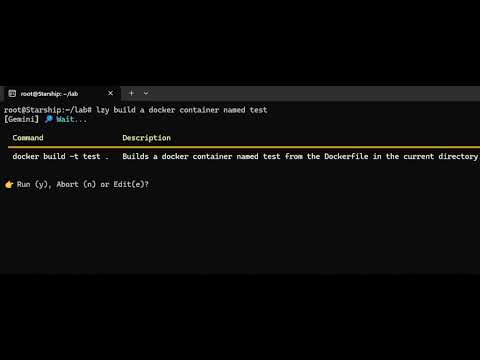
Click the image above or watch on YouTube.
🚀 Installation
🔧 Environment Variables
Lzy uses environment variables to configure the AI provider and its corresponding API key.
Required
| Variable | Description |
|---|---|
CLI_PROVIDER |
Which provider to use: gemini, openai, together,... |
*_API_KEY |
The API key for the chosen provider (see below) |
Supported Providers
| CLI_PROVIDER | Required Variable |
|---|---|
gemini |
GEMINI_API_KEY |
openai |
OPENAI_API_KEY |
together |
TOGETHER_API_KEY |
nvidia |
NVIDIA_API_KEY |
anthropic |
ANTHROPIC_API_KEY |
groq |
GROQ_API_KEY |
mistral |
MISTRAL_API_KEY |
Optional
| Variable | Description |
|---|---|
.env file |
You can use a .env file to load variables automatically (via python-dotenv) |
Example .env file:
CLI_PROVIDER=gemini
GEMINI_API_KEY=your_google_api_key_here
🧪 Usage
lzy find all PDF files in the current directoryYou’ll get a result like this:
┏━━━━━━━━━━━━━━━━━━━━━━━━━━━━━━━━━━━━━┳━━━━━━━━━━━━━━━━━━━━━━━━━━━━━━━━━━━━━━━━━━━━━━┓
┃ Command                             ┃ Description                                  ┃
┡━━━━━━━━━━━━━━━━━━━━━━━━━━━━━━━━━━━━━╇━━━━━━━━━━━━━━━━━━━━━━━━━━━━━━━━━━━━━━━━━━━━━━┩
│ find . -name '*.pdf'                │ Searches for all PDF files in the current    │
│                                     │ directory and its subdirectories.            │
└─────────────────────────────────────┴──────────────────────────────────────────────┘
Then you're prompted to choose:
y: run the commande: edit it firstn: cancel
🧩 Dev Tip
You can also run directly via Python for debugging:
python lzy/cli.py delete all .DS_Store files in this folder📜 License
MIT License