


A powerful and secure environment variable manager for developers, featuring an intuitive Terminal User Interface (TUI) and comprehensive command-line interface.
🎥 Introduction Video
Click the image above to watch a quick introduction to Envx
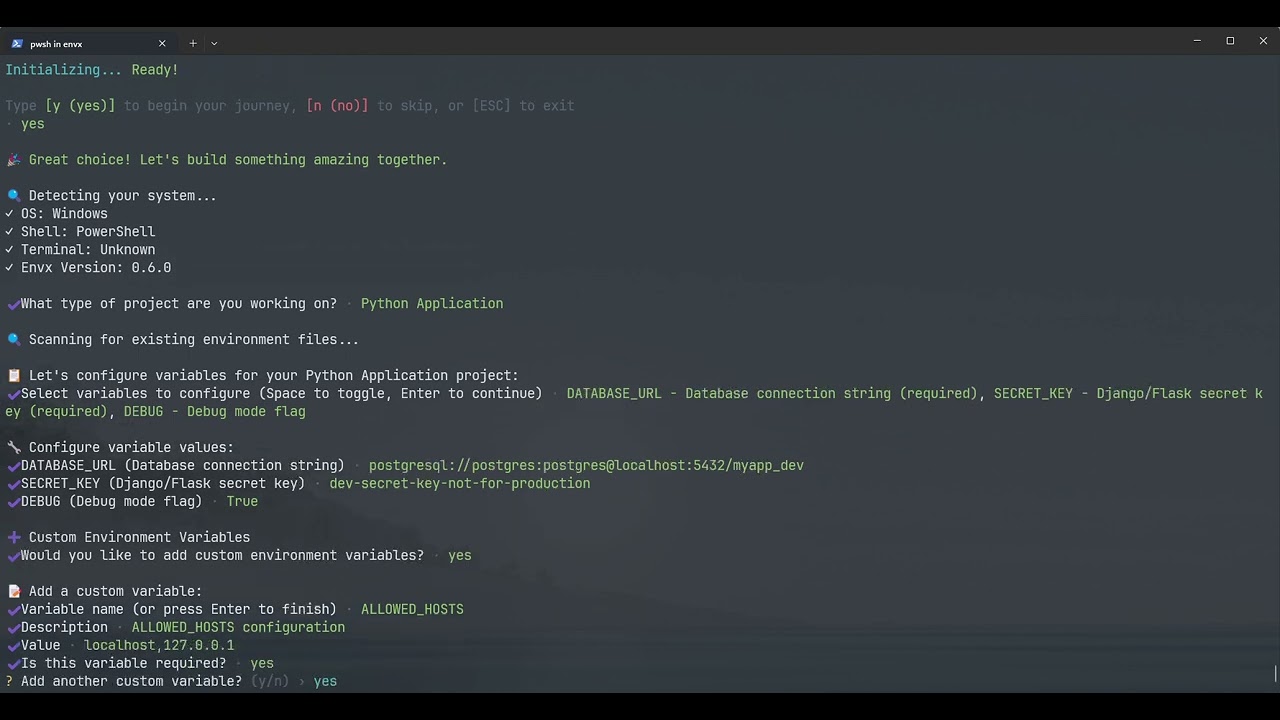
Click the image above to watch how interactive wizard works
📸 Screenshots
 Envx's Main Page
 Envx's Search Dialog
 Envx's View Dialog
 Envx's CLI Query Command
🌟 Features
- 🖥️ Interactive TUI: Beautiful terminal interface for easy environment variable management
- 🔍 Smart Search: Fast filtering and searching across all environment variables
- 📊 Source Tracking: Distinguish between System, User, Process, Shell, and Application variables
- 📝 Multi-line Support: Edit complex environment variables with proper multi-line support
- 🔄 Import/Export: Support for multiple formats (JSON, YAML, TOML, ENV)
- 📸 Snapshots & Profiles Feature Implementation: Save and restore variable states
- 📁 Project Configuration: Define required variables, defaults, and scripts for consistent team environments
- 👀 Watch Mode & Monitor: Monitor file changes and sync automatically, track environment modifications in real-time
- ⚡ Performance: Built with Rust for blazing-fast performance
- 🎨 Cross-platform: Works on Windows, macOS, and Linux
📦 Installation
From Source
git clone https://github.com/yourusername/envx.git
cd envx
cargo install --path crates/envx
Using Cargo
Pre-built Binaries
Download the latest release for your platform from the releases page.
🚀 Quick Start
Launch the TUI
List all environment variables
Set a variable
envx set MY_VAR "my value"
Get a variable
📖 Command Line Usage
Overview
System Environment Variable Manager

Usage: envx.exe <COMMAND>

Commands:
  list     List environment variables
  get      Get a specific environment variable
  set      Set an environment variable
  delete   Delete environment variable(s)
  analyze  Analyze environment variables
  tui      Launch the TUI [aliases: ui]
  path     Manage PATH variable
  export   Export environment variables to a file
  import   Import environment variables from a file
  help     Print this message or the help of the given subcommand(s)

Options:
  -h, --help     Print help
  -V, --version  Print version
Core Commands
init - Initialize a new project with the setup wizard
Initialize a new project with interactive wizard

Usage: envx.exe init [OPTIONS]

Options:
  -t, --template <TEMPLATE>  Use a specific template
  -w, --wizard               Run interactive wizard
      --list-templates       List available templates
  -h, --help                 Print help
The init command launches an interactive setup wizard that helps you configure your project's environment variables.
The wizard will:
- Detect your project type (Web App, Python, Rust/Go, Docker, Microservices, or Custom)
- Guide you through setting up environment variables with values
- Create profiles for different environments (development, testing, production, etc.)
- Generate
.envfiles for each profile - Set up team collaboration features
- Configure validation rules
- Import existing
.envfiles if found
Example Usage
# Run the interactive setup wizard
envx init

# Or
envx init --wizard
What the Wizard Creates
After running the wizard, you'll have:
-
Project Configuration (
.envx/config.yaml):- Required environment variables with descriptions
- Default values for common variables
- Validation rules and patterns
- Auto-load configuration for .env files
-
Environment Profiles:
- Separate profiles for development, testing, production, etc.
- Profile-specific variable values
- Easy switching between environments
-
.envFiles (optional):- Generated
.envfiles for each profile - Pre-populated with your configured values
- Ready to use with your application
- Generated
Example Wizard Flow
✨ Welcome to envx! Your intelligent environment variable companion

This setup wizard will help you:
  📋 Define environment variables    ─ Set up your project's environment
  🚀 Create profiles                 ─ Configure dev, test, and production environments
  📦 Import existing files           ─ Seamlessly migrate from .env files
  📝 Generate .env files             ─ Create .env files for each profile
  👥 Enable team features            ─ Share configurations with your team

⏱️  Estimated time: 1-3 minutes
💡 Tip: Press ESC at any time to exit the wizard

Let's create the perfect setup for your project! 🎯
The wizard will guide you through:
- Selecting your project type
- Configuring environment variables with actual values
- Creating environment profiles with custom names if needed
- Setting up team features (optional)
- Configuring validation rules
After completion, the wizard will check if all required variables are set and provide guidance on next steps.
list - List environment variables
List environment variables

Usage: envx.exe list [OPTIONS]

Options:
  -s, --source <SOURCE>  Filter by source (system, user, process, shell)
  -q, --query <QUERY>    Search query
  -f, --format <FORMAT>  Output format (json, table, simple, compact) [default: table]
      --sort <SORT>      Sort by (name, value, source) [default: name]
      --names-only       Show only variable names
  -l, --limit <LIMIT>    Limit output to N entries
      --stats            Show statistics summary
  -h, --help             Print help
# List all variables
envx list

# List with a pattern
envx list --format table --sort name --query RUST

# List from specific source
envx list --source system
envx list --source user
get - Get a specific variable
Get a specific environment variable

Usage: envx.exe get [OPTIONS] <PATTERN>

Arguments:
  <PATTERN>  Variable name or pattern (supports *, ?, and /regex/)
  Examples:
    envx get PATH           - exact match
    envx get PATH*          - starts with PATH
    envx get *PATH          - ends with PATH
    envx get *PATH*         - contains PATH
    envx get P?TH           - P followed by any char, then TH
    envx get /^JAVA.*/      - regex pattern

Options:
  -f, --format <FORMAT>  Output format (simple, detailed, json) [default: simple]
  -h, --help             Print help
envx get PATH
envx get MY_CUSTOM_VAR
envx get RUST*
set - Set an environment variable
Set an environment variable

Usage: envx.exe set [OPTIONS] <NAME> <VALUE>

Arguments:
  <NAME>   Variable name
  <VALUE>  Variable value

Options:
  -p, --permanent  Make change permanent
  -h, --help       Print help
# Set for current session
envx set MY_VAR "value"

# Set persistently (survives reboot)
envx set MY_VAR "value" --permanent
delete - Remove an environment variable
Delete environment variable(s)

Usage: envx.exe delete [OPTIONS] <PATTERN>

Arguments:
  <PATTERN>  Variable name or pattern

Options:
  -f, --force  Force deletion without confirmation
  -h, --help   Print help
envx delete MY_VAR
envx delete TEMP_VAR
envx delete /JAVA.*/
analyze - Analyze environment variables
Analyze environment variables

Usage: envx.exe analyze [OPTIONS]

Options:
  -a, --analysis-type <ANALYSIS_TYPE>  Type of analysis (duplicates, invalid) [default: all]
  -h, --help                           Print help
envx analyze --analysis-type duplicates
envx analyze --analysis-type invalid
path - Manage PATH variable
Manage PATH variable

Usage: envx.exe path [OPTIONS] [COMMAND]

Commands:
  add     Add a directory to PATH
  remove  Remove a directory from PATH
  clean   Clean invalid/non-existent entries from PATH
  dedupe  Remove duplicate entries from PATH
  check   Check PATH for issues
  list    Show PATH entries in order
  move    Move a PATH entry to a different position
  help    Print this message or the help of the given subcommand(s)

Options:
  -c, --check      Check if all paths exist
  -v, --var <VAR>  Target PATH variable (PATH, Path, or custom like PYTHONPATH) [default: PATH]
  -p, --permanent  Apply changes permanently
  -h, --help       Print help
Import/Export Commands
export - Export variables to a file
Export environment variables to a file

Usage: envx.exe export [OPTIONS] <FILE>

Arguments:
  <FILE>  Output file path

Options:
  -v, --vars <VARS>      Variable names or patterns to export (exports all if not specified)
  -f, --format <FORMAT>  Export format (auto-detect from extension, or: env, json, yaml, txt)
  -s, --source <SOURCE>  Include only specific sources (system, user, process, shell)
  -m, --metadata         Include metadata (source, modified time)
      --force            Overwrite existing file without confirmation
  -h, --help             Print help
envx export --vars RUST* .env
envx export variables.json --format json --source user
envx export variables.yaml --format yaml --source system
envx export variables.toml --format toml --source process
envx export .env --format env --source shell
import - Import variables from a file
Import environment variables from a file

Usage: envx.exe import [OPTIONS] <FILE>

Arguments:
  <FILE>  Input file path

Options:
  -v, --vars <VARS>      Variable names or patterns to import (imports all if not specified)
  -f, --format <FORMAT>  Import format (auto-detect from extension, or: env, json, yaml, txt)
  -p, --permanent        Make imported variables permanent
      --prefix <PREFIX>  Prefix to add to all imported variable names
      --overwrite        Overwrite existing variables without confirmation
  -n, --dry-run          Dry run - show what would be imported without making changes
  -h, --help             Print help
# Import from JSON
envx import variables.json

# Import from YAML
envx import variables.yaml --format yaml

# Import from .env file
envx import .env --format env
profiles - Manage environment profiles
Manage environment profiles

Usage: envx.exe profile <COMMAND>

Commands:
  create  Create a new profile
  list    List all profiles
  show    Show current or specific profile
  switch  Switch to a profile
  add     Add a variable to a profile
  remove  Remove a variable from a profile
  delete  Delete a profile
  export  Export a profile
  import  Import a profile
  apply   Apply a profile to current environment
  help    Print this message or the help of the given subcommand(s)

Options:
  -h, --help  Print help
envx profile create dev
envx profile add dev NODE_ENV development
envx profile switch dev --apply

envx profile export dev > dev-profile.json
snapshots - Manage environment snapshots
Manage environment snapshots

Usage: envx.exe snapshot <COMMAND>

Commands:
  create   Create a new snapshot
  list     List all snapshots
  show     Show details of a snapshot
  restore  Restore from a snapshot
  delete   Delete a snapshot
  diff     Compare two snapshots
  help     Print this message or the help of the given subcommand(s)

Options:
  -h, --help  Print help
# Create a snapshot before deployment
envx snapshot create "pre-deployment-v1.2"

# Restore if something goes wrong
envx snapshot restore "pre-deployment-v1.2"

# Compare snapshots
envx snapshot diff "pre-deployment-v1.2" "current"
project - Manage project-specific configuration
Manage project-specific configuration

Usage: envx.exe project <COMMAND>

Commands:
  init     Initialize a new project configuration
  apply    Apply project configuration
  check    Validate project configuration
  edit     Edit project configuration
  info     Show project information
  run      Run a project script
  require  Add a required variable
  help     Print this message or the help of the given subcommand(s)

Options:
  -h, --help  Print help
Usage Example
# Initialize a new project
cd my-project
envx init --name "My Web App"

# Add required variables
envx project require DATABASE_URL --description "PostgreSQL connection" --pattern "^postgresql://.*"
envx project require API_KEY --description "API authentication key"

# Edit configuration
envx project edit

# Check if all required variables are set
envx project check

# Apply configuration
envx project apply

# Run a project script
envx project run dev

# Create a custom project file
envx project init -f myproject.yaml --name "My Project"

# Apply configuration from custom file
envx project apply -f myproject.yaml

# Check validation with custom file
envx project check -f configs/production.yaml

# Edit custom configuration
envx project edit -f myproject.yaml

# Add required variable to custom config
envx project require API_KEY -f myproject.yaml --description "API authentication key"
Example Configuration File
Here's what a typical .envx/config.yaml would look like:
name: my-web-app
description: Production web application

# Required environment variables
required:
  - name: DATABASE_URL
    description: PostgreSQL connection string
    pattern: "^postgresql://.*"
    example: "postgresql://user:pass@localhost/dbname"

  - name: API_KEY
    description: External API authentication key

  - name: PORT
    description: Server port number
    pattern: "^[0-9]+$"
    example: "3000"

# Default values (if not already set)
defaults:
  NODE_ENV: development
  LOG_LEVEL: info
  PORT: "3000"

# Files to auto-load (in order)
auto_load:
  - .env
  - .env.local
  - .env.${NODE_ENV}

# Profile to activate
profile: dev

# Scripts for common tasks
scripts:
  dev:
    description: Start development server
    run: npm run dev
    env:
      NODE_ENV: development
      DEBUG: "true"

  test:
    description: Run tests
    run: npm test
    env:
      NODE_ENV: test

  migrate:
    description: Run database migrations
    run: npm run migrate

# Validation rules
validation:
  warn_unused: true
  strict_names: true
  patterns:
    "*_URL": "^https?://.*"
    "*_PORT": "^[0-9]{1,5}$"
# Create a snapshot before deployment
envx snapshot create "pre-deployment-v1.2"

# Restore if something goes wrong
envx snapshot restore "pre-deployment-v1.2"

# Compare snapshots
envx snapshot diff "pre-deployment-v1.2" "current"
rename - Rename environment variables (supports wildcards)
Rename environment variables (supports wildcards)

Usage: envx.exe rename [OPTIONS] <PATTERN> <REPLACEMENT>

Arguments:
  <PATTERN>      Pattern to match (supports wildcards with *)
  <REPLACEMENT>  New name or pattern

Options:
      --dry-run  Dry run - show what would be renamed without making changes
  -h, --help     Print help
Example Usage
# Rename single variable
envx rename MY_API MY_API2

# Rename with wildcards
envx rename APP_* MY_APP_*
envx rename *_OLD *_NEW
envx rename TEST_* PROD_*

# Dry run to preview changes
envx rename APP_* MY_APP_* --dry-run
replace - Replace environment variable values
Replace environment variable values

Usage: envx.exe replace [OPTIONS] <PATTERN> <VALUE>

Arguments:
  <PATTERN>  Variable name or pattern (supports wildcards with *)
  <VALUE>    New value to set

Options:
      --dry-run  Dry run - show what would be replaced without making changes
  -h, --help     Print help
Example Usage
envx replace MY_VAR "new value"
envx replace API_* REDACTED
find-replace - Find and replace text within environment variable values
Find and replace text within environment variable values

Usage: envx.exe find-replace [OPTIONS] <SEARCH> <REPLACEMENT>

Arguments:
  <SEARCH>       Text to search for in values
  <REPLACEMENT>  Text to replace with

Options:
  -p, --pattern <PATTERN>  Only search in variables matching this pattern (supports wildcards)
      --dry-run            Dry run - show what would be replaced without making changes
  -h, --help               Print help
Example Usage
# Find and replace text within values
envx find-replace localhost production.server.com
envx find-replace "C:\old\path" "C:\new\path" --pattern "*_PATH"

# Preview changes
envx find-replace localhost prod.com --dry-run
watch - Watch files for changes and auto-sync
Watch files for changes and auto-sync

Usage: envx.exe watch [OPTIONS] [PATH]...

Arguments:
  [PATH]...
          Files or directories to watch (defaults to current directory)

Options:
  -d, --direction <DIRECTION>
          Sync direction

          Possible values:
          - file-to-system: Sync from files to system (default)
          - system-to-file: Sync from system to files
          - bidirectional:  Bidirectional synchronization

          [default: file-to-system]

  -o, --output <OUTPUT>
          Output file for system-to-file sync

  -p, --pattern <PATTERN>
          File patterns to watch

      --debounce <DEBOUNCE>
          Debounce duration in milliseconds

          [default: 300]

  -l, --log <LOG>
          Log changes to file

  -v, --vars <VARS>
          Variables to sync (sync all if not specified)

  -q, --quiet
          Quiet mode - less output

  -h, --help
          Print help (see a summary with '-h')
Example Usage
# Watch .env file and apply changes to system
envx watch .env

# Watch and sync system changes back to file
envx watch --direction system-to-file --output backup.env

# Bidirectional sync
envx watch --direction bidirectional .env

# Watch multiple files with patterns
envx watch --pattern "*.env" --pattern "config/*.yaml"

# Watch with custom settings
envx watch .env --debounce 500ms --log changes.log
monitor - Monitor environment variable changes (read-only)
Monitor environment variable changes (read-only)

Usage: envx.exe monitor [OPTIONS] [VARIABLE]...

Arguments:
  [VARIABLE]...
          Variables to monitor (monitor all if not specified)

Options:
  -l, --log <LOG>
          Log file path

      --changes-only
          Show only changes (hide unchanged variables)

  -s, --source <SOURCE>
          Filter by source

          [possible values: system, user, process, shell]

  -f, --format <FORMAT>
          Output format

          Possible values:
          - live:       Live terminal output
          - compact:    Compact output
          - json-lines: JSON lines format

          [default: live]

      --interval <INTERVAL>
          Check interval in seconds

          [default: 2]

      --show-initial
          Show initial state

      --export-report <EXPORT_REPORT>
          Export report on exit

  -h, --help
          Print help (see a summary with '-h')
Example Usage
# Monitor all environment variables
envx monitor

# Monitor specific variables
envx monitor PATH JAVA_HOME NODE_ENV

# Show only changes (hide static vars)
envx monitor --changes-only

# Monitor with logging
envx monitor --log audit.log

# Monitor variables from specific source
envx monitor --source system
📊 Dependency Tracking
The deps command helps you understand how environment variables are used across your codebase.
It can scan your source files to find variable usage, identify unused variables, and provide detailed usage statistics.
Scanning for Dependencies
Scan your project to find all environment variable usage:
# Scan current directory
envx deps scan

# Scan specific directories
envx deps scan src/ tests/ scripts/

# Scan with custom ignore patterns
envx deps scan --ignore "*.test.js" --ignore "dist/*"
Show Variable Dependencies
Find where specific variables are used:
# Show usage of a specific variable
envx deps show DATABASE_URL

# Example output:
# 📊 Dependencies for 'DATABASE_URL':
# Found 3 usage(s):
#
# ╭──────────────────────┬──────┬─────────────────────────────────────╮
# │ File                 ┆ Line ┆ Context                             │
# ╞══════════════════════╪══════╪═════════════════════════════════════╡
# │ src/db/connection.js ┆ 15   ┆ const url = process.env.DATABASE_URL│
# │ config/database.py   ┆ 8    ┆ db_url = os.getenv("DATABASE_URL")  │
# │ scripts/migrate.sh   ┆ 3    ┆ echo "Using DB: $DATABASE_URL"      │
# ╰──────────────────────┴──────┴─────────────────────────────────────╯
Find Unused Variables
Identify environment variables that are defined but never used:
# Show all unused variables
envx deps show --unused

# Or use the shorthand
envx deps --unused

# Example output:
# ⚠️  Found 2 unused environment variables:
# ╭─────────────┬────────────────┬─────────╮
# │ Variable    ┆ Value          ┆ Source  │
# ╞═════════════╪════════════════╪═════════╡
# │ OLD_API_KEY ┆ sk-old-key...  ┆ User    │
# │ LEGACY_URL  ┆ http://old...  ┆ System  │
# ╰─────────────┴────────────────┴─────────╯
Usage Statistics
Get insights into your environment variable usage patterns:
# Show usage statistics
envx deps stats

# Sort by usage count (most used first)
envx deps stats --by-usage

# Example output:
# 📊 Environment Variable Usage Statistics:
#
# ╭──────┬─────────────────┬─────────────┬───────────╮
# │ Rank ┆ Variable        ┆ Usage Count ┆ Frequency │
# ╞══════╪═════════════════╪═════════════╪═══════════╡
# │ 1    ┆ DATABASE_URL    ┆ 12          ┆ 25.5%     │
# │ 2    ┆ API_KEY         ┆ 8           ┆ 17.0%     │
# │ 3    ┆ NODE_ENV        ┆ 6           ┆ 12.8%     │
# ╰──────┴─────────────────┴─────────────┴───────────╯
Supported File Types
The dependency tracker scans the following file types:
- JavaScript/TypeScript:
.js,.jsx,.ts,.tsx,.mjs,.cjs - Python:
.py,.pyw - Rust:
.rs - Go:
.go - Java:
.java - C#:
.cs - C/C++:
.c,.cpp,.cc,.cxx,.h,.hpp - Ruby:
.rb - PHP:
.php - Shell Scripts:
.sh,.bash,.zsh,.fish - PowerShell:
.ps1,.psm1 - Batch:
.bat,.cmd - Makefiles:
Makefile,Makefile.*
Output Formats
All dependency commands support different output formats:
# Table format (default)
envx deps show DATABASE_URL

# JSON format for scripting
envx deps show DATABASE_URL --format json

# Simple format for parsing
envx deps show DATABASE_URL --format simple
🗑️ Cleanup Unused Variables
Remove unused environment variables safely:
# Preview what would be removed (dry run)
envx cleanup --dry-run

# Remove unused variables with confirmation
envx cleanup

# Remove without confirmation
envx cleanup --force

# Keep certain patterns when cleaning
envx cleanup --keep "DEBUG*" --keep "*_TEST"

# Scan additional paths before cleanup
envx cleanup --paths src/ tests/ scripts/
📝 Documentation Generation
Automatically generate documentation for your environment variables from your project configuration:
# Generate documentation to stdout
envx docs

# Generate to a file
envx docs --output ENV_VARS.md

# Custom title
envx docs --title "MyApp Environment Variables"

# Include only required variables
envx docs --required-only
Example Generated Documentation
The docs command generates a markdown table with all your environment variables:
# Environment Variables

| Variable | Description | Example | Default |
|----------|-------------|---------|---------|
| **DATABASE_URL** | PostgreSQL connection string | `postgresql://user:pass@localhost:5432/dbname` | `None` |
| **API_KEY** | API key for external service | `sk-1****` | `defa****` |
| NODE_ENV | Application environment | `production` | `development` |
| PORT | Server port | `8080` | `3000` |
Note: Required variables are shown in bold. Sensitive values (containing keywords like KEY, SECRET, PASSWORD, TOKEN) are automatically masked for security.
Documentation Features
-
Automatic Discovery: Finds variables from:
- Required variables in
.envx/config.yaml - Default values in configuration
- Variables in auto-loaded
.envfiles
- Required variables in
-
Security: Automatically masks sensitive values
-
Sorting: Variables are sorted alphabetically
-
Markdown Format: Ready to include in your README or docs
Integration with Project Configuration
The documentation is generated from your .envx/config.yaml:
name: myapp
description: My Application
required:
  - name: DATABASE_URL
    description: PostgreSQL connection string
    example: postgresql://user:pass@localhost:5432/dbname
  - name: API_KEY
    description: API key for external service
    example: sk-1234567890abcdef
defaults:
  NODE_ENV: development
  PORT: "3000"
auto_load:
  - .env
  - .env.local
🎮 TUI Keyboard Shortcuts
Normal Mode
↑/↓orj/k- Navigate up/downPageUp/PageDown- Navigate by pageHome/End- Jump to first/last itemEnterorv- View variable details/- Enter search modea- Add new variablee- Edit selected variabled- Delete selected variabler- Refresh listq- Quit
Search Mode
Esc- Cancel searchEnter- Apply search
Edit Mode
Tab- Switch between name and value fieldsCtrl+Enter- Save changesEsc- Cancel editing
🔧 Configuration
envx stores its configuration in platform-specific locations:
- Windows:
%APPDATA%\envx\config.toml - macOS:
~/Library/Application Support/envx/config.toml - Linux:
~/.config/envx/config.toml
Example Configuration
[general]
default_export_format = "json"
auto_backup = true
history_limit = 100

[ui]
theme = "dark"
highlight_system_vars = true
🏗️ Architecture
envx is built with a modular architecture:
- envx-core: Core functionality for environment variable management
- envx-cli: Command-line interface implementation
- envx-tui: Terminal User Interface
- envx: Main binary that ties everything together
🤝 Contributing
Contributions are welcome! Please feel free to submit a Pull Request.
- Fork the repository
- Create your feature branch (
git checkout -b feature/AmazingFeature) - Commit your changes (
git commit -m 'Add some AmazingFeature') - Push to the branch (
git push origin feature/AmazingFeature) - Open a Pull Request
Development Setup
# Clone the repository
git clone https://github.com/yourusername/envx.git
cd envx

# Build the project
cargo build

# Run tests
cargo test

# Run with debug logging
RUST_LOG=debug cargo run -- tui
📝 License
This project is licensed under the MIT License - see the LICENSE file for details.
🙏 Acknowledgments
📊 Benchmarks
envx is designed for performance:
- List 1000+ variables: < 10ms
- Search through variables: < 5ms
- Import/Export operations: < 50ms for typical workloads
Debug Mode
Run with debug logging enabled:
📧 Contact
- Author: Mikko Leppänen
- Email: mleppan23@gmail.com
- GitHub: @mikeleppane
Written with ❤️ in Rust & built with Ratatui