Preview v0.101.2373.0
Preview v0.101.2373.0
This preview resumes development from the main branch after the final PowerToys v0.101 stable release.
Installer Hashes
| Description | Filename | sha256 hash |
|---|---|---|
| Per user - x64 | PowerToysUserSetup-0.101.2373.0-x64.exe | 44EC133557A421504BC3838C9491F5A84B23E462C71A189A82F1FC85F445DEA2 |
| Per user - ARM64 | PowerToysUserSetup-0.101.2373.0-arm64.exe | C8B80CAEFADDA6C7E5986F85E1152EECF3B79965C5B1B90A9BE7F87CD2B237EE |
| Machine wide - x64 | PowerToysSetup-0.101.2373.0-x64.exe | E8F093789A1B8ED0058D19239BA36ED96D47DAA5366E71154E0AF159F8285F69 |
| Machine wide - ARM64 | PowerToysSetup-0.101.2373.0-arm64.exe | E000B4E1064789AF27C1D7124D7121BE16C1AB9252BA3CAE3EE449ECFF11C6A3 |
Highlights
- Command-line tools: Added PATH-visible commands for FancyZones, Image Resizer, File Locksmith, and PowerDisplay.
- Installer: Improved upgrade reliability by closing independently running PowerToys utilities before replacing files.
- Keyboard Manager: Improved mapping persistence and consistency across profiles, restarts, and modifier-key scenarios.
- Command Palette: Fixed PowerToys fallback commands so each command can be enabled or disabled independently.
- Shortcut Guide: Added a Claude Desktop manifest with general and in-chat keyboard shortcuts.
- FancyZones: Fixed Shift-triggered zone highlighting during window dragging.
Command-line tools
- Added PATH-visible command shims for FancyZones, Image Resizer, File Locksmith, and PowerDisplay command-line tools in #48631
Command Palette
- Fixed PowerToys fallback commands so each command can be enabled or disabled independently in #50047 by @LE0-Lin
- Added reusable extension settings controls for files, folders, string lists, and key-value lists in #49623 by @jiripolasek
- Added Visual Studio component requirements to the extension template so contributors can install missing build prerequisites in #50095
FancyZones
- Fixed drag-state handling so Shift-triggered zone highlighting remains correct, while expanding automated UI coverage in #49985
Keyboard Manager
- Improved mapping persistence and consistency across profiles, restarts, validation, and modifier-key scenarios in #50059
PowerRename
- Expanded automated coverage across rename options and Windows 10 and 11 context-menu workflows in #50096
Shortcut Guide
General
- Improved upgrade reliability by closing remaining independently running PowerToys utilities before installed files are replaced in #50106
- Updated developer documentation links from docs.microsoft.com to learn.microsoft.com in #50102 by @loulanyue
- Updated the README roadmap for the PowerToys 0.102 milestone in #50108
Release v0.101.2362.0

Installer Hashes
| Description | Filename | sha256 hash |
|---|---|---|
| Per user - x64 | PowerToysUserSetup-0.101.2362.0-x64.exe | D56FA7130FA68AFE553068C15A59A6B24C8DBCC9A0989A43EF0FC5A373230DE3 |
| Per user - ARM64 | PowerToysUserSetup-0.101.2362.0-arm64.exe | 4C2AE5156B7E4F1F5BA744BA6E1CF6BFE3D9614978356E6B00AA47CAB86350DB |
| Machine wide - x64 | PowerToysSetup-0.101.2362.0-x64.exe | F27E4B4B01BFF1A74BFA0116C99F9205F7138DB6F7DFCAA9223FB8B635FE6050 |
| Machine wide - ARM64 | PowerToysSetup-0.101.2362.0-arm64.exe | BEE299302C0CD59E282BDC92CC8AAF737713EABCCA77BB8BF09F43745D43CD93 |
Highlights
PowerToys 0.101 introduces Window Hopper for quickly moving between windows from the same app, a redesigned update experience with Stable and Insider channels, and compact mode for Command Palette. This release also continues our WinUI 3 modernization, brings on-device Phi Silica transformations to Advanced Paste, and adds a big set of improvements across PowerDisplay and Shortcut Guide.
🪟 Meet Window Hopper
If you regularly have several windows open from the same app, switching between them is now much faster. Window Hopper works like Alt + Tab, but stays within the app you're currently using. Once the utility is enabled, press the configurable Alt + backtick shortcut to cycle through that app's windows without stepping through everything else on your desktop. It is especially useful when you're juggling multiple browser windows, terminals, File Explorer windows, or editor instances.
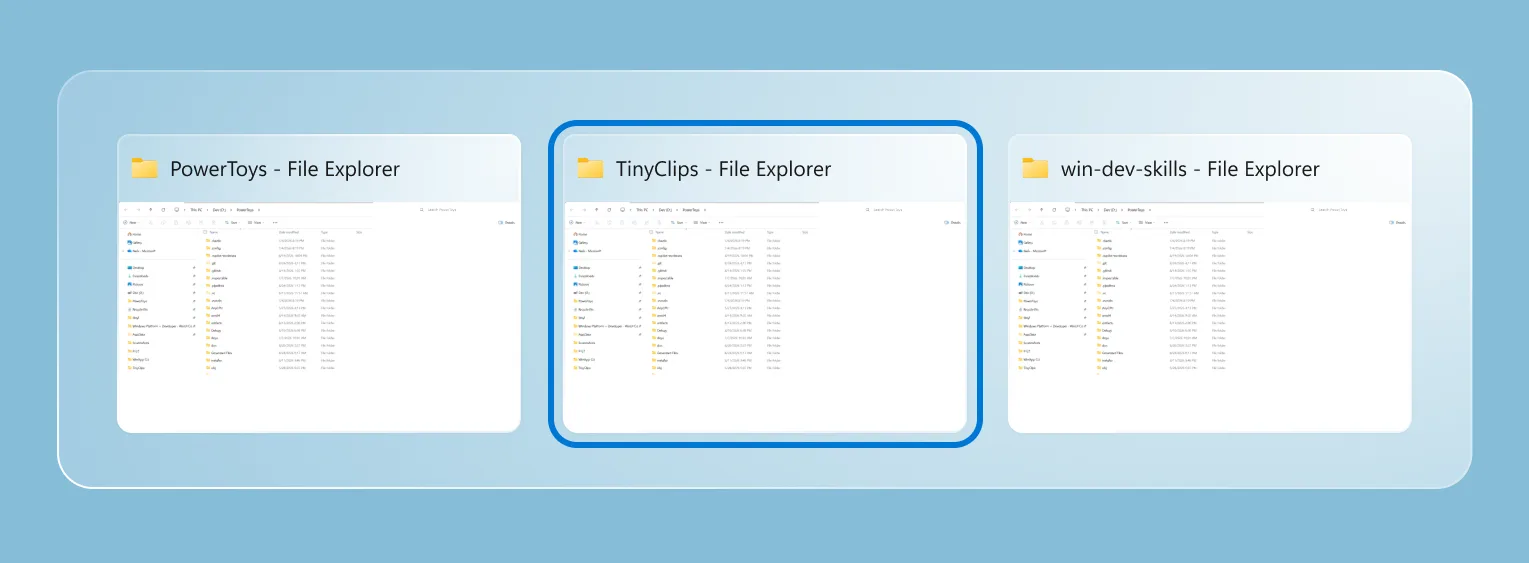
PR: #48281 (with coauthor credit to @wzhudev)
🔄 A smoother update experience and the new Insider channel
PowerToys updates now have a clearer home in Settings. Open Settings > General > Update channel to choose between Stable and Insider. Stable remains the default, while Insider lets you opt in to PowerToys Preview builds and try the latest work sooner. The selected channel remains visible when the setting is collapsed, preview builds are clearly labeled, and managed devices can still have preview updates controlled by organizational policy.
We also redesigned the update experience with clearer badges and a compact status surface that tracks each step, from checking and downloading to installation or errors. Bug reports are easier too, with progress updates, quick access to the generated ZIP, and a prefilled GitHub issue.
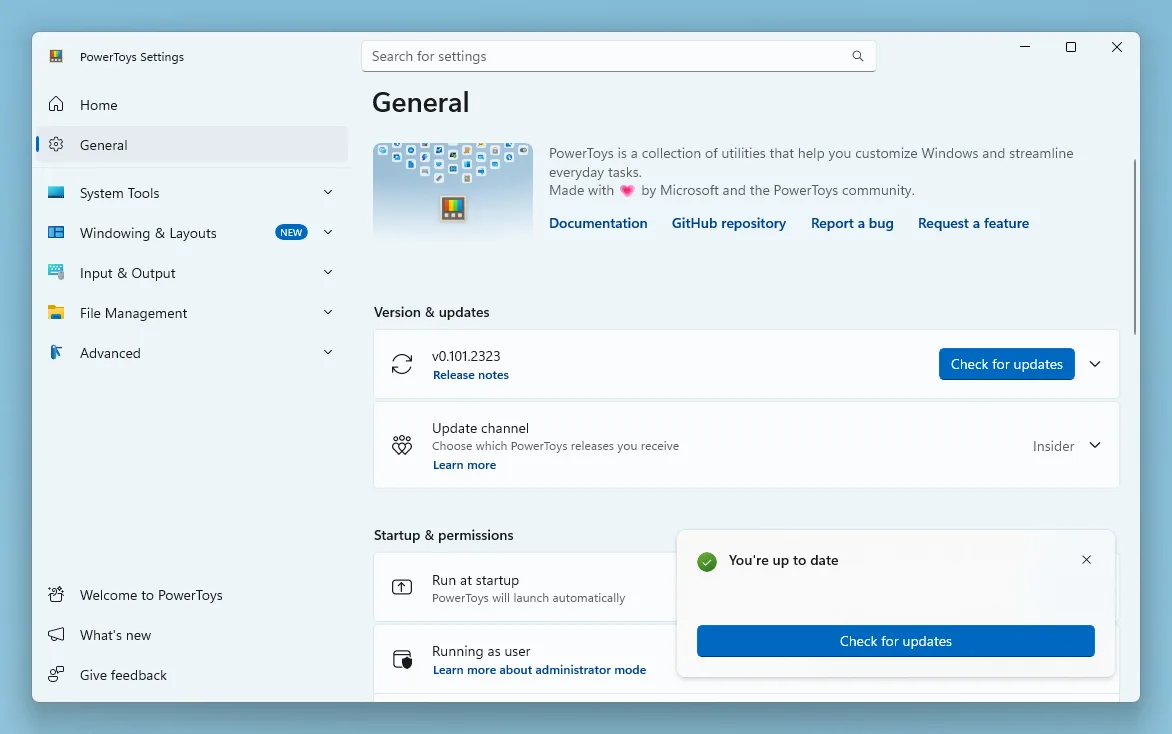
PRs: #49414, #49722, and #49872
⚡ Command Palette goes compact
Command Palette can now stay out of the way until you need the results. Enable compact mode in Command Palette Settings and the palette opens as a focused search box at a configurable vertical position. Start typing and it expands just enough to show matching results; you can also use Down Arrow or Tab to expand it from the keyboard. Pages that need more room, such as detailed views and confirmation dialogs, still expand fully when required. Compact mode is off by default, so the existing full experience remains unchanged unless you opt in.
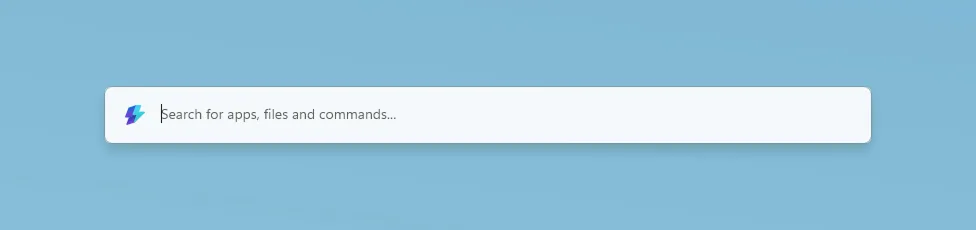
Compact mode is only one part of this Command Palette update:
- Search and responsiveness: Better ranking, cached Window Walker results, and progressive icon loading make results feel faster and more predictable.
- Reliability: Improved backdrop switching, icon loading, dock cleanup, and extension-resource management make prolonged use more stable.
- Dock improvements: Auto-hide reclaims screen space, while the dock clock and an optional bell provide quick access to Notification Center.
- Richer notifications: Extensions can show toasts with configurable positions, icons, and action buttons.
- Performance Monitor: New disk activity metrics and clearer network bands make it easier to keep an eye on system performance.
- Extension Gallery: Deep links can open the gallery or take you directly to a specific extension's installation page.
- Windows Update commands: Update and restart and Update and shut down appear when Windows is waiting for a reboot.
Massive thanks to @jiripolasek for the sustained Command Palette work across this release!
PRs: #48801, #49177, and #49780
🔄 Quick Accent and Mouse Jump move to WinUI 3
We're continuing to modernize PowerToys utilities with WinUI 3, and this release brings refreshed foundations to Quick Accent and Mouse Jump. Quick Accent keeps its familiar character picker while gaining better theming, accessibility, and DPI-aware placement. It also adds an optional Press and hold the letter activation mode: choose it in Quick Accent Settings, configure the hold duration, then hold an accent-capable letter to open the picker. Use the arrow keys or Space to select a character and release the letter to insert it. A quick tap still types the original letter, and normal Ctrl, Alt, AltGr, and Windows-key shortcuts remain unaffected.
Mouse Jump now uses a WinUI 3 interface with improved multi-monitor and mixed-DPI behavior. Invoke Mouse Jump with your configured shortcut, then click the destination in the preview or use the number keys, Home and End, or the arrow keys to select a monitor from the keyboard. Smaller improvements across the two utilities include more reliable Quick Accent activation, better first-frame rendering, expanded language, currency, punctuation, and IPA character sets, plus updated Mouse Jump layout and release support for both x64 and ARM64.
PRs: #48891, #48937, and #48393 (Thanks, @LegendaryBlair and @mikeclayton!)
🖥️ PowerDisplay gets linked controls and faster access
PowerDisplay can now control the brightness of several monitors together. Turn on linked brightness to get one All Displays slider for every included brightness-capable monitor, while keeping selected displays independent when needed. Individual display cards remain available in an expandable section, and applying a saved profile returns to per-monitor control before restoring its values. You can also opt in to brightness control from the tray icon: choose whether scrolling over it adjusts the primary display or all linked displays, then set the amount each mouse-wheel notch should change.
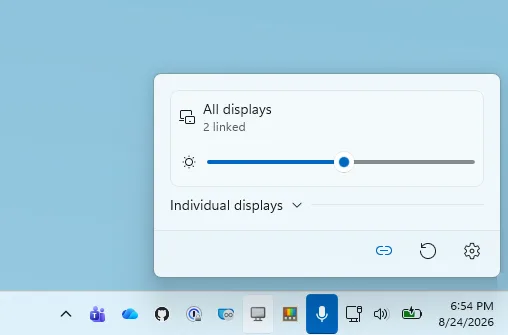
PowerDisplay can now wake supported monitors by selecting On from the display's power-state control, and a new command-line interface lets you inspect displays, change monitor settings, and apply saved profiles from scripts. This release also improves built-in panel detection on hybrid-GPU systems, makes Maximum compatibility mode more resilient with unreliable monitors, preserves recent setting changes during exit, restores saved brightness, contrast, volume, and color temperature more reliably, and cleans up monitor and tray resources more consistently.
PRs: #48207 (Thanks, @gilnatab!), #48628, and #49446
📋 Advanced Paste brings local AI to custom actions
Advanced Paste now supports on-device transformations with Phi Silica on supported Windows devices, so you can use local AI without configuring a cloud endpoint or API key. In Advanced Pas...
Preview v0.101.2323.0
PowerToys v0.101.2323.0 Preview
This preview release prevents update checks from resetting enabled modules, restores Shortcut Guide exclusions, and improves issue-triage accuracy.
Installer Hashes
| Description | Filename | sha256 hash |
|---|---|---|
| Per user - x64 | PowerToysUserSetup-0.101.2323.0-x64.exe | BBC4B04CB626CAADF99C87610425F23EF3F45CCE3A81B34BFC695A2B7293FEE8 |
| Per user - ARM64 | PowerToysUserSetup-0.101.2323.0-arm64.exe | 5284241DAE076E26C0F551C50BA11610D4182681F05E41368C8A540076FC9281 |
| Machine wide - x64 | PowerToysSetup-0.101.2323.0-x64.exe | 1C31ACFEA3003543E390E6FE4414CB5F71CB56AF8D9210DB522433EE381F43C1 |
| Machine wide - ARM64 | PowerToysSetup-0.101.2323.0-arm64.exe | 5A44BFC48381BEB8E03A12B7C7AC7BD60F1632F9C51A008D2D1E4AAC36C4922A |
Highlights
- Settings: Prevented manual update checks from overwriting enabled module states when Settings held stale or default values.
- Shortcut Guide: Restored excluded-app filtering for regular-hotkey and Windows-key-hold activations, including newly saved exclusions.
- Issue triage: Preserved reported version labels and recognized more natural-language reproduction steps.
General
- Added attribution for Wzhudev's AltBackTick work to the Window Hopper settings page in #49962.
- Corrected automated issue triage so it no longer manages version labels and better recognizes concise reproduction steps in #49999.
- Prevented update checks from sending or applying stale general settings that could reset enabled modules in #50018.
- Restored Shortcut Guide excluded-app filtering on every hidden-overlay activation while preserving visible-overlay close and promotion behavior in #50046 by @LegendaryBlair.
Preview v0.101.2312.0
PowerToys v0.101.2312.0 Preview
This preview release fixes Shortcut Guide activation, preserves transparency in SVG thumbnails, prevents a Screen Ruler settings crash, and updates Window Hopper discovery.
Installer Hashes
| Description | Filename | sha256 hash |
|---|---|---|
| Per user - x64 | PowerToysUserSetup-0.101.2312.0-x64.exe | 0CE7DC41F2CA13C93AFFAAE50CD4B681442D9FFC082078B8DA6EC14246157AC1 |
| Per user - ARM64 | PowerToysUserSetup-0.101.2312.0-arm64.exe | 5664F4582AFFDE22615A67BD96C4FE2E1C4F88D58E92BC3E2B19F006A0A54B90 |
| Machine wide - x64 | PowerToysSetup-0.101.2312.0-x64.exe | B0289AD15A29B6E2AC4DAC885ED1AB5311578F2BA1984BACDA319A0109C5F8E7 |
| Machine wide - ARM64 | PowerToysSetup-0.101.2312.0-arm64.exe | 89E5842A1C2515D6811589FD0B5032C6DFA4555FF56772E3CB5A9A466268D04E |
Highlights
- Shortcut Guide: Made
Win+Shift+/reliably open the full guide independently of Windows-key hold settings and remain visible after Win is released. - File Explorer: Preserved transparent backgrounds in SVG thumbnails instead of rendering them black.
- Screen Ruler: Migrated legacy measurement-unit settings to prevent Settings from crashing when leaving the Screen Ruler page.
- Window Hopper: Moved the New badges from Shortcut Guide to Window Hopper across Settings and the welcome experience.
Advanced Paste
- Added regression coverage to keep custom actions compatible with OpenAI models that do not support reasoning-effort settings in #49867 by @Sthitadhi1.
File Explorer
- Preserved transparent SVG thumbnail backgrounds and fixed an image-resize resource leak in #49301 by @pedrolamas.
PowerToys Run
- Added PoetSearch to the third-party plugin list for searching classical Chinese poetry in #49946 by @Greyaircraft.
Screen Ruler
- Migrated legacy measurement-unit values to valid settings, preventing Settings from crashing when navigating away from Screen Ruler in #49898.
Shortcut Guide
- Separated regular-hotkey activation from Windows-key hold activation, so
Win+Shift+/reliably opens the full guide and stays visible after Win is released in #50000 by @LegendaryBlair.
Window Hopper
- Moved the New badges from Shortcut Guide to Window Hopper throughout Settings and the welcome experience in #49995.
Development
- Separated common .NET project properties from WinRT-specific settings and made CI validation faster and more robust in #48059 by @daverayment.
Preview v0.101.2293.0
PowerToys v0.101.2293.0 Preview
This preview release includes new Command Palette system actions, improved search ranking, and reliability fixes across Image Resizer, Color Picker, and ZoomIt.
Installer Hashes
| Description | Filename | sha256 hash |
|---|---|---|
| Per user - x64 | PowerToysUserSetup-0.101.2293.0-x64.exe | E2F1E02FC3440E0D77551E9C55AD139817158E4F54574248A731429D3ED048D4 |
| Per user - ARM64 | PowerToysUserSetup-0.101.2293.0-arm64.exe | 6123DE876910EF02B3356387423811FC51DF0D7549603F52CFABF197C9A3C62B |
| Machine wide - x64 | PowerToysSetup-0.101.2293.0-x64.exe | 5575FA841DEC1AFCD06C8846C79D8DC749EC51C16384FA8035ABA1BEAFA71C4C |
| Machine wide - ARM64 | PowerToysSetup-0.101.2293.0-arm64.exe | 478A1CB707F72C9D764F6FE61C00F4FD8F620CCCA21B8ABA1322821D399E6A13 |
Highlights
- Command Palette: Added Update and restart and Update and shut down actions when Windows Update is waiting for a reboot.
- Command Palette: Improved fallback ranking so exact title matches appear above unrelated fuzzy results.
- Image Resizer: Made CLI input handling stricter and more diagnosable while preventing invalid or duplicate work.
- Color Picker: Fixed incorrect sampling intervals when displays report a default refresh-rate sentinel.
- ZoomIt: Prevented recording from hanging when audio initialization fails or remains in progress.
Command Palette
- Added Update and restart and Update and shut down system commands that appear only when Windows Update is waiting for a reboot in #49437 by @Subhro-ai.
- Ranked global fallback actions by how well their titles match the query, allowing exact matches such as Reload to outrank unrelated fuzzy results in #49983.
Color Picker
- Kept cursor sampling responsive when a display reports its hardware-default refresh rate as
0or1in #49973.
Image Resizer
- Improved CLI validation and diagnostics for options, paths, dimensions, presets, wildcards, pipes, and duplicate inputs while preserving GUI and context-menu compatibility in #49854.
ZoomIt
- Prevented a recording deadlock by safely completing or disposing in-progress audio initialization after failures in #49912 by @foxmsft.
Development
- Added an autonomous, draft-only preview release workflow with exact build identity, semantic deltas, asset validation, and post-upload verification in #49797 by @LegendaryBlair.
- Removed unused shared UI dependencies and unreachable managed settings aliases while retaining command-line compatibility routes in #49895.
Preview v0.101.2282.0
Preview v0.101.2282.0
This preview includes the latest features, fixes, and improvements for PowerToys v0.101.
Installer Hashes
| Description | Filename | sha256 hash |
|---|---|---|
| Per user - x64 | PowerToysUserSetup-0.101.2282.0-x64.exe | 0BF088085AA4E176518C0C8CDA848FDB23F6F2F4320ED60496E3E12807C6F1A5 |
| Per user - ARM64 | PowerToysUserSetup-0.101.2282.0-arm64.exe | CFFBB5BF2688B6ED7F2B8DE95ECC3A22288B6539A6E18C0FA36F992B55693F85 |
| Machine wide - x64 | PowerToysSetup-0.101.2282.0-x64.exe | 111ABC8EC0F27C330C1AF6C8A3CEEF28A42D4D025E7F6C0E17DE3033107731B5 |
| Machine wide - ARM64 | PowerToysSetup-0.101.2282.0-arm64.exe | 90E92C0C7B0340CB79EF1BE5786E8731FFE563CC8F07C468D24303E343A78DDE |
Highlights
- Command Palette: Fixed the Dock becoming empty or misconfigured after docking, undocking, or changing display modes with Win+P.
- Command Palette: Reduced Dock resource usage during refreshes and improved cleanup of replaced items.
- Command Palette: Prevented failed extension package operations from being processed as successful changes.
General
- Added the DevDocs extension to the third-party Command Palette plugin directory so users can discover and install it in #49697 by @jan-jaros
- Updated the AI issue-triage workflow runtime and pinned container images so its Copilot CLI execution works reliably in #49885
- Improved issue triage so module names in bracketed issue titles map to the correct existing Product label, with a constrained fallback for unclear cases in #49905
- Added a daily duplicate-issue digest that consolidates live AI triage suggestions into one reviewer-focused tracking issue in #49907
- Added AI-assisted pull request intake that summarizes changes, checks required evidence and issue references, and maintains review-readiness labels in #49911
- Refined issue and pull request triage triggers, draft handling, evidence publication, and the Ready for review label lifecycle in #49924
Command Palette
- Reduced Command Palette Dock resource usage by reusing item view models, coalescing refreshes, and cleaning up discarded items in #49742 by @jiripolasek
- Fixed the Command Palette Dock becoming empty or misconfigured after docking, undocking, or changing display modes with Win+P in #49814
- Prevented failed Command Palette extension install, update, and uninstall operations from being processed as successful changes in #49887 by @jiripolasek
Preview v0.101.2262.0
Preview v0.101.2262.0
This preview includes the latest features, fixes, and improvements for PowerToys v0.101.
Installer Hashes
| Description | Filename | sha256 hash |
|---|---|---|
| Per user - x64 | PowerToysUserSetup-0.101.2262.0-x64.exe | 6F728114D9CEA05C9F83976C09E0EF9C4AD657F5E20C345D03D16DB91B7E422A |
| Per user - ARM64 | PowerToysUserSetup-0.101.2262.0-arm64.exe | 27B18C749D7006377F376349FEAEAAEB0F420A10E2124E353110E5BAB0C5C9F8 |
| Machine wide - x64 | PowerToysSetup-0.101.2262.0-x64.exe | 10AF5CD4B435C0D6E85E5C1AD352B8717DDDDA0F33F1C21146245736FB6AF373 |
| Machine wide - ARM64 | PowerToysSetup-0.101.2262.0-arm64.exe | 395B11D19FA6F8E8E57BC766A52C30A493B815B9017E26DA9EF1AECE3C9EBE27 |
Highlights
- Shortcut Guide: Added page-local search and configurable Windows-key hold actions for taskbar indicators or the full guide.
- File Explorer: Added opt-in local image rendering for Markdown previews, with Settings and Group Policy controls.
- Command Palette: Reorganized settings into clearer sections and improved compact search box positioning controls.
- Settings: Added consistent update-state badges and a compact update status surface across pages.
- Advanced Paste: Improved OpenAI model compatibility by allowing providers to use their supported reasoning defaults.
General
- Replaced retired issue-labeling and deduplication workflows with an agentic triage flow that safely analyzes bounded diagnostic evidence, recommends duplicate matches, and applies a seven-day author-feedback lifecycle in #49828
- Updated Mouse Highlighter default click colors to green for left clicks and blue for right clicks while preserving existing saved preferences in #49833
- Improved Advanced Paste compatibility with OpenAI models by allowing providers to use their supported service defaults in #49840
- Pinned GitHub Actions to immutable commit SHAs and added a seven-day Dependabot cooldown for reproducible workflow dependencies in #49848 by @danfiedler-msft
- Removed redundant Azure module installation from the release symbol-publishing job in #49861
- Improved the Settings update experience with shared state badges and a compact status surface across pages in #49872
Command Palette
- Simplified Command Palette settings with clearer General and Personalization sections, removed obsolete Store discovery UI, and clarified compact search box positioning in #49865
File Explorer and Settings
- Added an opt-in Markdown preview setting for rendering validated local and network-share images from relative paths, with Settings and Group Policy controls in #47857 by @st-gr
Shortcut Guide
- Added an accessible page-local search box that filters shortcuts by names, descriptions, modifiers, and displayed keys, with Ctrl+F, Escape, and no-results accessibility support in #49639
- Added configurable Windows-key hold activation for taskbar indicators or the full guide, with adjustable hold duration and optional close-on-release behavior in #49661 by @noraa-junker
Preview v0.101.2242.0
This preview includes the latest features, fixes, and improvements for PowerToys v0.101.
Installer Hashes
| Description | Filename | sha256 hash |
|---|---|---|
| Per user - x64 | PowerToysUserSetup-0.101.2242.0-x64.exe | B8FC5941DDF7D4F6B2551F5CD846BFDE83C39D108EC63602FCE515EC244A88A1 |
| Per user - ARM64 | PowerToysUserSetup-0.101.2242.0-arm64.exe | BD954FD99E9FA881B58C2DE85F263F975B718AA336C94FE52F8C85DB8AACC9D6 |
| Machine wide - x64 | PowerToysSetup-0.101.2242.0-x64.exe | FA7B78FD7F8D99633C2A6AC18680A156DCF3B7D98E8DF8F6623519CA5CFFE707 |
| Machine wide - ARM64 | PowerToysSetup-0.101.2242.0-arm64.exe | C2DDF6413139D7A48F6A6F452FCD3FF529745DB82B0AC3980B87A1464AB3EDD1 |
Highlights
- FancyZones: Added opt-in monitor window rotation with a configurable hotkey and directional preview.
- Command Palette: Improved search relevance and responsiveness across ranking, provider weighting, and recent commands.
- Command Palette: Improved dock-band lifecycle reliability to prevent Performance Monitor bands from becoming stuck.
Command Palette
- Fixed dock-band activation and cleanup so Performance Monitor bands do not become stuck during dock rebuilds or race with late subscriptions in #49739 by @jiripolasek
- Improved search relevance and responsiveness by consolidating ranking, provider weighting, recent-command scoring, and early-result rendering in #49832
FancyZones
- Added opt-in monitor window rotation so users can preview monitor content and move processable windows left or right with a configurable hotkey and arrow keys in #48772 by @APONTES19
Development
- Updated the pinned .NET SDK and servicing runtime packages to 10.0.11 so CI builds use aligned framework versions in #49847
Preview v0.101.2241.0
This preview includes the latest fixes and improvements for PowerToys v0.101.
Installer Hashes
| Description | Filename | sha256 hash |
|---|---|---|
| Per user - x64 | PowerToysUserSetup-0.101.2241.0-x64.exe | E16F871F1D8481084999ECDDE5550DB777E577A372AA8798C3F5187020A97F53 |
| Per user - ARM64 | PowerToysUserSetup-0.101.2241.0-arm64.exe | C538398B0088632846733C98CBFB47D7C74644F63D32F84E56F2E92552012322 |
| Machine wide - x64 | PowerToysSetup-0.101.2241.0-x64.exe | 13BB217AB1B2F5F764FB0A11420F76AE38A846FEE84427B5011D85E39727DF81 |
| Machine wide - ARM64 | PowerToysSetup-0.101.2241.0-arm64.exe | 50FDF082C05EBE3B9BACA810EF439AA04D4A21239CA3337E105485A52BB02C05 |
Highlights
- File Locksmith: Restored localized commands in the Windows 11 context menu.
- Mouse Highlighter: Improved rapid-input reliability by moving ripple work out of the low-level mouse hook.
- New+: Improved renamed templates and positioned newly created desktop items near the context-menu cursor.
- Quick Accent: Restored the selection highlight for the last character in long accent lists.
General
- Restored localized File Locksmith commands in the Windows 11 context menu in #49606 by @Umoxfo
- Improved Mouse Highlighter reliability during rapid input by moving ripple rendering and animation work off the low-level mouse hook in #49699
- Fixed Quick Accent so the last character keeps its selection highlight when long accent lists are scrolled to the end in #49820
New+
- Improved renamed templates and positioned newly created desktop items near the context-menu cursor with DPI-aware coordinates in #48083 by @cgaarden
Development
- Pinned CI to .NET SDK 10.0.302 and centralized the matching runtime package version to prevent dependency-audit failures when the floating SDK channel advances in #49835
Preview v0.101.2222.0
This preview includes the latest fixes and improvements for PowerToys v0.101.
Installer Hashes
| Description | Filename | sha256 hash |
|---|---|---|
| Per user - x64 | PowerToysUserSetup-0.101.2222.0-x64.exe | F74FF2A89EA37D582F7E18E34EA6E40554C842FA0405725F68969805E6DA0DA9 |
| Per user - ARM64 | PowerToysUserSetup-0.101.2222.0-arm64.exe | 3BE52C8F47F66F2CA007E6150E89102E30A7E7DFA50846DE769F2227DFBCE6F3 |
| Machine wide - x64 | PowerToysSetup-0.101.2222.0-x64.exe | 1E4B3179C01257DFE9E7A6AF59E00573ECF72C759E64D2028B6C44914BCA684D |
| Machine wide - ARM64 | PowerToysSetup-0.101.2222.0-arm64.exe | 93FE0CFA65C7072ADFDCCD895E88EBBC6C9D82F9FCF615DD4C568600BA6F6DCD |
Highlights
- Settings: Restored the General page after a WinUI style mismatch prevented it from loading.
- Quick Accent: Prevented stale or blank first frames by revealing the accent bar only after its composition update completes.
- Settings and Workspaces: Made module launches resolve the active PowerToys installation more reliably without depending first on protocol registration.
- Quality: Expanded modern UI automation across Image Resizer, Peek, File Explorer add-ons, and File Locksmith.
General
- Prevented stale or blank Quick Accent frames by keeping the accent bar invisibly rendered until its composition update is ready in #49655
- Restored the PowerToys Settings General page by correcting the incompatible text-control style in #49801 by @LegendaryBlair
Settings and Workspaces
- Made PowerToys modules resolve their install folder from the running executable first, while retaining registry lookup for external packaged callers in #48905
Development
- Added winappcli UI test coverage for Image Resizer, Peek, File Explorer add-ons, and File Locksmith, with shared automation helpers and Windows 11 context-menu CI support in #49671