╔═══════════════════════════════════════════════════════════╗
║   ██████╗ ███████╗███╗   ███╗██╗   ██╗██╗  ██╗            ║
║   ██╔══██╗██╔════╝████╗ ████║██║   ██║╚██╗██╔╝            ║
║   ██████╔╝███████╗██╔████╔██║██║   ██║ ╚███╔╝             ║
║   ██╔═══╝ ╚════██║██║╚██╔╝██║██║   ██║ ██╔██╗             ║
║   ██║     ███████║██║ ╚═╝ ██║╚██████╔╝██╔╝ ██╗            ║
║   ╚═╝     ╚══════╝╚═╝     ╚═╝ ╚═════╝ ╚═╝  ╚═╝            ║
║     Born in PowerShell. Made in Rust. 🦀                 ║
║          Terminal Multiplexer for Windows                 ║
╚═══════════════════════════════════════════════════════════╝
The native Windows tmux. Born in PowerShell, made in Rust.
Full mouse support · tmux themes · tmux config · 90+ commands · blazing fast
Install · Usage · Use Cases · Claude Code · Features · Compatibility · Performance · Plugins · Keys · Scripting · Config · Mouse/SSH · FAQ · Related Projects
The real tmux for Windows. Not a port, not a wrapper, not a workaround.
psmux is a native Windows terminal multiplexer built from the ground up in Rust. It uses Windows ConPTY directly, speaks the tmux command language, reads your .tmux.conf, and supports tmux themes. All without WSL, Cygwin, or MSYS2.
💡 Tip: psmux ships with
tmuxandpmuxaliases. Just typetmuxand it works!
👀 On Windows 👇

Installation
Using WinGet
Using Cargo
This installs psmux, pmux, and tmux binaries to your Cargo bin directory.
Using Scoop
scoop bucket add psmux https://github.com/psmux/scoop-psmux
scoop install psmux
Using Chocolatey
From GitHub Releases
Download the latest .zip from GitHub Releases and add to your PATH.
From Source
git clone https://github.com/psmux/psmux.git
cd psmux
cargo build --release
Built binaries:
target\release\psmux.exe
target\release\pmux.exe
target\release\tmux.exe
Docker (build environment)
A ready-made Windows container with Rust + MSVC + SSH for building psmux:
cd docker
docker build -t psmux-dev .
docker run -d --name psmux-dev -p 127.0.0.1:2222:22 -e ADMIN_PASSWORD=YourPass123! psmux-dev
ssh ContainerAdministrator@localhost -p 2222
See docker/README.md for full details.
Requirements
- Windows 10 or Windows 11
- PowerShell 7+ (recommended) or cmd.exe
- Download PowerShell:
winget install --id Microsoft.PowerShell - Or visit: https://aka.ms/powershell
- Download PowerShell:
Why psmux?
If you've used tmux on Linux/macOS and wished you had something like it on Windows, this is it. Split panes, multiple windows, session persistence, full mouse support, tmux themes, 90+ tmux-compatible commands (run psmux list-commands for the live list), 140+ format variables, 53 vim copy-mode keys. Your existing .tmux.conf works. Full details: docs/features.md · docs/compatibility.md
Usage
Use psmux, pmux, or tmux. They're identical:
psmux                        # Start a new session
psmux new-session -s work    # Named session
psmux ls                     # List sessions
psmux attach -t work         # Attach to a session
psmux list-commands          # List every command psmux accepts
psmux --help                 # Show help
Claude Code Agent Teams
psmux has first-class support for Claude Code agent teams. When Claude Code runs inside a psmux session, teammate agents automatically spawn in separate tmux panes instead of running in-process.
psmux new-session -s work    # Start a psmux session
claude                       # Run Claude Code, agent teams just work
No extra configuration needed. Full guide: docs/claude-code.md
Documentation
| Topic | Description |
|---|---|
| Windows Use Cases | Practical Windows scenarios: startup services, AI agents, dashboards, remote admin |
| Features | Full feature list: mouse, copy mode, layouts, format engine |
| Compatibility | tmux command/config compatibility matrix |
| Performance | Benchmarks and optimization details |
| Key Bindings | Default keys and customization |
| Scripting | Commands, hooks, targets, pipe-pane |
| Command Reference | Per-command flag tables |
| Configuration | Config files, options, environment variables |
| Multi-Shell | Running pwsh, cmd, Git Bash, WSL, and nushell side by side |
| Pane Titles | Pane titles, border labels, and why pwsh shows a path |
| Chooser Preview | Live preview pane in choose-tree and choose-session |
| Warm Sessions | The pre-spawned server behind instant session creation |
| Diagnostics | Debug logs, crash logs, state files, what to attach to a bug report |
| Plugins & Themes | Plugin ecosystem: Catppuccin, Dracula, Nord, and more |
| Mouse Over SSH | SSH mouse support and Windows version requirements |
| Control Mode | The -C / -CC wire protocol for IDE and plugin authors |
| iTerm2 Control Mode | Driving psmux from the iTerm2 tmux gateway over SSH |
| Developer Integration | Driving psmux from Python, Node.js, Go, Rust, and libtmux |
| Claude Code | Agent teams integration guide |
| FAQ | Common questions and answers |
Related Projects
License
MIT
Contributing
Contributions welcome: bug reports, PRs, docs, and test scripts via GitHub Issues.
Filing a bug? See docs/diagnostics.md for the logs and state files to attach.
If psmux helps your Windows workflow, consider giving it a ⭐ on GitHub!
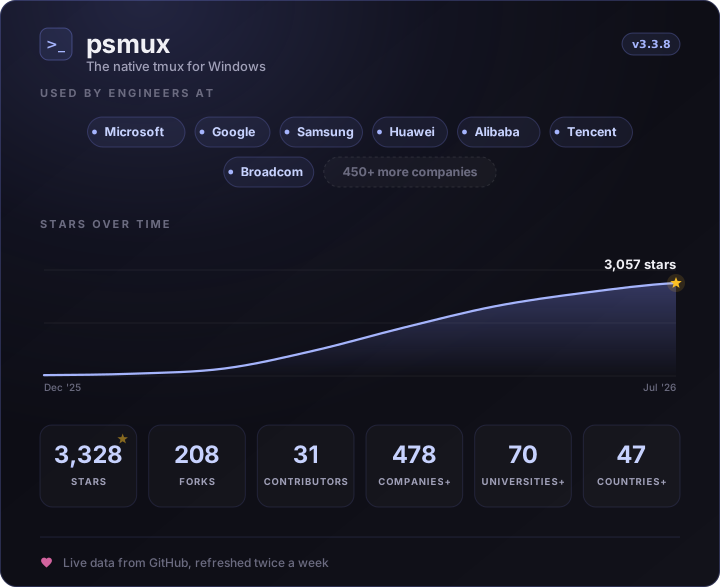
psmux in Numbers
Made with ❤️ for PowerShell using Rust 🦀