You're losing 3–6 hours every time you set up a macOS VM on Proxmox.
OpenCore plist editing. GenSMBIOS. Manual qm commands. One wrong flag and you start over.
osx-proxmox-next does it in under 5 minutes. One command. Guided wizard. Done.







🧰 Stop Wasting Afternoons on macOS VMs
The manual route eats your time: find the right OpenCore build, edit plist files, run GenSMBIOS, copy ISOs, type out qm commands, debug boot failures, repeat. Most people give up or spend a full day getting it right once - then forget the steps by the next time.
osx-proxmox-next replaces all of it with a 6-step wizard that runs on your Proxmox host.
You get:
- A 6-step TUI wizard: Preflight > OS > Storage > Config > Dry Run > Install
- Auto-detected hardware defaults (CPU vendor, cores, RAM, storage targets)
- Intel, Xeon, and AMD CPU support - auto-detected, zero configuration needed
- Automatic OpenCore and recovery/installer download - no manual file placement
- Shared storage support - download ISOs to NAS or any Proxmox storage pool (
--iso-dir) - Auto-generated SMBIOS identity (serial, UUID, model) - no OpenCore editing needed
- Graphical boot picker with Apple icons - auto-boots the installer
- Mandatory dry-run before live install previews every command
- Real-time form validation with inline error feedback
How It Compares
| Manual setup | osx-proxmox-next | |
|---|---|---|
| Time to first boot | 3–6 hours | < 5 minutes |
| OpenCore setup | Edit plist files by hand | Automatic |
| SMBIOS generation | External tool (GenSMBIOS) | Built-in, zero config |
| Apple Services | Manual identity chain | One flag: --apple-services |
| Tahoe 26 | Community trial & error | Supported |
| Dry-run preview | Never | Always - see every qm command first |
| Scripting / CI | Never | Full CLI + JSON export |
| Post-install health check | Never | osx-next-cli doctor --vmid <id> |
If this already looks better than what you've been doing - ⭐ star the repo and help others find it.


Demo
Wizard (6 steps: Preflight → OS → Storage → Config → Dry Run → Install):

CLI tools (preflight, plan, doctor):

TUI Preview

Note: Dynamic wallpapers are known to not display correctly without GPU passthrough on VNC. Use a static wallpaper instead.
Built solo, maintained in free time. If it saved you an afternoon:
🚀 Quick Start
Run this on your Proxmox 9 host as root:
bash -c "$(curl -fsSL https://raw.githubusercontent.com/lucid-fabrics/osx-proxmox-next/main/install.sh)"This clones the repo, sets up a Python venv, and launches the TUI wizard.
Built solo and maintained in my free time. If it saves you an afternoon of
qmcommands, a coffee helps or a coffee on BMC. ☕
🐚 Bash Alternative
Prefer a standalone bash script with no Python dependency?
bash -c "$(curl -fsSL https://raw.githubusercontent.com/lucid-fabrics/osx-proxmox-next/main/scripts/bash/osx-proxmox-next.sh)"Same VM creation logic (OpenCore + osrecovery + SMBIOS), whiptail menus, no venv needed.
🪄 Wizard Walkthrough
| Step | What Happens |
|---|---|
| 1️⃣ Preflight | Auto-detects CPU vendor (Intel/AMD), checks host readiness |
| 2️⃣ Choose OS | Pick macOS version (Ventura, Sonoma, Sequoia, Tahoe) - SMBIOS auto-generated |
| 3️⃣ Storage | Select storage target from auto-detected Proxmox storage pools |
| 4️⃣ Config | Review/edit VM settings (VMID, cores, memory, disk) with auto-filled defaults |
| 5️⃣ Dry Run | Auto-downloads missing assets, then previews every qm command |
| 6️⃣ Install | Creates the VM, builds OpenCore, imports disks, and starts the VM |
Most users: pick your macOS version, pick your storage, click through to Install. Preflight and CPU detection run automatically.
Smart caching: OpenCore and recovery images are downloaded once and reused across VM installs. Creating a second Sonoma VM? No re-download needed. Use
--iso-diron shared storage to cache across Proxmox nodes.
📋 Requirements
Hardware
| Component | Minimum | Recommended |
|---|---|---|
| CPU | 4 cores (power of 2), VT-x/AMD-V (Intel or AMD) | 8+ cores |
| RAM | 8 GB host (4 GB to VM) | 16+ GB host |
| Storage | 64 GB free | 128+ GB SSD/NVMe |
| GPU | Integrated | Discrete (for passthrough) |
AMD CPUs are fully supported. The tool auto-detects your CPU vendor and applies the correct configuration (Cascadelake-Server emulation for AMD, native host passthrough for Intel). Xeon and pre-Skylake Intel CPUs are also handled automatically - Xeon stays on
-cpu host, older consumer Intel gets Penryn mode, and both gete1000instead ofvmxnet3for reliable network during installation.
CPU Compatibility
| CPU Type | Support | QEMU Mode | NIC |
|---|---|---|---|
| Modern Intel (Skylake+) | Full | -cpu host (native passthrough) |
vmxnet3 |
| Intel Xeon | Full | -cpu host (native passthrough) |
e1000 |
| Pre-Skylake Intel (Broadwell, Haswell, …) | Full | Penryn mode | e1000 |
| AMD (any) | Full | Cascadelake-Server emulation | vmxnet3 |
| Apple Silicon (ARM Proxmox) | Not supported | - | - |
All modes are auto-detected. Zero configuration needed.
Host
- Proxmox VE 9 with root shell access
- Internet access (for bootstrap + dependencies)
- ISO storage available (e.g.
/var/lib/vz/template/isoor shared NAS via/mnt/pve/*/template/iso)
TSC Check (Recommended)
Stable TSC flags reduce clock drift and VM lag. Check with:
lscpu | grep -E 'Model name|Flags'
Look for constant_tsc and nonstop_tsc in the output.
🍎 Supported macOS Versions
| macOS | Channel | Apple Services | Notes |
|---|---|---|---|
| Ventura 13 | ✅ Stable | ✅ Works | Lightweight, great for older hardware |
| Sonoma 14 | ✅ Stable | ✅ Works | Best tested, most reliable |
| Sequoia 15 | ✅ Stable | 🧪 Community-tested | Kernel patch applied automatically with --apple-services |
| Tahoe 26 | ✅ Stable | 🧪 Community-tested | Kernel patch applied automatically with --apple-services |
Apple Services on Sequoia/Tahoe VMs: This tool automatically applies a kernel-level patch when
--apple-servicesis enabled. The patch redirects Apple's VM detection sysctl (hv_vmm_present) to read from the hibernate counter (always 0), so Apple's DeviceCheck sees a physical machine and allows Apple ID sign-in. Verified working on Sequoia 15 and Tahoe 26. See the Apple Services section for details.
⌨️ CLI Usage
For scripting or headless use, the CLI bypasses the TUI entirely:
# Show version
osx-next-cli --version

# Download OpenCore + recovery images
osx-next-cli download --macos ventura

# Re-download the OpenCore ISO, ignoring any cached copy
osx-next-cli download --macos ventura --force

# Check host readiness
osx-next-cli preflight

# Preview commands (dry run) - SMBIOS identity auto-generated
osx-next-cli apply \
  --vmid 910 --name macos-sequoia --macos sequoia \
  --cores 8 --memory 16384 --disk 128 \
  --bridge vmbr0 --storage local-lvm

# Execute for real
osx-next-cli apply --execute \
  --vmid 910 --name macos-sequoia --macos sequoia \
  --cores 8 --memory 16384 --disk 128 \
  --bridge vmbr0 --storage local-lvm

# Enable verbose kernel log (shows text instead of Apple logo during boot)
osx-next-cli apply --execute --verbose-boot \
  --vmid 910 --name macos-sequoia --macos sequoia \
  --cores 8 --memory 16384 --disk 128 \
  --bridge vmbr0 --storage local-lvm

# Use shared NAS storage for ISO/recovery images
osx-next-cli apply --execute \
  --vmid 910 --name macos-sequoia --macos sequoia \
  --cores 8 --memory 16384 --disk 128 \
  --bridge vmbr0 --storage local-lvm \
  --iso-dir /mnt/pve/nas/template/iso

# Skip SMBIOS generation entirely
osx-next-cli apply --no-smbios \
  --vmid 910 --name macos-sequoia --macos sequoia \
  --cores 8 --memory 16384 --disk 128 \
  --bridge vmbr0 --storage local-lvm

# Provide your own SMBIOS values
osx-next-cli apply --execute \
  --vmid 910 --name macos-sequoia --macos sequoia \
  --cores 8 --memory 16384 --disk 128 \
  --bridge vmbr0 --storage local-lvm \
  --smbios-serial C02G3050P7QM --smbios-uuid "$(uuidgen)" \
  --smbios-model MacPro7,1

# Enable Apple Services (iMessage, FaceTime, iCloud)
osx-next-cli apply --execute \
  --vmid 910 --name macos-sequoia --macos sequoia \
  --cores 8 --memory 16384 --disk 128 \
  --bridge vmbr0 --storage local-lvm \
  --apple-services

# Export plan as JSON (for scripting / CI integration)
osx-next-cli plan --json \
  --vmid 910 --name macos-sequoia --macos sequoia \
  --cores 8 --memory 16384 --disk 128 \
  --bridge vmbr0 --storage local-lvm

# Destroy a VM (dry run - preview commands)
osx-next-cli uninstall --vmid 910

# Destroy a VM (execute for real, including disk images)
osx-next-cli uninstall --vmid 910 --purge --execute

# Edit an existing VM (dry run - preview commands)
osx-next-cli edit --vmid 910 --cores 4 --memory 8192

# Edit an existing VM (rename + extend disk, execute for real)
osx-next-cli edit --vmid 910 --name macos-sequoia-v2 --add-disk 64 --execute

# Edit an existing VM (change bridge, preserve existing NIC model and MAC)
osx-next-cli edit --vmid 910 --bridge vmbr1 --execute

# Edit an existing VM (change bridge with explicit NIC model)
osx-next-cli edit --vmid 910 --bridge vmbr1 --nic-model e1000 --execute

# Edit and restart VM automatically after changes
osx-next-cli edit --vmid 910 --cores 8 --memory 16384 --start --execute

# Clone a VM with a fresh SMBIOS identity (dry run - preview commands)
osx-next-cli clone --source-vmid 910 --new-vmid 911 --name macos-sequoia-clone

# Clone and execute (regenerates serial, UUID, MLB, ROM, vmgenid - both VMs stay independent on Apple services)
osx-next-cli clone --source-vmid 910 --new-vmid 911 --name macos-sequoia-clone --execute

# Clone with explicit macOS version hint
osx-next-cli clone --source-vmid 910 --new-vmid 911 --macos sonoma --execute

# Clone without Apple services identity reset
osx-next-cli clone --source-vmid 910 --new-vmid 911 --no-apple-services --execute

# Diagnose a VM for common config issues (balloon, machine type, cores, NIC, SMBIOS, boot order…)
osx-next-cli doctor --vmid 910
🔧 Troubleshooting
Not sure what's wrong? Run the VM health check first:
osx-next-cli doctor --vmid <your-vmid>
It checks balloon driver, machine type, CPU config, NIC model, SMBIOS, boot order, disk layout, and more - and prints a fix command for every failure it finds.
macOS installer doesn't show my disk
In the macOS installer:
- Open Disk Utility
- Click View > Show All Devices
- Select QEMU VirtIO Block Device
- Erase with format APFS and scheme GUID Partition Map
- Close Disk Utility and continue installation
Live apply is blocked - missing assets
The tool requires OpenCore and recovery/installer images. It scans /var/lib/vz/template/iso and /mnt/pve/*/template/iso for:
opencore-osx-proxmox-vm.isooropencore-{version}.iso{version}-recovery.imgor{version}-recovery.iso
Use osx-next-cli download --macos <version> to auto-fetch missing assets. The TUI wizard auto-downloads missing assets in step 5.
I see UEFI Shell instead of macOS boot
Boot media path or order mismatch. Ensure OpenCore is on ide0 and recovery on ide2, with boot order set to ide2;virtio0;ide0.
Loops back to Recovery after the install finishes
The install succeeded but OpenCore is still booting the on-disk Recovery volume. macOS only sets the startup disk once it boots the new system for real, and it never got there, so the bootloader keeps falling back to Recovery. post-install only reorders the Proxmox boot devices, it cannot change the bootloader's saved choice inside the VM.
Fix it from the VM console:
- Reboot and wait for the OpenCore picker (the screen with the disk icons).
- Press spacebar to reveal all entries, select macOS (not "Install macOS" or "Recovery"), and boot it.
- Optionally press Ctrl+Enter on that entry to make it the default so the choice sticks.
- If it still returns to Recovery, pick Reset NVRAM in the picker first, reboot, then select macOS again.
Once macOS reaches the Setup Assistant and you finish setup, later boots go straight to macOS.
"Guest has not initialized the display"
Boot/display profile mismatch during early boot. Use vga: std for stable noVNC during installation.
macOS is slow on AMD CPU
Expected behavior. AMD hosts use Cascadelake-Server CPU emulation instead of native passthrough (-cpu host). This adds overhead but is required for macOS compatibility. Intel hosts get native performance.
Stuck on Apple logo (no progress, flat CPU)
macOS requires power-of-2 CPU core counts (2, 4, 8, 16). Non-power-of-2 values like 6 or 12 can cause the kernel to hang at the Apple logo. The tool defaults to safe values, but if you overrode the core count manually, try reducing to 4 or 8.
I want to see verbose kernel log instead of Apple logo
Use --verbose-boot flag in CLI: osx-next-cli apply --verbose-boot .... This adds -v to OpenCore boot arguments. Useful for debugging boot issues.
🎮 GPU Passthrough
Host-side setup is manual and required before the VM can use a discrete GPU.
- Enable VT-d / IOMMU in BIOS/UEFI
- Add to kernel cmdline:
- Intel:
intel_iommu=on iommu=pt - AMD:
amd_iommu=on iommu=pt
- Intel:
- Bind GPU + GPU audio to
vfio-pci - Reboot host
- Attach both PCI functions to VM (
hostpci0,hostpci1)
📖 Reference: Proxmox PCI(e) Passthrough Wiki
⚡ Performance Tips
- Use SSD/NVMe-backed storage for VM disks
- Don't overcommit host CPU or RAM
- Keep the main macOS disk on
virtio0, OpenCore onide0, recovery onide2 - Use
vga: stdduring installation (switch after) - Change one setting at a time and measure the impact
- Intel CPUs get native host passthrough - best performance
- Xeon CPUs get native host passthrough - same as modern Intel, Penryn is skipped
- Pre-Skylake Intel (Broadwell, Haswell, etc.) use Penryn mode with
e1000NIC for install stability - AMD CPUs use Cascadelake-Server emulation - functional but slower due to CPU translation overhead
🎛️ Guest Performance Profiles (Optional)
These are optional shell scripts that run inside the macOS guest to tune responsiveness. They are not part of this project and are not required - use them only if you understand what they change.
Blazing Profile
Optimized for maximum UI speed in the VM. Best for general use where you want the snappiest experience.
| What It Changes | Setting |
|---|---|
| UI animations | Disabled (window resize, Mission Control, Dock) |
| Transparency effects | Disabled (reduces compositing overhead) |
| Spotlight indexing | Disabled (mdutil -a -i off) - frees CPU/IO |
| Sleep on AC power | Disabled (sleep, display sleep, disk sleep, Power Nap all off) |
| Dock/Finder/SystemUIServer | Restarted to apply changes |
Xcode Profile
Optimized for development workflows (Xcode, SourceKit, code search). Similar UI optimizations as Blazing, but keeps Spotlight alive.
| What It Changes | Setting |
|---|---|
| UI animations | Disabled (same as Blazing) |
| Transparency effects | Disabled (same as Blazing) |
| Spotlight indexing | Kept ON - required for Xcode code completion and search |
| System sleep | Disabled, but display sleep is allowed (longer coding sessions) |
| Dock/Finder/SystemUIServer | Restarted to apply changes |
Which Profile Should I Use?
| Use Case | Profile |
|---|---|
| General browsing, testing apps | Blazing |
| Xcode / SwiftUI / iOS development | Xcode |
| Don't know / want defaults | Neither - skip this section |
Usage
# Apply blazing profile
bash scripts/profiles/apply_blazing_profile.sh

# Revert to macOS defaults
bash scripts/profiles/revert_blazing_profile.sh

# Apply xcode profile
bash scripts/profiles/apply_xcode_profile.sh

# Revert to macOS defaults
bash scripts/profiles/revert_xcode_profile.sh
Safety Notes
- Snapshot your VM before applying any profile
- Apply only one profile at a time
- Always keep the matching
revert_*script ready - These scripts accept an optional sudo password argument - avoid storing passwords in plain text
☁️ Enable Apple Services (iCloud, iMessage, FaceTime)
Apple services require a complete, consistent identity chain spanning both QEMU SMBIOS and OpenCore's EFI PlatformInfo - plus stable network/time configuration.
How It Works
macOS validates Apple ID through two identity sources:
| Layer | What it provides | How it's set |
|---|---|---|
| QEMU SMBIOS | Serial, UUID, model visible to firmware | Proxmox --smbios1 flag |
| OpenCore PlatformInfo | Serial, UUID, MLB, ROM visible to macOS | Patched into config.plist via plistlib |
Both must carry identical values. The ROM field must be derived from the NIC MAC address - macOS cross-checks ROM against the hardware NIC during Apple ID validation.
When --apple-services is enabled, this tool automatically:
- Generates Apple-format SMBIOS identity (serial, UUID, MLB, ROM, model) - GenSMBIOS-compatible base-34 serials with valid manufacturing codes and checksummed MLB, no external binary needed
- Generates a stable static MAC address for the NIC
- Derives ROM from the MAC address (first 6 bytes, no colons)
- Applies SMBIOS via Proxmox's
--smbios1flag - Patches OpenCore's
config.plistPlatformInfo with matching values - Adds a
vmgeniddevice for Apple service stability
SMBIOS Identity (Auto-Generated)
- TUI: SMBIOS is auto-generated when you select a macOS version in step 2. Click Generate SMBIOS in step 4 to regenerate.
- CLI: SMBIOS is auto-generated unless you pass
--no-smbiosor provide your own values via--smbios-serial,--smbios-uuid,--smbios-mlb,--smbios-rom,--smbios-model. - Existing UUID: Enter an existing UUID in step 4 to preserve it (useful for re-running on an existing VM).
The generated values are visible in the dry-run output as a qm set --smbios1 step.
Usage
# Enable Apple Services (auto-generates identity + vmgenid + static MAC + PlatformInfo)
osx-next-cli apply --execute \
  --vmid 910 --name macos-sequoia --macos sequoia \
  --cores 8 --memory 16384 --disk 128 \
  --bridge vmbr0 --storage local-lvm \
  --apple-services

# With custom UUID (provide your own)
osx-next-cli apply --execute \
  --vmid 910 --name macos-sequoia --macos sequoia \
  --apple-services --smbios-uuid "YOUR-UUID-HERE"
In the TUI, check "Enable Apple Services (iMessage, FaceTime, iCloud)" in step 4 to add:
vmgeniddevice (required for Apple services)- Static MAC address (persistent across reboots)
- PlatformInfo patching in OpenCore's
config.plist
Post-Install Steps
- Verify NVRAM is writable and persists across reboots
- Boot macOS and confirm date/time are correct and network/DNS works
- Sign in order: Apple ID (System Settings) first, then Messages, then FaceTime
- Reboot once after login to confirm session persistence
Checklist
- SMBIOS values are unique to this VM (auto-generated)
- MAC address is stable (auto-generated with
--apple-services) - ROM derived from NIC MAC (auto-configured with
--apple-services) - OpenCore PlatformInfo matches SMBIOS (auto-patched with
--apple-services) - vmgenid is configured (auto-generated with
--apple-services) - Same OpenCore EFI is always used
- NVRAM reset is not triggered on every boot
Common Issues
| Problem | Fix |
|---|---|
| "This Mac cannot connect to iCloud" | Recheck serial/MLB/UUID/ROM uniqueness. Sign out, reboot, sign in again. |
| "iMessage activation failed" | Verify ROM matches NIC MAC and MAC is static. Check date/time sync. |
| Works once then breaks | VM config is regenerating SMBIOS or NIC MAC between boots. |
| PlatformInfo not applied | Ensure --apple-services flag is set. Check OpenCore config.plist for PlatformInfo section. |
| "Verification Failed" on Sequoia/Tahoe | Ensure --apple-services is set - the kernel patch is applied automatically. If still failing, reboot once after first sign-in attempt. |
Note: This tool configures all identity fields automatically, but Apple controls service activation server-side. Even with a correct setup, activation may require multiple attempts or a call to Apple Support. Never share SMBIOS values publicly or reuse them across VMs.
Sequoia/Tahoe Apple ID - Kernel Patch Fix
Starting with macOS Sequoia 15, Apple's DeviceCheck reads hv_vmm_present from the kernel sysctl table to detect VMs and block Apple ID sign-in. The error appears as:
Verification Failed - An unknown error occurred.
This tool fixes it automatically. When --apple-services is enabled, a kernel-level OpenCore patch is injected into config.plist that redirects the hv_vmm_present sysctl lookup to read from hibernatecount instead (always 0 = not a VM). Apple's DeviceCheck sees a physical machine and allows sign-in.
Community-attested: Multiple testers have reported Apple ID, iCloud, iMessage, and FaceTime working on Sequoia 15 and Tahoe 26 with this patch. Results may vary - if it works for you, consider sharing your experience on Discord.
RestrictEvents.kextwithrevpatch=sbvmmalone does not fix this - that only hideskern.hv_vmm_presentfrom userspace. The kernel patch operates at the sysctl string table level, which is what Apple's attestation stack reads directly.
If sign-in still fails after applying the patch:
- Reboot the VM once - the patch requires a clean boot to take effect
- Verify
--apple-serviceswas set during VM creation - As a last resort: create a Sonoma 14 VM, sign in, then upgrade in-place to Sequoia/Tahoe
📂 Project Layout
src/osx_proxmox_next/
  app.py              # TUI wizard (Textual) - 6-step reactive state machine
  cli.py              # Non-interactive CLI
  domain.py           # VM config model + validation (VmConfig, EditChanges, PlanStep)
  planner.py          # qm command generation (build_plan, build_edit_plan)
  executor.py         # Dry-run and live execution engine
  assets.py           # OpenCore/installer ISO detection
  downloader.py       # Auto-download OpenCore + recovery images
  defaults.py         # Host-aware hardware defaults
  preflight.py        # Host capability checks
  rollback.py         # VM snapshot/rollback hints
  smbios.py           # SMBIOS identity generation (serial, UUID, MLB, ROM, model)
  smbios_planner.py   # SMBIOS PlanStep builder
  profiles.py         # VM config profile management
  infrastructure.py   # Proxmox command adapter
  diagnostics.py      # Diagnostic log bundle export
  _wizard_mixin.py    # TUI mixin: VM creation wizard steps
  _edit_mixin.py      # TUI mixin: VM edit flow (stop, patch, optionally restart)
  _manage_mixin.py    # TUI mixin: VM list, edit, and destroy in manage mode
  models/             # WizardState dataclass and related models
  services/           # Detection, edit, and Proxmox query services
  forms/              # Textual form widgets
  screens/            # TUI screen components (step screens, manage screen)
  py.typed            # PEP 561 type marker
🪝 Git Hooks
bash scripts/setup-hooks.sh
Enables pre-commit, commit-msg, and pre-push hooks for:
- Commit message validation - enforces conventional commits format
- Secret detection - blocks hardcoded passwords, API keys, tokens
- Code quality warnings - flags TODO/FIXME and debug
print()statements
❓ FAQ
Can I pass through an NVIDIA GeForce GPU?
No, not on any modern macOS. Apple dropped NVIDIA support years ago, and it never came back.
| Architecture | Cards | Last macOS that worked |
|---|---|---|
| Kepler | GTX 600 / 700 | Big Sur 11 (native drivers) |
| Maxwell | GTX 900 | High Sierra 10.13.6 (Web Drivers) |
| Pascal | GTX 10-series, Titan Xp | High Sierra 10.13.6 (Web Drivers) |
| Turing and newer | RTX 20 / 30 / 40 | Never supported |
The newest GeForce card that ever ran on macOS was a Pascal GTX 10-series, and only up to High Sierra. NVIDIA's Web Drivers were never approved for Mojave or later, so anything Maxwell or newer is capped there. Kepler lasted longer only because real Macs shipped with it.
For GPU passthrough on a current macOS guest (Ventura, Sonoma, Sequoia, Tahoe), use an AMD card instead. Polaris (RX 470/480/580), Vega, and Navi (RX 5000/6000) have native macOS drivers and work with WhateverGreen, which ships in the OpenCore image.
Why does macOS show "Memory Modules Misconfigured"?
This is cosmetic and specific to the MacPro7,1 SMBIOS. macOS knows the real Mac Pro has 12 RAM slots and expects them filled in groups, so a VM's flat memory layout trips the warning. Nothing is actually wrong with the VM.
VMs created from v0.26 onward are fixed automatically. The OpenCore disk build now injects RestrictEvents.kext, whose default revblock=auto setting blocks the MemorySlotNotification and ExpansionSlotNotification processes that produce the warning. No boot-arg is required.
Earlier versions of this FAQ suggested
revpatch=memtab. That value only enables the Memory tab on MacBookAir SMBIOS models and does nothing onMacPro7,1, so skip it. The process blocking that removes the warning is on by default once the kext is present.
For a VM created before v0.26, fix it in place:
- Shut down the VM and back it up.
- Mount partition 1 of the OpenCore disk (the small
ide0disk) on the Proxmox host. - Download the RestrictEvents release zip and copy
RestrictEvents.kextintoEFI/OC/Kexts/. - Add a
Kernel > Addentry inconfig.plistwithBundlePathRestrictEvents.kext,ExecutablePathContents/MacOS/RestrictEvents,PlistPathContents/Info.plist,EnabledTrue. KeepLilu.kextabove it in the list. - Unmount, boot, then dismiss any old copy of the warning still sitting in Notification Center. Blocking stops new notifications but does not clear ones already delivered.
Avoid changing the SMBIOS model to dodge the warning if you already have iCloud/iMessage working, since those are bound to the MacPro7,1 identity.
My desktop wallpaper is white or blank
This usually means macOS is running without GPU acceleration (the default vga: std framebuffer). Dynamic wallpapers in particular do not render in software mode. Pass through a supported AMD GPU for full acceleration, or pick a static wallpaper.
The CLI keeps using an old OpenCore image
The OpenCore ISO is cached on disk and reused on every run. To pull a fresh copy, force it:
osx-next-cli download --macos <version> --force
In the TUI, tick Force fresh download (ignore cached ISO) on the Review step. Note this only refreshes the image for new installs; it does not modify the EFI of a VM you already created.
🔮 Roadmap
- 🧩 Multi-VM templates - save and reuse configurations across VMs
- 🔄 Auto-update OpenCore - detect and pull latest OpenCore releases
- 🎮 GPU passthrough wizard - guided IOMMU + VFIO setup (unlocks at $1000 raised - see badge above)
💖 Supporters
This project is free and open source. Sponsors keep it alive and shape what gets built next.
Sponsors:
- ❤️ SuperDooper ($34 GH Sponsors Apr 18)
- ❤️ Tim ($5 Ko-fi Jul 8)
- ❤️ Wotao Yin ($10 Ko-fi Jun 27)
- ❤️ Arketsu ($10 BMC Mar 14)
- ❤️ RNDThoughts ($5 Ko-fi Feb 19)
- ❤️ Anonymous ($20 Ko-fi Jun 29)
- ❤️ 1 donor $10 BMC Jul 15
Want to join them? Sponsor on GitHub
❓ FAQ
Can you run macOS in a virtual machine on Proxmox? Yes. osx-proxmox-next creates a macOS VM on Proxmox VE 9 in one command: it builds the OpenCore bootloader, downloads the official Apple recovery image, generates a SMBIOS identity, and boots the installer. macOS Ventura 13, Sonoma 14, Sequoia 15, and Tahoe 26 are supported.
Does macOS work on AMD CPUs under Proxmox? Yes. AMD hosts are auto-detected and run with Cascadelake-Server CPU emulation. Intel hosts (including 12th gen+ hybrid and Xeon) get the correct CPU mode automatically. No configuration needed.
How long does it take to install macOS on Proxmox? About 5 minutes of setup with the wizard, then the macOS installer runs unattended. Download time depends on your connection (recovery image is ~0.9 GB, downloaded once and cached).
Is GPU passthrough supported? Yes, with manual host-side IOMMU setup. See GPU Passthrough.
Is running macOS in a VM legal? This project is for testing, lab use, and learning. Apple's license terms govern where macOS may run; you are responsible for compliance in your region.
More: full FAQ in the docs.
⚖️ Disclaimer
This project is for testing, lab use, and learning. Respect Apple licensing and intellectual property. You are responsible for legal and compliance use in your region.
This project is built and maintained solo. No company, no team - just one dev who got tired of manual qm configs.
If it saved you time, a coffee keeps it going:
⭐ Star this repo to help others find it.
⭐ Star History
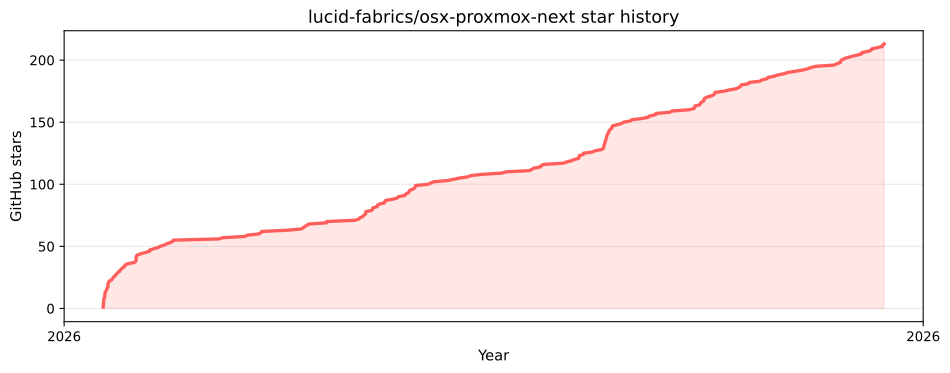
Chart auto-regenerated from the GitHub stargazers API.