agent-remote lets local agents such as Pi, Codex, and Claude operate remote homelab machines or VPS instances. It does not rely on forward-connection services such as RDP or SSH. A target machine can still be reached when it has no public IP address and is protected by a firewall.
The source targets compatibility with Windows 7/2008.
Features
The single aremote executable supports two connection modes:
- Forward connection: run
serveron the target machine and let Pi connect to it. - Reverse connection: run
serverlocally, and let the target machine connect out as aworker. This is suitable when the target machine is behind a firewall and cannot accept inbound connections.
The Pi extension takes over read, bash, edit, write, file completion, and
interactive ! Bash commands.
For agents such as Codex, Claude Code, and OpenCode, both CLI and MCP integration are available.
Install the Pi extension
Copy the extension into Pi's auto-load directory:
mkdir -p ~/.pi/agent/extensions/agent-remote
cp pi-extension/index.ts ~/.pi/agent/extensions/agent-remote/index.ts
Forward connection
The Gateway and Worker must use the same Token, which must be at least 8 characters long.
Enter the Token in Pi with /remote connect; it is saved automatically after the
first successful connection.
Start the Gateway on the target machine:
./aremote-linux-amd64 server --token 'replace-with-a-long-random-token'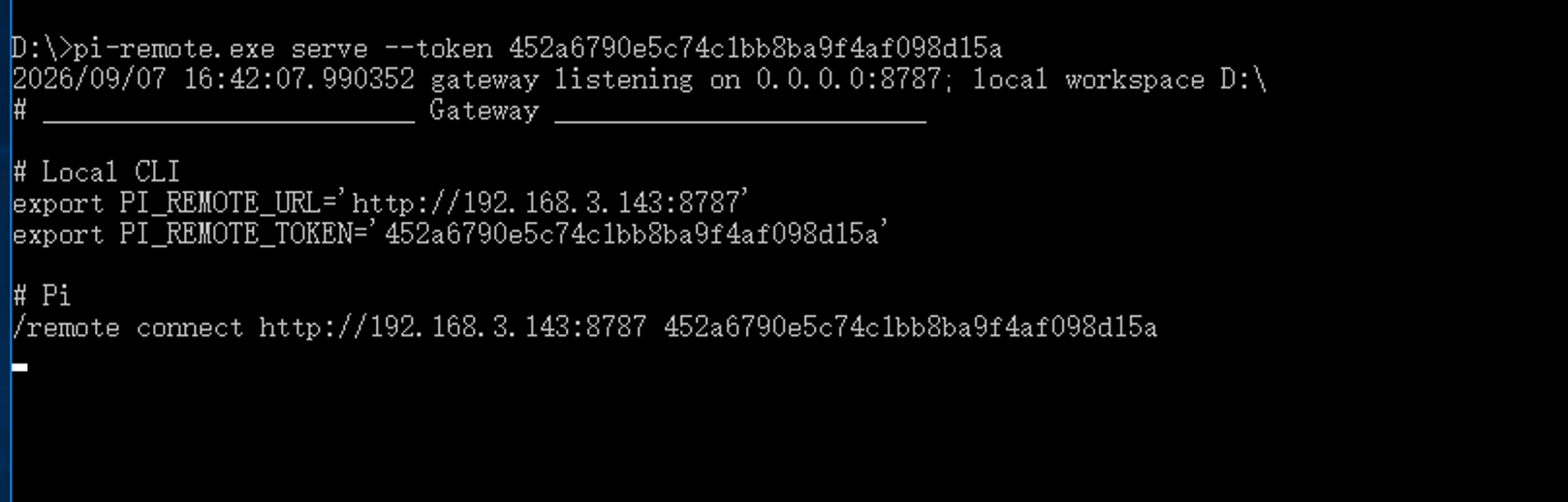
Connect in Pi:
/remote connect http://TARGET_IP:8787 replace-with-a-long-random-token My development machine
/remote status
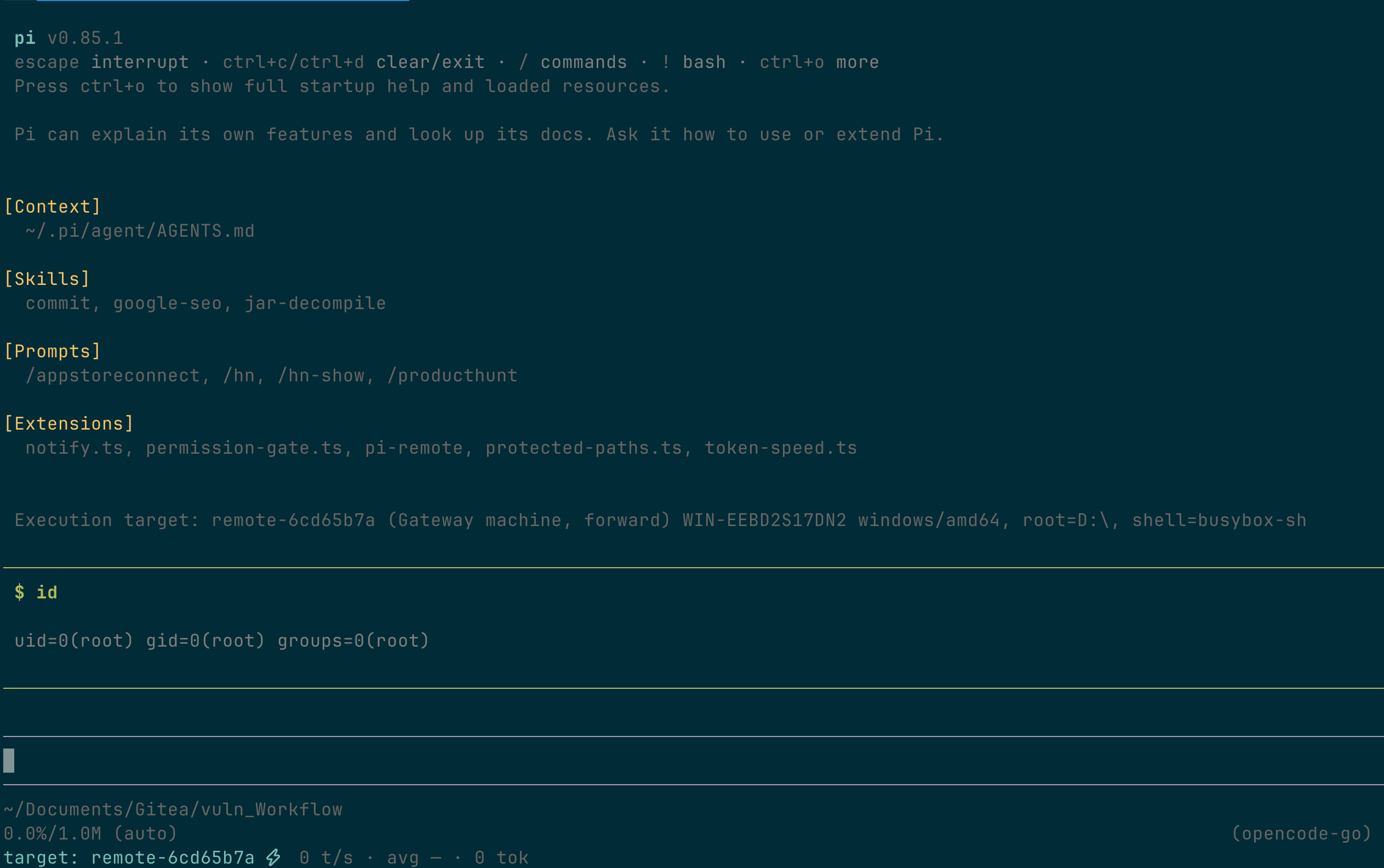
When the connection command does not specify --worker, it operates on the machine
running the Gateway. The optional trailing text is a display note. Select a
reverse-connected Worker like this:
/remote connect http://VPS:8787 replace-with-a-long-random-token --worker office-linux My office machine
Public VPS relay
When both Pi and the target machine are on private networks, use this topology:
Pi --HTTP--> Public VPS Gateway <--WebSocket-- Worker
Even with http:// and ws://, RPC content and Worker messages are encrypted with
AES-256-GCM and authenticated with a timestamped, random-nonce HMAC. A passive
network observer cannot read the Token, commands, file contents, or execution
results. Because the VPS holds the shared Token, the VPS Gateway itself can still
decrypt the traffic.
Allow TCP port 8787 in the VPS cloud security group and system firewall.
Start the Gateway on the public VPS:
./aremote-linux-amd64 server \
  --token 'replace-with-a-long-random-token' \
Start the Worker on the private-network target machine:
./aremote-linux-amd64 worker \
  --token 'replace-with-a-long-random-token' \
  --server ws://VPS_PUBLIC_IP:8787 \
  --id office-linux
The Worker actively establishes a persistent WebSocket connection and reconnects automatically after disconnection. The target machine does not need a public IP, port mapping, or an inbound firewall rule.
On the Pi machine:
/remote connect http://VPS_PUBLIC_IP:8787 replace-with-a-long-random-token --worker office-linux
/remote status
The request path is:
Pi -> HTTP -> VPS Gateway -> WebSocket -> office-linux Worker
Multiple Workers are supported, but every machine's --id must be unique:
/remote office-linux
/remote home-linux
/remote win7-test
Pi extension commands
/remote                              # show remote subcommands
/remote status                       # show the current target
/remote list                         # list saved targets and their online status
/remote remove                       # remove a saved target
/remote refresh                      # refresh Worker information
/remote off                          # disable the remote connection
/remote office-linux                 # select a Worker
/remote connect http://HOST:8787 TOKEN --worker ID [note]
Health check
/healthz is the only endpoint intentionally left in plaintext:
curl http://HOST:8787/healthz
/v1/targets and /v1/rpc use the Token + HMAC + AES-256-GCM protocol and do not
accept a plaintext Authorization: Bearer header. Use the Pi extension or implement
the same secure protocol.
Codex / Claude Code / OpenCode integration
aremote can be used by any agent that supports command-line tools or standard
stdio MCP.
Connect once before using the CLI or MCP. The connection is checked, then stored with
its Token at ~/.agent-remote/config.json with owner-only permissions:
aremote connect http://HOST:8787 replace-with-a-long-random-token
aremote connect http://HOST:8787 replace-with-a-long-random-token --worker office-linux My office machine
Use aremote status to inspect the active target. aremote list shows every saved
target and its online status; in an interactive terminal, select its number to make
it active. Use aremote refresh to query the active target again and
aremote remove to interactively remove a saved target; use
aremote remove TARGET_ID in scripts. Use aremote rename NOTE... to change the
active target's note without reconnecting.
Every saved target has an ID displayed by aremote list. Use a non-active target
without changing the default, which lets separate agents operate distinct
machines concurrently:
aremote --target target-a1b2c3d4 bash "hostname"CLI
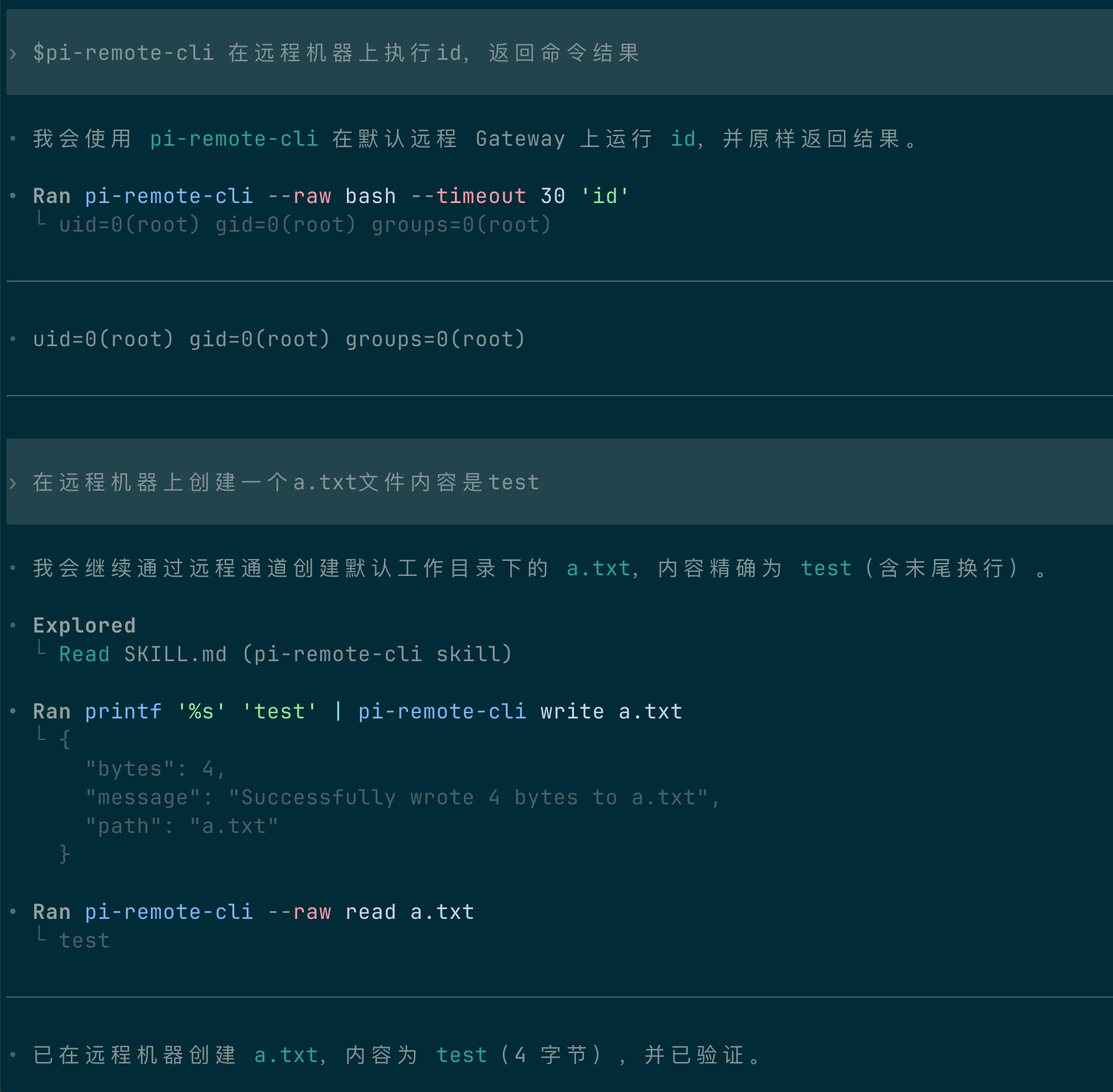
Use this when an Agent calls aremote through a shell. First install the
repository's /skills/aremote-cli/ into a Skill directory scanned by the Agent.
Then explicitly invoke the Skill in the Agent conversation to check the connection:
$aremote Run id on the remote machine and return the command result.
MCP
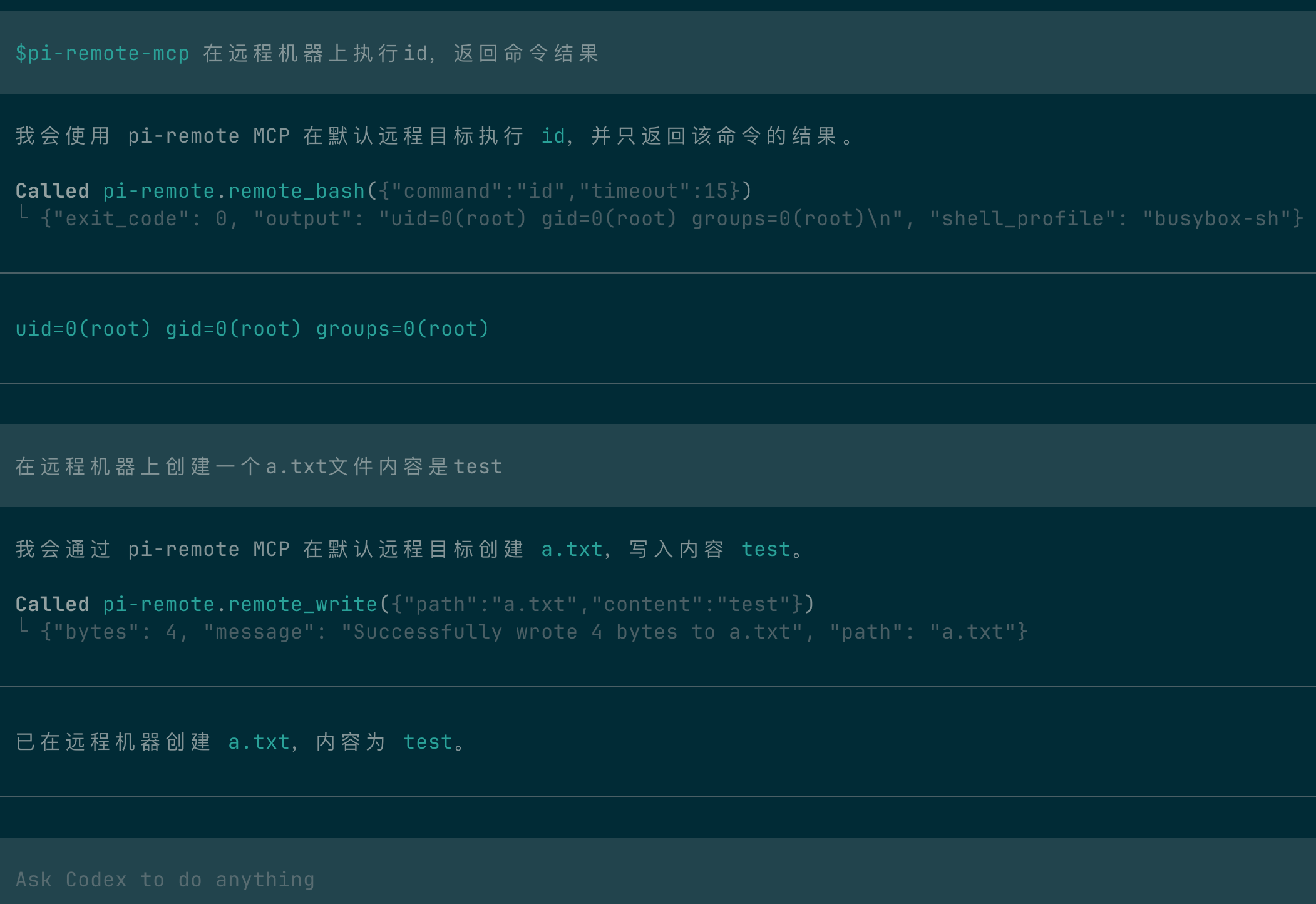
Add the MCP settings in Codex:
[mcp_servers.agent-remote]
command = "/opt/homebrew/bin/aremote"
args = ["mcp"]
enabled = true
MCP tools can also operate on any saved target. Call remote_targets to obtain
target IDs, then pass target to remote_read, remote_bash, and the other remote
tools. Call remote_workers with target to inspect its Gateway and Workers; pass
worker to select a non-default Worker under that target's Gateway.
Windows Shell behavior
Before building the Windows program, place the runtime file at:
internal/runtimebundle/assets/
└── windows_amd64/
    └── bin/busybox.exe
Windows builds currently support amd64 only. Every file below windows_amd64, except
_placeholder, is embedded in aremote.exe.
When the embedded BusyBox runtime is available, the Worker starts
busybox.exe sh -s directly. Commands such as ls, id, whoami, grep, and
find are handled by BusyBox without creating applet link files. It uses BusyBox
ash syntax, not Bash syntax, and does not silently switch to CMD or PowerShell.
When available, timeouts and cancellation terminate the Windows Job Object and its child processes. If the process cannot join a Job Object, the Worker falls back to terminating the Bash process directly.