
Inspired by tmuxinator and tmuxp.
Smug automates your tmux workflow. You can create a single configuration file, and Smug will create all the required windows and panes from it.
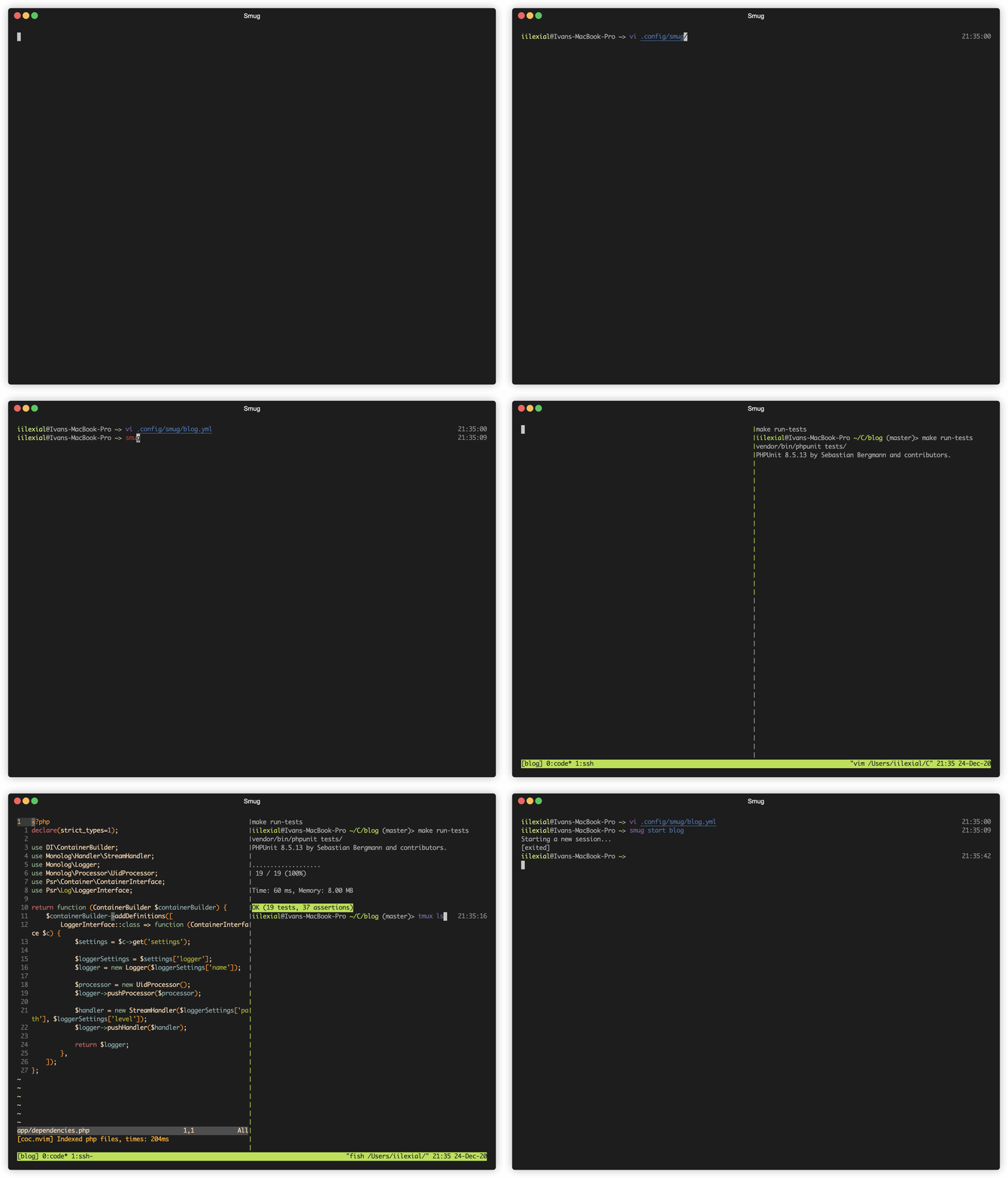
The configuration used in this GIF can be found here.
Installation
Download from the releases page
Download the latest version of Smug from the releases page and then run:
mkdir smug && tar -xzf smug_0.1.0_Darwin_x86_64.tar.gz -C ./smug && sudo mv smug/smug /usr/local/bin && rm -rf smug
Don't forget to replace smug_0.1.0_Darwin_x86_64.tar.gz with the archive that you've downloaded.
Go (recommended)
Prerequisite Tools
Fetch from GitHub
The easiest way is to clone Smug from GitHub and install it using go-cli:
go install github.com/ivaaaan/smug@latest
macOS
On macOS, you can install Smug using MacPorts or Homebrew.
Homebrew
MacPorts
sudo port selfupdate
sudo port install smug
Linux
Arch
There's AUR with smug.
git clone https://aur.archlinux.org/smug.git
cd smug
makepkg -si
Usage
smug <command> [<project>] [-f, --file <file>] [--worktree <worktree>] [-w, --windows <window>]... [-a, --attach] [-d, --debug]
Options:
-f, --file A custom path to a config file
--worktree Use the git worktree (by branch or directory name) as the session root
-w, --windows List of windows to start. If session exists, those windows will be attached to current session.
-a, --attach Force switch client for a session
-i, --inside-current-session Create all windows inside current session
-d, --debug Print all commands to ~/.config/smug/smug.log
--detach Detach session. The same as `-d` flag in the tmux
Git worktrees
If your project root is a git repository, --worktree starts the session in one of its worktrees instead. The worktree is matched by its branch name or its directory name, and it overrides the root for the session:
xyz@localhost:~$ smug start project --worktree feature-x
Custom settings
You can pass custom settings into your configuration file. Use ${variable_name} syntax in your config and then pass key-value args:
xyz@localhost:~$ smug start project variable_name=value
Examples
To create a new project, or edit an existing one in the $EDITOR:
xyz@localhost:~$ smug new project

xyz@localhost:~$ smug edit project
To start/stop a project and all windows, run:
xyz@localhost:~$ smug start project

xyz@localhost:~$ smug stop project
Also, smug has aliases to the most of the commands:
xyz@localhost:~$ smug project # the same as "smug start project"

xyz@localhost:~$ smug st project # the same as "smug stop project"

xyz@localhost:~$ smug p ses # the same as "smug print ses"
When you already have a running session, and you want only to create some windows from the configuration file, you can do something like this:
xyz@localhost:~$ smug start project:window1

xyz@localhost:~$ smug start project:window1,window2

xyz@localhost:~$ smug start project -w window1

xyz@localhost:~$ smug start project -w window1 -w window2

xyz@localhost:~$ smug stop project:window1

xyz@localhost:~$ smug stop project -w window1 -w window2
Also, you are not obliged to put your files in the ~/.config/smug directory. You can use a custom path in the -f flag:
xyz@localhost:~$ smug start -f ./project.yml

xyz@localhost:~$ smug stop -f ./project.yml

xyz@localhost:~$ smug start -f ./project.yml -w window1 -w window2
Configuration
Configuration files can stored in the ~/.config/smug directory in the YAML format, e.g ~/.config/smug/your_project.yml.
You may also create a file named .smug.yml in the current working directory, which will be used by default.
Session-level options
-
attach- Automatically attach to the session after creation (defaults tofalse). The-aflag can also enable attachment. -
before_start- Runs only before session is created -
stop- Runs only before session killed -
attach_hook- Runs every time first client is attached to the session -
detach_hook- Runs every time last client is detached to the session
Examples
Example 1
session: blog

root: ~/Developer/blog

env:
  FOO: BAR

before_start:
  - docker-compose -f my-microservices/docker-compose.yml up -d # my-microservices/docker-compose.yml is a relative to `root`, runs only before session is

stop:
  - docker stop $(docker ps -q) # runs only before session is killed

attach_hook: echo 'test' > /tmp/SMUG-ATTACH-HOOK  # runs every time first client is attached to the session (different than "before_start")

detach_hook: echo 'test' > /tmp/SMUG-DETACH-HOOK  # runs every time last client is detached from the session (different than "stop")


windows:
  - name: code
    root: blog # a relative path to root
    manual: true # you can start this window only manually, using the -w arg
    layout: main-vertical
    commands:
      - docker-compose start
    panes:
      - type: horizontal
        root: .
        commands:
          - docker-compose exec php /bin/sh
          - clear

  - name: infrastructure
    root: ~/Developer/blog/my-microservices
    layout: tiled
    panes:
      - type: horizontal
        root: .
        commands:
          - docker-compose up -d
          - docker-compose exec php /bin/sh
          - clear
Example 2
session: blog
attach: true # Automatically attach to this session

root: ~/Code/blog

before_start:
  - docker-compose up -d

stop:
  - docker-compose stop

windows:
  - name: code
    selected: true # Selects this window at the start of the session
    layout: main-horizontal
    commands:
      - $EDITOR app/dependencies.php
    panes:
      - type: horizontal
        commands:
          - make run-tests
  - name: ssh
    commands:
      - ssh -i ~/keys/blog.pem ubuntu@127.0.0.1
Scaffolding configs with Claude Code
This repo ships a Claude Code skill that builds a new smug configuration for you interactively, so you don't have to write the YAML by hand.
If you've opened the project in Claude Code, the skill is picked up automatically from .claude/skills/new-config/. To use it, run:
The skill interviews you about the session and then writes a valid config file:
- Session name and where to save it (
.smug.ymlin the current directory,~/.config/smug/<session>.yml, or a custom path) - Root directory for the session
- Windows — names and the commands they run
- Optional panes, layouts, env variables, before_start/stop commands, and attach_hook/detach_hook
Once the file is written, start the session as usual, e.g. smug start <session> or smug start -f <path>.