GitHub - eblanshey/HistoryWorkbench: A FreeCAD workbench to track CAD model history and review changes using 3D and tree comparisons.

11 min read Original article ↗

History Workbench for FreeCAD

Track CAD model history and review changes using 3D and tree comparisons.

FreeCAD 1.1+

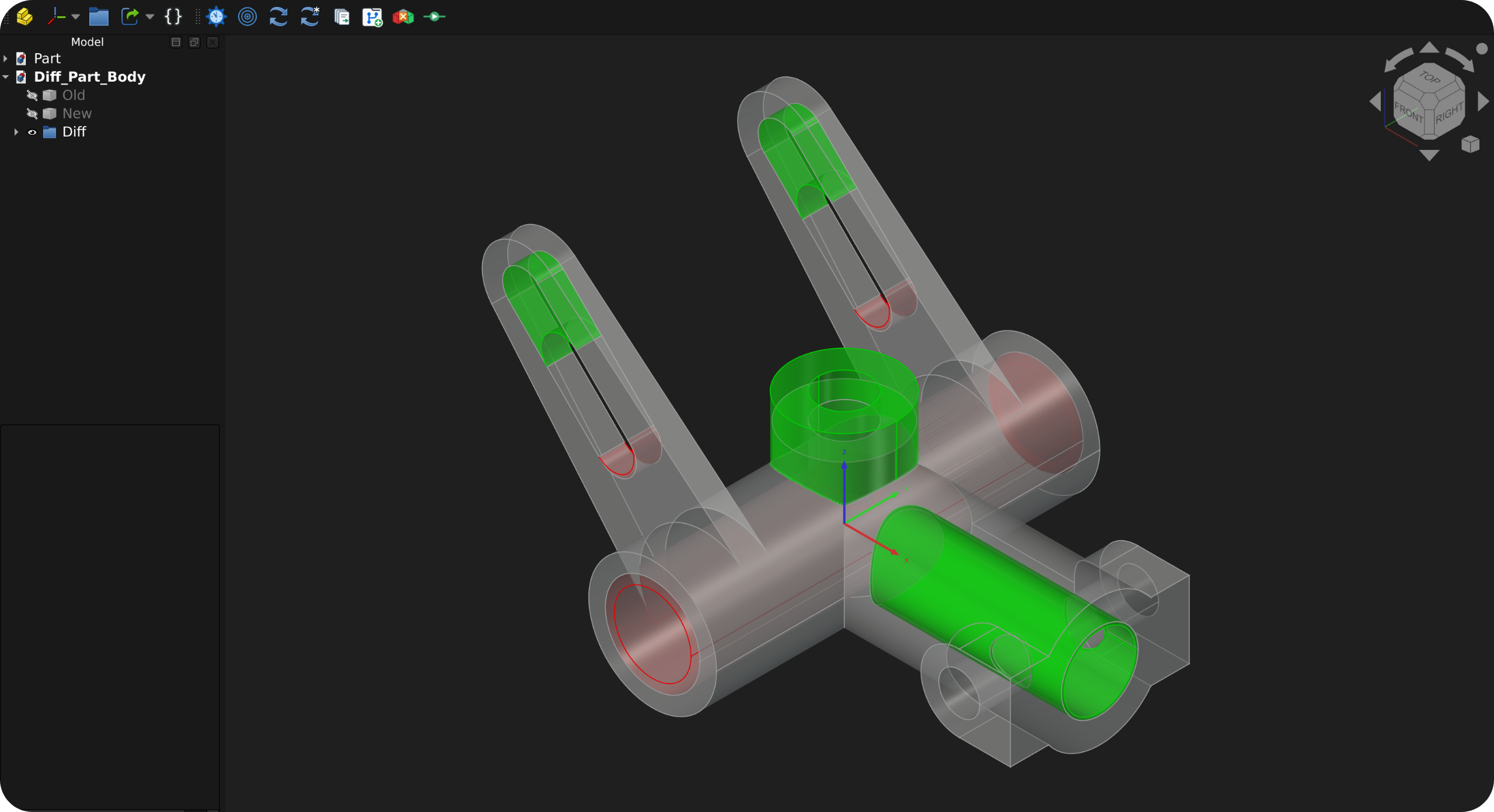
3d comparison image

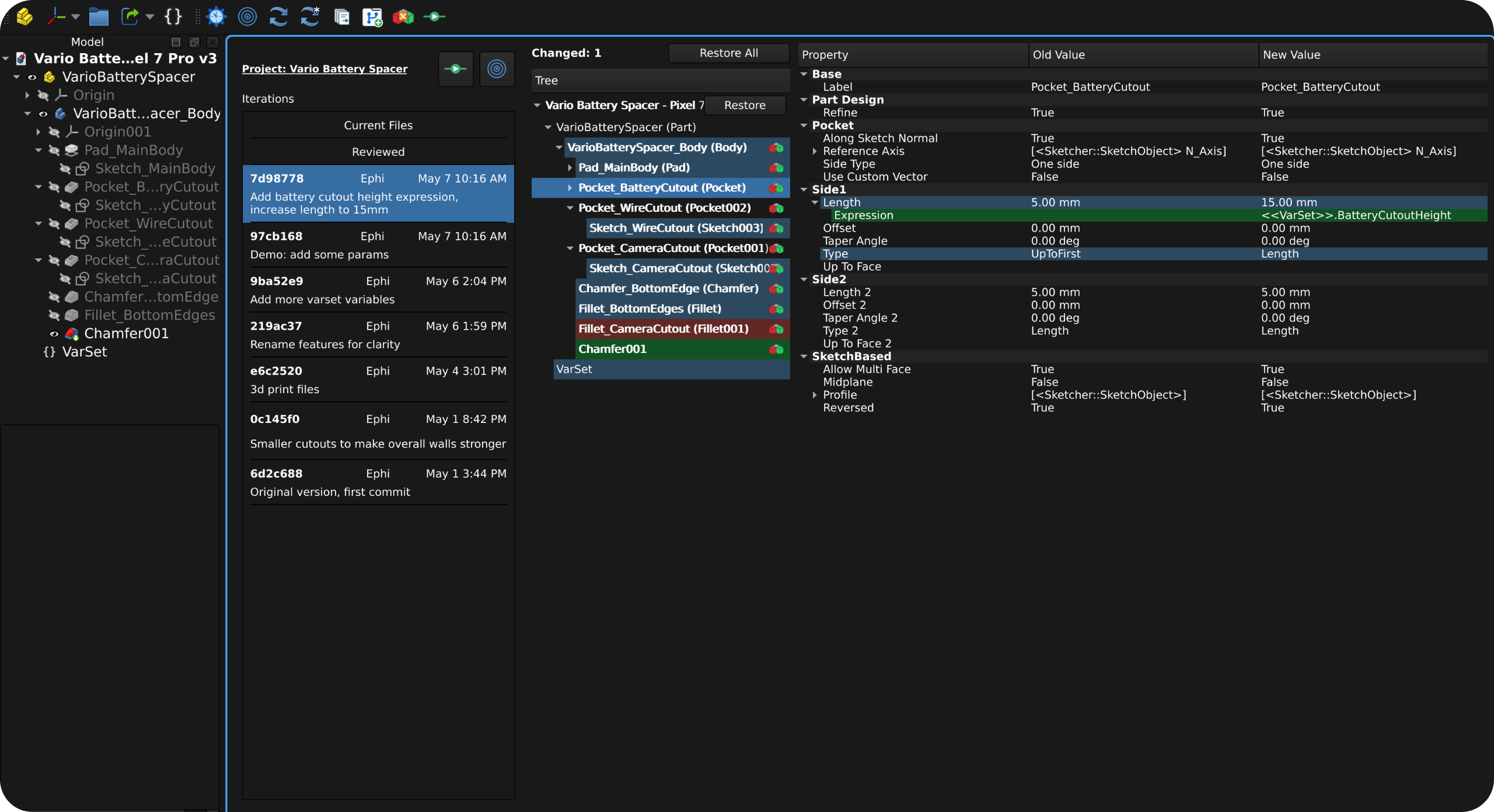
tree comparison image

Intro

History Workbench helps you create CAD projects with confidence by tracking iterations over time, reviewing in-progress work, restoring models from saved history, and showing model changes as detailed 3D and parametric tree comparisons.

It helps answer questions like:

  • How does my change look in 3D compared to the last iteration?
  • Can I trust that my changes didn't create any unforeseen side-effects?
    • FreeCAD core and workbench development: what else did my new feature or bugfix affect?
  • Which objects, dimensions, placements, expressions, or dependencies changed?
  • What did my model look like 3 iterations ago?
  • Why did I change this model 2 months ago?

History Workbench uses Git internally for version control, but Git knowledge is not required for normal use. The workbench intentionally replaces Git terminology with CAD-focused terms, such as Project, Iteration, and Review, so the workflow matches how CAD users think about model history.

Note

This workbench is relatively new. We try to avoid backwards-incompatible changes but they are still possible. Sharing feedback, opening issues, and submitting pull requests are encouraged!

Features

  • 3D feature comparison: Open visual comparisons for Part, PartDesign, and Sketcher objects, with added, removed, and shared geometry shown in separate colors.
  • Model tree comparison: See added, removed, and modified objects in FreeCAD's model tree hierarchy with color-coded highlighting
  • Detailed property review: Inspect exact changes to dimensions, placements, expressions, constraints, quantities, links, and other editable properties.
  • Review workflow: Review model changes incrementally and save the result as a new iteration when ready.
  • Project history timeline: Move between in-progress work, reviewed changes, and saved iterations from one history panel.
  • Safe restore workflow: Restore individual files or batches from Reviewed or any saved iteration back onto disk without rewriting project history.
  • Multi-document support: Review and iterate on multiple related documents at once, such as assemblies spread across several .FCStd files.
  • Noise control: Hide generated object types or properties, tune floating-point precision, and keep comparisons focused on meaningful CAD changes.
  • Light and dark theme support: Keep comparison highlights readable in both light and dark FreeCAD themes.
  • Local-first storage: your project stays on your computer. Optional remote storage and sharing available for advanced users.

Installation

History Workbench requires:

  • FreeCAD 1.1 or newer (earlier versions may work, but are untested)
  • Git installed and available on your computer for iteration tracking. Knowledge of Git is not required to use this workbench.

History Workbench is not yet available in the official FreeCAD Addon Manager repository. Until then, install it as a custom repository:

  1. Open FreeCAD.
  2. Go to Edit > Preferences > Addon Manager > Custom repositories.
  3. Add this repository URL: https://github.com/eblanshey/HistoryWorkbench
  4. Set the branch to master.
  5. Open Tools > Addon Manager.
  6. Search for History Workbench and install it.
  7. Restart FreeCAD.

Upgrading

When upgrading from an existing Addon Manager installation:

  1. Open Tools > Addon Manager.
  2. Uninstall History Workbench.
  3. Close FreeCAD.
  4. Reopen FreeCAD.
  5. Open Tools > Addon Manager.
  6. Install History Workbench again.
  7. Restart FreeCAD.

First Run: Project Initialization

History Workbench works with a Project: a folder on your computer that contains the FreeCAD files you want to track together. For an existing folder of CAD files, initialize it as a Project first, then save a baseline iteration before making new CAD changes so tree comparisons have a starting point.

  1. (Recommended) FreeCAD compression: To keep project history more storage-efficient, see the FreeCAD Version Storage Tips section below.
  2. Open a FreeCAD file: Start FreeCAD and open any document from the folder you want to use as the root of your Project.
  3. Initialize the Project: Click Initialize Project in the History Workbench, select the folder that contains your project files, and click "Initialize".
  4. Open project documents: Click Refresh Project, then click Open All Documents to open all FreeCAD documents in the project folder.
  5. Recompute documents: Click Recompute All to make sure document state is current. Ensure there aren't recomputation errors.
  6. Review current file state: Select Current Files in the history list. Large projects may take some time while comparison data is generated.
  7. Mark everything reviewed: Click Mark All Reviewed. The workbench saves documents and records the tree structure data needed for future comparisons.
  8. Save the baseline iteration: Use Save Iteration or your regular version-control client.

After that baseline iteration, continue modeling normally and use the Daily Workflow instructions below to review your work.

Daily Usage

Use History Workbench as a review loop after normal CAD work.

  1. Work in FreeCAD as usual: Model, recompute, save, and edit your project files normally. Recompute your document(s) and ensure there are no errors.
  2. Refresh the project: In the History workbench, click Refresh Project so the history list and document status reflect the latest files.
  3. Review file changes: Click the Current Files iteration item in the list. The document tree shows added, removed, and modified objects since the last reviewed state.
  4. Inspect detailed properties: Click a changed object in the model tree. The property panel shows changed dimensions, placements, expressions, constraints, quantities, links, and other editable properties.
  5. Open 3D comparisons: For changed Part, PartDesign, or Sketcher objects, click 3D Comparison next to the object to open a separate comparison document. Removed material is shown in red, added material in green, and unchanged material in gray. You may use FreeCAD's unified measurement tool to measure changes.
  6. Mark documents reviewed: Click the Reviewed button on individual documents when they are ready, or click Mark All Reviewed after reviewing all of them. This supports incremental review across multiple related files, such as assemblies.
  7. Keep working if needed: Return to the CAD model and make more edits, if needed. The next Current Files comparison is made against the documents you already marked as reviewed.
  8. Verify reviewed work: Click the Reviewed iteration item in the history list to confirm exactly what will be saved in the next iteration.
  9. Save an iteration: Click Save Iteration, enter a description of the changes, and confirm.

Caution

Tree comparisons focus on structured FreeCAD object and property data, but may not capture every CAD model change yet. Use 3D comparisons as an additional review step before saving an iteration.

Restoring Files from Reviewed or Saved Iterations

Use restore when you want to bring one file, or many files, back to a prior saved state on disk.

  1. Select Reviewed or a specific saved iteration in the history list.
  2. Restore one file with the per-file Restore button, or restore many files with Restore All.
  3. For Restore All, choose a scope:
    • Listed FreeCAD files: Restore only the FreeCAD files changed in the selected iteration.
    • All FreeCAD files: Restore all previously saved FreeCAD files to how they were in this iteration. Any previously saved FreeCAD files that did not exist in that iteration are removed. New files not yet saved to history are kept.
  4. Confirm the warning dialog.

Restore behavior:

  • Restore changes files on disk only; saved iteration history is unchanged.
  • Open project documents are closed before restore and reopened after restore.
  • Unsaved in-memory changes in those project documents are lost.
  • New FreeCAD files not yet saved in history are left unchanged during All FreeCAD files restore.

To preserve project history, previous iterations cannot be altered once they are saved.

Commands

Command Icon Description
Open History Panel Open or focus the History panel. Use it to quickly switch to the history window if it has gone out of focus.
Refresh Project Refresh the detected project and reload iterations. If an iteration is already selected, the tree comparison is refreshed. Use it when opening FreeCAD documents located within a project and after making any changes.
Recompute Active Document Recompute the active document. Use it when you need to recompute only the currently active document.
Recompute All Recompute every open document. Use it to ensure all document state is current before doing reviews. Useful for projects with many document inter-dependencies.
Open All Documents in Project Open every .FCStd file found in the project. Useful for initializing a project.
Initialize Project Initialize a new project for the selected directory. Use it when setting up a new folder of CAD files for the first time.
Close Comparison Windows Close every document starting with Diff_ without saving. Use it when you want to quickly clean up comparison windows after reviewing 3D diffs.
Save Iteration Save reviewed changes as an iteration. Use it after reviewing and marking documents as reviewed to save the result.
Configure Author Configure iteration author name and email. Visible in the menu only.
Edit Ignored Files Edit project's ignored files list (.gitignore content). Visible in the menu only.

Roadmap

  • Detect .FCStd file renames and moves, and update snapshots to match
  • Create a more in-depth public documentation site
  • Implement "File Save History" to be able to restore any previous file save (include configurable retention and diffing)
  • Track and compare non-FCStd files in the project
  • Ability to regenerate historical snapshots (discussion in #5)

Done:

  • Move reviewed documents back to Current Files from inside History Workbench
  • Initialize new project history repositories from inside History Workbench
  • 3D view comparisons

Configuration

FreeCAD's Preferences dialog includes a History panel.

Exclusion Lists

Exclusion lists hide noisy generated data from tree comparison views.

Each exclusion list supports two modes:

  • Use default exclusion list: Use History Workbench's built-in defaults.
  • Use custom exclusion list: Provide your own exclusions.

Default values are defined in freecad/history_wb/domain/config.py.

Excluded Object Types

Enter one FreeCAD TypeId per line, such as App::Origin. Objects of these types and their children are removed from comparison views. You can see an object's type by hovering your mouse over it in the History's tree panel.

Excluded Properties

Enter one property name per line, such as TimeStamp. These properties are excluded across all object types.

Type-Specific Excluded Properties

Enter one mapping per line in the format TypeId -> PropertyName. This excludes one property for one object type while keeping it visible elsewhere.

TechDraw::DrawSVGTemplate -> PageResult

Numeric Comparison

Float Precision

Set the number of decimal places used for floating-point comparison and display. The supported range is 0 to 12; the default is 2.

FAQ

The tree comparison doesn't show any changes, but the Reviewed button is enabled. Why?

No object or property changes were detected, but the FreeCAD document changed on disk. This can happen when the document was saved without model changes, view properties or internal cache data changed, or parametric changes occurred that History Workbench does not detect yet.

Some of these scenarios are legitimate project changes and should be tracked like any other change. If you find a parametric model change that is not shown in the tree comparison, please open an issue with a sample file when possible.

FreeCAD Version Storage Tips

FreeCAD documents are binary files by default. Small model edits can produce large file changes, and project history disk usage can grow quickly over time.

For a simple version-control-friendly setup, disable document compression:

  1. Open Edit > Preferences > General > Document.
  2. Set Document save compression level to 0.

An .FCStd file is a ZIP archive. With compression disabled, more of the document remains plain XML inside the archive, which makes version storage and external comparison tooling behave better.

Advanced users: For large or long-lived CAD projects, also consider Git LFS for .FCStd files. There is a PR in FreeCAD that addresses file formats for versioning. See this comment for more version-control discussions.

Advanced Usage

This section is for advanced users who want more control over project history. History Workbench uses Git for version control, so users familiar with Git can use regular Git tools alongside the workbench for workflows that are not implemented in the FreeCAD interface yet.

Advanced Git usage can help with tasks such as:

  • Editing saved iteration messages (Git commit messages).
  • Adding non-FreeCAD files to the Reviewed area (Git staging area) so they are saved with the same iteration, such as text documents, spreadsheets, CSV files, or reference data.
  • Backing up a Project to a remote repository (Git remote), such as GitHub, GitLab, or a private Git server.
  • Inspecting project history from external Git clients when you need lower-level version-control tools.

History Workbench still needs to be used to mark FreeCAD documents as Reviewed (staged). This step stores YAML snapshot files in the Project repository, which are needed to display the document tree.

Contributors

This workbench is made for all FreeCAD users. Please open an issue to report bugs, confusing comparisons, setup problems, documentation gaps, or feature requests. Development so far has happened on Linux, so additional platform setup notes and test instructions are also welcome as contributions.

  • Development setup: Set up a live FreeCAD workbench checkout, install dependencies, and configure the FreeCAD AppImage runtime for tests.
  • Development guidelines: Coding standards, testing strategy, logging, translations, dependency injection, and common contributor workflows.
  • Architecture: Layer responsibilities, runtime flow, composition roots, and snapshot/comparison pipeline.