Gorilla Quake
Gorilla Quake is an unofficial fork of Vittorio Romeo's Quake VR that adds Gorilla Locomotion: a VR hand-based movement mode inspired by Gorilla Tag. When enabled, the player can plant their hands against level geometry and push their body away from the surface, including jumping, climbing, and hand-driven movement while swimming.
The original Quake VR features and installation model still apply. This fork
does not include the commercial Quake data files; players must provide their own
PAK0.PAK and PAK1.PAK from a legitimate Quake installation.
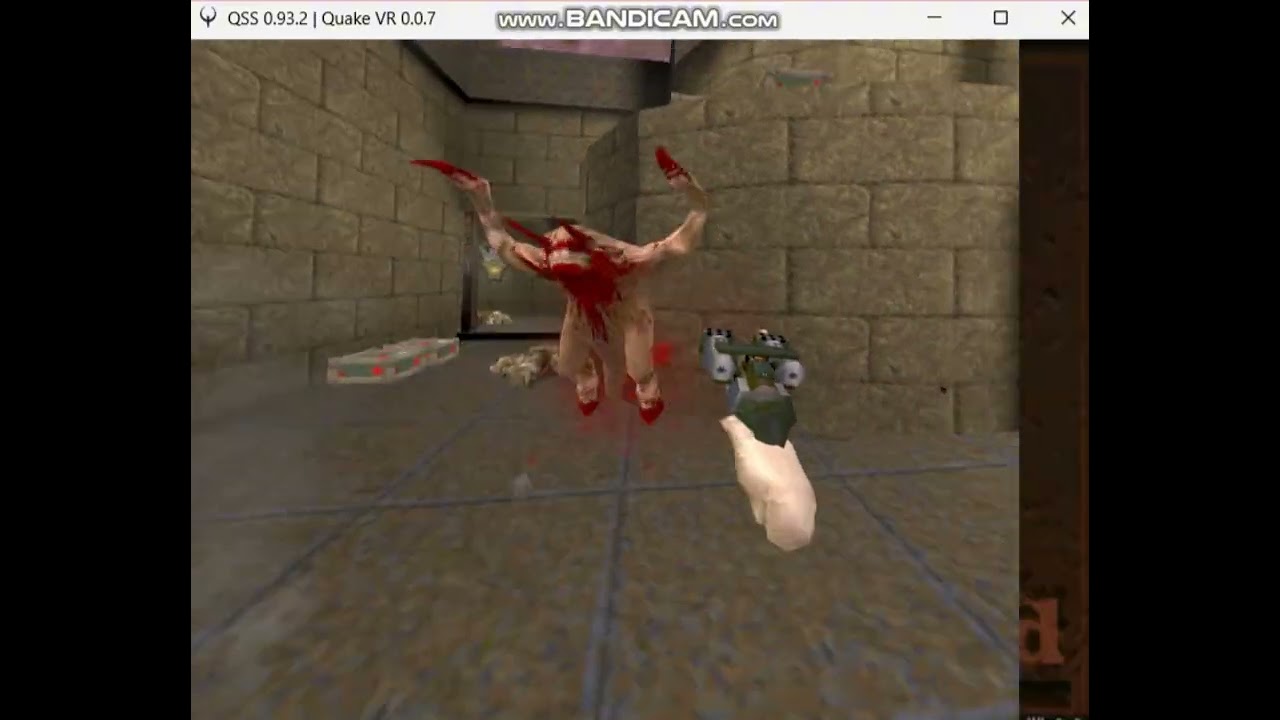
Demo
Installation
-
Install "Visual C++ x64 Redistributable" package.
-
Install 7zip
-
Install "Quake". The Steam version works well.
-
Grab the latest binary from the releases page.
-
Extract the Quake VR archive into a new, empty folder (e.g.
C:/Games/id/Quake/quakevr). -
Navigate to the
id1folder in your installation of Quake (e.g.C:/Program Files/Steam/steamapps/common/Quake/id1) and copy bothPAK0.PAKandPAK1.PAKto Quake VR'sid1folder (e.g.C:/Games/id/Quake/quakevr/id1). -
Run the
quakevr.exeexecutable in the root folder to launch the game! -
(optional) To enable music, copy the
musicfolder from the 'remaster' (e.g.C:/Program Files/Steam/steamapps/common/Quake/rerelease/id1/music) to Quake VR'sid1folder as well.
First Steps
SteamVR Bindings
The first thing you should do after starting Quake VR is opening the "Controller Bindings" interface on SteamVR and ensure that in-game actions are mapped to the motion controllers. There are two action sets to bind: one for in-game actions, and one for menu control. See an example video here.
In-Game Configuration
After setting up your bindings, please go through all the options in "Quake VR Settings", and tweak the game to your liking. Do not forget to:
- Calibrate your height;
- Tweak the position of the "VR torso" and of the holsters ("hotspots");
- Go through the "Immersion Settings".
There is no "best" way of playing Quake VR. Simply use the settings that you enjoy the most!
Multiplayer
Versus Bots
To play against bots, select "Multiplayer & Bots" from the main menu, then "New Game" and follow the on-screen instructions. When in-game, spawn new bots from the "Bot Control" menu under "Multiplayer & Bots".