AKA Happy Accidentals
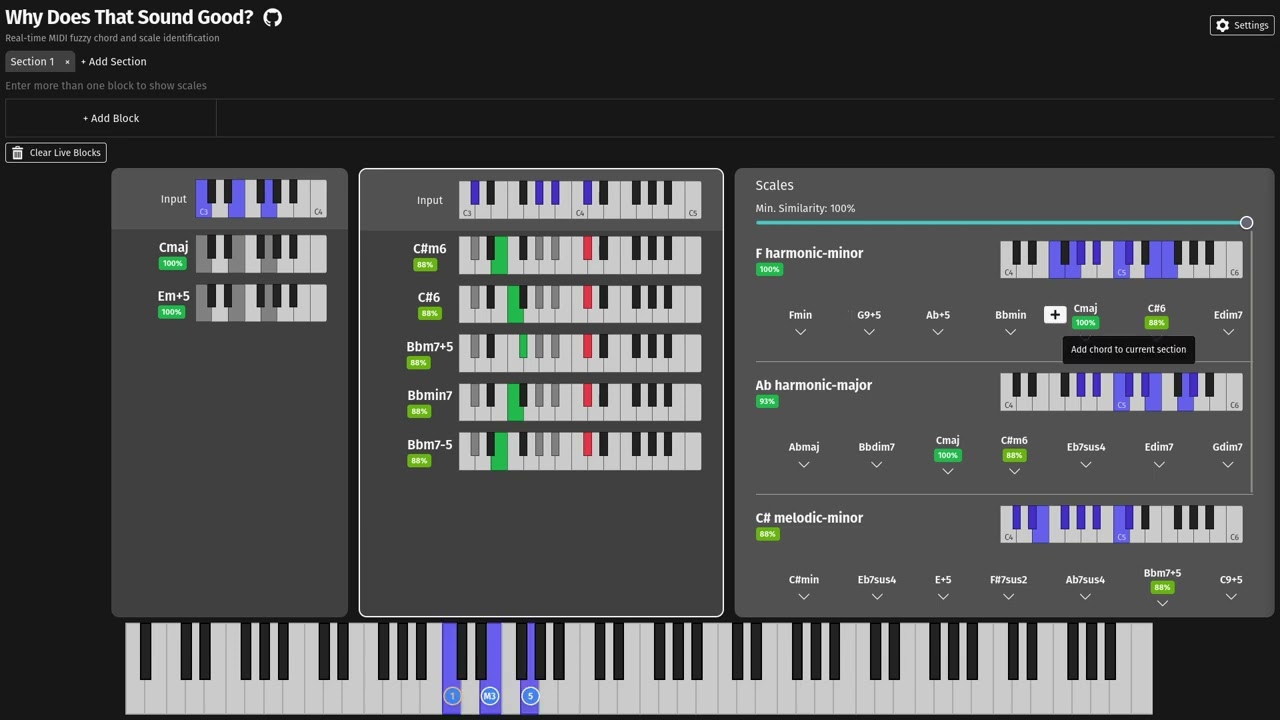
A front-end-only web app which listens to your MIDI keyboard and helps reverse-engineer/fuzzy-search what you played to help figure out the context (e.g. chord, scale).
Link
https://cofinley.github.io/why-does-that-sound-good/
Demo
Click the image below to see the video
Features
- Fuzzy chord and scale identification
- No need to play exact notes, this will find the closest result(s)
- Shows % similarity AKA overlap
- Shows suggested chord over notes played
- MIDI in/out and preview
- Progression building
- Group chords into sections
- Private; LocalStorage saving, static site; no back-end servers
Rationale
I love playing the piano and often I will stumble upon a happy accident (a chord or line that sounds good) but I don't know enough to instantly recognize what it is.
My 'algorithm' would usually go like this:
- Repeat for each chord:
- Look up chord by notes
- Keep track of all suggested chords
- Repeat for each combination of suggested chords:
- Look up scale by chord roots
- Pick scale which sounds best
- Look up other chords in scale
This is usually a slow process which breaks creative flow. All of these lookups can be automated in real-time.
Problems With Other Solutions
Some things I noticed with existing solutions which prompted me to create my own:
- Expectation that the user enters in the exact notes of a chord
- No fuzzy search supported if I'm off by a note or two
- Expectation that the user enters in the key and/or scale before chord identification can take place
- Again, no fuzzy search supported
- If I don't know what chord it is, there's a good chance I also don't know what key/scale I'm in
- I get the rationale since a collection of notes can have several names under various keys and filtering down ahead of time can help, but I think there are usually few enough that it's not a big deal and the ambiguity can actually stoke some new curiosity
- E.g. a C major chord has the same notes as an E minor chord with a sharp 5. Both provide different contexts to think in!
Goals & Non-Goals
- This app aims to serve as a map to tell you where you are (which chord/scale you're playing or close to playing) and where you might go from there (other chords/notes in scale).
- It is not meant to limit you to the suggested results, it just provides context when you want it; play what sounds good to you!
- It is meant to help those who are learning piano/keyboard and have little to no music theory knowledge or just want a quick lookup.
- It is not an end-all-be-all music theory resource, just a helpful automation tool to serve as a launching pad.
Getting Started
Project Overview
- Architecture:
Single Page Application (SPA)
- There is no back-end, this is self-contained as a front-end app
- Languages
- Front end is ClojureScript with (re-frame)
- Dependencies
- Build tools
- CLJS compilation, dependency management, REPL, & hot reload:
shadow-cljs - Test framework: cljs.test
- Test runner: Karma
- CLJS compilation, dependency management, REPL, & hot reload:
- Development tools
- Debugging: CLJS DevTools,
re-frame-10x - Emacs integration: CIDER
- Linter: clj-kondo
- Debugging: CLJS DevTools,
Directory structure
/: project config files.clj-kondo/: lint config and cache files (cache files are not tracked; see.gitignore)dev/: source files compiled only with the dev profileuser.cljs: symbols for use during development in the ClojureScript REPL
resources/public/: SPA root directory; dev / prod profile depends on the most recent buildindex.html: SPA home page- Dynamic SPA content rendered in the following
div: - Customizable; add headers, footers, links to other scripts and styles, etc.
- Dynamic SPA content rendered in the following
- Generated directories and files
- Created on build with either the dev or prod profile
js/compiled/: compiled CLJS (shadow-cljs)- Not tracked in source control; see
.gitignore
- Not tracked in source control; see
src/why_does_that_sound_good/: SPA source files (ClojureScript, re-frame)core.cljs: contains the SPA entry point,init
test/why_does_that_sound_good/: test files (ClojureScript, cljs.test)- Only namespaces ending in
-test(files*_test.cljs) are compiled and sent to the test runner
- Only namespaces ending in
.github/workflows/: contains the github actions pipelines.test.yaml: Pipeline for testing.
Editor/IDE
Use your preferred editor or IDE that supports Clojure/ClojureScript development. See Clojure tools for some popular options.
Environment Setup
- Install JDK 8 or later (Java Development Kit)
- Install Node.js (JavaScript runtime environment) which should include NPM or if your Node.js installation does not include NPM also install it.
- Install Chrome or
Chromium version 59 or later
(headless test environment)
- For Chromium, set the
CHROME_BINenvironment variable in your shell to the command that launches Chromium. For example, in Ubuntu, add the following line to your.bashrc:export CHROME_BIN=chromium-browser
- For Chromium, set the
- Install clj-kondo (linter)
- Clone this repo and open a terminal in the
why-does-that-sound-goodproject root directory - (Optional) Setup lint cache:
clj-kondo --lint "$(npx shadow-cljs classpath)" - Setup linting in your editor
Browser Setup
Browser caching should be disabled when developer tools are open to prevent interference with
shadow-cljs hot reloading.
Custom formatters must be enabled in the browser before CLJS DevTools can display ClojureScript data in the console in a more readable way.
Chrome/Chromium
- Open DevTools (Linux/Windows:
F12orCtrl-Shift-I; macOS:⌘-Option-I) - Open DevTools Settings (Linux/Windows:
?orF1; macOS:?orFn+F1) - Select
Preferencesin the navigation menu on the left, if it is not already selected - Under the
Networkheading, enable theDisable cache (while DevTools is open)option - Under the
Consoleheading, enable theEnable custom formattersoption
Firefox
- Open Developer Tools (Linux/Windows:
F12orCtrl-Shift-I; macOS:⌘-Option-I) - Open Developer Tools Settings
(Linux/macOS/Windows:
F1) - Under the
Advanced settingsheading, enable theDisable HTTP Cache (when toolbox is open)option
Unfortunately, Firefox does not yet support custom formatters in their devtools. For updates, follow the enhancement request in their bug tracker: 1262914 - Add support for Custom Formatters in devtools.
Development
Terms
Small distinction in the code itself with the music terms:
- Pitch: music letter of the keyboard key being played as a Clojure keyword (e.g. :C, :B)
- Contains no octave information
- Note: midi integer of the keyboard key being played
- Can derive pitch and octave from this
- E.g. middle C = 60 = :C4
- Used notes: final notes of block to use for scale identification
- Uses chord suggestion's notes if a chord was selected, otherwise use original input notes
- Block: collection of notes + some metadata
- Section: collection of blocks + some metadata
- Similarity: set overlap (Jaccard Index) of pitches between user input and target chord/scale
- Represented as a percentage, higher is better/more similar
- Weighted more if the chord/scale's root was played
Running the App
Start a temporary local web server, build the app with the dev profile, and serve the app,
browser test runner and karma test runner with hot reload:
npm install
npx shadow-cljs watch app
Please be patient; it may take over 20 seconds to see any output, and over 40 seconds to complete.
When [:app] Build completed appears in the output, browse to
http://localhost:8280/.
shadow-cljs will automatically push ClojureScript code
changes to your browser on save. To prevent a few common issues, see
Hot Reload in ClojureScript: Things to avoid.
Opening the app in your browser starts a ClojureScript browser REPL, to which you may now connect.
Connecting to the browser REPL from Emacs with CIDER
Connect to the browser REPL:
See
Shadow CLJS User's Guide: Emacs/CIDER
for more information. Note that the mentioned .dir-locals.el file has already
been created for you.
Connecting to the browser REPL from VS Code with Calva
See the re-frame-template README for Calva instuctions. See also https://calva.io for Calva documentation.
Connecting to the browser REPL from other editors
See
Shadow CLJS User's Guide: Editor Integration.
Note that npm run watch runs npx shadow-cljs watch for you, and that this project's running build ids is
app, browser-test, karma-test, or the keywords :app, :browser-test, :karma-test in a Clojure context.
Alternatively, search the web for info on connecting to a shadow-cljs ClojureScript browser REPL
from your editor and configuration.
For example, in Vim / Neovim with fireplace.vim
- Open a
.cljsfile in the project to activatefireplace.vim - In normal mode, execute the
Piggiebackcommand with this project's running build id,:app:
Connecting to the browser REPL from a terminal
-
Connect to the
shadow-cljsnREPL:lein repl :connect localhost:8777
The REPL prompt,
shadow.user=>, indicates that is a Clojure REPL, not ClojureScript. -
In the REPL, switch the session to this project's running build id,
:app:(shadow.cljs.devtools.api/nrepl-select :app)
The REPL prompt changes to
cljs.user=>, indicating that this is now a ClojureScript REPL. -
See
user.cljsfor symbols that are immediately accessible in the REPL without needing torequire.
Running Tests
Build the app with the prod profile, start a temporary local web server, launch headless
Chrome/Chromium, run tests, and stop the web server:
Please be patient; it may take over 15 seconds to see any output, and over 25 seconds to complete.
Or, for auto-reload:
npm install
npm run watch
Then in another terminal:
Running shadow-cljs Actions
See a list of shadow-cljs CLI
actions:
Please be patient; it may take over 10 seconds to see any output. Also note that some actions shown may not actually be supported, outputting "Unknown action." when run.
Run a shadow-cljs action on this project's build id (without the colon, just app):
npx shadow-cljs <action> app
Debug Logging
The debug? variable in config.cljs defaults to true in
dev builds, and false in prod builds.
Use debug? for logging or other tasks that should run only on dev builds:
(ns why-does-that-sound-good.example
  (:require [why-does-that-sound-good.config :as config])

(when config/debug?
  (println "This message will appear in the browser console only on dev builds."))
Production
Build the app with the prod profile:
npm install
npm run release
Please be patient; it may take over 15 seconds to see any output, and over 30 seconds to complete.
The resources/public/js/compiled directory is created, containing the compiled app.js and
manifest.edn files.