Blueboots: Retro Looks, Atomic Upgrades
A Fedora BootC OS themed like it's 2003, but updated like it's 2025.
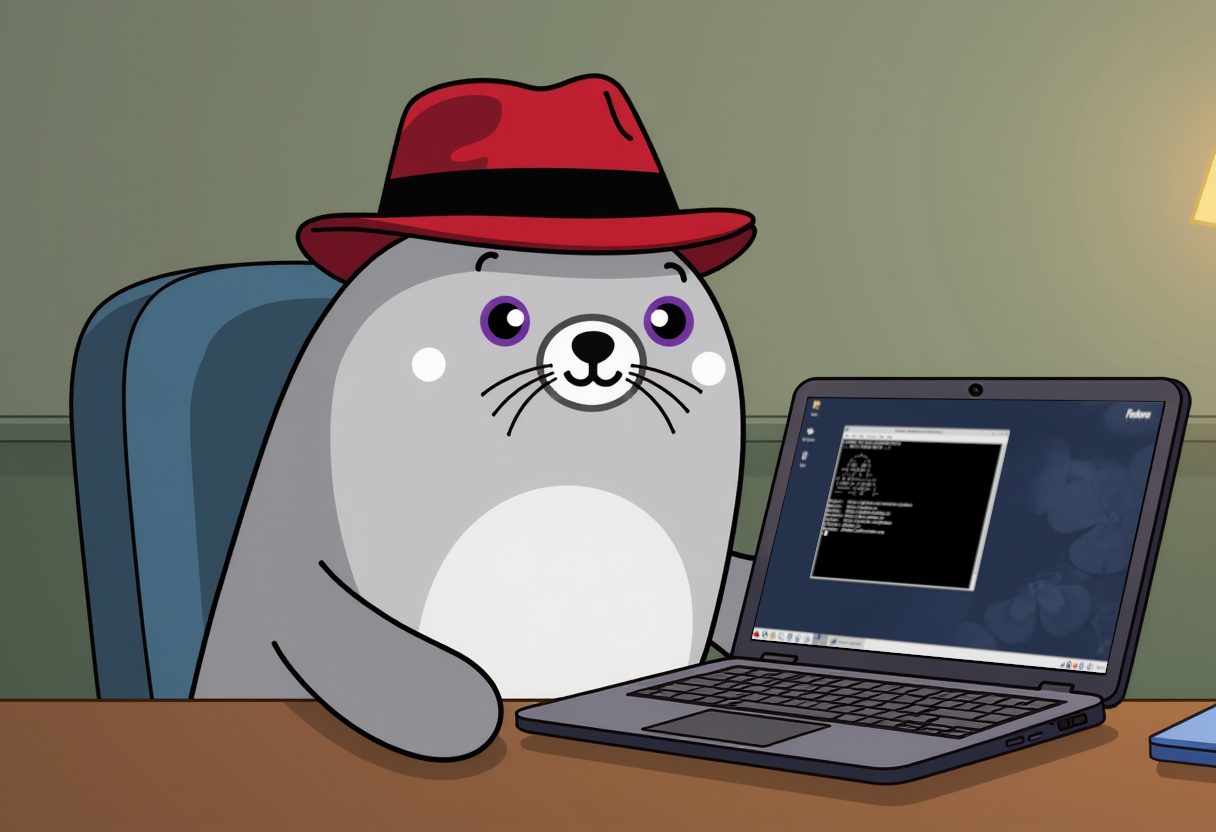
A graphical, declarative OS with a retro theme (Bluecurve) reminiscent of Fedora Core 1.0.
Using bootc for transactional upgrades!
All built within only ONE FILE (Containerfile)!
This main OS image is hosted on Quay.io:
podman pull quay.io/blueboots/os
[1] Technically the /theme folder is passed in. Otherwise, everything is in a single Containerfile!
Topics
Technology
This Bootable Container (bootc) OS uses bootc-image-builder to produce bootable container disk images.
You will use this to add users so you can log in!
Once a machine is created from the disk image, it can apply transactional updates in place from newly pushed container images (no need to rebuild the disk image). After you push a new image (podman push), just run bootc upgrade on the system and reboot.
Default software
This is an OPINIONATED OS installation used for my own purposes. Thus...
There are some default applications bundled into this OS in additional to the default Fedora images:
- Zed
- Laptop and server hardware support
- WiFi hardware support
- Container tools such as Podman
- Wireguard support
- Ungoogled Chromium (Flatpak)
- Podman Desktop (Flatpak)
Learning more about bootc
If you want to learn more about bootable containers, see the Fedora Getting Started Guide for videos, demos, best practices and more details.
IMPORTANT NOTES
- To install additional software, use Flatpak.
- Want to install a package to the core of the OS? See Advanced Usage.
- ONLY generic GPU drivers are included (Intel iGPU, AMD iGPU, etc.) from
@hardware-supportin RHEL-derivative OSes. - No NVIDIA GPU support yet (upcoming).
- No AMD GPU support yet (upcoming).
Requirements
Prerequisites: Software and hardware requirements
We have to initially build our OS! So look below for requirements.
OS:
Compatible on Windows, macOS & Linux.
Software:
Usage
-
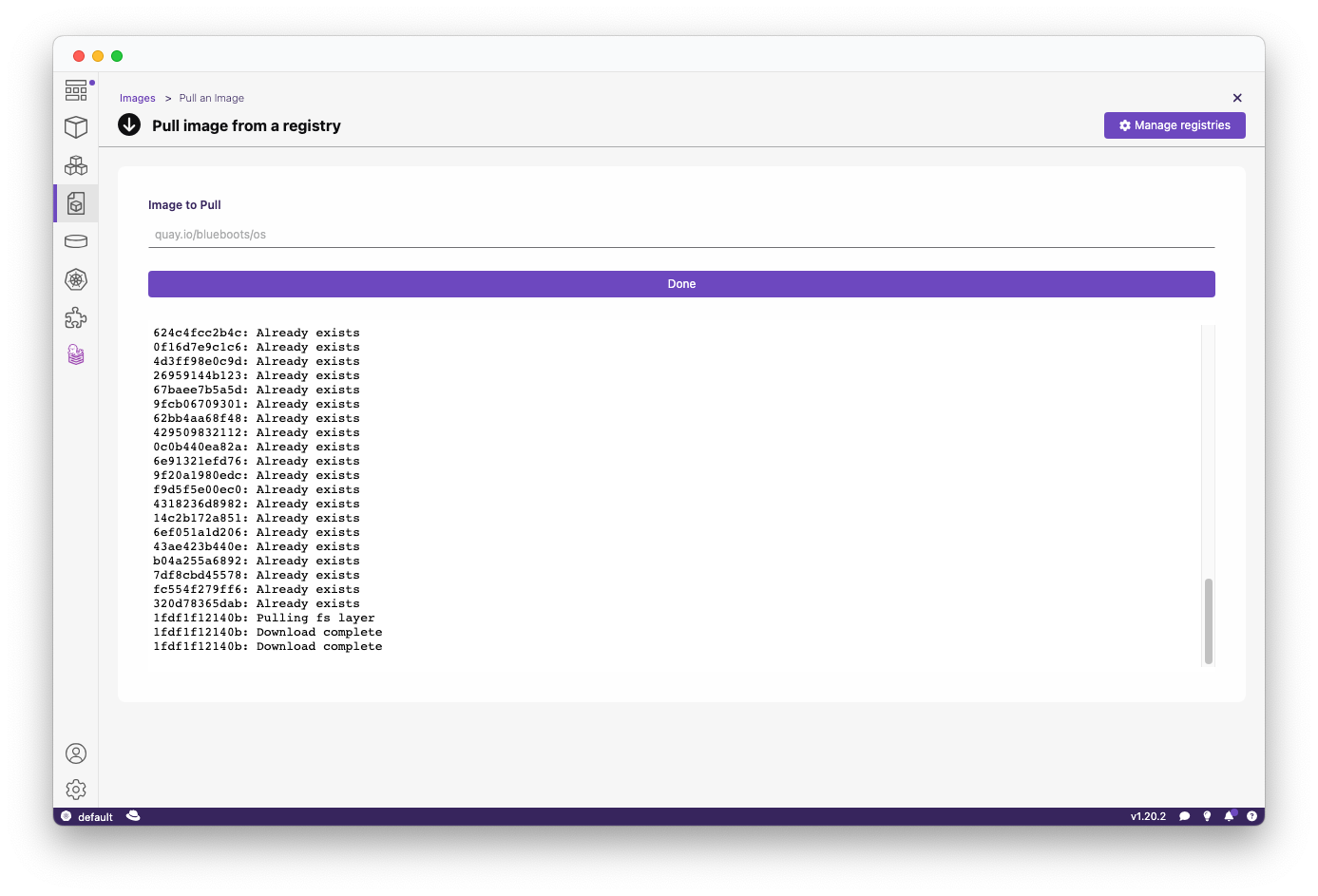
Pull the container image:
Pull via CLI or within Podman Desktop
podman pull quay.io/blueboots/os
-
(Alternatively) Build your own bootc-enabled Containerfile:
Git clone this project and build your image locally.
git clone http://github.com/bluebootsy/os podman build -t quay.io/foo/bar . -
Build the disk image:
Use the Podman Desktop BootC extension. Make sure you provide your username and password.
Important note: Use the interactive installer within the BootC extension to add your username and password! Otherwise you will NOT BE ABLE TO LOGIN.
- Choose either
.isofor an unattended ISO installer which will AUTOMATICALLY WIPE THE FIRST AVAILABLE DISK (use with caution!), or.raw/other image types for local testing (e.g. writing to a USB stick). - Add your username and password for logging in, as well as your group (e.g.
wheelfor passwordless sudo).
LET ME REPEAT.
IF YOU CREATE THE .ISO, IT WILL AUTO-INSTALL TO YOUR FIRST AVAILABLE DISK AFTER SELECTING IT FOR BOOTING.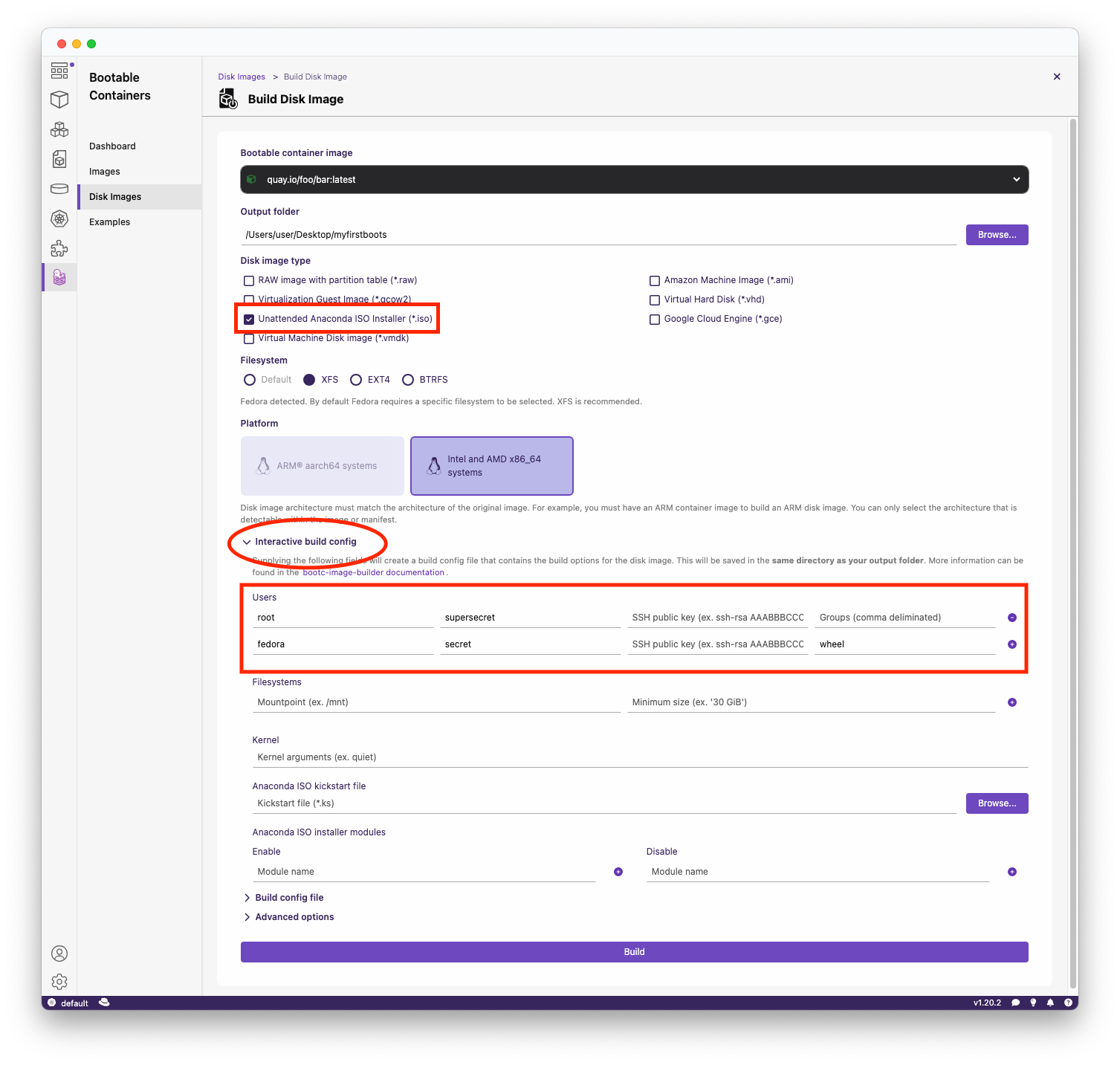
- Choose either
-
Installation:
If you chose ISO:
- "Write" the ISO using balenaEtcher or Fedora Media Writer to a USB stick.
- Plug into a PC and select the USB from the boot screen.
- Watch as it installs unattended to the first available drive.
If you chose RAW:
- You can "write" the
.rawimage with the above tools (balenaEtcher or Fedora Media Writer) to a USB stick. - Plug into a PC and select the USB from the boot screen.
- Test out the "live" image.
Advanced Usage
Making changes to your OS
Want to change a "core" package or make system changes that propagate to your OS? Follow below!
Adding "flatpak" software
Software that is consistently being upgraded should be installed as a Flatpak.
We recommend using Flathub as the main way of installing new software.
This can be done on the command line after your OS has booted:
flatpak install flathub org.mozilla.firefox
Adding "core" software & system changes
In this example we will add a basic package called figlet:
-
Edit your
Containerfile:Within the Containerfile add the following to the list of packages:
RUN dnf install -y \
  # ... other packages ... \
  figlet && \
  dnf clean all && \
  rm -rf /var/cache/dnf
-
Build & push your container:
podman build -t quay.io/foo/bar . podman push quay.io/foo/bar -
Run
bootc upgradeon your OS:The command downloads your hosted image and applies updates on next reboot.
-
Reboot and check that
figletis installed!$ figlet "Hi" _ _ _ | | | (_) | |_| | | | _ | | |_| |_|_|
Using the bootc CLI tool
The bootc CLI is the bread-and-butter of bootc-derived images. Once booted, you can manage the system with:
- Status:
bootc statusshows the current image and version. - Upgrade:
bootc upgradepulls the latest OCI image to apply next reboot. - Fetch:
bootc fetchpre-downloads an update without applying it. - Install:
bootc install --target /dev/sdXwrites the OS to a block device (useful when live-booting from USB for testing).
See the official docs: https://bootc-dev.github.io/bootc
Known Issues
No GPU support for NVIDIA and AMD (yet).