
Please give a ⭐ if you find Codebook useful!
About
Codebook is a spell checker for code. It binds together the venerable Tree Sitter and the fast spell checker Spellbook. Included is a Language Server for use in (theoretically) any editor. Everything is done in Rust to keep response times snappy and memory usage low.
No configuration needed. Codebook will automatically detect the language you are editing and mark issues for you. Codebook will try to only mark issues for words that you create, where they are initially defined.
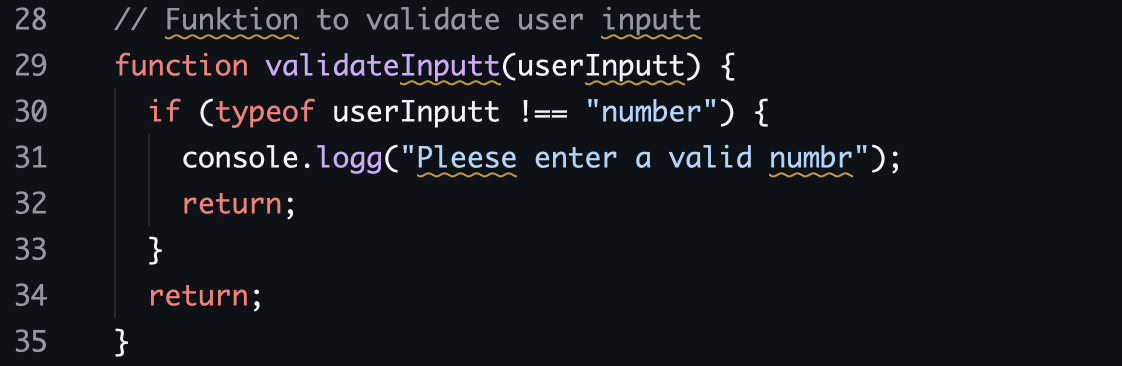
However, if you are looking for a traditional spell checker for prose, Codebook may not be what you are looking for. For example, capitalization issues are handled loosely and grammar checking is out of scope.
To see the motivations behind Codebook, read this blog post.
Goals
Spell checking is complicated, and opinions about how it should be done, especially for code, differ. This section is about the trade-offs that steer decisions.
Privacy
No remote calls for spell checking or analytics. Once dictionaries are cached, Codebook needs to be usable offline. Codebook will never send the contents of files to a remote server.
Don't be annoying
Codebook should have high signal and low noise. It should only highlight words that users have control over. For example, a misspelled word in an imported function should not be highlighted as the user can't do anything about it.
As a consequence, Codebook only marks issues for terms where they are defined, and not where they are used. Correcting both the definition (flagged by Codebook) and all subsequent uses should be done by other language specific tooling - usually available as a LSP for that language.
Efficient
All features will be weighed against their impact on CPU and memory. Codebook should be fast enough to spell check on every keystroke on even low-end hardware.
Features
Code-aware spell checking
Codebook will only check the parts of your code where a normal linter wouldn't. Comments, string literals and variable definitions for example. Codebook knows how to split camel case and snake case variables, and makes suggestions in the original case.
Language Server
Codebook comes with a language server. Originally developed for the Zed editor, this language server can be integrated into any editor that supports the language server protocol.
Dictionary Management
Codebook comes with a dictionary manager, which will automatically download and cache dictionaries.
Hierarchical Configuration
Codebook uses a hierarchical configuration system with global (user-level) and project-specific settings, giving you flexibility to set defaults and override them as needed per project.
Supported Languages
✅ Good to go: C, Go, Java, JavaScript, Lua, Markdown, Odin, Plain Text, Python, Ruby, Rust, TOML, TypeScript, Zig
If Codebook is not marking issues you think it should, please file a GitHub issue!
Installation
If you are a Zed user, you may skip this step and consult the Zed section of this document. Otherwise, you will need to install the codebook-lsp binary and make it available on your $PATH. You have a number of options to do this.
Manual download
- Download the latest release for your architecture from the releases page.
- Prebuilt archives are published for macOS (x86_64, aarch64), Linux (x86_64, aarch64), and Windows (x86_64, arm64).
- Windows artifacts are provided as
.zipfiles; macOS and Linux artifacts are.tar.gz.
- Extract the binary from the archive, and move it somewhere on your system
$PATH.
~/.local/bin/codebook-lsp/usr/bin/codebook-lsp- Etc...
eget
You can install the latest release using eget:
Arch Linux
You can install the Codebook LSP using pacman:
Cargo
You can also install the Codebook LSP using Cargo:
cargo install codebook-lsp
Homebrew
You can install the Codebook LSP using Homebrew:
brew install codebook-lsp
To install directly from the GitHub repository:
cargo install --git https://github.com/blopker/codebook codebook-lsp
From source
You may also build codebook from source by cloning the repository and running make build.
Integrations
Zed
Codebook is the most popular spell checker for Zed! To install, go to the Extension tab in Zed and look for "Codebook". Done!
Note: The version that Zed displays in the extension menus is for the Zed Extension, and not the LSP version (this repo). The extension will automatically update the LSP. If that updater is broken for some reason, try uninstalling the extension and reinstalling.
Remote development (SSH/WSL2): When Zed opens a remote project, the extension runs on the remote host and downloads the LSP there. Restricted or flaky network access on the remote (a common WSL2 issue) can break that download. The extension always prefers a codebook-lsp binary found on the $PATH, so installing it on the remote host (see Installation) sidesteps the downloader entirely.
If quickfix code actions are not showing up for specific languages, ensure your settings.json file includes the special "...", or "codebook", value in any language_servers values defined:
"languages": {
  "Python": {
    "language_servers": ["pyright", "ruff", "..."],
    // OR
    "language_servers": ["pyright", "ruff", "codebook"],
    "format_on_save": "on"
  }
},
Helix
Codebook can also be enabled for the Helix editor by adding the LSP to the languages.toml configuration file.
Ensure that codebook-lsp is installed into your $PATH (see Installation).
Then, add into the Helix languages.toml configuration file:
[language-server.codebook]
command = "codebook-lsp"
args = ["serve"]

# Example use in markdown:
[[language]]
name = "markdown"
language-servers = ["codebook"]
This can be verified with:
Suggestions will appear in files opened, and
space-mode a key
binding can be used to accept suggestions.
Neovim
nvim-lspconfig includes a configuration for Codebook.
Ensure that codebook-lsp is installed into your $PATH (see Installation).
Install nvim-lspconfig if you have not already. Then, add the following to your Neovim configuration:
vim.lsp.enable('codebook')VS Code
Not yet in the Marketplace. The extension is a work in progress. Install it locally from source if you want to try it. Feedback welcome!
A VS Code extension lives in editors/vscode. The extension manages
the codebook-lsp binary for you, starts it with the right flags, and exposes a
few configuration toggles (codebook.binaryPath, codebook.enablePrerelease,
and codebook.logLevel).
To try it locally:
cd editors/vscode
bun install       # or npm install
bun run build
bun run package   # or npm run package
code --install-extension codebook-vscode-*.vsix
Once the extension is installed it will activate automatically for every supported language.
Other Editors
Any editor that implements the Language Server Protocol should be compatible with Codebook. After installing Codebook, consult your editor's documentation to learn how to configure and enable a new language server. For your reference, the following command starts the server such that it listens on STDIN and emits on STDOUT:
CLI (Lint)
Unstable. The CLI ships with
codebook-lsptoday, but its flags and output are experimental and subject to breaking changes. Feedback welcome!
Codebook can also be used as a standalone command-line spell checker, which is useful for CI pipelines, pre-commit hooks, or one-off checks.
# Check specific files
codebook-lsp lint src/main.rs src/lib.rs

# Check all files in a directory (recursive)
codebook-lsp lint src/

# Show spelling suggestions
codebook-lsp lint --suggest src/

# Only report each misspelled word once across all files
codebook-lsp lint --unique src/
The exit code is 0 if all files are clean, 1 if any spelling errors are found, and 2 if there were unreadable files, invalid UTF-8, etc.
You can also add words to the dictionary from the command line, the same way the "Add to dictionary" editor action does:
# Add words to the project config (codebook.toml), creating it if needed
codebook-lsp add combobulate frobnicate

# Add words to the global config instead
codebook-lsp add --global combobulate
Configuration
Codebook supports both global and project-specific configuration. Configuration files use the TOML format, with project settings overriding global ones.
Global Configuration
The global configuration applies to all projects by default. Location depends on your operating system:
- Linux/macOS:
$XDG_CONFIG_HOME/codebook/codebook.tomlor~/.config/codebook/codebook.toml - Windows:
%APPDATA%\codebook\codebook.tomlor%APPDATA%\Roaming\codebook\codebook.toml
You can override this location if you sync your config elsewhere by providing initializationOptions.globalConfigPath from your LSP client. When no override is provided, the OS-specific default above is used.
Project Configuration
Project-specific configuration is loaded from either codebook.toml or .codebook.toml in the project root. Codebook searches for this file starting from the current directory and moving up to parent directories.
You can override this location by providing initializationOptions.configPath from your LSP client (relative paths are resolved against the workspace root). When the override file does not yet exist, Codebook starts with defaults and creates the file at that path the first time a write happens (e.g., "Add to dictionary"). Auto-discovery is disabled when this override is set.
Note: Codebook picks which config to use on startup. If a config file is manually created or renamed (like switching between codebook.toml and .codebook.toml), restart your editor (or the LSP server) for the new file to be recognized.
Configuration Options
The block below shows all options at their default values. Comments show example values where defaults aren't illustrative.
# Dictionaries to use for spell checking.
# Example: ["en_us", "en_gb"]
# Available dictionaries:
#  - English: "en_us", "en_gb"
#  - Czech: "cs"
#  - German: "de", "de_at", "de_ch"
#  - Dutch: "nl_nl"
#  - Spanish: "es"
#  - French: "fr"
#  - Italian: "it"
#  - Portuguese (Brazil): "pt_br"
#  - Russian: "ru"
#  - Swedish: "sv"
#  - Danish: "da"
#  - Latvian: "lv"
#  - Vietnamese: "vi_vn"
#  - Polish: "pl"
#  - Ukrainian: "uk"
#  - Norwegian: "nb_no", "nn_no"
#  - Portuguese (Portugal): "pt_pt", "pt"
#  - Persian/Farsi: "fa_ir"
#  - Slovenian: "sl"
dictionaries = ["en_us"]

# Custom allowlist of words to ignore (case-insensitive).
# Codebook adds words here when you select "Add to dictionary".
# Example: ["codebook", "rustc"]
words = []

# Words that should always be flagged as incorrect.
# Example: ["todo", "fixme"]
flag_words = []

# Glob patterns for paths to include when spell checking (allowlist).
# Only files matching one of these patterns will be spell-checked.
# Empty means include everything.
# Patterns always use `/` as the separator, on all platforms.
# Example: ["src/**/*.rs", "lib/**/*.rs"]
include_paths = []

# Glob patterns for paths to ignore when spell checking (blocklist).
# Takes precedence over include_paths.
# Example: ["target/**/*", "**/*.json", ".git/**/*"]
ignore_paths = []

# Regex patterns to ignore when spell checking. For code files, patterns match
# against the full source and tokens within matches are skipped.
# Tip: use single quotes for literal strings to avoid escaping backslashes.
# Example:
#   ignore_patterns = [
#       '\b[ATCG]+\b',           # DNA sequences
#       '\d{3}-\d{2}-\d{4}',     # Social Security Number format
#       'https?://[^\s]+',       # URLs
#   ]
ignore_patterns = []

# Minimum word length to check (words shorter than this are ignored).
# Set to 0 to check all words including single letters.
min_word_length = 3

# Filter which parts of your code are spell-checked by tag.
# Tags use a dot-separated hierarchy (e.g., "comment", "identifier.function").
# Matching is prefix-based: "comment" matches "comment", "comment.line",
# "comment.block", etc.

# Only check these tags. Empty means check everything.
# Example: ["comment", "string"]
include_tags = []

# Exclude these tags from checking (takes precedence over include_tags).
# Example: ["string.heredoc"]
exclude_tags = []

# Whether to use global configuration.
# Set to false to completely ignore global settings.
use_global = true
Configuration Precedence
- Project configuration overrides global configuration
- If
use_global = falsein project config, global settings are ignored entirely - If no project config exists, global config is used
- If neither exists, default settings are used
- Any matching
[[overrides]]blocks are then layered on top (global first, then project). See Scoped Overrides.
Working with Configurations
- Words added with "Add to dictionary" are stored in the project configuration
- Words added with "Add to global dictionary" are stored in the global configuration file
- Project settings are saved automatically when words are added
- Configuration files are automatically reloaded when they change
User-Defined Regex Patterns
The ignore_patterns configuration allows you to define custom regex patterns to skip during spell checking. Here are important details about how they work:
Default Patterns: Codebook already includes built-in regex patterns for common technical strings, so you don't need to define these yourself:
- URLs:
https?://[^\s]+ - Hex colors:
#[0-9a-fA-F]{3,8}(like#deadbeef,#fff) - Email addresses:
[a-zA-Z0-9._%+-]+@[a-zA-Z0-9.-]+\.[a-zA-Z]{2,} - File paths:
/[^\s]*(Unix) and[A-Za-z]:\\[^\s]*(Windows) - UUIDs:
[0-9a-fA-F]{8}-[0-9a-fA-F]{4}-[0-9a-fA-F]{4}-[0-9a-fA-F]{4}-[0-9a-fA-F]{12} - Base64 strings:
[A-Za-z0-9+/]{20,}={0,2}(20+ characters) - Git commit hashes:
\b[0-9a-fA-F]{7,40}\b - Markdown links:
\[([^\]]+)\]\(([^)]+)\)
How Patterns Are Matched:
- Patterns are matched against the full source text
- Words that fall entirely within a matched range are skipped
- Multiline mode is enabled:
^and$match line boundaries, not just start/end of file - Example:
'^vim\..*'skips all words on lines starting withvim. - Example:
'vim\.opt\.[a-z]+'matchesvim.opt.showmode, soshowmodeis skipped - Patterns are validated when the config is loaded: an invalid regex is a configuration error, reported with the offending pattern
TOML Literal Strings: Use single quotes for regex patterns to avoid escaping backslashes:
'\b'for word boundaries (no escaping needed)'\d'for digits (no escaping needed)'\\'for literal backslashes
Examples:
ignore_patterns = [
    '\b[ATCG]+\b',           # DNA sequences with word boundaries
    '^vim\..*',              # Lines starting with vim.
    '^\s*//.*',              # Lines that are // comments
    'https?://[^\s]+',       # URLs
]
Tip: Include the identifier in your pattern. 'vim\.opt\.[a-z]+' skips showmode in vim.opt.showmode, but 'vim\.opt\.' alone won't (it only matches up to the dot).
Tag-Based Filtering
Codebook categorizes every piece of text it checks using tags: dot-separated labels like comment, string, identifier.function, etc. You can use include_tags and exclude_tags to control which categories are spell-checked.
Matching is prefix-based: "comment" matches comment, comment.line, comment.block, etc. include_tags narrows what is checked (allowlist), and exclude_tags removes from that set (blocklist, takes precedence). This works the same way as include_paths/ignore_paths.
# Only check comments and strings, ignore all identifiers
include_tags = ["comment", "string"]

# Check everything except variable and parameter names
exclude_tags = ["identifier.variable", "identifier.parameter"]

# Both can be combined: check comments and strings, but skip heredocs
include_tags = ["comment", "string"]
exclude_tags = ["string.heredoc"]
For the full list of available tags, see the query tag reference.
Scoped Overrides
Use [[overrides]] blocks to tailor settings to specific files. Each block matches files by glob pattern (relative to the project root) and can replace or append to the base config.
# Base config applies everywhere
dictionaries = ["en_us"]
words = ["codebook"]
flag_words = ["todo"]

# Markdown files: add British English and allow a few prose-specific words
[[overrides]]
paths = ["**/*.md", "**/*.mdx"]
extra_dictionaries = ["en_gb"]
extra_words = ["frontmatter", "callout"]

# Rust files: flag a few extra words
[[overrides]]
paths = ["**/*.rs"]
extra_flag_words = ["xxx", "hack"]

# German docs: swap out the dictionary entirely
[[overrides]]
paths = ["docs/de/**/*"]
dictionaries = ["de"]
Available fields
| Field | Behavior |
|---|---|
paths |
Required. Glob patterns matched against the file path relative to the project root. A file matches the block if it matches any pattern. An invalid glob is a configuration error. |
dictionaries |
Replaces the resolved dictionaries list. |
words |
Replaces the resolved words list. |
flag_words |
Replaces the resolved flag_words list. |
ignore_patterns |
Replaces the resolved ignore_patterns list. |
extra_dictionaries |
Appends to the resolved dictionaries list. |
extra_words |
Appends to the resolved words list. |
extra_flag_words |
Appends to the resolved flag_words list. |
extra_ignore_patterns |
Appends to the resolved ignore_patterns list. |
Glob syntax matches ignore_paths: * (no separator), ** (any directories), ? (any single char), and {a,b} alternation. Patterns always use / as the path separator, like .gitignore. On Windows, file paths are normalized to forward slashes before matching, and backslash-style patterns (e.g. src\\*.rs) are not supported.
Resolution order: all matching overrides are applied in declaration order, so later blocks win on the same field. Global overrides are applied before project overrides, so project settings always have the final say. If both a replace field (e.g., words) and its append sibling (extra_words) appear in the same block, replace runs first and then append is layered on top.
Interaction with ignore_paths: ignore_paths is evaluated before overrides. An ignored file is skipped entirely and no overrides apply to it.
Skipped silently: an [[overrides]] block is dropped (with a warning) if paths is missing or empty, every glob is invalid, or no other field is set.
LSP Initialization Options
Editors can pass initializationOptions when starting the Codebook LSP for LSP-specific options. Refer to your editor's documentation for how to apply these options. All values are optional, omit them for the default behavior:
logLevel("trace" | "debug" | "info" | "warn" | "error", default"info"): sets the verbosity of logs.globalConfigPath(string): overrides the auto-detected globalcodebook.tomlpath, useful if you sync configs from another location. The~/prefix resolves to the current user's home directory on all platforms (~\also works on Windows), so the same setting can be shared across Windows, macOS, and Linux dotfiles.configPath(string): overrides the projectcodebook.tomllocation. Relative paths are resolved against the workspace root, absolute paths are used as-is. When set, auto-discovery is skipped; the file is created at this path the first time Codebook needs to write (e.g., adding a word).checkWhileTyping(bool, defaulttrue): whenfalse, spelling diagnostics are only published on save instead of each keystroke. This is useful for example if performance is a problem, or the real-time diagnostics are annoying (sorry!).diagnosticSeverity("error" | "warning" | "information" | "hint", default"information"): sets the severity of spell check diagnostics.
Example payload:
{
  "logLevel": "debug",
  "globalConfigPath": "~/dotfiles/codebook.toml",
  "configPath": "toolConfig/codebook.toml",
  "checkWhileTyping": false,
  "diagnosticSeverity": "information"
}
Contributing
See CONTRIBUTING.md for instructions on running tests, adding new dictionaries, adding programming language support, and cutting a release.
Acknowledgments
- Harper: grammar and prose linter
- Harper Zed: Harper integration for the Zed editor
- Spellbook: the Hunspell-compatible spell checker library Codebook is built on
- cSpell for VS Code: code spell checker for VS Code
- Vale: prose linter with LSP support
- Tree-sitter Visualizer: interactive tool for exploring tree-sitter parses
- common-words: dataset of common English words
- Hunspell dictionaries in UTF-8: Hunspell dictionary collection used by Codebook