Your terminal, but with AI. Edit files, run commands, chat with AI - all in one session.
Install in 30 seconds
$ pip install ayechat
$ aye chat          # Start in any project
macOS (Homebrew):
brew tap acrotron/aye-chat
brew install aye-chat
Windows (Installer):
Download and run aye-chat-setup.exe
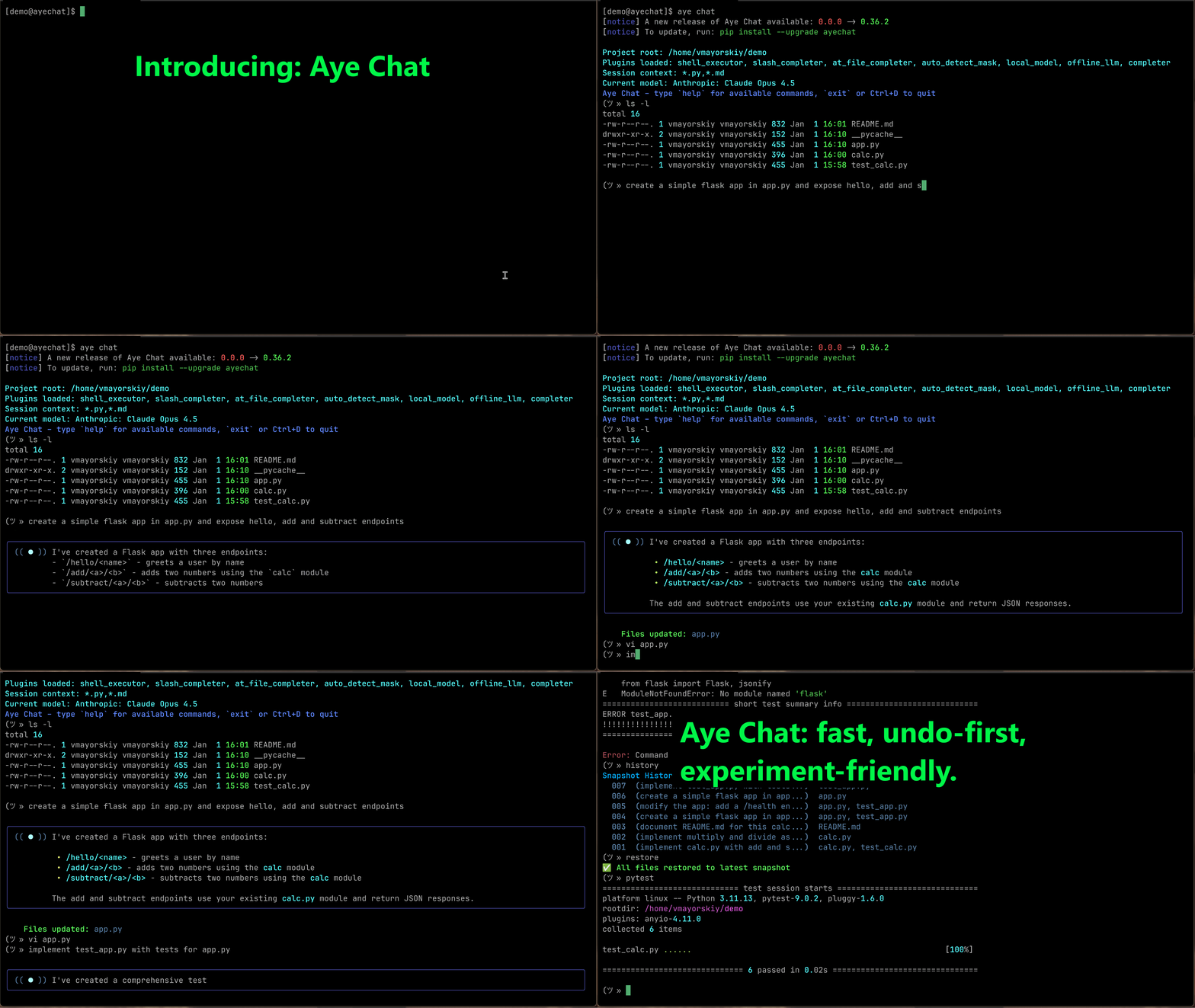
What it does
$ aye chat
> fix the bug in server.py
✓ Fixed undefined variable on line 42

> vim server.py
[opens real vim, returns to chat after]

> refactor: make it async
✓ Updated server.py with async/await

> pytest
✗ Tests fail

> restore
✓ Reverted last changes
No copy-pasting. No context switching. AI edits your files directly.
Why developers love it
- Zero config - Automatically reads your project files (respects .gitignore)
- Instant undo -
restorecommand reverts any AI changes immediately - Real shell - Run
git,pytest, evenvimwithout leaving the chat - 100% local backups - Your code is safe, changes stored in
.aye/ - No prefixes - Just type. Commands run, everything else goes to AI
Instant undo with Aye Chat's Restore
Aye Chat's restore command provides an instant and reliable safety net for any changes made by the AI. Developers can forge ahead and experiment knowing that application restore is just one simple command away.
Restore offers fine-grained control:
restore <ordinal>: Lets users revert to a specific historical snapshot (e.g.,001). This is useful for stepping back through multiple AI interactions.restore <ordinal> <file>: Allows restoring a specific file from a particular snapshot. This is incredibly powerful for selectively reverting changes without affecting other files that might have been correctly updated.
Restore works best when used alongside other commands:
history: to view available snapshotsdiff: to compare current files with previous versions
These commands provide a comprehensive system for reviewing, managing, and reverting code changes, keeping you in control.
Quick examples
# In your project directory:
aye chat

> refactor this to use dependency injection
> pytest
> fix what broke
> git commit -m "refactored DI"
Get started
- Install:
pip install ayechat - Start chatting:
aye chatin any project folder
Get started - Windows Installer
For Windows users, the recommended way to install Aye Chat is with the official installer. It provides a standalone application that requires no manual setup.
Installation
- Download the latest aye-chat-setup.exe from the GitHub Releases page.
- Run the downloaded installer.
- During setup, it is highly recommended to keep the following options enabled:
Add the application directory to your PATHAdd 'Open Aye Chat here' to folder context menu
Usage
After installation, you can launch Aye Chat by:
- Typing
ayein any terminal. - Right-clicking a project folder and selecting Open Aye Chat here.
📚 Full command reference
Core Commands
Authentication
Does not require authentication
Starting a Session
aye chat                          # Start chat with auto-detected files
aye chat --root ./src             # Specify a different project root
aye chat --include "*.js,*.css"   # Manually specify which files to include
In-Chat Commands
Your input is handled in this order:
- Built-in Commands (like
restoreormodel) - Shell Commands (like
ls -laorgit status) - AI Prompt (everything else)
Session & Model Control
new- Start a fresh chat sessionmodel- Select a different AI modelverbose [on|off]- Toggle verbose output on or offexit,quit,Ctrl+D- Exit the chathelp- Show available commands
Reviewing & Undoing AI Changes
restore,undo- Instantly undo the last set of changes made by AIhistory- Show the history of changes made by AIdiff <file>- Compare current version against last change
Shell Commands
- Run any command:
ls -la,git status,docker ps - Interactive programs work:
vim,nano,less,top
⚙️ Configuration & Privacy
Configuration
- Aye Chat respects
.gitignoreand.ayeignore- private files are never touched - Change history and backups stored locally in
.aye/folder - Configure default model and preferences in
~/.ayecfg
Privacy & Security
- All file backups are local only
- API calls only include files you explicitly work with
- No telemetry or usage tracking
- Open source - audit the code yourself
🤖 AGENTS.md (repo instructions)
AGENTS.md inclusion
Aye Chat can automatically include AGENTS.md as extra system context for a repo — perfect for team conventions, architecture notes, and "how we do things here".
Discovery (first match wins):
./.aye/AGENTS.md(highest precedence)- then walking up from the current directory:
.aye/AGENTS.mdorAGENTS.md
Tip: keep it short and actionable — it’s treated as instructions for the assistant.
See more details on https://agents.md/
🧩 Plugins & Extensions
Extensible via Plugins
The core experience is enhanced by plugins:
- Shell execution plugin
- Autocompletion plugin
- Custom command plugins
- Model provider plugins
🐧 NixOS/Nix Installation
# Run directly without installing
nix run github:acrotron/aye-chat

# Or install to your profile
nix profile install github:acrotron/aye-chat
Contributing
Aye Chat is open source! We welcome contributions.
- Report bugs: GitHub Issues
- Submit PRs: Fork and contribute
- Get help: Discord Community
License
MIT License - see LICENSE file
Disclaimer
review the DISCLAIMER before using this software.
Ready to code with AI without leaving your terminal?
pip install ayechat && aye chat