
Overview
Spline Path Control is a simple tool designed to make it easy to create motion controls. It allows you to create and animate shapes that follow splines, and then export the result as a .webm video file.
This project was created to simplify the process of generating control videos for tools like VACE. Use it to control the motion of anything (camera movement, objects, humans etc) all without extra prompting.
Use it here for free: https://whatdreamscost.github.io/Spline-Path-Control/
PSA UPDATE V2.1:
I just updated something very important in v2.1, you will see a HUGE improvement in motion and will no longer get any 'residual' shapes in the output.
Someone on discord kindly pointed out that VACE was designed for white shapes on a black background, not the other way around. Turns out this small change in the code greatly improves the tracking and motion and solves a lot of the problems people were having. Sorry for not realizing this sooner.
Here's a comparison:
AnimateDiff_00592.mp4
▶️ YouTube Video
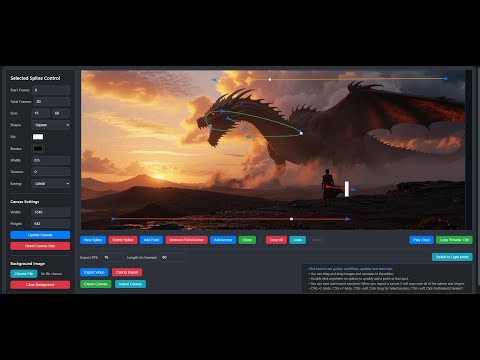
✨ Features
- Multi-Spline Editing: Create multiple, independent spline paths
- Easy To Use Controls: Quickly edit splines and points
- Full Control of Splines and Shapes:
- Start Frame: Set a delay before a spline's animation begins.
- Duration: Control the speed of the shape along its path.
- Easing: Apply
Linear,Ease-in,Ease-out, andEase-in-outfunctions for smooth acceleration and deceleration. - Tension: Adjust the "curviness" of the spline path.
- Shape Customization: Change the shape (circle, square, triangle), size, fill color, and border.
- Reference Images: Drag and drop or upload a background image to trace paths over an existing image.
- WebM Export: Export your animation with a white background, perfect for use as a control video in VACE.
🔄 Recent Updates
- 6/27/25 V2.3 Update:
- Added Multi-Editing. You can now edit multiple objects at once and their properties.
- Added Curve Editors for controlling both the Easing and Scale. These are very powerful tools that will allow you to get the exact motion you want. Want something to grow larger overtime or pulse in and out? Want to finetune the speed of something? What to easily control camera movement? The new Curve Editors make it possible (and easy)
- UI Overhaul. Made many changes to the UI, such as a new sexy dark and light theme, collapsible and categorized menus, new animations, added ability to drag to increase/decrease values, cleaner layout, improved scaling system for the canvas and much more. I spent quite a few hours on this one lol
- Added ability to paste images into the editor with CTRL+V, and delete anything with the Delete key, and delete points by right clicking.
- And a long list of other functions, small fixes, and quality of life changes that would take too long to write out 😅
I hope some of you find this tool helpful! Even though I used AI to create this, it still took many hours over the course of the last week and a half to create. Some may say using AI to code is unethical or cheating, but without it this tool would've never been made.
AnimateDiff_00725.mp4
Example: The new curve editor is very powerful
-
6/25/25 V2.2 Update:
- Added "Hide Once Completed" checkbox. Now you can control whether or not a shape is hidden when not playing. This will allow you to for example seamlessly connect multiple splines together, create more dynamic and complex camera movements and much more.
- Added ability to clone all selected items
- Added ability to delete all selected items
- Added Start Frame and Total Frame control for anchors.
-
6/23/25 V2.1 Update:
- Changed the default output from black shapes on a white background to white shapes on a black background. This pretty much solves the 'residual' issue and greatly improves the output's motion.
-
6/21/25 V2 Update:
- Added Dark Mode!
- Overhauled preview display. Now the preview accurately displays the timing and animation of the splines, allowing for much greater control.
- Added the ability to save and import canvases. You can now create, save, import, and share your spline layouts. When you click Export Canvas it will create a .png with metadata that you can import back into the editor. This also allows you to create presets that can be applied to any image.
- Added the ability to multiselect any object. You can now CTRL+Click to multiselect any object. You can also CTRL+Click+Drag to create a selection box and multiselect objects. This makes moving around things much easier and intuitive.
- Added Undo and Redo function. Accidently move something? Well now you can undo and redo any action. Either use the buttons or CTRL+Z to undo and CTRL+Y to redo.
- Added a bunch more improvements that i'm too tired to type out right now 😂
-
6/18/25:
- Added 'Clone' Button, you can now clone any object copying it's properties and shape
- Added 'Play Once' and a 'Loop Preview' toggle. You can now set the preview to either play once or to loop continuously.
- Added ability to drag and move entire splines. You can now click and drag entire splines to easily move them.
- Added extra control to the size. You can now set the X and Y size of any shape.
- Made it easier to move anchors. (You can now click anywhere on an anchor to move it instead of just then center)
- Changed Default Canvas Size
- Fixed Reset Canvas Size Button
- Added offset to newly created anchors to prevent overlapping.

If anyone has features they want added let me know!
-
6/17/25:
- Fixed splines looping in exported video. Now the animation will only play once in the exported video.
- Made the export UI prettier 😎
-
6/17/25:
- Added Start Frame control to delay the beginning of a spline's animation.
- Added Easing Functions (Linear, Ease-in, Ease-out, Ease-in-out) for smoother animations.
- Fixed a CSS alignment issue in the control panel for a cleaner UI.
🎥 Examples
Here are just a few examples of what you can do with a simple control path:
AnimateDiff_00218.mp4
Example: Controlling the camera to rotate around a scene
AnimateDiff_00243.mp4
Example: Controlling the pose of a character
AnimateDiff_00376.mp4
Example: Using paths to control the movement of the dragon and person
AnimateDiff_00232.mp4
Example: Controlling the camera to push in
❓ How to Use With ComfyUI
Simply plug the webm into the control_video or control_images VACE input using any load video node. There are example workflows below.
💡 Example Workflows
Download Workflows Here: https://github.com/WhatDreamsCost/Spline-Path-Control/tree/main/example_workflows
Simple I2V VACE Control Workflow

The Workflow I use (Has optimizations, can resize images/videos automatically, and easier to change settings

💡 Tips
(Coming Soon)
Credits
- Author: WhatDreamsCost
- Framework: Built with p5.js.
- Additional Info: I used DeepSeek and Google Gemini to make both this project and even this README file.