
See the plan before the code. Approve it. Then watch it execute.





Problem • Solution • Install • Features • Marketplace • Config • Discussions
hero-demo.mp4
🔥 The Problem
Every AI coding agent today — Cursor, Claude Code, Cline, Copilot — works the same way:
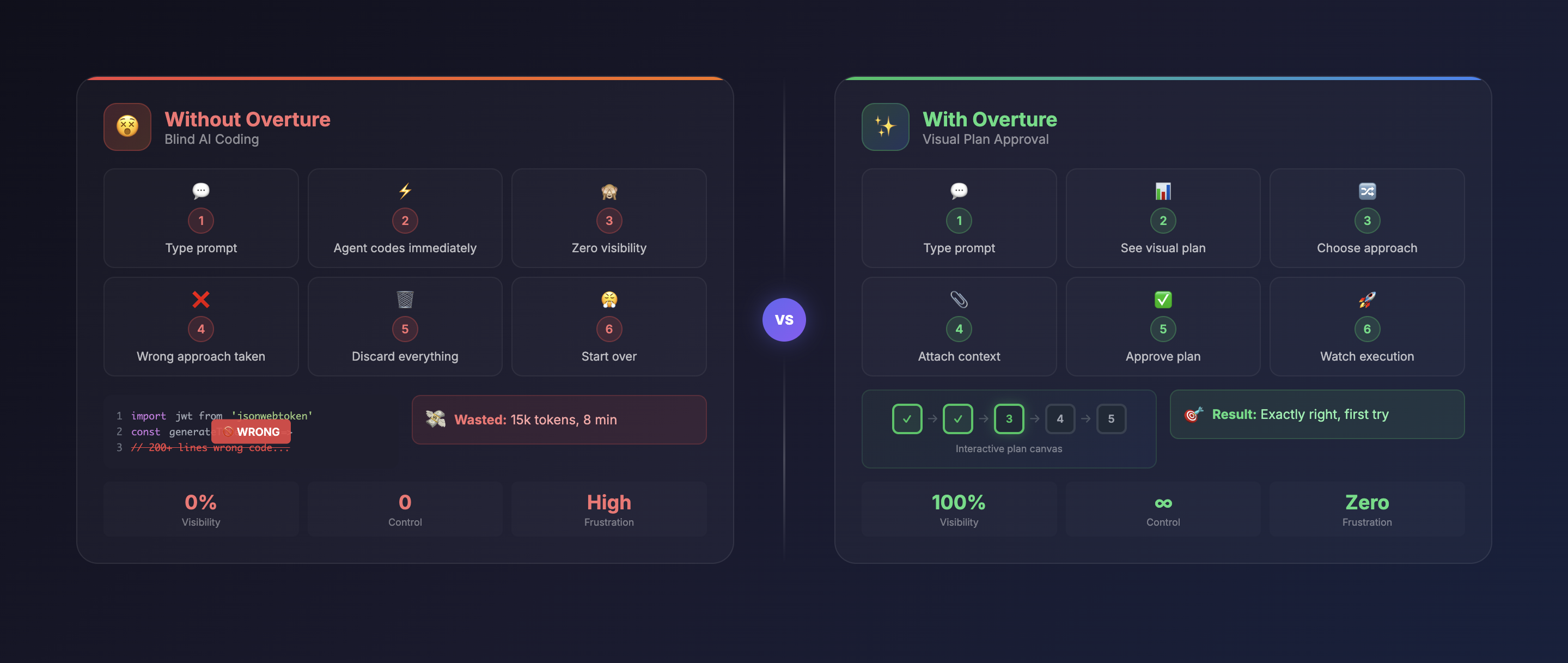
✨ The Solution
Overture intercepts your AI agent's planning phase and renders it as an interactive visual flowchart — before any code is written.
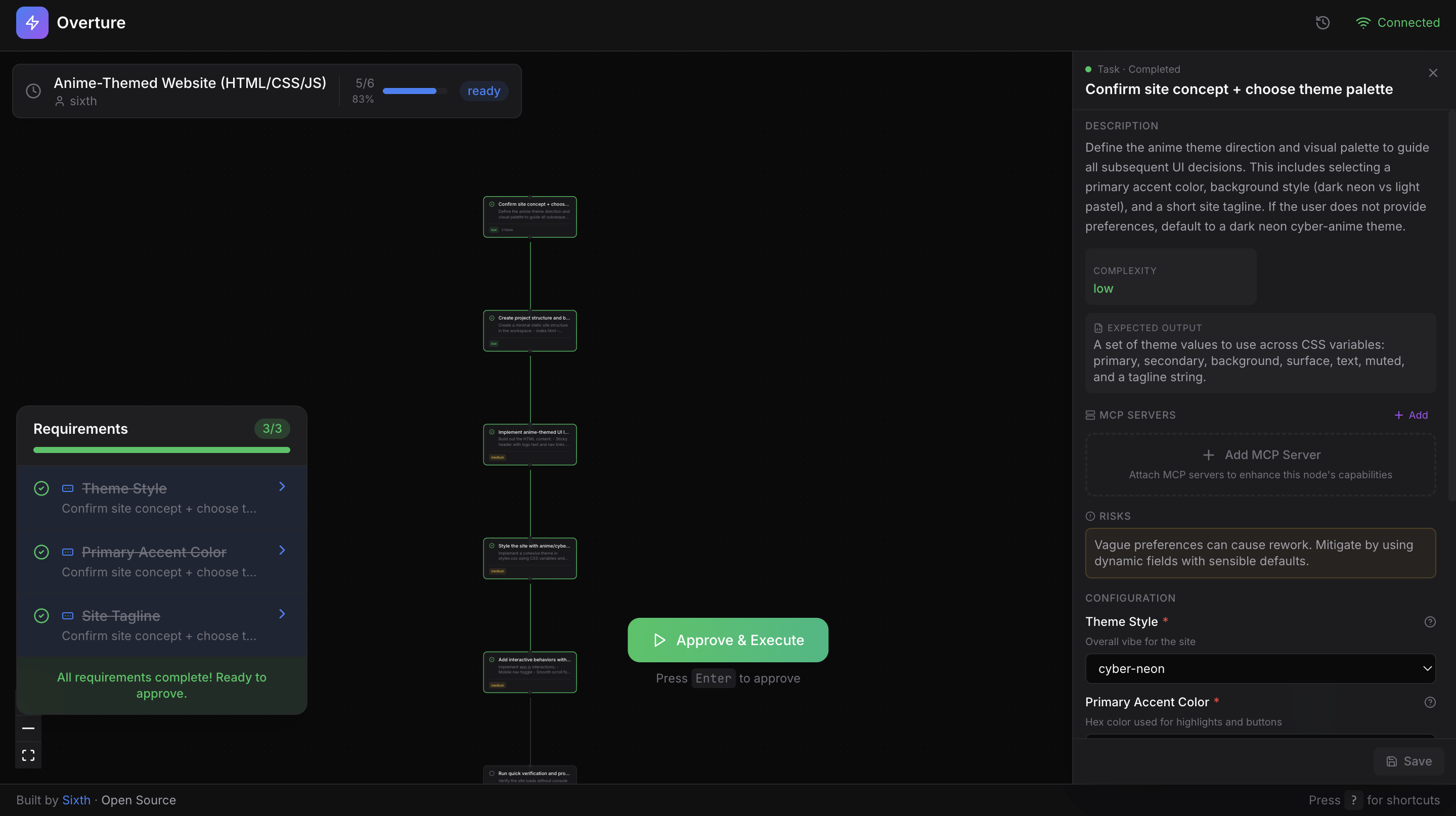
The agent doesn't write a single line of code until you approve the plan.
 Visual Plans Interactive flowchart with pan, zoom, and click-through navigation |
 Attach Context Files, API keys, instructions per step |
 Choose Approaches Compare pros/cons of different paths |
 Real-time Execution Watch nodes light up with progress |
 MCP Marketplace Browse & attach tools per node |
🚀 Installation
Overture is an MCP server that works with any MCP-compatible AI coding agent. One command to install.
Claude Code
claude mcp add overture-mcp -- npx overture-mcp
Cursor
Add to ~/.cursor/mcp.json:
{
  "mcpServers": {
    "overture": {
      "command": "npx",
      "args": ["overture-mcp"]
    }
  }
}
More Agents (Cline, Copilot, Sixth AI)
Cline (VS Code Extension)
Open VS Code settings → search "Cline MCP" → add:
{
  "mcpServers": {
    "overture": {
      "command": "npx",
      "args": ["overture-mcp"]
    }
  }
}
GitHub Copilot
Create .vscode/mcp.json in your project root:
{
  "servers": {
    "overture": {
      "command": "npx",
      "args": ["overture-mcp"]
    }
  }
}
Note: GitHub Copilot MCP requires VS Code 1.99+ and uses
serversinstead ofmcpServers.
Sixth AI (VS Code Extension)
Add to your Sixth AI MCP settings file:
| Platform | Path |
|---|---|
| macOS | ~/Library/Application Support/Code/User/globalStorage/sixth.sixth-ai/settings/sixth-mcp-settings.json |
| Windows | %APPDATA%\Code\User\globalStorage\sixth.sixth-ai\settings\sixth-mcp-settings.json |
| Linux | ~/.config/Code/User/globalStorage/sixth.sixth-ai/settings/sixth-mcp-settings.json |
{
  "mcpServers": {
    "overture": {
      "command": "npx",
      "args": ["overture-mcp"],
      "disabled": false
    }
  }
}
Global Installation (Optional)
npm install -g overture-mcp
Verify It Works
Give your agent any task. Overture automatically opens at http://localhost:3031 with your plan ready for approval.
🎯 How It Works
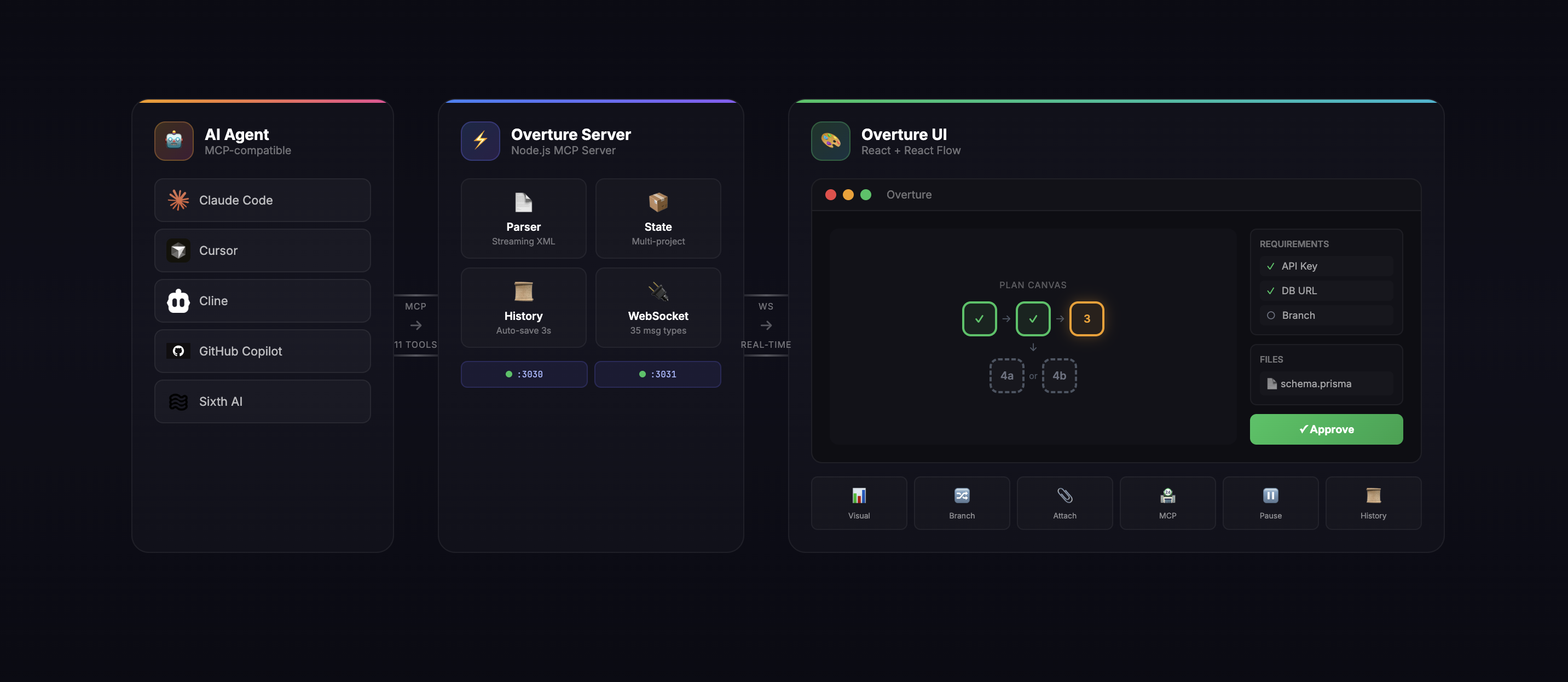
The Flow:
| Step | What Happens |
|---|---|
| 1. Prompt | You give your agent a task: "Build a REST API with auth" |
| 2. Plan | Agent generates a detailed plan with steps, branches, and requirements |
| 3. Visualize | Overture renders the plan as an interactive graph |
| 4. Enrich | You click nodes, attach files, select branches, fill in API keys |
| 5. Approve | You click "Approve & Execute" (or press Enter) |
| 6. Execute | Watch real-time as nodes pulse, complete, or fail |
| 7. Control | Pause (Spacebar), resume, re-run nodes, or modify the plan mid-flight |
🛠 Features
Interactive Plan Canvas
| Feature | Description |
|---|---|
| React Flow Canvas | Full pan, zoom, drag with smooth animations |
| Streaming Parser | Plan nodes appear in real-time as the agent generates them |
| Dagre Auto-Layout | Intelligent automatic positioning of nodes |
| Visual Status | Pending (gray) → Active (pulsing yellow) → Completed (green) / Failed (red) |
| Next Node Indicator | Blue pulse shows which node executes next |
| Complexity Badges | Low (green), Medium (yellow), High (red) at a glance |
| Glow Effects | Shadow glows highlight active and upcoming nodes |
| Insertable Edges | Hover over edges to insert new nodes mid-plan |
Node Details Panel
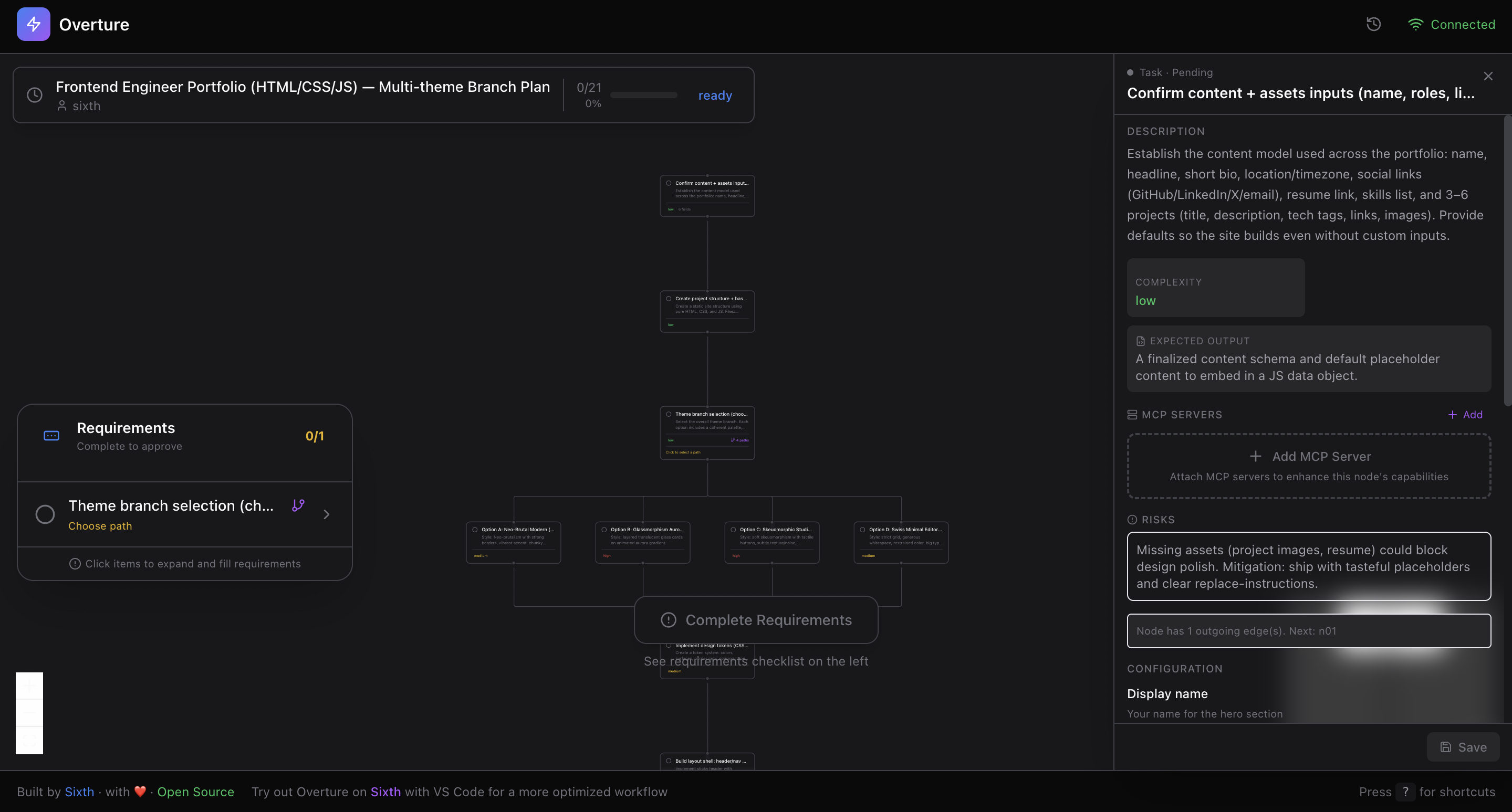
Click any node to reveal its full details:
| Info | What You See |
|---|---|
| Title & Description | Full context for what this step does |
| Complexity Level | Low / Medium / High with visual indicator |
| Expected Output | What the step should produce |
| Risks & Edge Cases | Potential issues to watch for |
| Pros & Cons | For branch options, compare trade-offs |
Dynamic Fields (User Inputs)
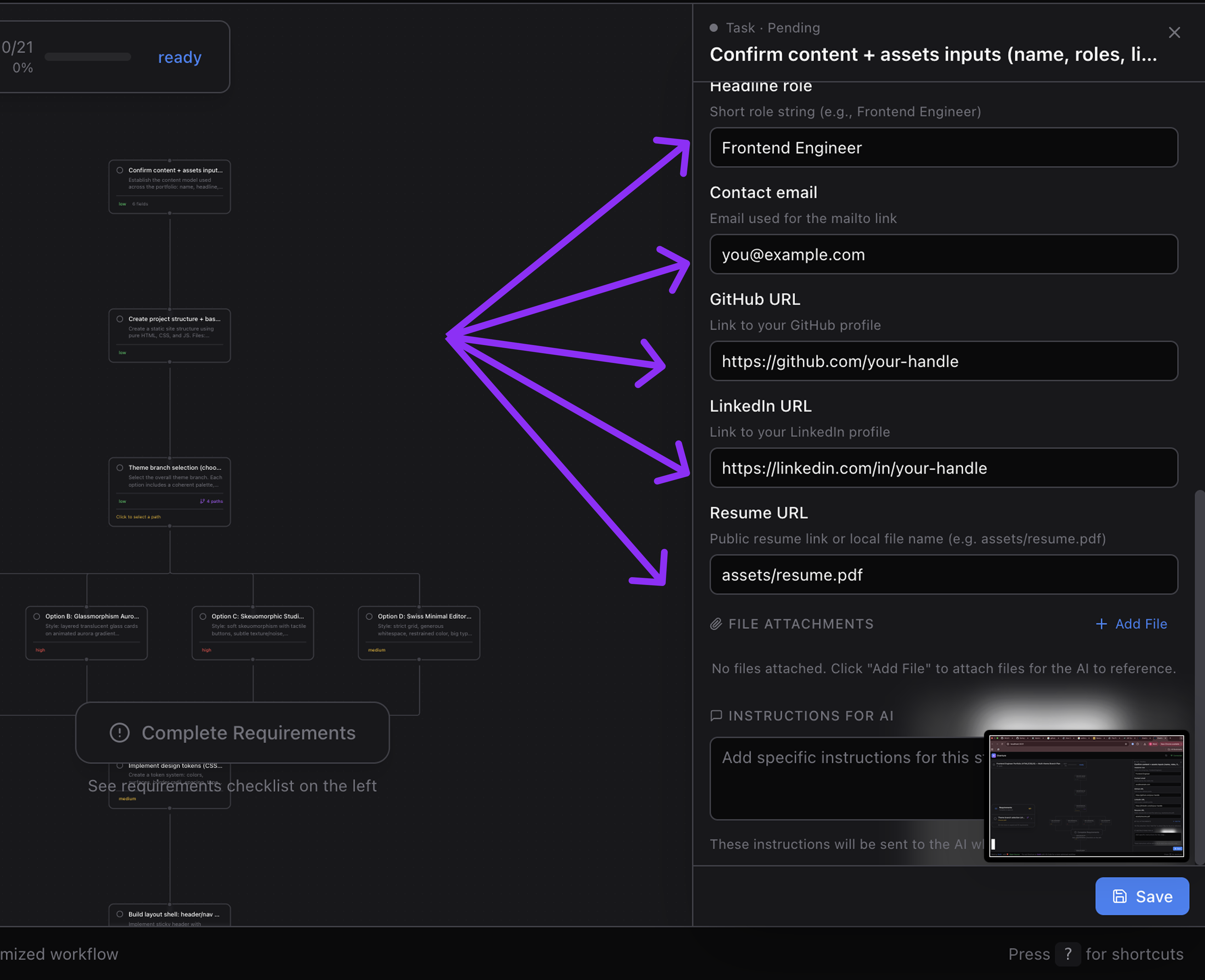
Nodes can request input from you before execution:
| Field Type | Use Case |
|---|---|
| String | Project names, URLs, custom values |
| Number | Port numbers, limits, counts |
| Boolean | Yes/No toggles for options |
| Select | Dropdown with predefined choices |
| Secret | API keys, tokens (masked input) |
| File | File paths to attach context |
Each field includes:
- Required/optional indicator
- Default values
- Help text & descriptions
- Setup instructions ("How to get an API key")
File Attachments
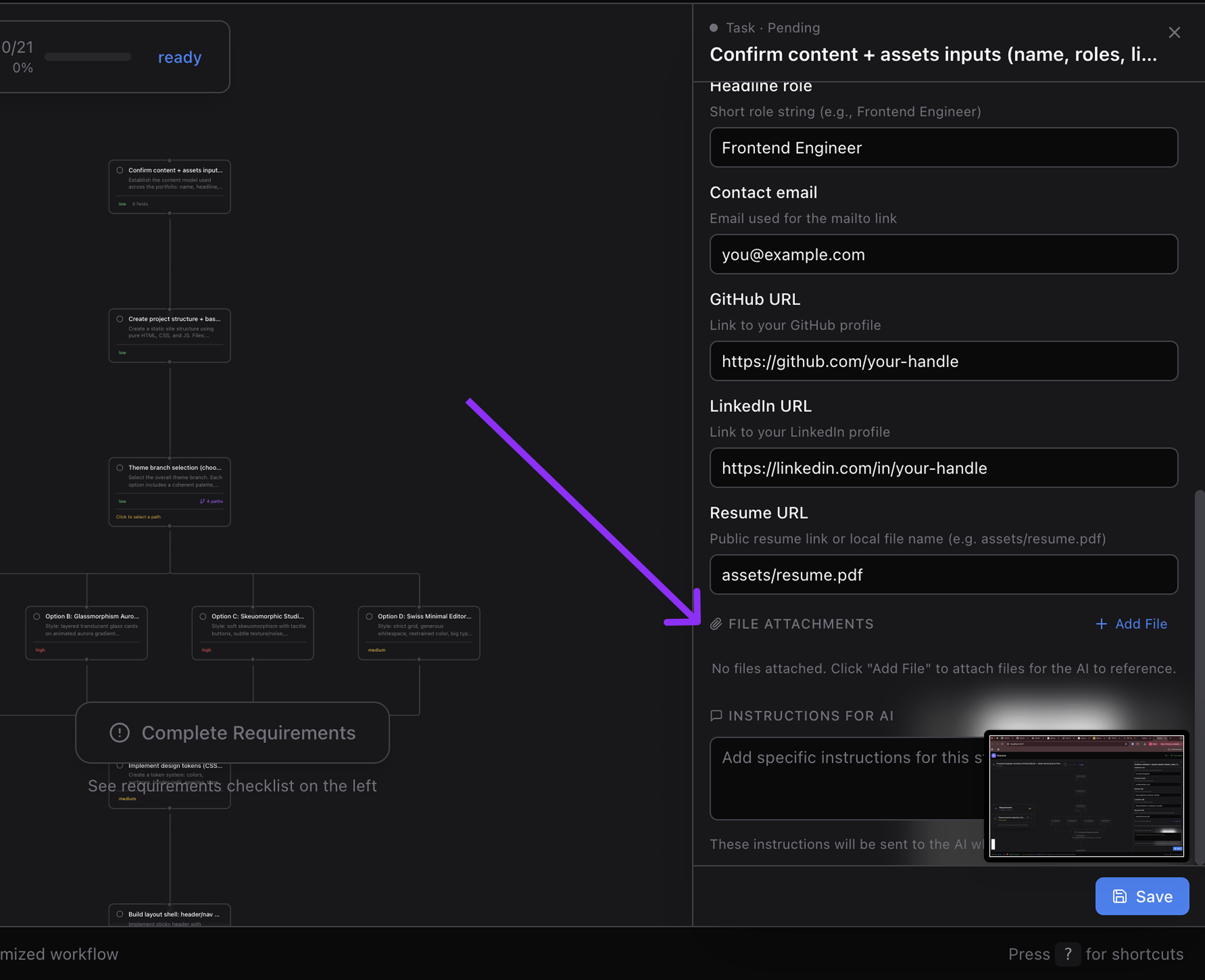
Attach context files to specific nodes:
- Automatic type detection — Image, code, document, or other
- Visual icons per file type
- Descriptions — add notes about why this file matters
- Delete — remove unwanted attachments
Meta Instructions
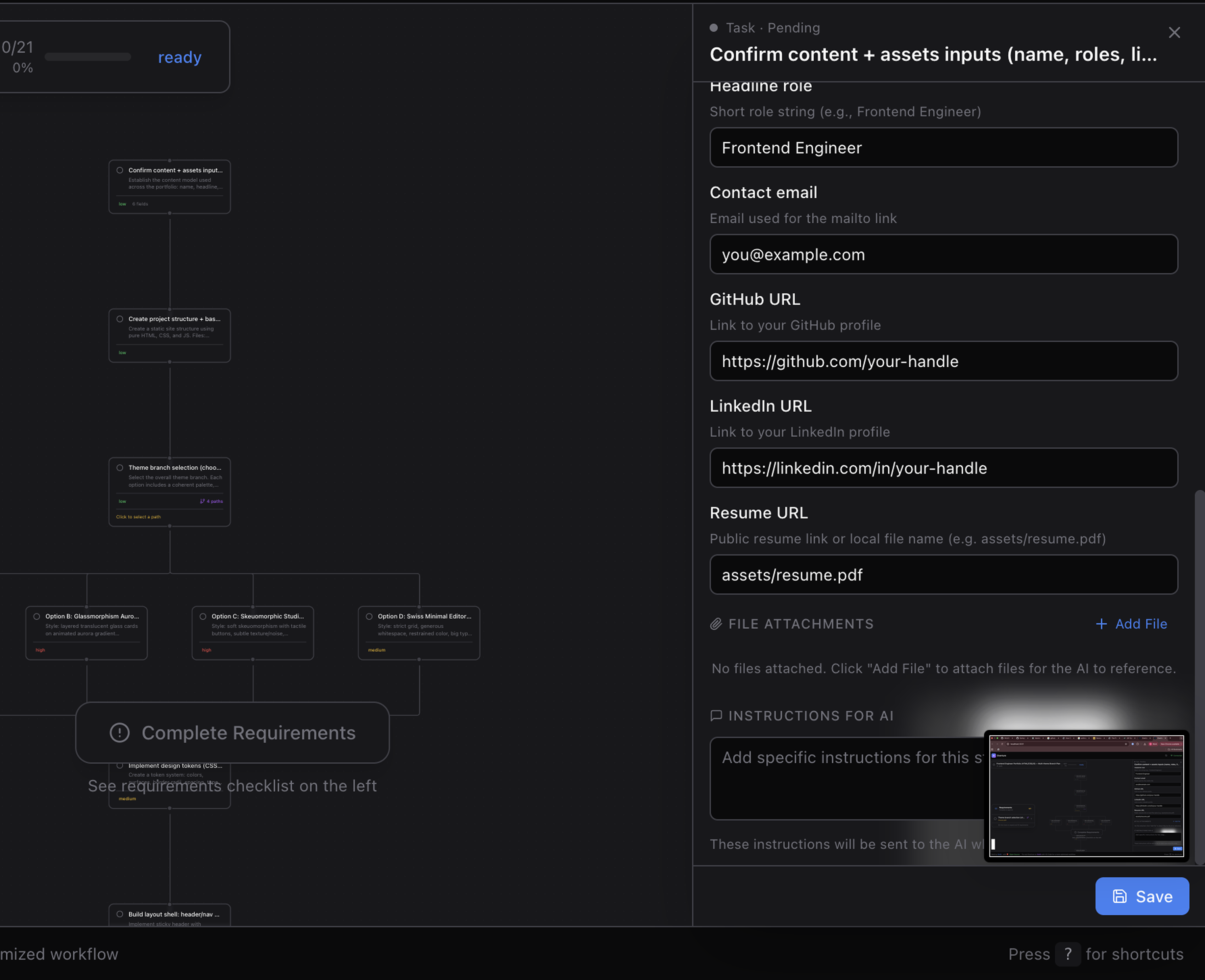
Add custom LLM instructions to any node:
"Pay special attention to error handling here" "Use the existing auth pattern from src/auth.ts" "Make sure to add tests for edge cases"
Instructions are sent to the agent right before that node executes.
Branch Detection & Selection

When the agent proposes multiple approaches:
| Feature | Description |
|---|---|
| Auto-Detection | Branches detected from graph structure (no special markup) |
| Branch Points | Nodes with multiple outgoing edges become decision points |
| Selection Modal | Side-by-side comparison with pros/cons |
| Complexity Comparison | See difficulty level for each option |
| Visual Indicator | Selected branch highlighted on canvas |
| Skip Unselected | Only your chosen path executes |
Requirements Checklist
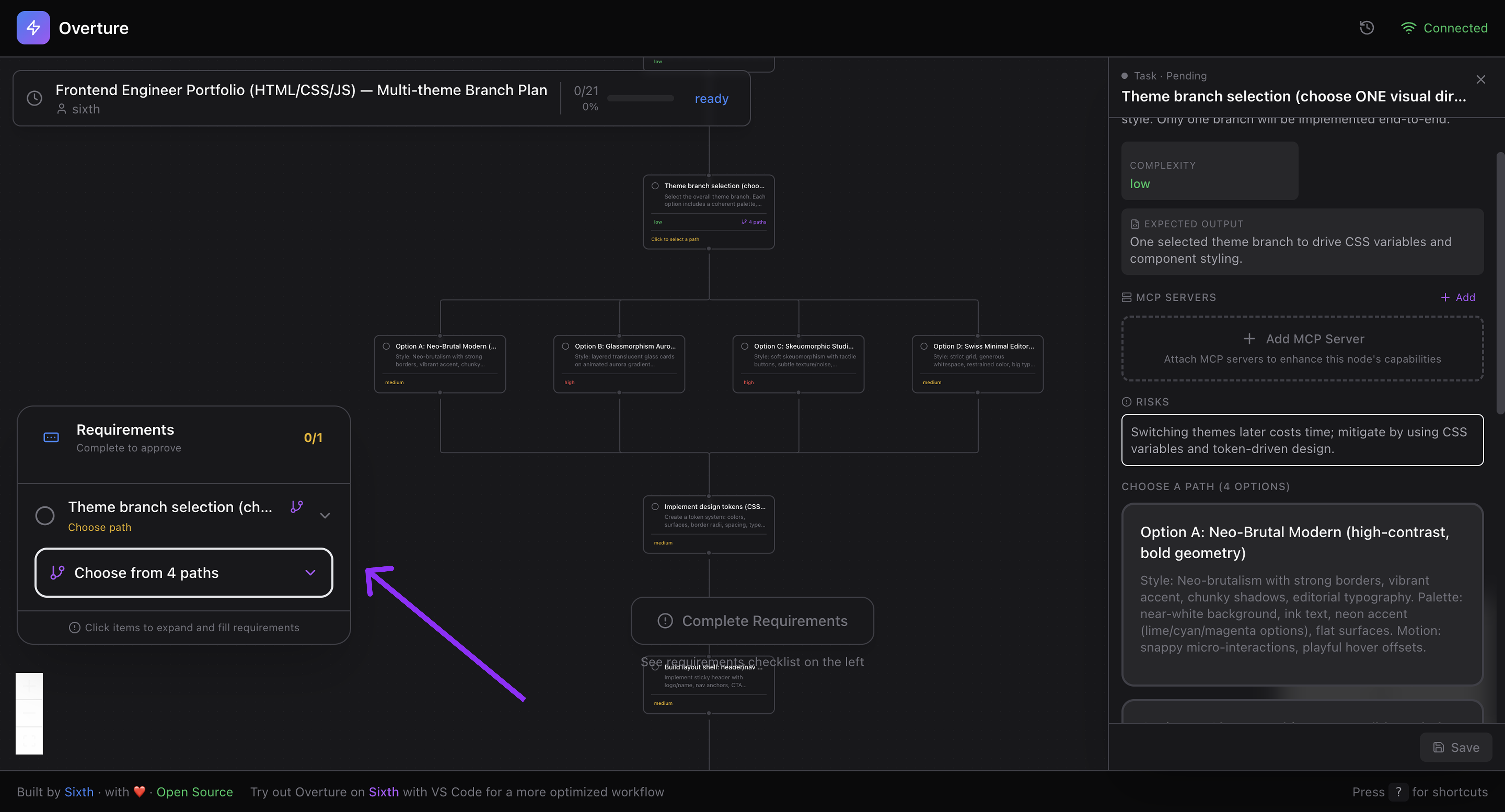
Before you can approve, Overture shows what's needed:
- Empty required fields — counted per node
- Branch selections — which decisions are pending
- Progress indicator — visual completion tracking
- Expandable items — click to see details
- Color coding — Green (done) / Orange (pending)
The Approve button stays disabled until all requirements are met.
Execution Controls
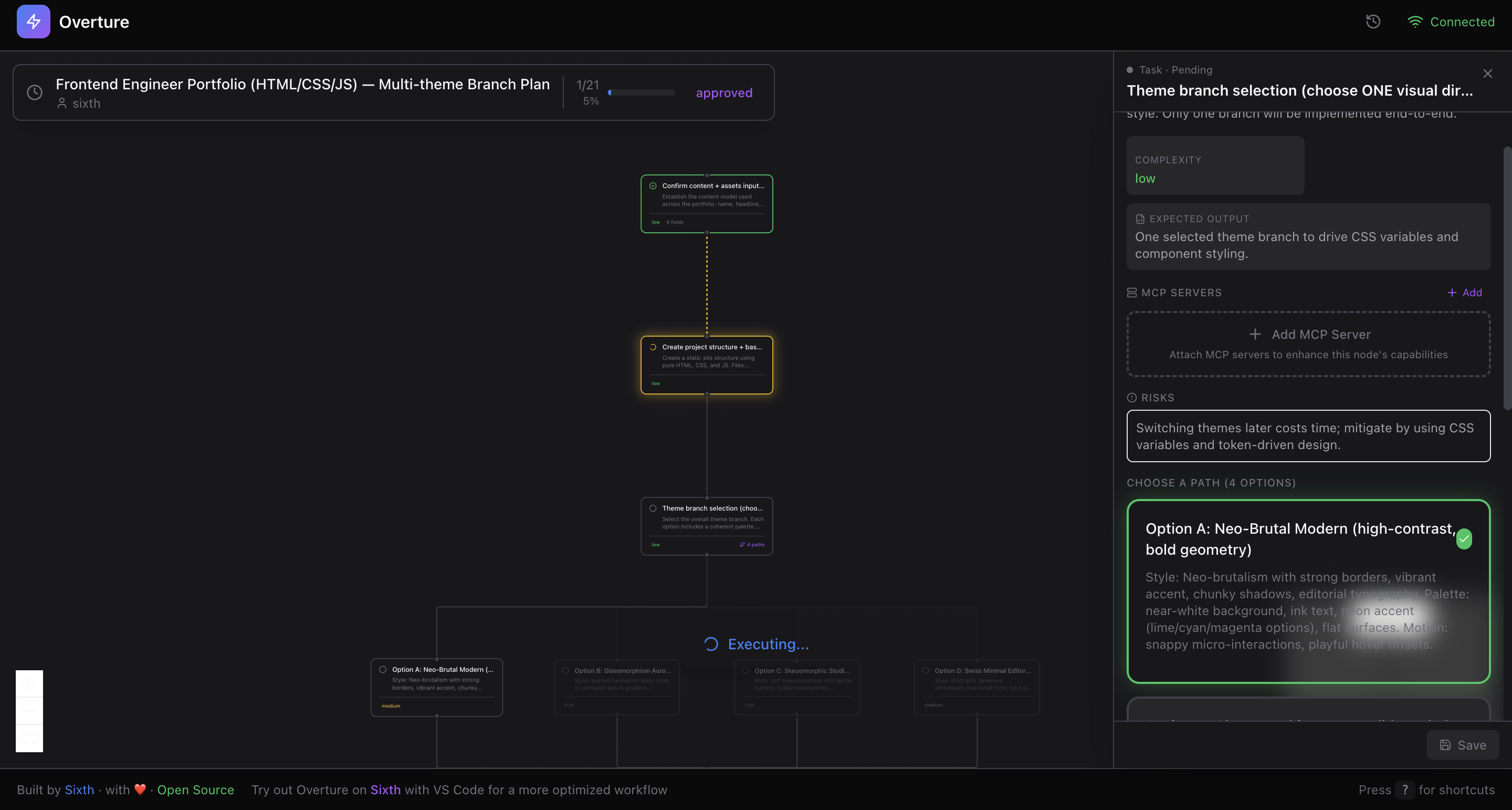
| Control | How |
|---|---|
| Approve | Click button or press Enter |
| Pause | Press Spacebar mid-execution |
| Resume | Press Spacebar again |
| Re-run Node | Click failed node → "Re-run" |
| Re-run From Here | Re-execute from any node to the end |
The approval button is smart:
- 🟢 "Approve & Execute" — plan ready, requirements met
- 🟠 "Complete Requirements" — conditions unmet
- 🔵 "Executing..." — running with spinner
- 🟢 "Completed" — all done
- 🔴 "Failed" — error occurred
Structured Output
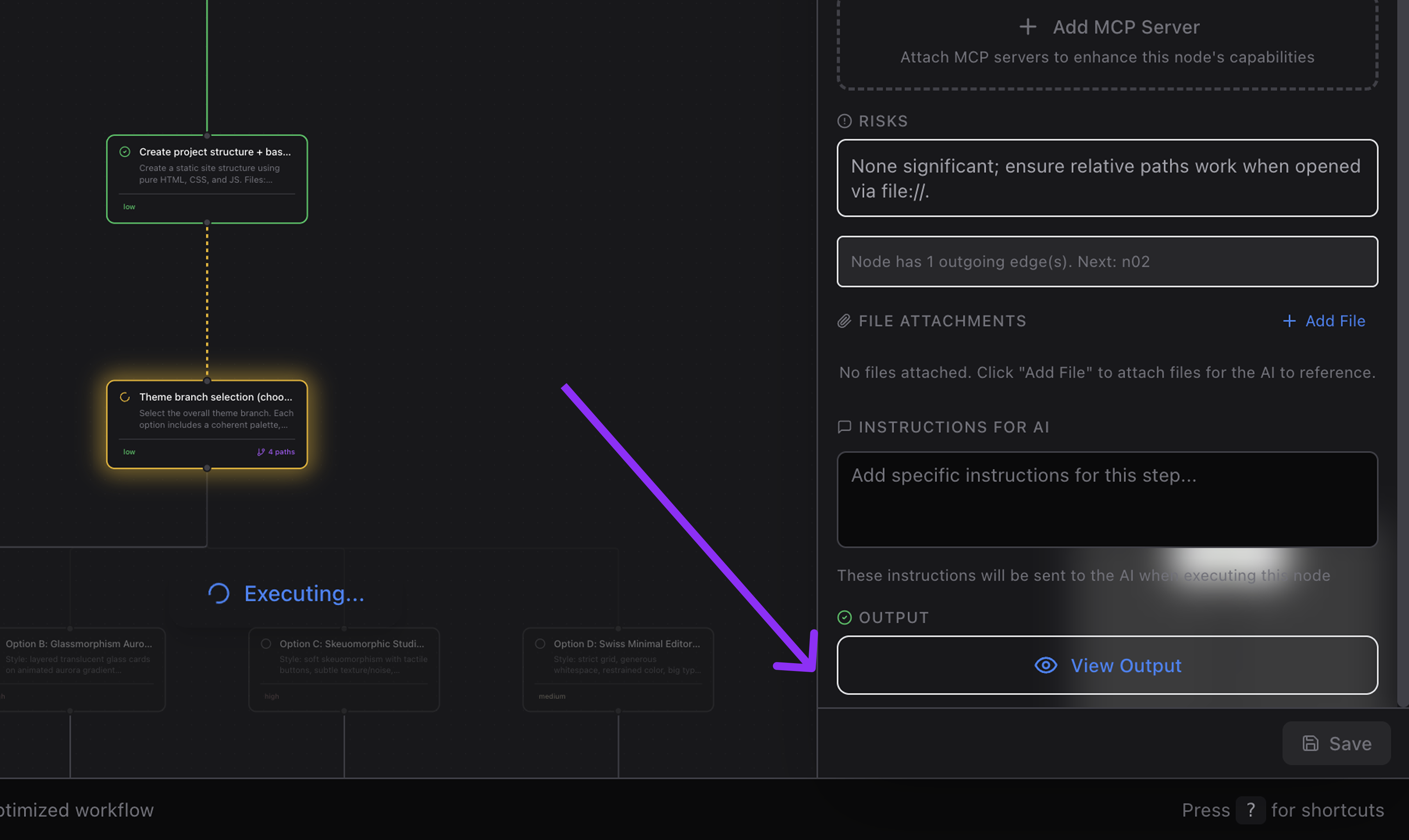
After each node executes, see rich structured output:
| Category | What It Shows |
|---|---|
| Overview | Summary of what was accomplished |
| Files Changed | Paths, lines added/removed, diffs |
| Files Created | New files with line counts |
| Files Deleted | Removed files |
| Packages Installed | npm packages with versions |
| MCP Servers Setup | Installation status (installed/configured/failed) |
| Web Searches | Queries performed, results used |
| Tool Calls | Which tools were used and how often |
| Preview URLs | Links to deployed sites or previews |
| Notes | Info, warnings, errors |
Each category is expandable — drill in without visual overload.
Output Modal
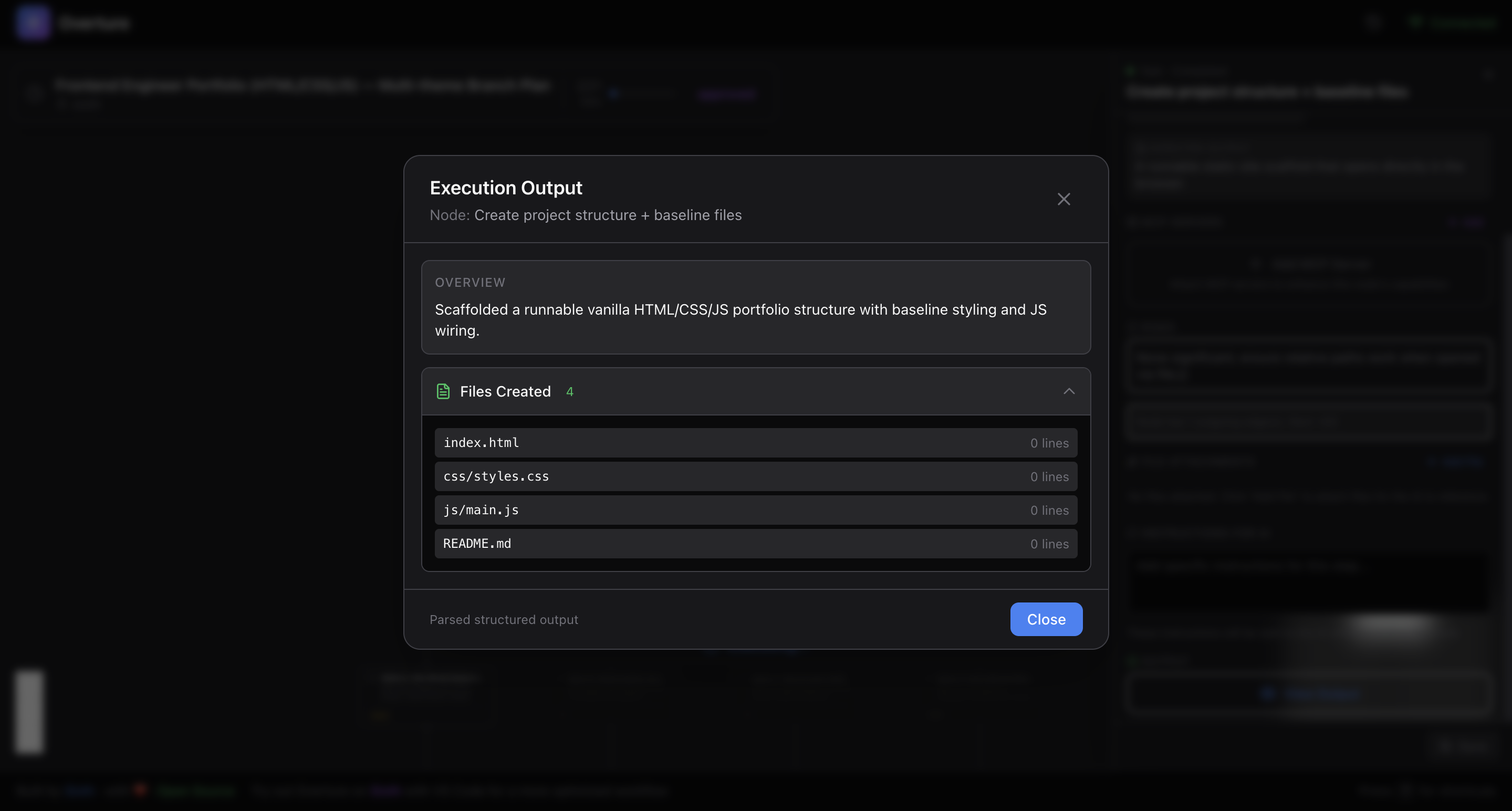
Click any completed node to see full output:
- Scrollable for long outputs
- Syntax highlighted code snippets
- Close with Escape or click outside
🏪 MCP Marketplace
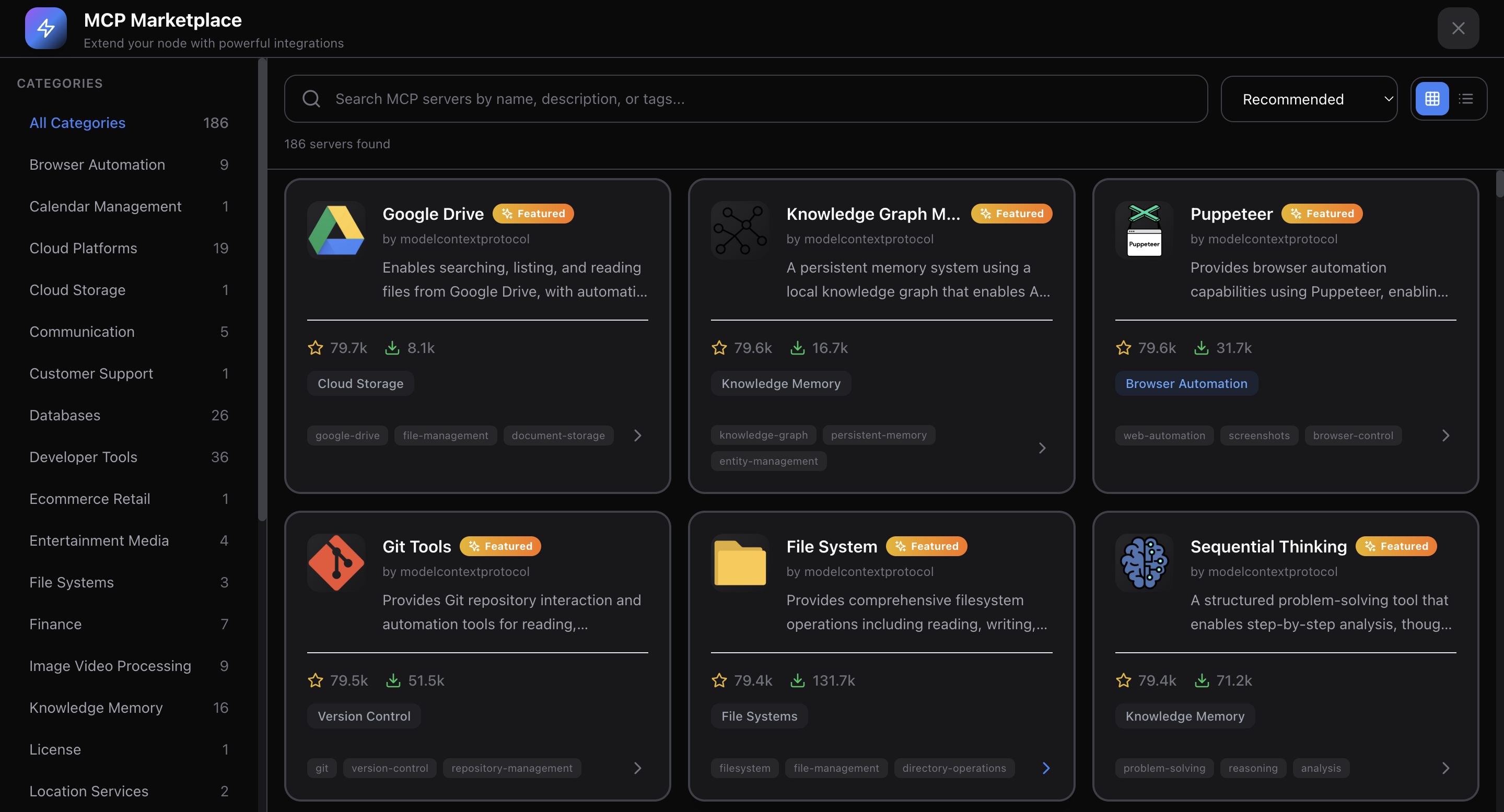
Browse and attach MCP servers directly from the Overture UI.
| Feature | Description |
|---|---|
| Built-in Marketplace | Search and discover MCP servers |
| Server Details | Descriptions, authors, GitHub links, stars |
| Category Browsing | Filter by use case |
| Per-Node Attachment | Attach specific tools to specific steps |
| Setup Instructions | See how to configure each server |
| Recommended Servers | Curated list for common tasks |
When you attach an MCP server to a node, the agent gains access to those tools only for that step.
📂 Multi-Project Support
Work on multiple projects simultaneously:
| Feature | Description |
|---|---|
| Tab Navigation | Switch between projects instantly |
| Auto Registration | Projects register on first agent contact |
| Isolated State | Each project has separate plans, nodes, configs |
| Unread Badges | Know when other projects have updates |
| Project Context | See project name, path, and agent type |
Single project? Tab bar hides automatically for a cleaner UI.
📜 Plan History & Persistence
Never lose your work:
| Feature | Description |
|---|---|
| Auto-Save | Plans saved every 3 seconds |
| Local Storage | Stored in ~/.overture/history.json |
| History Browser | Slide-in panel with all past plans |
| Status Icons | Completed, failed, executing, paused |
| Progress Bars | Visual completion percentage |
| One-Click Resume | Load and continue any past plan |
| Full Context | All field values, branch selections, attachments preserved |
Resume Information
When resuming, you get complete context:
- Current node — where execution stopped
- Completed nodes — with their outputs
- Pending nodes — what's left to do
- Failed nodes — with error messages
- All configurations — field values, branches, attachments
- Timestamps — when created, when paused
✏️ Dynamic Plan Modification
Modify plans even during execution:
| Operation | Description |
|---|---|
| Insert Nodes | Add new steps mid-execution |
| Remove Nodes | Delete steps (edges auto-reconnect) |
| Replace Content | Update node title/description in-place |
| Batch Operations | Multiple changes in one request |
Plan Diff View
When a plan changes, see exactly what's different:
- Added nodes — highlighted green
- Removed nodes — highlighted red
- Modified nodes — yellow with before/after comparison
- Edge changes — added/removed connections
🔌 MCP Tools (For Agent Developers)
Overture exposes 11 MCP tools for agents to interact with:
| Tool | Purpose |
|---|---|
submit_plan |
Submit complete plan as XML |
get_approval |
Wait for user approval (blocks until approved) |
update_node_status |
Update node status + output during execution |
plan_completed |
Mark plan as successfully completed |
plan_failed |
Mark plan as failed with error message |
check_rerun |
Check if user requested a node re-run |
check_pause |
Check if user paused execution |
get_resume_info |
Get full context for resuming a paused plan |
request_plan_update |
Request incremental plan modifications |
create_new_plan |
Signal creation of a new plan |
get_usage_instructions |
Get agent-specific instructions |
🔄 Real-time WebSocket Communication
19 server-to-client message types:
connected • plan_started • node_added • edge_added • plan_ready • plan_approved • node_status_updated • plan_completed • plan_failed • plan_paused • plan_resumed • nodes_inserted • node_removed • project_registered • projects_list • history_entries • plan_loaded • resume_plan_info • plan_updated
16 client-to-server message types:
approve_plan • cancel_plan • rerun_request • pause_execution • resume_execution • insert_nodes • remove_node • register_project • subscribe_project • unsubscribe_project • get_history • load_plan • get_resume_info • save_plan • request_plan_update • create_new_plan
Relay Mode
When the WebSocket port is already in use, Overture automatically operates as a relay client, forwarding messages through the existing server. Multiple agent instances can share a single UI.
⚙️ Configuration
| Variable | Default | Description |
|---|---|---|
OVERTURE_HTTP_PORT |
3031 |
Port for the web UI |
OVERTURE_WS_PORT |
3030 |
Port for WebSocket |
OVERTURE_AUTO_OPEN |
true |
Auto-open browser on start |
Setting Environment Variables
Claude Code
claude mcp add overture-mcp -e OVERTURE_HTTP_PORT=4000 -e OVERTURE_AUTO_OPEN=false -- npx overture-mcp
Cursor / Cline / Sixth AI
{
  "mcpServers": {
    "overture": {
      "command": "npx",
      "args": ["overture-mcp"],
      "env": {
        "OVERTURE_HTTP_PORT": "4000",
        "OVERTURE_WS_PORT": "4001",
        "OVERTURE_AUTO_OPEN": "false"
      }
    }
  }
}
GitHub Copilot
{
  "servers": {
    "overture": {
      "command": "npx",
      "args": ["overture-mcp"],
      "env": {
        "OVERTURE_HTTP_PORT": "4000",
        "OVERTURE_WS_PORT": "4001",
        "OVERTURE_AUTO_OPEN": "false"
      }
    }
  }
}
⌨️ Keyboard Shortcuts
| Key | Action |
|---|---|
Enter |
Approve plan (when ready) |
Space |
Pause / Resume execution |
Escape |
Deselect current node / Close modal |
🤝 Supported Agents
| Agent | Status | Notes |
|---|---|---|
| Claude Code | ✅ Full | Native MCP support |
| Cursor | ✅ Full | Via mcp.json config |
| Cline | ✅ Full | Via VS Code settings |
| GitHub Copilot | ✅ Full | VS Code 1.99+ required |
| Sixth AI | ✅ Full | Built-in, zero config |
Each agent has custom-tailored prompts for optimal plan generation.
💪 Why Overture?
🧑💻 Development
# Clone the repo
git clone https://github.com/SixHq/Overture.git
cd Overture

# Install dependencies
npm install

# Build all packages
npm run build

# Start MCP server (in one terminal)
cd packages/mcp-server && npm start

# Start UI dev server (in another terminal)
cd packages/ui && npm run dev
Tech Stack
| Layer | Technologies |
|---|---|
| MCP Server | Node.js, TypeScript, Express, WebSocket (ws), SAX XML Parser |
| UI | React 18, React Flow, Zustand, Framer Motion, Tailwind CSS, Vite |
| Layout | Dagre (automatic graph positioning) |
🤝 Contributing
Overture is open source and we welcome contributions!
- 🐛 Report bugs at GitHub Issues
- 💡 Suggest features at GitHub Discussions
- 📖 Improve docs — PRs welcome
- 🔧 Contribute code — see CONTRIBUTING.md
All contributions are appreciated, no matter how small.
📄 License
MIT License - see LICENSE for details.

Built by Sixth
For the best experience, try Sixth for VS Code
Overture is built-in with zero configuration required.
Stop flying blind. See the plan. Approve it. Execute with confidence.