AI-powered personal finance analyzer — runs 100% locally, no cloud, no login.
Upload a PDF / CSV / Excel bank or credit card statement → AI extracts and categorizes every transaction → interactive dashboard, spending insights, recurring payment detection & chat with your data.
Features
| Feature | Description |
|---|---|
| AI Parsing | Uses a local LLM (via Ollama or LM Studio) to extract transactions from PDFs with near-perfect accuracy |
| Any Model | Works with any model — Gemma, Llama, Mistral, Phi, Qwen, DeepSeek, etc. |
| Multiple Providers | Choose between Ollama or LM Studio — whichever fits your workflow |
| Auto Currency | AI detects the currency from your statement automatically |
| Learned Rules | Remembers your manual categorization corrections for specific merchants, improving accuracy over time |
| Smart Categorization | AI-powered transaction categorization with confidence scores and review flags |
| Credit Card Support | Parses credit card statements, detects international transactions, and tracks card-wise spending |
| Recurring Payments | Automatically detects subscriptions and recurring payments — spot forgotten subscriptions |
| Financial Insights | Spending trends, category breakdowns, and financial health indicators |
| Dashboard | Pie charts, trend lines, income vs expense breakdowns |
| Chat | Ask questions about your statement in natural language ("What was my highest expense?") |
| Budget | Plan next month's budget based on spending patterns |
| Privacy | Everything stays on your machine — no data leaves your browser + local LLM |
| Multi-format | PDF, CSV, XLS, XLSX supported |
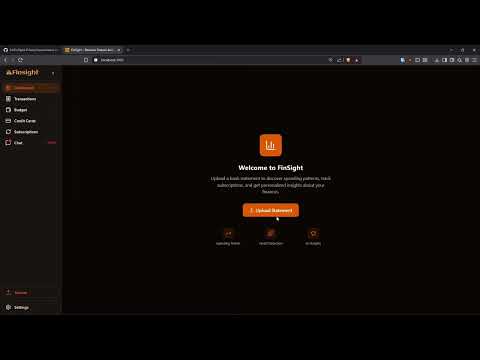
Installation & Demo Video
Quick Start
Prerequisites:
1. Node JS
You need to have Node JS and NPM installed on your system. Download or install from the official NodeJS website
Windows
Download a pre-built binary from [NodeJS Downloads](https://nodejs.org/en/download)

OR

Install using Docker
# Docker has specific installation instructions for each operating system.
# Please refer to the official documentation at https://docker.com/get-started/

# Pull the Node.js Docker image:
docker pull node:24-alpine

# Create a Node.js container and start a Shell session:
docker run -it --rm --entrypoint sh node:24-alpine

# Verify the Node.js version:
node -v # Should print "v24.14.0".

# Verify npm version:
npm -v # Should print "11.9.0".
macOS
# Download and install Homebrew
curl -o- https://raw.githubusercontent.com/Homebrew/install/HEAD/install.sh | bash
# Download and install Node.js:
brew install node@24
Linux
# Download and install Homebrew
  curl -o- https://raw.githubusercontent.com/Homebrew/install/HEAD/install.sh | bash
# Download and install Node.js:
  brew install node@24
2. LLM Provider
Choose your LLM provider: Ollama or LM Studio. Both work equally well.
Option A: Using Ollama
1. Install Ollama
Download from ollama.com or:
# macOS
brew install ollama

# Linux
curl -fsSL https://ollama.com/install.sh | sh
2. Pull a Model
Pick any model you like. Smaller models are faster; larger models are more accurate.
# Small & fast (recommended for parsing)
ollama pull gemma3:1b
ollama pull llama3.2:1b
ollama pull phi4-mini

# Medium (good balance)
ollama pull gemma3:4b
ollama pull llama3.2:3b
ollama pull mistral

# Large (most accurate)
ollama pull llama3.1:8b
ollama pull gemma3:12b
ollama pull qwen2.5:7b
3. Start Ollama
Ollama runs on
http://localhost:11434by default.
Option B: Using LM Studio
1. Install LM Studio
Download from lmstudio.ai
2. Download a Model
- Open LM Studio
- Go to the Search tab
- Download any model you like (Gemma, Llama, Mistral, Phi, Qwen, etc.)
3. Start the Local Server
- Go to Developer tab (or press
Ctrl+D/Cmd+D) - Click Start Server (default port: 1234)
- Important: Go to Settings → Developer and enable CORS (required for browser requests)
LM Studio runs on
http://localhost:1234by default.
Run the App
Clone the repository
git clone https://github.com/AJ/FinSight.git
Run the App
# Install dependencies
npm install

# Build the code
npm run build

# Start the application server
npm start
Open http://localhost:3000.
Connect
On your first visit, a Setup Wizard will guide you through:
- Choosing your LLM Provider (Ollama or LM Studio)
- Connecting to the server and selecting a model
- Choosing your Currency
To reconfigure these settings later, go to Settings in the sidebar.
How It Works
Browser
  |
  +-- Upload PDF/CSV/XLS
  |       |
  |       v
  |   Text Extraction (pdfjs-dist)
  |       |
  |       v
  |   Local LLM (Ollama or LM Studio)
  |       |
  |       +-- Statement Type Detection
  |       +-- Transaction Parsing
  |       +-- Currency Detection
  |       |
  |       v
  |   Review & Confirm
  |
  +-- Features
          |
          +-- Dashboard (charts, stats)
          +-- Transactions (filter, categorize)
          +-- Credit Cards (utilization, due dates)
          +-- Subscriptions (recurring detection)
          +-- Chat (ask questions)
          +-- Budget (planning)
Parsing Flow
- Text extraction —
pdfjs-dist(for PDFs) or built-in parsers (for CSV/XLS) extract raw text from the document - Statement type detection — AI analyzes the content to detect if it's a bank statement or credit card statement
- LLM parsing — The extracted text is sent to your local LLM. The model returns structured JSON with dates, descriptions, amounts, types, and auto-detected currency
- Chunking — Long statements are automatically split into chunks to fit within the model's context window
- Validation & deduplication — Every transaction is validated (date, amount, type) and duplicates are removed before being shown
Chat Flow
- After importing transactions, the app builds a summary context (all transactions + totals)
- When you ask a question, the context + your question are sent to your LLM
- Responses stream back in real-time (Server-Sent Events)
Supported Models
Any model available in Ollama or LM Studio works. Here are some tested recommendations:
| Model | Size | Speed | Accuracy | Best For |
|---|---|---|---|---|
gemma3:1b |
1B | ⚡ Very fast | Good | Quick parsing |
llama3.2:1b |
1B | ⚡ Very fast | Good | Quick parsing |
phi4-mini |
3.8B | Fast | Very good | Balanced |
gemma3:4b |
4B | Fast | Very good | Balanced |
llama3.2:3b |
3B | Fast | Very good | Balanced |
mistral |
7B | Medium | Excellent | Best accuracy |
llama3.1:8b |
8B | Medium | Excellent | Quick Parsing |
qwen2.5:7b |
7B | Medium | Excellent | Best accuracy |
deepseek-r1:1.5b |
1.5B | Fast | Good | Reasoning |
qwen3-30b-a3b-thinking-2507 |
30B | Medium | Best Accuracy | Best Accuracy |
Tip: Start with a small model for speed. If parsing isn't accurate enough, switch to a larger model in the Settings or from the upload form.
Project Structure
src/
├── app/
│   ├── api/
│   │   ├── llm/              # LLM communication
│   │   │   ├── status/       # GET — check connection & list models
│   │   │   ├── parse/        # POST — parse statement with LLM
│   │   │   └── chat/         # POST — streaming chat
│   │   ├── categorize/       # POST — AI transaction categorization
│   │   └── insights/         # POST — generate financial insights
│   ├── chat/                 # Chat with your data
│   ├── credit-cards/         # Credit card dashboard
│   ├── dashboard/            # Main dashboard with charts
│   ├── review/               # Review parsed transactions
│   ├── settings/             # AI connection, currency, data management
│   ├── subscriptions/        # Recurring payments view
│   ├── transactions/         # Transaction list with filters
│   └── budget/               # Budget planning
│
├── components/
│   ├── onboarding/           # Setup wizard (Provider, Model, Currency)
│   ├── chat/                 # Chat UI (ChatPanel, MarkdownRenderer)
│   ├── creditCard/           # Credit card widgets (10+ components)
│   ├── dashboard/            # Charts (Pie, Trend, StatCard, ScoreRing)
│   ├── insights/             # Insight cards and panels
│   ├── layout/               # AppLayout, Sidebar, UploadDialog
│   ├── recurring/            # Recurring payment cards
│   ├── transactions/         # CategoryBadge, InlineCategoryEditor
│   ├── ui/                   # shadcn/ui primitives
│   └── upload/               # File upload, AIConnectionBar, PasswordDialog
│
├── lib/
│   ├── validation/           # API schema validation
│   ├── categorization/       # AI categorization logic
│   │   ├── categories.ts     # Category definitions
│   │   ├── aiCategorizer.ts  # LLM-based categorization
│   │   └── prompts.ts        # Categorization prompts
│   ├── creditCard/           # Credit card analysis
│   ├── insights/             # Financial insights generator
│   │   ├── analyzer.ts       # Spending pattern analysis
│   │   ├── generator.ts      # Insight generation
│   │   └── prompts.ts        # Insight prompts
│   ├── llm/                  # LLM clients
│   │   ├── ollamaClient.ts         # Ollama (server)
│   │   ├── ollamaBrowserClient.ts  # Ollama (browser)
│   │   ├── lmstudioClient.ts       # LM Studio (server)
│   │   └── lmstudioBrowserClient.ts # LM Studio (browser)
│   ├── parsers/              # File parsing
│   │   ├── llmParser.ts      # LLM-powered parser
│   │   ├── pdfParser.ts      # PDF column-based parser
│   │   ├── csvParser.ts      # CSV parser
│   │   ├── xlsParser.ts      # Excel parser
│   │   ├── currencyDetector.ts # Currency detection
│   │   └── dateParser.ts     # Date format parsing
│   ├── recurring/            # Recurring payment detection
│   │   ├── detector.ts       # Detection algorithm
│   │   └── types.ts          # RecurringPayment types
│   └── store/                # Zustand stores
│       ├── settingsStore.ts    # Provider, URL, model, currency
│       ├── transactionStore.ts # All transactions
│       ├── categoryStore.ts    # Categories & keywords
│       ├── creditCardStore.ts  # Credit card statements
│       ├── recurringStore.ts   # Recurring payments
│       ├── insightsStore.ts    # Generated insights
│       ├── chatStore.ts        # Chat history
│       └── budgetStore.ts      # Budget allocations
│
└── types/
    ├── index.ts              # Core types (Transaction, Currency, etc.)
    └── creditCard.ts         # Credit card types
Configuration
Running LLM on a Different Machine
Ollama:
# On the Ollama machine, start with:
OLLAMA_HOST=0.0.0.0 ollama serve

# Then in the app Settings, use:
http://<machine-ip>:11434
LM Studio:
# LM Studio doesn't have a command-line option for this.
# Run it on the same machine as the app, or use a tunneling solution.
# You can also access it on the LAN with the machine's IP address
# In Settings, use:
http://<machine-ip>:1234
CORS Configuration
Ollama: No additional configuration needed.
LM Studio: You MUST enable CORS for browser requests:
- Open LM Studio
- Go to Settings → Developer
- Enable CORS toggle
Debug Logging
By default, the app only logs debug information in development mode. To enable verbose logging (including LLM prompts and responses) in production:
DEBUG_LOGGING=true
npm run dev
This is useful for:
- Debugging LLM parsing issues
- Inspecting prompts sent to the model
- Troubleshooting connection problems
Warning: Debug logging may expose sensitive financial data in logs. Only enable in trusted environments.
Tech Stack
- Framework: Next.js 16 (React 19, App Router)
- UI: shadcn/ui + Tailwind CSS v4
- State: Zustand (persisted to localStorage / sessionStorage)
- Validation: Zod (Runtime schema validation for API routes)
- Charts: Chart.js + react-chartjs-2
- PDF: pdfjs-dist (text extraction)
- AI: Ollama or LM Studio (local LLM inference)
- Language: TypeScript
FAQ
Q: Does my data leave my computer? No. PDF parsing happens in your browser. The LLM runs on your machine via Ollama or LM Studio. Nothing is sent to any cloud service.
Q: How is my data stored? All data is stored locally in your browser's localStorage (unencrypted). This data never leaves your machine. On shared computers, use the "Clear All Data" button in Settings before leaving.
Q: Do I need an internet connection? Only to install dependencies and download models. After that, everything works offline.
Q: What if the LLM isn't running? The app requires a running LLM to parse statements. You'll see connection errors when trying to upload. Start Ollama or LM Studio and connect in Settings before uploading.
Q: Should I use Ollama or LM Studio? Both work equally well. Ollama is command-line focused and easier to automate. LM Studio has a GUI for browsing and downloading models. Choose whichever fits your workflow.
Q: Can I use models from OpenAI / Anthropic? Not currently — this app is designed for local-only inference. No API keys needed.
Q: My PDF isn't parsing correctly.
Try a larger model (e.g. mistral or llama3.1:8b). Scanned/image PDFs won't work — the PDF must contain selectable text.
** Q: How fast is parsing? How long does it take?** Speed depends on two things: which model you use and your hardware.
Model size: a 1B model parses a typical statement in seconds. A 7B model takes longer but gives better categorization accuracy. Start small and switch up if accuracy is insufficient.
Hardware: a system with a dedicated GPU runs inference significantly faster than CPU-only. On Apple Silicon, GPU acceleration is automatic. On Linux/Windows, Ollama and LM Studio both support GPU offloading for NVIDIA/AMD cards.
If parsing feels slow, try a smaller model before assuming it's a hardware problem.
License
Acknowledgments
This project was originally inspired by bank-statement-visualizer.