
This is a screen recorder that has minimal impact on system performance by recording your monitor using the GPU only, similar to shadowplay on windows. This is the fastest screen recording tool for Linux.
This screen recorder can be used for recording your desktop offline, for live streaming and for nvidia shadowplay-like instant replay, where only the last few minutes are saved.
This software can also take screenshots.
This is a cli-only tool, if you want an UI for this check out GPU Screen Recorder GTK or if you prefer a ShadowPlay-like UI then check out GPU Screen Recorder UI.
Supported video codecs:
- H264 (default)
- HEVC (Optionally with HDR)
- AV1 (Optionally with HDR. Not currently supported on NVIDIA in the flatpak version of GPU Screen Recorder)
- VP8
- VP9
Supported audio codecs:
- Opus (default)
- AAC
Supported image formats:
- JPEG
- PNG
This software works on X11 and Wayland on AMD, Intel and NVIDIA.
Installation
If you are running an Arch Linux based distro then you can find gpu screen recorder in the official repositories under the name gpu-screen-recorder (sudo pacman -S gpu-screen-recorder).
If you are running another distro then you can run sudo ./install.sh, but you need to manually install the dependencies, as described below.
You can also install gpu screen recorder (the ui version) from flathub, which is the easiest method
to install GPU Screen Recorder on non-arch based distros.
If you install GPU Screen Recorder flatpak, which is the gtk gui version then you can still run GPU Screen Recorder command line by using the flatpak command option, for example flatpak run --command=gpu-screen-recorder com.dec05eba.gpu_screen_recorder -w screen -f 60 -o video.mp4. Note that if you want to record your monitor on AMD/Intel then you need to install the flatpak system-wide (like so: flatpak install --system com.dec05eba.gpu_screen_recorder).
Unofficial install methods
The only official ways to install GPU Screen Recorder is either from source, arch linux extra repository or flathub. Other sources may be out of date and missing features or may not work correctly.
If you install GPU Screen Recorder from somewhere else and have an issue then try installing it from one of the official sources before reporting it as an issue.
If you still prefer to install GPU Screen Recorder with a package manager instead of from source or as a flatpak then you may be able to find a package for your distro.
Here are some known unofficial packages:
- Debian/Ubuntu: Pacstall
- Nix: NixOS wiki
- openSUSE: openSUSE software repository
- Fedora, CentOS: Copr
- OpenMandriva: gpu-screen-recorder
- Solus: gpu-screen-recorder
- Nobara: Nobara wiki
- AppImage AppImage GitHub releases
- Void Linux: gpu-screen-recorder (Make sure to read the README in the package)
Dependencies
GPU Screen Recorder uses meson build system so you need to install meson to build GPU Screen Recorder.
Build dependencies
These are the dependencies needed to build GPU Screen Recorder:
- x11 (libx11, libxcomposite, libxrandr, libxfixes, libxdamage)
- wayland (wayland-client, wayland-egl, wayland-scanner)
- ffmpeg (libavcodec, libavformat, libavutil, libswresample, libavfilter)
- libva (and libva-drm)
- libpulse
- libdrm
- libcap
- vulkan-headers
- linux-api-headers
Optional dependencies
When building GPU Screen Recorder with portal support (-Dportal=true meson option, which is enabled by default) these dependencies are also needed:
- libdbus
- libpipewire (and libspa which is usually part of libpipewire)
Runtime dependencies
- libglvnd (which provides libgl, libglx and libegl) is needed. Your system needs to support at least OpenGL ES 3.0 (released in 2012)
- libturbojpeg (aka libjpeg-turbo) is needed when capturing camera with mjpeg pixel format option
There are also additional dependencies needed at runtime depending on your GPU vendor:
AMD
- mesa
- vaapi (libva-mesa-driver)
Intel
- mesa
- vaapi (intel-media-driver/libva-intel-driver/linux-firmware-intel, depending on which intel GPU you have)
NVIDIA
- cuda runtime (libcuda.so.1) (libnvidia-compute)
- nvenc (libnvidia-encode)
- nvfbc (libnvidia-fbc1, when recording the screen on x11)
- xnvctrl (libxnvctrl0, when using the
-ocoption)
How to use
Run gpu-screen-recorder --help to see all options and also examples.
There is also a gui for the gpu screen recorder called GPU Screen Recorder GTK.
There is also a new alternative UI for GPU Screen Recorder in the style of ShadowPlay called GPU Screen Recorder UI.
Recording
Here is an example of how to record your monitor and the default audio output: gpu-screen-recorder -w screen -f 60 -a default_output -o ~/Videos/test_video.mp4.
Yyou can stop and save the recording with Ctrl+C or by running pkill -SIGINT -f "^gpu-screen-recorder".
You can see a list of capture options to record if you run gpu-screen-recorder --list-capture-options. This will list possible capture options and monitor names, for example:\
  window
  DP-1|1920x1080
in this case you could record a window or a monitor with the name DP-1.
To list available audio devices that you can use you can run gpu-screen-recorder --list-audio-devices and the name to use is on the left size of the |.
To list available audio application names that you can use you can run gpu-screen-recorder --list-application-audio.
You can run gpu-screen-recorder --info to list more information about the system, such as the device that is used for capture and video encoding and supported codecs. These commands can be parsed by scripts/programs.
Replay mode
Run gpu-screen-recorder with the -c mp4 and -r option, for example: gpu-screen-recorder -w screen -f 60 -r 30 -c mp4 -o ~/Videos. Note that in this case, -o should point to a directory.
If -df yes is set, replays are save in folders based on the date.
The file path to the saved replay is output to stdout. All other output from GPU Screen Recorder are output to stderr.
You can also use the -sc option to specify a script that should be run (asynchronously) when the video has been saved and the script will have access to the location of the saved file as its first argument.
This can be used for example to show a notification when a replay has been saved, to rename the video with a title that matches the game played (see scripts/record-save-application-name.sh as an example on how to do this on X11) or to re-encode the video.
The replay buffer is stored in ram (as encoded video) by default, so don't use a too large replay time and/or video quality unless you have enough ram to store it.
You can use the -replay-storage disk option to store the replay buffer on disk instead of ram (in the same location as the output video).
By default videos are recorded with constant quality, but with replay mode you might want to record in constant bitrate mode instead for consistent ram/disk usage in high motion scenes. You can do that by using the -bm cbr option (along with -q option, for example -bm cbr -q 20000).
Streaming
Streaming works the same way as recording, but the -o argument should be path to the live streaming service you want to use (including your live streaming key). Take a look at scripts/twitch-stream.sh to see an example of how to stream to twitch.
GPU Screen Recorder uses Ffmpeg so GPU Screen Recorder supports all protocols that Ffmpeg supports.
If you want to reduce latency one thing you can do is to use the -keyint option, for example -keyint 0.5. Lower value means lower latency at the cost of increased bitrate/decreased quality.
Recording while using replay/streaming
You can record a regular video while using replay/streaming by launching GPU Screen Recorder with the -ro option to specify a directory where to save the recording (for example: gpu-screen-recorder -w screen -c mp4 -r 60 -o "$HOME/Videos/replays" -ro "$HOME/Videos/recordings").
To start/stop (and save) recording use the SIGRTMIN signal, for example pkill -SIGRTMIN -f "^gpu-screen-recorder". The path to the video will be displayed in stdout when saving the video.
This way of recording while using replay/streaming is more efficient than running GPU Screen Recorder multiple times since this way it only records the screen and encodes the video once.
Controlling GPU Screen Recorder remotely
To save a video in replay mode, you need to send signal SIGUSR1 to gpu screen recorder. You can do this by running pkill -SIGUSR1 -f "^gpu-screen-recorder".
To stop recording send SIGINT to gpu screen recorder. You can do this by running pkill -SIGINT -f "^gpu-screen-recorder" or pressing Ctrl-C in the terminal that runs gpu screen recorder. When recording a regular non-replay video this will also save the video.
To pause/unpause recording send SIGUSR2 to gpu screen recorder. You can do this by running pkill -SIGUSR2 -f "^gpu-screen-recorder". This is only applicable and useful when recording (not streaming nor replay).
There are more signals to control GPU Screen Recorder. Run gpu-screen-recorder --help to list them all (under NOTES section).
Simple way to run replay without gui
Run the script scripts/start-replay.sh to start replay and then scripts/save-replay.sh to save a replay and scripts/stop-replay.sh to stop the replay. The videos are saved to $HOME/Videos.
You can use these scripts to start replay at system startup if you add scripts/start-replay.sh to startup (this can be done differently depending on your desktop environment / window manager) and then go into
hotkey settings on your system and choose a hotkey to run the script scripts/save-replay.sh. Modify scripts/start-replay.sh if you want to use other replay options.
Run replay on system startup
If you installed GPU Screen Recorder from AUR or from source and you are running a distro that uses systemd then you will have a systemd service installed that can be started with systemctl enable --now --user gpu-screen-recorder. This systemd service runs GPU Screen Recorder on system startup.
It's configured with $HOME/.config/gpu-screen-recorder/gpu-screen-recorder.env (create it if it doesn't exist). You can look at extra/gpu-screen-recorder.env to see an example.
You can see which variables that you can use in the gpu-screen-recorder.env file by looking at the extra/gpu-screen-recorder.service file. Note that all of the variables are optional, you only have to set the ones that are you interested in.
You can use the scripts/save-replay.sh script to save a replay and by default the systemd service saves videos in $HOME/Videos.
Run a script when a video is saved
Run gpu-screen-recorder with the -sc option to specify a script that should be run when a recording/replay a saved, for example gpu-screen-recorder -w screen -sc ./script.sh -o video.mp4.
The first argument to the script is the file path to the saved video. The second argument is either "regular" for regular recordings, "replay" for replays or "screenshot" for screenshots.
This can be used to for example showing a notification with the name of video or moving a video to a folder based on the name of the game that was recorded.
Plugins
GPU Screen Recorder supports plugins for rendering additional graphics on top of the monitor/window capture. The plugin interface is defined in plugin/plugin.h and it gets installed to gsr/plugin.h in the systems include directory (usually /usr/include).
An example plugin can be found at plugin/examples/hello_triangle.
Run gpu-screen-recorder with the -p option to specify a plugin to load, for example gpu-screen-recorder -w screen -p ./triangle.so -o video.mp4.
-p can be specified multiple times to load multiple plugins.
Build GPU Screen Recorder with the -Dplugin_examples=true meson option to build plugin examples.
Smoother recording
If you record at your monitors refresh rate and enabled vsync in a game then there might be a desync between the game updating a frame and GPU Screen Recorder capturing a frame.
This is an issue in some games.
If you experience this issue then you might want to either disable vsync in the game or use the -fm content option to sync capture to the content on the screen. For example: gpu-screen-recorder -w screen -fm content -o video.mp4.
Note that this option is currently only available on X11, or with desktop portal capture on Wayland (-w portal).
Performance
On a system with an i5 4690k CPU and a GTX 1080 GPU:
When recording Legend of Zelda Breath of the Wild at 4k, fps drops from 30 to 7 when using OBS Studio + nvenc, however when using this screen recorder the fps remains at 30.
When recording GTA V at 4k on highest settings, fps drops from 60 to 23 when using obs-nvfbc + nvenc, however when using this screen recorder the fps only drops to 58.
On a system with an AMD Ryzen 9 5900X CPU and an RX 7800XT GPU I don't see any fps drop at all, even when recording at 4k 60fps with AV1 codec with 10-bit colors.
GPU Screen Recorder also produces much smoother videos than OBS when GPU utilization is close to 100%, see comparison here: https://www.youtube.com/watch?v=zfj4sNVLLLg and https://www.youtube.com/watch?v=aK67RSZw2ZQ.
GPU Screen Recorder has much better performance than OBS Studio even with version 30.2 that does "zero-copy" recording and encoding, see: https://www.youtube.com/watch?v=jdroRjibsDw.
It is recommended to save the video to a SSD because of the large file size, which a slow HDD might not be fast enough to handle. Using variable framerate mode (-fm vfr) which is the default is also recommended as this reduces encoding load. Ultra quality is also overkill most of the time, very high (the default) or lower quality is usually enough.
Note that for best performance you should close other screen recorders such as OBS Studio when using GPU Screen Recorder even if they are not recording, since they can affect performance even when idle. This is the case with OBS Studio.
Note about optimal performance on NVIDIA
NVIDIA driver has a "feature" (read: bug) where it will downclock memory transfer rate when a program uses cuda (or nvenc, which uses cuda), such as GPU Screen Recorder. To work around this bug, GPU Screen Recorder can overclock your GPU memory transfer rate to it's normal optimal level.
To enable overclocking for optimal performance use the -oc option when running GPU Screen Recorder. You also need to have "Coolbits" NVIDIA X setting set to "12" to enable overclocking. You can automatically add this option if you run sudo nvidia-xconfig --cool-bits=12 and then reboot your computer.
Note that this only works when Xorg server is running as root, and using this option will only give you a performance boost if the game you are recording is bottlenecked by your GPU.
Note! use at your own risk!
Issues
NVIDIA
Nvidia drivers have an issue where CUDA breaks if CUDA is running when suspend/hibernation happens, and it remains broken until you reload the nvidia driver. extra/gsr-nvidia.conf will be installed by default when you install GPU Screen Recorder and that should fix this issue. If this doesn't fix the issue for you then your distro may use a different path for modprobe files. In that case you have to install that extra/gsr-nvidia.conf yourself into that location.
You have to reboot your computer after installing GPU Screen Recorder for the first time for the fix to have any effect.
TEMPORARY ISSUES
- Videos are in variable framerate format. Use MPV to play such videos, otherwise you might experience stuttering in the video if you are using a buggy video player. You can try saving the video into a .mkv file instead as some software may have better support for .mkv files (such as kdenlive). You can use the "-fm cfr" option to to use constant framerate mode.
- FLAC audio codec is disabled at the moment because of temporary issues.
Examples
Look at the scripts directory for script examples. For example if you want to automatically save a recording/replay into a folder with the same name as the game you are recording.
AMD/Intel/Wayland root permission
When recording a window or when using the -w portal option no special user permission is required,
however when recording a monitor the program needs root permission (to access KMS).
This is safe in GPU Screen Recorder as the part that needs root access has been moved to its own small program that only does one thing.
For you as a user this only means that if you installed GPU Screen Recorder as a flatpak then a prompt asking for root password will show up once when you start recording.
VRR/G-SYNC
This should work fine on AMD/Intel X11 or Wayland. On Nvidia X11 G-SYNC only works with the -w screen-direct option, but because of bugs in the Nvidia driver this option is not always recommended. For example it can cause your computer to freeze when recording certain games.
License
This software is licensed under GPL-3.0-only, see the LICENSE file for more information.
Reporting bugs, contributing patches, questions or donation
See https://git.dec05eba.com/?p=about.
Demo
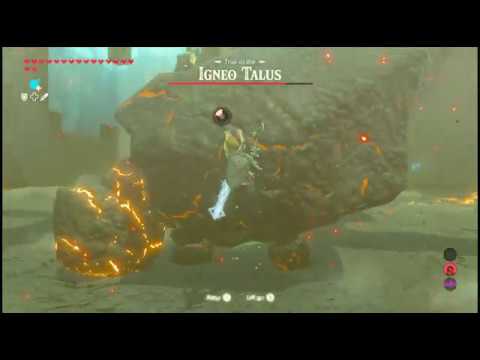
FAQ
It tells me that my AMD/Intel GPU is not supported or that my GPU doesn't support h264/hevc, but that's not true!
Some linux distros (such as manjaro and fedora) disable hardware accelerated h264/hevc on AMD/Intel because of "patent license issues". If you are using an arch-based distro then you can install mesa-git instead of mesa and if you are using another distro then you may have to switch to a better distro. On fedora based distros you can follow this: Hardware Accelerated Codec.
You can alternatively install the flatpak version of GPU Screen Recorder from flathub which doesn't have this issue on any distro.
I have an old nvidia GPU that supports nvenc but I get a cuda error when trying to record
Newer ffmpeg versions don't support older nvidia cards. Try installing GPU Screen Recorder flatpak from flathub instead. It comes with an older ffmpeg version which might work for your GPU.
I get a black screen/glitches while live streaming
It seems like ffmpeg earlier than version 6.1 has some type of bug. Install ffmpeg version 6.1 or later and then reinstall GPU Screen Recorder to fix this issue. The flatpak version of GPU Screen Recorder comes with a newer version of ffmpeg so no extra steps are needed.
I can't play the video in my browser directly or in discord
Browsers and discord don't support hevc video codec at the moment. You can instead choose h264 video codec with the -k h264 option or av1 video codec with the -k av1 option. Note that websites such as youtube support hevc so there is no need to choose h264 video codec if you intend to upload the video to youtube or if you want to play the video locally or if you intend to edit the video with a video editor. Hevc allows for better video quality (especially at lower file sizes) so hevc (or av1) is recommended for source videos.
I get a black bar/distorted colors on the sides in the video
This is mostly an issue on AMD. For av1 it's a hardware issue, see: https://gitlab.freedesktop.org/mesa/mesa/-/issues/9185. For hevc it's a software issue in ffmpeg that was fixed in ffmpeg version 8.
If your ffmpeg version is older than 8 then you can use the flatpak version of GPU Screen Recorder which comes with ffmpeg version >= 8.
Alternatively you can record with h264 codec (-k h264, which is also the default codec) to workaround this issue.
The video doesn't display or has a green/yellow overlay
This can happen if your video player is missing the H264/HEVC video codecs. Either install the codecs or use mpv.
I get stutter in the video
Try recording to an SSD and make sure it's not using NTFS file system. Also record in variable framerate format.
The colors look washed out when recording a monitor with HDR enabled
You have to either record in hdr mode (-k hevc_hdr or -k av1_hdr option) to record a HDR video or record with desktop portal option (-w portal) to turn the HDR recording into SDR.
GPU Screen Recorder records night light when recording in HDR mode
You can record with desktop portal option (-w portal) instead which ignores night light, if you are ok with recording without HDR.
Kdenlive says that the video is not usable for editing because it has variable frame rate
To fix this you can either just press cancel, which will allow you to continue or record the video in .mkv format or constant frame rate (-fm cfr). I recommend recording the video in .mkv format and variable frame rate (-fm vfr).
Colors look incorrect when recording HDR (with hevc_hdr/av1_hdr) or using an ICC profile
KDE Plasma version 6.2 broke HDR and ICC profiles for screen recorders. This was changed in KDE plasma version 6.3 and recording HDR works now, as long as you set HDR brightness to 100% (which means setting "Maximum SDR Brightness" in KDE plasma display settings to 203) and set color accuracy to "Prefer color accuracy". If you want to convert HDR to SDR then record with desktop portal option (-w portal) instead.
I don't know how well recording HDR works in wayland compositors other than KDE plasma.
GPU Screen Recorder starts lagging after 30-40 minutes when launching GPU Screen Recorder from steam command launcher
This is a steam issue. Prepend the gpu-screen-recorder command with LD_PREFIX="", for example LD_PREFIX="" gpu-screen-recorder -w screen -o video.mp4.
How do I apply audio effects, such as noise suppression?
You have to use external software for that, such as Easy Effects or NoiseTorch.
How do I choose which GPU to record/encode with?
It's not really possible except in some cases. You can only record with the GPU that is displaying the graphics on your monitor.
Some laptops have display adapters that connect external monitors directly to the external GPU (if you have one)
and on Wayland the external GPU will display the graphics for that monitor.
In that case you can record the monitor with the external GPU by launching GPU Screen Recorder with prime-run or by setting the DRI_PRIME environment variable depending on your GPU brand.
Alternatively you can capture with the desktop portal option (-w portal), which should allow you to capture any monitor.
However if you really want to change which GPU you want to record and encode with with then you can instead configure your display server (Xorg or Wayland compositor) to run with that GPU,
then GPU Screen Recorder will automatically use that same GPU for recording and encoding.
The rotation of the video is incorrect when the monitor is rotated when using desktop portal capture
This is a bug in kde plasma wayland. When using desktop portal capture and the monitor is rotated and a window is made fullscreen kde plasma wayland will give incorrect rotation to GPU Screen Recorder.
This also affects other screen recording software such as obs studio.
Capture a monitor directly instead to workaround this issue until kde plasma devs fix it, or use another wayland compositor that doesn't have this issue.
System notifications get disabled when recording with desktop portal option
Some desktop environments such as KDE Plasma turn off notifications when you record the screen with the desktop portal option. You can disable this by going into KDE Plasma settings -> search for notifications and then under "Do Not Disturb mode" untick "During screen sharing".
The recorded video lags or I get dropped frames in the video
This is likely not an issue in the recorded video itself, but the video player you use. GPU Screen Recorder doesn't record by dropping frames. Some video players don't play videos with hardware acceleration by default,
especially if you record with HEVC/AV1 video codec. In such cases it's recommended to play the video with mpv instead with hardware acceleration enabled (for example: mpv --vo=gpu --hwdec=auto video.mp4).
Some corporate distros such as Fedora (or some Fedora based distros) also disable hardware accelerated video codecs on AMD/Intel GPUs, so you might need to install mpv (or another video player) with flathub instead, which bypasses this restriction.
My cursor is flickering in the recorded video
This is likely an AMD gpu driver issue. It only happens to certain generations of AMD GPUs. On Wayland you can record with the desktop portal option (-w portal) to workaround this issue.
This issue hasn't been observed on X11 yet, but if you do observe it you can either record a window (-w $(xdotool selectwindow)) or change your xorg config to use software cursor instead (Add Option "SWcursor" "true" under modesetting "Device" section in your xorg config file).
Password prompt shows up when I try to record my screen
If GPU Screen Recorder is installed with -Dcapabilities=true (which is the default option) then gsr-kms-server is installed with admin capabilities.
This removes a password prompt when recording a monitor with the -w monitor option (for example -w screen). However if the root user is disabled on the system then the password prompt will show up anyways.
If the root user is disabled on your system then you can instead record with -w focused or -w window_id on X11 or -w portal on Wayland.
GPU usage is high on my laptop
GPU usage on battery powered devices is misleading. For example Intel iGPUs has multiple performance levels and the GPU usage reported on the system is the GPU usage at the current performance level. The performance level changes depending on the GPU load, so it may say that GPU usage is 80%, but the actual GPU usage may be 5%.
The video is too dark when capturing full-range video or 10-bit video
This is an issue in some broken video players such as vlc. Play the video with a video player such as mpv (or a mpv frontend such as celluloid) or a browser instead.