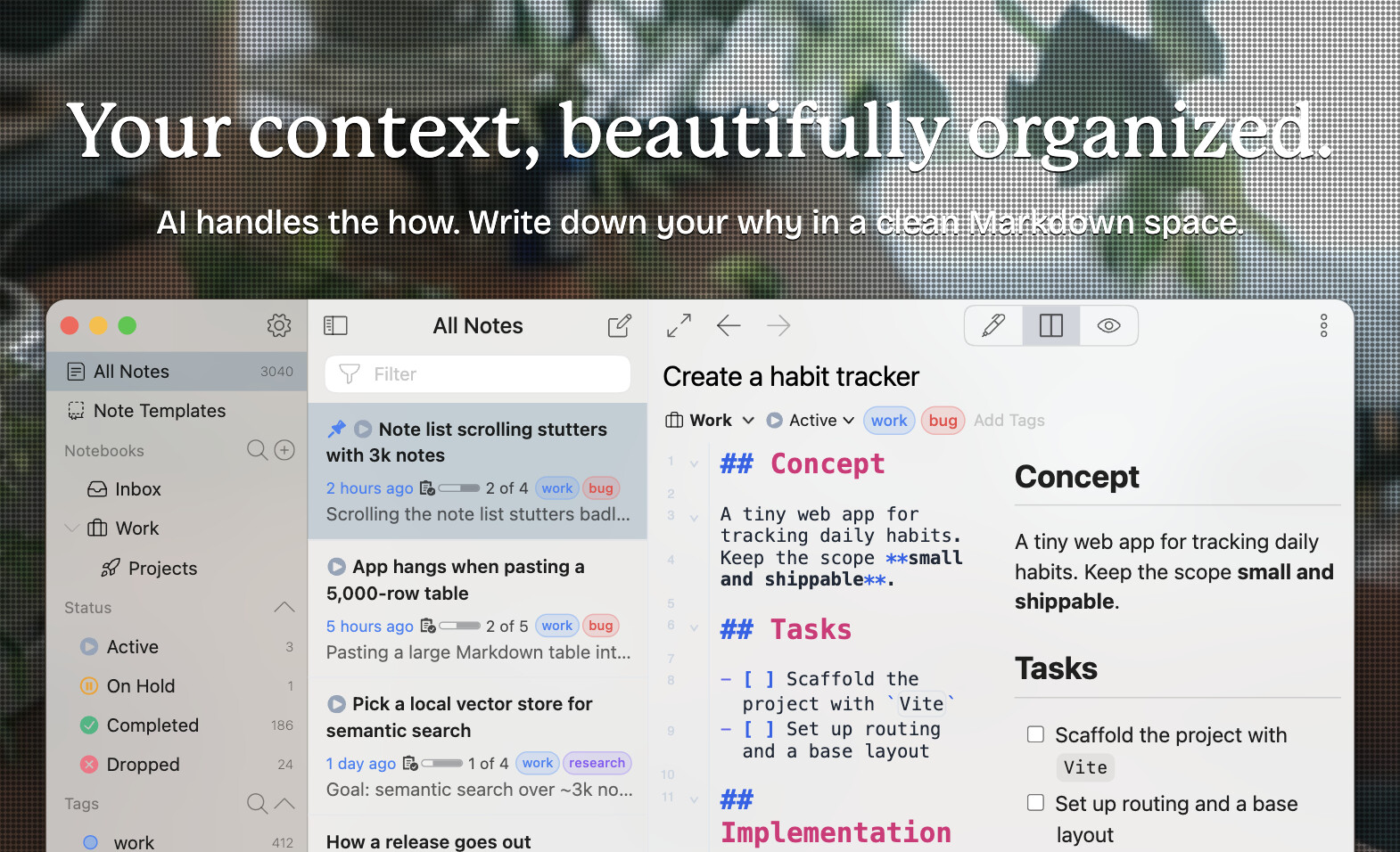
Inkdrop v6 is the biggest release since the app was born.
Nearly every layer has been rebuilt — the editor, the Markdown renderer, the theming system, the storage engine, the plugin toolchain, and the build pipeline — while keeping the app small, fast, and focused on writing.
It also completes the roadmap vol.6 in full.
Here’s everything that’s new.
New Editor
The whole editor has been rebuilt on CodeMirror 6. That single change unlocked most of the features below — and it finally retires the Atom-era foundation Inkdrop had been carrying since v1.
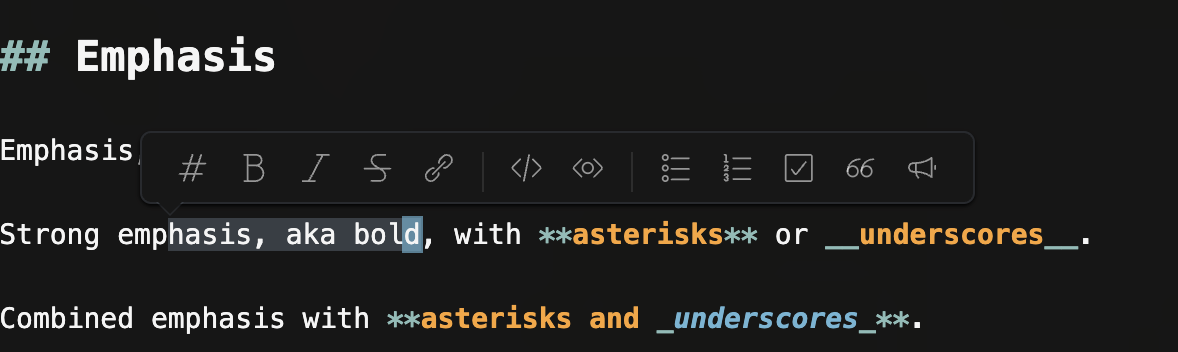
Floating toolbar
In v5 the toolbar was pinned above the editor, taking up space even when you weren’t using it. Now it floats in only when you select text.
Slash commands
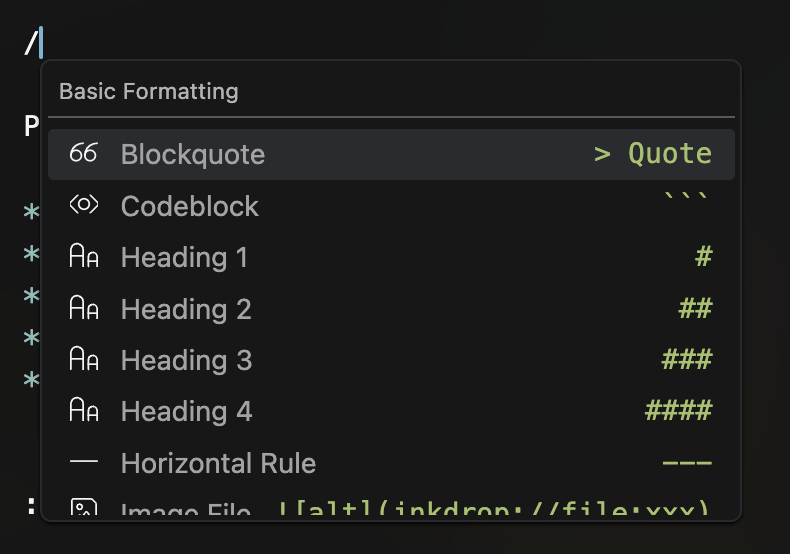
On an empty line, press / to insert blockquotes, headings, alerts, and more without touching the mouse.
Autocompletion everywhere
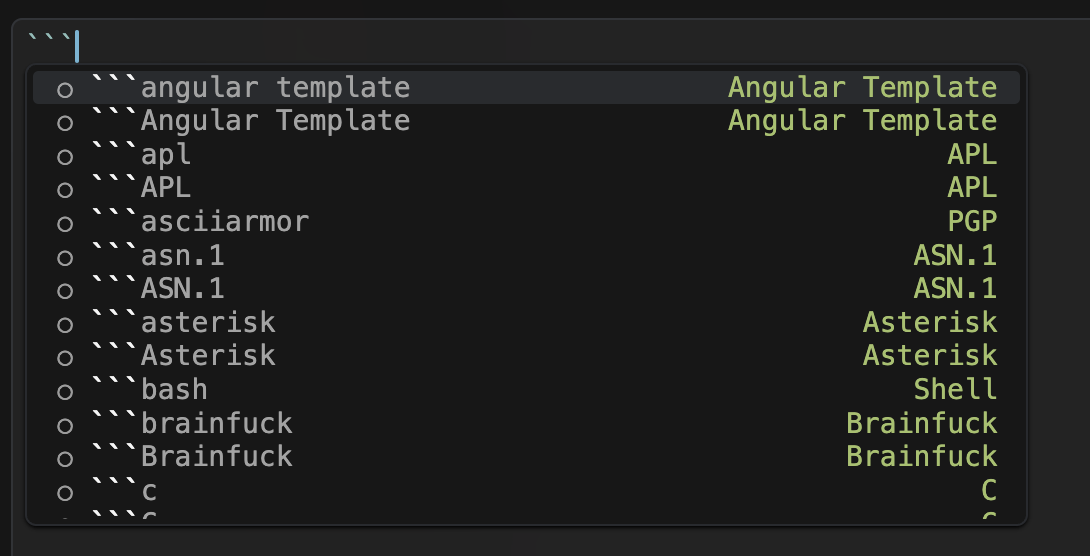
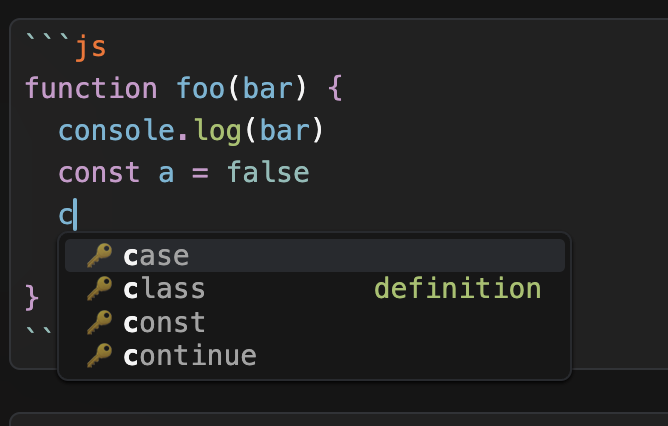
Type ``` and the editor suggests a language for your code block:
Inside a code block, autocompletion switches to the language you picked:
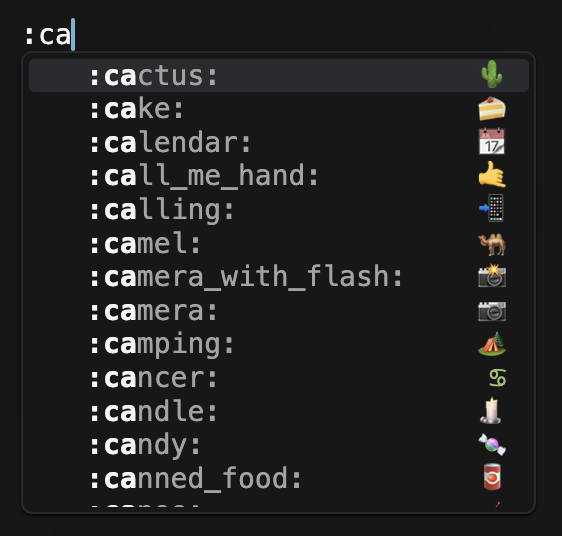
And typing : plus two characters brings up GitHub-style emoji candidates:
GitHub Alerts syntax
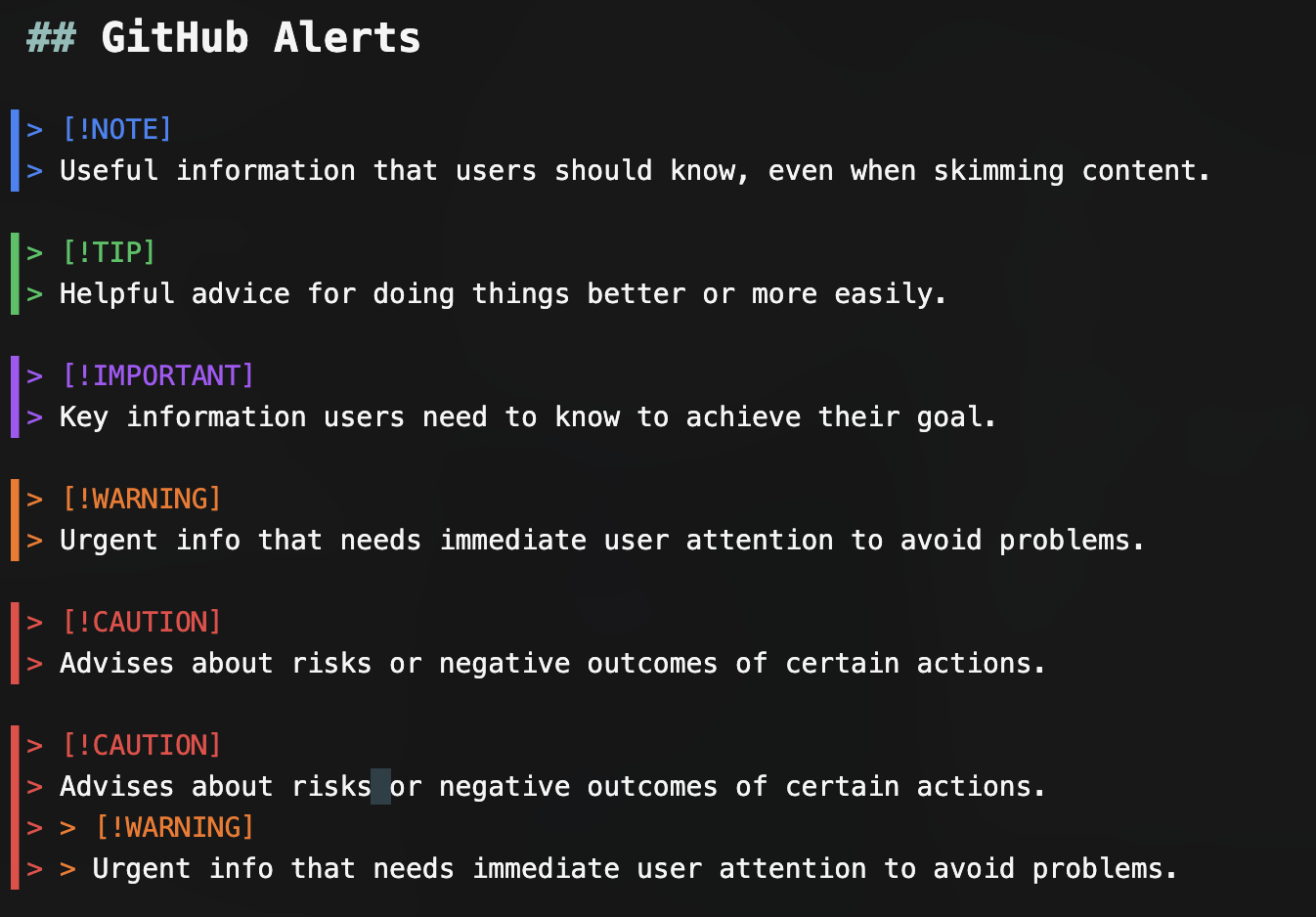
Alerts are highlighted with the proper colors and left border — nested alerts and quotes included — with autocompletion for the alert type.
Note links with [[
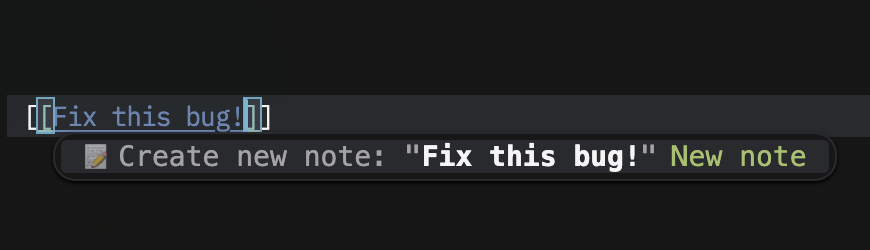
Press [[ to search your notes and insert an internal link. The candidate list previews the note beside it, with full syntax highlighting.
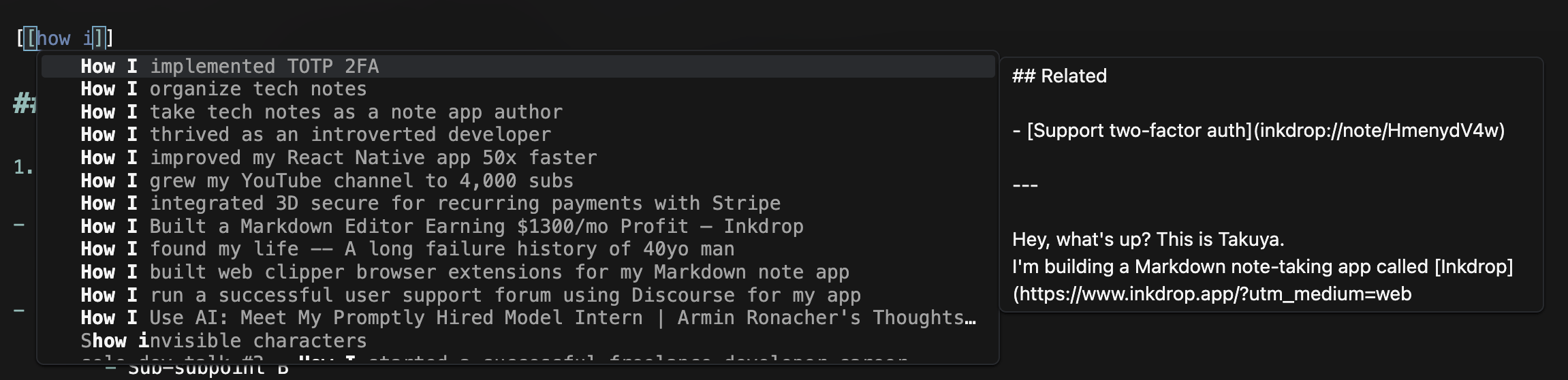

The note you want doesn’t exist yet? Start typing a title, choose Create new note, and it’s created, linked, and opened in one step.
Reading highlights
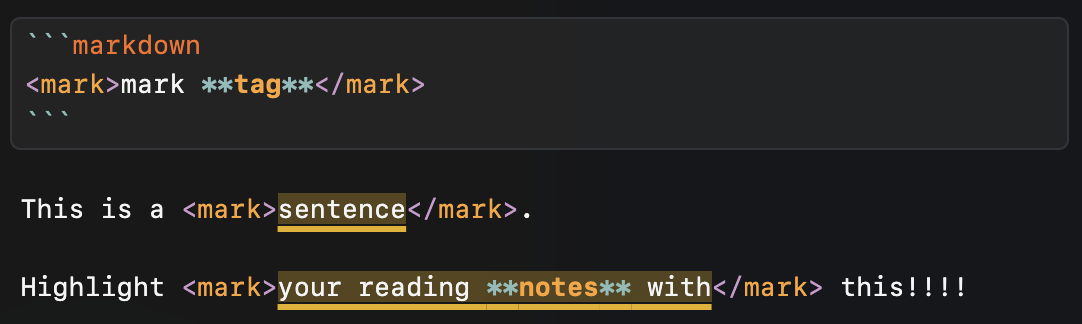
Select text and hit the highlight button to wrap it in a <mark> tag — perfect for emphasizing what resonates in your reading notes. It pairs nicely with the Web Clipper’s Kindle highlight import.


The smoothest link pasting
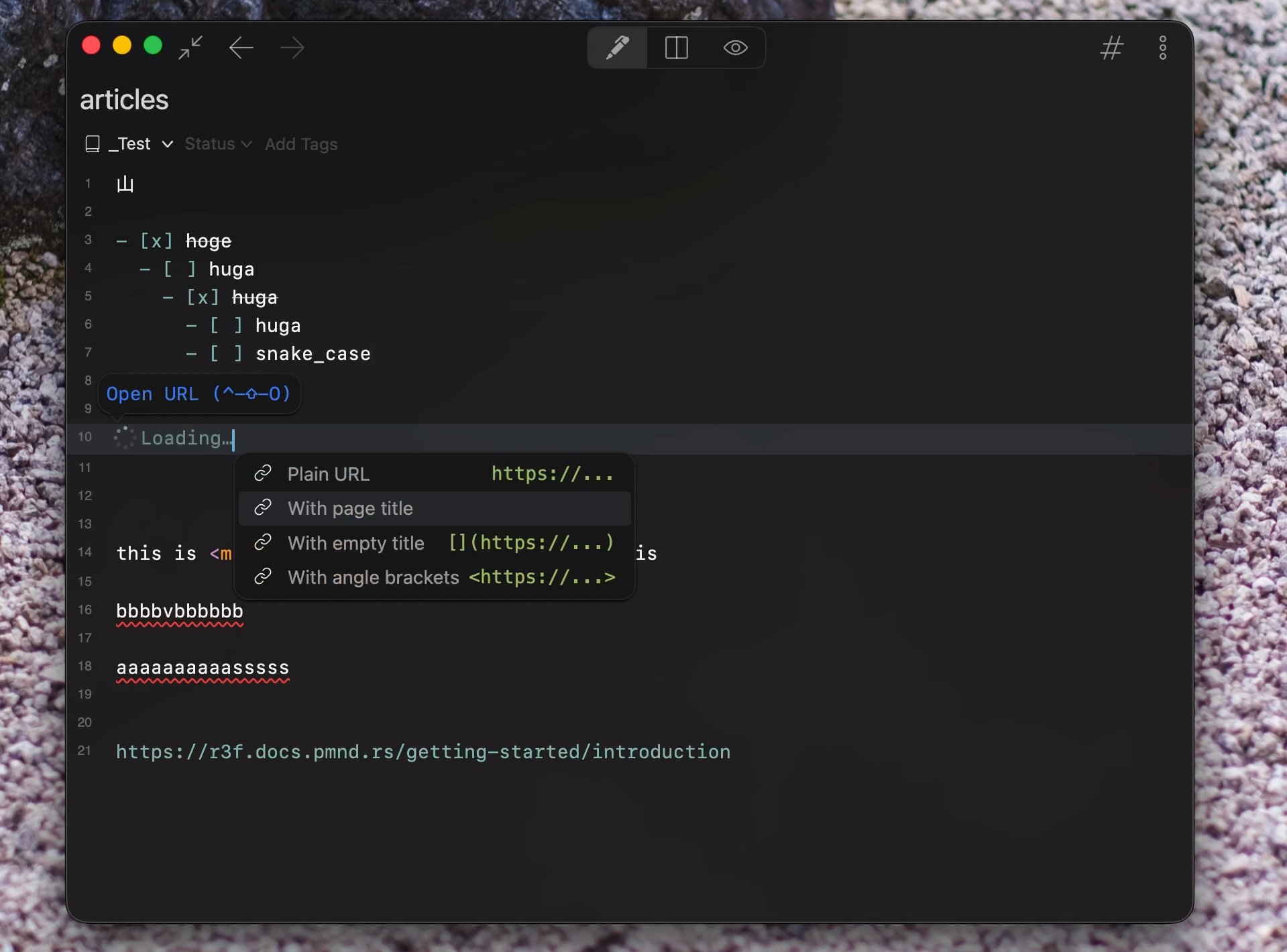
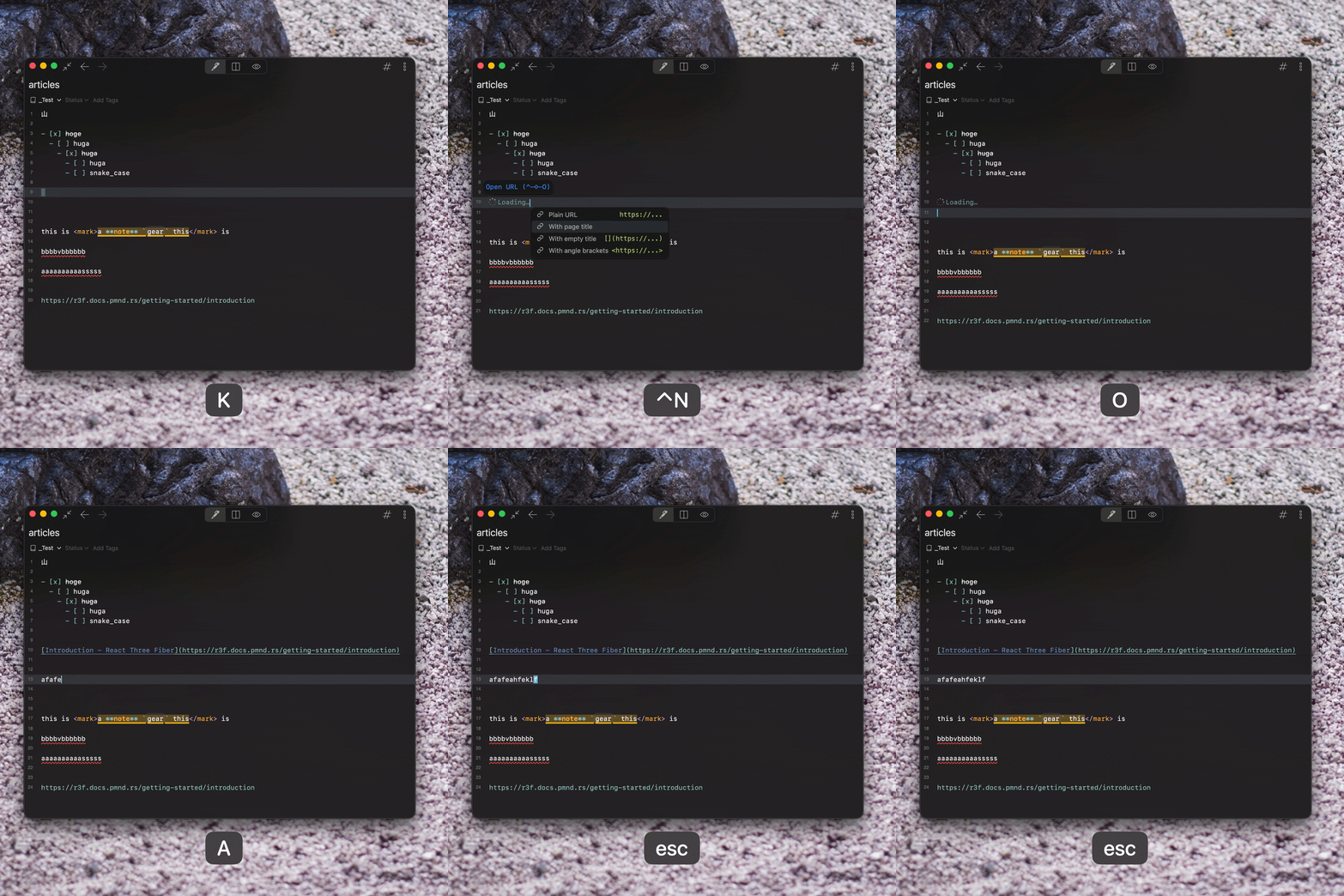
Pasting a URL used to pop a dialog that stole focus from the editor. Now the link formats appear inline in the autocompletion menu, and the page title is fetched in the background — so you never wait, and you never leave the editor.
Resize images right in the editor
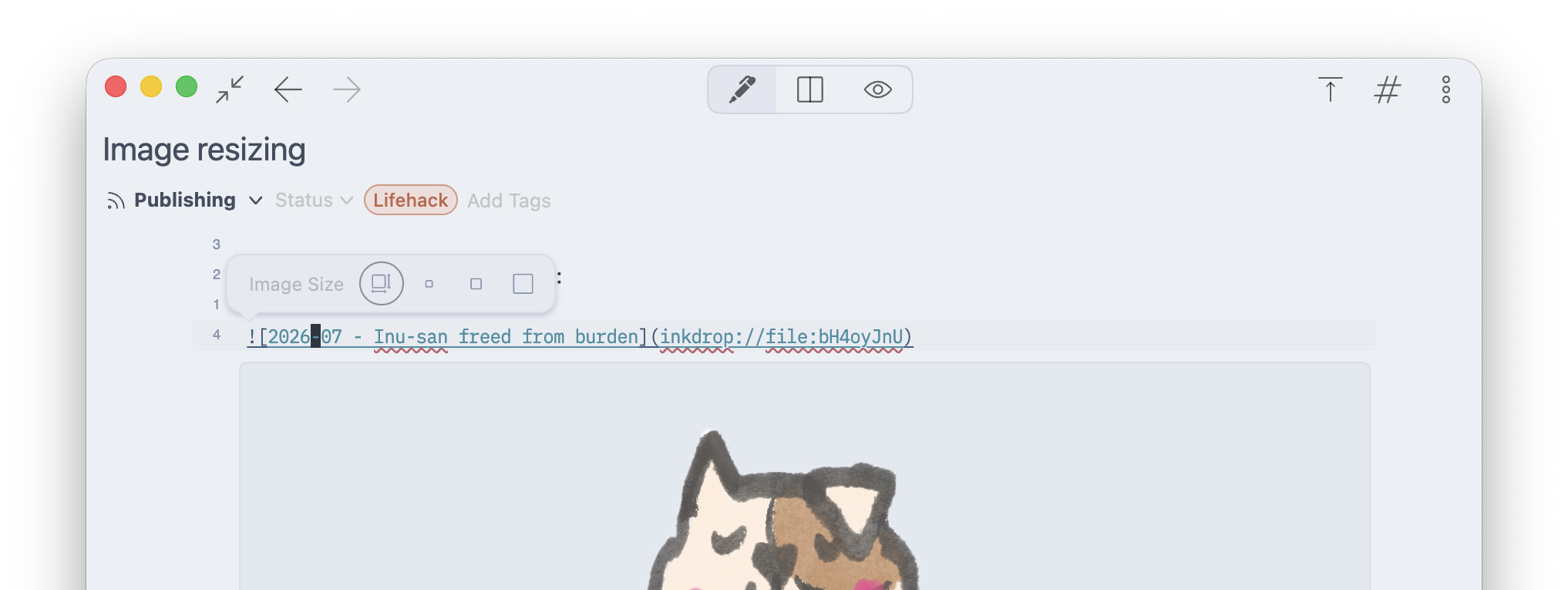
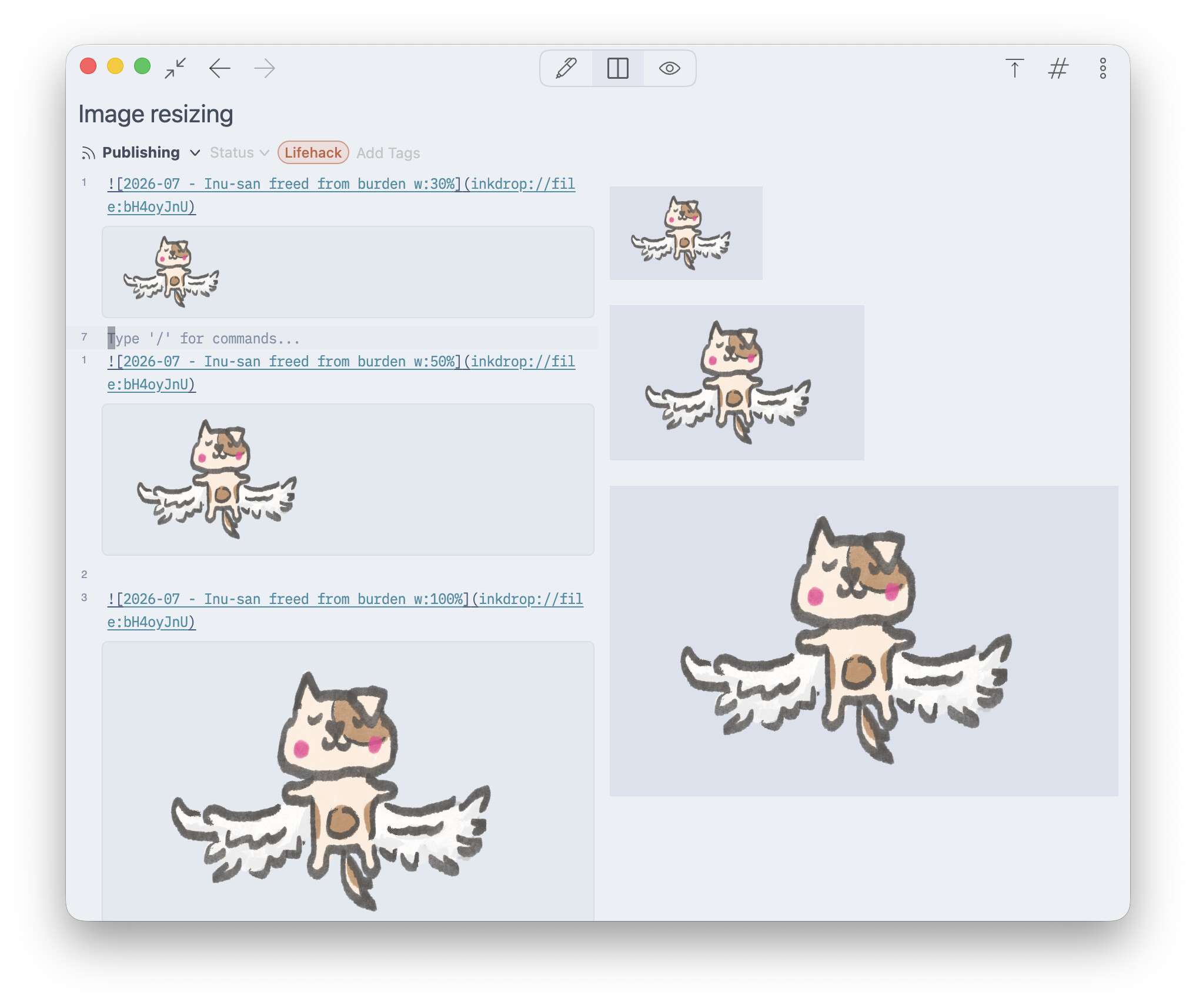
Inkdrop now understands Marp-style image size specifiers:


You don’t have to memorize the syntax — put your cursor on an image and a resize toolbar pops up with Auto / Small / Half / Full presets.
A refurbished editor header
Navigation back/forward, view mode buttons, and a distraction-free toggle are now right in the header, so new users can find the basics without reading the manual.
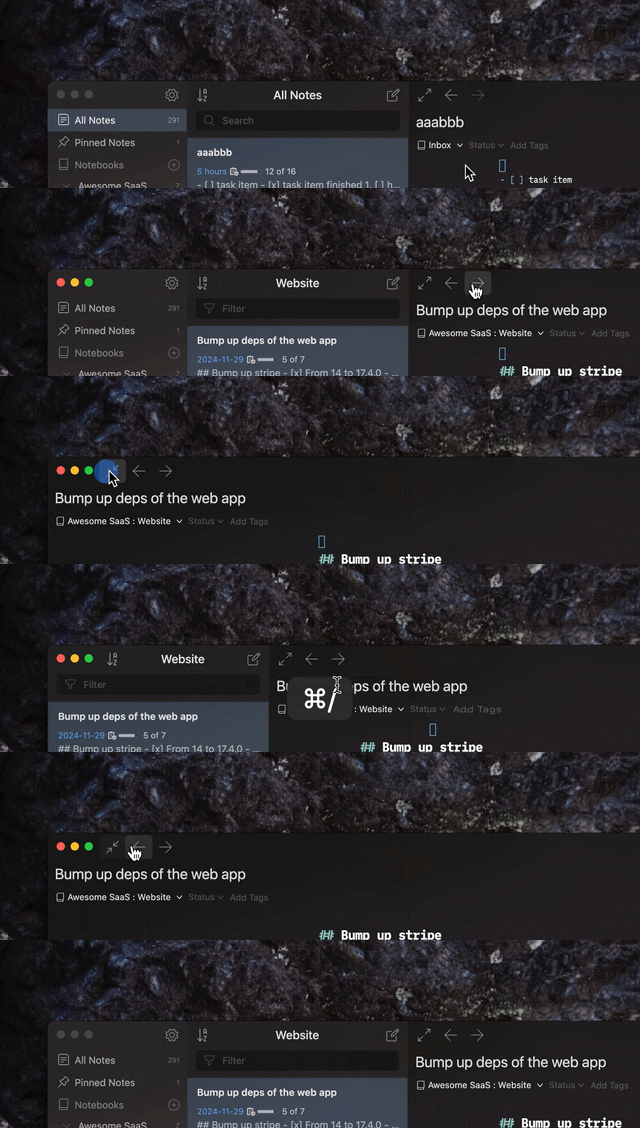

The old right-side drawer has been replaced by a native action menu that drops down from the more button — or press Cmd/Ctrl+J — with proper keyboard navigation and type-ahead.
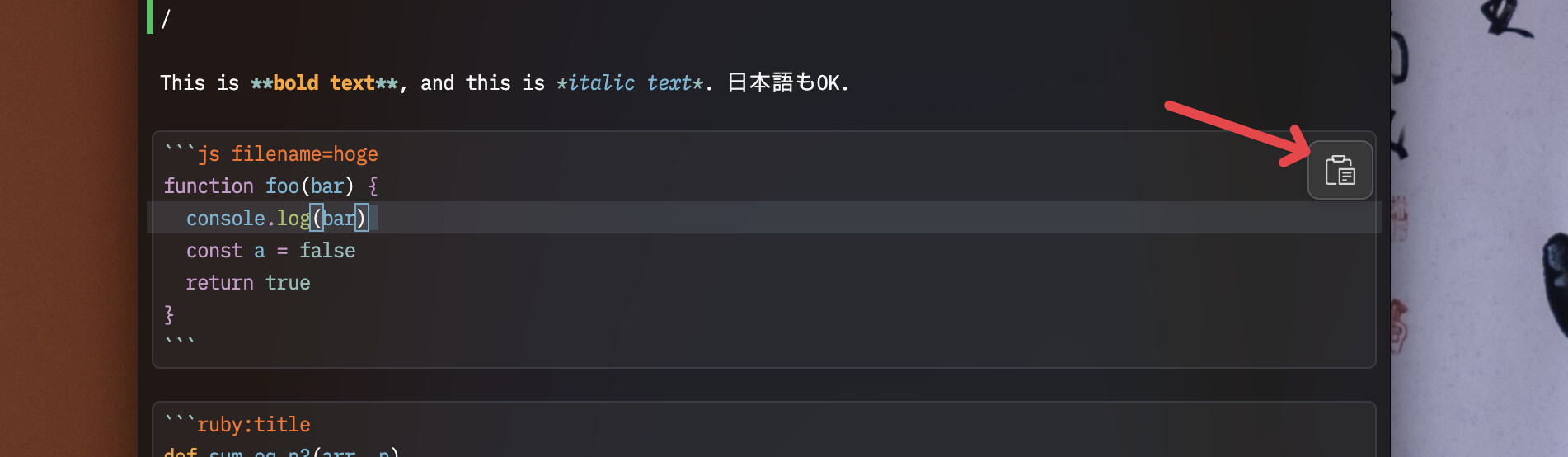
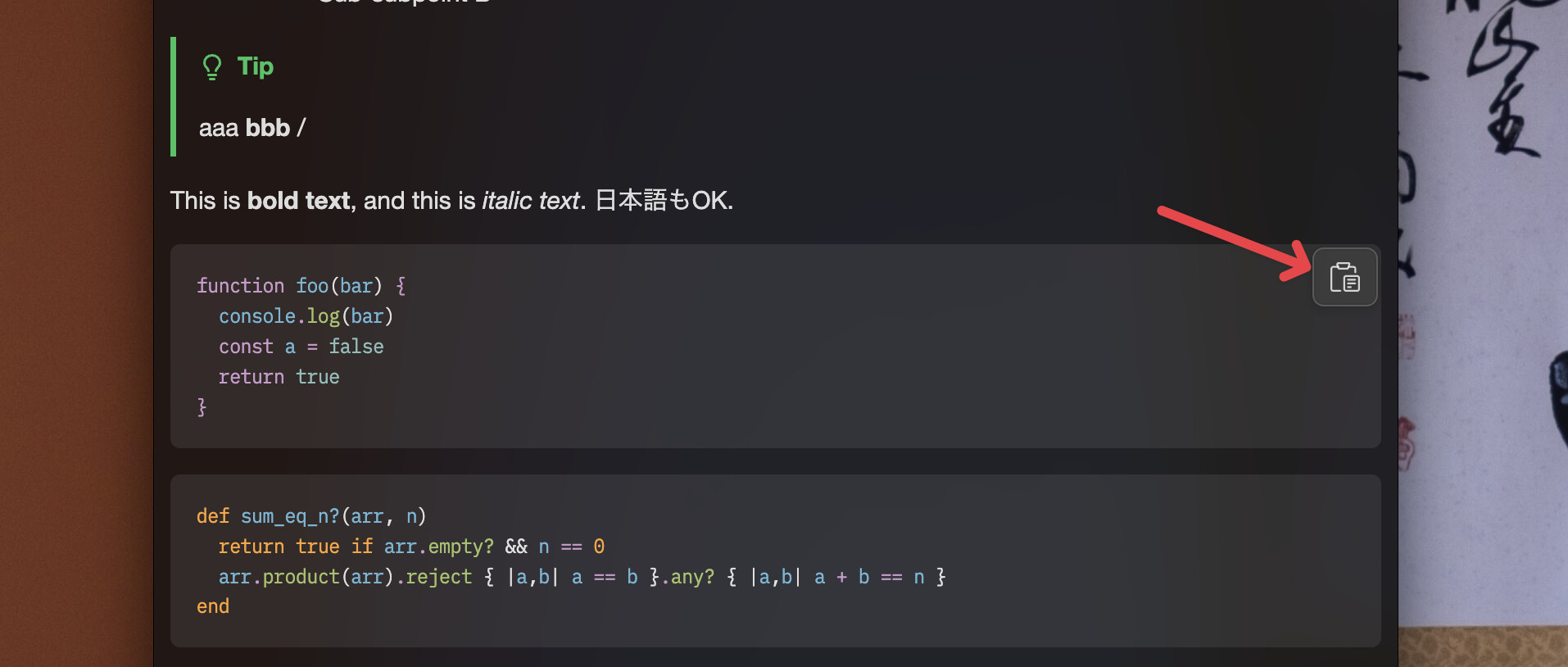
Copy button for code blocks
The button appears when your cursor enters a code block.
Native spellcheck
The editor now uses the OS-native spellchecker. Toggle it via Preferences → Editing → Markdown → Spellcheck.

Link tooltips
When the cursor lands on a URL, a tooltip offers to open it in your browser — internal note links included.

Little things that add up
- ToDo items get a strikethrough when checked
editor:move-line-up/editor:move-line-down(Alt+↑ / Alt+↓)- View menu toggles for line numbers, line wrapping, and readable line length
- Multiple cursors and rectangular selection
New Markdown Renderer
The Markdown preview got just as much attention as the editor.
Find in preview
A long-awaited one. It highlights matches across DOM elements, so complex queries like e if a and ct(ar work — which is what makes finding text inside code blocks actually possible.
Advanced code blocks
Code blocks now render with language icons, line numbers, and meta info — plus a copy button on hover.
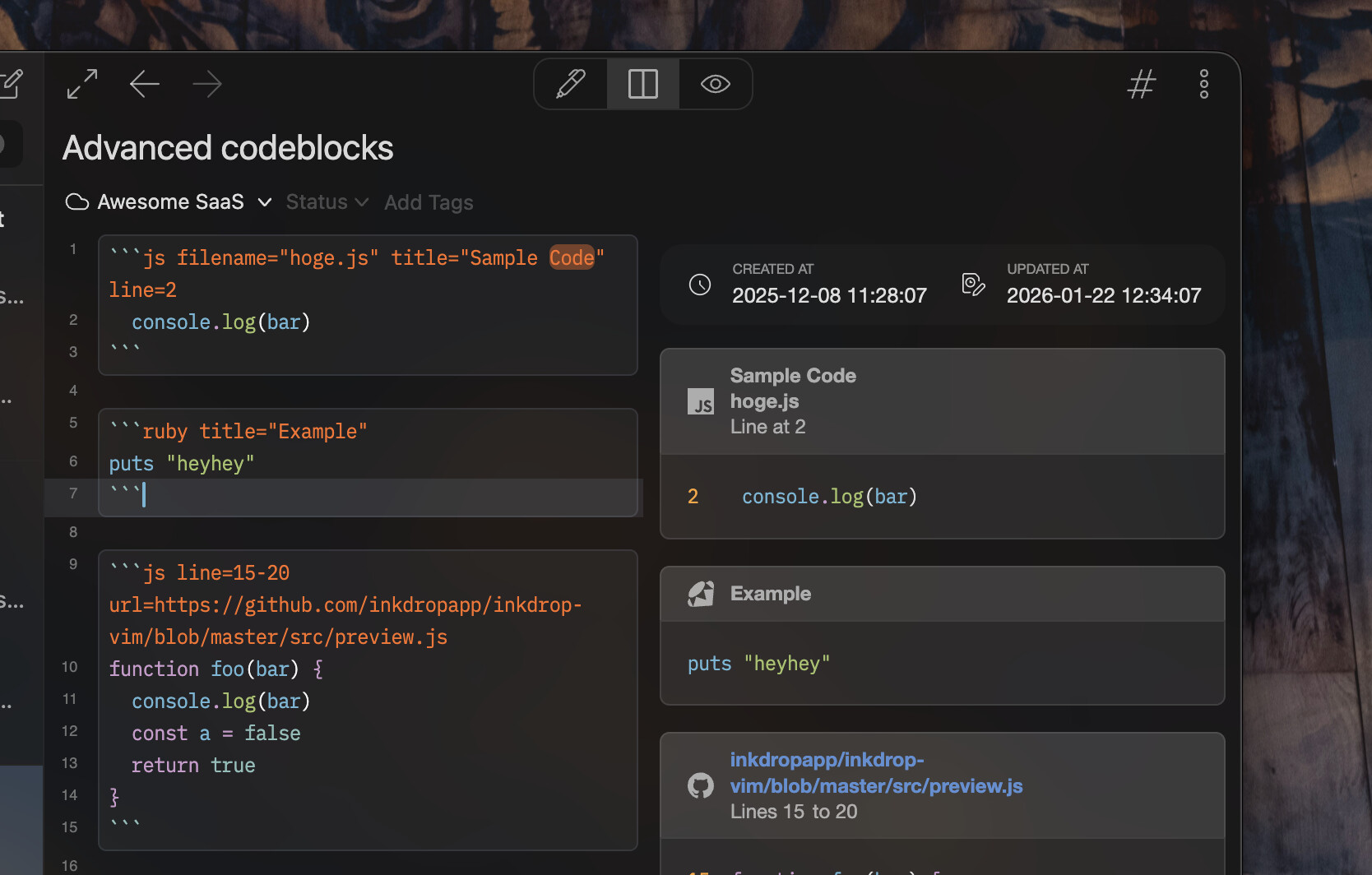
Fenced blocks tagged markdown are highlighted with the full GitHub Flavored Markdown grammar — headings, emphasis, links, task lists, nested fenced code blocks, and YAML frontmatter inside them. Writing plugin READMEs and tutorials inside Inkdrop finally feels right.
Embed GitHub code snippets by pasting a link
Select a line range on GitHub, copy the URL, paste it into your note — Inkdrop fetches the code and inserts it as a syntax-highlighted snippet with line numbers and a link back to the source.
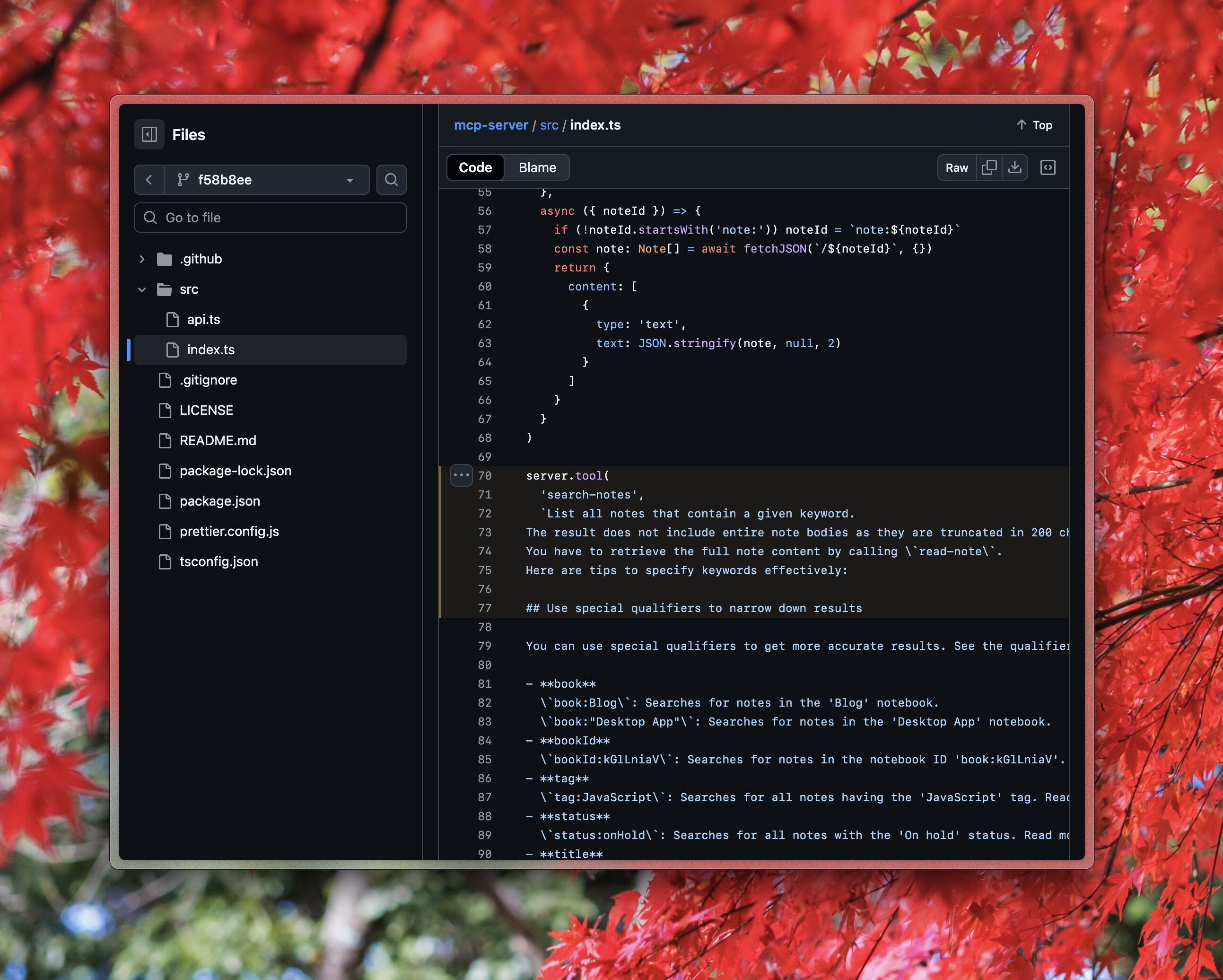
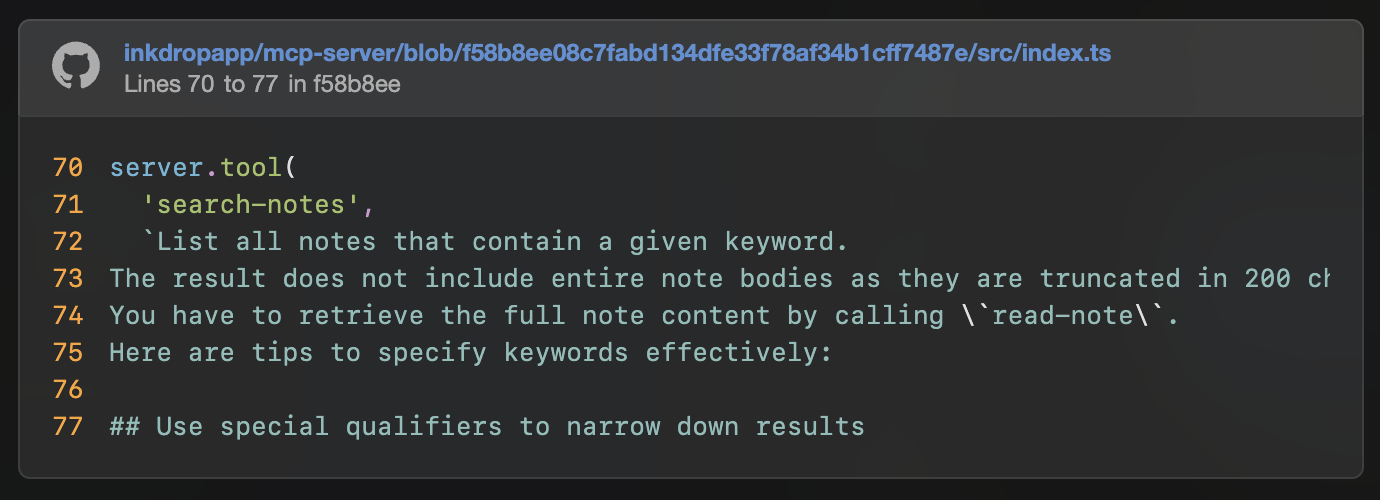
The meta syntax is inspired by MDX and is fully backward-compatible — other Markdown engines just see a plain code block.
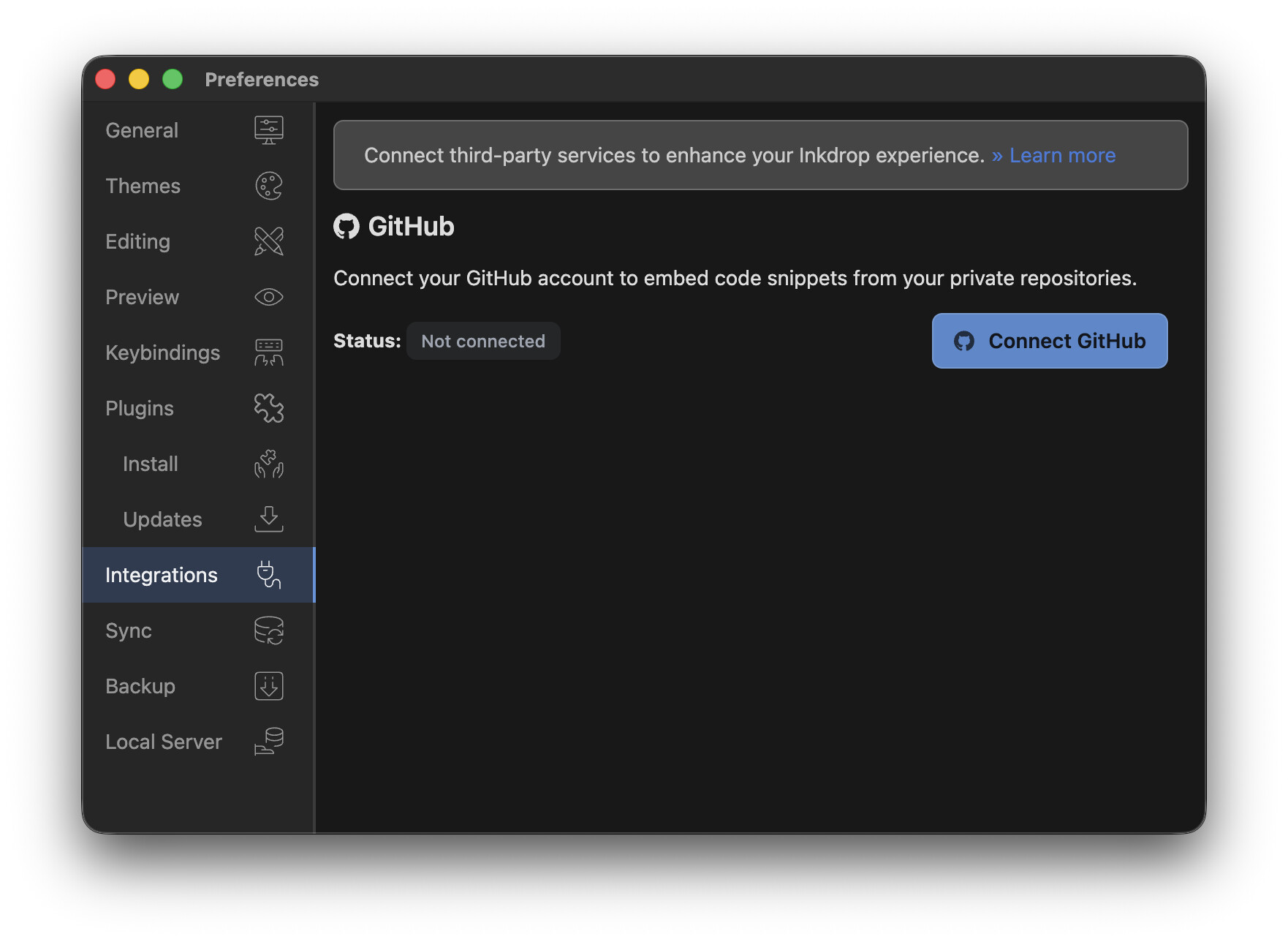
Connect your GitHub account via OAuth in Preferences → Integrations and it works with private repos too, including rich link titles for repos, issues, PRs, and commits.
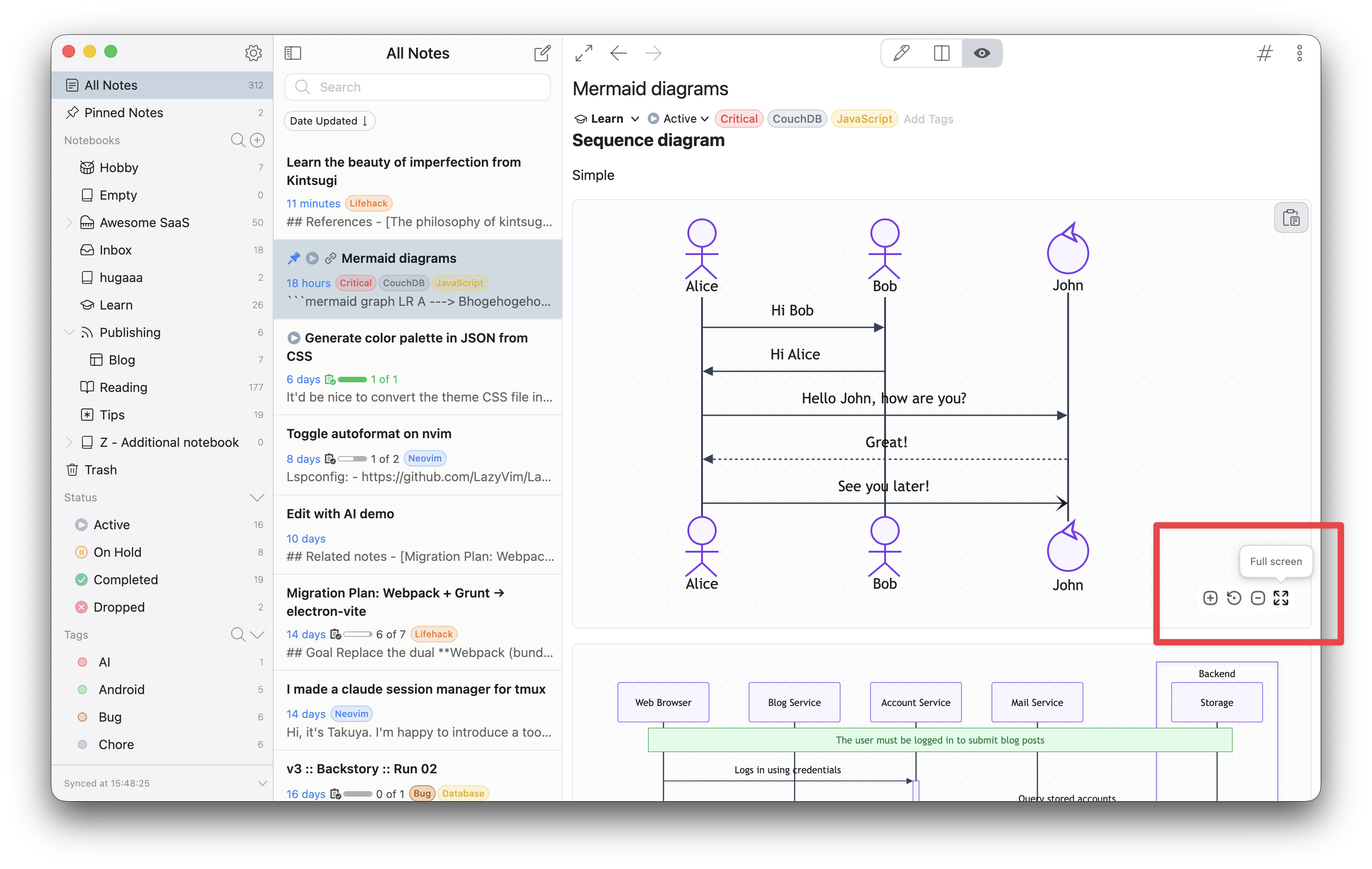
Mermaid, seriously upgraded
Hover a diagram and a toolbar appears: zoom in / reset / zoom out. Drag to pan, Ctrl/Cmd + wheel to zoom, and expand into a full-screen viewer (Esc to close). None of it shows up in print or PDF exports.
Diagrams are also themed entirely through CSS variables now, so they match your active theme in both light and dark mode — no more diagrams that look out of place.
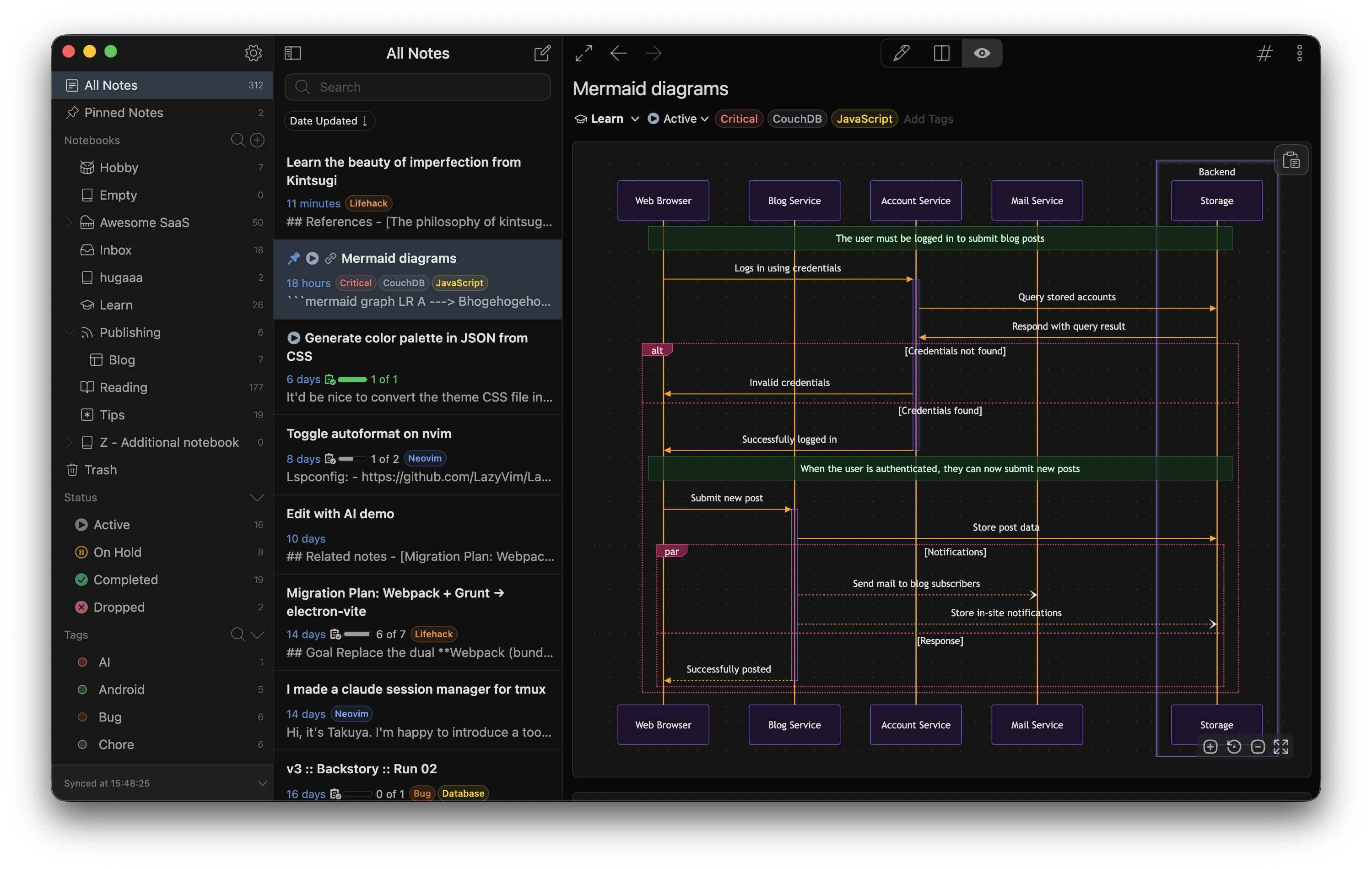
→ Docs: Diagram colors (theme development guide)
Image viewer
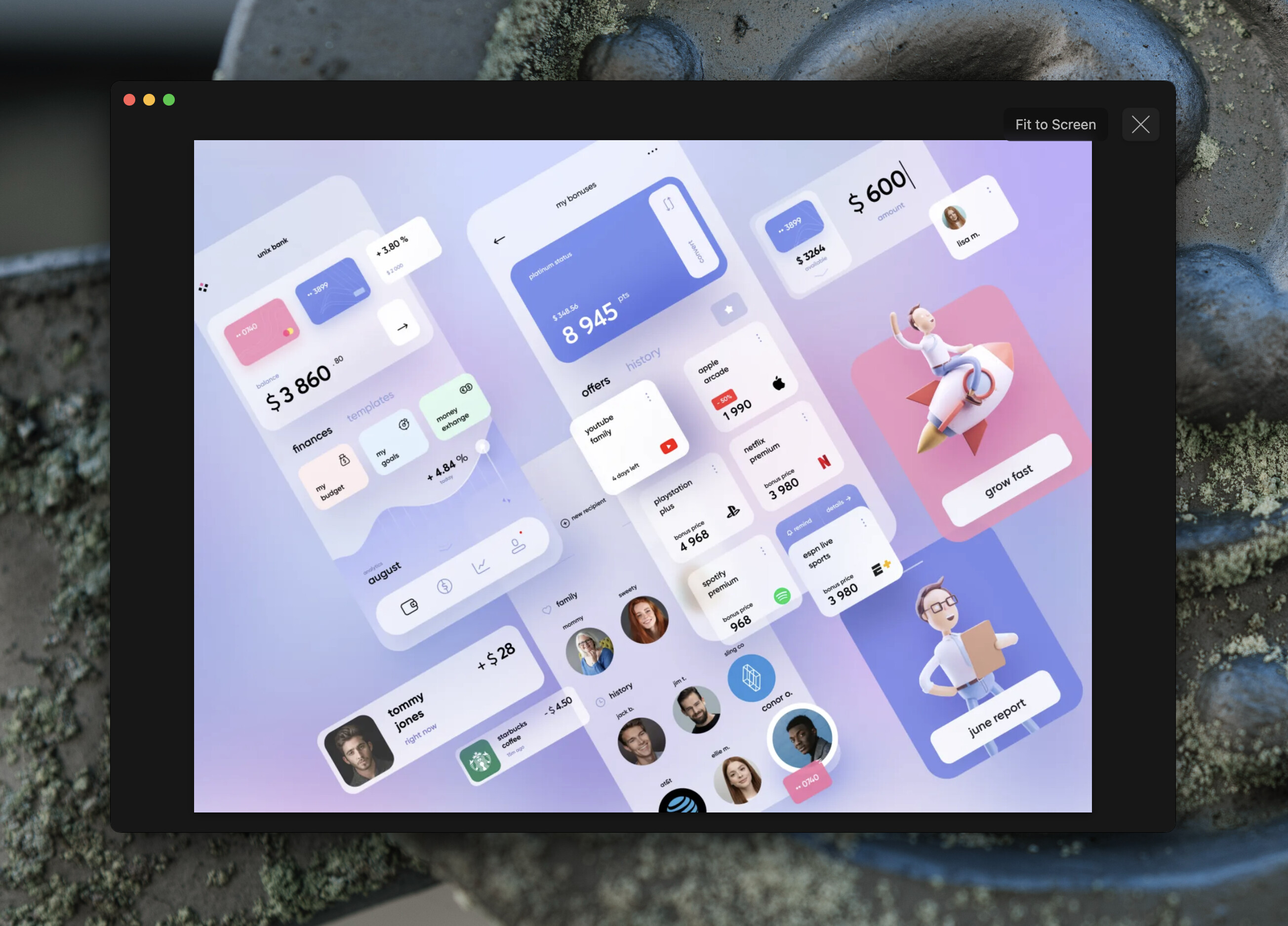
Double-click an image to open it in a viewer and look at it up close.
Built-in AI features
AI in Inkdrop is opt-in and bring-your-own-API-key. Nothing leaves your machine unless you configure a provider yourself, and your keys are stored in your system credential storage.
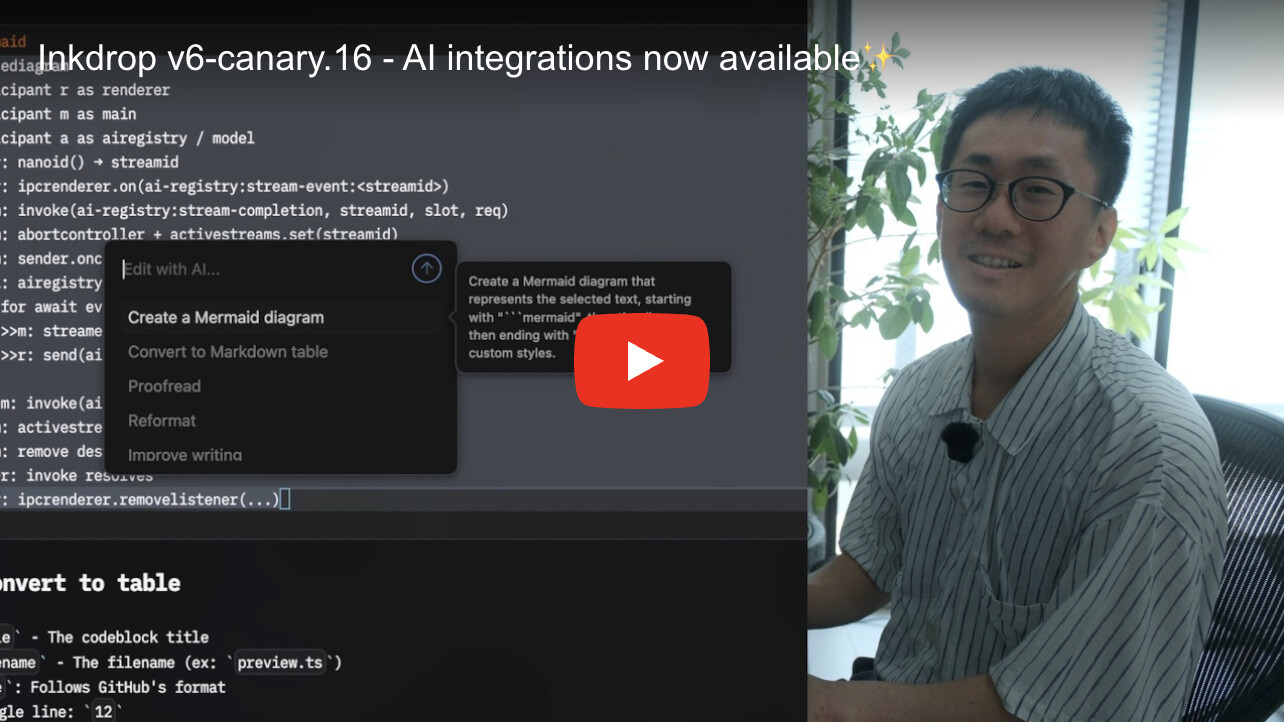
Inline AI assistant
Select a passage, open the inline prompt, and the result is applied in place. Built-in presets get you started:
- Proofread your writing
- Summarize a passage
- Create a Mermaid diagram from a description
- Convert to a Markdown table
- …plus your own custom prompts
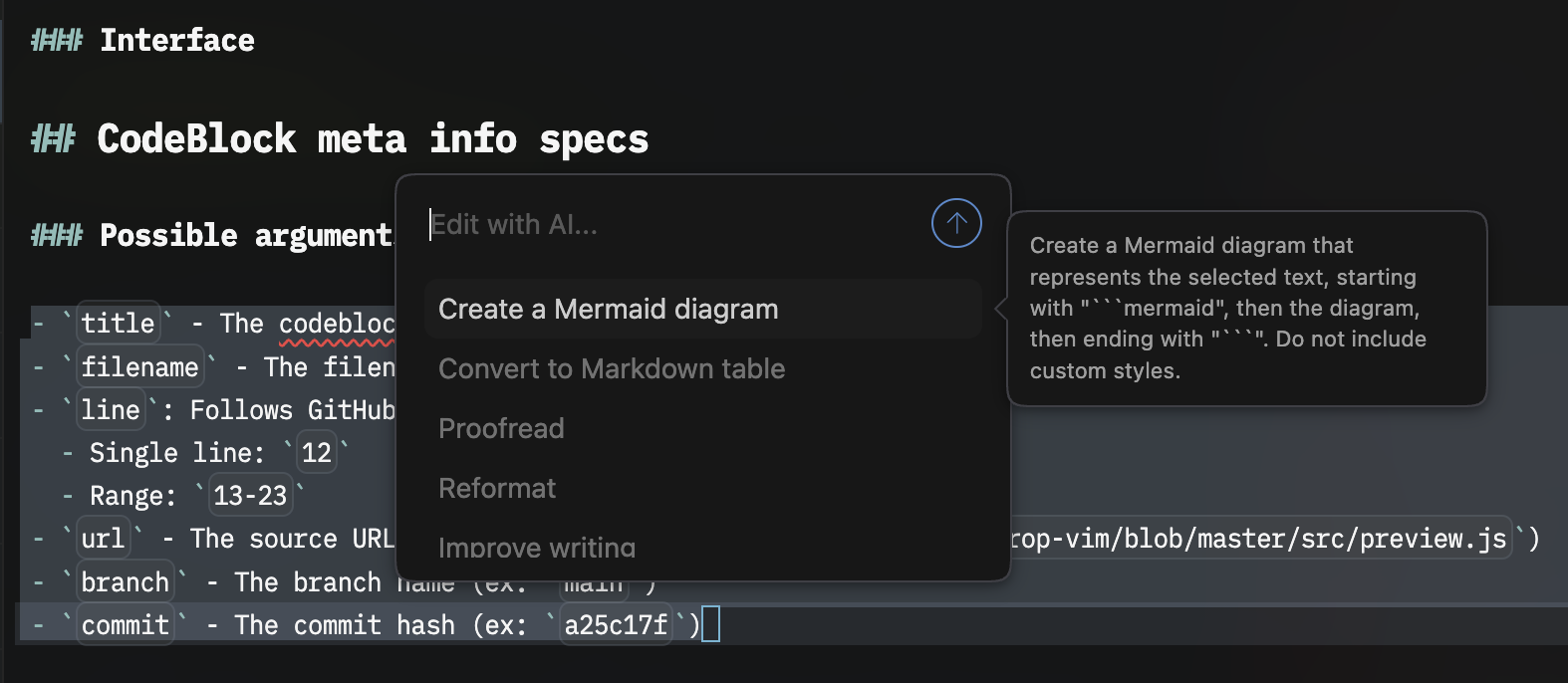
→ Docs: Set up AI integrations · Docs: Inline AI assistant
Next Edit Suggestions
Like GitHub Copilot, but for your notes — it predicts your next edit, which is genuinely useful when writing repetitive or structured content. It also feeds your linked notes and backlinks into the prompt as read-only context, so suggestions draw on terminology from related notes.
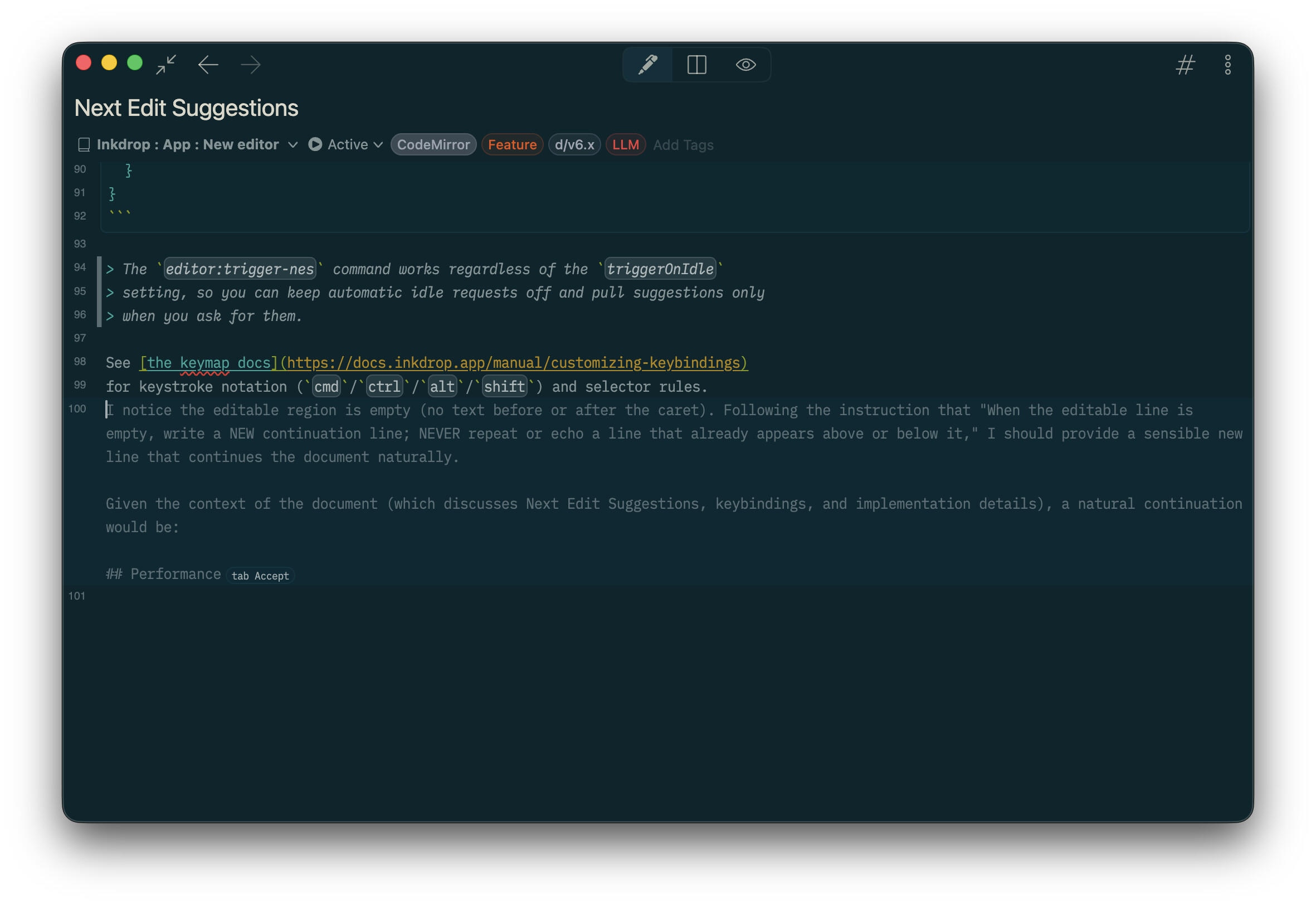
Three modes are available. It’s set to Manual by default — for a note-taking app, automatic suggestions felt distracting.
- Automatic — suggests as you type
- Manual — trigger with Alt+\ (default)
- Disabled
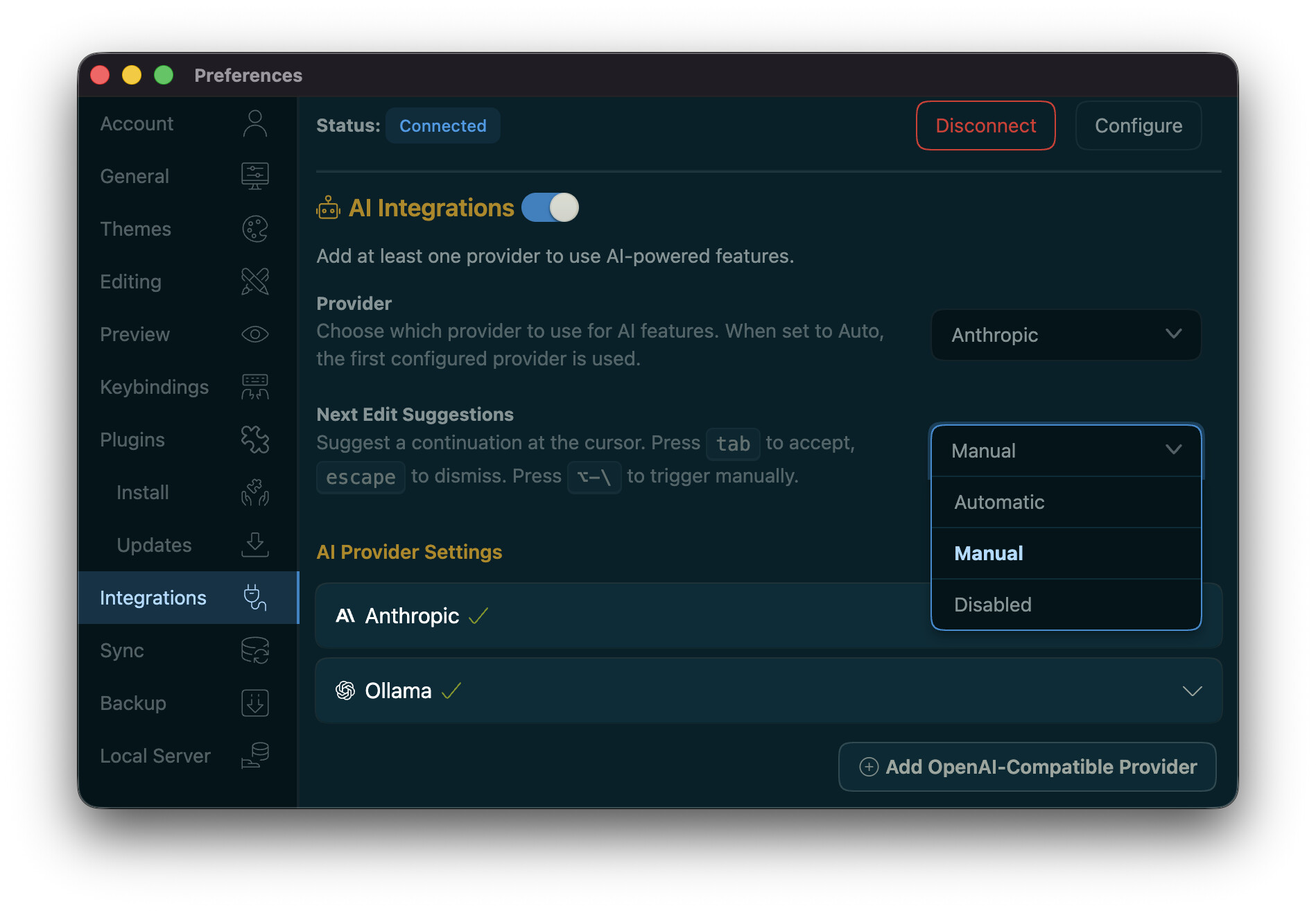
Press Tab to accept, Esc to dismiss.
Connect your notes to AI agents in a few clicks
Inkdrop’s MCP server lets agents like Claude Code and Codex read and write your notes. Setting it up used to mean enabling the local HTTP server, inventing credentials, and hand-writing a JSON config. Preferences → Integrations → MCP Server now does all of that for you.
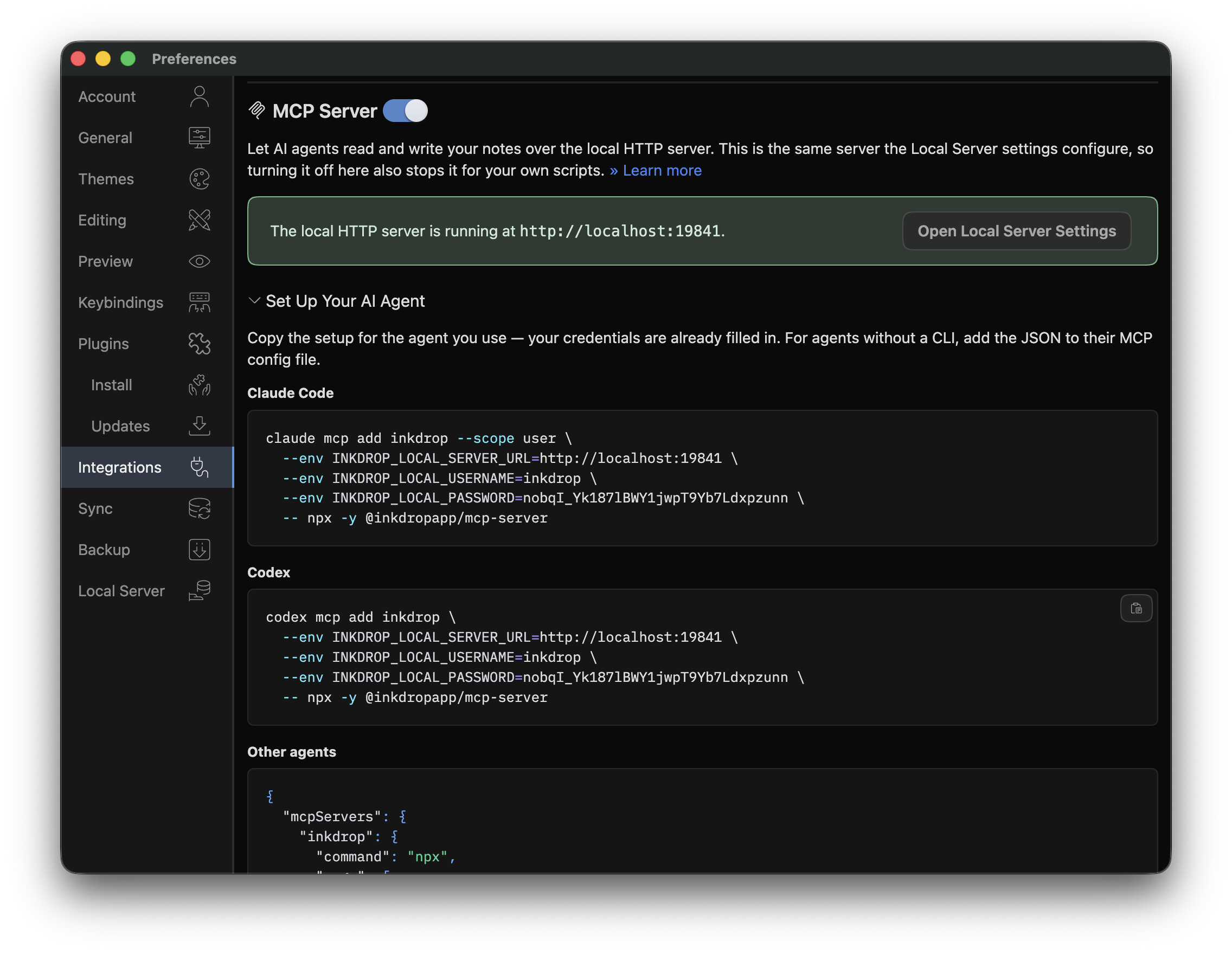
Flip the switch, expand Set Up Your AI Agent, and copy the ready-to-paste setup — a one-liner for Claude Code, one for Codex, and a JSON snippet for everything else, with your port and credentials already filled in:
claude mcp add inkdrop --scope user \
  --env INKDROP_LOCAL_SERVER_URL=http://localhost:19840 \
  --env INKDROP_LOCAL_USERNAME=inkdrop \
  --env INKDROP_LOCAL_PASSWORD=**** \
  -- npx -y @inkdropapp/mcp-server
→ Docs: Integrate AI agents with the MCP Server
Copy a note, notebook, or tag ID
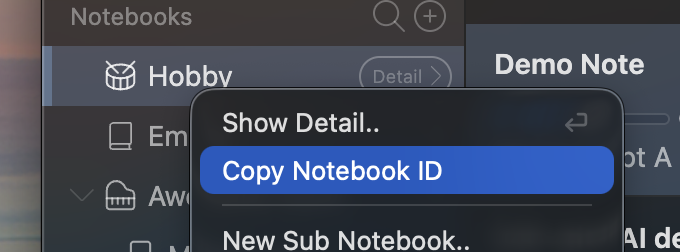
Pointing an agent at the right note is much easier when you can just hand it an ID. Copy Note ID, Copy Notebook ID, and Copy Tag ID now live in the context menus — on note list items and the editor’s action menu, and on the sidebar’s notebook and tag items. Select several notes and it copies every ID, one per line.
These used to require the Dev Tools plugin; they’re part of the core app now, so the IDs an MCP tool call expects are always a right-click away:
Summarize note:aBcD1234 and save the result to book:xYz98765 with tag:qWeR5555.
Templates your coding agent can fill out
Note templates (see below) can carry instructions and examples aimed at an AI agent — a blockquote whose heading starts with !, like > # !Instructions. Agents read them; they’re stripped automatically from the notes you create.
Two open-source companions make this click:
- Inkdrop MCP server — the hands. Reading a note created from a template pulls in that template’s instructions in the same call.
- Inkdrop Skills — the know-how. Its
/fill-out-templateskill fills in the scaffold, then stops for your review before writing any code.
npx skills@latest add inkdropapp/skills
New Theming System
Theming in v5 was painful: a theme had to ship a complete set of Semantic UI component styles, and it came in three separate packages — UI, syntax, and preview — a design inherited from Atom.
v6 replaces all of that.
Themes are now a thin layer of CSS variables
The app defines semantic CSS variables; a theme overrides the ones it cares about. No more reimplementing base styles just to change a color.
One theme package instead of three
A single package now styles the whole app — UI, editor, and Markdown preview — and the Themes pane shows one picker instead of three. Your existing setting is migrated automatically.
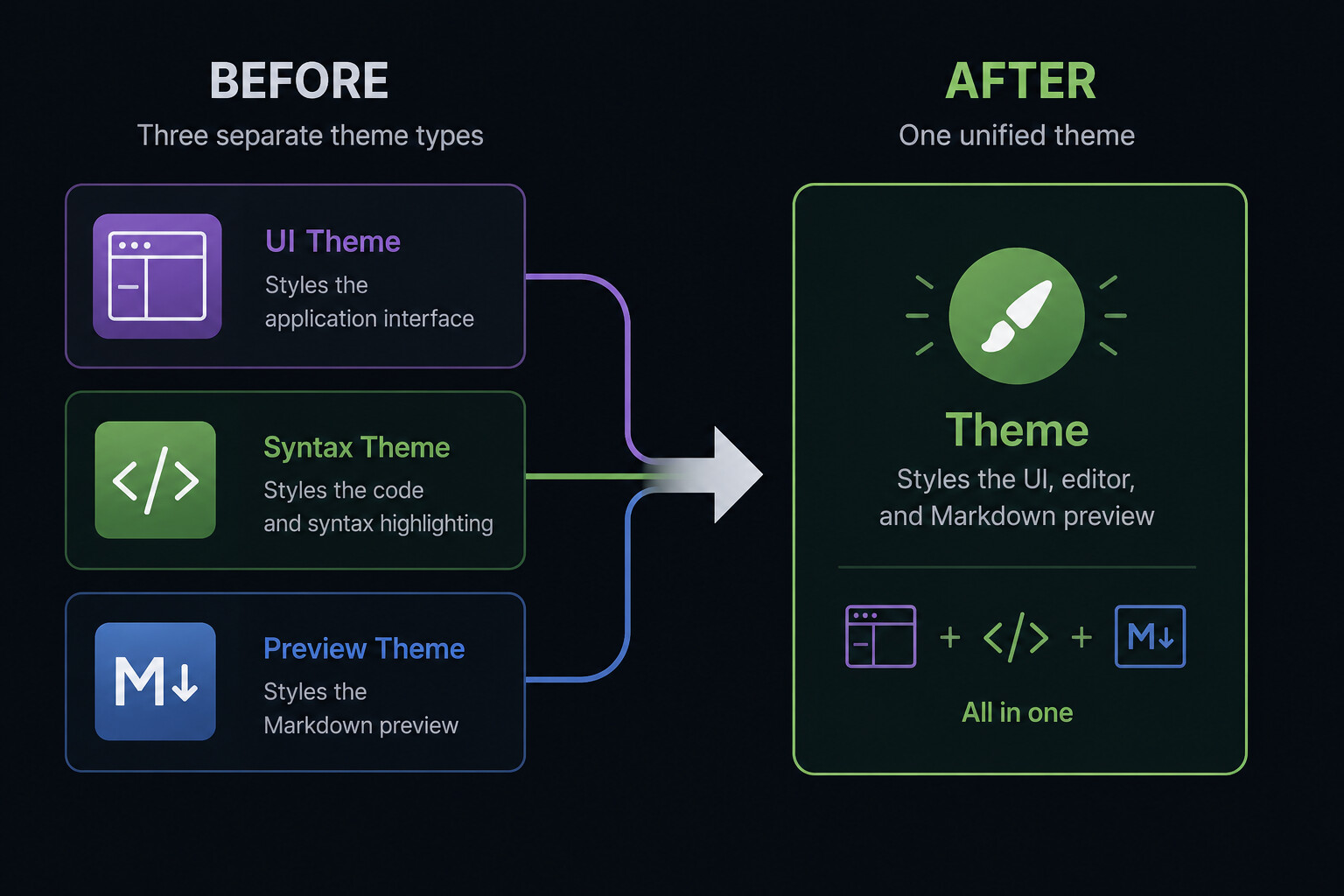
[!WARNING]
Old-style theme packages ("theme": "ui" | "syntax" | "preview") are no longer recognized. A unified theme declares"theme": trueand shipsui.css/syntax.css/preview.css, each wrapped in its own@layer. See the theme development guide and update@inkdropapp/ipm-cliand@inkdropapp/theme-dev-helpers.
Live theme previews
The Themes preferences show preview cards for every theme. These aren’t images — they’re live-rendered from each theme’s color palette. A theme’s palette.json is uploaded to the plugin registry when you publish, so previews work before you install.
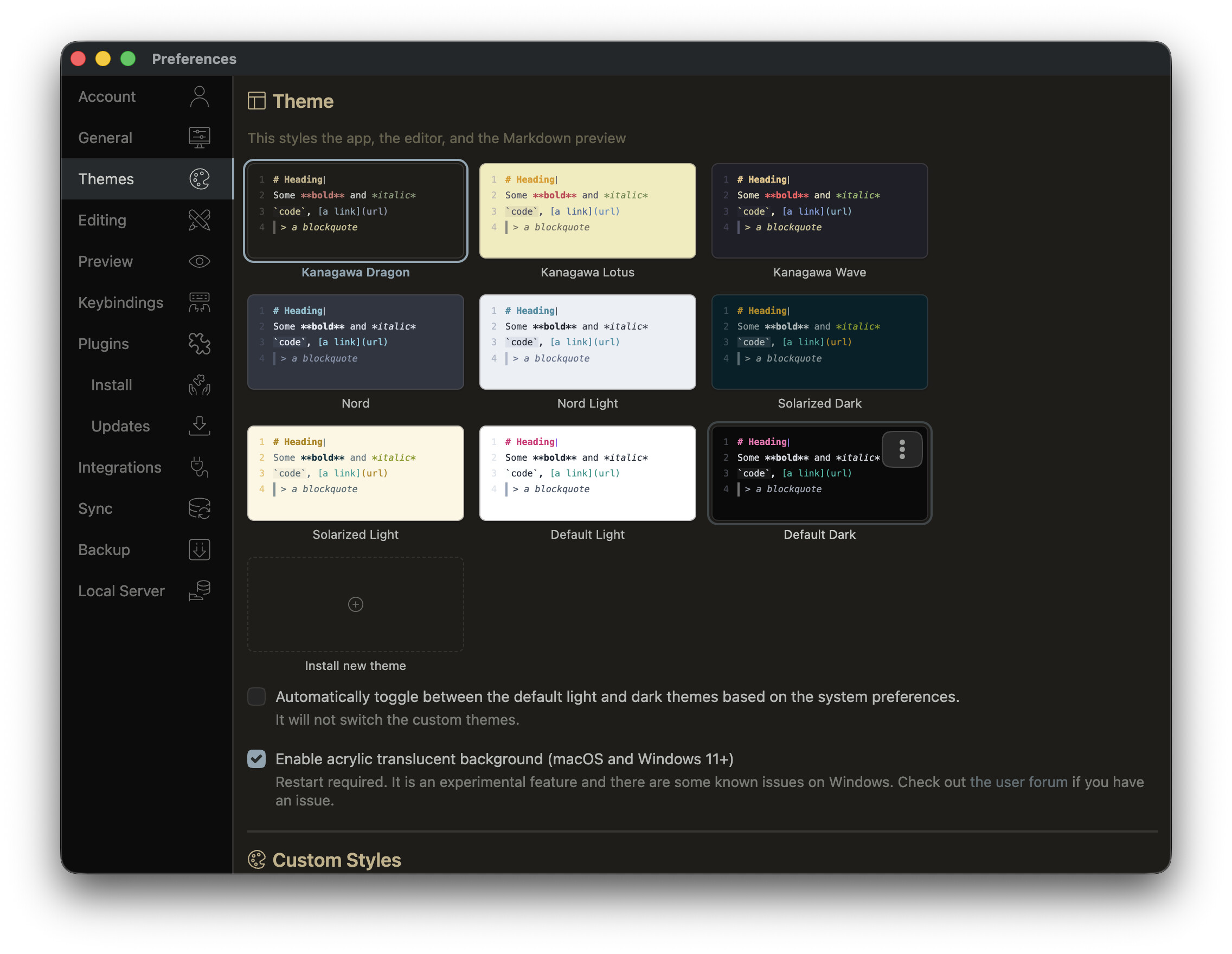
New official themes
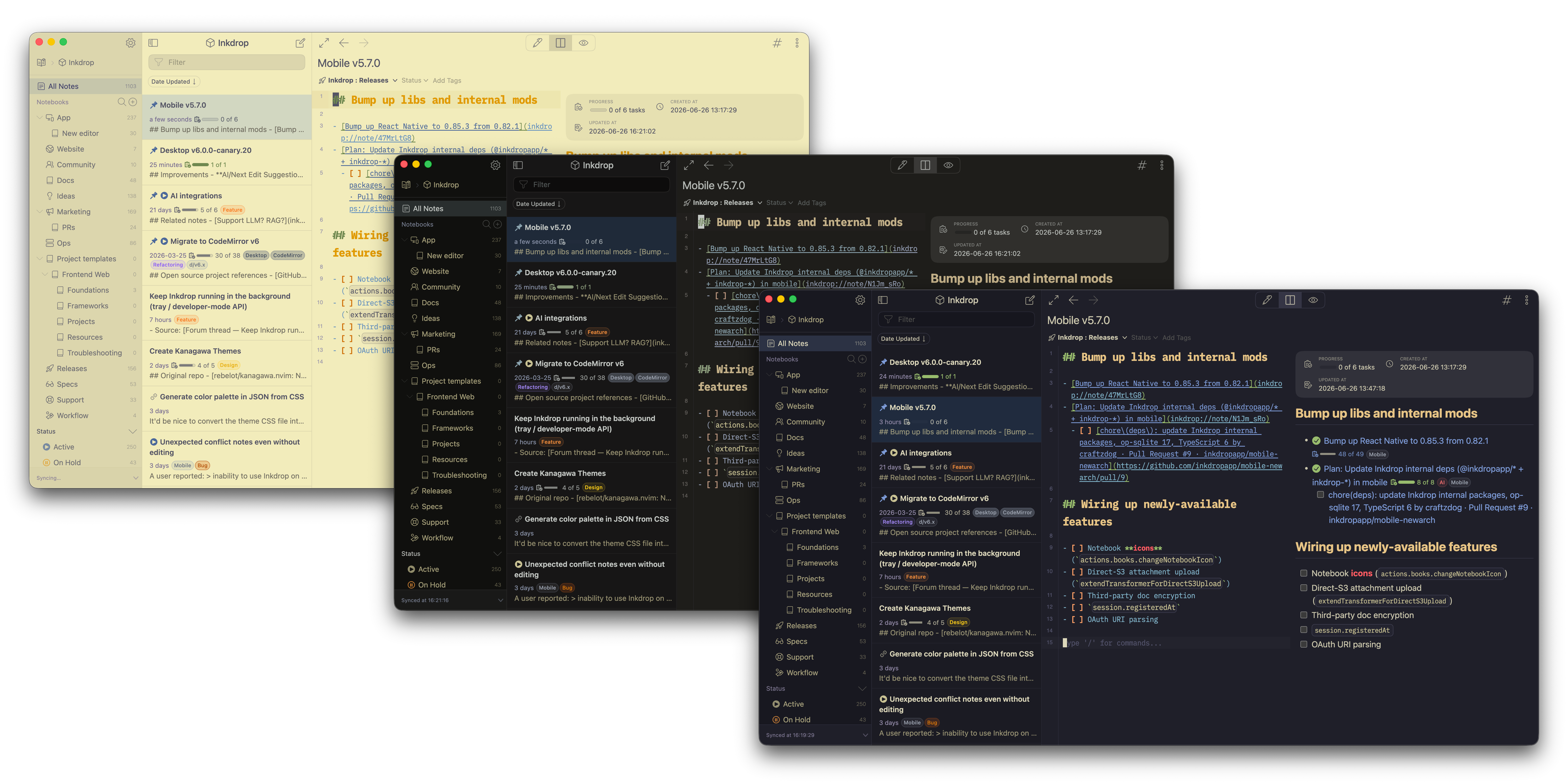
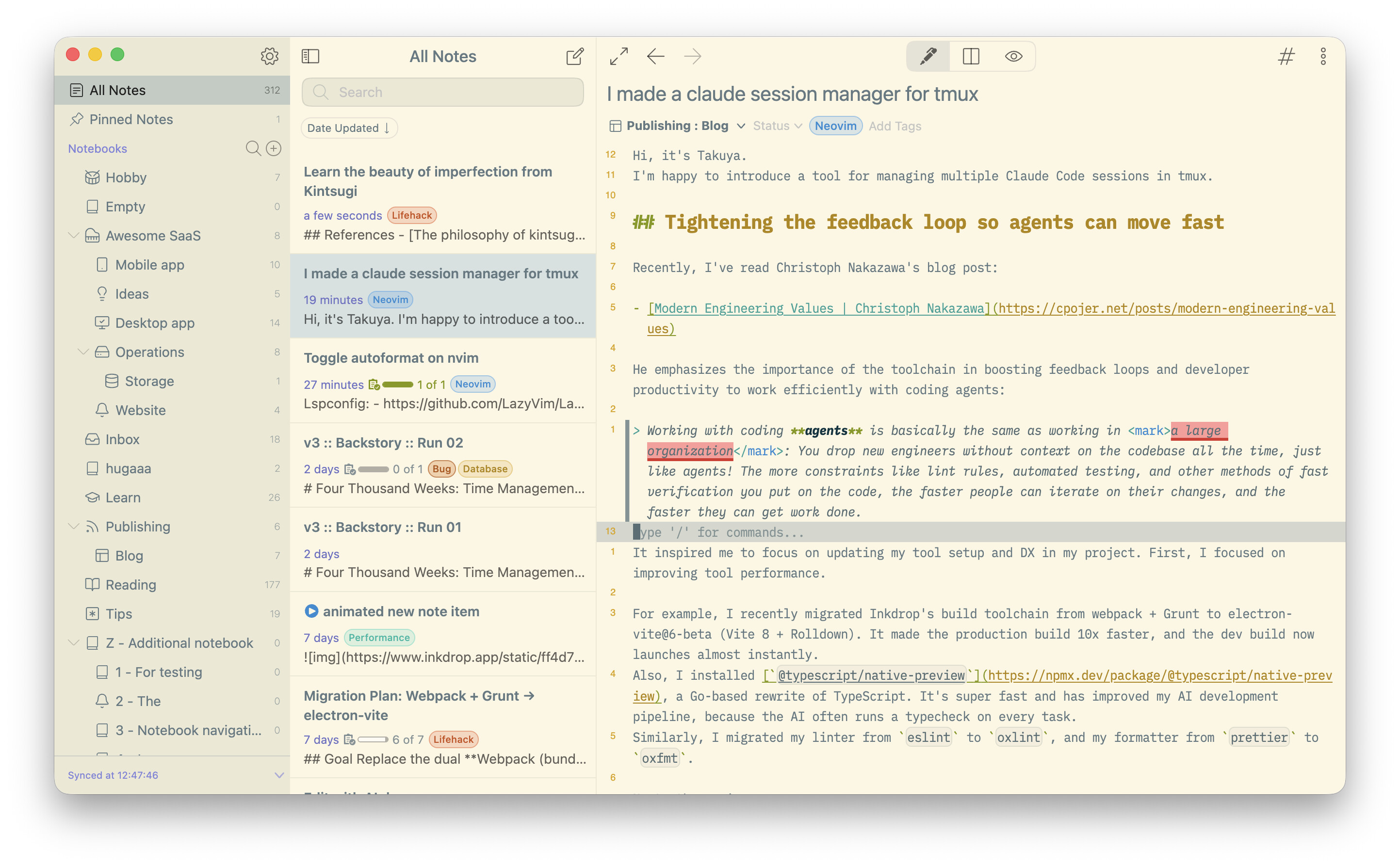
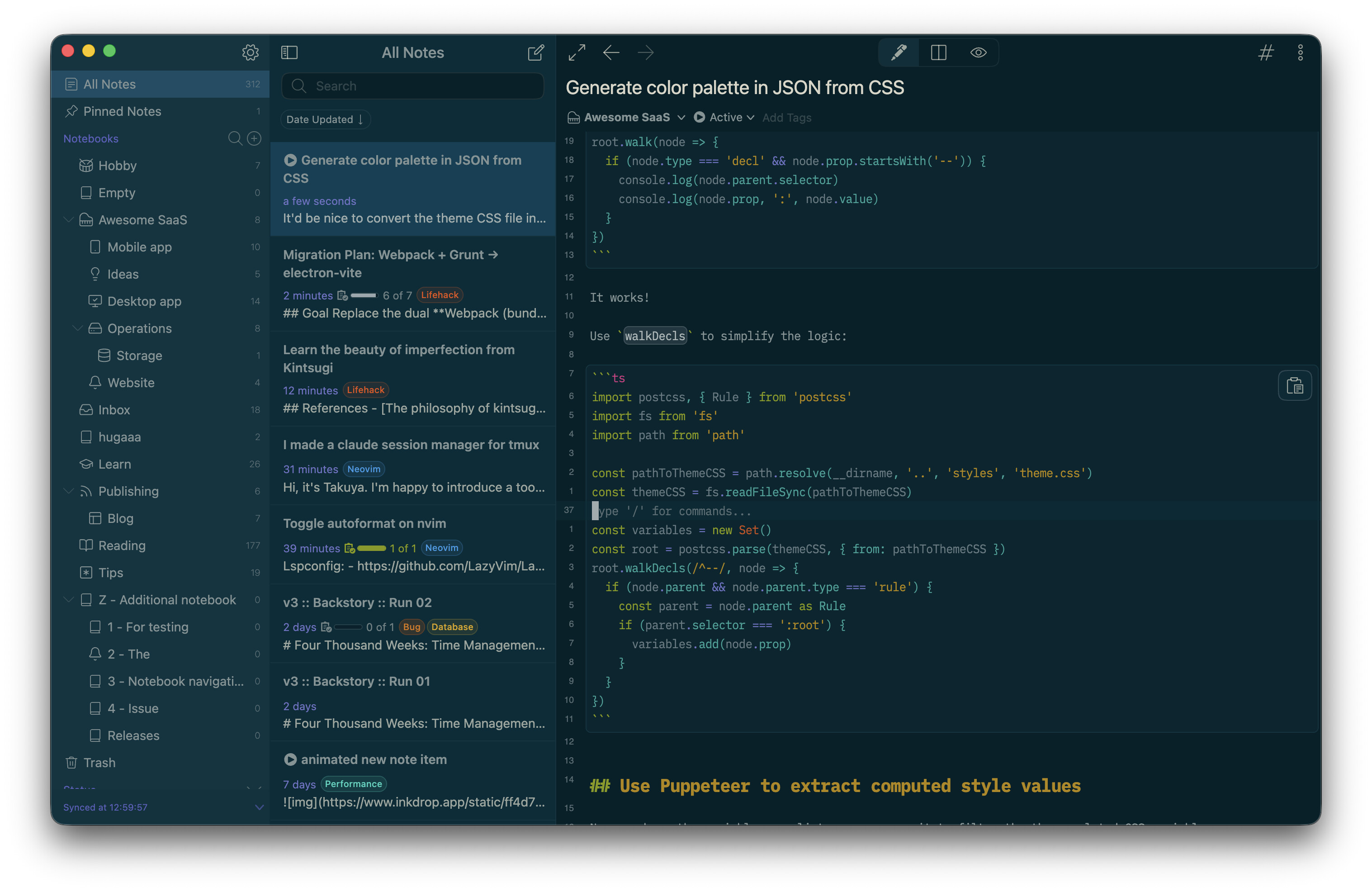
Kanagawa — inspired by Katsushika Hokusai’s paintings, based on rebelot/kanagawa.nvim. Three variants: Wave (heart-warming), Dragon (for late-night sessions), and Lotus (for when you’re out in the open).
Default syntax theme overhaul
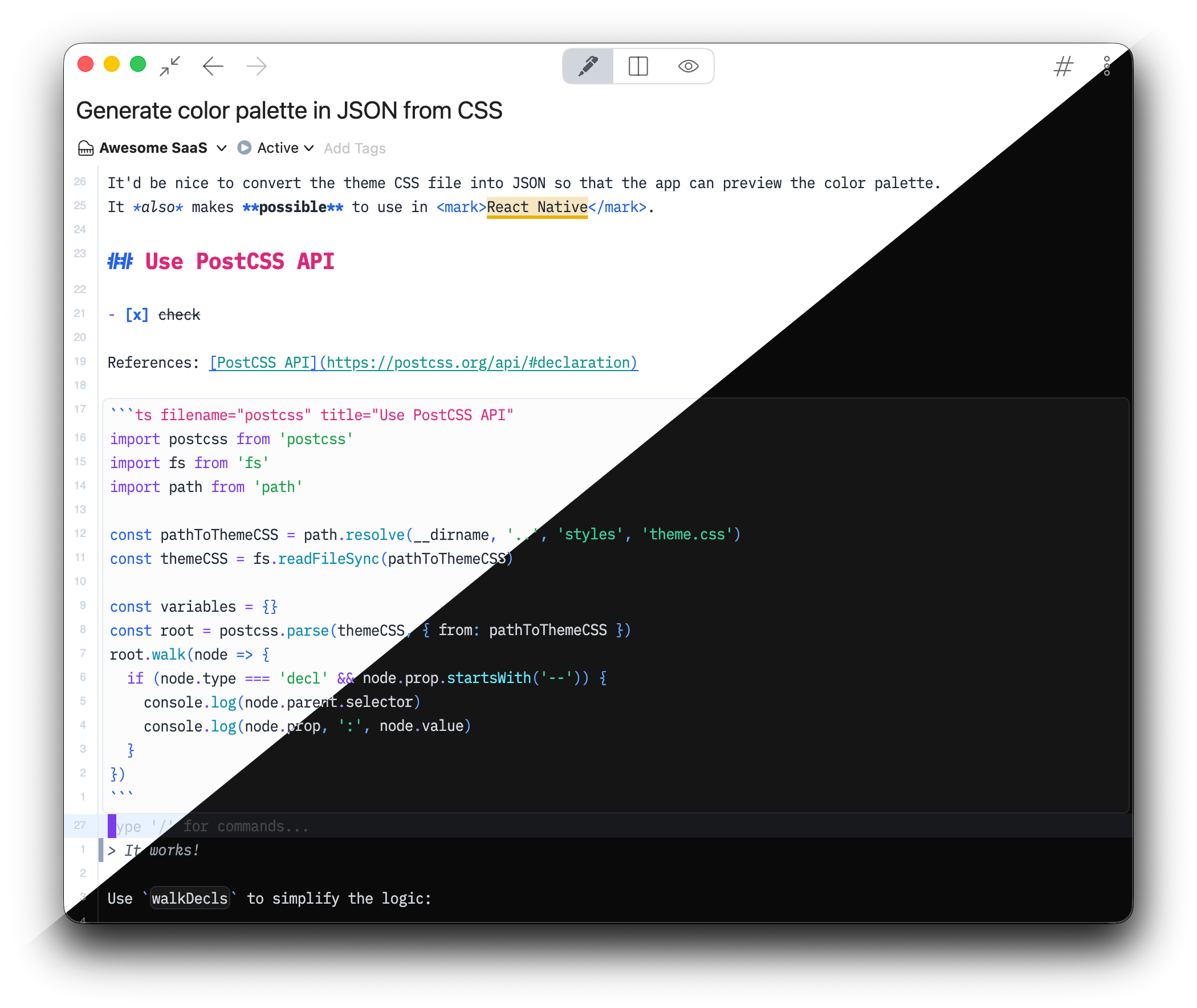
The default syntax theme now uses Tailwind’s color scheme, and the light and dark variants have been merged into one package built on the modern light-dark() CSS function.
UI & UX
Telescope — a Spotlight for your notes
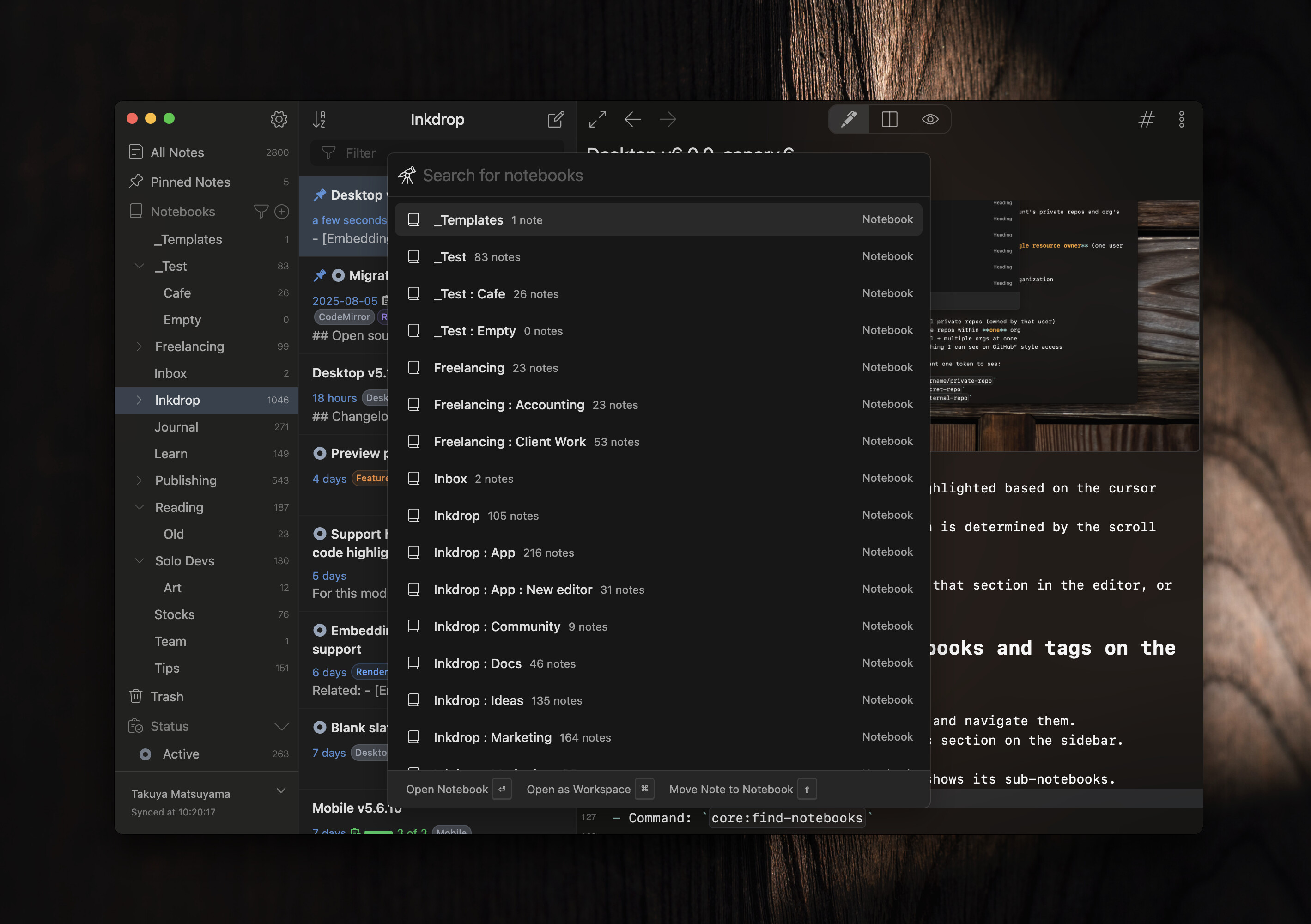
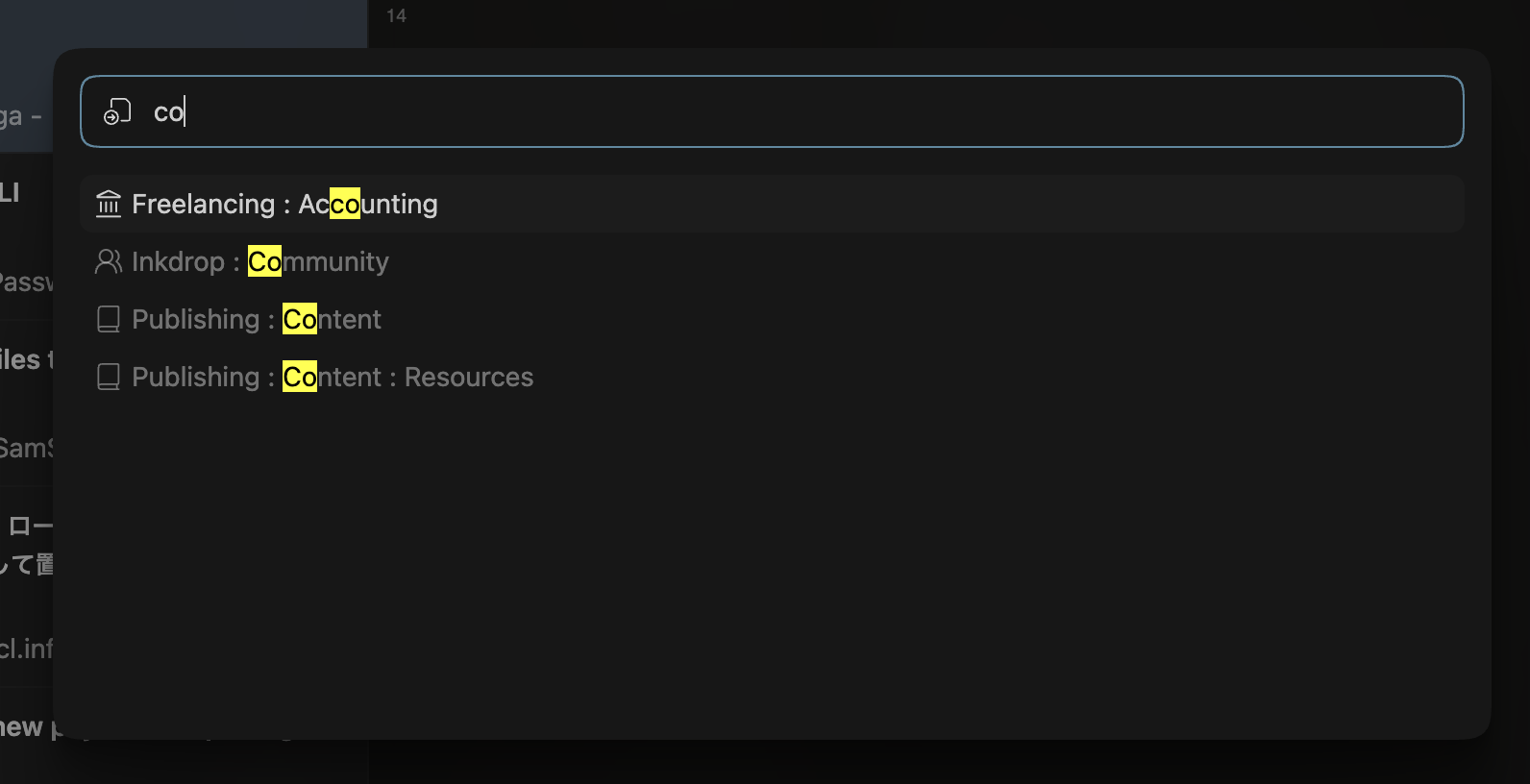
The long-awaited command palette became something more versatile: a search bar that queries multiple sources at once. Press Cmd/Ctrl+K to open it. It’s fuzzy-matching, so spelling isn’t critical.
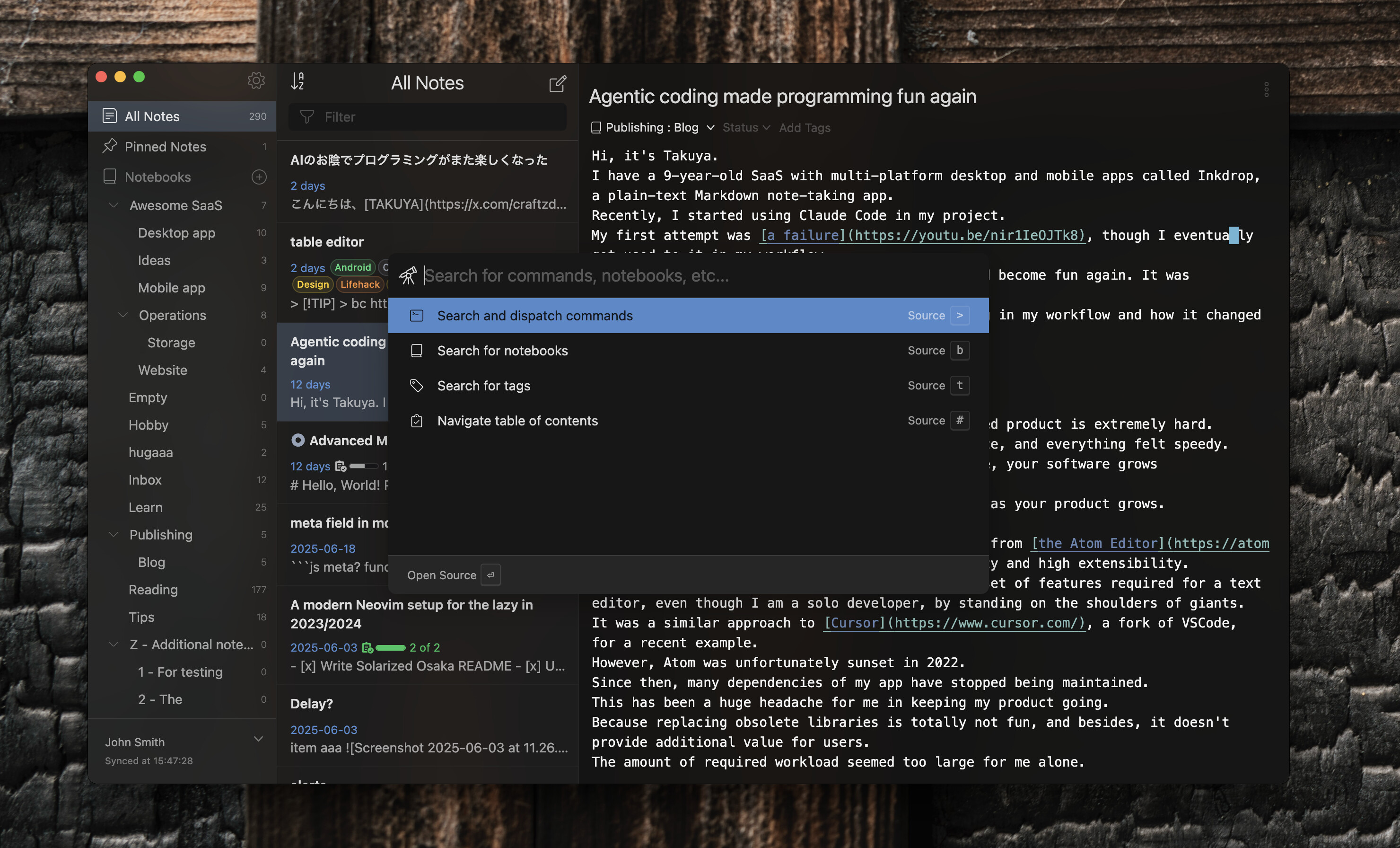
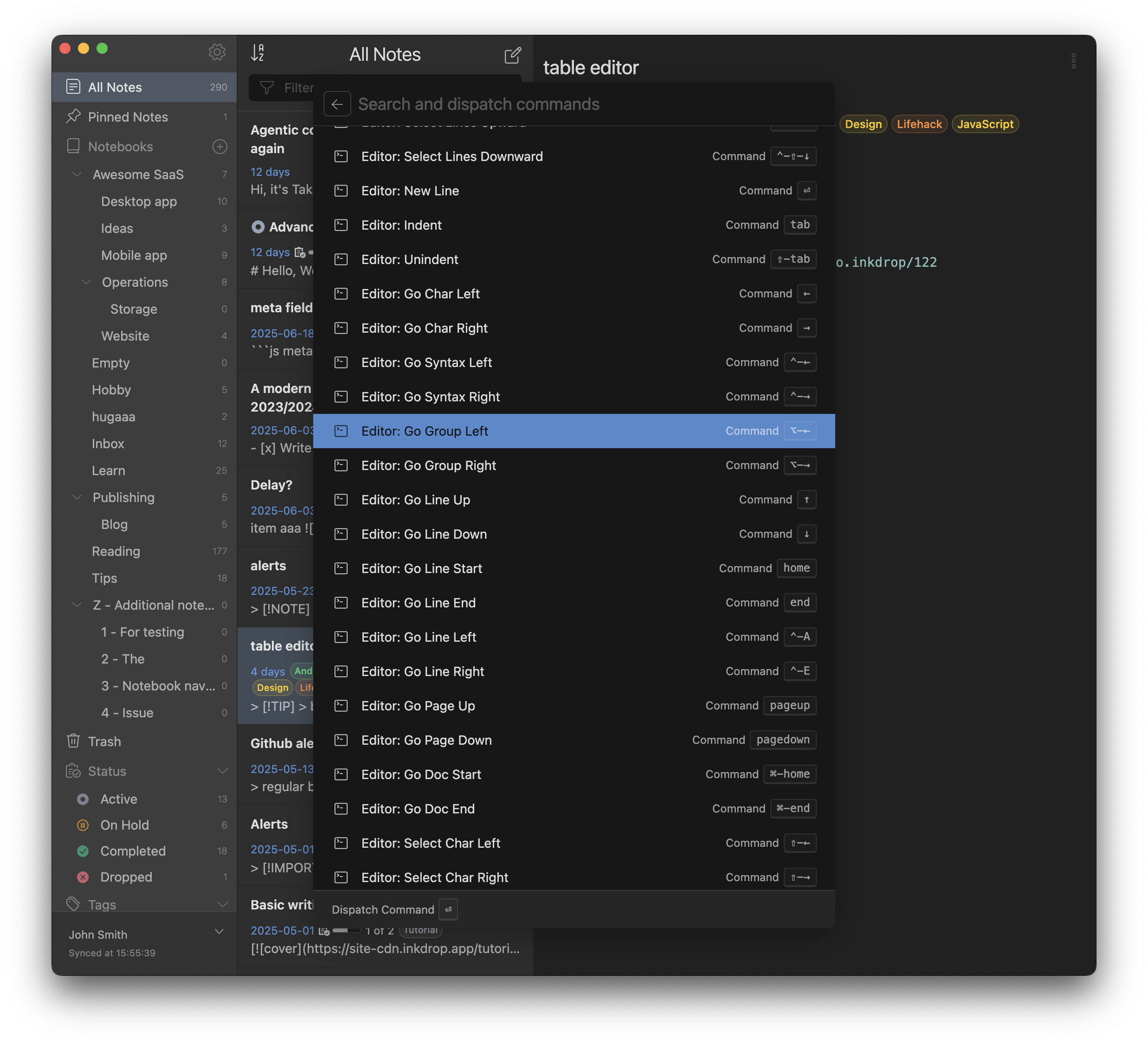
Each source has a scope prefix — press it followed by Space to narrow down, Esc to clear.
Commands (>) — nearly every operation in Inkdrop is a command, with its shortcut shown on the right.
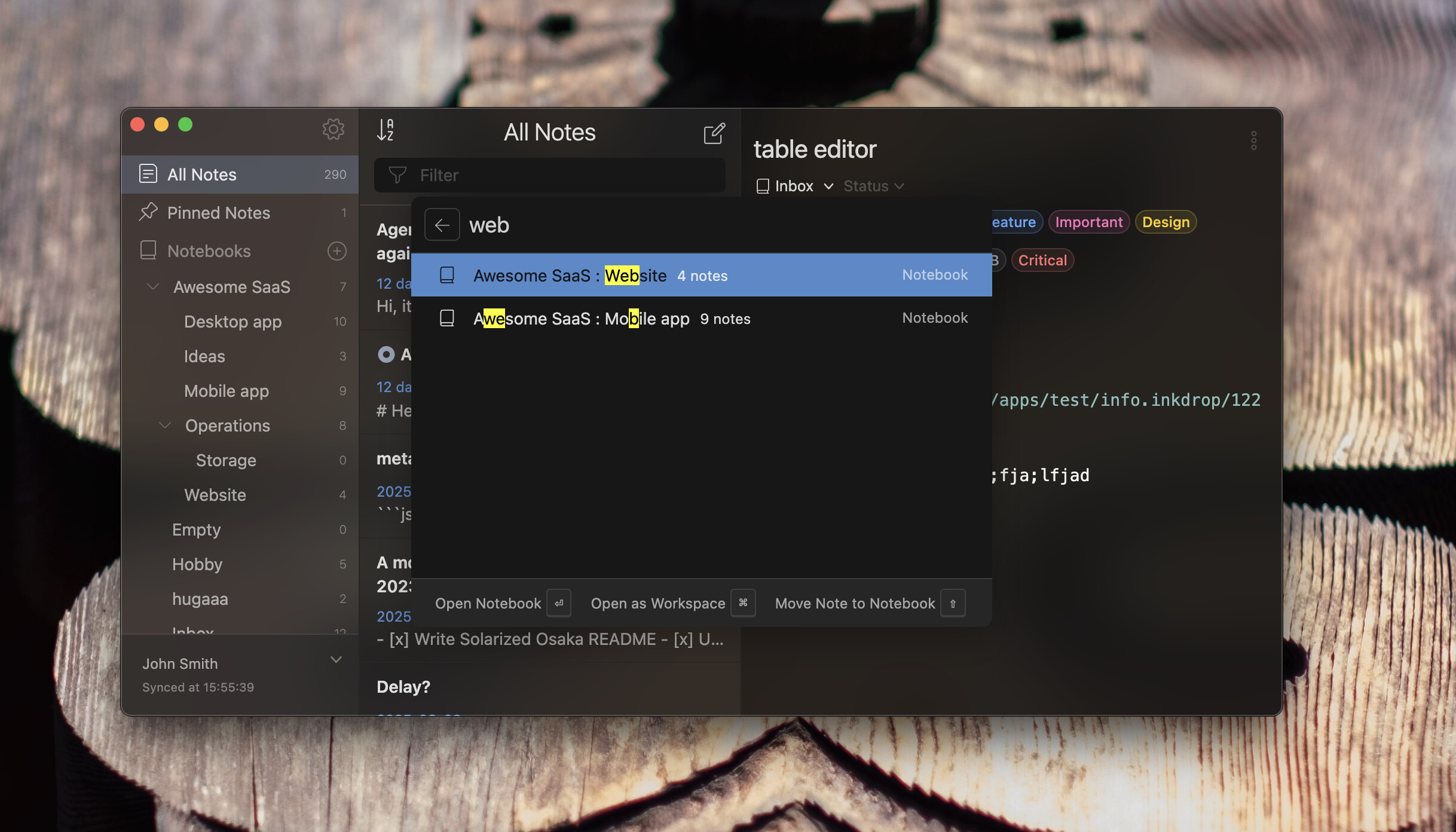
Notebooks (b) — open, open as Workspace, or move the current note there, with a modifier key.
Tags (t)
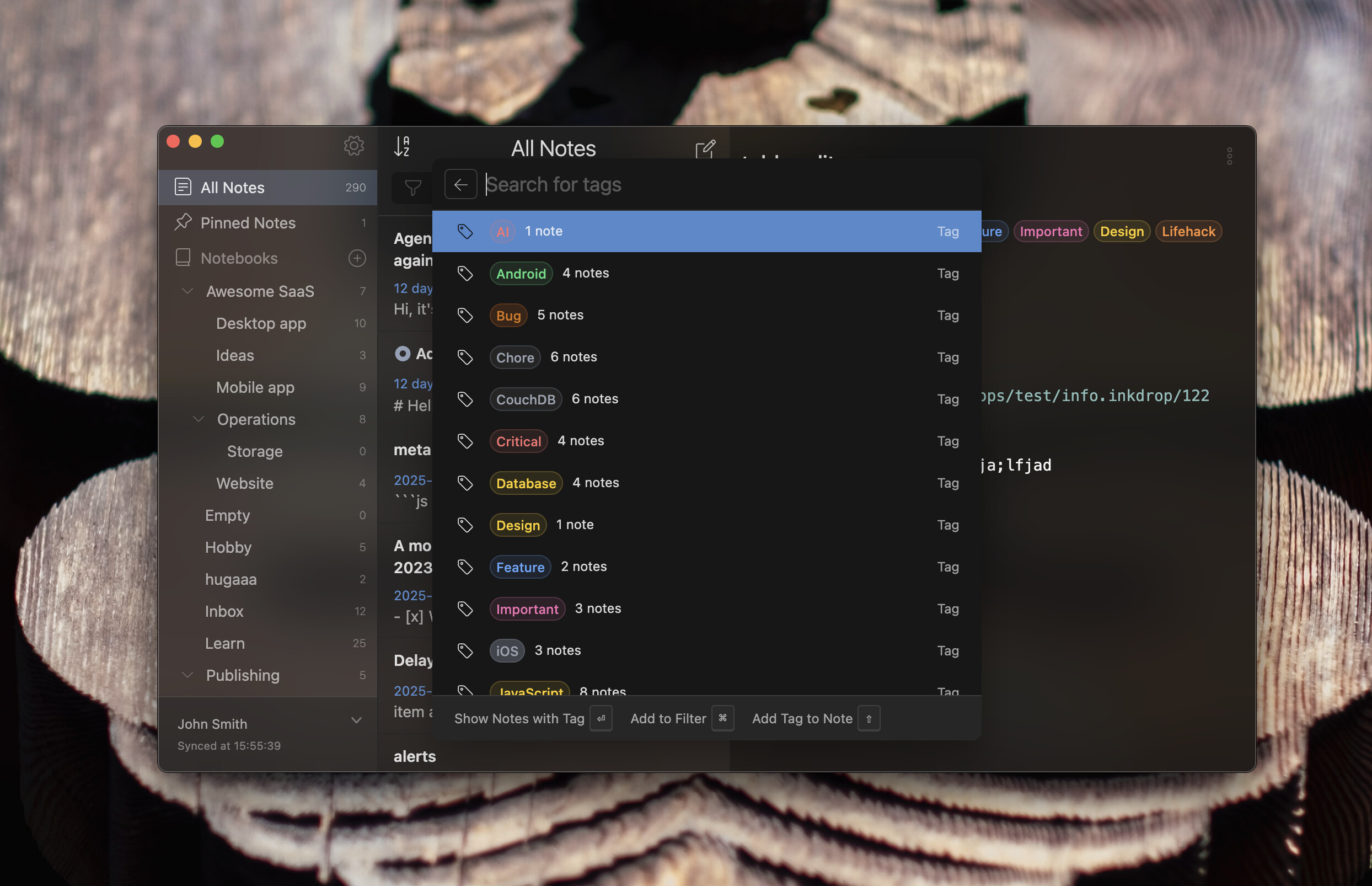
Table of contents (#) — jump between sections of the note you’re writing. It lists task items too. This source lives outside the core app as the telescope-toc plugin.
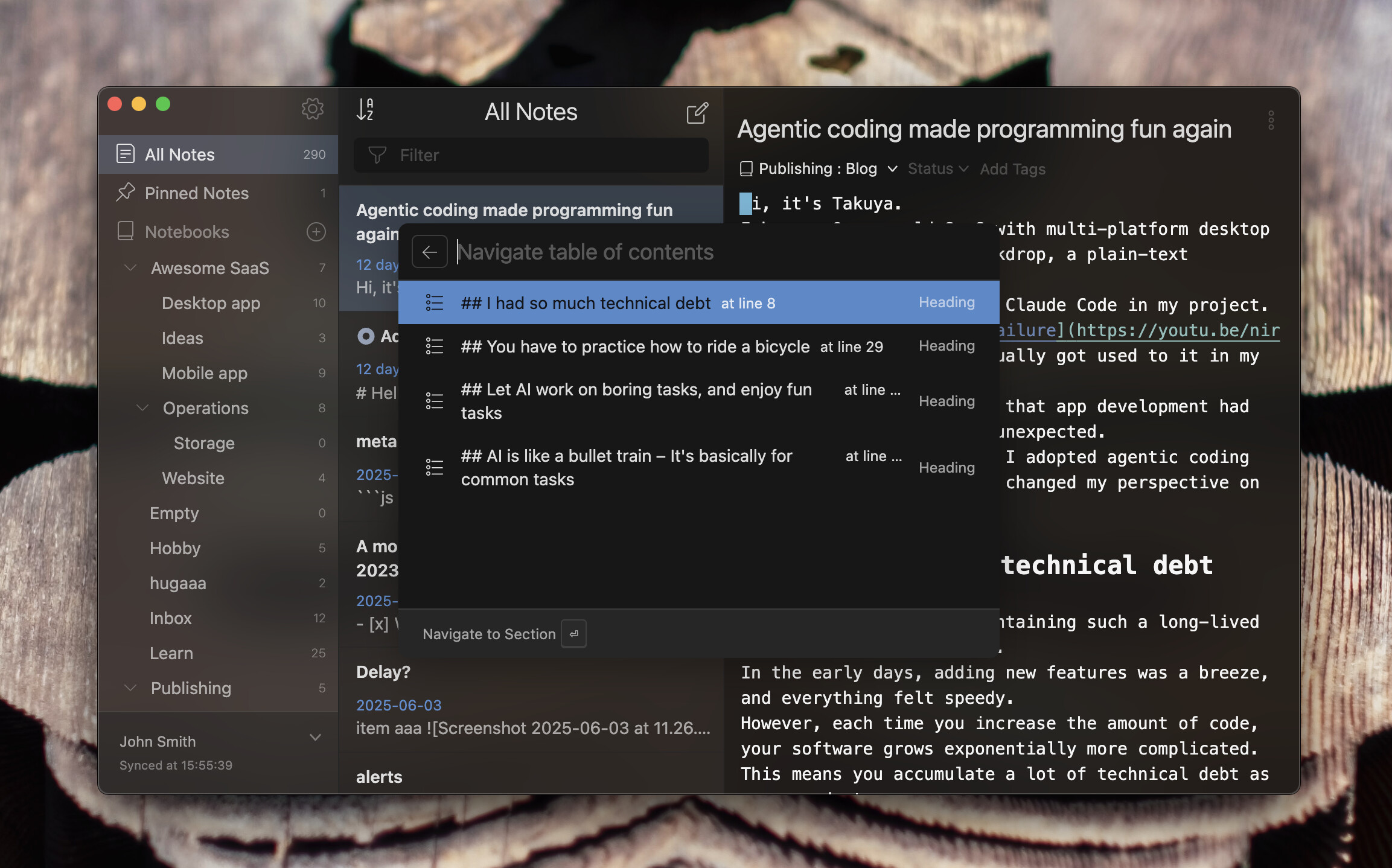
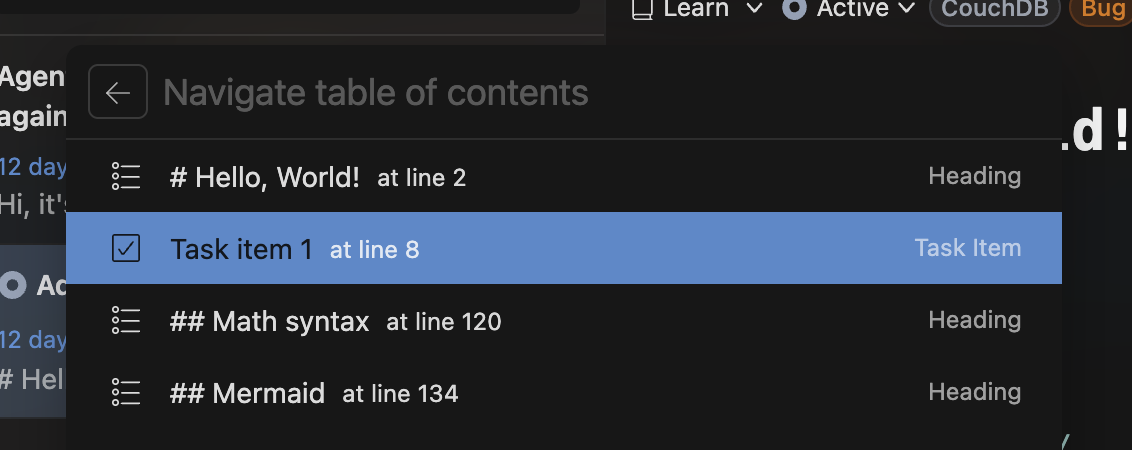
Telescope is extensible by design — plugins can add their own sources.
Outline view
Click the # button in the editor header (or run core:telescope-toc) to jump between sections. It highlights the current section from your cursor position in the editor, or your scroll position in the preview.
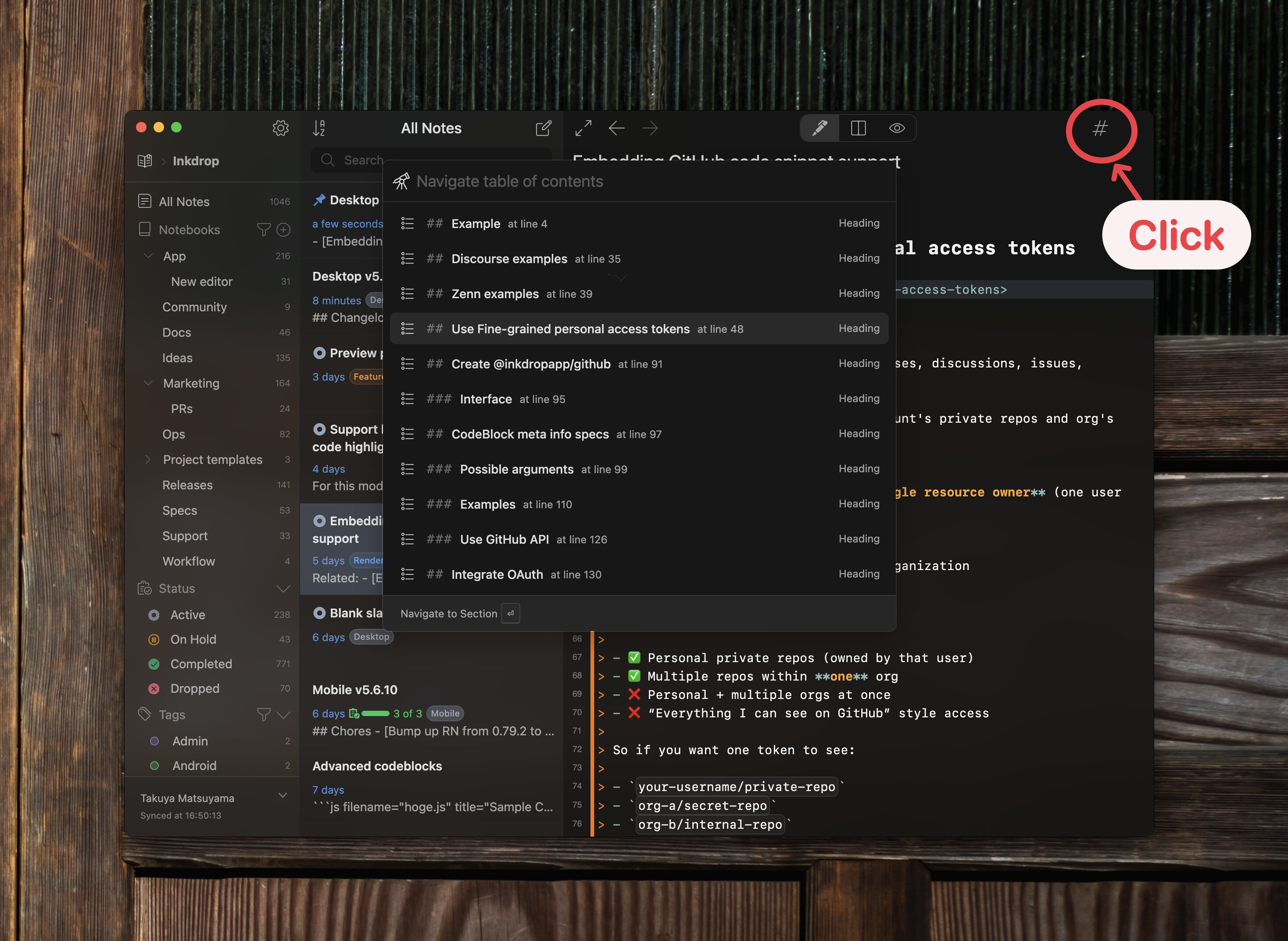
It ships as a separate plugin, telescope-toc, which is installed automatically. Being a plugin, it also doubles as a reference implementation for custom Telescope sources — the source is on GitHub, written in TypeScript against @inkdropapp/types.
Start from a template 
Cmd/Ctrl+N creates a plain blank note. When you want a starting point, the editor placeholder offers a Choose a template button (Cmd/Ctrl+T):
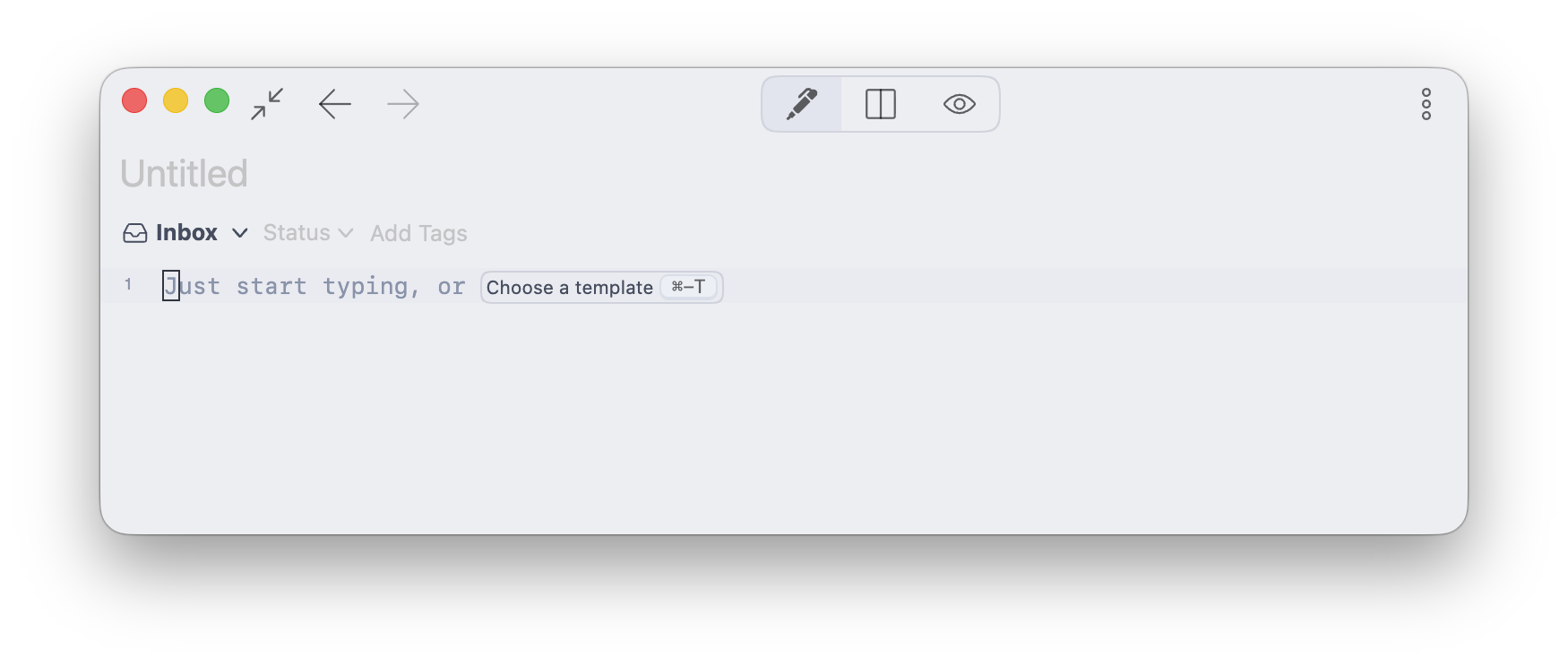
Search templates by name and preview one on the right before you commit:
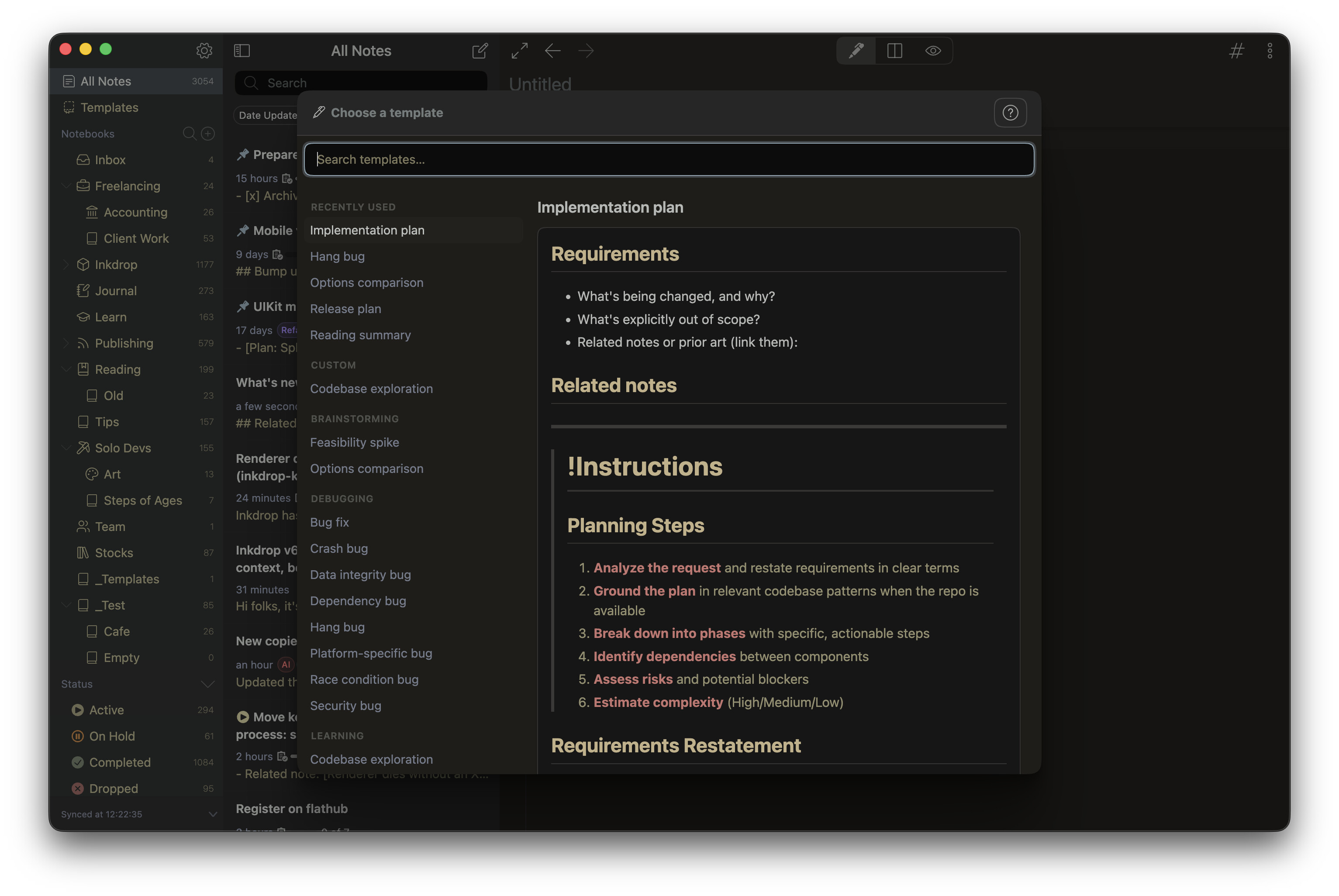
Inkdrop ships with curated official templates grouped by category — Debugging, Planning, Brainstorming, Learning, Productivity — and your most-used ones float to the top under Recently used.
Custom templates live in a dedicated Templates section in the sidebar and support a small, safe templating syntax (powered by LiquidJS — no arbitrary code ever runs, even from a synced or shared template):
---
_template:
  title: "{{ 'now' | date: '%Y-%m-%d' }} - Daily Report"
  description: What I did today, what I plan to do tomorrow, and any blockers.
  tags:
    - Journal
  notebook: "Daily notes"
  status: active
---

## What I worked on
...
A template can preset the new note’s title, description, tags, destination notebook, and status. Start editing an official template and Inkdrop forks it into your own editable copy, leaving the original untouched.
Notebook icons
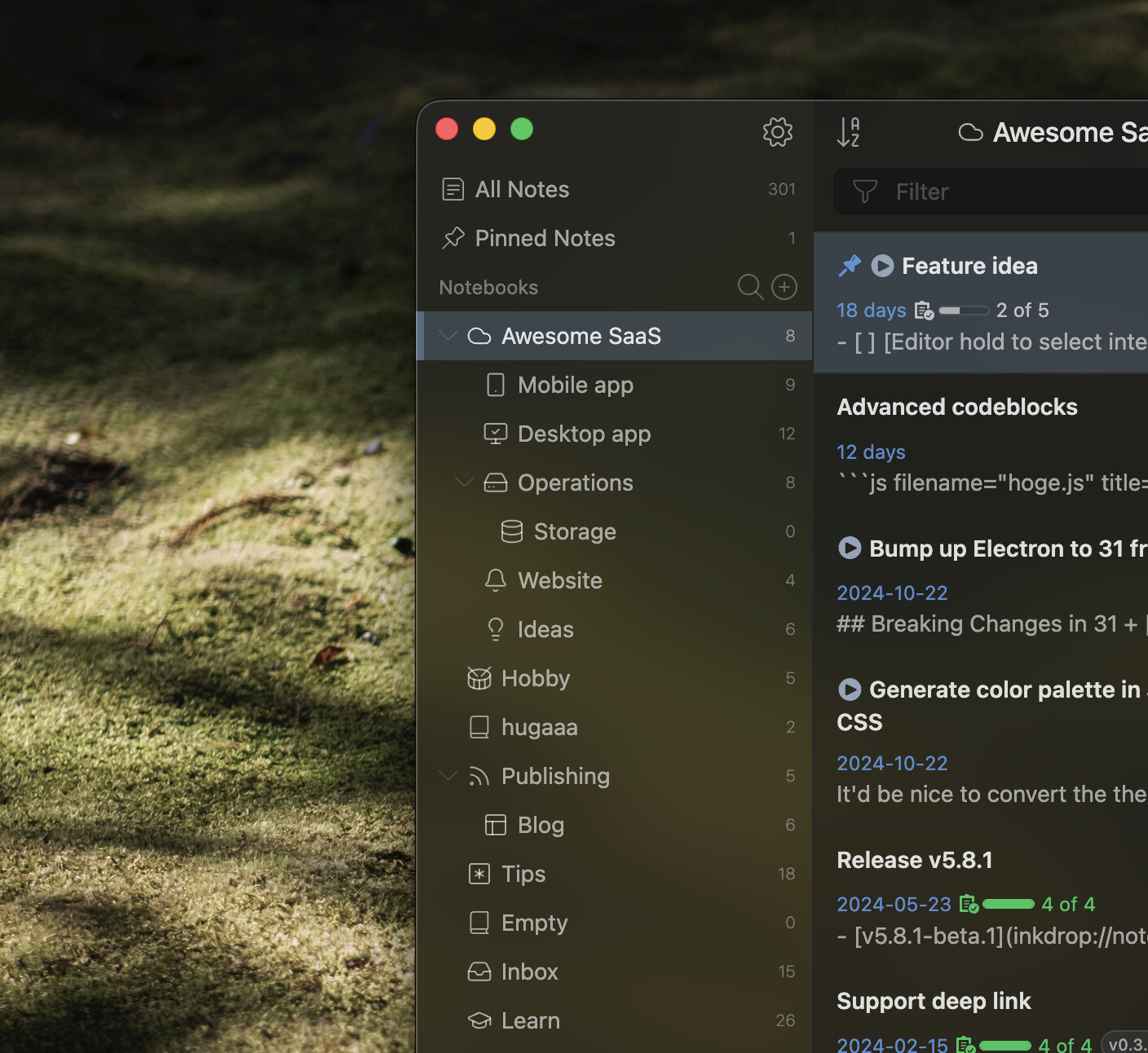
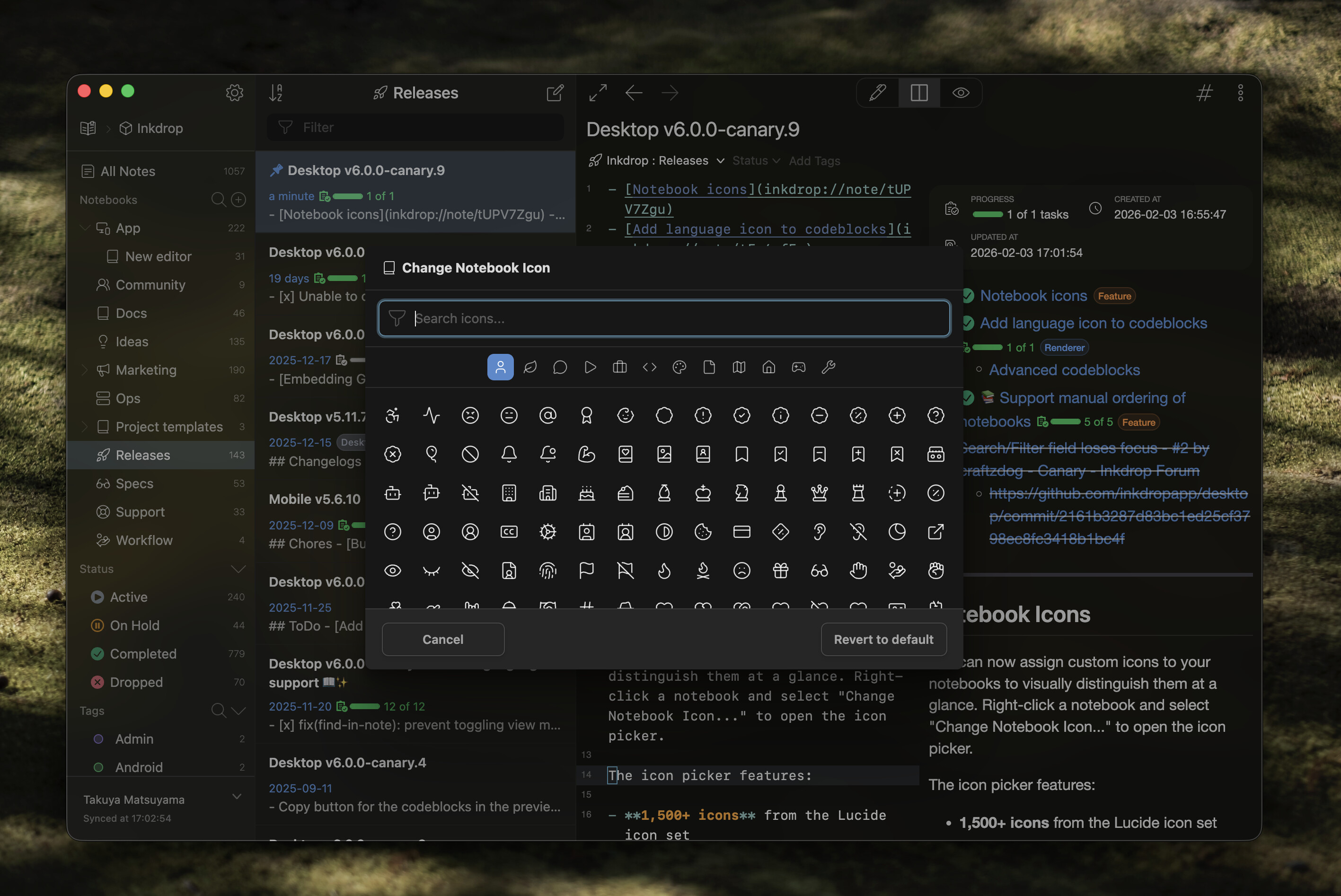
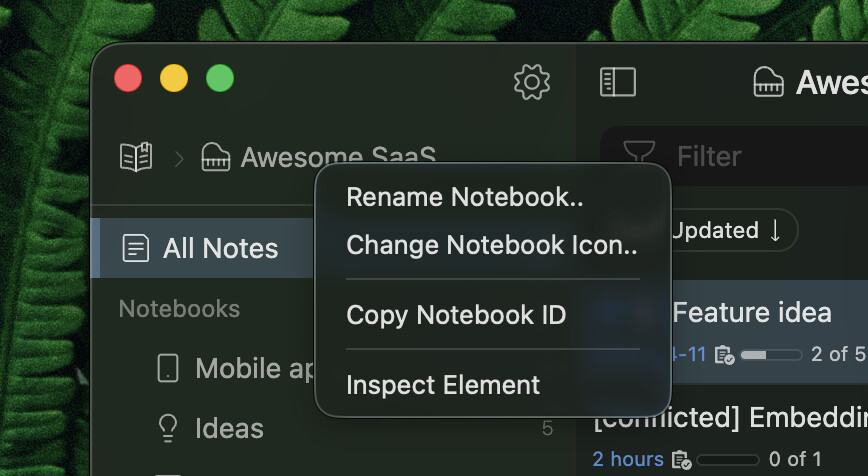
Right-click a notebook → Change Notebook Icon… to pick from 1,500+ icons from the Lucide set, with category tabs and search. Icons show up everywhere — the sidebar, Telescope, and notebook selectors.
Manual notebook ordering
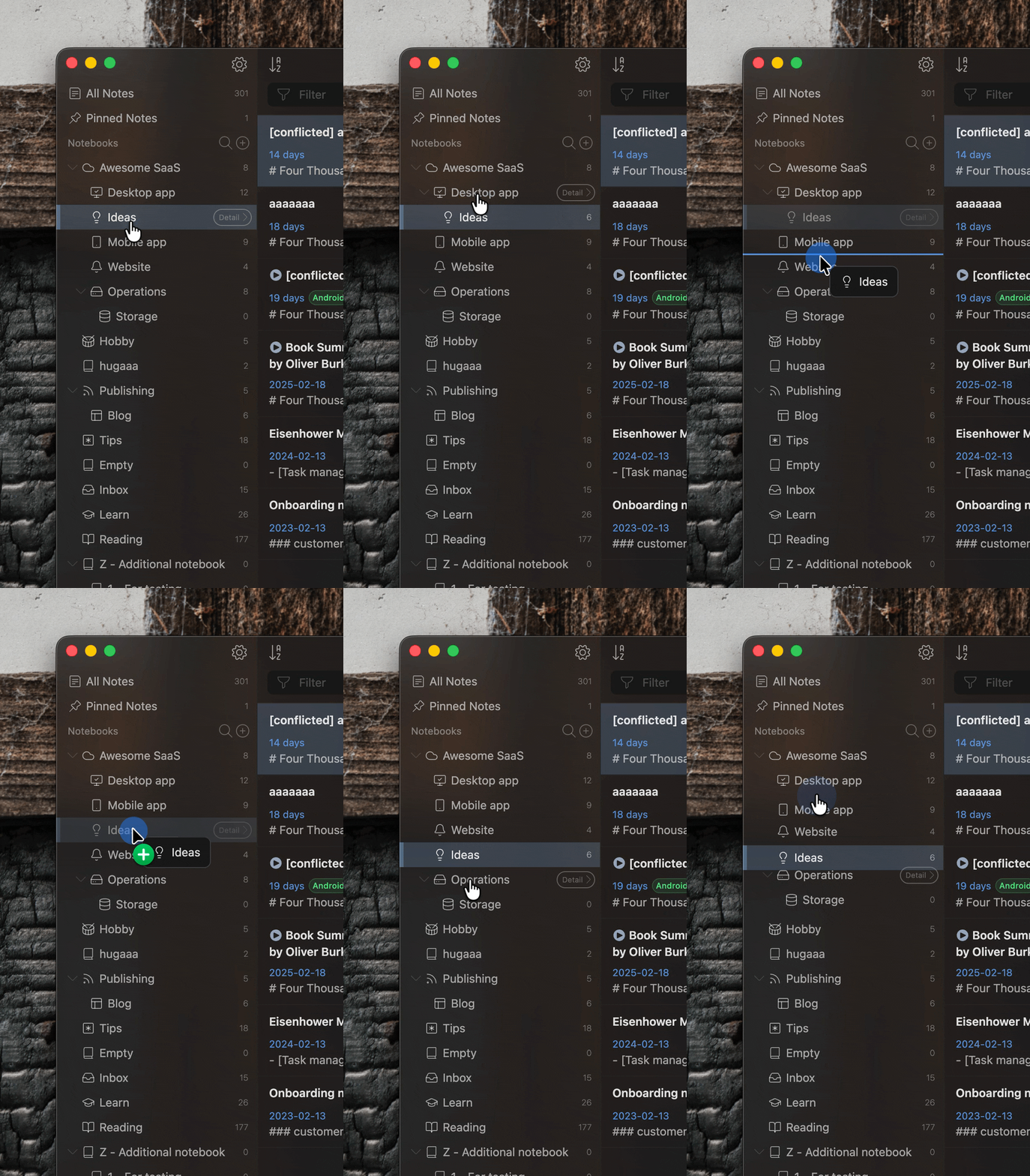
Drag and drop notebooks in the sidebar into whatever order makes sense to you. It syncs across your devices.
Quicker navigation
Filter buttons in the Notebooks and Tags sections of the sidebar launch Telescope scoped to that source:
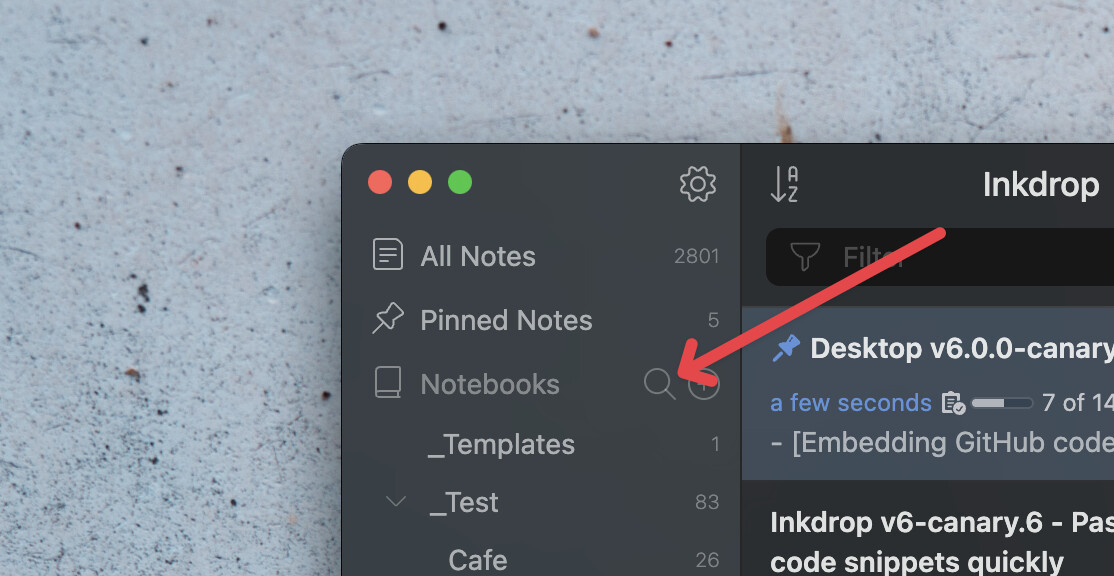
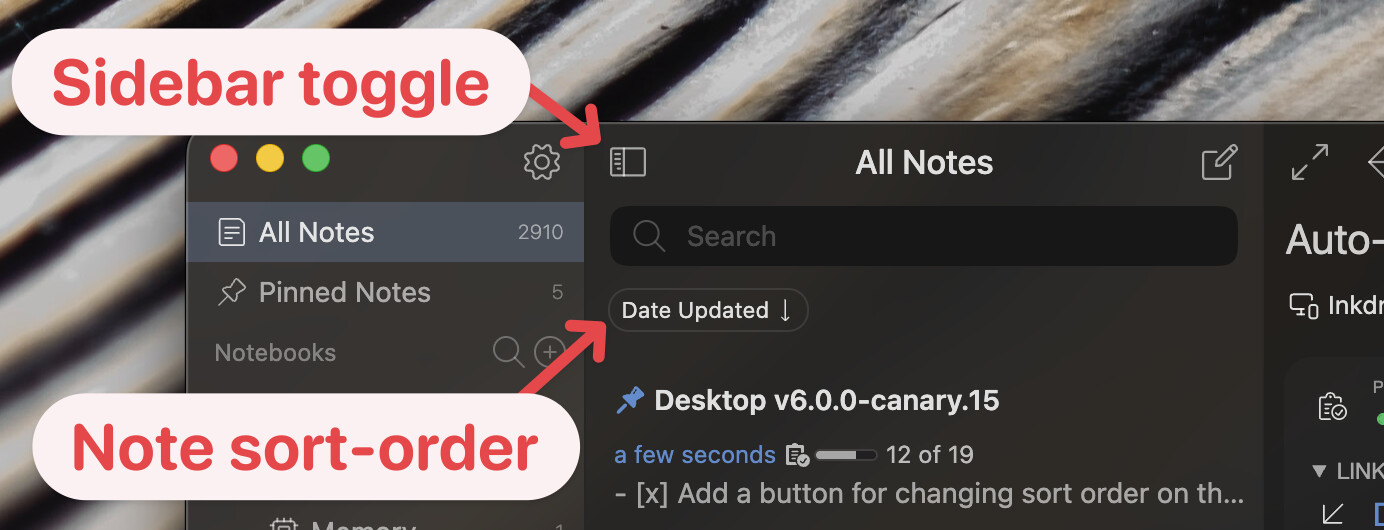
The sort-order button moved beneath the search bar and shows the current order as a label — no more clicking just to find out. Its old spot now holds a sidebar toggle (Cmd/Ctrl+\).
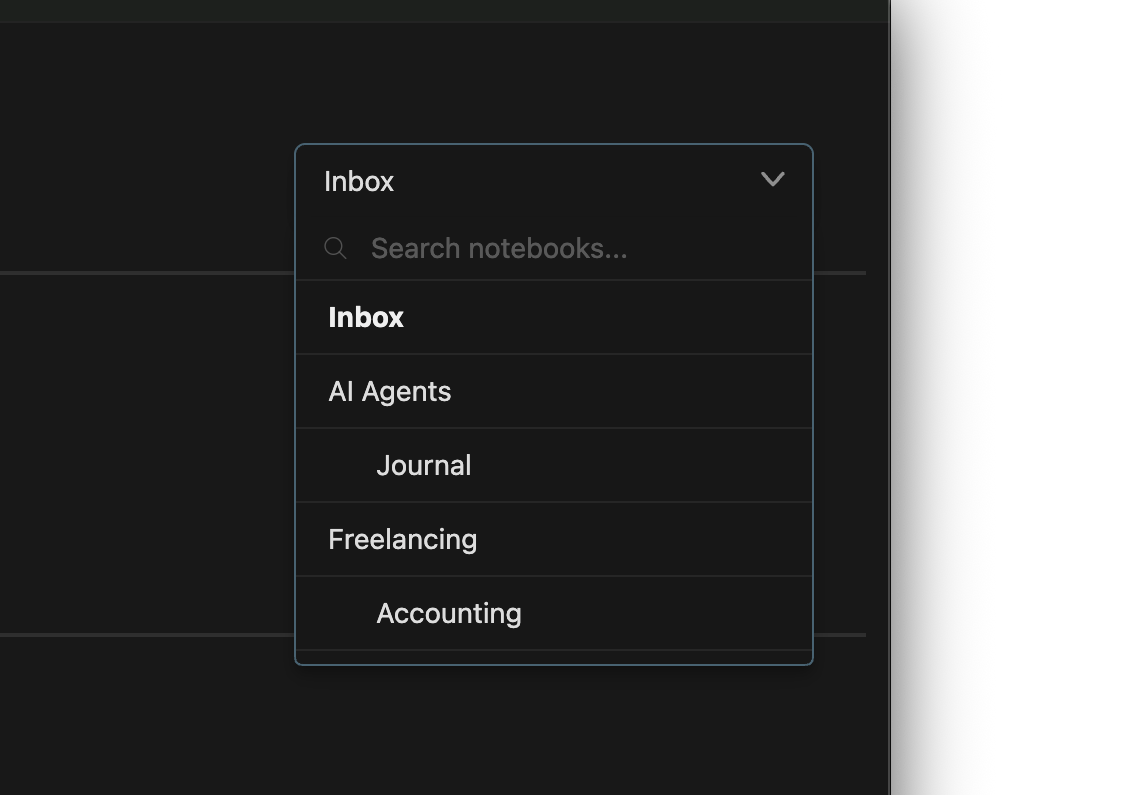
The notebook picker gained a search bar:
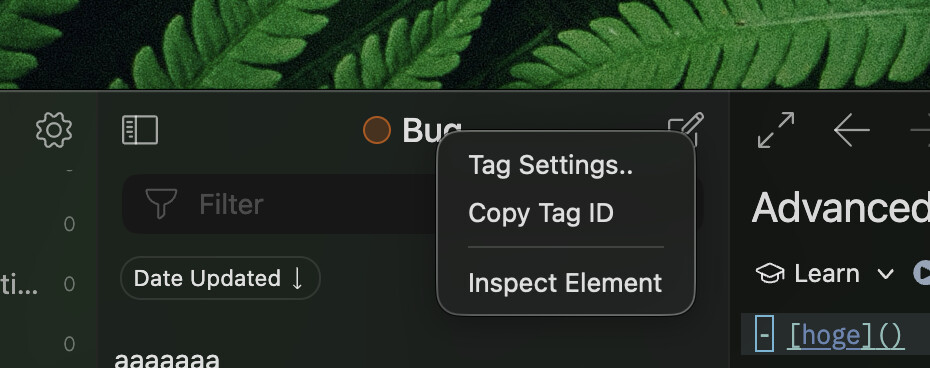
And context menus landed on the workspace header and the note list header:
Fuzzy matching everywhere
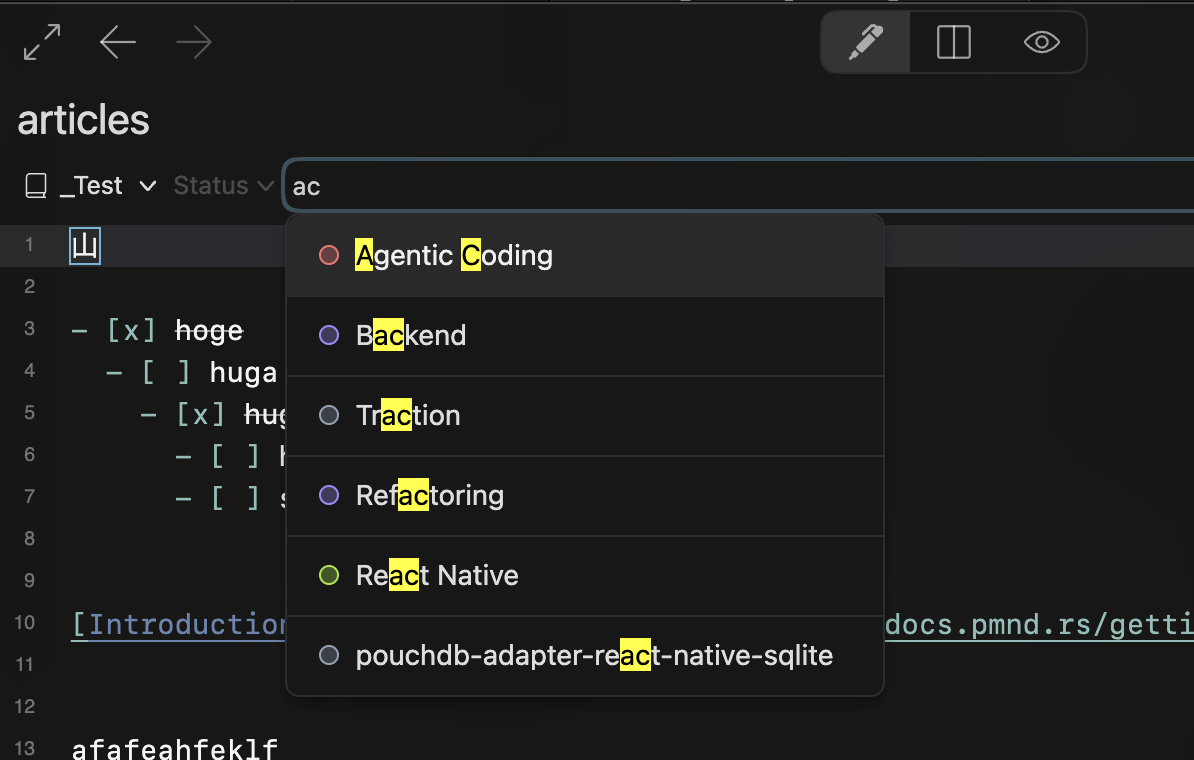
Telescope, the notebook and tag list menus, and the tag input all share the same fuzzy-matching algorithm — so you find things fast without spelling them right.
Activity stats
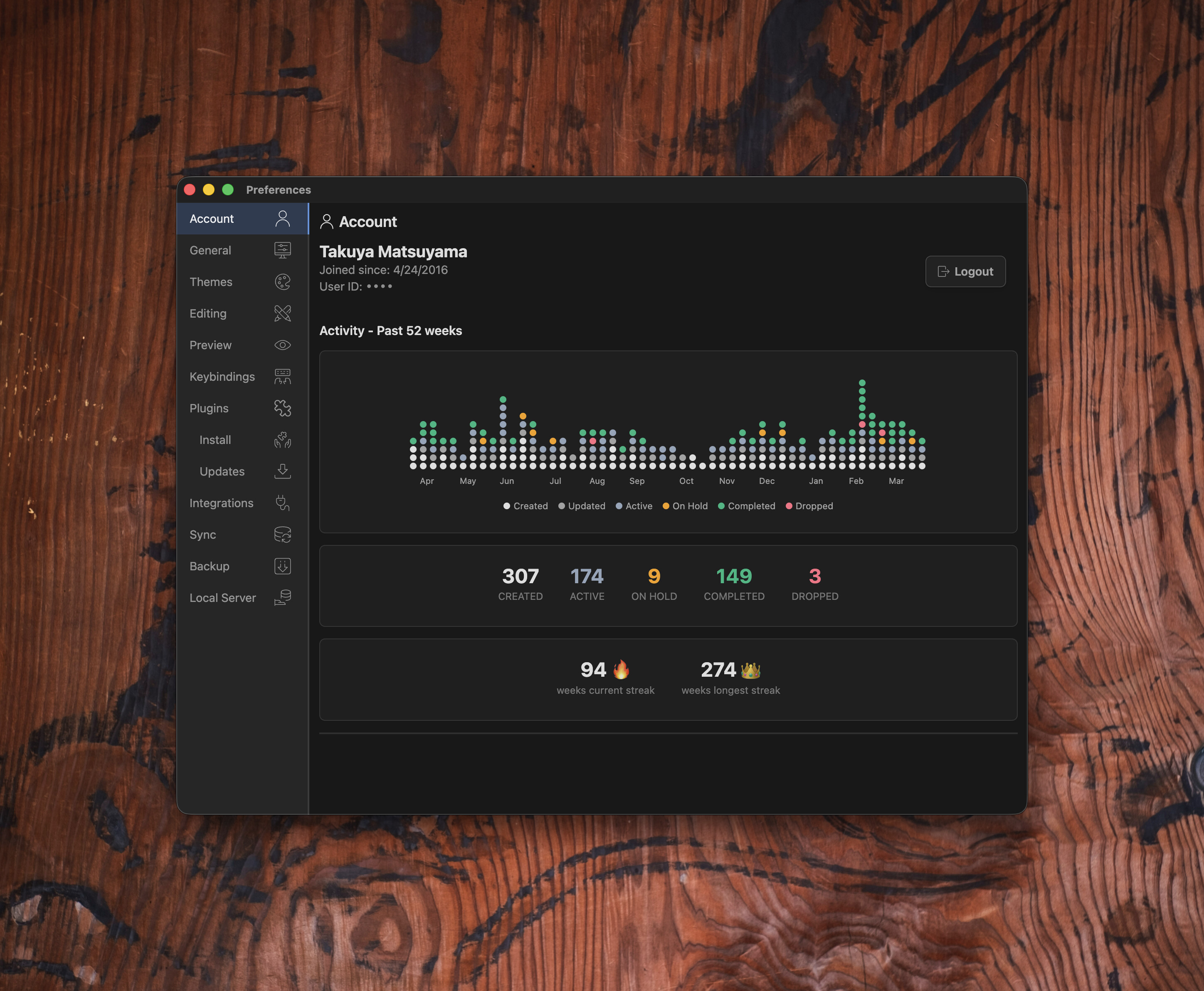
See how many notes you created and tasks you worked on over the past 52 weeks, plus your current and longest streaks. Note-taking is a contribution to your work, after all.
No more [conflicted] notes 
If a note changed on another device while you were editing it, saving used to spin off a [conflicted] backup for you to reconcile by hand. Now Inkdrop merges the two versions — a 3-way merge for the body, and title, notebook, status, and tags merge without losing either side. The backup only appears for genuinely overlapping edits to the same lines, and the same smarter merge runs during sync.
Keep running in the system tray (Windows & Linux)
Handy if you use the local HTTP API, and it makes reopening the app instant. Turn it on via Preferences → General → App Behavior. Off by default; on macOS nothing changes, since the app already stays in the Dock.
A Dark Mode-aware app icon on macOS
The macOS icon ships as an Icon Composer asset instead of a flat image, so the Dock, Finder, and Launchpad render its Dark Mode, tinted, and clear variants instead of the same light artwork everywhere.
A smoother Markdown import
Import from Markdown is now a single wizard: pick your files first, then Scan → Stats → choose a notebook → Import. Embedded base64 images (data: URIs) are extracted and saved as real attachments instead of being dropped.
Polish throughout
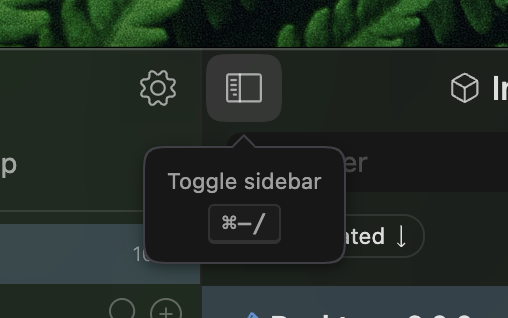
- A custom tooltip UI — the system tooltip was unstable, so it was rebuilt from scratch.
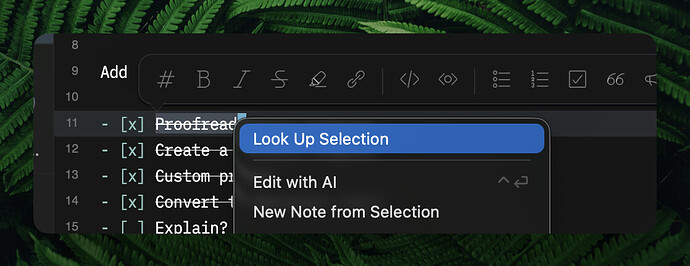
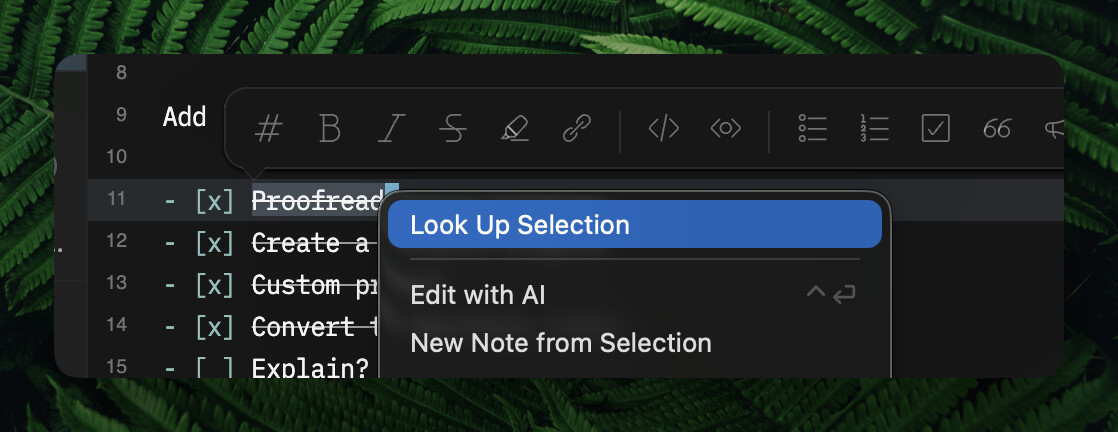
- “Look Up Selection” context menu on macOS.
- Friendlier blank slates — empty notebooks, tags, and status filters explain what belongs there.
- The Pinned section retired — pinned notes simply sort to the top of All Notes. One less mode to think about.
- An account usage stats tab in Preferences.
- Diff view for revision history on desktop, matching the mobile app.
Performance improvements
13x faster database access
Inkdrop relied on Electron’s remote module to reach the main process — a known-harmful approach that’s both slow and a security risk. It’s been replaced with type-safe IPC bridges in a massive architectural overhaul.
// v5: @electron/remote     → 18,761 ms
// v6: type-safe IPC bridge →  1,326 ms
The bridges also let Inkdrop control exactly which methods are exposed to plugins, so the app is more secure as well.
23x faster code block rendering
Notes with very long code blocks used to stutter or lock up while being syntax-highlighted. The most visible case was the [[ note-link autocomplete, which could freeze the app for 10–20 seconds when a huge note landed in the candidate list. Highlighting is now ~23x faster (29.0s → 1.3s on a 531KB sample), and the preview beside the candidates shows a snippet rather than the entire note.
Faster image sync
Attachments used to upload one by one. They’re now uploaded in parallel via signed URLs, so syncing image-heavy notes is significantly faster.
SQLite as the backing store — and ARM64 support
PouchDB’s LevelDB backing store had been deprecated for years, and it was the thing blocking new platforms. A new SQLite storage adapter replaced it (passing PouchDB’s integration tests), which unblocked:
- ARM64 builds for Windows and Linux
- Flatpak and AppImage packages for modern Linux distros
Plugin ecosystem & developer experience
A brand-new ipm CLI
The old ipm was a fork of Atom’s apm that bundled all of Node.js and npm, and required you to commit compiled files to GitHub to publish. It’s been rebuilt as a lightweight standalone CLI: @inkdropapp/ipm-cli.
npm install -g @inkdropapp/ipm-cli
ipm configure
ipm publish
It publishes tarballs directly like npm — no more committing build output.
ipm init scaffolds a plugin in seconds
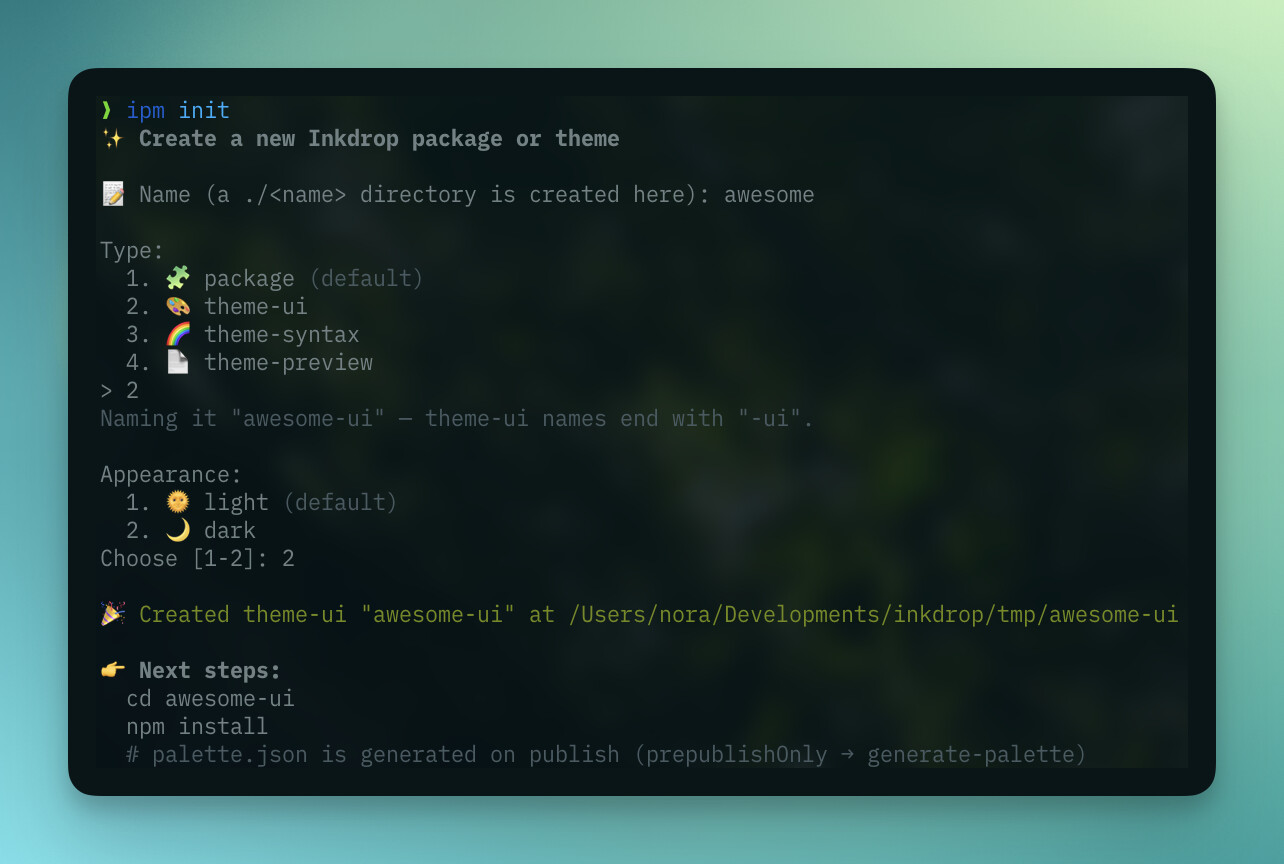
ipm init my-plugin        # a TypeScript plugin
ipm init my-theme --type theme
Run it with no arguments for an interactive wizard. Plugins come ready to build with TypeScript, tsdown, and @inkdropapp/types all wired up — npm install && npm run build, then ipm link to try it out.
→ Guide: Plugin — Word count · Guide: Creating a theme
Official TypeScript definitions
@inkdropapp/types gives plugin authors full type safety without exposing the app’s internals.
Auto-installed essential plugins
mermaid, math, and markdown-emoji are installed and kept up to date automatically — shipping them as plugins means faster updates. Disable them anytime in Preferences.
Vim plugin improvements
- Relative line numbers — easier to use motions like
5jor12k - Keep Vim registers separate from the system clipboard
- Keymaps for selecting autocompletion candidates
Shared file-name sanitization
NoteExportHelper.sanitizeFileName is now the single implementation used by the app and both exporter plugins, exposed to third-party plugins through @inkdropapp/types. It handles illegal characters and the filesystem’s 255-byte limit including the extension. If your plugin writes files derived from note titles, use it instead of rolling your own.
Updated docs
Appendix
Guides
Components
- Button · CommandButton · Dialog · Modal · NotebookListBar
Core Modules
[!TIP]
Every docs page has a Copy as Markdown button. Hand it to your AI agent and have it migrate your plugin or theme for you.
Built by the community
The new APIs have already produced some amazing plugins:
- note-tabs — browser-like note tabs, by @Dieter_Reinert
- code-runner — run JavaScript and Python code blocks, by @Dieter_Reinert
- constellation — an interactive note graph, by @p1n9_d3v
- link-compact — compacts the URL part of Markdown links, by @shimizu
- copy-as-jira — copy a note as Jira wiki markup, by A13X9
- kanso-ink — a theme
- Hue — a three-variant theme collection, by @insideee_dev: Cung · Huong · Mua
Existing plugins are getting v6 support too — hitahint, thumbnail-list, and editor-utils.
Thank you so much for building with Inkdrop 
Coming from v5?
v6 carries a lot of breaking changes under the hood, so it works hard to keep your old customizations from tripping things up on first launch:
- An incompatible
init.jsis detected and safely disabled (renamed toinit.js.bak) before it can run, with a notification linking to the migration guide. styles.lessis no longer loaded (v6 uses plain-CSS user stylesheets); Preferences → Themes points you to migrate it.- Old-style theme packages fall back to the default theme — ask their authors to republish as unified themes.
- Alert tips in the sidebar surface any stale files, so nothing breaks silently.