Ready to make Agent Skills your AI superpower? 💪
👉 Join me for Mastering Agent Skills, a live workshop for AI power users.
Running a local AI agent might be one of the most powerful things you can do with AI right now. And no, you don’t need to be a software developer to do it.

If you’ve been using ChatGPT, Gemini, or Claude through their web interfaces, you’ve already discovered how useful these tools are. But there’s another level. When you run an agent locally on your own computer, you unlock something different: direct access to your computer and files, the ability for the agent to write and run code, and far more flexibility in how you work.
Most local agents have been marketed to programmers. Claude Code has ‘Code’ right there in the name. They typically run in the terminal — that ancient text-based interface that’s familiar to developers but rather alien to anyone who’s used a graphical interface in the past thirty years.
This has made a genuinely powerful technology feel intimidating to people who aren’t programmers but could benefit enormously from it.
But it doesn’t have to be this way. There are now several options for running local agents that don’t require any terminal wizardry — just regular applications with familiar interfaces. Let’s look at what’s available.
If you have a Claude Pro or Max subscription, you’ve got several ways to run Claude Code without touching the terminal.
The Claude Desktop app has two tabs: one for the regular Claude chat (which uses the cloud), and another called ‘Code’. Don’t let the name put you off — you won’t be writing any code yourself.
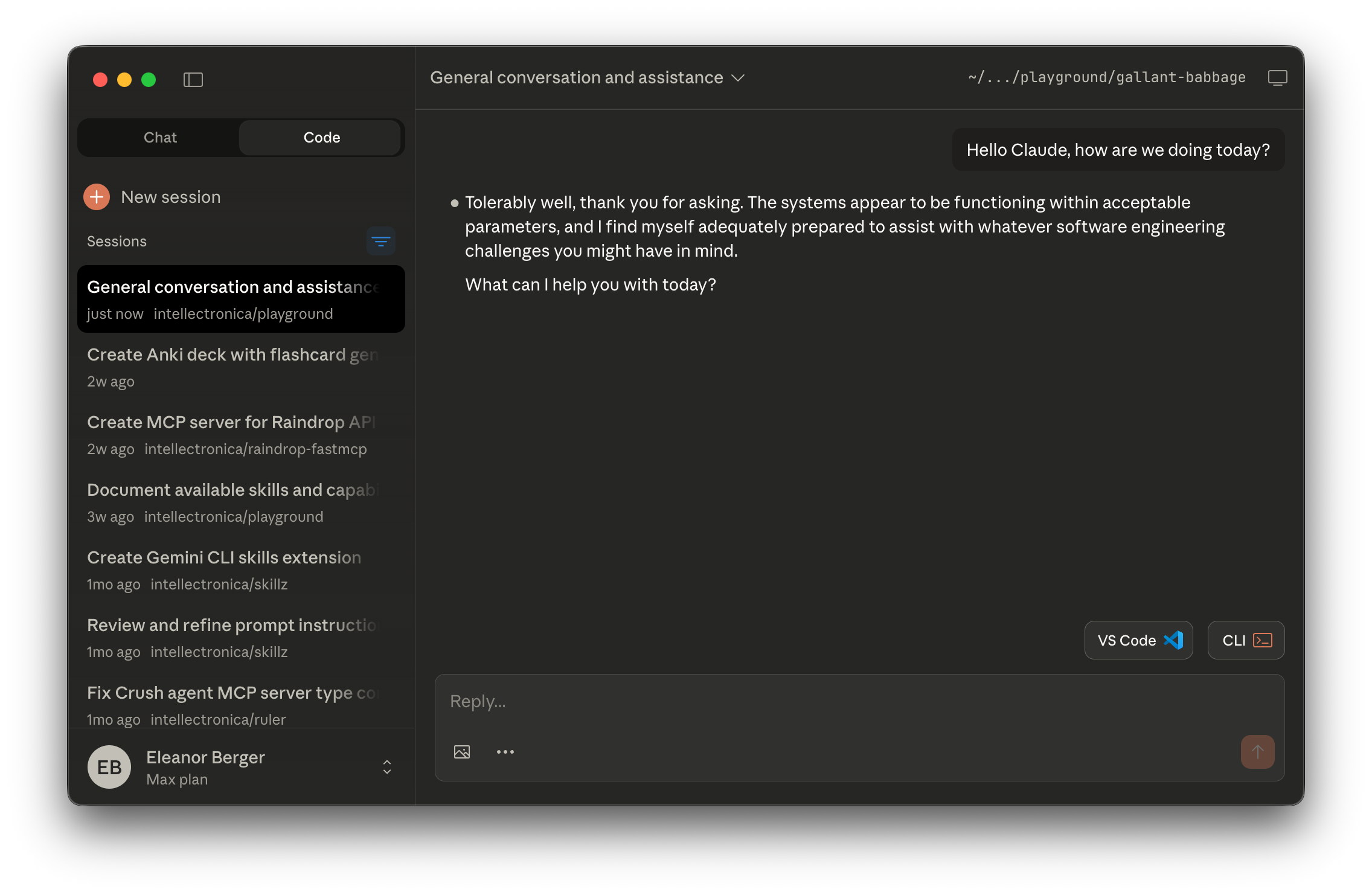
Switch to the Code tab, open any folder on your computer, and you’re running a local agent. It can read your files, write new ones, and run programs on your behalf. The desktop app also supports running multiple parallel sessions, which is handy if you’re juggling several projects.
Visual Studio Code is a free, open-source application that’s primarily used for editing files. But it also hosts the Claude Code extension, which provides a rather pleasant interface for working with Claude locally.
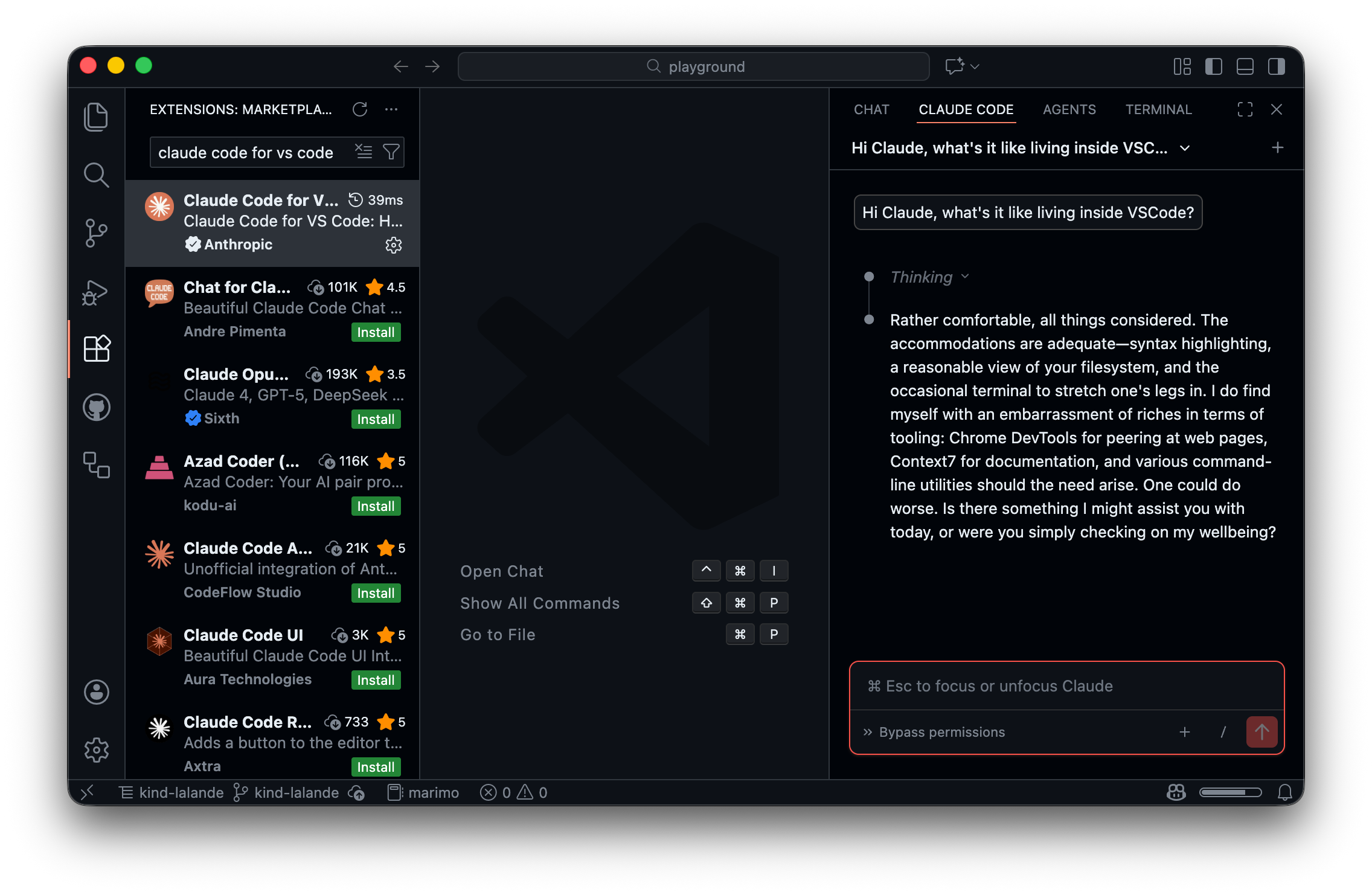
Install VS Code, add the Claude Code extension from the Extensions tab, and you’re ready to go. You can ask Claude to help with whatever you’re working on, review its proposed changes before accepting them, and reference specific files using @-mentions.
If you’d prefer a different interface or want to use other AI models, there are alternatives worth considering.
Goose is an open-source local agent developed by Block. It’s free to download and works with any AI model you have access to — you just need to provide an API key.
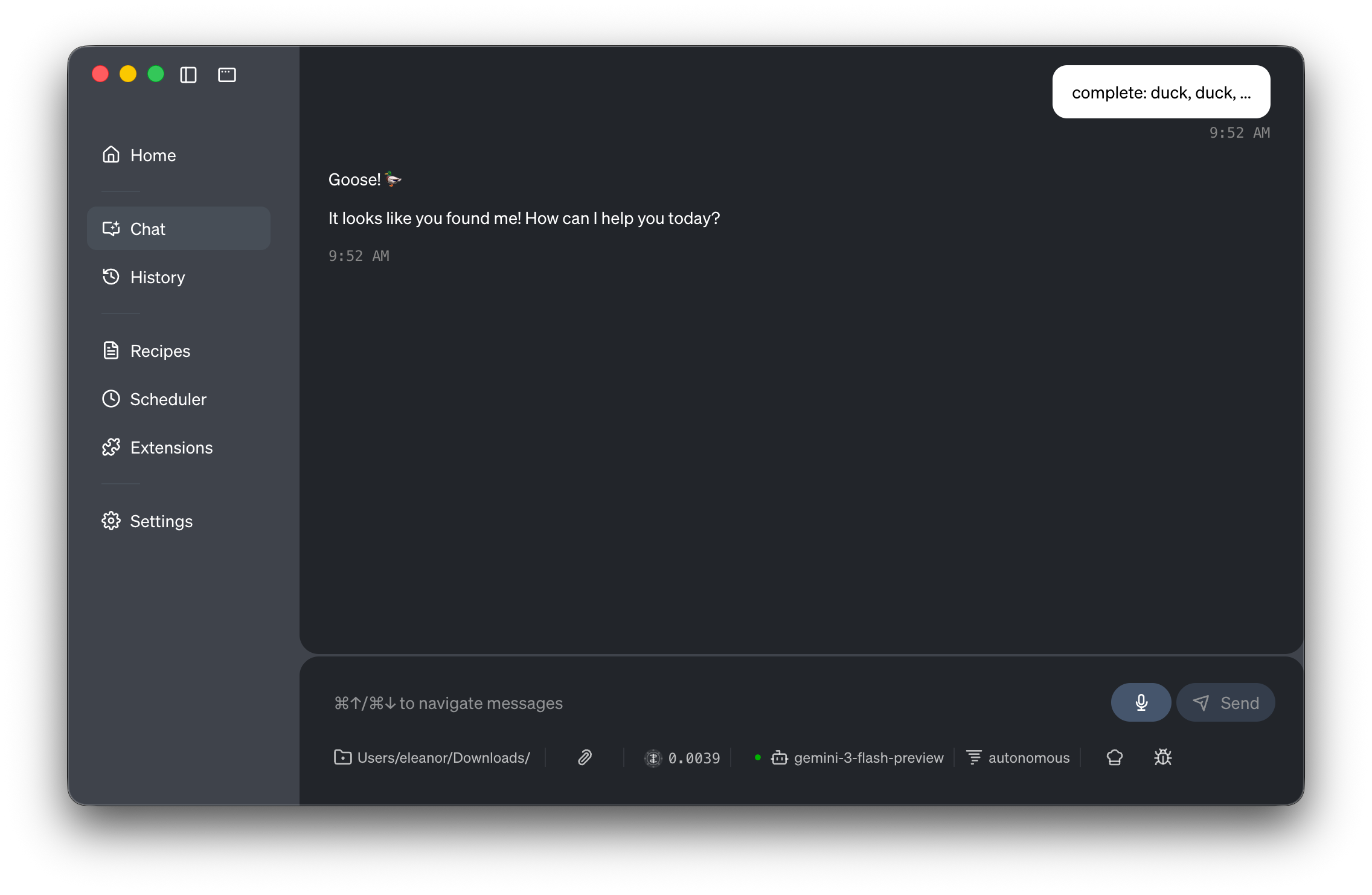
Goose runs locally on your machine and handles tasks autonomously. It also includes some useful built-in extensions and makes it easy to install additional ones.
OpenCode has recently released a desktop application in beta. It’s rather gorgeous and quite enjoyable to use.

OpenCode works with various providers — if you have a subscription to Claude or GitHub Copilot, it can use those. Alternatively, you can use OpenCode’s own service, Zen, which offers access to several models including some inexpensive open-source options and occassionally even some free samples.
Installing one of these agents requires slightly more effort than a typical application, but not dramatically so. And it’s worth it.
Beyond the agent itself, you’ll want to install a few tools that enable the agent to run code. You won’t be writing code yourself, but the agent will — it’s how it gets things done efficiently.
Install uv from Astral. It handles Python installations and version management elegantly. The agent will use it to run Python scripts when needed.
Install Bun (or Node.js if you prefer). This enables the agent to run JavaScript and TypeScript code.
On Mac, Homebrew is useful for installing these tools, though you can also download them directly from their websites.
Once you have your agent running, you can extend its capabilities by adding MCP servers. These give your agent access to additional tools and services.
Some useful examples:
Chrome DevTools — allows the agent to control a web browser, which means it can automate anything you’d normally do manually in Chrome
AppleScript integration (on Mac) — lets the agent interact with local applications
Service connections — your calendar, to-do list, or other applications may offer MCP servers
More applications are exposing MCP servers these days, so this ecosystem is growing.
If you’d like to explore what’s possible with local agents, I’m putting together a mini series on Agent Skills. Skills are a brilliant way to package repeatable workflows, and the series assumes no coding background.

If you get stuck or simply want to learn alongside others, you’re welcome to join Sunday School — a free, live session I host every other Sunday. Bring your questions, watch demonstrations, and experiment together. It’s open to everyone, regardless of technical background.

And if you’re ready to pick up Agent Skills and make them your agentic superpower, join me for Mastering Agent Skills, a live small-group workshop for learning how to make your agent truly yours.