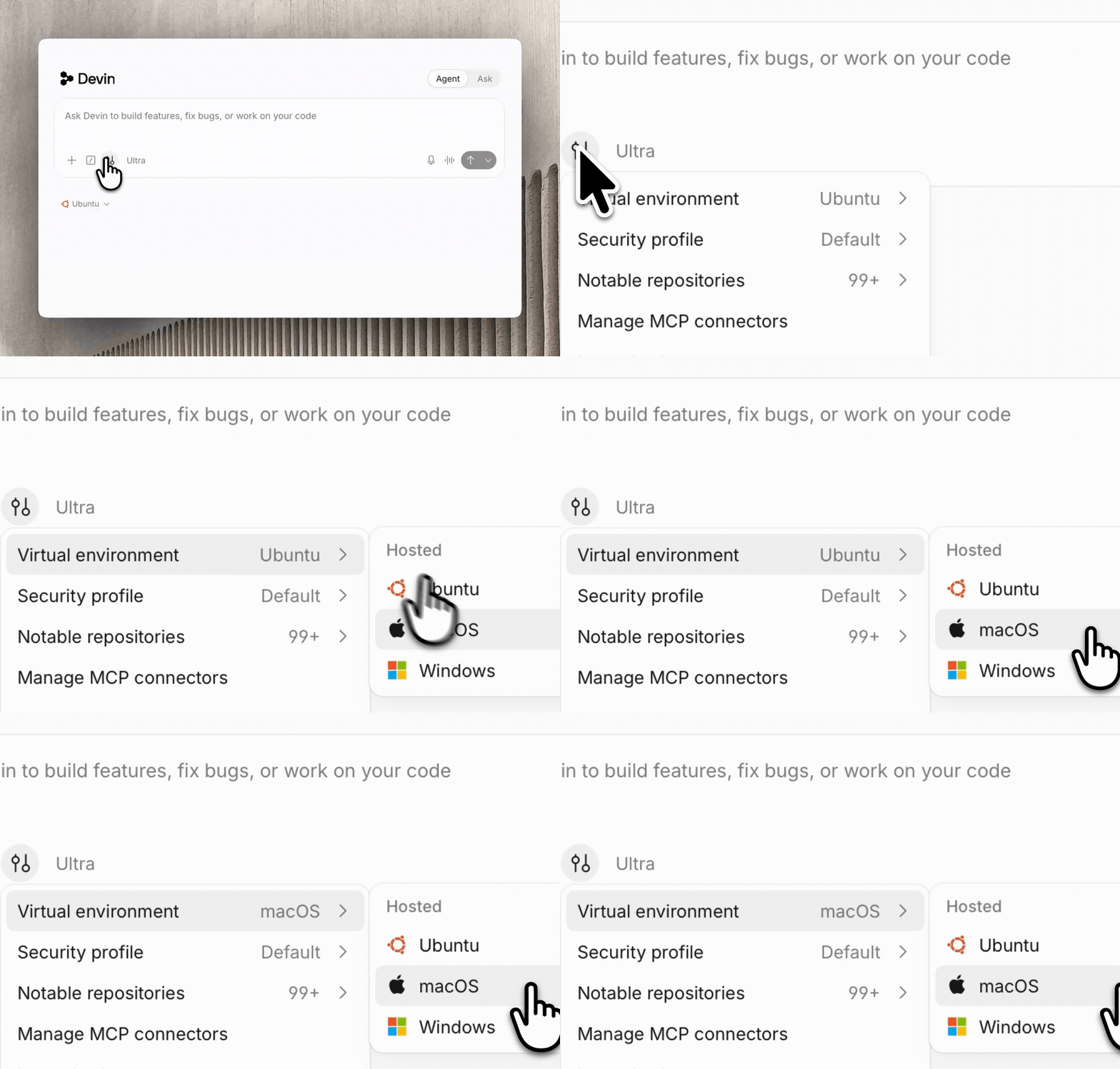
Today, we’re launching macOS support for Devin, extending Devin’s autonomous cloud development workflows to iOS apps, native macOS applications, and any project that depends on Apple’s development tools.
Mac now available in Devin Cloud
Why Devin needs a Mac
Locally, most coding agents can author Swift files, compile them, and iterate until all errors go away. However, checking that a user-facing iOS application compiles is very different from verifying it actually works. Closing this loop in the cloud is even more challenging.
Consider building an iPhone game that should resume where the player paused it, even after the app has been closed. The game compiles and launches, but does it restore the correct state? To verify the correct behavior, an agent has to play, pause, quit, relaunch, and check that the game resumes properly. With its own Mac, Devin can now do this.
Recorded by Devin
Building Devin’s Mac
Devin is an autonomous software engineer. Bringing it to macOS meant preserving its ability to work through that entire loop: reproduce issues in running applications, investigate their cause, change the code, and verify the fix.
Running macOS in a virtual machine is possible. Turning that VM into a Devin workspace takes considerably more work. It needs a disk that preserves the session’s work, networking that enforces the session’s access rules, and a development environment that is ready before Devin starts. Then both the user and Devin need to be able to see and operate the running software.
That work starts well below the application, with the VM’s disk.
Disk snapshots
AWS EC2 Mac supplies bare-metal Mac hosts. On those hosts, our VM manager uses Apple’s Virtualization.framework to run macOS guests. We prepare the guest images ourselves and manage them throughout each session.
The first piece is connecting those guests to Devin’s snapshotting system. Much of the work users do with Devin Cloud is asynchronous: users don’t need to babysit every action, and an idle session doesn’t need to keep a virtual machine running. Our snapshotting system preserves a session’s dependencies, files, and code changes, so users can return to the same environment and quickly continue the work without setting everything up again on a new virtual machine.
On both Linux and macOS, our snapshotting system runs as a separate process that handles the VM’s disk reads and writes. The guest operating system sees an ordinary virtual disk; it does not need to know that the disk is backed by snapshots.
How the guest’s disk reaches snapshot storage
On Linux, we connect the VM to this storage process using vhost-user. Apple’s Virtualization.framework does not support vhost-user, but it does support Network Block Device (NBD) attachments, which provide another protocol for reading and writing a block device. We added an NBD frontend to our existing snapshotting system, keeping the same storage architecture behind an interface Apple supports.
On both platforms, the storage process stays running after the guest shuts down to persist pending writes and upload the updated snapshot. The hypervisor waits for that finalization before continuing cleanup. Stopping both processes together could interrupt the very work needed to preserve the session.
What happens when the VM exits
Enter Ethernet
With the guest connected to persistent storage, the next boundary is the network. Devin Cloud already controls network access for its Linux and Windows workspaces. Outbound traffic follows the session’s configured access rules, while access to protected host infrastructure is blocked. Bringing Mac workspaces to Devin meant preserving those controls on top of macOS’s networking primitives.
Apple’s Virtualization.framework offers three ways to connect a guest to the network:
- Bridged networking sends Ethernet frames directly to a physical network interface on the host.
- NAT lets the guest share the host’s network connection, with macOS managing the networking setup.
- A file-handle attachment exchanges raw Ethernet frames over a local Unix datagram socket. Each datagram carries one frame, and we are responsible for handling what arrives.
NAT is the simplest way to give a VM connectivity. But Apple’s implementation also manages rules in pf, macOS’s packet filter, and reloads its configuration. Our network controls depend on pf too. In our setup, these two independent systems raced to configure the same packet filter.
We needed the guest’s traffic to follow the session’s access rules throughout its lifetime, and not depend on which network manager had most recently updated the firewall. Instead of using Apple’s managed NAT, we chose the file-handle attachment.
Rather than receiving IP packets ready for routing, we receive Ethernet frames. Before the guest can send traffic to its gateway, for example, it uses ARP to discover the gateway’s Ethernet address. Answering that request is now our responsibility.
We built our own user-space Ethernet gateway to handle this boundary. It answers ARP requests, validates the Ethernet addressing, and checks that the guest’s source IP matches its assigned address. It then passes accepted IP packets into a tunnel interface on the host. From there, our packet-filter rules and proxies handle routing and enforce the session’s access policy. Return traffic takes the reverse path, with our gateway wrapping the IP packets in Ethernet frames for the guest.
One packet’s round trip from the Mac VM
The trade-off is that we now own the link-layer handling and validation that managed networking would otherwise provide. In exchange, we remove Apple’s NAT management from this path and connect the guest to network controls we manage ourselves.
Bootable is not ready
Storage and networking give us the foundations of a cloud workspace. But a Mac that can boot and reach the network is not yet a Mac that Devin can develop on.
Installing macOS gets us a bootable machine, not a clean development environment. The guest image needs at least:
- a user account
- a usable desktop
- Xcode tooling
- permissions for Devin to observe and control applications.
Any setup question left unresolved can become a point where Devin is blocked on a human clicking through permission dialogs.
Without the image preparation
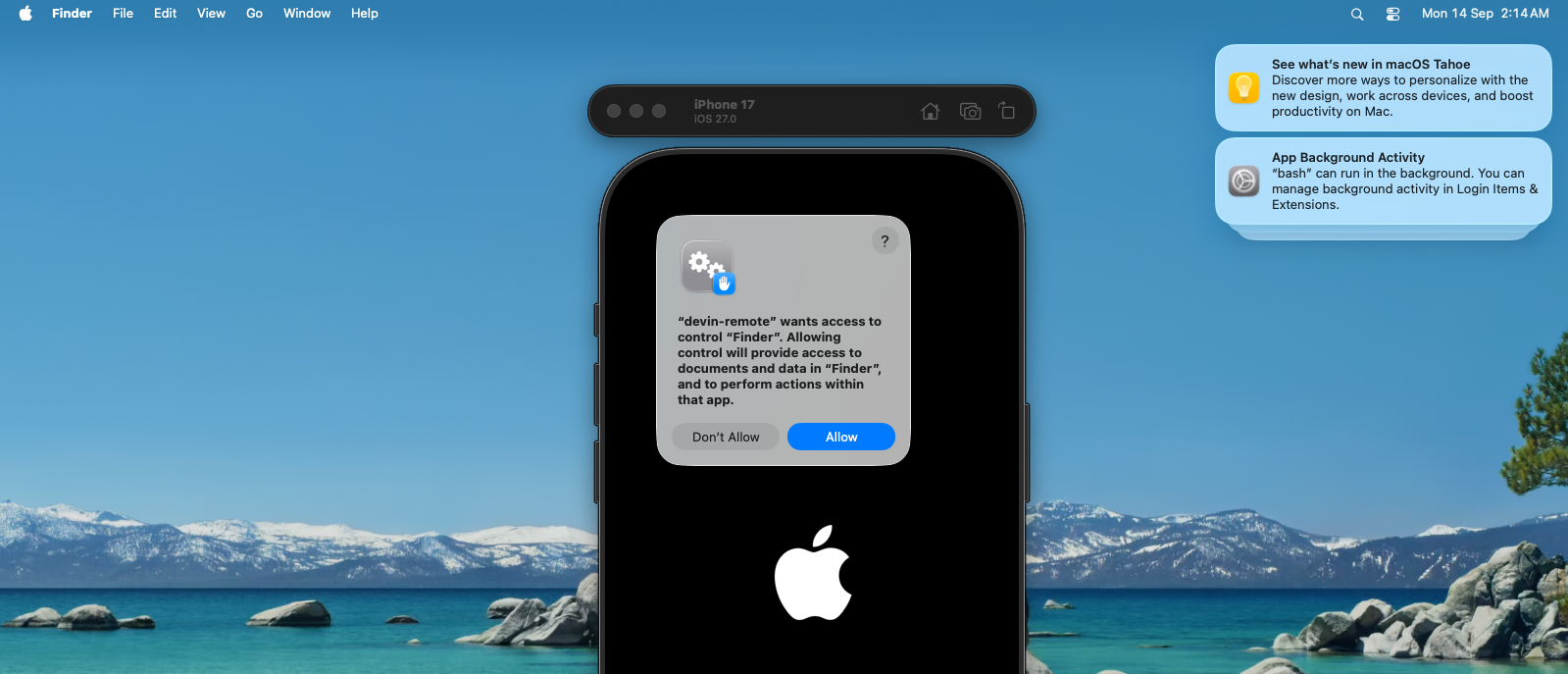
We could drive this setup through UI automation: creating a user, reaching the desktop, triggering permission requests, and approving them. But coordinating that sequence of interactions can be unreliable and expensive.
Instead, we mount the guest image’s disk on the host and prepare its state directly by setting up the system’s user and modifying macOS’s internal configuration databases. This means that instead of clicking through UI dialogs, we get the environment ready for Devin as part of building the guest image itself.
However, not everything can happen offline. We don’t want Devin to compete with system initialization for resources. We boot the prepared image to install the remaining developer tools, verify Xcode, warm the Simulator, and let background initialization and Spotlight indexing finish. We also disable background daemons that aren’t needed for these development sessions.
These steps move setup and warmup out of Devin’s way, so the environment is ready when it needs to start building and interacting with an app.
Live control
Once the workspace is ready, users need a way into it. They should be able to see their app running on Devin’s VNC, try it themselves, and take control whenever they want. Alongside the Mac desktop, we’re introducing a new iOS Simulator pane so users can see and interact with their app directly.
For either view, showing the screen is only part of the job. The live view has to be responsive enough to use the application.
For the Mac desktop, even keeping the last captured image requires care. ScreenCaptureKit, Apple’s desktop-capture API, supplies images from a limited pool of reusable buffers. Holding one while the screen is idle can delay delivery of the next screen change. When we need to retain an image, we therefore keep our own copy rather than tie up a buffer the capture system needs.
After capture, both desktop and Simulator video must be encoded, transmitted, and displayed. When one stage cannot keep up, frames accumulate while waiting to be processed. A stream can therefore look smooth while showing old application state. In our game example, a user might press “Pause” and keep seeing the game move, even though the app has already handled the input: the viewer is still playing frames from before the press.
We limit how many frames can wait between these stages and avoid replaying a stale backlog. This requires care because compressed video frames often depend on earlier frames; dropping one can make the following ones undecodable. When the Simulator stream falls behind, we resume from a recent keyframe, or request a new one, which gives the decoder a fresh starting point without replaying all the missed frames.
A structured view of native apps: the accessibility tree
The user can now see and control the app. Devin needs that ability too, but it also needs an efficient way to inspect the interface and check the results of its actions. This is where the infrastructure connects back to the development loop: not just building the iPhone game, but playing, pausing, quitting, and relaunching it to verify that it works.
To do this, Devin relies on computer use: observing the UI, interacting with it, and checking the result. In its simplest form, this means taking a screenshot, identifying a control, clicking its coordinates, and taking another screenshot to see what happened.
The naive screenshot approach can be very slow and expensive. For example, to check that a game can be paused and resumed, Devin has to take a screenshot, process it with a model to locate the “Resume” button, find the coordinates of the button, click it, and take more screenshots. Across many pause, quit, and relaunch paths, the naive approach can become untenable.
For web applications, browser automation makes this much more efficient. The browser exposes the page’s structure, so Devin can locate a named button or read a field’s value without reconstructing everything from pixels.
Native macOS apps and iOS apps running in the Simulator sit outside that browser interface, but they expose a structure of their own. Built for assistive technologies, the accessibility tree describes controls through their roles, names, values, states, and relationships. Instead of inferring that something looks like a button labeled “Resume,” Devin can verify it from the accessibility tree, and discover which actions the button supports.
We expose this structure to Devin’s computer-use tool, giving it a way to query and operate native interfaces, including apps running in the iOS Simulator. Devin queries for controls on the screen and acts on the returned references. After taking the action, it reads the accessibility tree again and reports what changed.
Observe, reference, act on the iOS Simulator
1Tool: computerquery
{ "action": "query", "target": "ios", "role": "button", "name": "Resume" }
2Resultillustrative, abbreviated
@i17 button "Resume" {press}
3Tool: computeract
{ "action": "act", "target": "ios", "reference": "@i17", "operation": "press" }
@i17a reference returned by the observation
buttonthe control’s role
"Resume"its accessible name
{press}an available action
Still, accessibility does not expose everything, and screenshots remain an important tool for checking visual appearance. In our game example, seeing the pause menu disappear would not prove that the player’s position was restored correctly. Gameplay may be drawn directly rather than represented in the tree.
We built these capabilities on top of the open-source accessibility-cli from Dioxus (now a part of Cognition), which provides accessibility, input, and capture primitives. Devin turns those primitives into the observation, reference, and action-feedback loop described here.
With both structured access to controls and screenshots of the running app, Devin can work through the verification loop that compilation alone cannot cover.
Start building today
Bringing macOS to Devin Cloud took work from the virtual disk up to the application interface: preserving session state, enforcing network access rules, preparing a ready-to-use environment, and giving both users and Devin the tools to work with running apps.
Together, these pieces let Devin build and verify iPhone, iPad, and Mac apps in its own cloud workspace, while you can see the results and take control whenever you need to.
We’re excited to see what you build next.
Try it today at devin.ai.