BBR is a TCP congestion control algorithm developed by Google. It improves upon the shortcomings of traditional congestion control algorithms (like CUBIC), which reduce speed upon packet loss, significantly enhancing bandwidth utilization in high packet loss environments.
It’s important to note that congestion control algorithms manage the packet sending rate. For example, if a Google server enables BBR, its upload speed will maximize the available bandwidth; from the user’s perspective, this results in faster download speeds.
As is well known…
Many people enable BBR on their Linux servers with just a few commands:
echo "net.core.default_qdisc=fq" >> /etc/sysctl.conf
echo "net.ipv4.tcp_congestion_control=bbr" >> /etc/sysctl.conf
sysctl -p
As a result, when downloading files from the server, it utilizes the full bandwidth. However, when uploading files, the speed remains slow because the system used for uploading is still running a traditional congestion control algorithm.
If the user is on a Linux system, they can enable BBR using the same steps. For Windows systems, starting with Windows 11 22H2 and above, Microsoft has added support for BBRv2.
Open PowerShell (as Administrator) and first check the current congestion control algorithm:
NetTCPSetting | Select SettingName, CongestionProvider
Then enable BBRv2:
netsh int tcp set supplemental template=Internet congestionprovider=BBR2
netsh int tcp set supplemental template=InternetCustom congestionprovider=BBR2
netsh int tcp set supplemental template=Datacenter congestionprovider=BBR2
netsh int tcp set supplemental template=DatacenterCustom congestionprovider=BBR2
netsh int tcp set supplemental template=Compat congestionprovider=BBR2
Here, you can also replace
BBR2withBBR(BBR v1). Interested users can test and compare the results.
Note: On Windows 11 23H2 / 24H2 or newer versions, enabling BBR v2 may cause local TCP connections to become unusable (e.g., causing adb to freeze, Steam to fail, etc.), We also need to fix the local TCP connection using the following command. (Source, MSDN)
netsh int ipv6 set global loopbacklargemtu=disable
netsh int ipv4 set global loopbacklargemtu=disable
Run the first command again to confirm it has been successfully enabled.
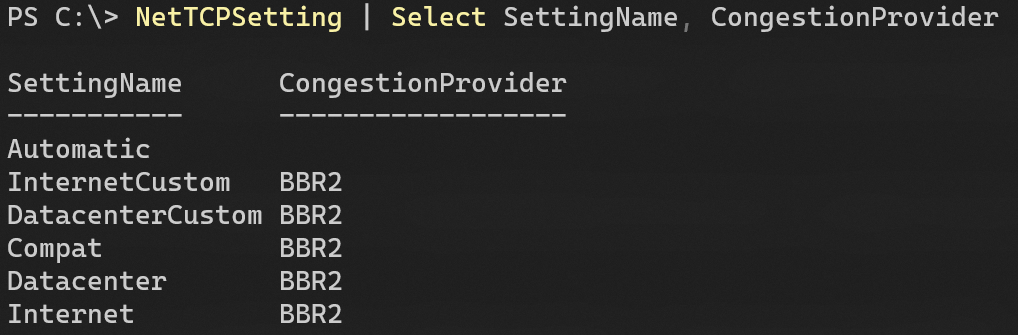
After enabling…
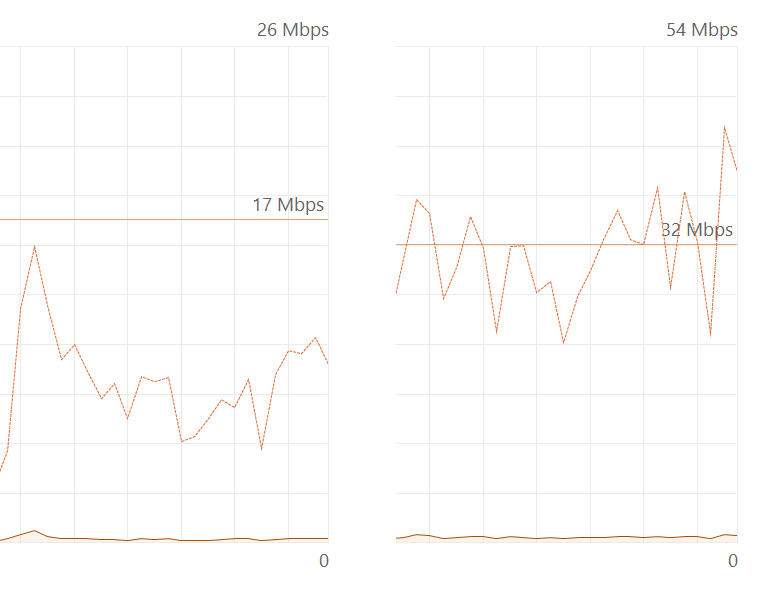
No system restart is required. Single-thread upload speed increased from 10Mbps to 30Mbps. The experience for scenarios like OBS streaming and web browsing also improved.
If you encounter network related issues after enabling BBR2, you can also restore the default settings using the following command.
netsh int tcp set supplemental template=Internet congestionprovider=CUBIC
netsh int tcp set supplemental template=InternetCustom congestionprovider=CUBIC
netsh int tcp set supplemental template=Datacenter congestionprovider=CUBIC
netsh int tcp set supplemental template=DatacenterCustom congestionprovider=CUBIC
netsh int tcp set supplemental template=Compat congestionprovider=NewReno

netsh int ipv6 set global loopbacklargemtu=enable
netsh int ipv4 set global loopbacklargemtu=enable
After reverting, no restart is needed. You can temporarily enable BBR again when you need faster uploads.
Coxxs