As a designer, I work through interfaces, not terminals. Claude Code changed that; letting me direct the work the way I’d brief a collaborator: plain English, clear intent, real output. I think in systems, design psychology, user experience. Claude handles the implementation.
Most design tools assume you start in Figma and build toward code. This workflow goes the other way: you have a working app, and you want design documentation that stays in sync with it; without rebuilding every screen from scratch.
This guide covers one specific workflow: pushing your running app into Figma as editable design layers. Not screenshots. Real frames, real components, real layer trees you can inspect and hand off.
I’m a solo builder, so this reflects my workflow. If you’re working in a team or organization, you’ll likely need to adjust some of these steps.
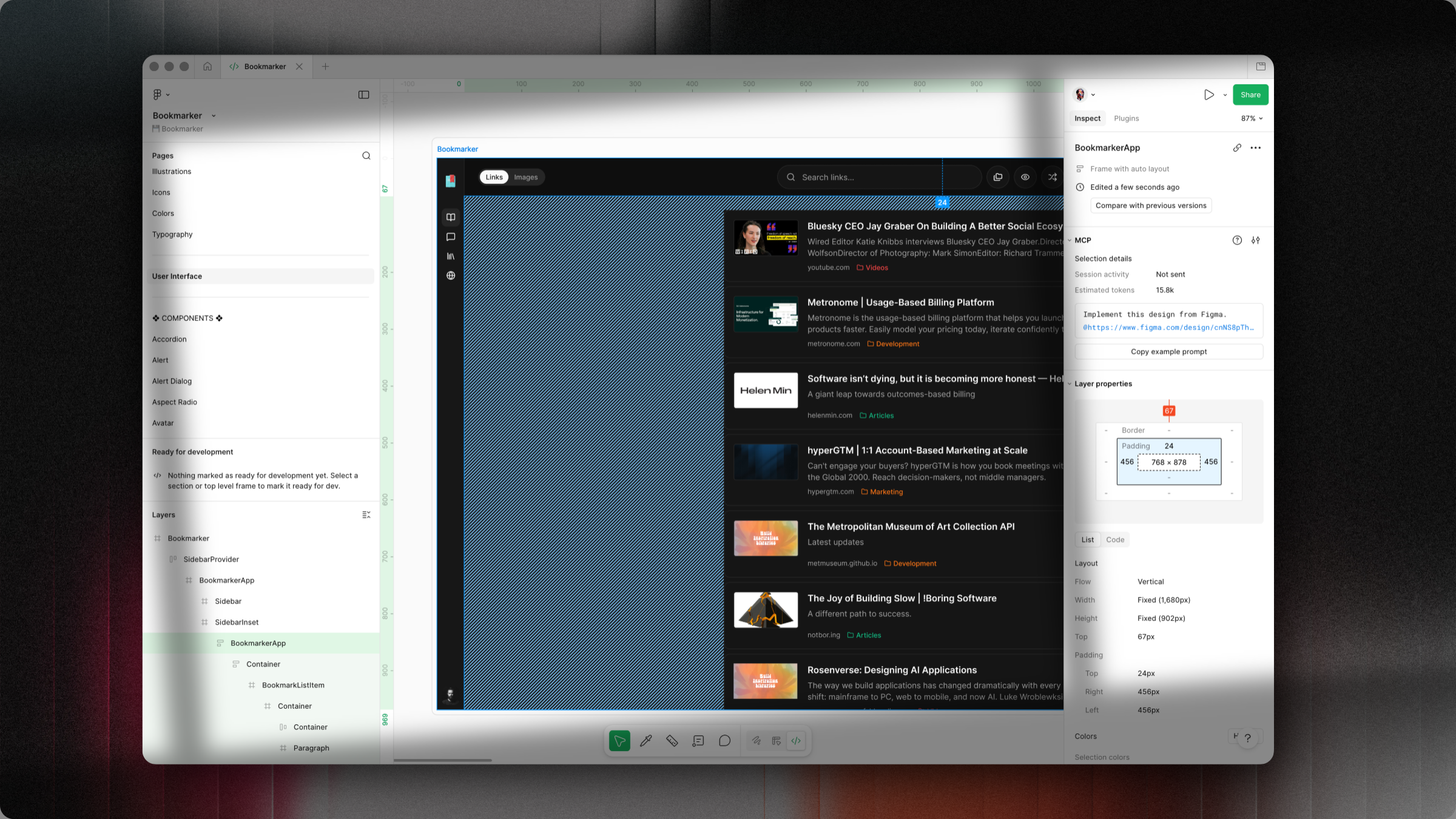
The tool that makes this possible, generate_figma_design, lives in Claude Code CLI. Not the Cursor extension, not the VS Code connector. You’ll need the terminal for the setup steps, but only for setup. Once configured, you can work through Claude Code’s interactive session.
I’m currently using Ghostty, a fast, feature-rich, cross-platform terminal emulator with native UI and GPU acceleration. Any terminal works though, iTerm was my previous choice.
You also need a paid Claude plan.
In your terminal, run:
claude plugin install figma@claude-plugins-officialThis installs the official Figma plugin at user scope, available across all your projects. Then start a Claude Code session:
claudeInside the Claude Code session, open the MCP manager:
/mcpYou’ll see a list of servers. Select plugin:figma:figma; the remote MCP that includes write capability; and authenticate. Claude opens a browser window; log in and click Allow. Check the email shown if you have multiple Figma accounts.
If you see figma-desktop in the list, disable it. It’s the local read-only MCP and will conflict with the remote one.
After authenticating, run /mcp again to confirm:
figma-desktop; disabledplugin:figma:figma; connected ✓
Then verify generate_figma_design is available:
List all available Figma MCP toolsIt should appear as: “Capture/import a web page into Figma.” If it doesn’t, disconnect all Figma instances, restart Claude Code, and reauthenticate.
Before capturing anything, disable thinking mode. Long execution tasks don’t benefit from it and it burns through context faster; which matters when you’re pushing 20+ screens in one session.
Run your app locally, then give Claude the Figma file URL, the target page, and ask it to plan:
My app is running locally. Here's my Figma file: https://www.figma.com/design/[YOUR_FILE_LINK].
Capture all screens to the "User Interface" page. Review the codebase, list all screens,
and create a wave plan.
Claude audits the project and returns a structured plan; screens grouped by section, ordered by priority. For Bookmarker, that looked like this:
Wave 1; Core App (screens 1–8): Main product screens. Highest design value, done first.
Wave 2; Auth (screens 9–12): Login, signup, password flows.
Wave 3; Settings (screens 13–17): Account, billing, preferences.
Wave 4; Marketing + Public (screens 18–22): Pricing, public sharing pages.
Wave 5; Blog + Legal (screens 23–27): Content pages.
Before telling Claude to start, ask it to write the plan to a file:
Write this plan to /plan/figma-push.md. Include each screen, its wave,
status (pending/done), and source file. Update status as you complete each screen.
This is your safety net. If the context window fills up mid-execution; which it will on a large project; open a new session and continue:
Read /plan/figma-push.md and continue from where you left off.Compacting mid-execution loses track of what’s done. The plan file is the source of truth, not the conversation. Once it’s written, proceed:
Plan looks good. Start with Wave 1.Claude starts the dev server, injects a capture script into your layout.tsx, and opens the app in a browser with a capture hash in the URL. A toolbar appears at the top of the page with four options: Send to Figma, Entire screen, Select element, and Open file.
Click Entire screen to trigger the capture. Claude polls for completion, then removes the script tag from your layout automatically; your codebase is left clean.
Captured layers are editable; text is real text, buttons are separate components, layout uses auto-layout. Not static images.
Claude updates the plan file as each screen completes. Navigate to each screen when prompted and confirm:
Captured. Move to the next screen.The first pass isn’t pixel-perfect. Fix issues by describing what’s off:
The hero section padding looks too tight and the nav items aren't aligned. Fix those.Make a change in Figma; adjust a color, remove a section, change spacing. Right-click the modified element and copy its node link (Copy link to selection). Send it to Claude:
Update the testimonials section to match this Figma node: [PASTE LINK]Claude reads the node, identifies what changed, and updates only those parts of your code. For complex components it shows a before/after summary of every property it touched, so you can review before accepting.
Select any frame or component in Figma, open the MCP panel on the right, and click Copy example prompt. It generates a ready-to-paste prompt with your node’s Figma link attached:
Implement this design from Figma.
@https://www.figma.com/design/cnNS8pTh…
Paste that into Claude Code. It reads the node via get_design_context, pulls the layout, spacing, colors, and component structure, then writes the implementation.
The full loop: push your app to Figma, edit the design, pull the changes back to code; without leaving either tool.
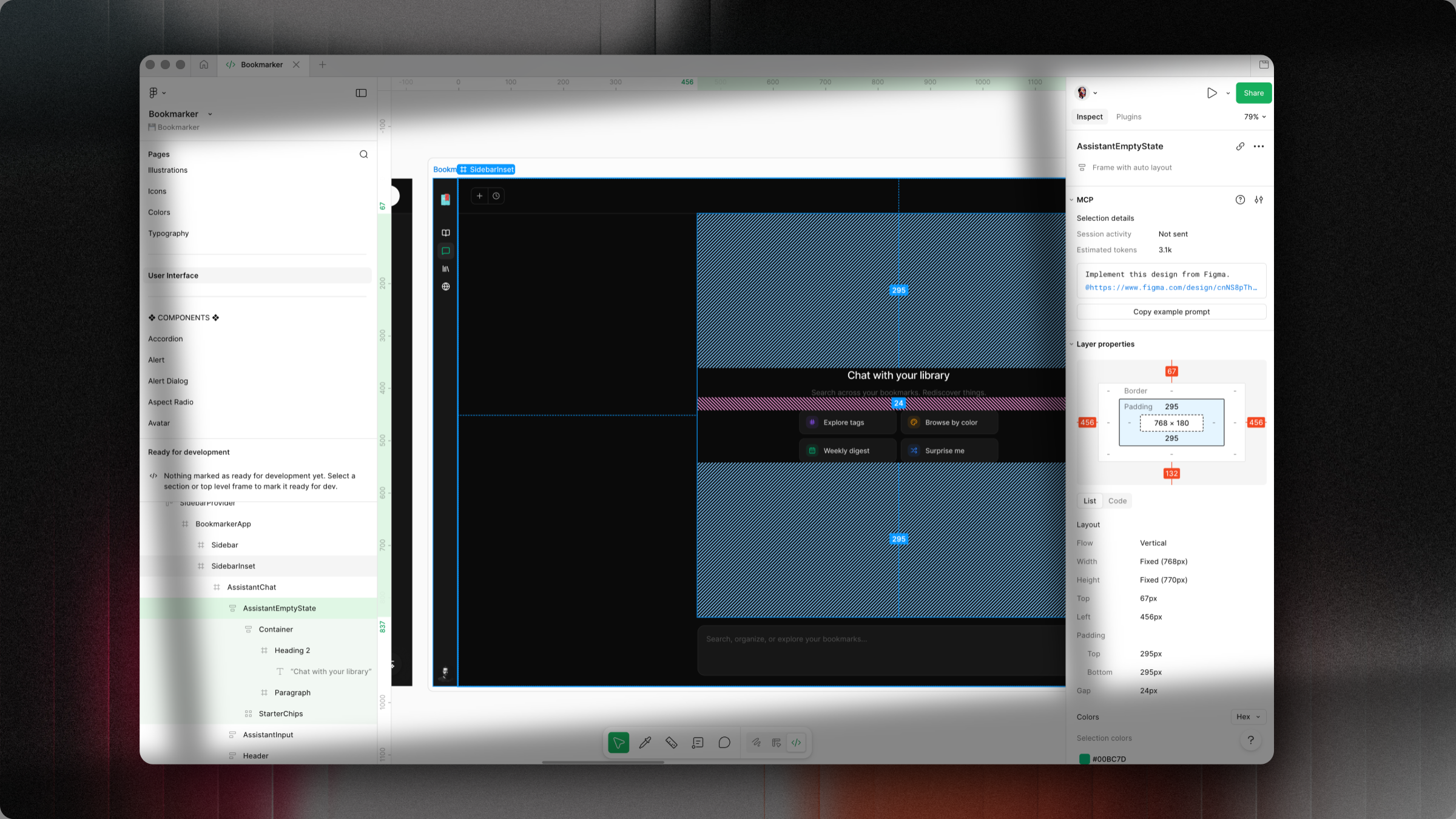
The layer fidelity is the real story. Your React component tree becomes a Figma layer tree; SidebarProvider, BookmarkerApp, Sidebar, BookmarkListItem; each selectable, each showing real properties: padding, border radius, fill width, hex colors. The inspect panel reflects your actual CSS box model.
Select a BookmarkListItem, check its padding, hand the spec to a designer or feed it back into a code change. No screenshots or rebuilding from scratch.
A few other things that hold up well:
The capture script is injected and removed cleanly; nothing lingers in your codebase.
Once the script is in
layout.tsx, the browser toolbar lets you capture additional screens without Claude’s involvement.Wave planning keeps large projects manageable across sessions.
The plan file lets you resume after a context reset without losing progress.
generate_figma_designrequires CLI setup; not available in the Cursor extension or VS Code connector.figma-desktopMCP conflicts with the remote plugin; disable it.The capture toolbar requires a manual click; Claude opens the browser but you click “Entire screen” to send.
Without specifying a Figma page, captures land on whichever page was last active.
Initial captures have layout gaps; some screens need follow-up fixes.
Existing design systems aren’t automatically respected unless you tell Claude to use them.
Animations and interactions don’t transfer to Figma.
Compacting mid-execution breaks continuity; use a plan file instead.
Claude Code docs — official reference for CLI setup, MCP configuration, and available tools.
Claude Code MCP guide — how to connect and manage MCP servers in Claude Code.
Figma MCP server announcement — Figma’s original blog post introducing the MCP server.
Figma MCP installation guide — official setup instructions from Figma’s help center.
Cursor — the code editor used in this guide.
Ghostty — the terminal used in this guide.
Bookmarker — smart bookmark manager.
Thanks for reading.
— Bora @ Nirmata Studio