Repeating to-dos just got far more flexible, with two highly requested improvements: You can now complete them early, and easily reschedule them when plans change! Plus many more refinements throughout. Available now in Things 3.23.

Repeating to-dos are great for managing the routines in your life. There are two kinds. Some to-dos repeat regularly on a fixed schedule – for example, a weekly chore, a monthly bill, or a yearly birthday. Other to-dos repeat only after you complete them, such as watering the plants a few days after the last time, or getting a haircut a few weeks after the last one. Once you’ve set up the repeating rule you want, you can rely on Things to surface the next copy on the right day, making sure that nothing slips.
Today, we’re happy to introduce two great new features that make repeating to-dos more flexible and easy to use.
Complete them early
Sometimes you’re on a roll and want to knock things off ahead of schedule. Now you can! Repeating to-dos now show a regular checkbox, just like any other to-do – simply click or tap it to complete the repeating to-do early. Things will then schedule the next copy based on its existing rule.
Reschedule them with ease
Plans change all the time, and now your repeating to-dos can easily adapt. Simply move one to a new date to reschedule it, just like you would with any other to-do.
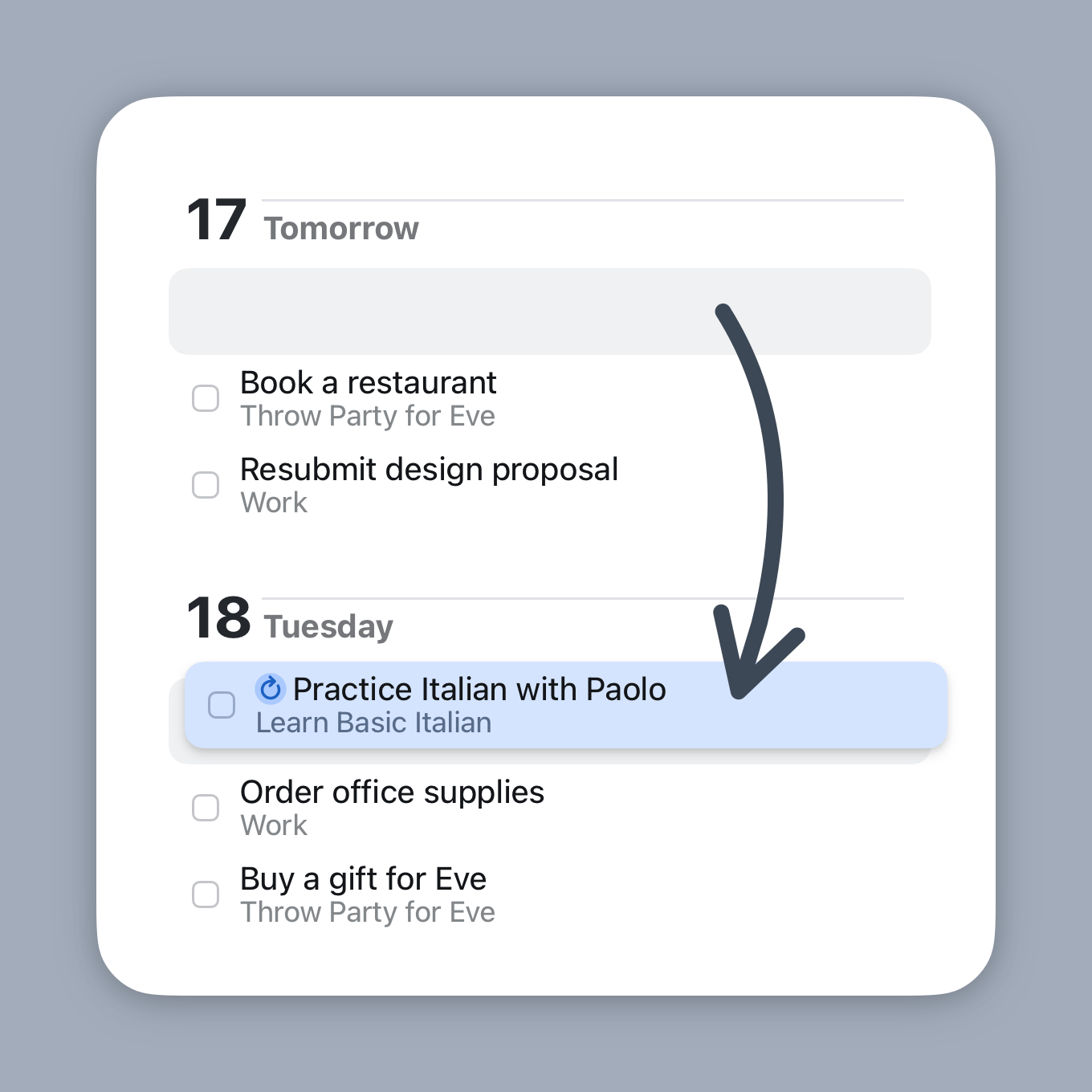
If a to-do repeats regularly on a fixed schedule, moving it breaks the pattern. So you’ll need to make a choice:
- Make Exception. This moves just this one copy to the new date, leaving the rest of your schedule untouched.
- Update Rule. This changes the repeating rule itself, so that all future copies follow the new date. For example, say a to-do repeats every Monday. If you move it to Tuesday and choose Update Rule, it will repeat every Tuesday from then on.
If the to-do repeats after completion, there’s nothing to decide – it simply moves to the new date, no questions asked.
See them all in one place
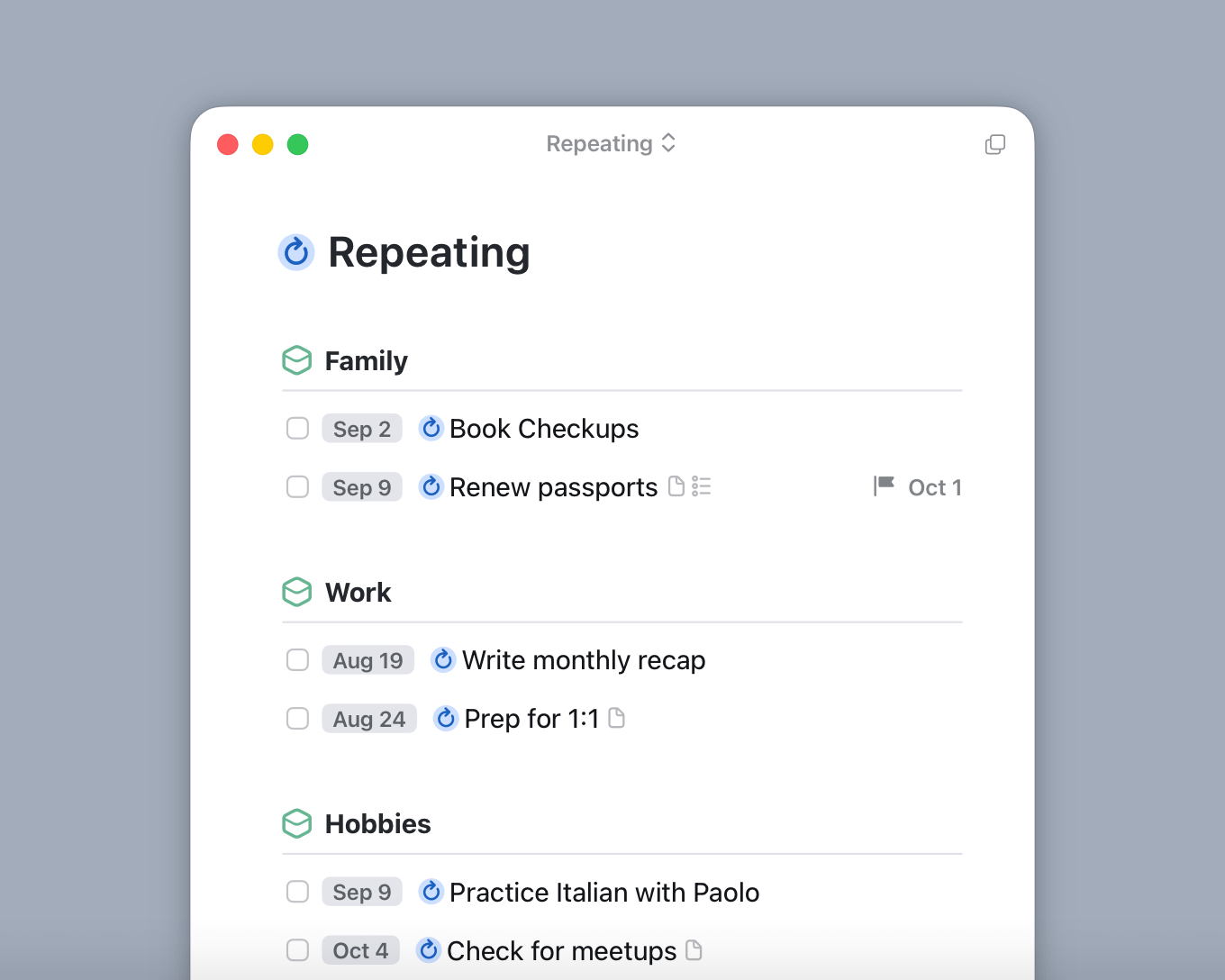
Did you know Things has a handy list that gathers all your repeating to-dos and projects in one place? It’s a great way to quickly view your setup and make a few tweaks.
To access the list, type “Repeating” into Things’ search field and select it from the results. The list will show the repeating to-dos themselves, and also any upcoming copies they’ve generated.
And more
You’ll also notice refinements throughout:
- Sometimes you don’t just want to complete a repeating to-do early – you want to work on it ahead of time, adding custom notes or completing checklist items before its scheduled date. Choose Repeat → Create Next Copy to get started early.
- The same goes for repeating projects. Create the next copy early so you can start adding, editing, or completing to-dos inside of it.
- All generated copies of repeating to-dos now show a little grey repeat icon, so you can tell where they came from.
- The repeating to-do setup dialog has a fresh new look, and makes it easier to pick the date for the next copy.
- You can now pause, resume, and stop multiple repeating to-dos at once.
Last but not least, this update includes a big change under the hood, one we’ve been working on for some time: the display and editing of to-dos is now driven by the same code across Mac and iOS.
Things 3.23 is available now as a free update on the App Store for Mac, iPad, and iPhone. We hope you enjoy the new features!
This update requires at least macOS 13.3, iOS & iPadOS 16.4, watchOS 9.1, and visionOS 26.
Things is ready for Apple’s OS 26, with a thoroughly refreshed interface, a new app icon, better windowing on iPad, and many more improvements. Available now in Things 3.22!
A new icon
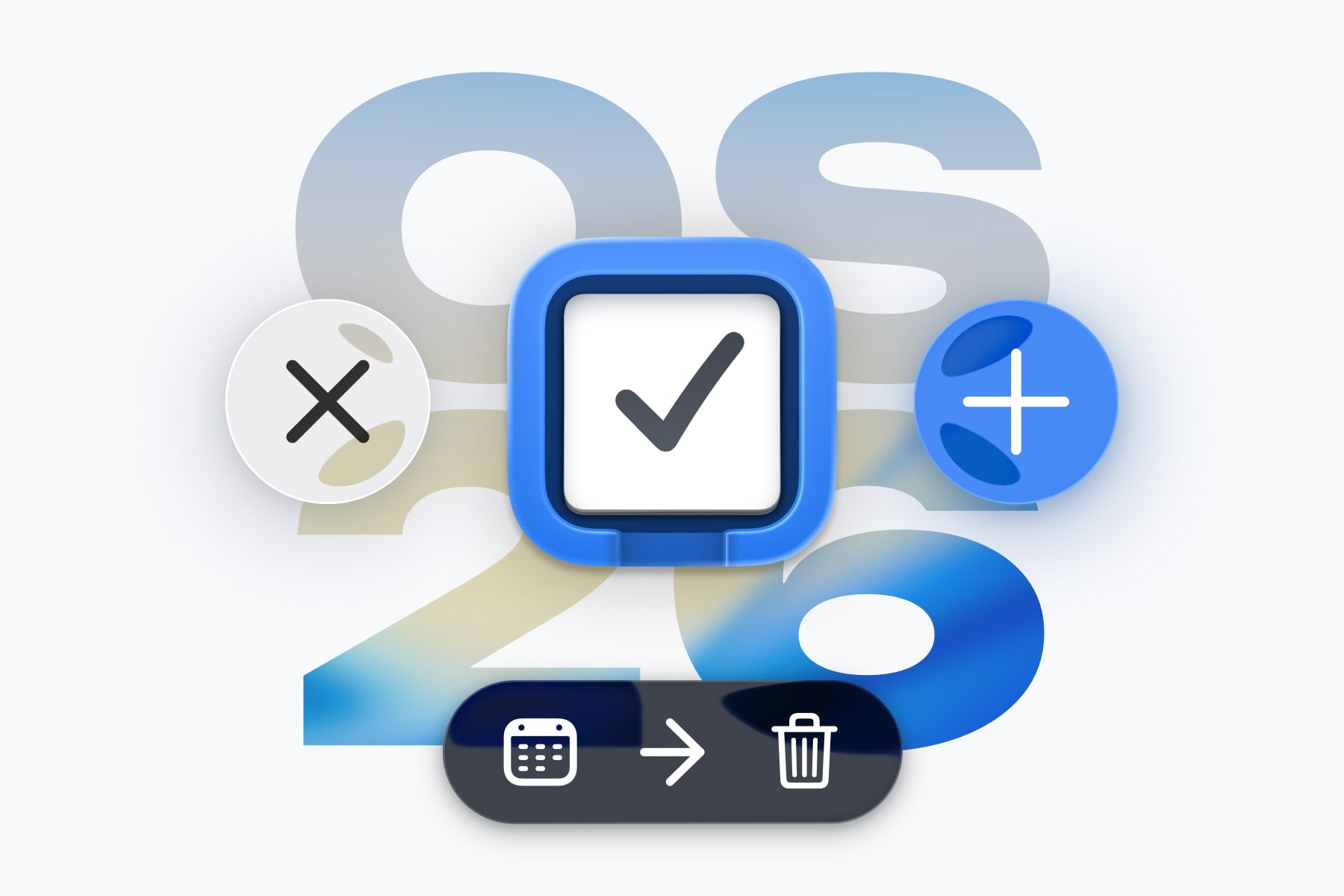
The first thing you’ll spot is Things’ iconic blue box, refined and realigned to sit beautifully within OS 26. It’s familiar at a glance and unmistakably Things.
This new icon is available in four variants – Default, Dark, Tinted, and Clear – to match whatever appearance style you choose for your device.
Fresh look & feel on OS 26
We’ve tastefully refreshed Things’ interface. You’ll notice adjustments everywhere: in the curvature of windows, to-dos, dialogs, and controls; wider spacing that feels a bit more relaxed; and a touch of glass in the sidebar that lets a hint of color shine through. We think it’s the most beautiful version of Things yet!
But it’s more than looks – it also feels new. Throughout the interface, you’ll interact with new glassy buttons that respond to your touch with a subtle glow and scale. A great example is the blue Magic Plus button. As you drag it around, notice its new liquid nature – it ever so slightly deforms its shape in response to your movements.
iPad windows and menus
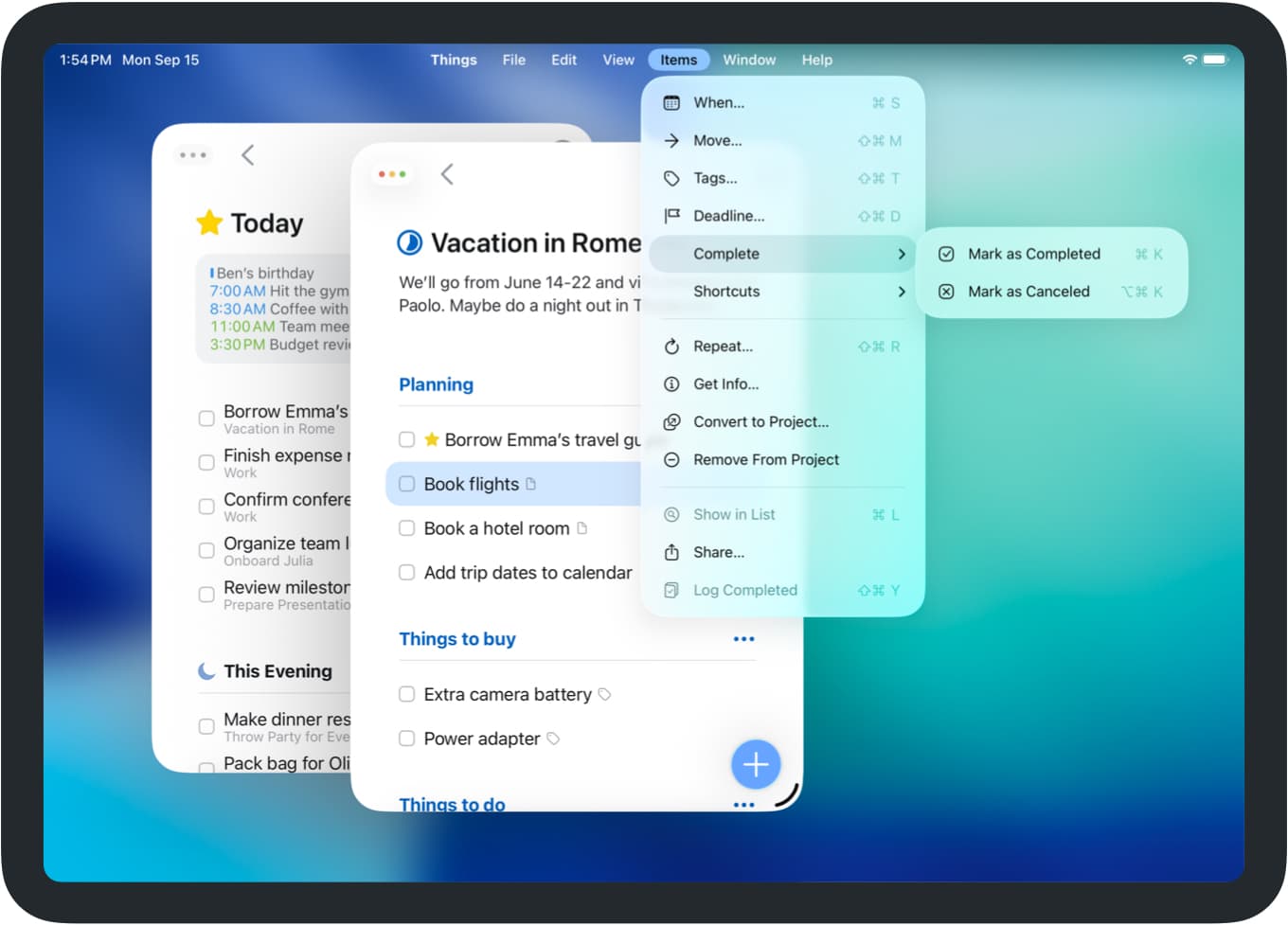
On iPad, OS 26 brings some welcome Mac-like improvements. To try them out, you’ll need to switch to the new Windowed Apps mode in your device’s Settings.
Things smartly adapts its layout for the new mode. Your windows get traffic light controls, and you can arrange them freely on your screen. To open a new window in Things, right-click a list and choose Open in New Window, or go to File → New Window.
If you swipe down from the top edge of the screen, you’ll see that there’s also a new menu bar. We’ve updated Things’ menus to expose many powerful controls and keyboard shortcuts.
Taken together, these improvements do a lot to make Things on the iPad feel more powerful and natural to use. We’re enjoying it a lot!
New widget styles
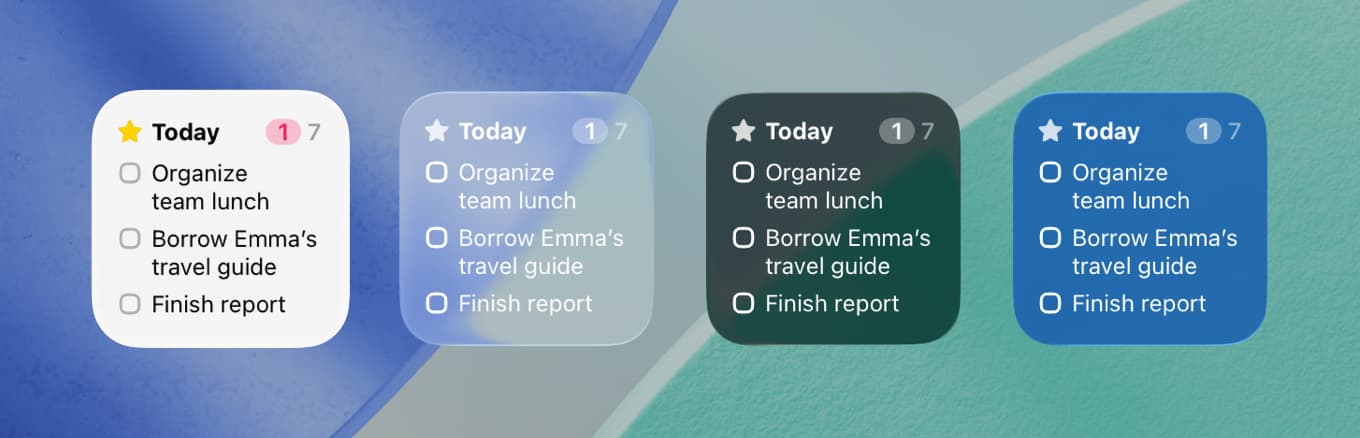
Last year, we updated Things’ widgets to support styles on iPhone and iPad. These styles are now available on the Mac as well. In addition to the Dark and Tinted styles, OS 26 introduces Clear – a glass-like style that lets your wallpaper shine through.
Quick controls on Mac and Watch
Things’ handy Control Center controls are now available on Mac and Apple Watch.
- On Mac, Things offers Controls for New To-Do and List (you choose which list). You can place them in Control Center, or pin them to your menu bar for one-click access.
- On Apple Watch, Things’ New To-Do Control lets you capture a thought on the go, via swipe, type, or talk.
And more
- Widgets on Vision Pro. We’ve brought Things’ widgets to Vision Pro. You can place as many as you like in your space and choose which list to show, such as Today, Deadlines, a project, or a tag.
- Writing Tools on Vision Pro. We’ve added support for Apple’s Writing Tools on Vision Pro. You can use it to quickly proofread, rewrite, summarize, or reformat the text in your notes.
- Spotlight on Mac can now create to-dos. Type “Create To-Do”, press Return, then enter your title. Your new to-do is created in your Inbox, even if Things isn’t running.
- Apple Shortcuts has a new Use Model action that lets you bring AI into your workflows with Things. Use on-device or cloud models to create new to-dos with AI-assisted writing, or pull data from Things via its Find Items action and pass it to the AI model as context. Learn more about Things’ actions for Apple Shortcuts.
Get it now
Things 3.22 is available today as a free update on the App Store for Mac, iPad, iPhone, Watch, and Vision Pro. Note that you’ll also need to install OS 26 for the new design and features to show up!
We hope you enjoy the new look and other great refinements. ✨
We’ve rebuilt Things Cloud from the ground up. The system that keeps your to-dos in sync is now faster, built with modern technology, and ready for the future. A behind the scenes look.

For over a decade, Things Cloud has kept your to-dos in sync across devices. Many of you have told us how much you appreciate its reliability – it just works. But behind the scenes, a major transformation has quietly taken place: we’ve rebuilt the entire service from the ground up.
The new cloud is already up and running – and you didn’t notice a thing. That was by design. From the outside, everything appears the same. But under the hood, everything changed: the infrastructure, the architecture, and the language it’s written in.
This post takes you behind the scenes: why we rebuilt Things Cloud, why we chose to write it in Swift, and how we transitioned without skipping a beat.
This will be a bit more technical than usual. If that’s not your thing, the summary above is already the key takeaway: Things Cloud is now faster, more modern, and ready for the future.
Why we rebuilt Things Cloud
Fourteen years ago, we designed Things Cloud on a solid mathematical foundation. The core algorithms were crafted with care – capable of handling offline edits and resolving sync conflicts across multiple devices. Over time, we refined them and added features like Fractus, our granular text-sync engine.
That theoretical foundation has proven itself throughout the years, and we’ll continue to rely on it. However, the technology we used for its implementation began to show its age. Technology had evolved, as did our needs, and the system we built over a decade ago became increasingly difficult to maintain and extend.
To address this, we carefully reviewed every layer of Things Cloud – its code, architecture, and infrastructure – and explored how modern technologies could help us move forward. It became clear to us that we needed more than gradual improvements – a full rebuild was necessary. Our goal wasn’t just to keep Things Cloud running, but to lay the groundwork for future improvements and unlock new possibilities in the years ahead.
Why Swift?
Swift has become Apple’s flagship programming language for building modern apps, and over the years we’ve adopted it for much of the code in Things itself. It’s fast, safe, and expressive. So four years ago, when we set out to rebuild Things Cloud, we saw a promising opportunity: to use Swift on the server, too.
At the time, Swift was an unconventional choice. Unlike more mature server languages, it had a smaller ecosystem and fewer production-tested tools. That said, Apple had shown a strong commitment to server-side Swift, and there was a growing open-source community. The upsides were also very compelling: great performance, modern language features, and the ability to use the same language across both app and server code.
To see how things would go, we started small, building out a few components in Swift. As the system grew, so did our confidence. There were no real hurdles – just steady progress. In the end, it’s clear that this was a great choice. The new codebase is clean and robust, development moves faster, and the system runs with rock-solid stability – all while delivering a fourfold speed boost when processing sync requests.
For a deep dive into the technical details, check out our post on Apple’s Swift.org blog. We also gave a talk at last year’s Server-Side Swift Conference.
A seamless transition
Rewriting a cloud service is one thing – switching it on without disrupting its users is another.
To ensure a smooth transition, we ran the new cloud in parallel with the old one. While the old Things Cloud continued syncing everyone’s to-dos, the new cloud quietly processed the same data using its own logic and infrastructure. Every edge case and every corner of the sync model was tested under real-world conditions – without anyone ever noticing.
Once we were confident in the new cloud, we flipped the switch and moved everyone over. That transition happened early last year – and the new Things Cloud has been running reliably ever since.
With the migration done, we began taking advantage of the new architecture: refining our sync model, optimizing performance, and improving internal tooling and monitoring. That work wrapped up last month, marking the final step in this multi-year effort.
Ready for the future
The rewrite of Things Cloud didn’t change a thing on the surface – but it transformed everything beneath. The new cloud is faster, and easier to develop and maintain. Most importantly, it gives us a solid foundation to build on for the next decade and beyond.
At Cultured Code, we strive to build software with craftsmanship and care. Whether it’s a new app feature or a cloud overhaul, our goal remains the same: to build software you can rely on every day, for years to come.
Apple has released a new feature called Writing Tools and you can use it in Things to edit your notes.
Things has become a great place to write longer-form notes, offering options to format text with Markdown and adjust its size. Apple’s new Writing Tools take it a step further, providing a quick way to edit your writing. Using AI, it can proofread, rewrite, summarize, or reformat your text. You can invoke this feature right inside of Things.
To access Writing Tools in Things on your Mac, simply select text and click the blue button that appears to the side. On iPhone or iPad, select the text and choose Writing Tools from the edit bar. The text you selected is then sent to Writing Tools for processing.
We’ve already updated Things for smooth integration with Writing Tools, but you’ll need to enable Apple Intelligence in the Settings app and restart Things (requires macOS 15.1, iOS 18.1, or iPadOS 18.1).
Have fun writing! ✨️