This repository has been archived on
. You can view files and clone it, but you cannot make any changes to its state, such as pushing and creating new issues, pull requests or comments.






⚠️ THIS REPOSITORY WAS ARCHIVED HERE AND MOVED TO GITHUB, GO TO: https://github.com/jjba23/lambdock ⚠️
a desktop dock for Wayland that you can reprogram while it is running.
lambdock is a dock for your GNU/Linux desktop: the strip of application
launchers that sits on an edge of the screen, shows which apps are running, and
brings their windows back when you click them. It is built on GTK4 and
gtk4-layer-shell, so it belongs on a Wayland compositor –
Niri, Sway, Hyprland, River, Plasma, and friends – and it is engineered
the way Emacs is: a small, fast C core for rendering, Wayland protocol work and frame-clock animation, wrapped around an
embedded GNU Guile Scheme engine that is the brain of the whole thing.
That architecture is what makes lambdock different from every other dock. You
configure it in Lisp, theme it in CSS, and then you hot-reload both from disk or poke at the running dock
over a live socket REPL – inspecting state, swapping themes, adding launchers and forcing
a rebuild without ever restarting the process or dropping a frame.

Close All Windows), and the dock's own right-click menu with About lambdock and Quit.
- 🐑 Read the source (and send PR/issue/patches): codeberg.org/jjba23/lambdock
- 📦 Install it: openSUSE Build Service, NixPkgs, Guix, Docker Hub, and the packaged tarballs
- 📚 Hack on it: the Developer Onboarding & Architecture Guide
- 💬 Ask anything: the lambdock Zulip community
- 📰 Follow what changed: the changelog
- 🗺️ Read why it exists: Quest for the eternal dock
- ☕ Support the work: buying me a cup of coffee
- ⚠️ THIS REPOSITORY WAS ARCHIVED HERE AND MOVED TO GITHUB, GO TO: https://github.com/jjba23/lambdock ⚠️
- What lambdock is
- Features
- Using the dock
- Quick start (the impatient path)
- Installing lambdock
- Configuring lambdock
- Interactive lambdock REPL
- Wayland Toplevel Tracking & Popovers
- Bi-Directionality of C and Guile Scheme
- Animations
- Why Lisp (GNU Guile Scheme) ?
- On Reproducibility: Why GNU Guix?
- Why lambdock? A comparison table
- Translation status
- Developing lambdock
- Community & Support
- News and Changelog
- What people are saying
- Etymology
- Contributing
- Licensing
- AI Policy
- Code of conduct
- About this project
What lambdock is
lambdockis a modern, hyper-hackable, Wayland-native desktop dock application (as made popular by CairoDock, macOS, Plank) engineered for GNU/Linux users, people that like docks, macOS refugees, ricers, free software and Lisp enthusiasts, Wayland minimalists…
It is built in the C programming language using the GTK4 libraries and toolkit,
gtk4-layer-shell, and Lisp (GNU Guile Scheme), with full runtime
inspectability and configurability, hot-reload of the config and of the GTK CSS.
Whether you are running Niri, Sway, Hyprland, River, or any wlroots / Layer
Shell compliant compositor, lambdock brings clean application launching,
dynamic Wayland foreign-toplevel window tracking, and smooth cubic-eased
auto-hiding directly to your setup.
See it in action

tools/record-demo/ records a scripted showcase of every feature and every
built-in theme in a nested niri session, then encodes it as a GIF under 15 MiB:
./tools/record-demo/record-demo.sh
# output: tools/record-demo/out/lambdock-demo.gif
The storyboard covers auto-hide, fish-eye magnification, launching, the window popover, the right-click menu, the About window, a live Guile REPL session, theme hot-swapping and taskbar mode. See tools/record-demo/README.org for prerequisites and options.
Who it is for
- People who miss the macOS Dock – and want it on a compositor where windows are told who is in charge. Fish-eye magnification, a glassy capsule, running indicators, window titles: all there, none of it proprietary.
- Wayland minimalists who keep a compositor, a terminal, and a small pile of well-chosen tools – and want a dock that does not drag an X11 toolkit, a configuration daemon, or a GNOME session along with it.
- Ricers and theme collectors, who will want the thirteen built-in themes, the CSS override hook, and the ability to restyle anything on the fly.
- Lisp people, who would rather write eleven lines of Scheme than file a feature request, and who expect a REPL inside the program they are running.
- Free software lovers who want the dock to be theirs: GPL-3.0-or-later, no account, no telemetry, no phone-home.
What it is built with
lambdock is powered by:
C and GTK4 /
GSK for the graphics core and the
frame-clock-driven animations,
gtk4-layer-shell for the Wayland
surface protocol,
GNU Guile 3.0 embedded in-process through
libguile,
Meson and Ninja for
the build, GNU Guix and
Nix for hermetic, reproducible environments,
Maak for the task runner,
GNU gettext for translations, and
Emacs (with
Geiser) as the recommended way to talk to the
running dock.
There is no scripting bridge to a separate process, no D-Bus daemon in the middle, and no configuration format to learn in JSON or YAML: the interpreter is inside the dock, and the dock is the interpreter's playground.
Glossary: the words in this document
New to the Wayland, GTK or Lisp stack? Every piece of jargon in this document is one line away. Skim it now, or come back when a word bites.
| Term | What it means |
|---|---|
| Wayland | The modern display protocol on GNU/Linux. wayland.freedesktop.org |
| Compositor | The Wayland program that draws windows, positions surfaces and routes input: Niri, Sway, Hyprland, River, Plasma, … |
| Layer shell | The Wayland protocol for surfaces that belong to the desktop rather than to a window (bars, docks, launchers). Provided by gtk4-layer-shell. |
| GTK 4 | The graphical toolkit lambdock draws with. gtk.org |
| GSK | The GTK Scene Kit, GTK4's rendering engine. docs.gtk.org/gsk4 |
| GLib / GIO | The C utility and I/O library under GTK (file monitors, idle dispatch, process spawning). docs.gtk.org/glib |
| Guile | GNU's implementation of Scheme, and the extension language embedded in lambdock. gnu.org/software/guile |
| Lisp / Scheme | The functional language family this dock is configured in. Wikipedia |
| S-expression | The fully parenthesized syntax of Lisp, which is also the data it manipulates. Wikipedia |
| Thunk | A procedure that takes no arguments; here, what a dynamic widget polls for its text. |
| REPL | Read-Eval-Print Loop: a live prompt where you type code and see the result at once. Wikipedia |
| Quasiquoting, macros | Lisp facilities for writing code that writes code. |
| Foreign toplevel | The Wayland protocol that tells a client what windows exist and what they are called. protocol reference |
| Popover | A small floating menu anchored to a widget: here, the window HUD. |
| XDG | The freedesktop.org conventions for where desktop programs keep their files. base directory specification |
| /proc | The pseudo-filesystem where the Linux kernel reports memory, CPU, temperature and battery state. procfs |
| gettext, .po | GNU's translation system, and the per-language files it reads. gnu.org/software/gettext |
| Meson, Ninja | The build system and the build runner. mesonbuild.com, ninja-build.org |
| Guix, Nix | Functional package managers that pin every dependency, including the compiler. guix.gnu.org, nixos.org |
| Flatpak | A sandboxed application packaging format; the -flatpak presets launch apps through it. flatpak.org |
| Maak | The Scheme task runner this project builds with instead of a Makefile. codeberg.org/jjba23/maak |
| socat, ncat, rlwrap | Terminal tools for talking to the socket REPL, the last one adding line editing. |
| ccls, LSP | A C/C++ language server, and the Language Server Protocol editors speak: ccls, LSP |
Where to start
| Just want to see it? | Watch the GIF above, read Features, then Quick start. |
| New to all of this? | Start with the glossary, then which compositors are supported. |
| Want it on your desktop now? | Quick start gets a themed dock on screen in under a minute. |
| Want to install it properly? | Installing lambdock has Guix, Nix, Meson, distro and container paths. |
| Want to hack on it? | Read HACKING.org, then Developing lambdock. |
Which compositors are supported
lambdock is a GNU/Linux first utility. It uses gtk4-layer-shell to render,
position itself, and behave like a dock. That means it works well in Wayland
compositors that implement the wlr-layer-shell-unstable-v1 protocol, including:
- Smithay-based compositors: Niri, COSMIC Desktop
- wlroots-based compositors: wlroots powers Sway, Hyprland, River, Wayfire
- KDE Plasma (Wayland session)
- Mir-based compositors
Note: GNOME (Mutter) is currently not supported, because it does not implement the protocol.
Why it exists (a note from the author)
On the 30th of July 2026, I had a revelation and set out to build lambdock: a
Wayland-native desktop dock that wouldn't just replicate the macOS or Cairo-Dock
experience, but would transcend it with full runtime inspectability, hackability,
and Lisp enlightenment.
I find GTK to be the very best UI toolkit for GNU/Linux and other platforms, anno 2026. So for me that choice was pretty clear, even if I also toyed with Qt and others, but GTK always came on top. After the wreckage of many PoCs and while reading some HackerNews in bed, a thought crossed my mind, and suddenly, absolute clarity!
Why not use idiomatic modern GTK4, in the language that it's written in. Oh wait,
that language, C, has libguile.h, a great library inter-operability with Lisp
(GNU Guile Scheme), allowing bi-directional bindings and communication. Why not
go down this rabbit hole, which might at the same time teach me more about my
favourite language (GNU Guile) and allow me a frictionless setup with GTK and
native super performance.
I therefore designed lambdock in my mind, in bed, much inspired by Emacs. A powerful, small C core that powers the program, rendering, graphics and low level details, and an embedded GNU Guile Scheme engine that at runtime is the heart and brain of the whole thing. This architecture uniquely delivers interactive socket REPL control, Lisp metaprogramming macros, dynamic multi-dock spawning, native Wayland foreign-toplevel window tracking, and frame-clock-driven hover animations.
lambdockis a story of resilience in many ways, as I cannot even remember how many attempts I made at building a dock (in different ways). Little did I know how many paradigms, ideas and PoCs would collapse before my vision became tangible reality.
Features
- Wayland Native: Built on GTK4 and
gtk4-layer-shellfor smooth edge anchoring, cubic-eased slide animations, and compositor integration. - Dynamic Window Tracking: Uses
zwlr_foreign_toplevel_manager_v1, the Wayland foreign toplevel protocol, to display active app indicators, window titles, and popover HUDs for focusing or closing instances; see Wayland toplevel tracking. - Multi-Monitor Flexibility: Span docks across all connected screens
(
#:monitor 'all) or lock them to specific output connectors (e.g.,"DP-1"); see the options reference. - Smooth Auto-Hide: Keeps the dock out of your way with a two-pixel reveal strip and fluid, frame-clock-driven sliding animations.
- Declarative Lisp Configurations 🔮: Harness the power of GNU Guile Scheme for declarative dock setups, custom app launchers, separators, and options. Multiple config files and multiple docks are supported.
- Smart and Safe Hot-Reloading: Automatic file watcher
(GLib
GFileMonitor, with a 150 ms debounce) and REPL hook (reload-dock!) safely re-evaluate Scheme settings and GTK CSS without blocking the UI thread. - Live Interactive Socket REPL: Query state or alter dock parameters live over a
Unix domain socket
(
/tmp/lambdock-repl.sock) via Emacs/Geiser,socat, orncat; see the REPL section. - Theme Engine: Extensible with CSS, and ships with thirteen built-in themes,
while supporting user extensions and overrides via
~/.config/lambdock/styles.css; see Styling & theming. - Flexible Icon Resolution: Best-effort fallback pipeline resolving GTK theme icons, absolute paths, system pixmaps, and symbolic variants.
- Async Command Launching: Spawns binaries, scripts, and Flatpaks asynchronously using GLib process spawning without freezing the UI.
- App Noise Filtering: Flexible exclusion lists (
#:exclude-apps) to prevent background utilities or specific application IDs from creating unwanted launchers. - Reproducible Builds: Fully hermetic development environment and builds powered by GNU Guile, Meson, and GNU Guix.
- Native fluid fish-eye magnification effect on hover (a la macOS), enabled by default and switchable per item or globally if you want less animation.
- Dock Scrolling: Seamless mouse wheel scrolling over dock items when the bar exceeds available display dimensions.
- Dynamic Widgets: RAM, CPU, CPU temperature, battery and clock items, driven by Scheme thunks you can replace with your own pollers. The meters are drawn as icon-sized gauges that fill up and change colour, not as text; see Dynamic widgets.
- Stacks 📁: a dock icon that opens a folder (Downloads, Screenshots, projects) as an icon grid, a list, or a mac-style fan of tilted cards; see Stacks.
- Launchpad 🚀: a full-screen, searchable grid of every installed application, parsed from the XDG desktop entries; see The launchpad.
- Trash 🗑️: a dock icon that follows the desktop trash – empty/full artwork and an item count, opening it with a click and emptying it from its menu, and taking files dropped on it. It reads and writes the freedesktop.org trash layout, not one desktop's private store, so it works the same on GNOME, KDE, Xfce, Cinnamon and MATE; see The trash.
- Drag and drop 🖱️: reorder icons by dragging them along the dock, drag one out
to remove it, drop a
.desktopfile to add an application or a folder to add a stack – and the layout survives restarts; see Rearranging the dock. - Keyboard and screen reader friendly ♿: the whole dock, its menus, stacks and the launchpad can be driven from the keyboard (arrows, Home/End, Menu, Ctrl+Arrow to rearrange), every icon announces its name and state, focus rings are visible, and reduced motion is honoured – both from the dock's own setting and from the desktop's accessibility preferences; see Keyboard and accessibility.
- Twelve Themes, Two Layout Modes: from Snow Leopard glass to Windows XP Luna, as a floating capsule or a full-width taskbar with window titles.
- Free software: GPL-3.0-or-later, with documentation under the GNU FDL v1.3 or newer. Yours to run, read, fork and extend.
Using the dock
A dock is a mouse-first object, so here is everything it can do once it is on your screen.
Launching, focusing and switching
- Left click a pinned launcher: the app starts. If the app is already running, its window is focused and raised instead of a second instance being spawned.
- Left click a running app with several windows: the window popover opens (see below), so you pick which window you meant.
- Right click a running app with several windows: the same popover, useful when you want to close one instance without stealing focus.
The window popover (HUD)
When an app has one window, clicking it just focuses it. When it has more than
one, lambdock opens a floating GTK popover built from what the compositor told
it:
- a header with the application's name, then a separator;
- one row per open window, with the window title as a button (ellipsized at 30 characters) to focus that instance, and a close button next to it;
- New Instance, to start another instance of the application, when the item has an exec command;
- Close All Windows, shown only when more than one window is open;
- Launch Application, when an app is in the dock but nothing is running yet.
The protocol behind that list is described in Wayland Toplevel Tracking & Popovers.
Scrolling a crowded dock
When the launchers, running apps and widgets no longer fit on screen, the items
are packed into an overflow-visible
scrolled viewport
(GtkScrolledWindow). Mouse wheel and touchpad scrolls translate directly into
movement along the dock's axis, horizontally or vertically.
Auto-hide
With dock-auto-hide? enabled, the dock slides off the screen edge with a
250 ms cubic ease-out transition and comes back when the pointer reaches a
two-pixel strip at that edge. It waits a moment before hiding again (400 ms
after a popover closes, 600 ms after the pointer leaves) so that a hasty
mouse movement does not chase the dock away. The hide/show is driven by
gtk_widget_add_tick_callback, so it stays in step with your display's refresh
rate, 60 Hz or 120 Hz or whatever your compositor gives it.
Parking the pointer on that edge keeps the dock out, and leaving does not need any particular gesture: the strip is the last two pixels of the screen, so a pointer resting there is on the dock when it is in and a hair past it when it is out. The dock ignores the crossings its own slide produces – a window that moves under a still pointer makes a compositor report the pointer leaving a surface it is still on – and a leave only counts once the pointer has actually moved since it arrived. That is what used to make it bounce in and out for as long as the pointer stayed put.
Stacks: a folder on the dock 📁
A stack is a dock icon that opens the contents of a directory – the macOS
Downloads stack, except that you decide which folder it shows. Add one with
stack-item:
(define dock-items
  (list (stack-item #:name "Downloads"   ; what the header and tooltip say
                    #:path "~/Downloads" ; the folder to show ("~" is expanded)
                    #:view-mode 'grid)   ; 'grid, 'list or 'fan
        (stack-item #:name "Screenshots"
                    #:path "~/Pictures/Screenshots"
                    #:icon "folder-pictures"
#:view-mode 'fan)))| Keyword | Default | What it does |
|---|---|---|
#:name |
"Stack" |
Header of the popover and the tooltip. |
#:path |
"" |
Folder to list. A leading / is expanded to $HOME. |
#:icon |
"folder" |
The icon of the dock item itself. |
#:view-mode |
'grid |
How the popover lays out the contents. |
Clicking the icon opens a popover with the folder's contents (hidden dot-files are skipped, folders come first, then names; at most 300 entries are listed so a gigantic directory cannot lock the UI up):
- grid: a flow box of tiles, four to seven per row, the default;
- list: one row per entry with its content-type icon, close to a file manager's list view;
- fan: an arc of tilted cards, macOS style. GTK cannot rotate child widgets, so this view paints its cards itself (rounded rectangle, preview, name) and hit-tests the click by rotating the pointer back into each card's frame. The centre card stands upright, the outer ones lean and sink away from it, and the card under the pointer comes to the front with its full name printed above the fan. A fan with more cards than fit scrolls sideways instead of shrinking every card into a sliver; it shows at most 16 cards and a note says so, since the folder itself is one click away in the header.
In every view, an image file shows a live, centre-cropped thumbnail of its contents instead of a generic type icon. Thumbnails are decoded in the background, one at a time, so opening a folder of large photos does not stall the dock; closing the popover stops the remaining work.
The header carries the folder name, how many items are inside and a button to
open the folder in your file manager. Clicking any entry opens it and dismisses
the popover, so the file manager or application is not left underneath the
panel. Right-clicking the stack switches the view mode (the choice is remembered
per stack) or opens the folder. Changing it from a config file is the same
thing: (stack-item #:view-mode 'list ...).
Empty folders are not an error: the popover says "This folder is empty".
The launchpad 🚀
One item puts every installed application one click (and half a keystroke) away:
(define dock-items
  (list (launchpad-item)                          ; name: "Launchpad"
        (launchpad-item #:name "Apps"             ; or your own label
                        #:icon "view-app-grid-symbolic")))
Clicking it covers the screen with a layer-shell overlay: a search field, and below it every application found in the XDG application directories, sorted by name and shown as icon tiles. Type to filter (the name and the command line are both searched), press Enter on a result… nothing else: click a tile to launch it, press Escape, click the X in the top right corner or click the backdrop to go back to whatever you were doing.
Its appearance follows the settings of the dock that opened it:
| Option | Default | What it does |
|---|---|---|
dock-launchpad-icon-size |
64 |
Pixel size of an application icon in the grid (32 … 160). |
dock-launchpad-columns |
0 |
Tiles per row. 0 fits as many as the screen allows; 3 … 14 is an upper bound (the grid still shrinks to fit). |
dock-launchpad-blur? |
#f |
Frosted, translucent background instead of the solid one. |
(define dock-launchpad-icon-size 80)
(define dock-launchpad-columns 6)
(define dock-launchpad-blur? #t)
A real blur of what is behind the launchpad is the compositor's job, and almost every Wayland compositor can do it for translucent layer surfaces. KWin blurs them by default. On niri, add a layer rule matching the launchpad's namespace:
layer-rule {
  match namespace="^lambdock-launchpad$"
  background-effect {
    blur true
  }
}
Without such a rule the option still gives a lighter, tinted glass backdrop, just not a blurred one.
Under the hood it parses the .desktop entries with GKeyFile (locale aware
Name, Exec with the %f / %U / %i field codes stripped, Icon), skips
what the user or the distribution hid (Hidden=true, NoDisplay=true) and
deduplicates by desktop file name, so a Flatpak export overrides the identical
system entry. The list is rescanned every time the launchpad opens, so an app
you just installed is there without restarting the dock.
The trash 🗑️
One item puts the desktop trash on the dock:
(define dock-items
  (list (trash-item)                        ; name: "Trash"
        (trash-item #:name "Bin"            ; or your own label
#:icon "user-trash-symbolic")))| Keyword | Default | What it does |
|---|---|---|
#:name |
"Trash" |
Header, tooltip and menu title. |
#:icon |
"user-trash" |
Artwork shown while the trash is empty. |
#:hover-animate? |
#t |
Whether the fisheye magnification applies. |
The icon follows the trash: the configured icon while it is empty, and the icon
theme's user-trash-full (or user-trash-full-symbolic, when the configured
icon is a symbolic one) once it holds anything, with the number of items in the
tooltip. A custom theme icon used as #:icon is the empty-state artwork, and
the full state swaps in the theme's full icon; an icon given as a file or
resource is kept as it is in both states (the tooltip still counts the items).
The item re-counts every two seconds, so a file deleted from any other program
shows up without restarting the dock.
- Left click opens the trash in your file manager:
trash:///when your desktop provides a handler for it, then the folder-handling file manager with that URI (the usual case, because most distributions never register anx-scheme-handler/trash), then the home trash folder as a last resort. - Right click shows how many items are in the trash, with Open Trash and Empty Trash (disabled when there is nothing to empty).
- Drop files or folders on it moves them to the trash. Folders go with everything inside them, and a name that is already taken in the trash gets a fresh one instead of overwriting anything.
None of this is specific to one desktop. The item reads and writes the trash the
way the freedesktop.org
Trash specification defines it: the home trash lives in
$XDG_DATA_HOME/Trash (normally ~/.local/share/Trash), and every mounted
volume can have its own under $topdir/.Trash/$uid or $topdir/.Trash-$uid.
The count and the empty action cover all of them, with no gio command, GVfs or
GNOME/KDE helper involved, which is what makes the icon behave the same across
GNOME, KDE, Xfce, Cinnamon, MATE and the rest. Dropped files are handed to
GIO's g_file_trash() – the library call, not a desktop service – which
implements that same specification: it picks the right volume's trash, writes
the *.trashinfo entry and resolves name collisions. Emptying and dropping both
run off the main loop, so a trash with thousands of files does not freeze the
dock while it is cleared or filled.
Rearranging the dock with drag and drop 🖱️
The dock is not a fixed row of icons: it is something you arrange.
- Reorder: drag any icon along the dock and drop it where you want it. The item is inserted on the side of the icon you dropped over.
- Remove: drag an icon out of the dock and let go anywhere that is not the dock (the desktop, a window, empty space). The icon goes away; nothing is uninstalled, the app just leaves the dock.
- Add an application: drag a
.desktopfile from your file manager onto the dock and it becomes a launcher, using the entry's own name, icon and command. - Add a stack: drag a folder onto the dock and it becomes a stack showing that folder.
There are also two menu items for the impatient: right-click any item and pick Remove from Dock, and right-click a stack to change its view mode.
Where do the changes go? Your settings file stays the source of truth, so drag-and-drop writes a small override file next to the dock's state instead of rewriting (or fighting with) a configuration that other tools may generate:
;; ~/.local/state/lambdock/layout-settings.scm  (or $XDG_STATE_HOME/lambdock/)
;; Written automatically by drag and drop in the dock.
;; Delete this file to go back to the items in your settings file.
((order "app:Firefox" "app:Terminal" "stack:Downloads")
 (removed "app:Files")
 (added ("app" "Slack" "slack" "slack --start" "")
        ("stack" "Shots" "folder" "/home/you/Pictures/Shots" "grid"))
 (views ("stack:Downloads" . list)))
It records four independent things: the item order, the items you dragged
out, the items you dragged in, and per-stack view modes. On the next start
they are replayed on top of whatever the settings file says, so regenerating your
configuration keeps working: new items appear, the ones you removed stay removed,
and the stack you switched to a fan stays a fan. Delete the file (or call
(dock-layout-reset! path) from the REPL) to go back to the pure configuration.
Item identity is kind:name (the Scheme procedure dock-item-key), which is why
the file is readable and why two items with the same name and kind are treated as
the same item. Separators have no stable name, so they are not listed at all:
they keep their place between their neighbours.
Keyboard and accessibility ♿
A dock is easy to think of as a mouse-first object. It does not have to be: every pointer action on the dock has a keyboard equivalent, and every icon says out loud what it is.
Keyboard
- Tab moves the focus into the dock. The dock is a layer-shell surface, so it asks the compositor for the keyboard on demand; clicking the dock, or a compositor shortcut that focuses layer surfaces, hands it over.
- Left/Right walk the icons on a horizontal dock, Up/Down on a side dock. Home and End jump to the first and last icon.
- Enter or Space activates the focused icon, exactly like a click: it starts the application, focuses its window, opens the stack, the launchpad or the trash.
- Menu or Shift+F10 opens the focused icon's context menu: the keyboard's right click.
- Ctrl+Left/Right (Ctrl+Up/Down on a side dock) moves the focused icon along the dock, so rearranging it does not require a drag. The new order is stored in the same layout override file drag and drop writes.
- Escape closes whatever the dock has open: a context menu, a stack popover or the launchpad.
- In the launchpad, typing goes to the search field, Down enters the grid, the arrows move by tile, and Enter launches. Return in the search field launches the first match.
- In a stack, the arrows move between entries (a whole row at a time in the grid view) and Enter opens the entry. The fan is painted rather than made of widgets, so it keeps the arrows itself: Home*/*End and Left*/*Right choose a card, Enter opens it.
- The preferences window closes with Escape, and every slider has a spin button next to it for typing an exact value.
Screen readers
Every dock icon has an accessible name and description, refreshed whenever that state changes:
- "Terminal, Running, 2 windows" – or "Not running";
- "Projects, folder stack" for a stack;
- "Trash, 3 items in the trash" for the trash;
- "Clock: 14:05" for a dynamic item or a meter reading.
Launchpad tiles ("Firefox. Application. Press Enter to open."), stack entries ("report.pdf. File.") and every preference control ("Reduce motion", "Icon size") are labelled too. When the focus moves to a control, a screen reader reads it; when the fan's selection moves, the new card's name and position are announced (on GTK 4.14 and newer, which is where announcements appeared).
Keyboard focus is drawn as a visible ring on dock icons, launchpad tiles, stack
entries and preference controls, and only for keyboard focus (:focus-visible),
so a mouse click keeps the untouched look.
Reduced motion
dock-reduce-motion? (Preferences → Accessibility → Reduce motion) turns off
the dock's slide animation and its fish-eye magnification. The dock still gets out
of the way and still responds to the pointer, it just does it in one step instead
of animating. Turning animations off in the desktop's own accessibility settings
has the same effect – lambdock watches the toolkit's gtk-enable-animations
setting, so a change there applies to the running dock immediately, not at the
next start.
(define dock-reduce-motion? #t)Quick start (the impatient path)
You need GNU Guix for this path (the other paths are in Installing lambdock) and a running layer-shell compositor.
# 1. Get the source
git clone https://codeberg.org/jjba23/lambdock.git
cd lambdock

# 2. Write a settings file
mkdir -p ~/.config/lambdock
cat > ~/.config/lambdock/settings.scm <<'EOF'
(define dock-position 'bottom)
(define dock-theme 'vanilla)
(define dock-auto-hide? #t)
(define dock-icon-size 48)

;; Gap between dock items, in px. 4 is the OS X dock's (its icons are about
;; 0.3 icons apart); the theme's own button padding/margins add to it.
(define dock-item-spacing 4)
(define dock-items
  (append (preset-launchers-for 'alacritty 'firefox 'emacs)
          (list (separator-item))
          (preset-launchers-for 'ram 'cpu 'clock)))
EOF

# 3. Run it, with every dependency pinned
guix time-machine --channels=channels.scm -- shell -f guix.scm -- lambdock
A themed dock should now be at the bottom of your screen with a few launchers
and three live widgets. Leave it running, edit ~/.config/lambdock/settings.scm
in your editor, and save: the dock rebuilds itself where it stands. Swap
'vanilla for 'snow-leopard or 'windows-xp and save again to see the theme
change.
To get a dock on every monitor, set (define dock-monitor 'all). To turn the
dock into a full-width taskbar with window titles, set
(define dock-mode 'taskbar) and (define dock-show-window-titles? #t).
Installing lambdock
Dependencies
The project requires the following C and Scheme dependencies:
- GTK 4 (
gtk4) - GTK4 Layer Shell (
gtk4-layer-shell) - GNU Guile 3.0 (
guile-3.0) - Wayland development files (
libwayland-dev,wayland-protocols,wlr-protocols) - Meson & Ninja, and pkg-config
- GNU gettext (for building the translations)
GNU Guix
lambdock is officially distributed via the
Guix package manager. You can also use Guix locally and
to develop on this project. See also the run maak task.
Enter a development container with all required dependencies:
guix time-machine --channels=channels.scm -- shell -m manifest.scm
Also, a guix.scm is provided to run lambdock fully with Guix.
guix time-machine --channels=channels.scm -- shell -f guix.scm -- lambdockNix
Meson
Arch Linux
On Arch Linux, ensure the dev build tools are installed:
sudo pacman -S --needed base-devel
Then go to packaging/arch and run makepkg -sic to install lambdock.
See also the arch-build maak task.
openSUSE (RPM distros)
lambdock is packaged on openSUSE's
OBS and you can
download it from there, or add the Zypper repo. The packages it produces are
RPMs, which also fit Fedora
and RHEL.
To build the RPM locally on Tumbleweed, install the packaging tools and setup the
developer directories. See also the rpm-build maak task.
sudo zypper install rpm-build  rpmdevtools  osc  rpmlint
rpmdev-setuptree
Create the source tarball. You can do this with git archive (or also simply
copying the directory and manually tar -cvzf). This tarball should be placed in
~/rpmbuild/SOURCES/
Copy the spec and build the RPM:
cp packaging/opensuse/lambdock.spec ~/rpmbuild/SPECS/
rpmbuild -ba ~/rpmbuild/SPECS/lambdock.spec
Then you should get the RPM files successfully generated:
~/rpmbuild/RPMS/x86_64/lambdock-0.13.2-0.x86_64.rpm
~/rpmbuild/SRPMS/lambdock-0.13.2-0.src.rpm
Test the resulting package. Install it:
sudo zypper install ~/rpmbuild/RPMS/x86_64/lambdock-0.13.2-0.x86_64.rpm
Then you can run lambdock.
Debian (APT distros)
Install the required build tools and compile the package on
Debian or Ubuntu (whose package manager is
APT). See also the deb-build
maak task.
# Install build dependencies on your Debian/Ubuntu system
sudo apt update
sudo apt install build-essential debhelper devscripts meson ninja-build \
                 pkg-config libgtk-4-dev libgtk4-layer-shell-dev \
                 guile-3.0-dev libwayland-dev wayland-protocols

# Build the package (unsigned binary build)
# you will need to copy the packaging/debian/* to root of repo or equivalent approach
debuild -b -uc -us
Flatpak
You can also use lambdock as a Flatpak (experimental). Ensure to give it the correct permissions (using something like Flatseal).
flatpak install --user flathub org.gnome.Platform//50 org.gnome.Sdk//50
flatpak-builder --install --user build-dir packaging/flatpak/org.jointhefreeworld.lambdock.yaml --force-clean
flatpak run org.jointhefreeworld.lambdock
Podman/Docker
lambdock is also available as a container, on
Podman or Docker. You can pull
its images from
DockerHub or
build it yourself. It's also recommended to see maak.scm for more details on
how to use it that way.
In a nutshell, you can run lambdock easily this way, provided you mount necessary devices and files.
podman run -d --rm --name lambdock \
       --network host \
       --userns=keep-id --ipc=host \
       --device /dev/dri \
       -e XDG_RUNTIME_DIR=/run/user/$(id -u) \
       -e WAYLAND_DISPLAY="$WAYLAND_DISPLAY" \
       -e HOME="$HOME" \
       -v /run/user/$(id -u):/run/user/$(id -u):z \
       -v "$XDG_RUNTIME_DIR/$WAYLAND_DISPLAY:/run/user/$(id -u)/$WAYLAND_DISPLAY:ro" \
       -v "$HOME:$HOME" \
       -v /usr/share/icons:/usr/share/icons:ro \
       -v /usr/share/applications:/usr/share/applications:ro \
       lambdock:latest
Configuring lambdock
Configurations are written in GNU Guile Scheme, and user style overrides are written in CSS/GTK4.
lambdock will scan your configuration directory – the one the XDG base
directory specification
(freedesktop.org)
puts at $XDG_CONFIG_HOME/lambdock/, usually ~/.config/lambdock/ – for
settings*.scm files, effectively supporting multi-dock multi-config.
Tip: It might be useful sometimes to clean the Guile cache, specially when
upgrading to newer lambdock versions. You can do this with
rm -rf ~/.cache/guile
- Single Configuration File:
~/.config/lambdock/settings.scm - Multi-Instance Configuration Files:
~/.config/lambdock/settings-1.scm,~/.config/lambdock/settings-2.scm, etc. - Styles and overrides:
$XDG_CONFIG_HOME/lambdock/styles.css(usually~/.config/lambdock/styles.css). - Hot-Reloading: Save your files, and
lambdockautomatically updates existing docks or spawns/destroys dock instances as files are created or deleted. - Sensible Defaults: Every option comes pre-configured – you only need to override and export the settings you wish to customize.
- Presets that can help you reduce boilerplate, see /jjba23/lambdock/src/branch/trunk/scheme/lambdock/presets.scm
A settings file, top to bottom
;; Enable/disable smooth edge sliding auto-hide
(define dock-auto-hide? #t)

;; Show dock when last window was closed
(define dock-show-when-clear? #t)

;; Dock edge attachment: 'bottom | 'top | 'left | 'right
(define dock-position 'bottom)

;; Default icon pixel resolution
(define dock-icon-size 48)

;; Themes:
;; 'vanilla | 'vanilla-light | 'snow-leopard | 'snow-leopard-dark
;; | 'solarized-light | 'nature | 'unity
;; | 'macos-big-sur | 'macos-ventura | 'macos-mavericks
;; | 'windows-xp | 'windows-10 | 'windows-11
;; | 'none
(define dock-theme 'vanilla)

;; 'all         -> Render dock on every connected monitor
;; "DP-1"        -> Target specific monitor output connector
;; 'default     -> Default compositor monitor assignment
(define dock-monitor 'all)

;; List of app ids to never show in the dock
(define dock-exclude-apps '())

;; Whether to enable the lambdock REPL
(define dock-enable-repl? #f)

;; Location for the REPL unix socket
(define dock-repl-socket-path
  "/tmp/lambdock-repl.sock")

;; Whether to animate dock items when hovering on them with the mouse
(define dock-hover-animate? #t)

;; Whether to keep track of open apps and windows and show indicators and popovers
(define dock-track-windows? #t)

;; Layout mode: 'dock (floating capsule) | 'taskbar (full-width bar)
(define dock-mode 'dock)

;; Show the focused window's title next to running app icons (Windows XP-style)
(define dock-show-window-titles? #f)

;; The dock's glass shelf is described by plain numbers. Everything below has
;; a sensible default (the flat capsule), so write only what you want to move.
(define dock-shelf-tilt 0)       ; tilt of the shelf plane, degrees (0 = flat)
(define dock-shelf-margin 24)    ; glass on the inner side of the icons, px
(define dock-shelf-front 0)      ; glass on the outer side (front face), px
(define dock-reflection 0)       ; reflection band / icon size (0 = off)
;; (define dock-shelf-perspective 400)   ; projection distance for the tilt
;; (define dock-reflection-intensity 0.55)
;; (define dock-reflection-blur 0.05)

;; Application launchers list
(define dock-items
  (list (preset-launcher 'alacritty)
        (preset-launcher 'google-chrome-flatpak)
        (app-item #:name "Spotify"
                  #:exec "flatpak run com.spotify.Client"
                  #:icon "com.spotify.Client")
        (app-item #:name "Files"
                  #:exec "nautilus -w"
                  #:icon (preset-icon 'nautilus))
        (separator-item)
        (app-item #:name "Emacs"
                  #:exec "emacsclient -c"
                  #:icon "emacs")))
Configuration options reference
Every option below is a top-level definition in your settings*.scm. Writing
dock-foo or just foo both work; the defaults are what you get when you say
nothing at all.
| Option | Default | What it does |
|---|---|---|
dock-position |
'bottom |
Screen edge to attach to: 'bottom, 'top, 'left, 'right. |
dock-icon-size |
48 |
Icon pixel size. |
dock-item-spacing |
4 |
Gap between dock items in px (0 … 64). The theme's padding adds to it. |
dock-capsule-padding |
12 |
Room between the capsule's ends and the icons, in px (0 … 96). The theme's own button padding adds to it. |
dock-items |
'() |
The item list – launchers, separators and dynamic widgets, in order. |
dock-theme |
'vanilla |
Built-in theme symbol, or 'none for bare GTK. |
dock-monitor |
'default |
'all, 'default, or an output connector name such as "DP-1". |
dock-mode |
'dock |
'dock (floating capsule) or 'taskbar (full-width bar). |
dock-shelf-tilt |
0 |
Tilt of the shelf plane in degrees. 0 keeps the classic flat capsule. |
dock-shelf-perspective |
400 |
Projection distance in px for the tilt (smaller = stronger 3D). |
dock-shelf-margin |
24 |
Glass on the inner side of the icons, in px. Negative lets them overhang. |
dock-shelf-front |
0 |
Glass on the outer (screen edge) side: the front face, in px. |
dock-reflection |
0 |
Reflection band height / icon size. 0 disables the reflections. |
dock-reflection-intensity |
0.55 |
Alpha of the reflection where it touches the icon. |
dock-reflection-blur |
0.05 |
Gaussian blur radius / icon size for the reflections. |
dock-shelf-flare |
0 |
Keystone: px the slab is wider per side at the screen edge (-80 … 80). |
dock-launchpad-icon-size |
64 |
Icon pixel size inside the launchpad grid (32 … 160). |
dock-launchpad-columns |
0 |
Launchpad tiles per row; 0 fits the screen, 3 … 14 is an upper bound. |
dock-launchpad-blur? |
#f |
Frosted, translucent launchpad backdrop (see The launchpad). |
dock-reduce-motion? |
#f |
Turn off the slide and fish-eye animations (see accessibility). |
dock-auto-hide? |
#f |
Slide the dock off the edge when unused. |
dock-show-when-clear? |
#t |
Keep the dock visible when no window is open. |
dock-show-window-titles? |
#f |
Show the focused window title next to running items (taskbar style). |
dock-hover-animate? |
#t |
Fish-eye magnification on hover. |
dock-track-windows? |
#t |
Track open apps/windows for indicators, focus and popovers. |
dock-exclude-apps |
'() |
App IDs never to show in the dock (e.g. '("warp-taskbar")). |
dock-enable-repl? |
#f |
Serve a Unix socket REPL for live inspection and mutation. |
dock-repl-socket-path |
"/tmp/lambdock-repl.sock" |
Where that REPL listens. |
The same names are also the keyword arguments of the programmatic
(configure-dock! ...) procedure, which is what the loader calls after reading
your file and what you can call yourself from the REPL:
(configure-dock!
 #:position 'right
 #:theme 'windows-11
 #:icon-size 40
 #:mode 'taskbar
 #:items (preset-launchers-for 'alacritty 'emacs)
 #:auto-hide? #t
 #:enable-repl? #t
 #:repl-socket-path "/tmp/lambdock-repl.sock"
 ;; Shelf parameters (defaults shown): flat capsule
 #:shelf-tilt 0
 #:shelf-perspective 400
 #:shelf-margin 24
 #:shelf-front 0
 #:reflection 0
 #:reflection-intensity 0.55
 #:reflection-blur 0.05
 ;; Launchpad
 #:launchpad-icon-size 64
 #:launchpad-columns 0
 #:launchpad-blur? #f
 ;; Accessibility
 #:reduce-motion? #f)
The dock DSL: items and presets
lambdock provides a small Lisp DSL for defining your dock, based on items and
presets.
| Scheme Constructor / Procedure | Return Type | Description | Keyword Arguments |
|---|---|---|---|
(app-item ...) |
Record | Custom application launcher definition | #:name, #:icon, #:exec, #:hover-animate? |
(dynamic-item ...) |
Record | Dynamic polling widget: text, or a gauge with #:meter? |
#:name, #:icon, #:exec, #:poll-fn, #:poll-interval, #:hover-animate?, #:meter?, #:unit, #:max |
(separator-item) |
Record | Layout divider line | None |
(stack-item ...) |
Record | Folder stack: opens a directory in a popover | #:name, #:path, #:icon, #:view-mode ('grid, 'list, 'fan), #:hover-animate? |
(launchpad-item ...) |
Record | Opens the full-screen application grid | #:name, #:icon, #:hover-animate? |
(trash-item ...) |
Record | Desktop trash icon: shows, opens and empties it | #:name, #:icon, #:hover-animate? |
(preset-launcher 'symbol) |
Record | Standard launcher resolved from the preset list | Symbol (e.g. 'emacs, 'alacritty) |
(preset-launchers-for 'a 'b) |
List | Batch helper returning a list of preset launchers | Variadic list of symbols, or one list of symbols |
(preset-icon 'symbol) |
String | Resolves the default icon name for a given preset | Symbol |
Dynamic widgets
Dynamic items poll a Scheme thunk on the GTK main thread. They come in two shapes, and the built-in presets pick the interesting one for you:
- text items print the string the thunk returns (the clock, the battery);
- gauges draw the number the thunk returns as a ring that fills up inside the icon slot – the CPU, RAM and temperature presets – with the colour going green → amber → red as the value climbs, and the reading written in the middle ("42%", "54°C"). At a glance across the room a ring size is far easier to read than a string, and the dock stays a row of icons instead of a row of text.
| Preset | Polls | Default interval | Shape |
|---|---|---|---|
'clock |
get-clock-text (day, date, time) |
1 s | text |
'ram |
get-used-ram-value (from /proc) |
2 s | gauge |
'cpu |
get-cpu-value (delta between polls) |
2 s | gauge |
'cpu-temp |
get-cpu-temp-value (thermal zone) |
3 s | gauge |
'battery |
get-battery-status (capacity, charging) |
5 s | text |
Each preset also has the text form of the same reading (get-used-ram-percent,
get-cpu-percent, get-cpu-temp) and takes #:meter? #f to use it:
(list (ram-item)              ; a ring that fills with the used RAM
      (cpu-item)              ; a ring for the CPU load
      (cpu-temp-item)         ; a ring filling from 0 to 100 °C
      (cpu-item #:meter? #f)) ; ... and the old "CPU 42%" text item
Writing a gauge by hand is the same thunk plus three keywords: #:meter? makes
the item a gauge, #:max is the value that fills the ring and #:unit is
appended to the number. The thunk must return a number (or #f for "no
reading"):
(define (get-swap-used)
  (catch #t
         (lambda ()
           (let* ((line (call-with-input-file "/proc/swaps" read-line))
                  (rest (call-with-input-file "/proc/swaps"
                          (lambda (port)
                            (read-line port)
                            (read-line port)))))
             (if rest (string->number (cadr (string-split rest #\space))) #f)))
         (lambda _ #f)))

(define dock-items
  (list (dynamic-item #:name "Swap"
                      #:exec "alacritty -e 'btop'"
                      #:poll-fn get-swap-used
                      #:poll-interval 5000
                      #:meter? #t
                      #:unit "%"
                      #:max 4096)))       ; 4 GiB of swap fills the ring
The ring takes its text colour from the theme, so it reads correctly on the
light platinum slab and on dark themes alike, and it is sized from
dock-icon-size like every other icon.
Writing your own is one thunk. Because the poller runs on the main thread, it must not block – keep it to a cheap read, never a sleep:
;; A widget that shows how many days remain in the year
(define (get-days-left)
  (let* ((now (localtime (current-time)))
         (yday (tm:yday now))
         (year (tm:year now))
         (leap? (and (= 0 (modulo year 4))
                     (or (not (= 0 (modulo year 100)))
                         (= 0 (modulo year 400)))))
         (total (if leap? 366 365)))
    (format #f "~a days left" (- total yday))))

(define dock-items
  (list (dynamic-item #:name "Year"
                      #:icon "x-office-calendar"
                      #:exec "gnome-calendar"
                      #:poll-fn get-days-left
                      #:poll-interval 60000
                      #:hover-animate? #f)))
The preset zoo
preset-launchers-for understands symbols for a growing list of common apps,
both native and Flatpak. The Flatpak variants are suffixed -flatpak and run
through flatpak run ....
- Browsers:
google-chrome,firefox,chromium,brave,nyxt,zen-browser,librewolf - Terminals:
alacritty,kitty,foot,wezterm,gnome-terminal,ghostty - Editors & IDEs:
emacs,vscode,intellij,webstorm,datagrip,bruno,zed,neovim - Utilities:
nautilus,gnome-calendar,gnome-calculator,pavucontrol,btop,onepassword,thunderbird,bitwarden - Media & messaging:
spotify,zapzap,discord,slack,telegram,gimp,inkscape,obs,vlc,steam,blender - Widgets:
ram,cpu,cpu-temp,battery,clock
Anything missing is still one app-item away – or one more entry in
presets.scm, if you feel like giving it
back to everyone.
Building your item list procedurally
Here is an example of separators being used along with presets.
;; Alternatively, construct dock-items procedurally using list operations:
(define dock-items
  (append (preset-launchers-for 'alacritty
                                'google-chrome-flatpak
                                'spotify
                                'nautilus
                                'nyxt)
          (list (separator-item))
          (preset-launchers-for 'emacs
                                'intellij-flatpak
                                'bruno)
          (list (separator-item))
          (preset-launchers-for 'btop
                                'pavucontrol
                                'onepassword)))
Here a snapshot of my own (@jjba23) configuration:
(define dock-auto-hide? #t)

(define dock-show-when-clear? #t)

(define dock-position 'bottom)

(define dock-icon-size 48)

(define dock-theme 'vanilla-light)

(define dock-monitor 'all)

(define dock-exclude-apps '("warp-taskbar"))

(define dock-enable-repl? #t)

(define dock-hover-animate? #t)

(define dock-track-windows? #t)

(define dock-items
  (append
   (preset-launchers-for
    'alacritty
    'google-chrome
    'spotify-flatpak
    'nautilus
    'nyxt-flatpak
    'gnome-calendar
    'gnome-calculator
    'zapzap-flatpak)
   (list (separator-item))
   (preset-launchers-for 'emacs 'intellij 'bruno-flatpak)
   (list (separator-item))
   (preset-launchers-for 'btop 'pavucontrol 'onepassword)
   (list (separator-item))
   (preset-launchers-for 'ram 'cpu 'cpu-temp 'battery)))
Your config is a real program
Since lambdock configuration files are evaluated directly as standard GNU Guile
Scheme, you can run any arbitrary Guile code ‼️✨ right inside any
~/.config/lambdock/settings*.scm file. You can import modules, define helper
functions, query system state (like time, hostnames, or installed packages), do
API calls, and dynamically build your configuration.
(use-modules (ice-9 popen)
             (ice-9 rdelim)
             (srfi srfi-19)
             (srfi srfi-1))

;; Helper to run a shell command and return its output as a clean string
(define (sh-output cmd)
  (let* ((port (open-input-pipe cmd))
         (output (read-line port)))
    (close-pipe port)
    (if (eof-object? output) "" output)))

;; Enable auto-hide only on a specific hostname (e.g., laptop setup)
(define dock-auto-hide?
  (string=? (string-trim-both (sh-output "hostname")) "thinkpad"))

;; Pick the dock edge from the current hour: a sunny-side-up desk by day...
(define dock-position
  (if (< (date-hour (current-date)) 12) 'top 'bottom))
That flexibility is the point: a dock that reads your machine, instead of a dock that only reads a file.
Multi-config & multi-dock instances
lambdock features built-in multi-dock orchestration. Rather than being limited
to a single dock bar, you can run multiple independent docks simultaneously
across different screen edges or monitors.
- Automatic Directory Monitoring:
lambdockwatches~/.config/lambdock/for files matchingsettings.scmorsettings-*.scm(e.g.,settings-left.scm,settings-bottom.scm). - Isolated State: Each configuration file defines its own isolated
LambdockState, position (dock-position), theme (dock-theme), monitor targets (dock-monitor), and item launcher layout (dock-items). - Dynamic Spawning: Creating a new
settings-2.scmfile instantly spawns a new dock bar on screen. - Dynamic Hot-Reloading: Editing any
settings-*.scmfile hot-reloads that specific dock instance without flickering or restarting other running instances. - Dynamic Destruction: Deleting a
settings-*.scmfile safely tears down and destroys its corresponding dock window, removing Wayland handles and GTK widgets without crashing the application. - Monitor Hotplug: Docks survive monitors coming and going; layer-shell is unbound from an output before it is disconnected rather than after.
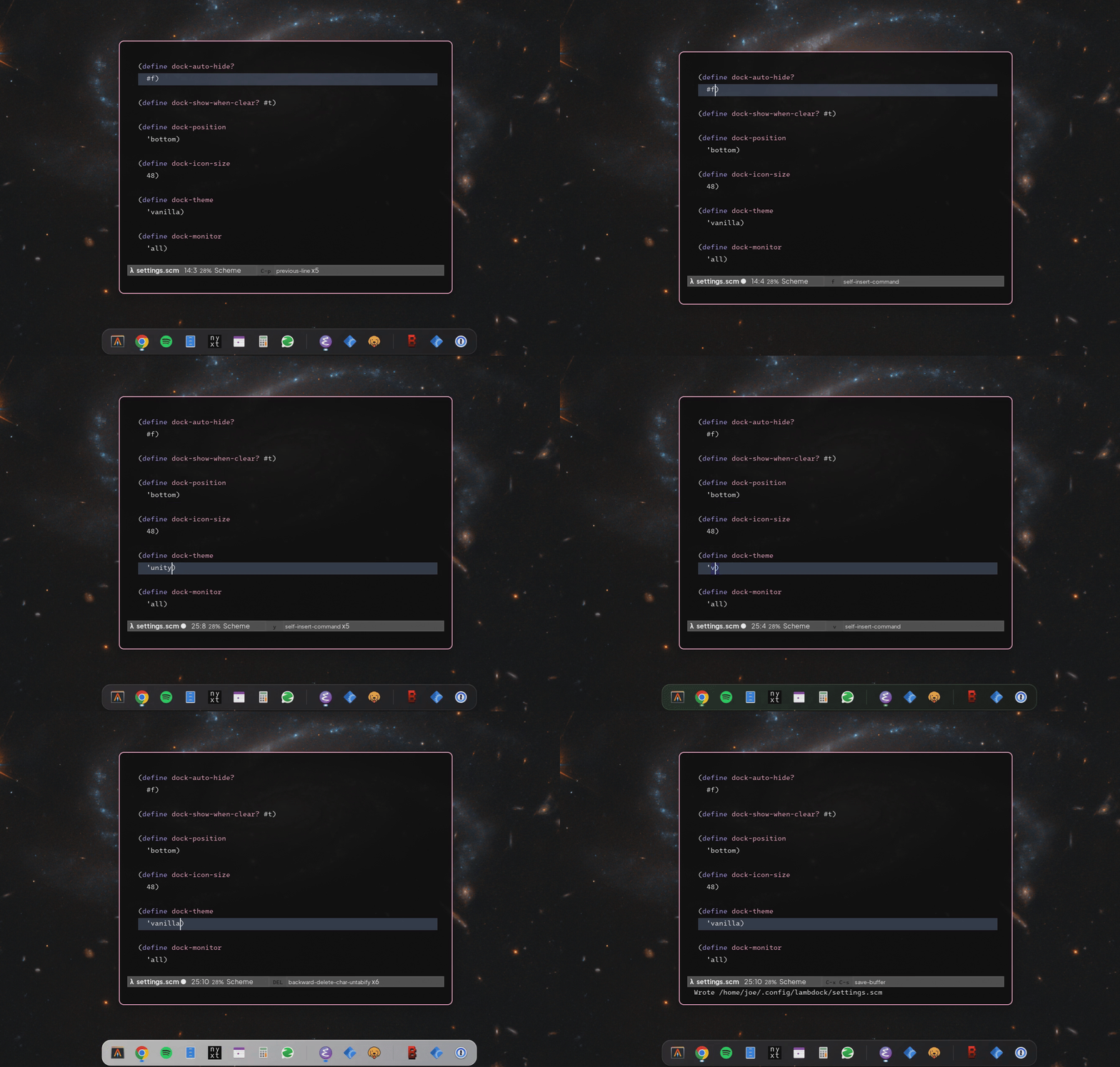
Also, here is a small demo of hot-reload:
see GIF
Changing settings from the GUI (Preferences) 🎛️
Right-click the dock and choose Preferences… to open a GTK4 settings window. It covers the settings people reach for most often, grouped the way the settings file groups them:
- Behaviour: auto-hide, show when no windows, hover magnification, window tracking, window titles, and dock vs taskbar mode.
- Accessibility: reduce motion (see Keyboard and accessibility).
- Layout & material: icon size, item spacing, capsule padding, screen edge and theme.
- Glass shelf: icon overhang, front glass, reflection height/intensity/blur, keystone flare, tilt and perspective.
Every control applies immediately through the same set-dock-*! setters the
REPL uses, so the dock redraws as you drag a slider (the apply is
debounced so a drag is one edit, not one per pixel). Each slider also has a spin
button beside it for typing an exact value – a 53 px icon, a 0.07 blur – and the
window closes with Escape.
Your settings file is never modified. GUI changes are written to a separate override file, next to the dock's drag-and-drop layout overrides:
${XDG_STATE_HOME:-~/.local/state}/lambdock/preferences-<settings-stem>.scm
The loader layers that file on top of settings.scm, which is what lets a
generated settings file (an OS image, a dotfiles generator) be regenerated
without losing the choices made in the window. Deleting the override file – or
pressing Reset in the window – restores the settings file exactly.
When several docks run (see multi-config), the menu item carries the settings path of the dock it was opened on, so the window edits that dock and not another one.
Styling & theming 🎨
lambdock ships with pre-baked themes embedded via build defines, and every one
of them is a CSS file you are free to read, copy and argue with.
See some screenshots of the themes here
- Vanilla Glassmorphism 🧊 (
'vanilla): Modern translucent dark pill layout with soft backdrop reflections, glow indicators, and spring physics button effects.
- Vanilla Light Glassmorphism 🧊 (
'vanilla-light): Modern frosted glass translucent pill layout with soft backdrop reflections, glow indicators, and spring physics button effects.
- Snow Leopard 3D Glass 🍎 (
'snow-leopard,'snow-leopard-dark): Classic 3D glossy shelf aesthetics with reflective top bevels, ice-blue indicator dots, and vertical lift displacement.
- Solarized Light ☀️ (
'solarized-light): Timeless palette, easy on the eyes, ivory, roasted, off-white goodness.
- Nature 🍀 (
'nature): deep organic woodland green gradients, warm leaf-tinted specular borders, and a lively Emerald Leaf glowing running app indicator.
- Unity 🪘 (
'unity): signature Yaru/Canonical design language: rich dark aubergine glass background, Ubuntu warm orange highlights, and an active indicator glowing in iconic Orange. - macOS Big Sur 🍎 (
'macos-big-sur): frosted, softly-rounded translucent capsule with a white running dot, echoing macOS 11. - macOS Ventura / Sonoma 🍎 (
'macos-ventura): darker, denser frosted capsule with a stronger shadow and a small dock dot, echoing macOS 13/14. - macOS Mavericks 🍎 (
'macos-mavericks): the last of the 3D OS X docks – the platinum slab, with a bright specular line along the screen edge and a translucent body that thins out towards the icons. Pair it with a negativedock-shelf-margin, adock-shelf-flareand adock-reflection(see The glass shelf) for the full 3D shelf with mirrored icons. Its dark sibling,'macos-mavericks-dark, is the same slab in smoked graphite for a dark session, with the same geometry. - Windows XP (Luna) 🪟 (
'windows-xp): glossy Luna-blue taskbar with raised, beveled task buttons; running apps look pressed.
- Windows 10 🪟 (
'windows-10): flat, near-black rectangular taskbar with a thin blue accent underline on running apps. - Windows 11 🪟 (
'windows-11): translucent, subtly-rounded dark surface with a small accent pill running indicator. - None (
'none): no styling applied, using default GTK appearance.
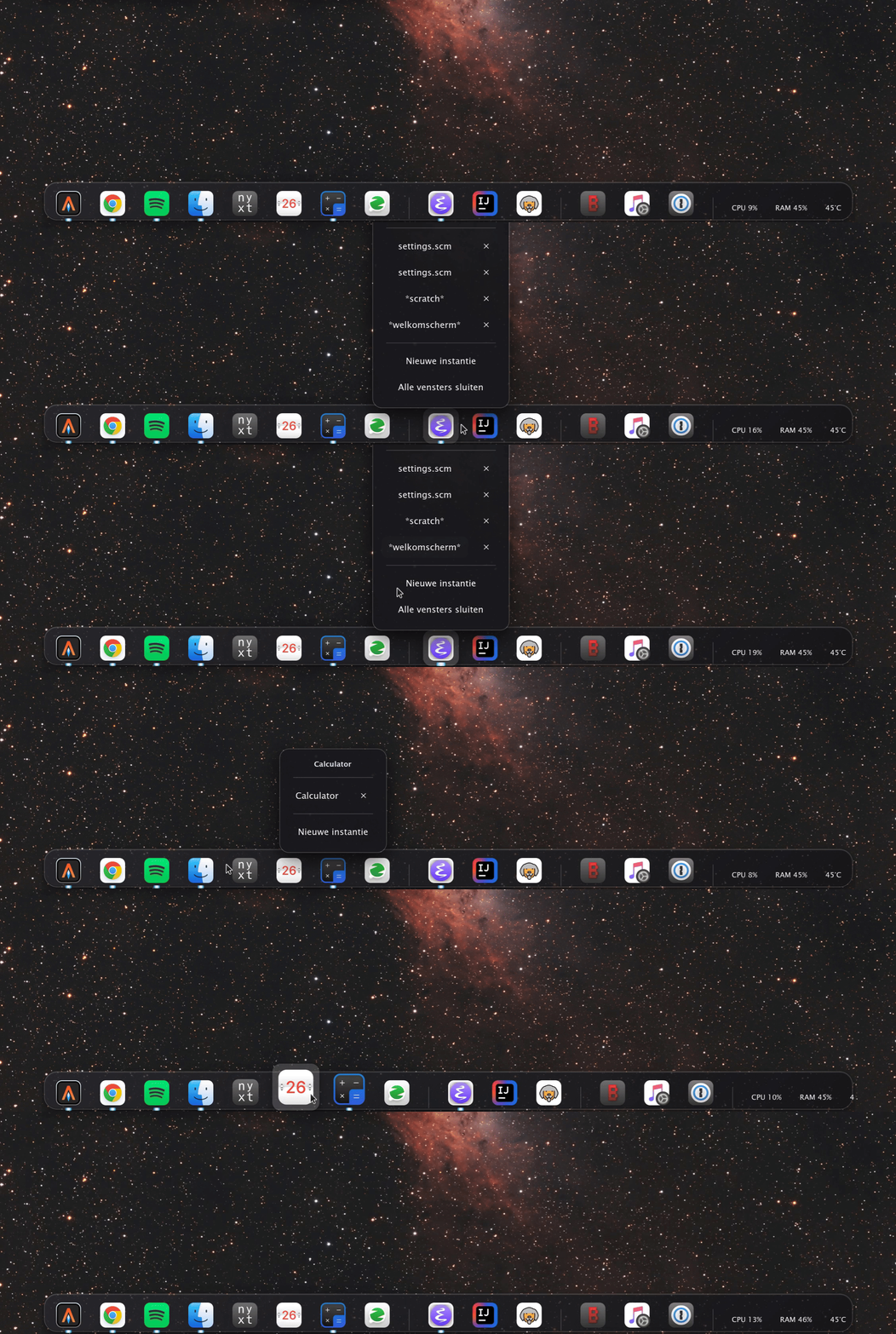
And here is the same dock wearing WhiteSur icons, over a Niri session:
Overriding a theme with your own CSS
You can override any GTK style class on the fly without re-compiling C sources.
lambdock automatically monitors and loads user styles from:
~/.config/lambdock/styles.css
User styles are loaded with GTK_STYLE_PROVIDER_PRIORITY_USER priority, taking
precedence over default app themes.
Make sure you use GTK CSS, not
"web-browser CSS". For understanding better what is available and what you can
override, you should look at the theme definitions at ./resources/css.
An example override of a theme could look like this:
/* Custom user tweaks in ~/.config/lambdock/styles.css */

.lambdock-window {
    background-image: linear-gradient(180deg, rgba(255, 0, 20, 0.85) 0%, rgba(5, 5, 8, 0.95) 100%);
    border: 1px solid rgba(255, 0, 0, 0.3);
    box-shadow: 0 10px 30px rgba(0, 0, 0, 0.8);
}
Save the file and the change is applied live, just like the Scheme settings.
Dock mode: floating dock or full-width taskbar 📊
dock-mode switches between the default floating, content-hugging dock capsule
('dock) and a full-width bar anchored edge-to-edge ('taskbar). In taskbar
mode the layer-shell surface is stretched across the monitor, the capsule is
squared off, and icons are laid out from the start of the bar.
;; 'dock (default) -> floating capsule sized to its icons
;; 'taskbar        -> full-width (or full-height) bar spanning the monitor
(define dock-mode 'taskbar)
On top of that, dock-show-window-titles? renders the focused window's title next
to each running app's icon, like the classic Windows XP taskbar. Pinned apps that
are not running stay icon-only, and titles are ellipsized when they get long.
;; Show window titles on running app items (Windows XP-style taskbar buttons)
(define dock-show-window-titles? #t)
Combine either mode with any theme. The 'windows-* and 'macos-* themes
include dedicated taskbar styling, and a generic taskbar modifier squares off the
capsule and styles the title labels when needed.
Spacing and sizing: how far apart the icons sit
Three numbers decide how the row of icons looks:
| Option | Default | What it does |
|---|---|---|
dock-icon-size |
48 |
How big each icon is drawn, in px. |
dock-item-spacing |
4 |
How much room sits between the items. |
dock-capsule-padding |
12 |
How much room sits between the capsule's ends and the first/last icon. |
`dock-capsule-padding` is the end padding, the one that decides how much glass
sticks out past the icons on either side. The OS X dock keeps it around ~0.25 ×
the icon size (12px for 50px icons); with the theme's own button padding on top,
8 at 48px icons lands there.
The visible gap is dock-item-spacing plus whatever the active theme gives
its buttons as padding and margins, so it is the knob for the rhythm while the
theme keeps control of the clickable area. As a reference, the OS X dock keeps
its icons about 0.3 × their size apart: 50px icons with 15px between them.
With 48px icons and ~dock-item-spacing 4 that is a 14–16px gap: the
'vanilla and 'macos-mavericks themes keep no horizontal button margin, so
their 6px / 10px of padding plus the setting land right there.
;; packed tight, icons almost touching
(define dock-item-spacing 0)

;; the default: the OS X rhythm
(define dock-item-spacing 4)

;; airy, for a big or wall-mounted screen
(define dock-item-spacing 16)
;; end padding: the OS X look (12px of glass past the first and last icon)
(define dock-capsule-padding 8) ; 8 here + ~4px of theme button padding
;; flush: icons right up against the capsule's ends
(define dock-capsule-padding 0)
Spacing and padding are applied live: change them from the REPL with
(set-dock-item-spacing! 8) / (set-dock-capsule-padding! 8) or in
settings.scm and the row re-lays out immediately. It is also what makes a dock of many items scroll sooner or later,
since the items have to fit on screen either way.
The glass shelf: one dock, any shape 🐆
lambdock has one dock implementation. Its shape is described by plain
numbers, so a flat capsule, a frosted plinth, a subtle 3D shelf and the Mac OS X
10.9 Mavericks dock are the same code with different values. There are no modes
and no presets: every knob is independent, and all of them default to the classic
flat capsule, so a dock that says nothing looks exactly like it always did.
The eight numbers
| Parameter | Default | Range | What it does |
|---|---|---|---|
dock-shelf-tilt |
0 |
-45 … 45 | Tilt of the shelf plane in degrees. 0 = flat (orthographic). |
dock-shelf-perspective |
400 |
50 … 5000 | Projection distance for the tilt, px (only used with a tilt). |
dock-shelf-margin |
24 |
-200 … 200 | Glass on the inner side of the icons, px. Negative = overhang. |
dock-shelf-front |
0 |
0 … 200 | Glass on the outer side (the front face), px. |
dock-shelf-flare |
0 |
-80 … 80 | Keystone: how much wider the slab is at the screen edge, per side, px. 0 = a plain rectangle. |
dock-reflection |
0 |
0 … 2 | Reflection band height / icon size. 0 = no reflections. |
dock-reflection-intensity |
0.55 |
0 … 1 | Alpha of the reflection where it touches the icon. |
dock-reflection-blur |
0.05 |
0 … 0.25 | Gaussian blur radius / icon size. |
Out-of-range values are clamped instead of failing, and every option can also be
set from the (configure-dock! ...) keyword arguments (#:shelf-margin,
#:reflection, …).
The geometry in one line
 ──────────────────────────────────────────────  inner edge of the glass
                    ↑
      dock-shelf-margin (glass above the icons; make it negative and
                    ↓   the icons overhang past this line)
       [icon]      [icon]      [icon]
 ──────────────────────────────────────────────  the icons' bottom
      mirrored icons, fading out                  ← dock-shelf-front
 ──────────────────────────────────────────────  the screen edge
band    = round(dock-icon-size * dock-reflection)
outer   = max(dock-shelf-front, band)     ; glass in front of the icons
capsule = dock-icon-size + dock-shelf-margin + outer
;; and, across the dock:
bottom edge = top edge + 2 * dock-shelf-flare
Three consequences worth remembering:
dock-shelf-marginanddock-shelf-frontare pixels, so they do not followdock-icon-size.dock-reflectionis a ratio, so the mirror does scale with the icons.- A negative
dock-shelf-marginis what makes the icons overhang the glass, like the OS X dock. The overlay reserves room for the overhang, so nothing is clipped. - If the mirror is taller than the front face, the capsule grows to fit it
(
outer = band); if the front face is taller, the extra glass stays empty and the mirror fades before reaching it.
Recipes
Every recipe below is a complete, copy-pasteable settings fragment: add the lines
to your settings.scm and the dock redraws itself.
1. The classic flat dock (the default)
Write nothing. That is tilt 0, margin 24, no front face, no reflections.
2. A frosted plinth: glass all around the icons
(define dock-shelf-margin 18)   ; glass above the icons
(define dock-shelf-front 18)    ; glass below them
(define dock-reflection 0)      ; no mirror
3. A subtle 3D shelf
(define dock-shelf-tilt 4)          ; a hint of perspective
(define dock-shelf-perspective 900) ; ... with a long camera distance
(define dock-shelf-margin 8)
(define dock-shelf-front 12)
(define dock-reflection 0.25)
(define dock-reflection-intensity 0.35)
4. The OS X Mavericks dock (platinum slab)
The 10.9 dock is a light, glossy slab that the icons overhang, with short blurred mirrors fading over the glass in front of them. It is orthographic, so the tilt stays at 0:
(define dock-theme 'macos-mavericks)   ; platinum slab material

(define dock-icon-size 48)
(define dock-shelf-margin -18)         ; icons overhang by half an icon
(define dock-shelf-front 24)           ; slab = 48px = exactly one icon
(define dock-reflection 0.30)          ; mirror band inside that front glass
(define dock-reflection-intensity 0.70)
(define dock-reflection-blur 0.03)
(define dock-shelf-flare 24)           ; wider at the screen edge: the 3D shelf
(define dock-capsule-padding 8)        ; ~12px of glass past the end icons
;; tilt stays 0 - the real dock is orthographic, the flare does the keystone
(define dock-shelf-tilt 0)
;; ... and the same slab in smoked graphite
(define dock-theme 'macos-mavericks-dark)Those numbers are measured off a screenshot of the real 10.9 dock, scaled from its 49px icons to 48px: a slab exactly one icon tall, icons overhanging it by half an icon (so their centre sits on the slab's top edge), a mirror band of ~0.30 icons inside the 24px of front glass, ends padded by ~0.25 icons, and sides that flare ~0.5 icons per side towards the screen.
For a dark session the same geometry works with
'macos-mavericks-dark – swap the theme line and nothing else moved: dock-shelf-flare is what makes
the silhouette look like a shelf rather than a rectangle: the edge lying on the
screen keeps its width and the inner edge is pulled in, so the icons and their
padding stay on the slab while its skirt spreads out. It works on all four
edges, and it reserves the room it needs in the layout, so nothing gets clipped.
Any other theme works with the same numbers; it just wears its own material instead of the platinum one (see styling the material).
5. A dark smoked-glass shelf
Same geometry, dark material: pick a dark theme and override the shelf material
in ~/.config/lambdock/styles.css (user styles always win):
(define dock-theme 'vanilla)
(define dock-shelf-margin -18)
(define dock-shelf-front 16)
(define dock-reflection 0.35)
(define dock-reflection-intensity 0.75)  ; brighter mirror on dark glass
(define dock-reflection-blur 0.06)
/* ~/.config/lambdock/styles.css */
.lambdock-window.shelf-mode {
background-image: linear-gradient(
0deg,
rgba(255, 255, 255, 0.55) 0px,
rgba(96, 108, 130, 0.95) 2px,
rgba(44, 52, 70, 0.95) 7px,
rgba(60, 70, 90, 0.92) 8px,
rgba(24, 29, 40, 0.90) 100%
);
border-top: 1px solid rgba(255, 255, 255, 0.28);
border-bottom: 1px solid rgba(255, 255, 255, 0.16);
box-shadow: 0 -8px 22px rgba(0, 0, 0, 0.45),
inset 0 1px 0 rgba(255, 255, 255, 0.22);
}6. Icons hanging over the glass, with a long mirror
(define dock-shelf-margin -34)   ; a lot of overhang
(define dock-shelf-front 26)
(define dock-reflection 0.45)    ; a tall mirror in the front face
(define dock-reflection-blur 0.04)
7. Only the mirror: keep the flat capsule, add reflections
(define dock-reflection 0.4) ; no margin/front changes at all8. No glass at all: icons and their mirrors over the wallpaper
Keep a theme – with dock-theme 'none the dock falls back to the default GTK
window background – and delete the shelf material instead. The geometry and the
reflections stay:
(define dock-theme 'vanilla)
(define dock-shelf-front 14)     ; room for the mirror under the icons
(define dock-reflection 0.3)
/* ~/.config/lambdock/styles.css - the "shelf" is only a mirror now */
.lambdock-window.shelf-mode {
background-image: none;
border: none;
box-shadow: none;
}9. A shelf in taskbar mode
The shelf works in a full-width bar too: the material squares off and the front face stays below the icons.
(define dock-mode 'taskbar)
(define dock-shelf-margin -10)
(define dock-shelf-front 14)
(define dock-reflection 0.2)
10. Top, left and right docks
Nothing special to do: the geometry mirrors with the dock edge, and the tilt
direction is flipped for you. margin is always the inner side (away from the
screen edge) and front always the outer one.
(define dock-position 'top)
(define dock-shelf-margin -20)
(define dock-shelf-front 16)
(define dock-reflection 0.3)
Turning the knobs: what the extremes do
| Knob | Lower it to get… | Raise it to get… |
|---|---|---|
dock-shelf-tilt |
a flat, edge-on dock (0 = orthographic) | a shelf that leans away, foreshortened |
dock-shelf-perspective |
a violent wide-angle taper | an almost orthographic tilt |
dock-shelf-margin |
icons overhanging more and more | a thicker glass body around the icons |
dock-shelf-front |
no room under the icons | a tall front face (reflections fade inside it) |
dock-reflection |
a shorter mirror, or none at 0 | a mirror as tall as the icons |
dock-reflection-intensity |
a ghost of a mirror (0 = invisible) | a strong mirror (1 = solid copy) |
dock-reflection-blur |
a sharp, recognisable mirror | a soft frosted smear |
Two things to keep in mind:
dock-reflectionis also what enables the whole reflection machinery: the contact shadow under the icons, the mirror, and the white running-app dot on the glass. At0the dock uses the theme's own running indicator instead.- The mirror follows the fisheye magnification sideways, but the band stays the same thickness, so hovering one icon never pushes the row up and down.
Separators on the glass
A separator belongs to the slab rather than to the row of icons, and on a shaped dock it is drawn that way: it runs down the glass's face instead of standing in front of it, and it leans with the surface. The lean is the keystone's own – proportional to how far the separator sits from the middle of the dock, and away from the middle as it comes towards the viewer, exactly as the slab's sides do – emphasised, because lambdock's keystone is a gentler projection than the dock this look comes from. Dead centre a separator is perfectly vertical; the further out it sits, the more it leans.
On a flat capsule (no dock-shelf-flare, no dock-shelf-tilt) nothing changes:
the separator is the plain divider the theme draws, with the theme's own margins.
What a separator that is on the glass looks like – how wide it is, how it fades at both ends – is CSS, and only applies while the slab is shaped:
.shelf-projected separator {
  margin: 0;
  min-width: 3px;
  background-image:
    linear-gradient(to bottom, transparent, rgba(255, 255, 255, 0.22) 18%,
                    rgba(255, 255, 255, 0.22) 74%, transparent),
    linear-gradient(to bottom, transparent, rgba(112, 126, 146, 0.30) 18%,
                    rgba(112, 126, 146, 0.30) 74%, transparent);
  background-size: 2px 100%, 1px 100%;
  background-position: right, left;
  background-repeat: no-repeat, no-repeat;
}
Changing the look live
Every option has a setter, and calling one redraws every dock immediately, so you can tune a look from the REPL with the dock in front of you:
scheme@(guile-user)> (set-dock-shelf-margin! -22)
scheme@(guile-user)> (set-dock-shelf-front! 18)
scheme@(guile-user)> (set-dock-reflection! 0.28)
scheme@(guile-user)> (set-dock-reflection-intensity! 0.5)
scheme@(guile-user)> (set-dock-reflection-blur! 0.05)
;; one instance only: pass its settings path as the second argument
scheme@(guile-user)> (set-dock-shelf-tilt! 0 "/home/me/.config/lambdock/settings.scm")
The matching getters (get-dock-shelf-margin, get-dock-reflection, …) tell
you what the dock is using right now. Setters only change the running dock: they
do not rewrite settings.scm, so once you like a value, write it into the file to
keep it across restarts.
Styling the material in CSS
The numbers above are geometry; the material (colour, gradients, borders, corners) is CSS, and it is theme-agnostic:
| Where | What it styles |
|---|---|
resources/css/shelf.css |
the generic light frosted slab, loaded for any theme while the shelf is active |
resources/css/macos-mavericks.css |
the platinum slab: a white wash that is densest at the screen edge (~0.74 alpha), thins towards the icons (~0.38), with a 3px grey lip and a bright specular line along that edge |
resources/css/macos-mavericks-dark.css |
the same slab in smoked graphite, same structure and geometry |
~/.config/lambdock/styles.css |
your overrides, loaded last at user priority |
Classes you can hook into:
| Class | Applies to |
|---|---|
.lambdock-window.shelf-mode |
the capsule while any shelf parameter differs from the defaults |
.lambdock-window.shelf-mirror |
the capsule while reflections are on |
.shelf-top / .shelf-bottom / .shelf-left / .shelf-right |
on both the window and the capsule: which edge the dock is on |
window.shelf-mode |
the whole dock (icons, popovers, labels) |
.shelf-frame, .shelf-item, .shelf-reflection |
the tilt frame, the per-item wrapper and the reflection widget |
The modifier is loaded before the theme at the same priority, so a theme that
wants its own shelf material has to repeat the selector
(.lambdock-window.shelf-mode) — that is exactly what macos-mavericks.css does.
Without that, the generic frosted slab is what you get.
A couple of shapes worth stealing:
/* a flat matte bar: no gloss, no rounded outer corners */
.lambdock-window.shelf-mode {
  background-image: linear-gradient(180deg, #2b3140 0%, #1b2029 100%);
  border: 1px solid rgba(255, 255, 255, 0.10);
  border-radius: 6px;
  box-shadow: 0 6px 18px rgba(0, 0, 0, 0.45);
}

/* a two-tone slab: bright inner strip, darker front face */
.lambdock-window.shelf-mode.shelf-bottom {
  background-image: linear-gradient(
    0deg,
    rgba(255, 255, 255, 0.85) 0px,
    rgba(120, 134, 156, 0.95) 2px,
    rgba(88, 100, 120, 0.95) 6px,
    rgba(232, 238, 246, 0.92) 7px,
    rgba(246, 249, 252, 0.92) 100%
  );
}
Under the hood
- Tilt projects the themed capsule onto a plane that recedes from the screen
edge; the icons stay upright on top of it. It is a real
GskTransform(rotate + perspective) because GTK CSS transforms are affine only and would just squash the shelf. - Margin / front place the icons in the glass: a negative margin lets them overhang the inner edge, and the front face is the glass in front of them.
- Reflection paints a mirrored, gaussian-blurred copy that fades out over the front face, plus a soft contact shadow under the icon and the running-app dot near the outer edge. The fade is drawn in bands sized to the band height, so a short mirror fades smoothly instead of showing steps.
- Everything is derived: the capsule, the overlay's reserved space, the exclusive zone, the auto-hide distance and the fisheye geometry all read the same numbers. Put them back to their defaults and the dock is pixel-identical to before, live, with no restart.
What it cannot do
A Wayland layer-shell surface cannot read the pixels behind it, so a real backdrop blur is impossible without compositor help (e.g. a KWin blur rule). The frosted look is drawn with gradients instead; the blur the shelf adds for real is the gaussian blur on the icon reflections.
Finding icon names
lambdock supports loading and specifying icons in different ways. It loads the
active GTK 4 Icon theme and proceeds to load the icon.
When you pass an icon string to app-item, the C runtime's
create_image_for_icon function checks for the icon in this order:
- Embedded Resource: A
resource://path, or one under/org/jointhefreeworld/lambdock/, is loaded straight from the GResource bundle. - Direct File Path: Checks if the string is a valid file path on disk.
- Theme Icon: Queries GtkIconTheme for the icon name in your active GTK icon theme (e.g., Papirus, Adwaita, Yaru), otherwise through DConf.
- System Pixmaps: Searches
pixmaps/<name>.pngin each XDG system data directory (usually/usr/share/pixmaps/). - Symbolic Fallback: Appends
-symbolicto try a monochrome fallback. - Generic Fallback: Displays the standard application-x-executable icon if no match is found.
The pipeline lives in create_image_for_icon
(src/ui/icon_resolver.c);
HACKING.org lists the same stages from
the C side.
You can also find available icons already in many ways, see some examples below:
grep -R -i "^Icon=" /usr/share/applications/
# or using ripgrep which is nicer
rg -i "^Icon=" /usr/share/applications/

# or flatpaks
rg -i "^Icon=" /var/lib/flatpak/exports/share/applications/*.desktop

# or (user) flatpaks
rg -i "^Icon=" ~/.local/share/flatpak/exports/share/applications/*.desktop

# or icons from scalable SVG
find /usr/share/icons/Adwaita/ -name "*.svg" | xargs -n1 basename | sed 's/\.svg$//' | sort -u
Interactive lambdock REPL
For purposes of development, experimentation and live hackability, lambdock
features an embedded GNU Guile Scheme runtime. You can enable a background
Unix domain socket REPL to
query or dynamically alter the running dock's state in real time.
In your ~/.config/lambdock/settings.scm file, set dock-enable-repl? to #t.
You can optionally customize the socket path using dock-repl-socket-path
(defaults to /tmp/lambdock-repl.sock):
(configure-dock!
 #:position 'bottom
 #:items (list ...)
 ;; .... other settings
 #:enable-repl? #t
 #:repl-socket-path "/tmp/lambdock-repl.sock")
You can then inspect or modify the dock state, and when desired also reload the
dock (with reload-dock!).
Once connected, you can evaluate Scheme expressions against the running
lambdock instance, possibilities are endless, e.g.
scheme@(guile-user)> (use-modules (lambdock core))
scheme@(guile-user)> (get-dock-theme) ;; -> 'vanilla
scheme@(guile-user)> (set-dock-theme! 'nature)
scheme@(guile-user)> (reload-dock!)
Emacs (Geiser) – Recommended
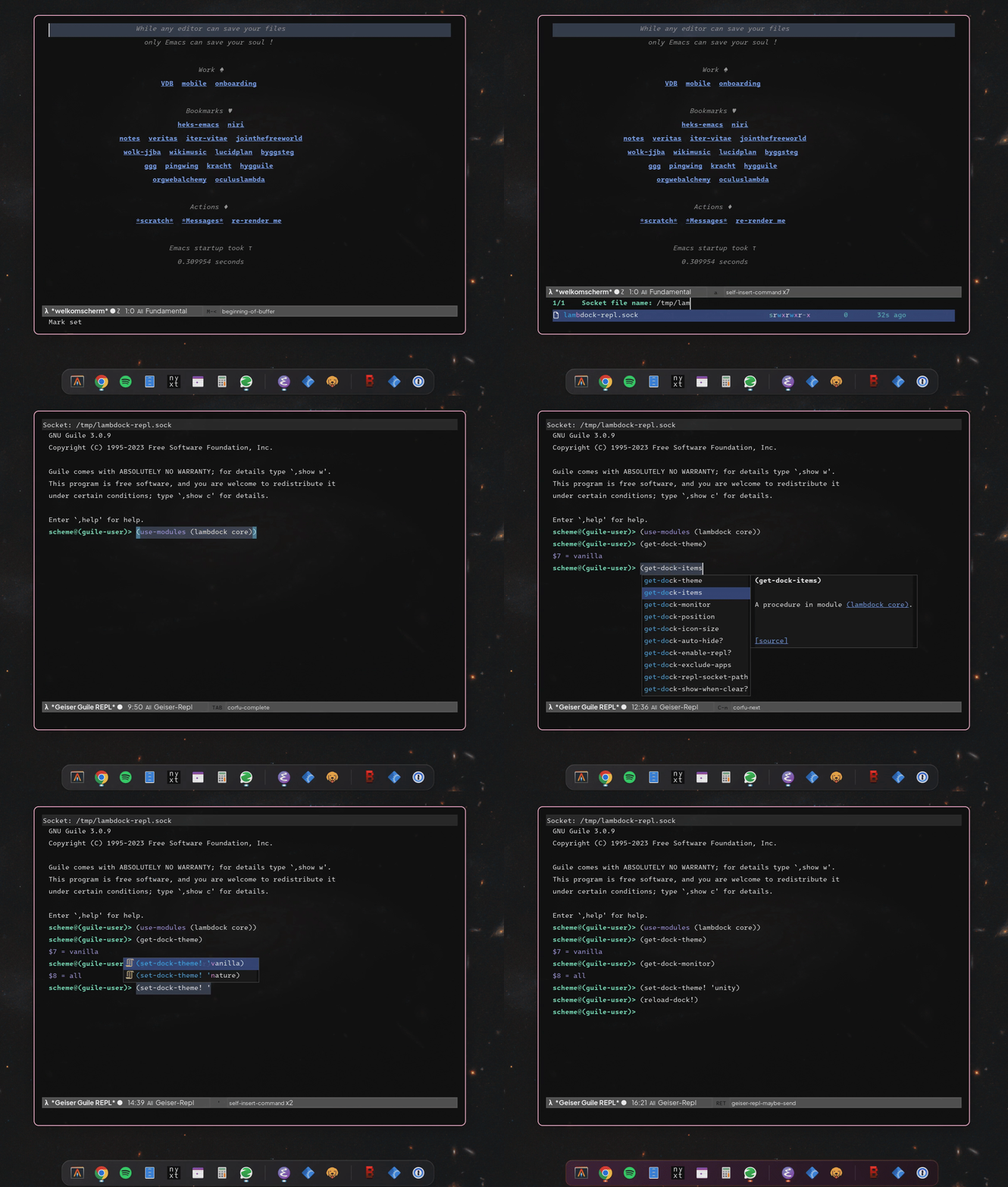
Wayland Toplevel Tracking & Popovers
lambdock listens to zwlr_foreign_toplevel_manager_v1 protocol events directly
from your Wayland compositor (Sway, Hyprland, Wayfire, River, etc.):
- Single Window: Left-clicking a running app launcher focuses and raises its existing window surface.
- Multiple Windows: Left-clicking or right-clicking an app launcher with multiple open instances opens a floating GTK Popover HUD.
- Popover Capabilities: Select individual windows by title, close specific window instances, open a new window, or execute a "Close All Windows" command.
- App-specific entries: the popover also carries the actions that belong to
the kind of application the item is. A browser gets New Window and New
Private Window (Firefox's
--private-window, Chrome/Chromium/Brave/Vivaldi's--incognito, Edge's--inprivate, Opera's--private); a running music player gets Play/Pause, Previous Track, Next Track and Stop Playback, sent over MPRIS. Applications are classified from their desktop entry'sCategories=(WebBrowser,Music,Audio;Player), with their id, name and command line as the fallback, so a hand written Scheme item for Spotify is understood as well as one that came from a desktop file.
The playback controls are only there while the player is on the session bus
(org.mpris.MediaPlayer2.<instance>), matched to the item by its app id or its
name, so a pinned but closed player does not grow buttons that would do nothing.
The window commands are always there, because launching a browser works whether
it is running or not.
Window tracking can be switched off entirely with dock-track-windows? for a
dock that is purely a launcher, and specific applications can be kept out of the
dock with dock-exclude-apps.
Application Identity: App Ids, Desktop Entries and Names
Tracking a window means answering one question: which dock item is this? The only
thing the compositor gives you is an application id (xdg_toplevel.app_id), and
that id is whatever the toolkit set – org.gnome.Nautilus,
org.gnome.SystemMonitor, wezterm, google-chrome, jetbrains-idea,
Freebuff, or sometimes nothing at all. It is not a name, and it is not an icon
name either. lambdock resolves it against the applications actually installed on
the machine, so the answer comes from the desktop file rather than from string
guessing.
The XDG desktop entry cache
On first need, lambdock scans the freedesktop.org applications directories, in
this order of precedence:
$XDG_DATA_HOME/applications(~/.local/share/applications) – your own entries, and where JetBrains Toolbox,appimagedand friends install.- The Flatpak exports,
$XDG_DATA_HOME/flatpak/exports/sharethen/var/lib/flatpak/exports/share, so a Flatpak wins over the distro package of the same application. - Every
$XDG_DATA_DIRSentry (/usr/share,/usr/local/share, Guix and Nix profiles, …), which is where/usr/share/applications/.desktop files live.
Each file's [Desktop Entry] group is parsed with the usual GKeyFile
localization, so Name[de] wins over Name in a German session, and the freedesktop
field codes (%f, %U, %i, …) are stripped out of Exec= so the command can
be run as-is. The first file to provide an id wins, and Hidden=true or
NoDisplay=true entries are dropped from the launcher list (though an override in
your own directory still suppresses the system one, instead of resurfacing it).
The result is kept in a cache: one array of entries plus a hash index, rebuilt
whenever it is older than DESKTOP_CACHE_TTL_MS (60 seconds) or after
lambdock_desktop_cache_invalidate(). Lookups are therefore a single hash probe
on the hot path, but installing an application still shows up in the dock within a
minute without a restart.
Resolving an app id
Every entry is indexed under all of the names an application can plausibly be reported as, so the match does not depend on the two sides spelling things the same way:
- the desktop file's name (
org.gnome.SystemMonitor.desktop) and its stem (org.gnome.SystemMonitor); StartupWMClass=, the window class the application announces to the compositor – often the only link at all for Electron, Java and Flatpak apps;- the base name of the
Exec=line (ideafor the JetBrains entry, which is why a pinned launcher runningideaand a window reportingjetbrains-idealand on the same item); - the last component of a reverse-DNS stem (
SystemMonitor).
All of these are compared case- and punctuation-insensitively (org.gnome.Nautilus,
org-gnome-nautilus and orggnomenautilus are one key), and a lookup that misses
retries once without the vendor prefix, so SystemMonitor still finds
org.gnome.SystemMonitor. A few real examples:
| Compositor app id | Resolved from | Desktop entry |
|---|---|---|
org.gnome.SystemMonitor |
desktop id | org.gnome.SystemMonitor.desktop |
jetbrains-idea |
StartupWMClass= |
jetbrains-idea-<uuid>.desktop |
idea |
Exec= base name |
jetbrains-idea-<uuid>.desktop |
org.pulseaudio.pavucontrol |
desktop id | org.pulseaudio.pavucontrol.desktop |
SystemMonitor |
vendor-prefix retry | org.gnome.SystemMonitor.desktop |
A pinned launcher resolves the same way, from its own exec, then its icon, then
its app-id, and remembers the entry it landed on. Matching compares those two
canonical desktop ids first, which is what keeps a pinned launcher and its running
window from appearing as two icons – and keeps a pinned "Files" item tracking a
window whose app id is org.gnome.Nautilus even though the item was written with
#:icon "nautilus".
Names, and what to show when there is no desktop file
Once an entry is found, the dock takes its Name= (localized), its Icon= and its
Exec= from it. That is the whole point: the item is called "System Monitor" and
not org.gnome.SystemMonitor, in the language of the session.
Not every window has a desktop file (a self-built binary, a script, a Java
launcher without an entry, a compositor reporting a debug id). Those still deserve
a readable label, so the app id is turned into one: the .desktop suffix goes, the
reverse-DNS vendor prefix goes, camel case and separators are split into words, and
all-lowercase words are capitalised (acronyms are left alone).
| App id | Derived name |
|---|---|
org.gnome.SystemMonitor |
System Monitor |
google-chrome |
Google Chrome |
wezterm |
Wezterm |
ZFSManager |
ZFS Manager |
Freebuff |
Freebuff |
The same idea saves the icon: if a configured icon name is not resolvable at all
(not a resource, not a file, not in the icon theme, not a -symbolic sibling), the
resolved entry's Icon= is used instead. A preset that names pavucontrol will
therefore still draw the icon that actually exists,
org.pulseaudio.pavucontrol. When there is no entry either, the app id itself is
used as the icon name, since icon themes often name an icon after the application.
All of this is the C side of the dock – src/ui/desktop_entry.c – and needs no
configuration. The launchpad and the drag-and-drop of .desktop files onto the
dock use the same parsed entries, so there is exactly one interpretation of what an
application is.
Bi-Directionality of C and Guile Scheme
lambdock is not merely configured by Scheme. It has an embedded, extensible
Lisp engine and runtime environment which complements a high-performance C
application core and graphics engine. Execution flows bi-directionally between C
and Guile.
The entry point of the binary (main.c) boots the Guile interpreter using
scm_boot_guile. The C runtime acts as the host and invokes Scheme procedures to
manage state and extract settings.
Scheme is not restricted to passive data declarations, as it can trigger actions inside the running C engine.
flowchart LR
    subgraph C_RUNTIME["C CORE + RUNTIME (GTK4)"]
        direction TB
        main["main()"] --> scm_boot_guile["scm_boot_guile()"]
        scm_boot_guile --> setup_primitives["setup_guile_primitives()"]
        setup_primitives -- "Exports C Subrs" --> reload_dock["(reload-dock!)"]
        reload_dock --> file_monitor["GFileMonitor / REPL Event"]
        file_monitor --> reload_instance["reload_dock_instance()"]
        reload_dock -- "Thread-safe<br/>g_idle_add()" --> reload_instance
    end

    subgraph GUILE_ENGINE["GUILE SCHEME ENGINE"]
        direction TB
        core["(lambdock core)"] --> init_dock["(init-dock!)"]
        init_dock --> state["(lambdock state)"]
        state --> start_repl["(start-repl!)"]
        state --> getters_setters["Getters / Setters"]
        getters_setters <--> repl_thread["Socket REPL Thread"]
        repl_thread --> reload_dock
    end

    subgraph LIBGUILE["libguile.h"]
    end

    %% Cross-Boundary Inter-Runtime Connections
    C_RUNTIME --> LIBGUILE
    LIBGUILE -- "Calls Scheme<br/>Procedures" --> GUILE_ENGINE
    GUILE_ENGINE --> LIBGUILE
    LIBGUILE -- "Invokes C<br/>Primitives" --> C_RUNTIME

    %% Subgraph Styles
    style C_RUNTIME fill:#e0f2fe,stroke:#0284c7,stroke-width:2px,color:#0369a1,font-weight:bold
    style GUILE_ENGINE fill:#ffedd5,stroke:#ea580c,stroke-width:2px,color:#c2410c,font-weight:bold

    %% Class Definitions for Nodes
    classDef cNode fill:#ffffff,stroke:#0284c7,stroke-width:1.5px,color:#0f172a,rx:6px,ry:6px
    classDef guileNode fill:#ffffff,stroke:#ea580c,stroke-width:1.5px,color:#0f172a,rx:6px,ry:6px

    %% Apply Classes
    class main,scm_boot_guile,setup_primitives,reload_dock,file_monitor,reload_instance cNode
    class core,init_dock,state,start_repl,getters_setters,repl_thread guileNode
See a more detailed explanation here
C → Guile (Embedding & Inspection)
- Module Loading: C calls
(init-dock!)viascm_c_public_refto load and evaluate the user's~/.config/lambdock/settings.scm. - Config Extraction: Functions in
guile_bridge.cinspect Scheme records and Lisp lists directly (scm_call_0,scm_to_utf8_string,scm_to_bool) to retrieve properties likeget-dock-position,get-dock-theme, andget-dock-items. - Socket REPL Spawning: C calls
(start-repl!), which uses Guile'scall-with-new-threadand(system repl server)to spin up a background Unix domain socket thread.
Guile → C (Extending & Primitives)
- C Primitives Export: During initialization,
setup_guile_primitives()usesscm_c_define_gsubrto register native C functions as Scheme procedures inside the(lambdock core)module. - Live REPL Reloads: Evaluating
(reload-dock!)from the Scheme REPL directly calls the C functionscm_reload_dock.
Thread-Safe Async Dispatch (g_idle_add)
Because the socket REPL server runs on a background Guile thread while GTK4 requires all UI updates to occur on the main thread, calling GTK primitives directly from Scheme would cause thread panics.
To solve this, lambdock bridges thread boundaries using GLib's g_idle_add
event loop dispatcher.
For example, when (reload-dock!) is called over the socket REPL, C safely
schedules the UI teardown and rebuild onto the GTK main loop without blocking or
crashing the application.
Animations
There are several approaches and layers to getting animations and smooth visual effects on the dock.
Lambdock features a smooth, frame-clock-driven auto-hide mechanism powered by modern GTK4 APIs and the Wayland Layer Shell protocol; the timings a user actually sees are described in Auto-hide.
Starting with the auto-hide feature, lambdock features a cubic ease-out spatial
transition to give a smooth showing and hiding to screen edge (within 250ms), and
synchronizes with display refresh rates (60 Hz, 120 Hz, etc.) using
gtk_widget_add_tick_callback.
Also the fish-eye effect (dock-hover-animate?) uses a cosine bell curve scaling
for smooth zooming and sizing: magnification peaks at 1.45x within a 140-pixel
radius of the pointer, and each item can opt out with #:hover-animate? #f.
Magnifying does not re-render the icons. Asking an icon theme for an icon is not
free – every new pixel size means a fresh lookup, decode and resample of the
artwork – and the first version of this effect asked for one per icon for every
size the pointer passed through, which is tens of milliseconds of work per frame
and why hovering felt heavy. Now each icon is resolved at the two sizes that
matter (how it rests, and how big it gets) and painted through a
GskTransform, so magnification is a matrix on the GPU: a slow sweep across the
whole dock costs about 6% of a core instead of about 40%, and the icon follows the
pointer continuously rather than stepping through whole pixels. Pointer events are
also applied once per frame rather than once per event, so a high-rate mouse
cannot do the same work twice before it is ever drawn.
Of course, you are also free to add CSS transform directives or other things to
your liking, e.g.
button.flat:hover {
  transform: scale(1.15) translateY(-4px);
}
Why Lisp (GNU Guile Scheme) ?
Desktop docks traditionally rely on static configuration formats like JSON, INI, or YAML. While straightforward, these formats force a compromise: adding dynamic behavior or custom logic requires writing C plugins or re-compiling the binary.
lambdock uses GNU Guile Scheme because desktop configuration shouldn't be
limited to static key-value pairs. It should be an active, extensible programming
environment.
Live Interactive REPL & Inspectability
Lisp is built around live interactive development. With Guile embedded directly
inside the C graphics core, you can connect a Unix domain socket REPL (via
Emacs/Geiser or terminal tools like socat) directly into the running dock
process. With lambdock you can inspect state variables, swap themes,
dynamically insert launchers, or execute arbitrary Scheme functions on the fly,
all without restarting the application or dropping Wayland frames.
Power of Lisp
- Clean and powerful abstractions to batch-generate config dynamically and without boilerplate.
- S-Expression Templating: Use meta-programming, quasiquoting and macro expansion for Lisp super powers (quasiquote, macros).
- Code that writes code for a deep system integration with your OS, as demonstrated in my Heks GNU/Linux lambdock config.
Bi-Directional C / Guile Interop
Guile is engineered from the ground up as the official GNU extension language.
Through the libguile API, execution flows seamlessly in both directions. This
gives many interesting advantages, and it is what allows the same process to own
both the rendering and the language you control it with.
On Reproducibility: Why GNU Guix?
A build should never fail because "it worked on my machine." Reliable software development requires explicit, bit-for-bit reproducibility and a functional approach to package management (the Guix manual) and system deployment.
- Declarative Build Graphs: Packages are pure functions of their inputs with no implicit system state.
- Programmable with Guile: Full system and package configurations written in Guile Scheme rather than rigid DSLs or static files.
- Time Travel: Rebuild the exact system state from any point in git history using guix time-machine.
- Atomic Operations: Instantly upgrade or roll back environments without leaving orphaned dependencies or broken states.
- Unified Tooling: One tool manages development shells, isolated containers, package builds, and full system configurations.
And for the Nix people, flake.nix and package.nix provide the same guarantees
in their ecosystem: the flake pins nixpkgs, builds the C core with Meson, and
runs the test suite under xvfb with a private DBus session, so nix flake check
means something.
Why lambdock? A comparison table
While tools like Waybar and
EWW excel as status bars or custom widget
dashboards, lambdock is specifically engineered as a hyper-hackable,
Wayland-native high-performance application dock with an embedded Lisp engine and
full GTK4 graphics core. The comparison names other docks, toolkits and macOS
APIs; the glossary says what each one is.
| Feature / Dimension | lambdock |
Cairo-Dock / Plank | Waybar | EWW / Bar Engines | macOS Dock |
|---|---|---|---|---|---|
| Primary Design Target | Application Dock | Application Dock | Top/Bottom Bar | Widget Dashboard | Application Dock |
Wayland Native (wlr-layer-shell) |
✅ | ❌ (X11 / WNCK) | ✅ | ✅ | (macOS Quartz) |
| UI Toolkit & Graphics Core | GTK4 (GL / GSK) | GTK2 / GTK3 | GTK3 | GTK3 / Cairo | Cocoa / Metal |
| Config & Scripting Engine | GNU Guile Scheme (Lisp) | Static INI / C | JSON / JSONC | yuck (Custom DSL) | Static plist |
| Multi-Dock Instances (Files) | ✅ Dynamic (settings-*.scm) |
⚠️ Limited | ⚠️ Multi-bar config | ⚠️ Multi-bar config | ❌ Single dock |
| Live Interactive Socket REPL | ✅ (Emacs/Geiser, socat) |
❌ | ❌ | ❌ | ❌ |
| Hot-Reloading | ✅ Runtime Code, Docks & CSS | ❌ | ⚠️ Config/CSS | ✅ Config/CSS | ❌ (killall Dock) |
| Thread-Safe Async Dispatch | ✅ GLib g_idle_add |
❌ | ⚠️ Thread sync | ⚠️ IPC daemon | ✅ GCD / Dispatch |
| Wayland Window Tracking | ✅ zwlr_foreign_toplevel_v1 |
❌ (X11 only) | ⚠️ Taskbar module | ❌ (External scripts) | (macOS Server) |
| Multi-Instance Window HUD | ✅ Focus / Close / Close-All | ⚠️ Basic menu | ⚠️ Basic menu | ❌ Manual IPC | ⚠️ Basic menu |
| Dynamic Polling Widgets | ✅ Scheme Thunks (RAM/CPU/Clock) | ⚠️ C Plugins | ✅ Custom modules | ✅ Yuck pollers | ❌ Static |
| Hover Magnification (Fish-eye) | ✅ Cosine-Bell (Per-Item Toggle) | ✅ (X11 composite) | ❌ | ❌ | ✅ Native |
| Dock Viewport Scrolling | ✅ Mouse Wheel / Touchpad | ❌ | ❌ | ❌ | ❌ |
| Smooth Auto-Hide Animations | ✅ Frame-Clock Eased Slide | ⚠️ Basic | ⚠️ Basic | ⚠️ CSS transitions | ✅ Native |
| Metaprogramming & Macros | ✅ S-Exprs & Quasiquoting | ❌ | ❌ | ⚠️ Limited yuck | ❌ |
| Hermetic Guix & Nix Packaging | ✅ guix.scm + flake.nix |
❌ | ⚠️ Distro packages | ⚠️ Distro packages | ❌ Proprietary OS |
| Preset Launcher Builders | ✅ preset-launchers-for |
❌ | ❌ | ❌ | ❌ Drag-and-drop |
Translation status
This project aims for accessibility and ease-of-use for users. For this purpose, we try to translate lambdock to all languages we can maintain. See below the status of translations for this project:
| Language | Status |
|---|---|
| English 🇬🇧 | 100% |
| Catalan 🇪🇸 | 100% |
| Dutch 🇳🇱 | 100% |
| French 🇫🇷 | 100% |
| German 🇩🇪 | 100% |
| Italian 🇮🇹 | 100% |
| Portuguese 🇵🇹 | 100% |
| Spanish 🇪🇸 | 100% |
Translations live in po/ and are managed with
GNU gettext through Meson. The
i18n-update maak task regenerates the .pot template and merges it into every
.po, and adding a new language is a matter of adding its code to po/LINGUAS.
If your language is missing, or if a string reads badly in yours, that is a
welcome patch – and a good first contribution.
Developing lambdock
Read the guide first
New to the codebase? Start with the Developer Onboarding & Architecture Guide, an extensive walkthrough of the C core, the embedded GNU Guile Scheme engine, the bi-directional data flow, the full dock/item/window lifecycles, the build and test workflow, and the common pitfalls to watch out for. It covers the threading model, memory ownership rules, GTK/GLib hazards and the invariants that used to be bugs.
Hacking with maak & CCLS
lambdock uses Maak, a Scheme task
runner, so the build recipes are readable Lisp rather than opaque Makefiles. Run
maak <task> from the repository root:
| Task | What it does |
|---|---|
maak run |
Build and run lambdock inside the pinned Guix environment. |
maak meson-build |
Plain Meson/Ninja build of the project. |
maak test |
Rebuild and run the whole suite headlessly (Xvfb + X11 backend). |
maak debug-run |
Rebuild and launch under gdb --args. |
maak repl |
Start a development REPL for the project. |
maak add-libs |
Regenerate .ccls with the right Guix package flags. |
maak i18n-update |
Refresh the gettext .pot and .po files. |
maak deb-build |
Build the Debian package (unsigned). |
maak rpm-build |
Build the RPM packages and lint them. |
maak arch-build |
Build the Arch package and run namcap. |
maak nix-build |
Build the Nix package (nix-test runs the flake checks). |
maak flatpak-build |
Build the Flatpak bundle. |
maak container-build |
Build the Podman/Docker image (container-run runs it). |
If you use ccls or another
LSP client, generate
your local .ccls configuration using maak. Otherwise read that code a bit and you can copy the
solution.
# Generate .ccls with correct Guix package flags
maak add-libs

# Run lambdock inside time-machine environment
maak run
Tests
The suite has two halves, and both run under Meson:
meson setup build
ninja -C build test- C tests (
tests/test_*.c): dock items, dock window, Guile bridge, popover menu, theme engine, icon resolver, the glass shelf, the desktop-entry parser, stacks and drag and drop. These build and exercise real GTK widgets through Meson (test_dock_item,test_dock_window,test_popover_menu,test_theme_engine,test_icon_resolver,test_shelf,test_guile_bridge,test_desktop_entry,test_stack,test_dock_dnd,test_meter,test_trash), so they catch GTK behaviour, not just arithmetic. The trash tests build throwaway trash directories and cover the freedesktop.org layout, the count, emptying (including read-only directories and orphans), moving dropped files and folders in with GIO (including name collisions) and the item's full/empty states; the stack tests cover the directory listing (dot-files, ordering, missing folders) and the fan's rotation maths; the drag and drop tests cover the drop-position arithmetic, the list reordering and the item identity that the layout overrides are built on. - Scheme unit tests (
tests/scheme/lambdock_tests.scm, driven by tests/run_scheme_tests.sh): the pure-Guile configuration engine – state, items, presets, loader, layout overrides and core – with no display server and no C runtime needed, so they are fast and easy to run in a loop.
The Nix package runs exactly this suite under Xvfb with a private D-Bus session and a controlled font configuration.
The Guix side does the same through maak test: it rebuilds =build/ inside the
pinned environment and runs the suite on a virtual X server with
the X11 backend and an icon theme, so a CI runner with no compositor
runs the real GTK tests instead of skipping them. That is why the Guix
manifest carries xvfb-run and adwaita-icon-theme alongside the compiler and
Meson.
Translations
See Translation status above. po/ is the place to be, and
maak i18n-update keeps the template in step with the source.
Community & Support
Join the lambdock community to ask questions, discuss development, share
configurations, screenshots, report issues, or just hang out:
- Issues & development: Codeberg repository
- Chat, support, discussion, announcements (Zulip): the lambdock Zulip community
If you're unsure where to start, Zulip is recommended. Codeberg issues is also a good place to add ideas, report bugs or improvements.
News and Changelog
What people are saying
Etymology
The name lambdock is a play on words combining:
- Ship Docks ⚓ where containers and applications dock safely.
lambda λexpressions from functional programming & Lisp enlightenment.- Lambs 🐑 (gentle, fluffy, lightweight, and clean).
- Docks as desktop UI components (e.g., Plank, Cairo-Dock, macOS Dock).
lambdock adopts as its project logo a modified version of the
Agnus Dei, but without attaching
itself to any religious meaning or belief.
You could say using this dock /es casi una experiencia religiosa como la de Enrique Iglesias.
Contributing
Contributing to free software (as in freedom) is a uniquely beautiful act,
because it embodies principles of generosity, collaboration and empowerment. We
welcome everyone to feel invited to the lambdock project, and we encourage
active contribution in all forms: improving it, reporting issues, brainstorming,
making it more modular or more flexible, translating it, or simply sharing a
screenshot of your desktop.
Reporting a bug or an idea
Open an issue on the repository's homepage, or bring it up on Zulip first if you are not sure yet whether it is a bug.
A report is easiest to act on when it says what you did, what you expected, and
what happened instead – plus your compositor and its version, your GTK, Guile
and (if you use it) Guix versions, whether you are on a released tag or trunk,
and the contents of your ~/.config/lambdock/settings.scm. If the dock crashes
or misbehaves, the output of lambdock from a terminal, plus
ninja -C build && ./build/lambdock if you can reproduce it on trunk, saves a
round trip.
You can also mail me <jjbigorra@gmail.com> to chat, discuss or send feedback.
Sending a PR/patch
The branch is trunk. Small, focused commits are the easiest to review.
- Build and test before you send:
maak testshould pass (it rebuildsbuild/and runs everything on a virtual display), and the C compiler is configured with-Werrorfor things like implicit conversions, so a warning is a build failure. - New behaviour wants a test. C behaviour goes in
tests/, the configuration engine intests/scheme/, and both are cheap to extend. - New user-visible strings should be wrapped in
(G_ "...")in C so they can be translated, and the.pofiles refreshed withmaak i18n-update. - New themes are a CSS file in
resources/cssplus a build define; new presets are an entry in presets.scm. - Documentation counts as code here: if this README, HACKING.org or NEWS.org no longer matches what the program does, that is a bug worth a patch.
Trying it before you trust it
Everything here is meant to be read and run. Clone it, run maak run, change a
theme symbol in your settings file, watch the dock change under you, then open
M-x geiser-connect-local and ask the running dock what it thinks its theme is.
If something in this document does not match what the code does, tell us.
Licensing
Lambdock and all of its source code are free software, licensed under the GNU General Public License v3 (or newer at your convenience).
https://www.gnu.org/licenses/gpl-3.0.html
The documentation and examples, including this document, which are provided with Lambdock, are all licensed under the GNU Free Documentation License v1.3 (or newer at your convenience).
https://www.gnu.org/licenses/fdl-1.3.html
AI Policy
This project adheres to the jointhefreeworld AI (Artificial Intelligence) policy.
Our core principle is simple: AI should assist human creativity and problem-solving, never replace human reasoning.
While tools like Large Language Models (LLMs) and interactive chatbots can be beneficial for reviewing, refactoring small functions, or acting as a sounding board, they should be used with moderation.
We require a human in the loop for all contributions.
Code of conduct
This project adheres to the jointhefreeworld code of conduct. Find it here:
https://jointhefreeworld.org/blog/articles/personal/jointhefreeworld-code-of-conduct/index.html
In summary, we foster an inclusive, respectful, and cooperative environment for all contributors and users of this free software project. Inspired by the ideals of the GNU Project, we strive to uphold freedom, equality, and community as guiding principles. We believe that collaboration in a community of mutual respect is essential to creating excellent free software.
About this project
- 📦 Read the source: codeberg.org/jjba23/lambdock
- 📚 Read the internals: HACKING.org
- 📰 Read the changelog: NEWS.org
- 💬 Talk to us: the lambdock Zulip community
- ☕ Support the work: buying me a cup of coffee
lambdock is part of the jointhefreeworld family
of small, readable, self-hostable free software, alongside
byggsteg,
lucidplan and friends.