
 Chrome Cookie Sync for Grok Bot & Muse Agents
Your bot can use every site you are already logged into. No passwords pasted.
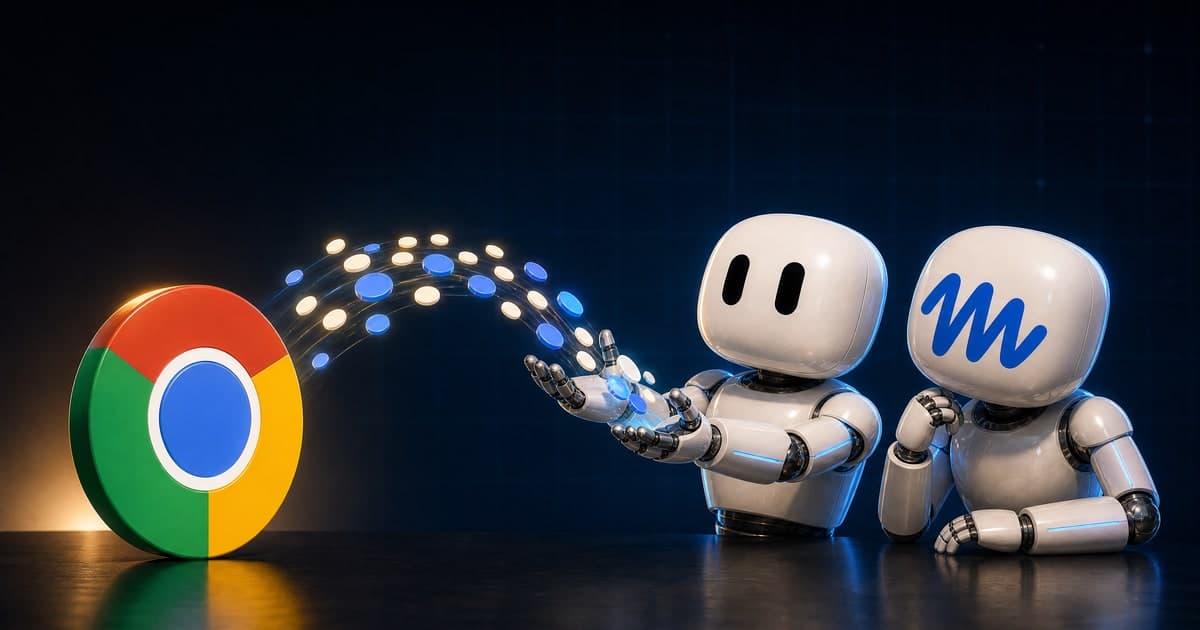
It is an open source Chrome extension you set up once. It hands the sessions of every site you are signed into to Grok Bot or Muse, every 15 minutes. They browse from a cloud computer of their own, so without it every account you use is a login wall.
The bridge
Grok Bot
xAI, cloud computer
acts as you
Why this page
What Chrome Cookie Sync does for Grok Bot and Muse.
The first complete cookie sync method published for Grok Bot and Muse, and the only one I have found that hands you the finished kit instead of a fragment.
- Grok Bot and Muse, both
- Open source, MIT: the extension and the host
- Windows, macOS and Linux
- Local only, no password stored
Live example
One sync, then the bot gets on with it.
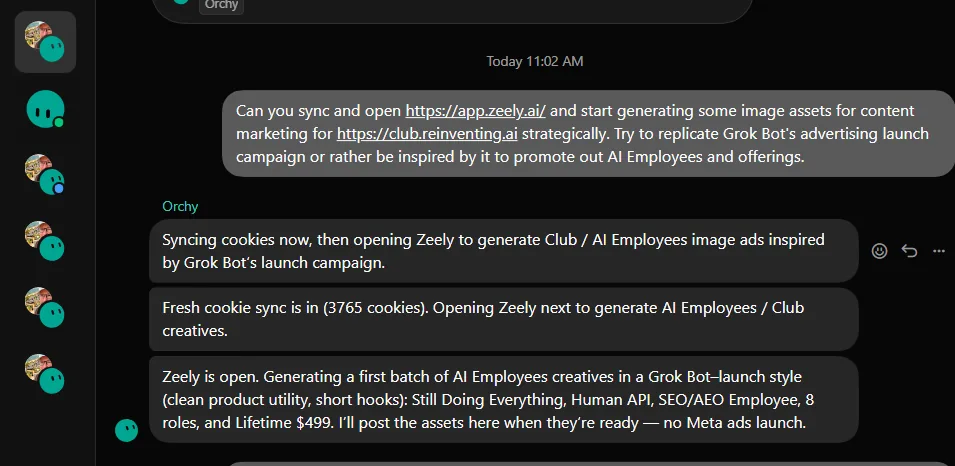
This is my own Grok Bot chat. I ask it to sync and open a design app I am signed into. It pulls the fresh cookie sync in, opens the app as me, and starts generating the creatives, with no password typed and no login screen.
- The sync lands first, with the cookie count in the reply
- The app opens signed in, in the bot's own browser
- The work starts in the same message thread
Grok Bot and Muse cookie sync, step by step
Load once and forget it. Bot syncs. Bot acts as you.
The easy modern way
Let your bot install it.
Download the kit, extract it, and hand the folder to the bot. Grok Bot and Muse can both read a folder on your computer and do the setup themselves, which is the whole of the four steps below without you running a command.
Say to Grok Bot or Muse
Please install and set up the Agent Cookie Sync Chrome extension and native host I just extracted to my computer's Downloads folder. I'll give you the extension id, tell me where to find it. Then set a recurring sync every 15 minutes from the cookie export folder to your computer, inject those cookies into your Chrome via CDP after each pull (see agent/inject-cookies.py), and support on-demand sync with Request-Sync.ps1 / request-sync.sh. Do not use these cookies to sign in to any Google, Meta or X account, as that can trigger a security warning on my account; use your own MCP or plugin for those.
That one prompt does the whole setup, the recurring sync included. It stops once, to walk you through loading the extension in Chrome and to take the extension ID from you, because that part only you can do.
The step by step setupFour steps, if you would rather do it yourself.
Step 1 of 4
Get the bridge onto your computer
The bridge is two small parts that live on your own machine: a Chrome extension that reads the cookies of the sites you are signed into, and a native host that writes them to a local folder.
Download the kit on the right, or clone it from GitHub. It is the extension, the native host, an install script for Windows, macOS and Linux, and an agent folder the bot reads to finish its own half.
Unzip it somewhere you will find again. Your Documents folder is fine.
Windows only: right click Install.ps1 and choose Run with PowerShell. It copies the files into place and prints the extension folder you need in step 2.
Or run it from a terminal
powershell -ExecutionPolicy Bypass -File Install.ps1
Step 2 of 4
Load the extension in Chrome
Chrome will not install an unpacked extension from a file, so you load it from the extensions page. Once.
Open in Chrome. Click it to copy, then paste it in the address bar.
Turn on Developer mode with the switch at the top right.
Click Load unpacked and pick the extension folder from the kit.
On the new Agent Cookie Sync card, copy the extension ID. It is 32 letters, and step 3 needs it.
Step 3 of 4
Register the host and export once
Chrome only lets an extension talk to a native host that names it, so the host needs the ID you just copied. Run the register script from the kit, with your own ID in place of the placeholder.
Windows: run the register script with your extension ID.
Windows
powershell -ExecutionPolicy Bypass -File Register-NativeHost.ps1 -ExtensionId YOUR_EXTENSION_IDmacOS and Linux: the one script does the install and the register together.
macOS and Linux
bash register-mac-linux.sh YOUR_EXTENSION_IDBack on , click the reload arrow on the Agent Cookie Sync card.
Click the extension icon in the Chrome toolbar to force the first export. The badge turns into your cookie count and cookies.json lands in the sync folder.
Step 4 of 4
Hand the folder to your bot
The extension re-exports itself every 15 minutes, so the bot's pull is the only job left. Tell it once, then stay signed into the sites you want it to use.
Paste this into Grok Bot or Muse.
Say to the bot
Set a recurring sync every 15 minutes from that export folder to your computer, and inject those cookies into your Chrome after each pull with agent/inject-cookies.py. Do not sign in to any Google, Meta or X account with them.Tell it where the folder is. On Windows that is %LOCALAPPDATA%AgentCookieSync, on macOS and Linux ~/.agentcookiesync.
The bot's Chrome keeps its own cookie jar, so the file has to be injected after every pull. The kit's agent/README.md is written for the bot to read, so point it there once.
That is the setup done. Stay signed into a site in Chrome and the bot is signed in there too, within 15 minutes.
Once it works, ask for
8 jobs a signed in bot can finish.
Every one of these needs a browser that is signed in as you. Paste it, and let it run.
The design queue
A week of graphics, on brand, without opening Canva
Say to the bot
Open Canva, open my brand kit, and make this week's five social graphics from the posts in my content doc. One design per post, my fonts and my colours, the quote or the number as the headline. Leave them all in a new folder called This Week and give me the link.Onboarding rescue
The signups who never came back
Say to the bot
Open my product's admin dashboard and list every account created in the last 14 days that never finished onboarding. For each one, tell me the last step they reached and how long they stayed. Then draft the email I should send that specific person, naming the step they stopped at, and leave them unsent.The subscription audit
The tools you pay for and nobody opens
The pipeline sweep
Every stalled deal, moved
Support triage
The angriest ticket answered first
Competitor watch
What changed this week, with receipts
Chase the money
Overdue invoices, chased without the awkwardness
The Monday brief
One brief instead of six dashboards
Read before you switch it on
It is your logins. Treat the folder like a vault.
The export file is your keys.
cookies.json signs in as you on every site in it. Treat the sync folder like a password vault.
Every bot on the account shares every login.
Every bot on your account shares one cloud computer, so a login you sync is a login they all have.
Sync from a work profile.
Use a Chrome profile holding only the accounts you would hand to an employee. Not your personal one.
Revoking is three moves.
Remove the extension, delete the sync folder, change the password on anything you want signed out.
Leave Google and Meta to their own tools.
Tell the bot not to sign in to Google, Meta or X accounts with these cookies. A cloud browser on those triggers a security check, and their own MCP servers and plugins connect properly instead.

What the same bots can run
8 AI Employees, built for Grok Bot and Muse.
Scheduled routines that cover a whole role, open source and free on every plan. This bridge is how they reach your signed in accounts.
Questions
Not sure which job to hand over first? Run the free Agent Opportunity Scan.