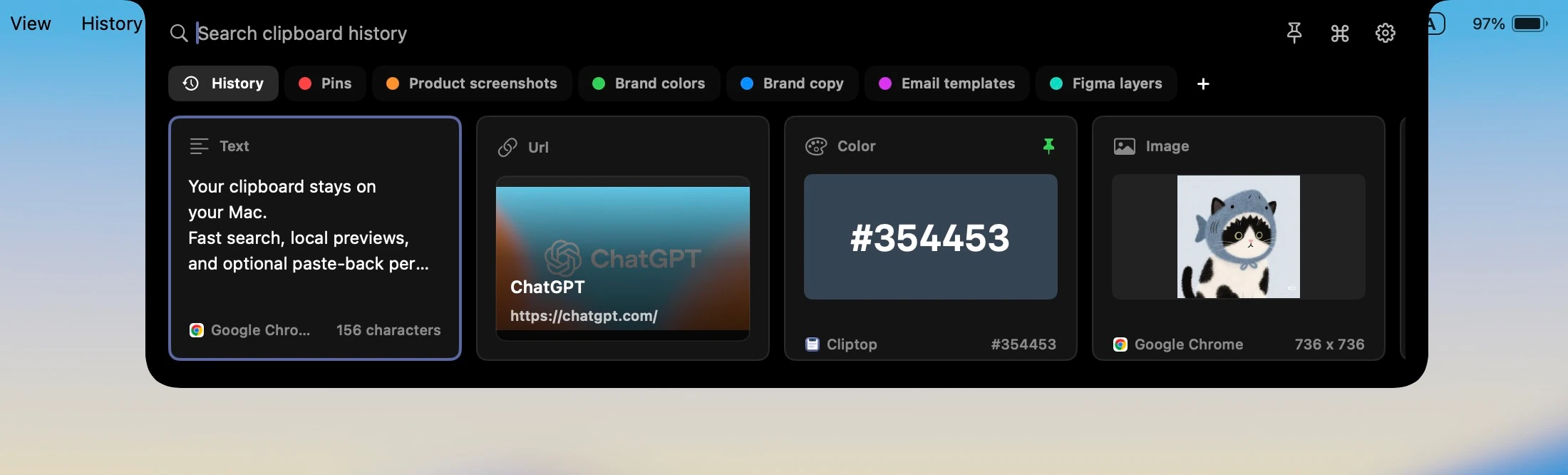
01Search everything
Find the thing you copied three apps ago.
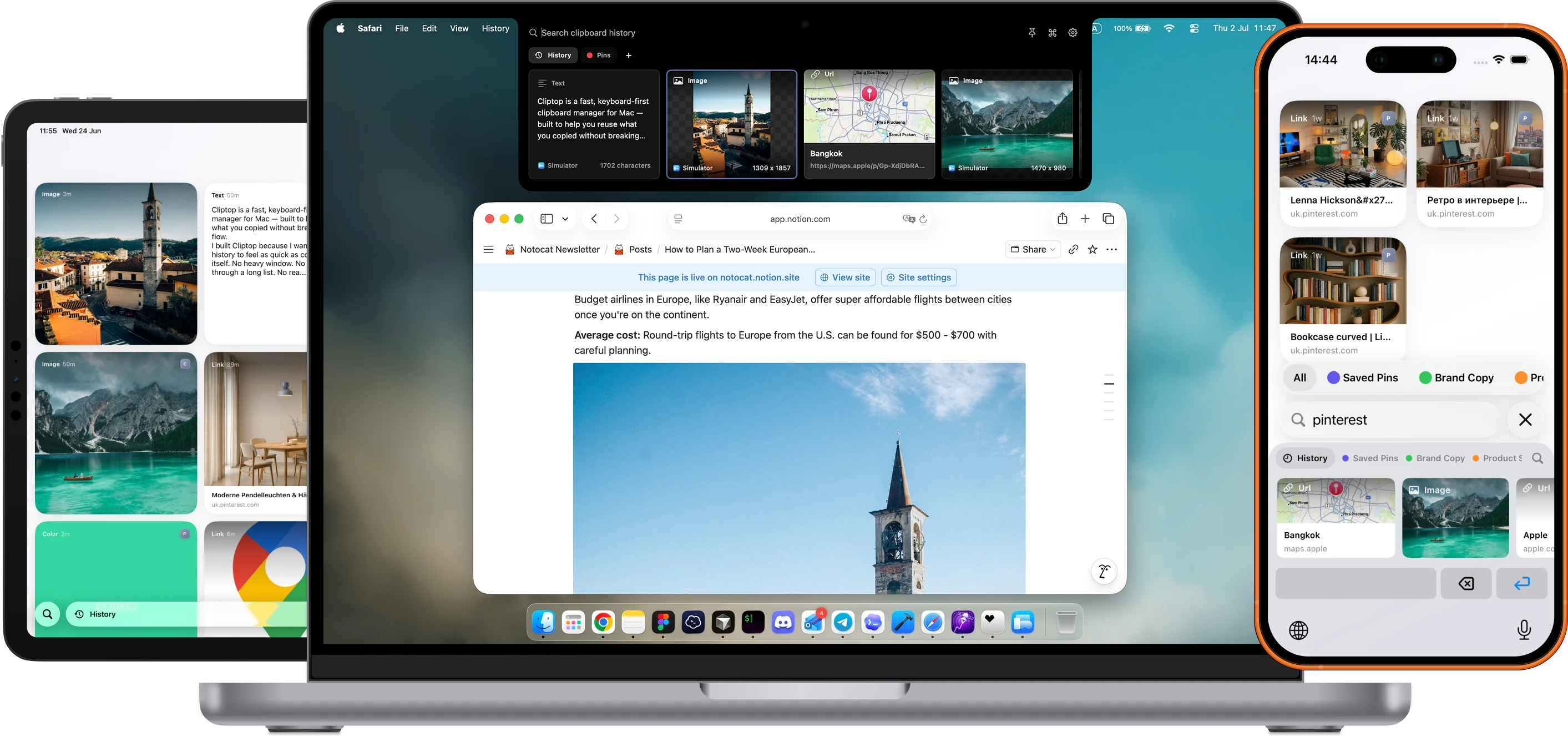
Search text, links, files, screenshots, code snippets, colors, and pinned clips without opening a separate workspace.
Works across all your devices
Built for everyday copy-paste
Cliptop keeps the clipboard jobs you do all day close to the app you are already using.
01Search everything
Search text, links, files, screenshots, code snippets, colors, and pinned clips without opening a separate workspace.
02Pinboards
Group reusable links, snippets, screenshots, and brand assets into pinboards so everyday clipboard work stays organized.
03Text from images
On-device OCR helps you copy text from screenshots, images, and design references when the original text is not selectable.
04Link and text tools
Paste as plain text, clean tracking parameters from URLs, copy Markdown links, or run format-specific actions from the same panel.
05Image tools
Preview copied images, crop screenshots, and keep image clips ready for the next paste or export.
06Code workflows
Recognize code and structured text, then trim, format, escape, or paste it cleanly into the app you were already using.
07Local-first privacy
Keep clipboard history on your Mac, manage private items, and decide what Cliptop can preview or paste back.
Native Mac workflow
Cliptop stays small enough to use in the middle of real work, with previews and actions that change by clipboard type.
Private by default
Cliptop keeps clipboard history on your Mac by default. If you turn on sync, clips move through your private iCloud database rather than Cliptop servers.
Clipboard history is stored on your Mac unless you choose optional private iCloud Sync.
Sync clips and pinboards through your private iCloud database, without sending clipboard contents to Cliptop servers.
Keep passwords, API keys, and other private snippets blurred when you do not want them visible.
Tap to reveal
Early bird pricing
Start with the Mac app. Try every Pro feature, then lock in yearly or lifetime access when you are ready.
Trial
Try every Cliptop Pro feature from the Mac app.
$0
7-day trial
 Download free trial
Yearly
Full Cliptop Pro access for one year.
$14.99$9.99
per year
Pay once and keep Cliptop Pro.
$29.99$19.99
one-time purchase
More devices
Get in touch if you need to cover more Macs, set up Cliptop for your team, or talk through the right plan for your workflow.
7-day full-feature trialNo payment required for trial30-day money-back guarantee
Already bought Cliptop?Recover your license key.
FAQ
The short version: Cliptop is local-first, works with or without a notch, and starts with a no-payment trial.
Cliptop is a clipboard history app for Mac that opens near the notch or from Shift + Cmd + V, lets you search recent copies, and helps you paste or clean up items without switching context.
Clipboard history is stored locally by default. Optional iCloud Sync can sync clips and pinboards through your private iCloud database, and Cliptop does not send clipboard contents to Cliptop servers for sync.
Cliptop works on any Mac screen. On external displays or non-notch Macs, open it from the middle of the menu bar or use the shortcut: Shift + Cmd + V.
Direct Paste uses Accessibility permission so Cliptop can paste the selected item back into the app you were using. If you do not enable it, Cliptop still restores the item to the clipboard so manual paste keeps working.
Cliptop keeps useful formats from daily Mac work, including text, links, code snippets, screenshots, images, files, and colors.
Yes. Cliptop includes a 7-day free trial with full Pro feature access and no payment required, so you can test the workflow before choosing yearly or lifetime Pro.
Yes. Cliptop includes a 30-day money-back guarantee. If it is not a fit for your workflow, email support@cliptop.app within 30 days and we'll refund you, no questions asked.
Use the recover license page with the email address you purchased with, and Cliptop will resend your license key by email.
Cliptop for Mac
Download the app, copy something, and pull it back from the notch. Keep the trial, upgrade yearly, or choose lifetime when it fits.