
Mitigating the risk of prompt injections in browser use
Claude
Claude in Chrome reads the page you’re signed in to, then clicks, types, and fills forms while you decide what happens next.
Available on all paid plans. Not on a paid plan? Upgrade now
No more copying, pasting, and switching tabs.
Pair Claude in Chrome with Claude Cowork to turn web research into polished content. Chrome navigates and gathers information, Claude Cowork produces Excel models, comparison decks, and reports without having to copy and paste.
> Think harder...
            while(curious) {
              question everything();
              dig_deeper();
              connect_dots(unexpected);

              if (stuck) {
                keep_thinking();
              }
            }
Connect development workflows to Chrome for a partner that tests and iterates with you.
Bring Claude into your workflow to make apps work better, without leaving the browser.
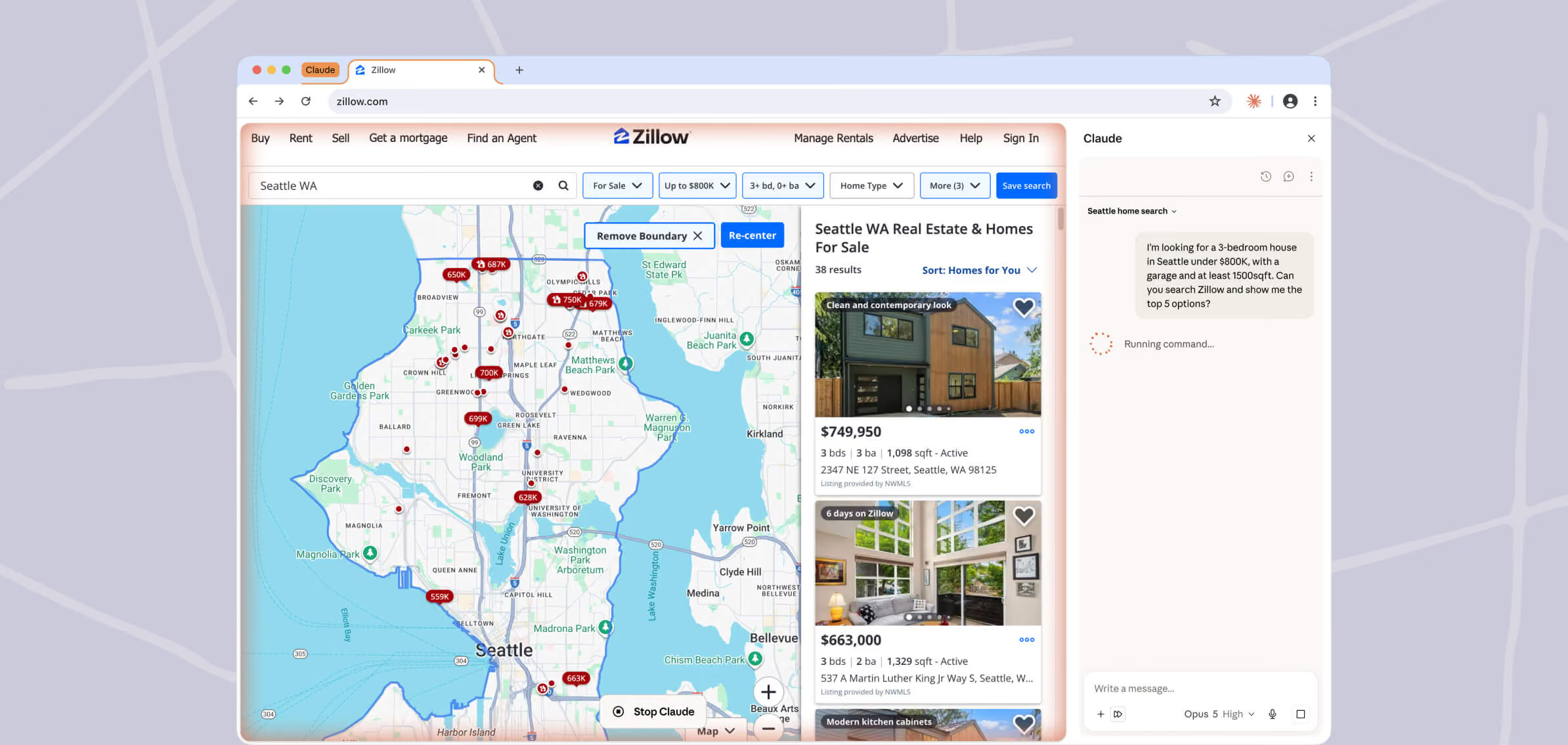
Start a workflow and move on. Claude completes tasks while you focus elsewhere.
Claude can navigate your analytics dashboard, extract the numbers you need, and compile them into a summary. No exports, no tab-switching, no manual copying.
Claude can sort through your Drive, create a folder structure, move files where they belong, and flag duplicates and old files for you to review. You approve the changes instead of doing the sorting yourself.
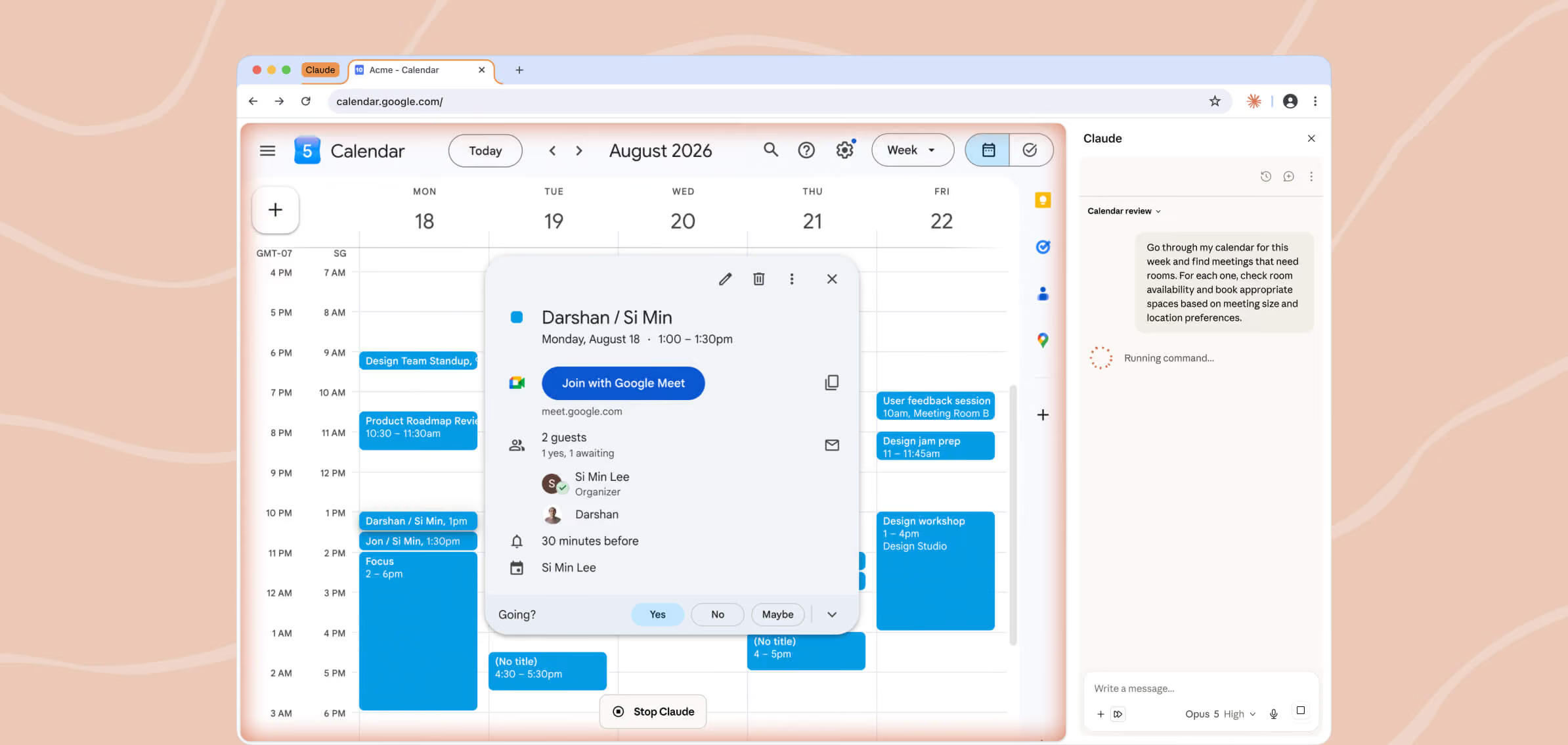
Claude can read your calendar, pull context from email threads, flag which meetings you need to prepare for, and book rooms if they’re missing. Run it every evening and start each day knowing what's coming.
Claude in Chrome visits competitor sites and pulls pricing, features, and positioning. Claude Cowork compiles everything into a formatted PowerPoint ready for your next strategy meeting.
Claude can read your calendar, match attendees to Salesforce contacts, and draft activity logs for each call. You add notes and approve before anything gets created.
Claude can scan through your inbox, identify marketing emails, newsletters, and automated notifications, then present them as a list for you to review before deleting in bulk.
Reach the web that has no API
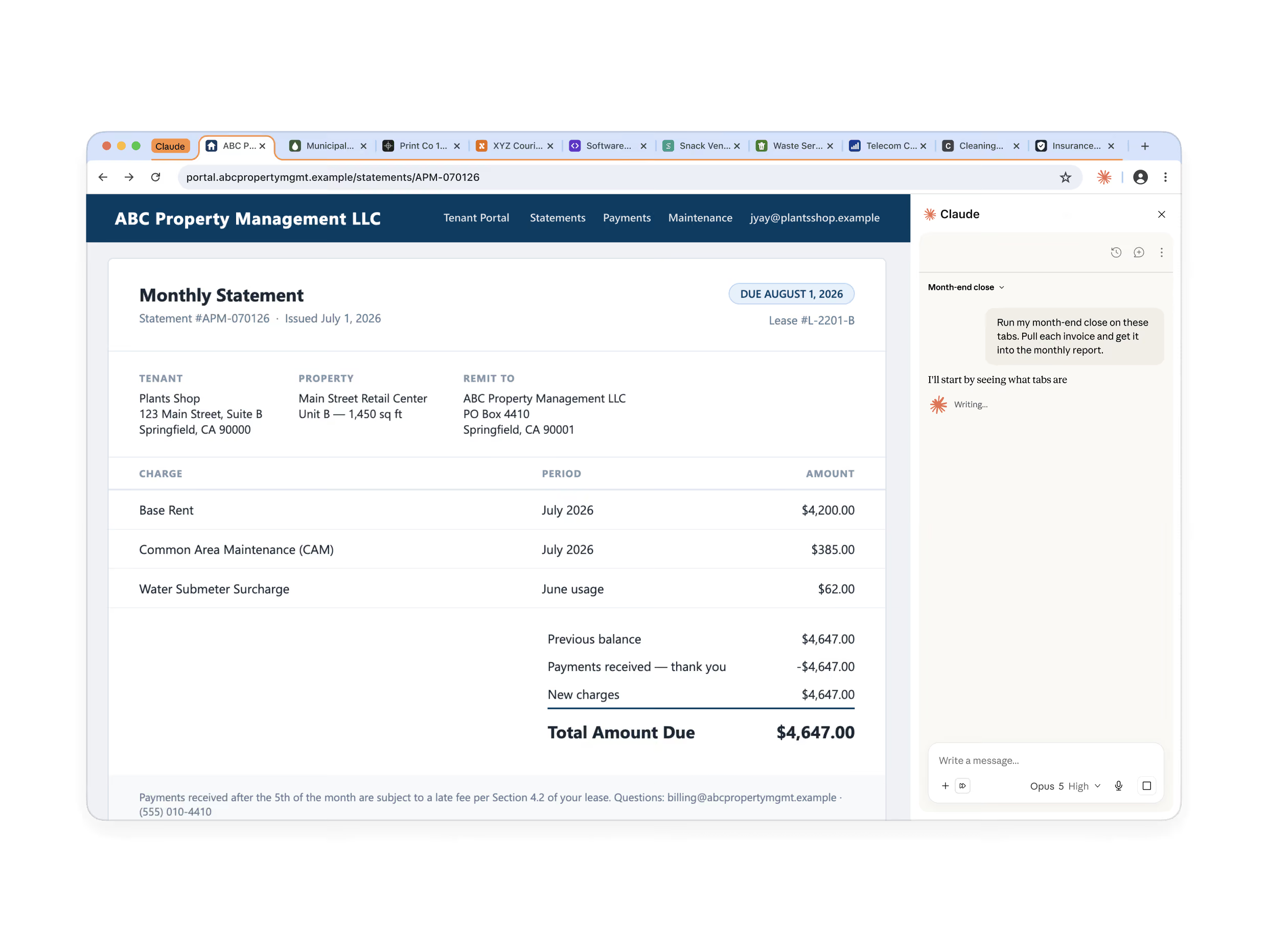
Access internal tools, legacy portals, admin consoles, and invoice systems. Claude works with the logins you have, on the tab in front of you. Drag more tabs into Claude’s tab group and Claude works across all of them.
Your whole setup, in the side panel
The side panel now runs a full Claude Cowork session. The skills, plugins, and connectors you've already built are there, with nothing to set up in the browser.
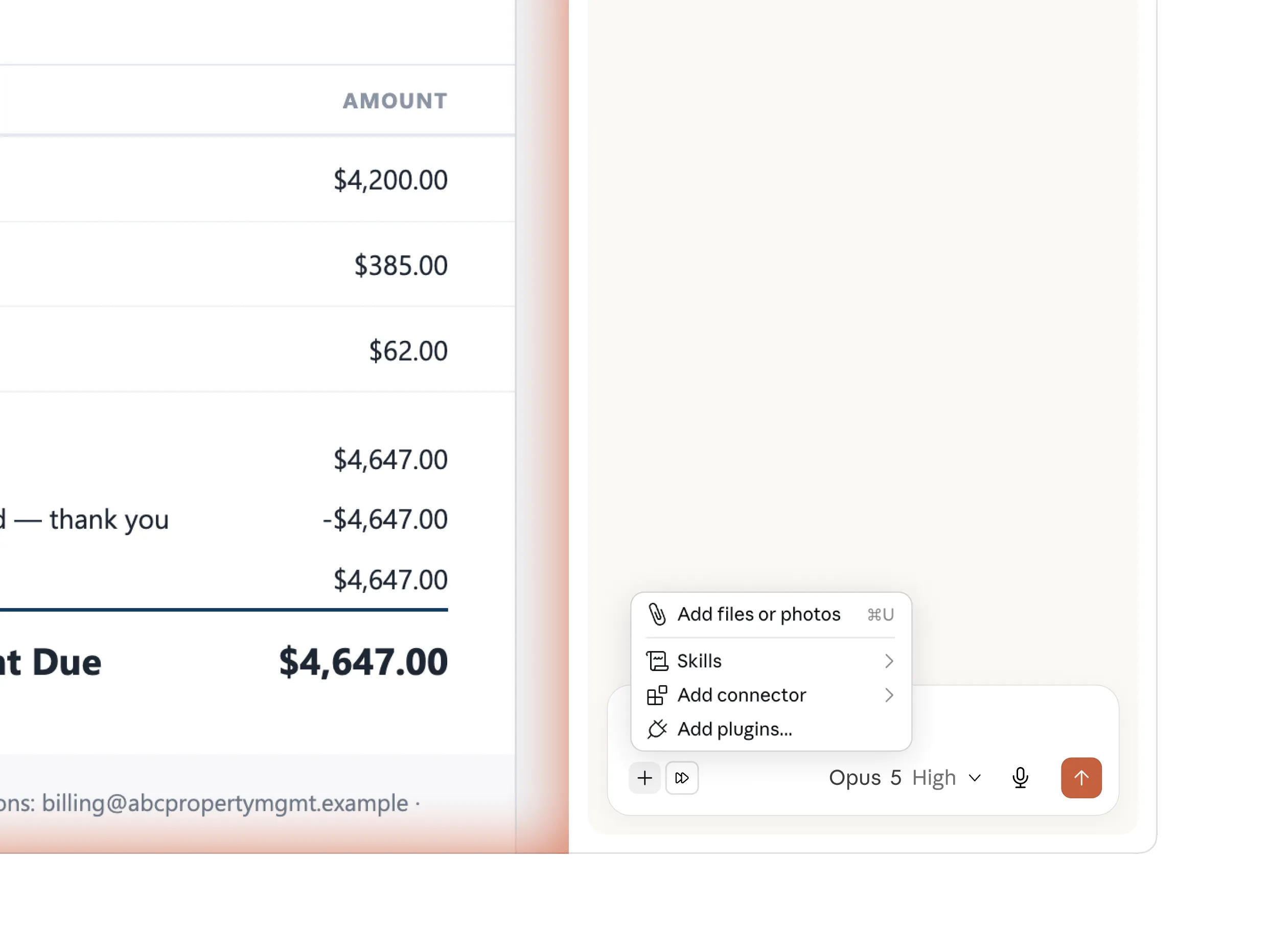
Every conversation saves to your history. Sessions live with your account, not the machine, so you can start in Chrome and pick it up on desktop or mobile without needing to re-explain. A skill you save in the panel runs from any surface too.
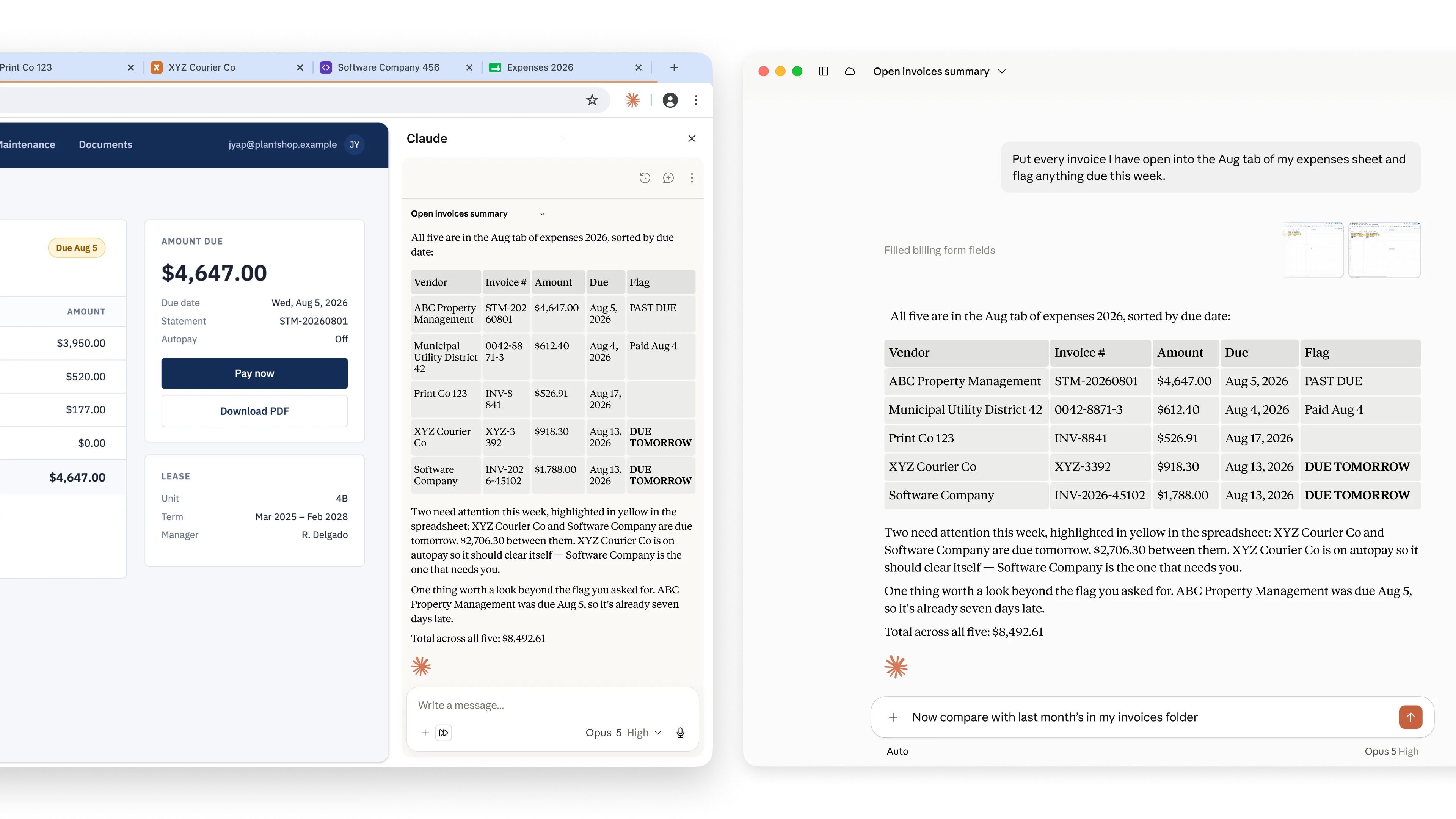
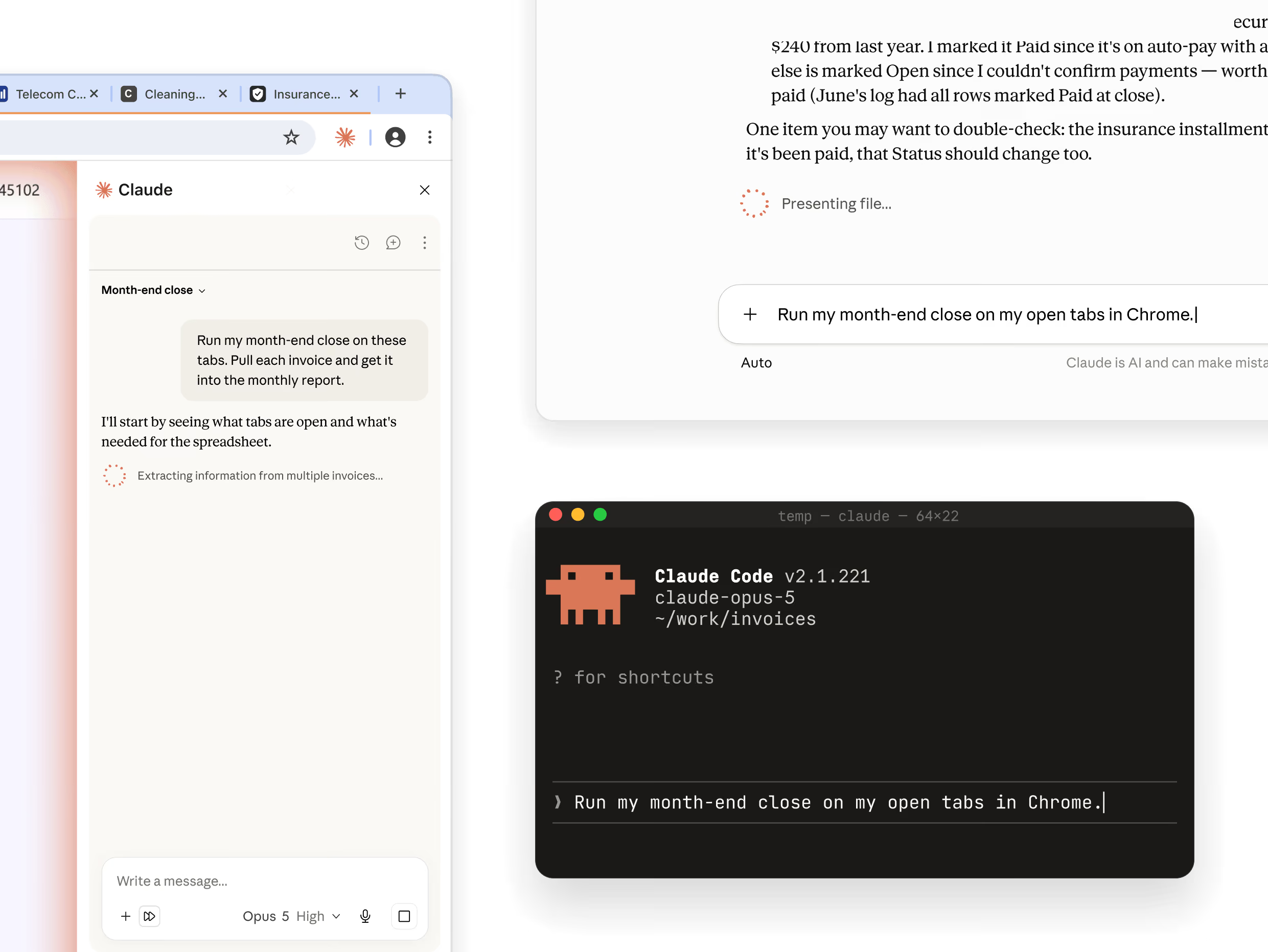
Three ways to access the extension
Access Claude in Chrome through the side panel when the work is on the page in front of you and nothing else needs to be open, in Claude Cowork when the browser is one step in a longer job, or in Claude Code when you’re building the site you’re testing.
Hidden instructions on a page can try to redirect Claude’s actions. Though Claude in Chrome has built-in defenses that have been tested against real attacks, we recommend the habits below as a best practice.
If you choose to, Claude can work through a task without asking you to approve each step. Before it acts on a page, a separate safety check reviews the action for risk and for instructions hidden by the site. It will surface to you if anything seems off.
If you prefer more control, switch to Permissions Mode. You grant access one site at a time. Claude can't reach anything you haven't approved.
Purchases, financial actions, and other one-way doors wait for you.
On Team and Enterprise, admins turn the extension on or off org-wide and set site allowlists and blocklists.
Skip banking, health records, and anything with credentials you wouldn't share. Start with workflows you already know well.
Claude asks before financial, personal, or work-critical actions. Review its prompts carefully.
Some sites hide instructions that override yours. Our classifiers provide a defense, but if Claude acts unexpectedly, pause and review.
Report issues through the feedback options. It’s how we catch attacks we haven’t seen.
Mitigating the risk of prompt injections in browser use

Using Claude in Chrome Safely

Claude in Chrome Permissions Guide
Claude Cowork users can start a task in Cowork and let it handle work in the browser without switching windows by enabling Claude in Chrome as a connector.
Avoid financial transactions, password management, or anything involving sensitive personal data. Start with trusted sites and familiar workflows where you're comfortable having Claude take actions. Make sure your use complies with our acceptable use policy. Learn more.
Browser AI faces unique security risks, like prompt injection attacks, where malicious actors might try to trick Claude into unintended actions, such as sharing your bank information or deleting important files. While we’ve implemented protections, they aren’t foolproof. Attack vectors are constantly evolving and Claude may hallucinate, leading to actions that you did not intend. We’ve shared our testing results, including possible attack scenarios, so you can make informed decisions, and strongly encourage you to read about the risks before using this product. Read blog post.
On its own, Claude in Chrome helps you navigate, extract information, and take actions in your browser. Paired with Claude Cowork, Chrome becomes the research layer for larger tasks. Claude gathers information from the web, then Claude Cowork produces finished files like Excel workbooks, PowerPoint decks, and formatted reports.
This article helps you resolve common issues with Claude for Chrome and explains how to provide feedback.
This is a Google extension. The use of information received from Google APIs will adhere to the Chrome Web Store User Data Policy, including the Limited Use requirements.