Chest is a small, open-source menu bar manager. It hides the menu bar icons you don’t need, either right in the menu bar or in a separate chest.
Download for macOS View on GitHub
Free and open source. Requires macOS 27 Golden Gate or later.
Two ways to clear the clutter
Hide it
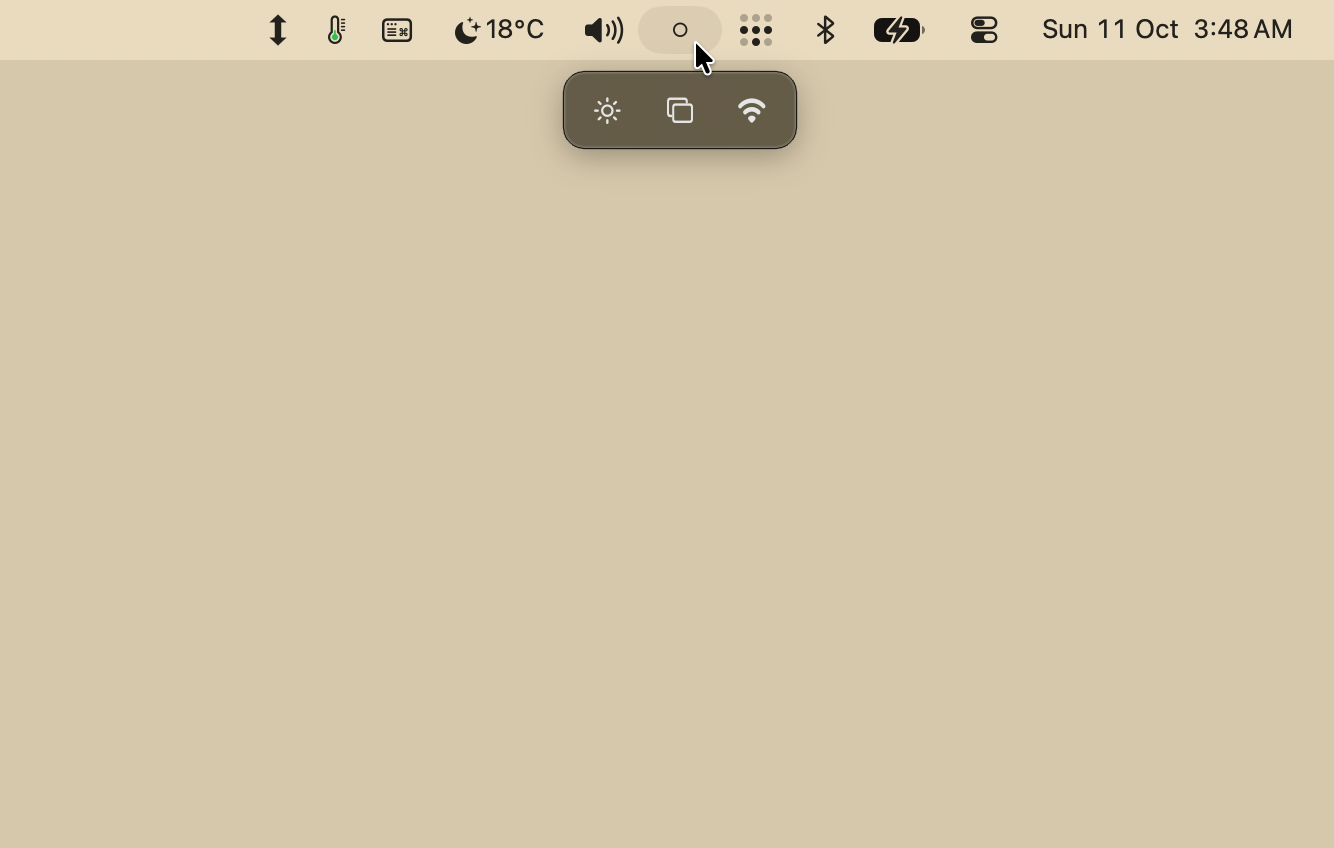
Hold ⌘ and drag an icon to the left of the dot. It leaves the menu bar while its app keeps running, and comes back in the same place when you click the dot.
Put it in the chest
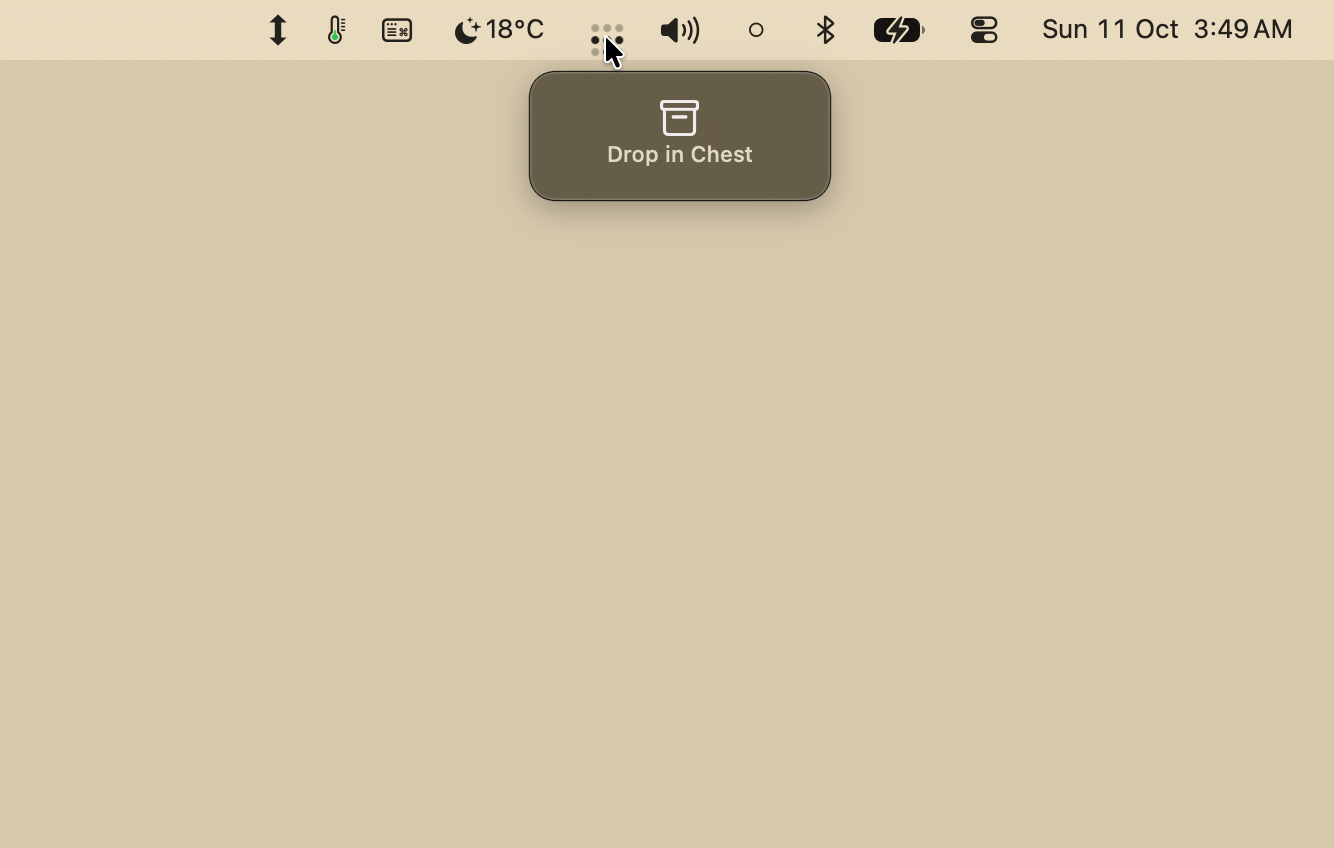
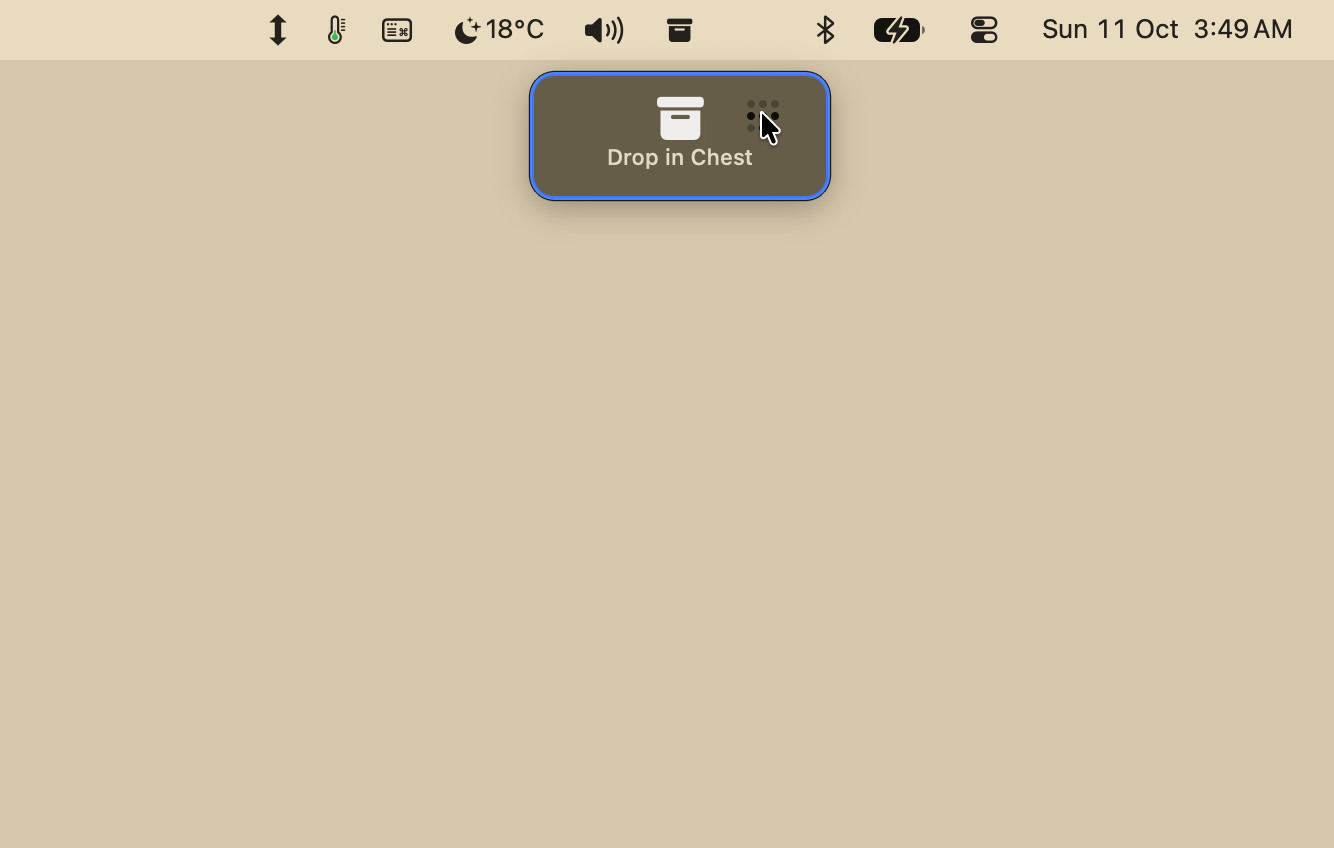
For icons you use now and then. Hold ⌘ and drag an icon onto the chest that appears under the dot. Click the dot to open the drawer, then click an icon there to open its menu.
Free, and the code is yours to read
Chest is released under the MIT license. Browse the source, open an issue, or send a pull request on GitHub.
- Checks for updates on its own and asks before installing them.
- No accounts, analytics or tracking. The update check is the only connection Chest makes. Read the privacy policy.
From the makers of Chest
boringBar
taskbar for macOS
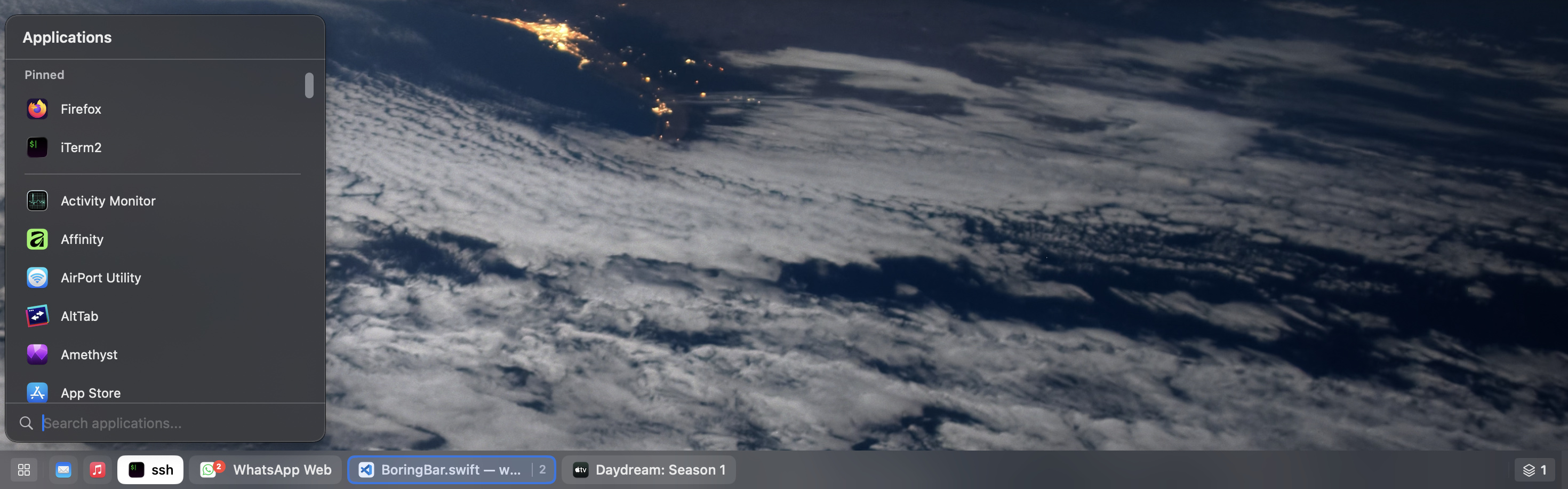
If Chest tidied up your menu bar, boringBar does the same for your windows. It keeps them organized by desktop, with previews, pinned apps and one-click desktop switching.
FAQ
Is Chest free?
Yes. Chest is free and open source under the MIT license.
I used Ice. Does Chest replace it?
For hiding menu bar icons, yes. Ice hid icons by pushing them off the screen with a very wide divider, and macOS 27 no longer lets anything push icons off the screen. Chest hides them with macOS’s own switches instead, the ones under System Settings › Menu Bar › Allow in the Menu Bar. Chest doesn’t read Ice’s settings, so you set up your hidden icons again.
How do I hide an icon?
Hold ⌘ and drag the icon to the left of the dot in your menu bar. Click the dot to see hidden icons again, or drag one back to the right of the dot to keep it visible.
What goes in the chest?
Icons you don't need to see all the time but still want close by. Hold ⌘ and drag one onto the chest that appears under the dot. Click the dot and the drawer opens under it, with your hidden icons back beside it.
What permissions does Chest need?
Accessibility, and two files you pick once. It uses them only to manage your menu bar:
- Accessibility, to find your menu bar icons and open their menus from the chest.
- Two files that macOS keeps in protected folders: the Allow in the Menu Bar list, which Chest uses to show and hide icons, and the file that holds the order of your menu bar. Chest opens an Open panel on each with the file already selected, and you click Allow. macOS then lets Chest use that one file and nothing else around it. It takes effect at once and doesn’t need Full Disk Access. See the code that uses them.
Does Chest collect any data?
No. Chest has no accounts, analytics, tracking or ads, and keeps its settings on your Mac. The only connection it makes is a check for updates, about once a day, to files.boringbar.app. It asks before installing an update. See the privacy policy for the details.
Can I install Chest with Homebrew?
Yes. Chest’s GitHub repository is its own Homebrew tap:
brew tap boringbar/chest https://github.com/boringbar/chestbrew install --cask chest
Chest updates itself, so brew upgrade leaves it alone. brew uninstall --cask chest quits Chest first, which puts every icon back in the menu bar. Add --zap to remove its settings too.
Can I hide Wi-Fi, Sound or other system icons?
Yes, most of them. Spotlight, Wi-Fi, Bluetooth, AirDrop, Focus, Screen Mirroring, Display, Sound, Now Playing, Fast User Switching, Timer, Text Input and Weather can all go in the chest. When you open one from the drawer, it comes back to the menu bar while its panel is open.
Time Machine, VPN and Battery can’t yet: macOS keeps a separate switch for each one, and theirs still have to be worked out. The clock and Control Center always stay in the menu bar.
Can I hide just one of an app’s icons?
No. Chest hides icons app by app, so if an app has two icons in the menu bar, they hide together.
Why can’t I put an app’s icon in the chest?
macOS has to list the app under Allow in the Menu Bar first, which it usually does as soon as the icon appears. If it hasn’t yet, Chest tells you and offers Refresh Menu Bar. That restarts the menu bar so macOS lists the app, and the menu bar blinks once.
Why did some icons end up behind «?
When the menu bar runs out of room, macOS collapses the icons that don’t fit behind its own « button. It happens sooner on a Mac with a notch, and it includes icons hidden left of the dot when you open Chest. Keep a few icons left of the dot and put the rest in the chest: the drawer wraps into rows of ten and has room for any number.
What happens when I quit Chest?
Every icon goes back in the menu bar, and the next launch tucks them away again. If Chest is force quit or crashes, hidden icons stay hidden until you open Chest again, or until you switch them back on in System Settings › Menu Bar. To uninstall, quit Chest and move it to the Trash.
Which macOS versions are supported?
Chest requires macOS 27 Golden Gate or later.
Who makes Chest?
The team behind boringBar, a taskbar for macOS.