Ask ChatGPT to create new slides, update existing decks, turn source material into presentation-ready content, and polish slides directly in PowerPoint.
Available globally across all plans: Free, Go, Plus, Pro, Business, Enterprise, Edu, Teachers, and K–12.
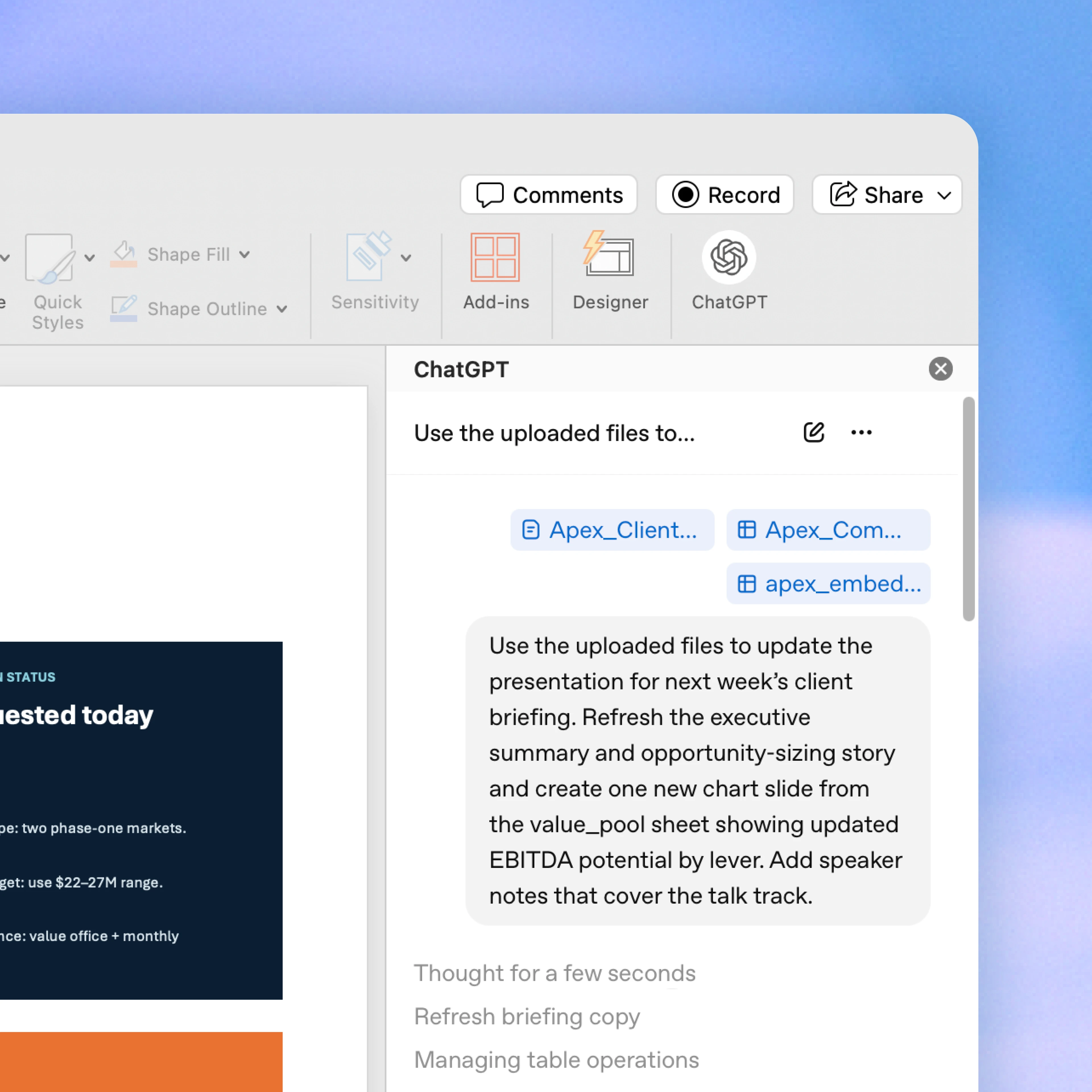
Turn conversations into presentations in minutes
Create and edit in plain language
Start from notes, docs, spreadsheets, prompts, or an existing deck. Ask ChatGPT to create slides, rewrite content, tighten hierarchy, add a new section, or polish a draft while keeping the output editable in PowerPoint.
Get a clearer story from your deck
Ask what your presentation says, where the narrative is weak, what's missing, and what an executive audience might ask. Use ChatGPT to summarize, restructure, and turn dense slides into clearer takeaways.
Follow along so you can trust the work
ChatGPT works inside PowerPoint, reads your deck structure, and helps preserve editable slide content. Review changes, check important claims and numbers, and keep control before you share.
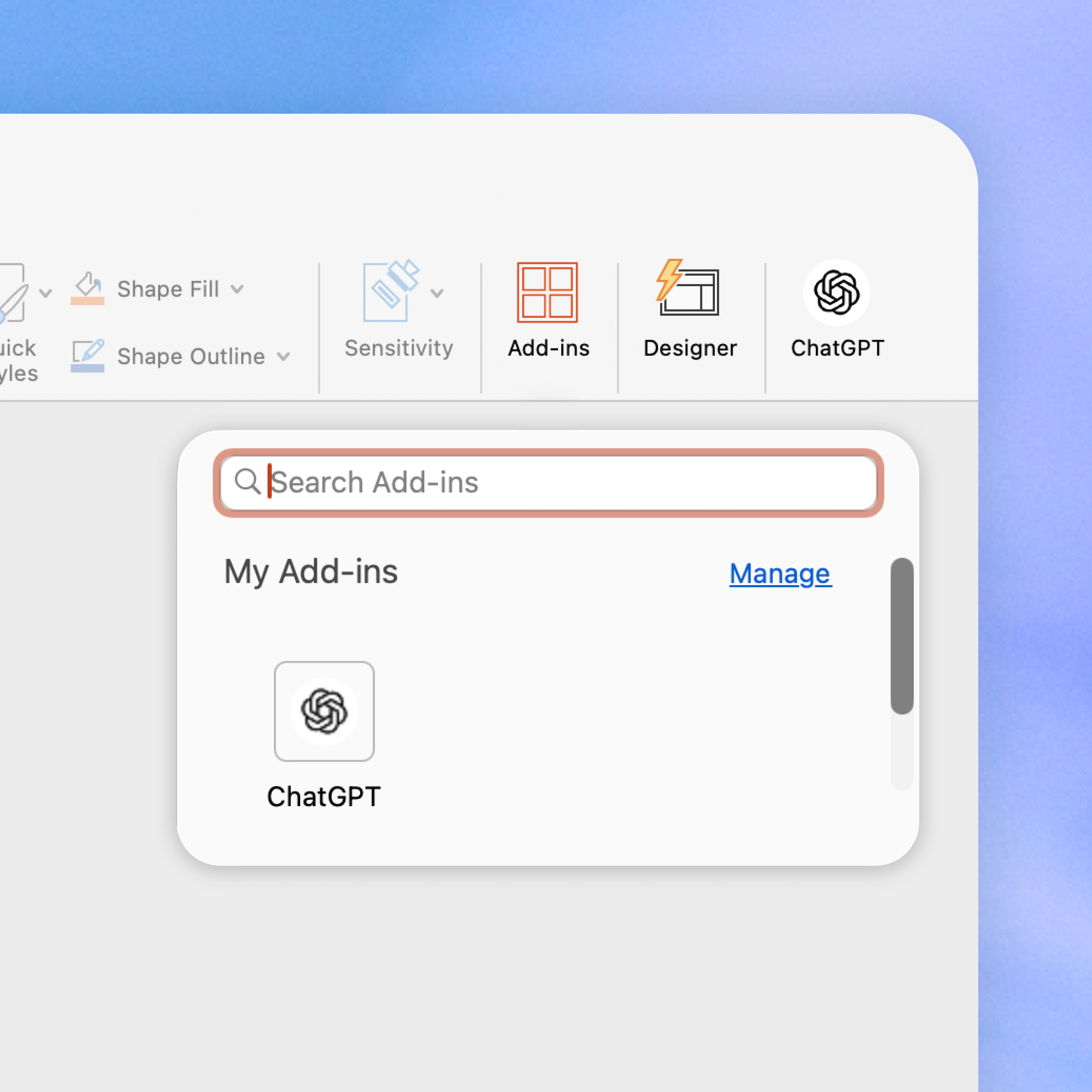
How to install
Add ChatGPT for PowerPoint from Home → Add-ins, then search for ChatGPT. Open ChatGPT from the ribbon and sign in with your OpenAI account.
Ways to use ChatGPT for PowerPoint
Frequently asked questions
By default, data shared with ChatGPT isn't used to improve our models for ChatGPT Business, ChatGPT Enterprise, ChatGPT Edu, and ChatGPT for Teachers.
More ways to use ChatGPT
- ChatGPT for Excel and Google Sheets
Ask ChatGPT to build full spreadsheets, get insights across tabs, add and edit formulas, and update sheets in real time—so projects move forward faster.
- ChatGPT with presentations
Understand data faster, fix formulas confidently, and turn raw numbers into clear insights and templates.
- ChatGPT for data analysis
Unlock value from your data, speed decision-making, and scale analytics initiatives—in one secure workspace.