With Buddy, you can create a pipeline that builds, tests, and deploys Android applications on a push to Git. The configuration is super simple and takes 10 to 15 minutes.
Image loading...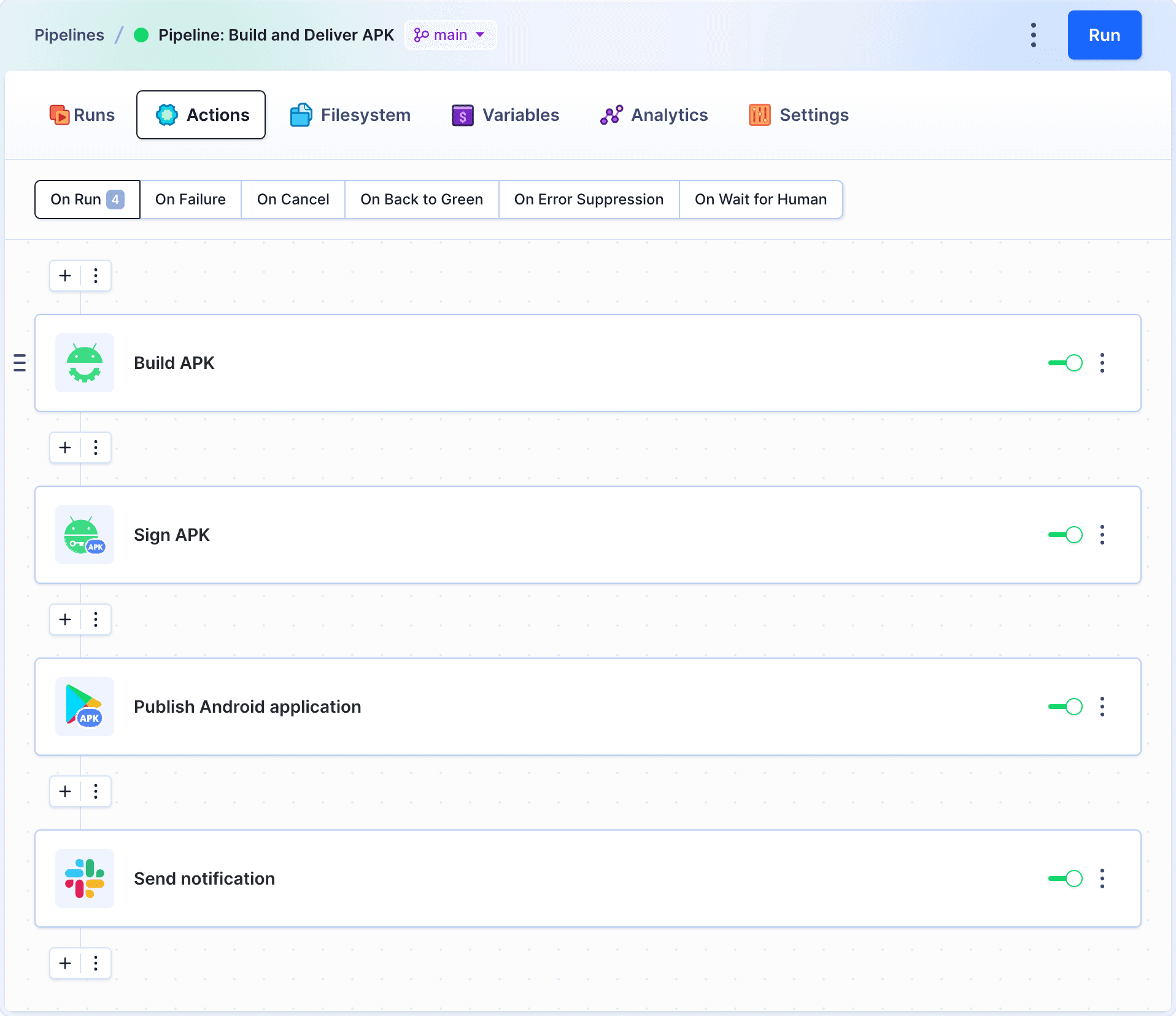
1. Create a new project
Go to Projects and click Create new project. Select your Git hosting provider (Buddy, GitHub, Bitbucket, GitLab, or Private Server) and enter your project name.
Image loading...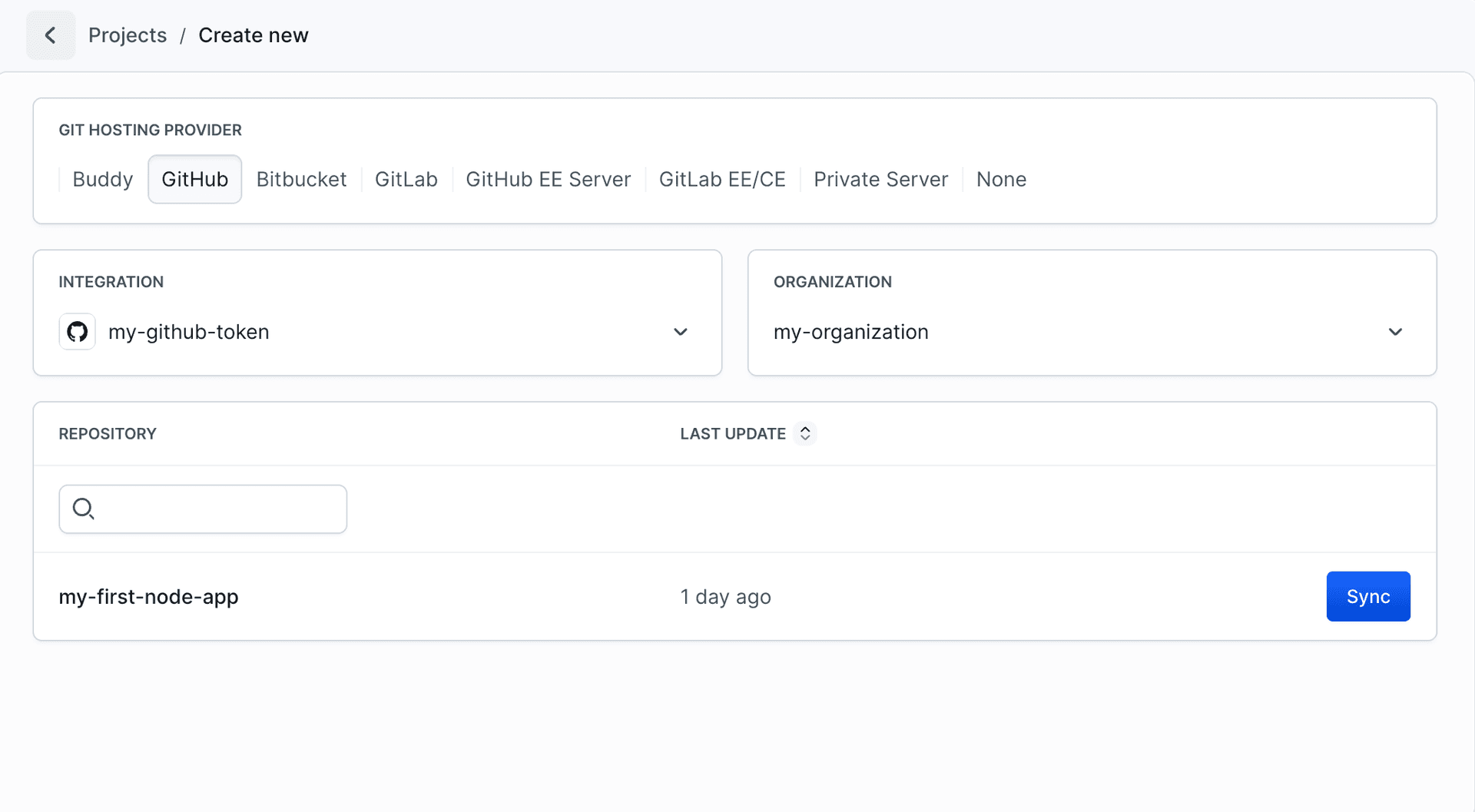
Here's how the project looks in the Code tab:
Image loading...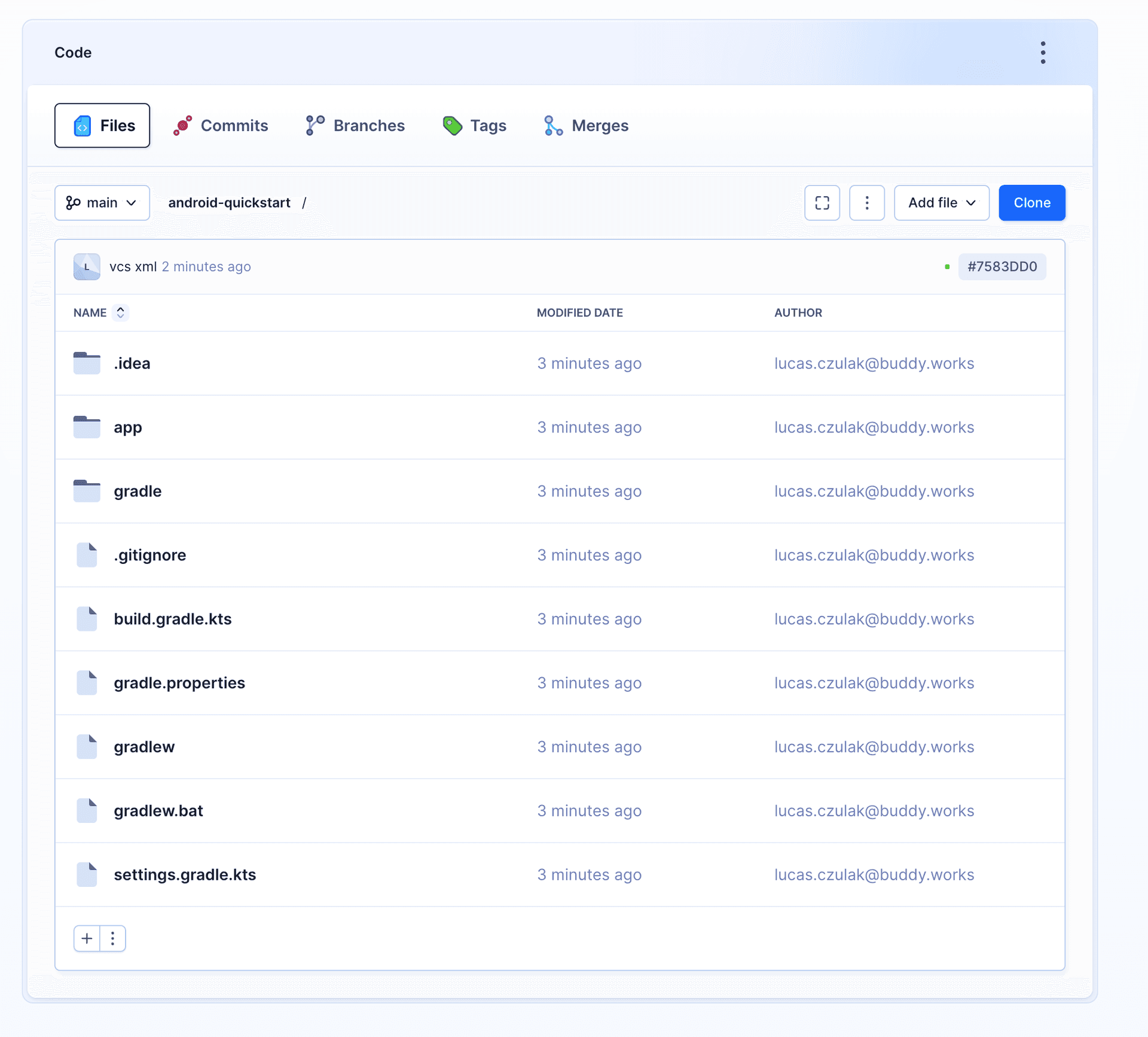
2. Add a new pipeline
Navigate to Pipelines and click New pipeline. In the form, configure the following:
- Name - Enter a descriptive name for your pipeline (e.g., "Deploy to production")
- ID - Optional identifier for the pipeline
- CPU - Select architecture: x64 or ARM64
- Resources per pipeline run - Choose resource allocation (default: Workspace default)
- Definition Location - Optionally check "Store configuration in a Git repository" to use YAML files
Click Add pipeline to create it.
Image loading...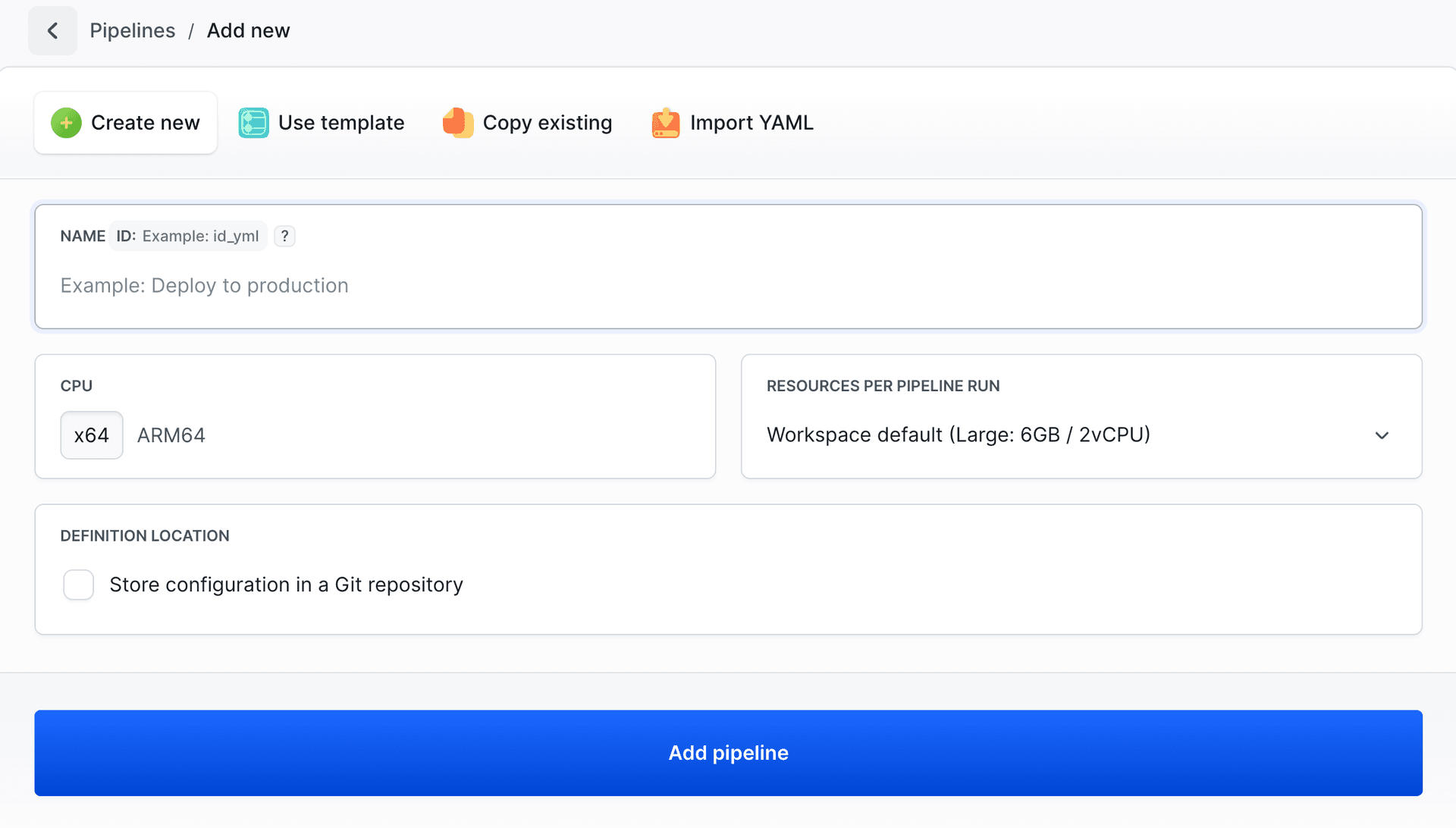
3. Configure workflow: contexts and triggers
After creating the pipeline, go to the Workflow tab to configure:
Image loading...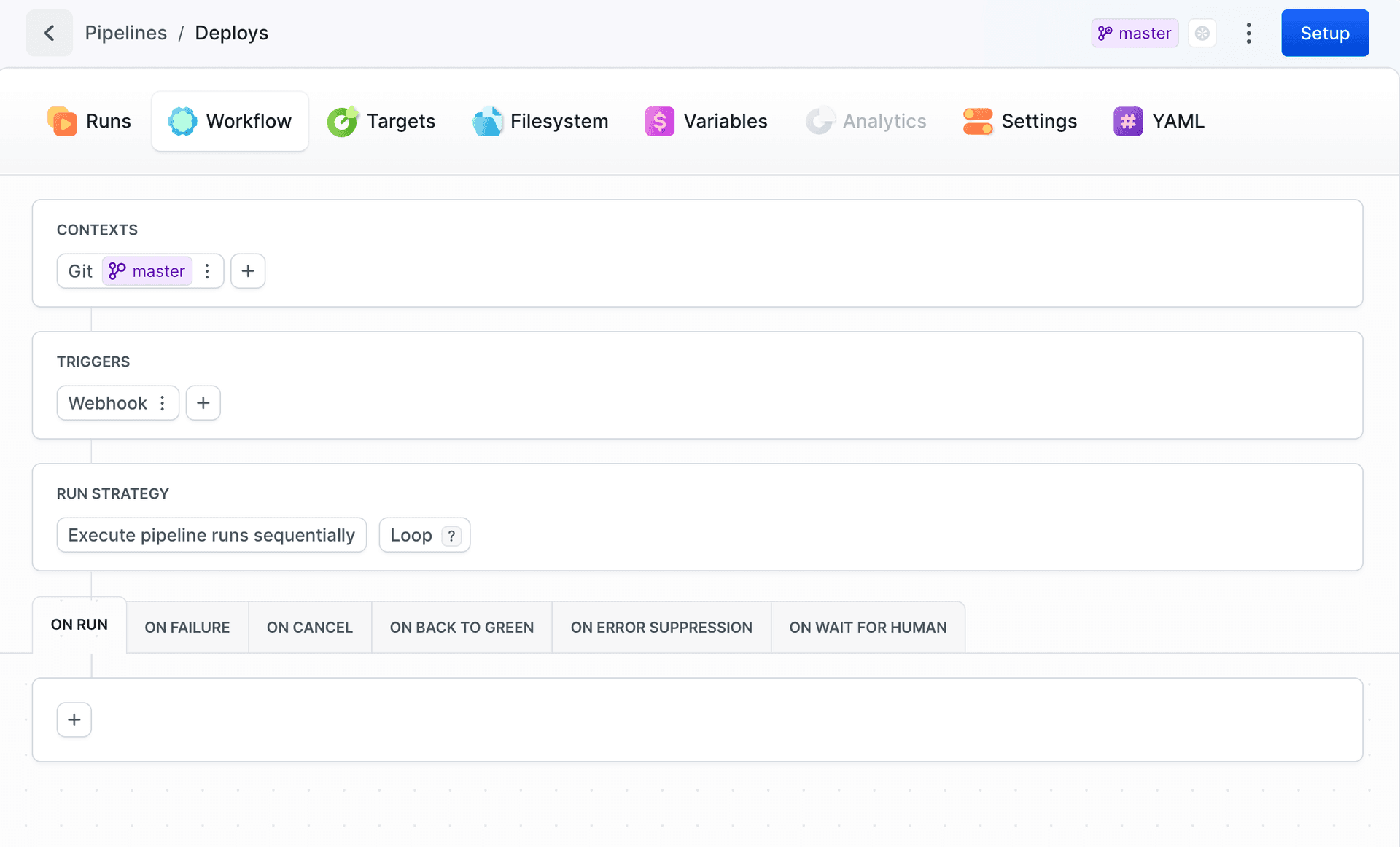
Contexts - Click
+to add Git branch/tag context or Environment. See Contexts.Triggers - Click
+to add Git events, Schedule, or Webhook. See Workflow Configuration.
4. Add actions
In this example, we'll add 4 actions that will perform the following tasks:
- Build your Android application
- Sign app with your key
- Upload APK to Google Play
- (Optional) Send notification to Slack
4.1 Build your Android application
Success
Build actions in Buddy are run in isolated containers run from official Docker images. When the pipeline is run, Buddy pulls the container, runs build commands, and shares the results in the pipeline filesystem with deployment actions.
Look up and click Build APK on the action list to add it to the pipeline:
Image loading...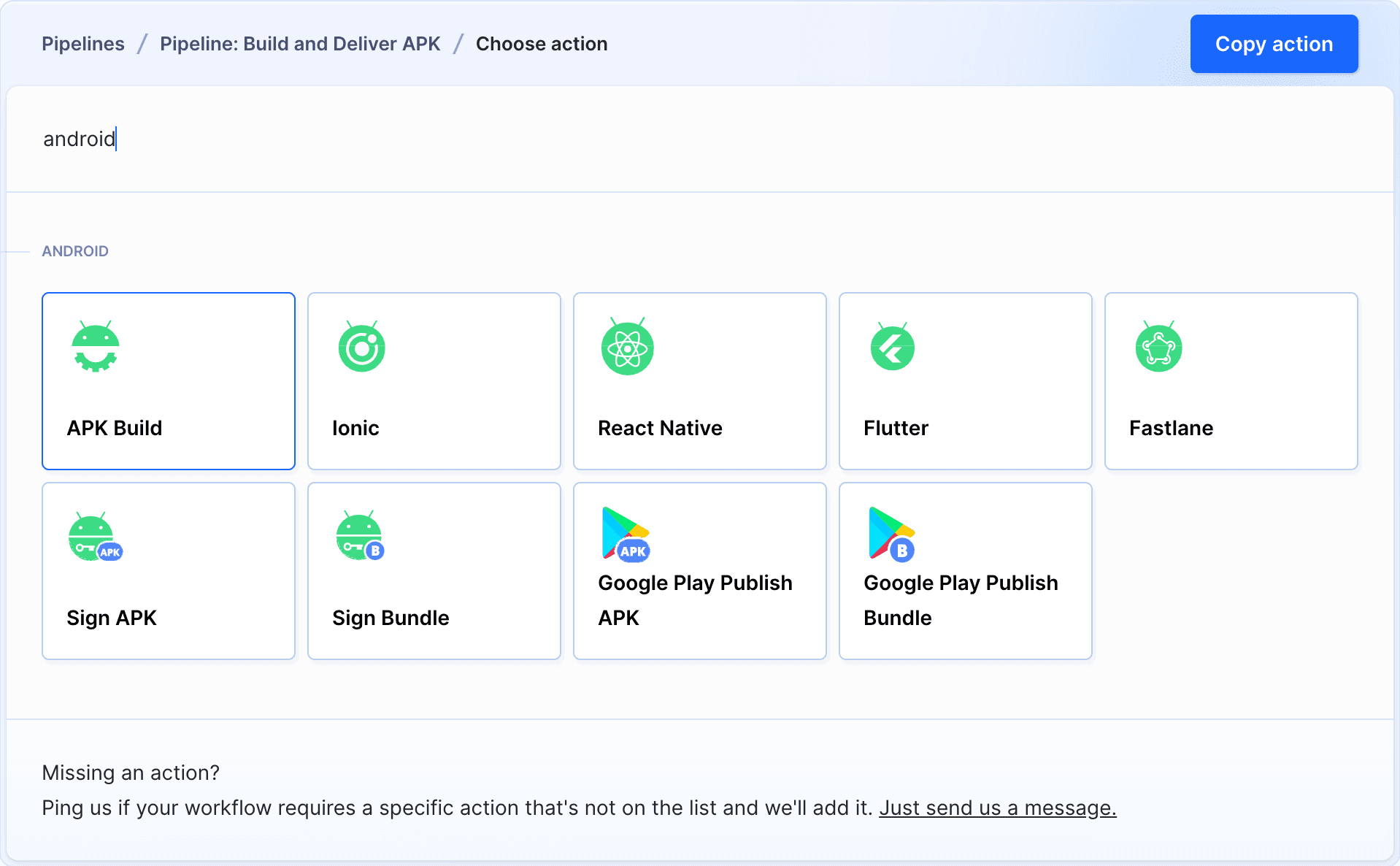
The Run tab lets you determine the commands to execute. The default commands are:
bash
export ANDROID_HOME="/opt/android/sdk" export PATH=$PATH:/opt/android/sdk/cmdline-tools/tools/bin if [ ! -d "$ANDROID_HOME/cmdline-tools" ]; then curl -o sdk.zip https://dl.google.com/android/repository/commandlinetools-linux-7583922_latest.zip unzip sdk.zip rm sdk.zip mkdir "$ANDROID_HOME/cmdline-tools" mv cmdline-tools "$ANDROID_HOME/cmdline-tools/tools" yes | "$ANDROID_HOME/cmdline-tools/tools/bin/sdkmanager" --licenses fi chmod +x gradlew #./gradlew assembleDebug ./gradlew assembleRelease$$$$$$$$$$$$$$
Image loading...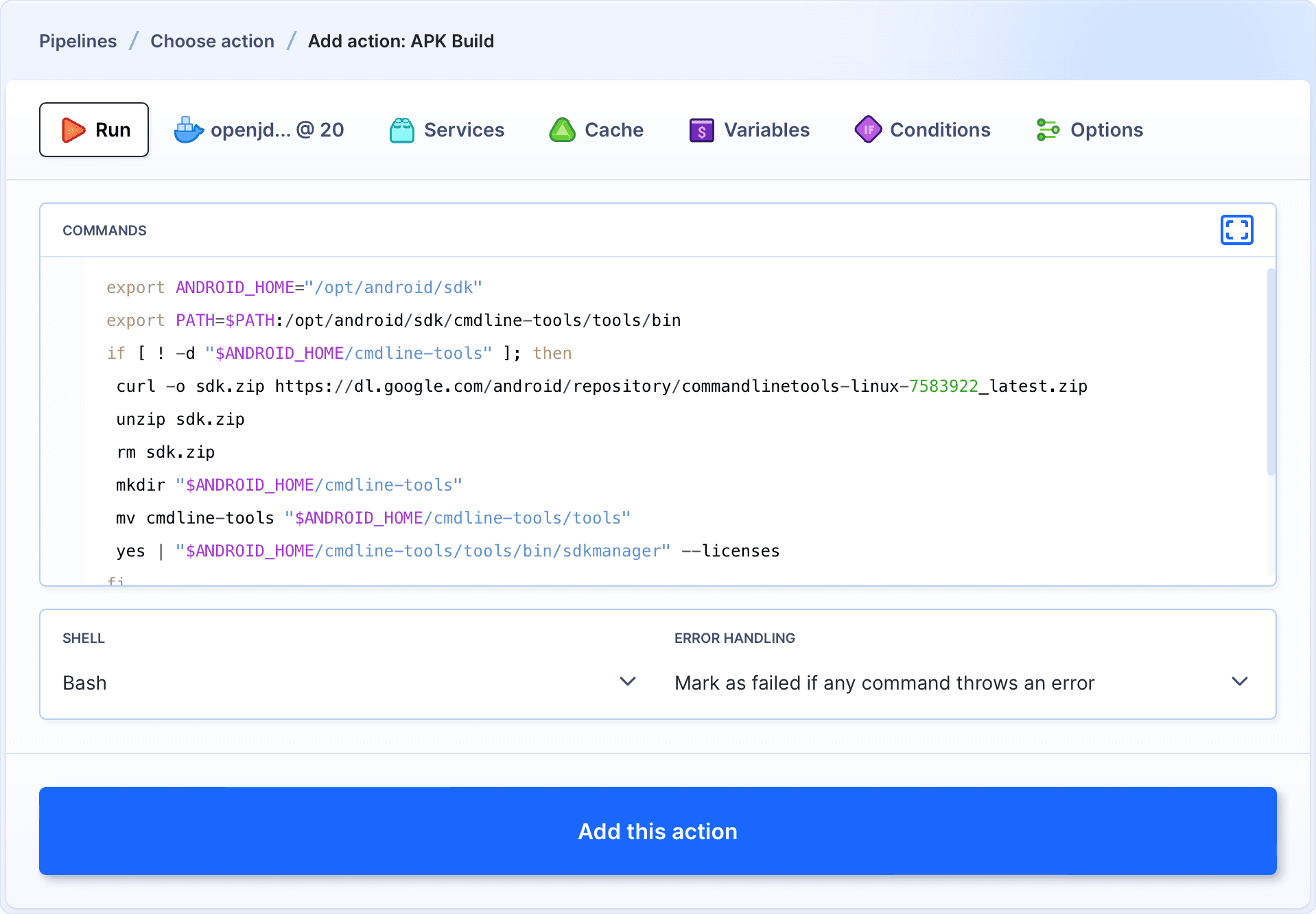
Once you add the action, you can run the pipeline and check the logs if everything has passed in order:
Image loading...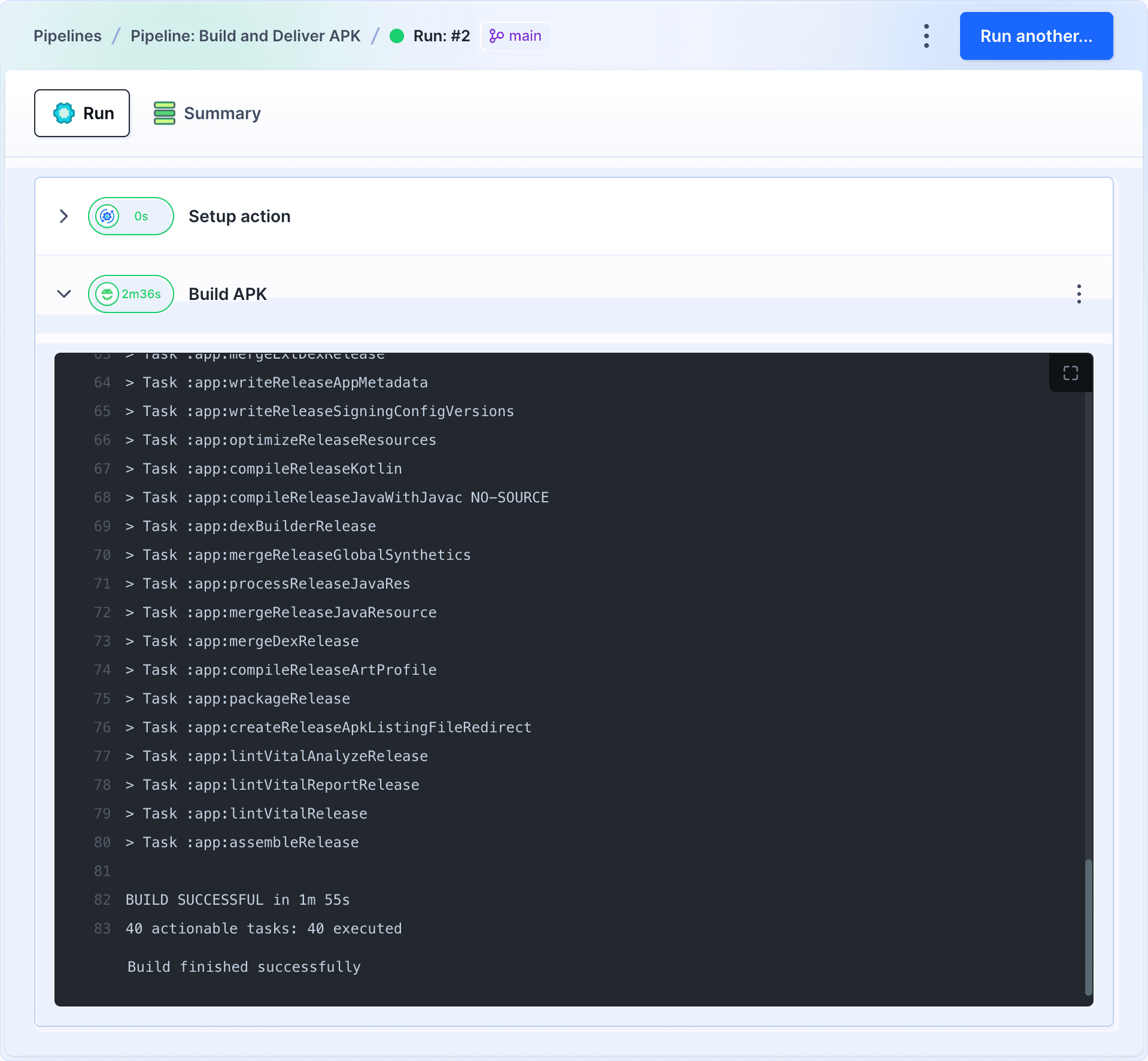
4.2 Sign your application (APK)
Warning
We strongly advise against keeping the key in the repository. Instead, we recommend saving it as an asset in Buddy, which is much more secure.
To save the upload key in Buddy, switch to the Variables tab and click Add variable → Asset:
Image loading...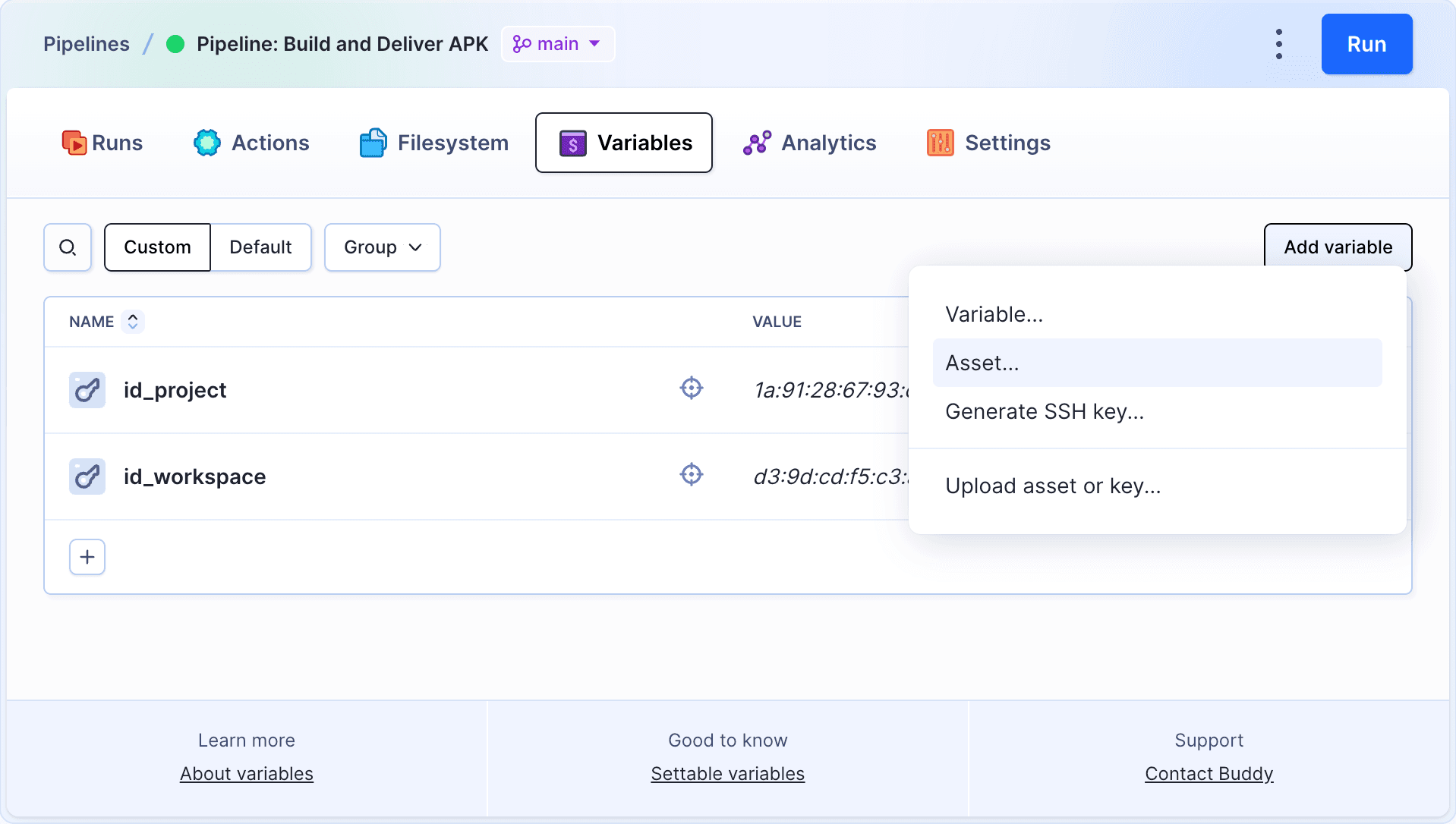
Configure the asset details:
- enter the name – you will use it in the signing action as the
$ASSET_ID - upload the key from your disk
- make sure that the asset is allowed to be copied to action containers
Image loading...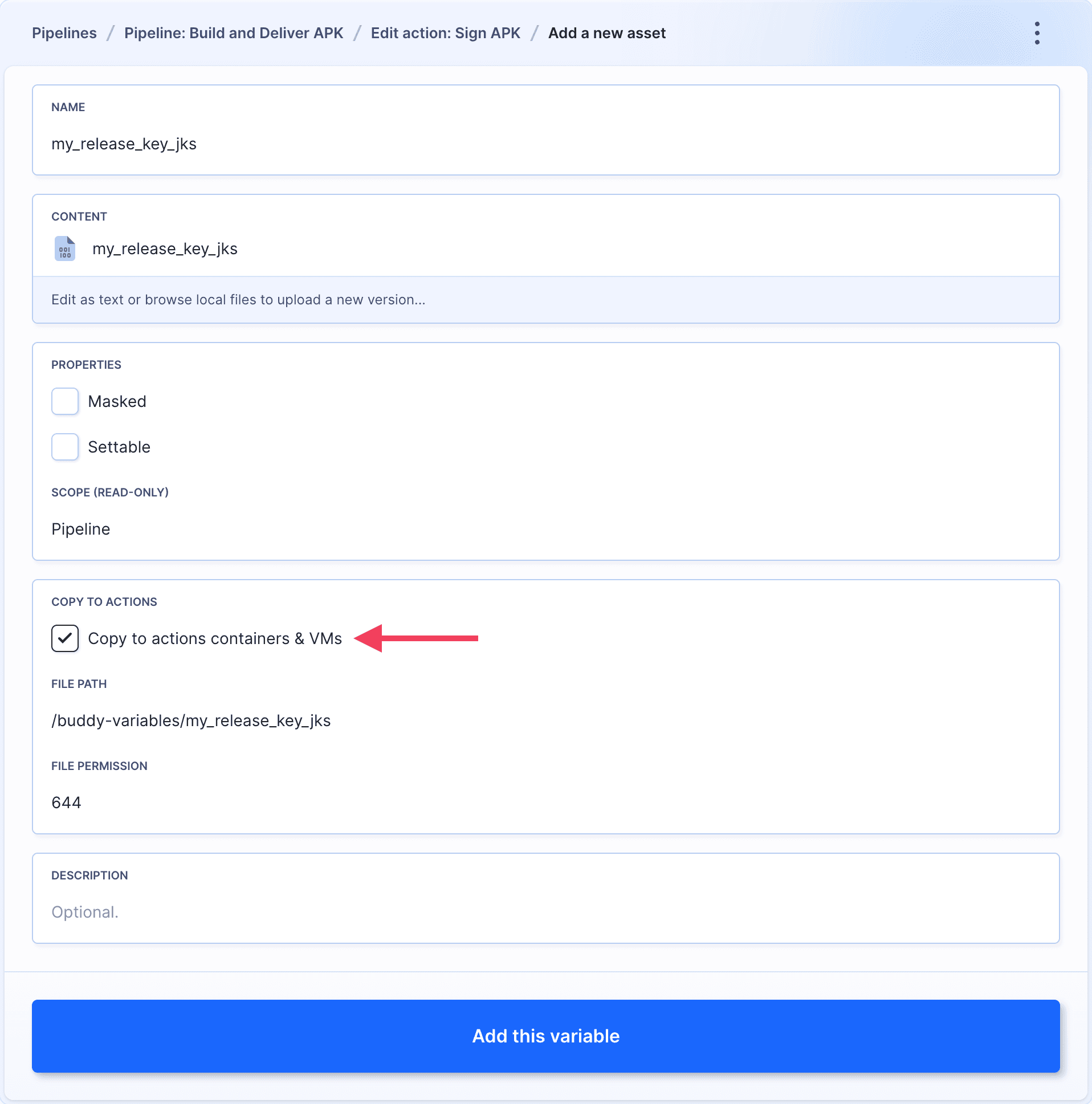
With the key safely stored, you can now look up the Sign APK on the action list:
Image loading...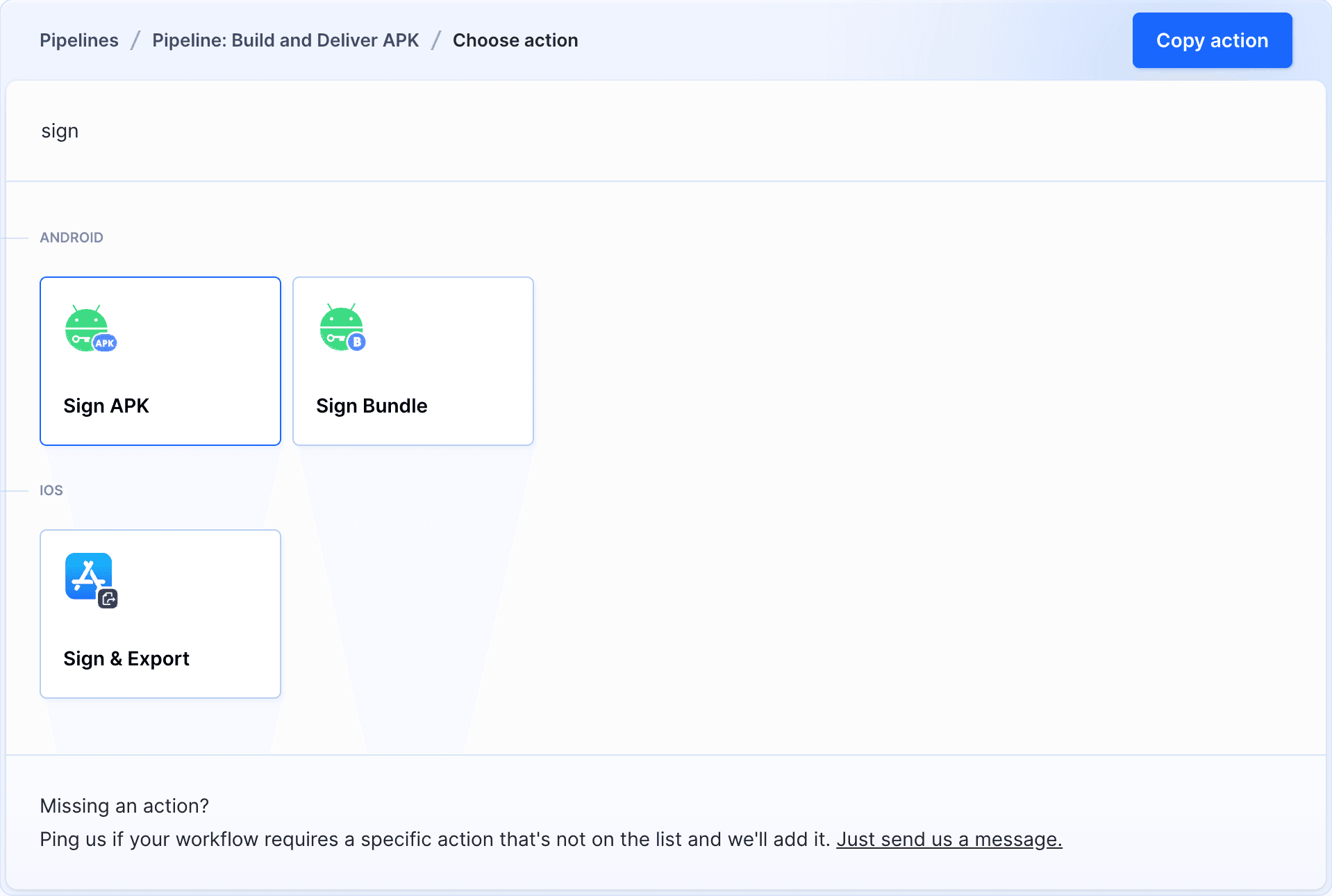
Add the action to the pipeline and fill the main tab with required data:
- APK to sign path: the path in the pipeline filesystem with your APK build
- Key store path: the
$ASSET_IDof the key that you saved in Buddy - Key store password: the password that you provided when creating the key
Image loading...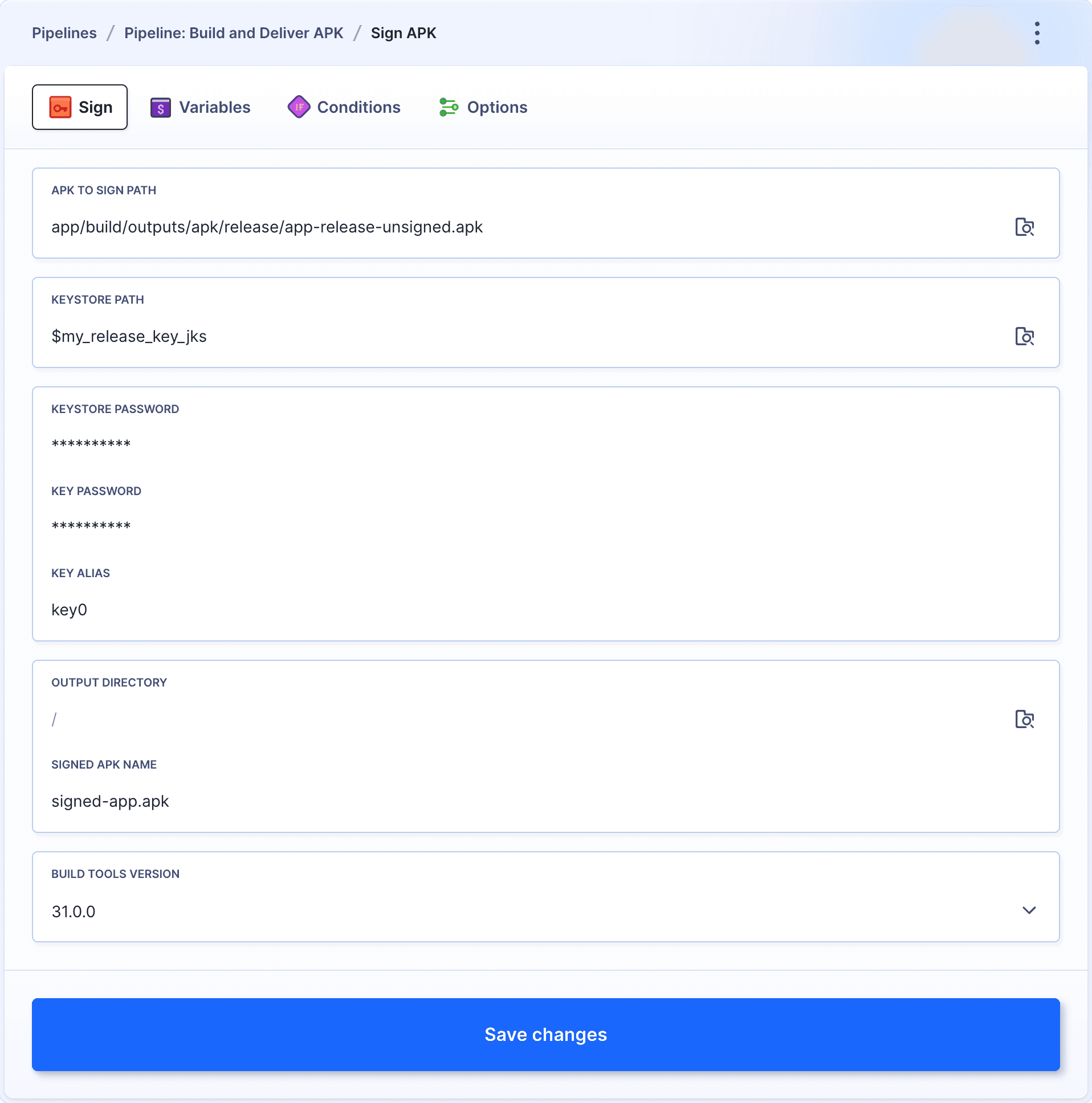
4.3 Deploy APK to Google Play
Now, we can deploy the signed package to the Google store. Before adding the publishing action, however, you need to configure a few things in Google:
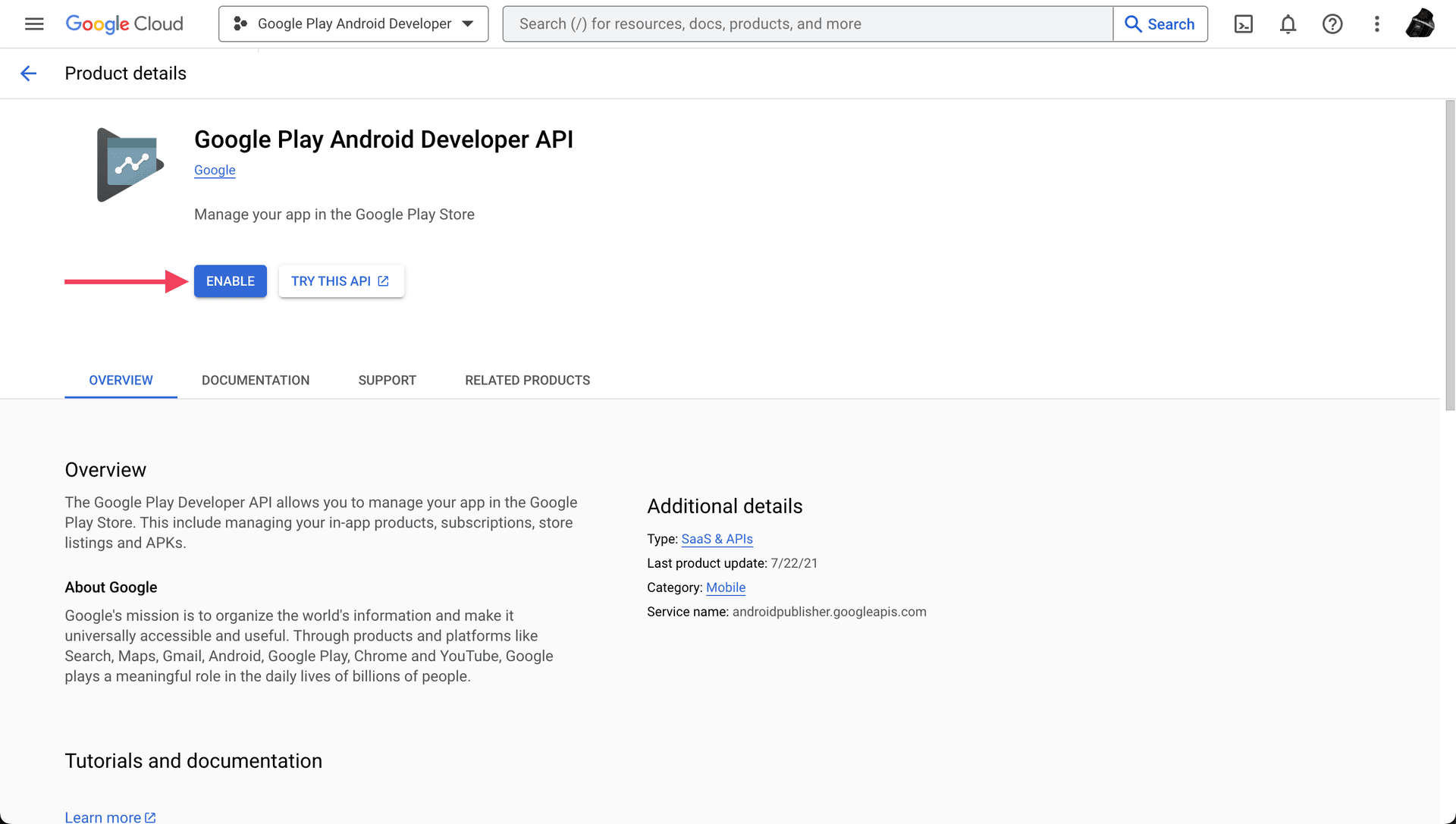
Enable Google Play Android Developer API in your gcloud project:
Image loading...
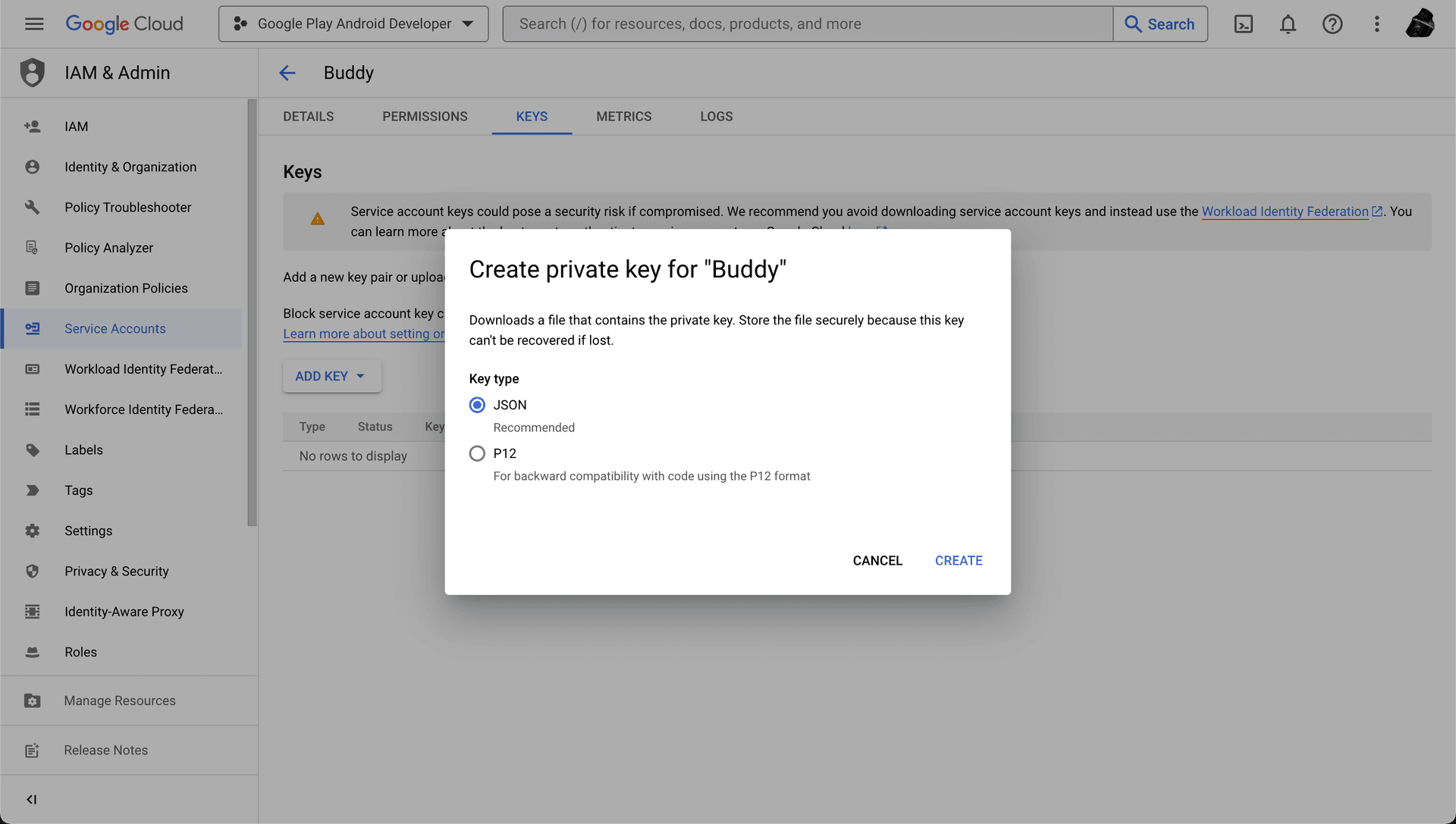
Create a service account in Google Cloud with a private key in the
.jsonformat:Image loading...
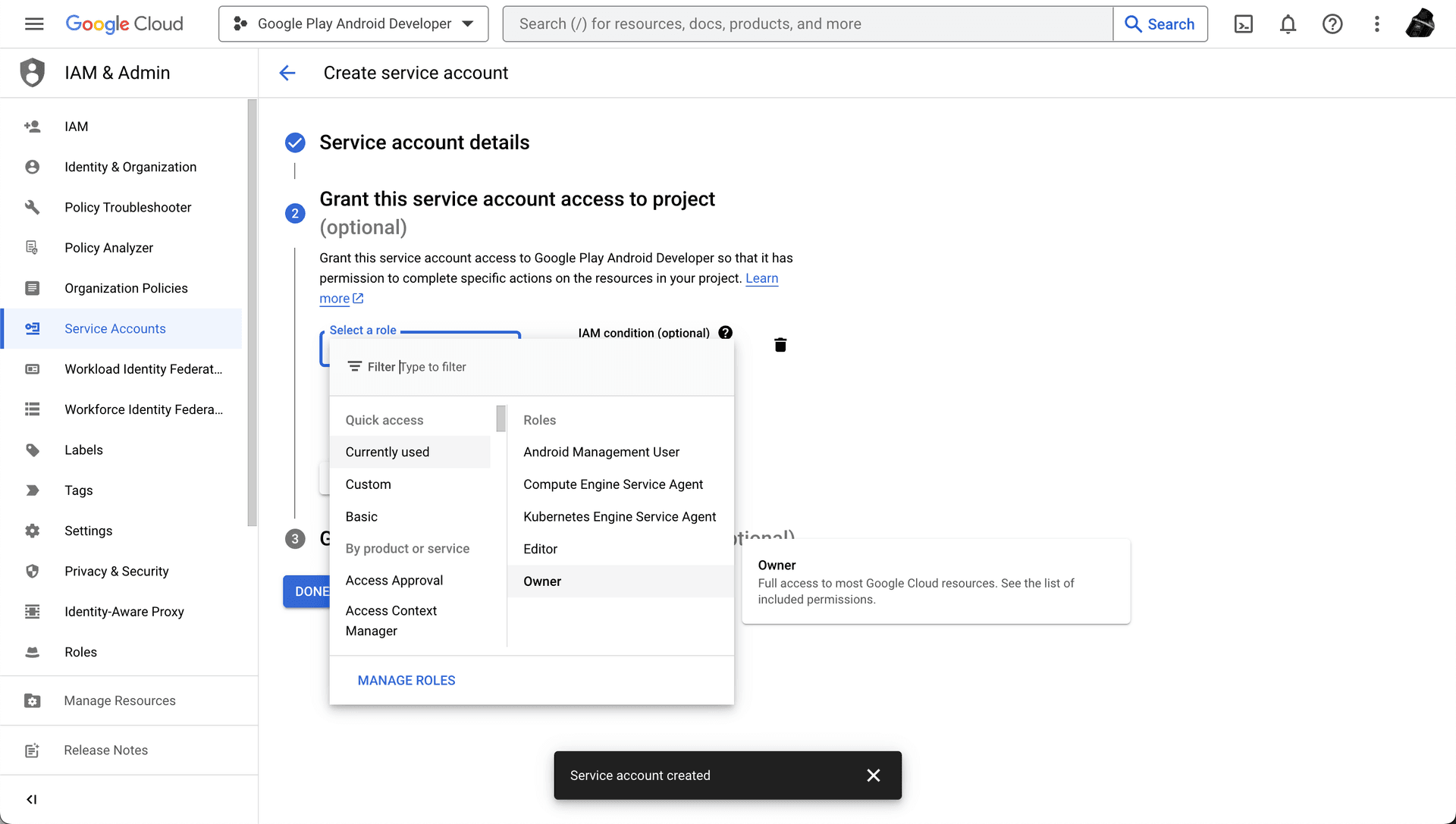
Image loading...
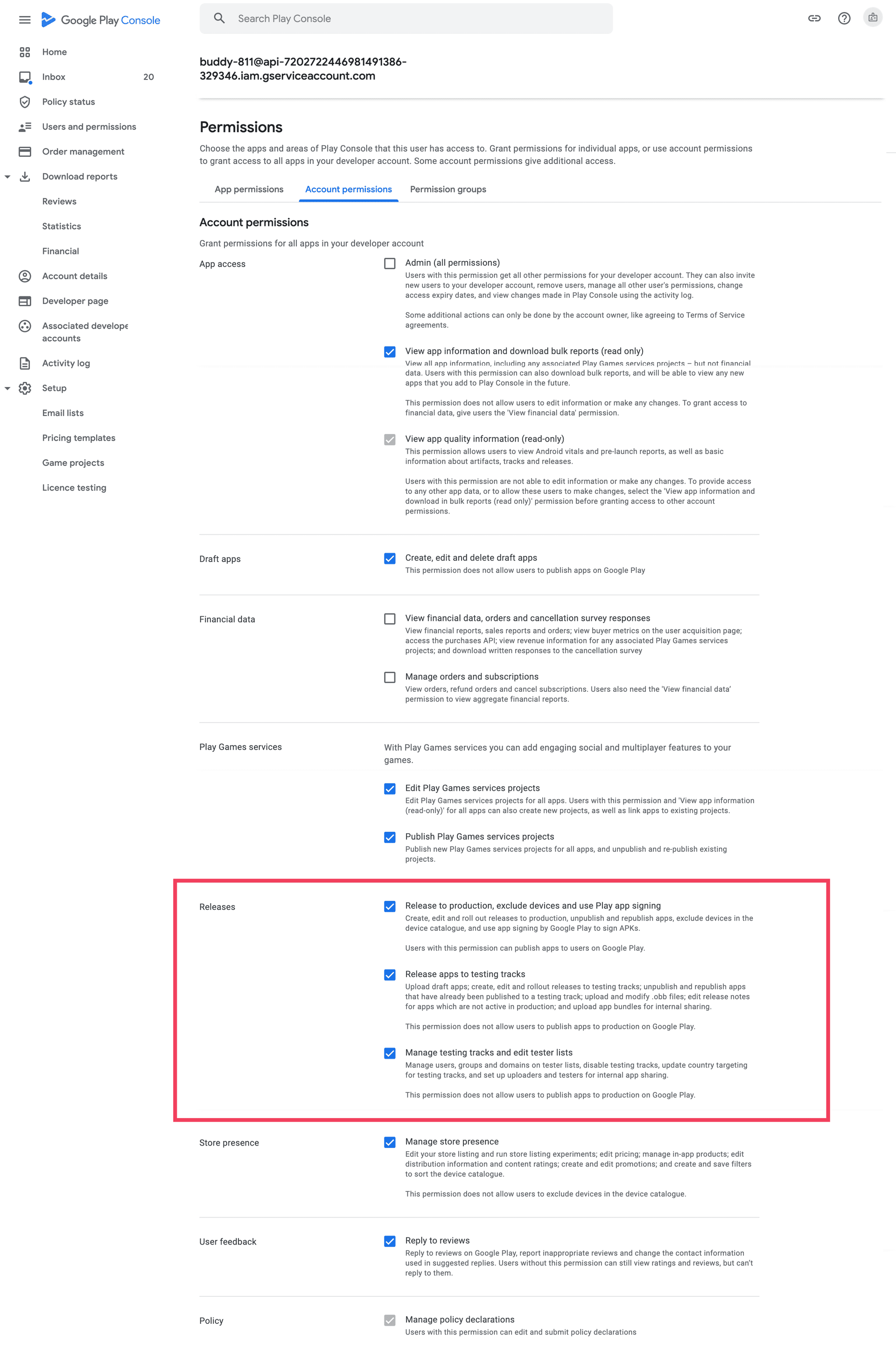
Invite the created user to your Google Play account and grant them
Releasespermissions to allow publishing to Google Play:Image loading...
With everything prepared, you can finally add the Google Play Publish APK action to the pipeline:
Image loading...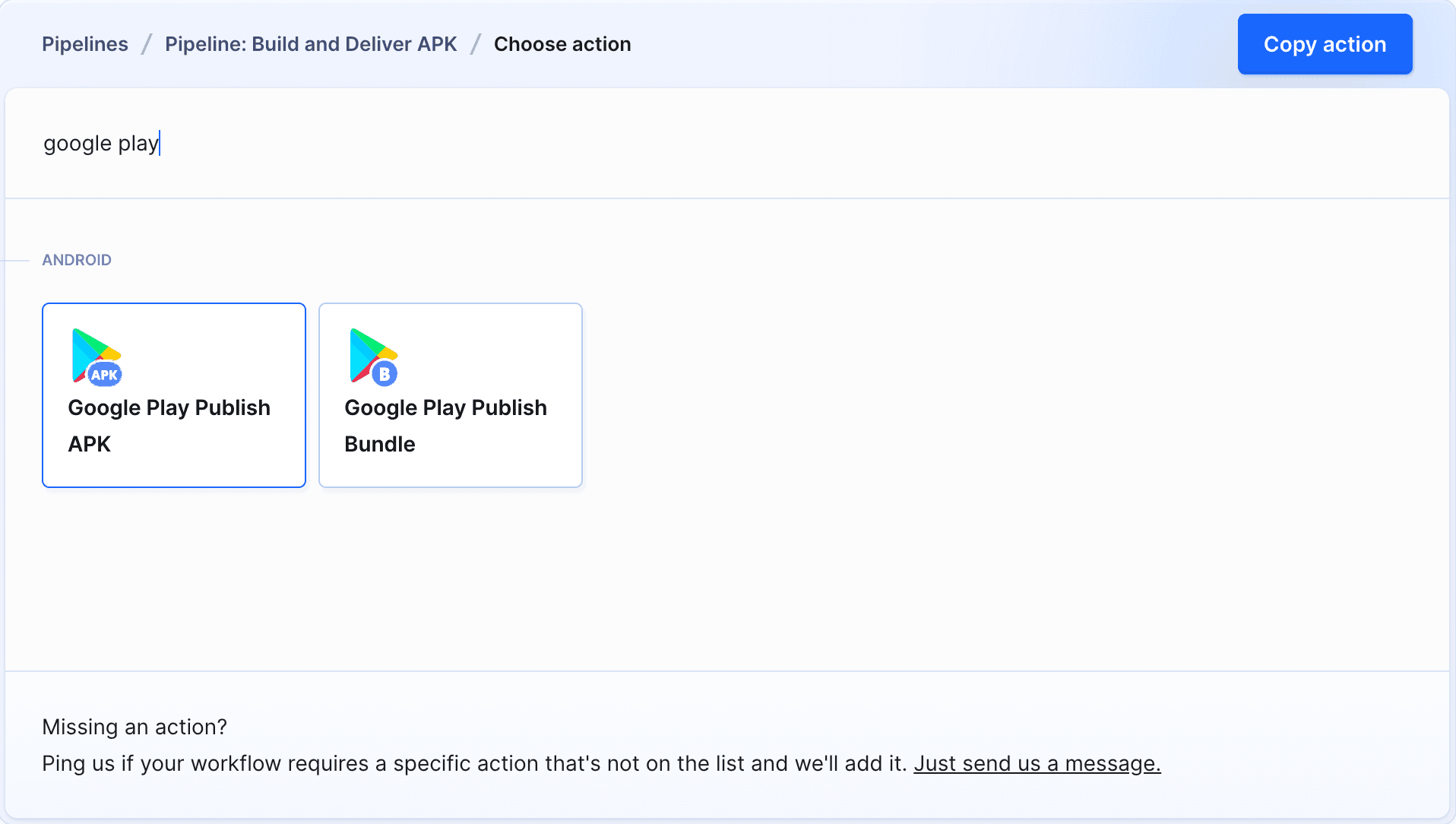
The action requires an integration with Google Play Store. When adding the integration, upload the key generated in the associated service account:
Image loading...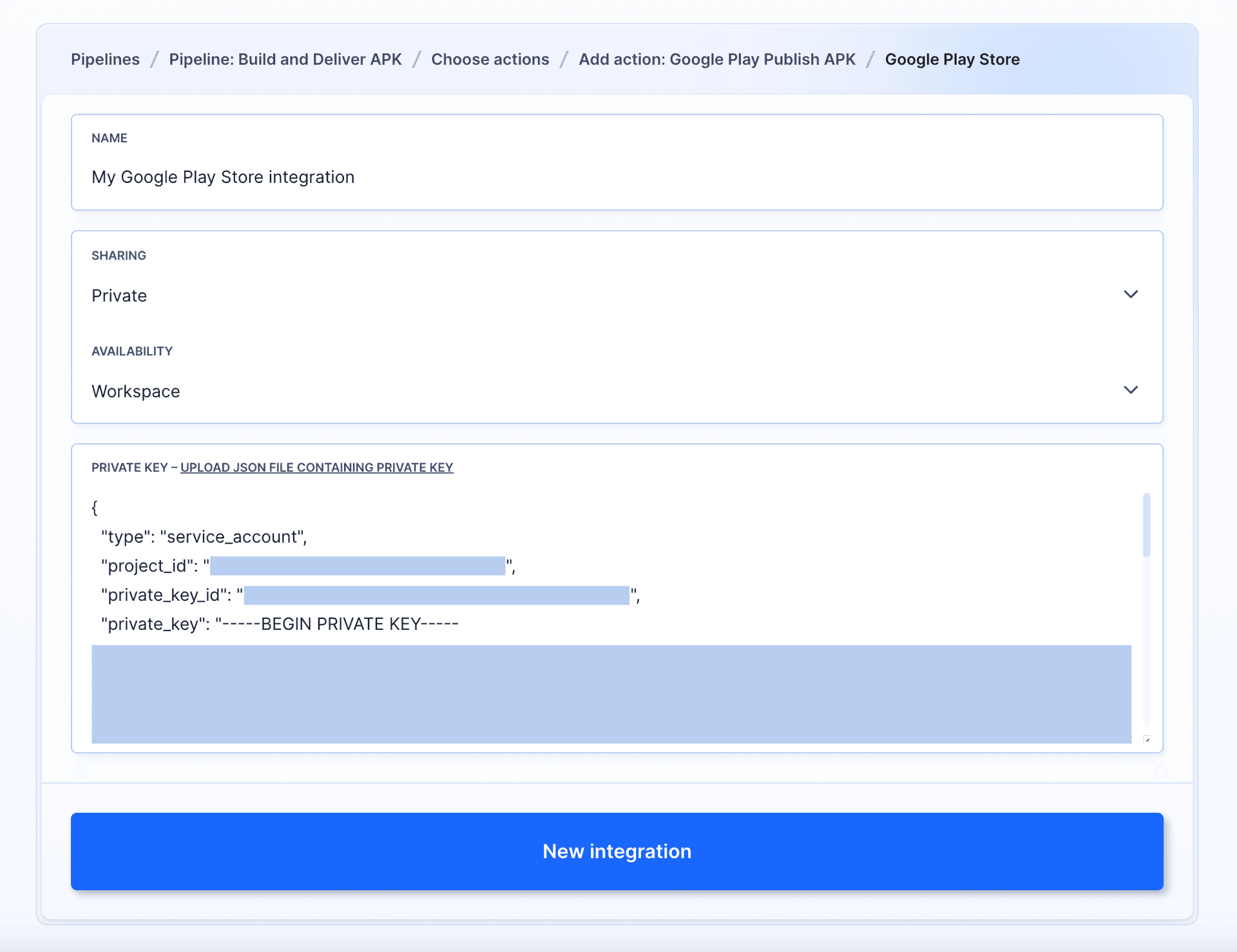
In the action details, select the signed package in the pipeline filesystem, define the development track (alpha, beta, production, etc.), and enter the app ID:
Image loading...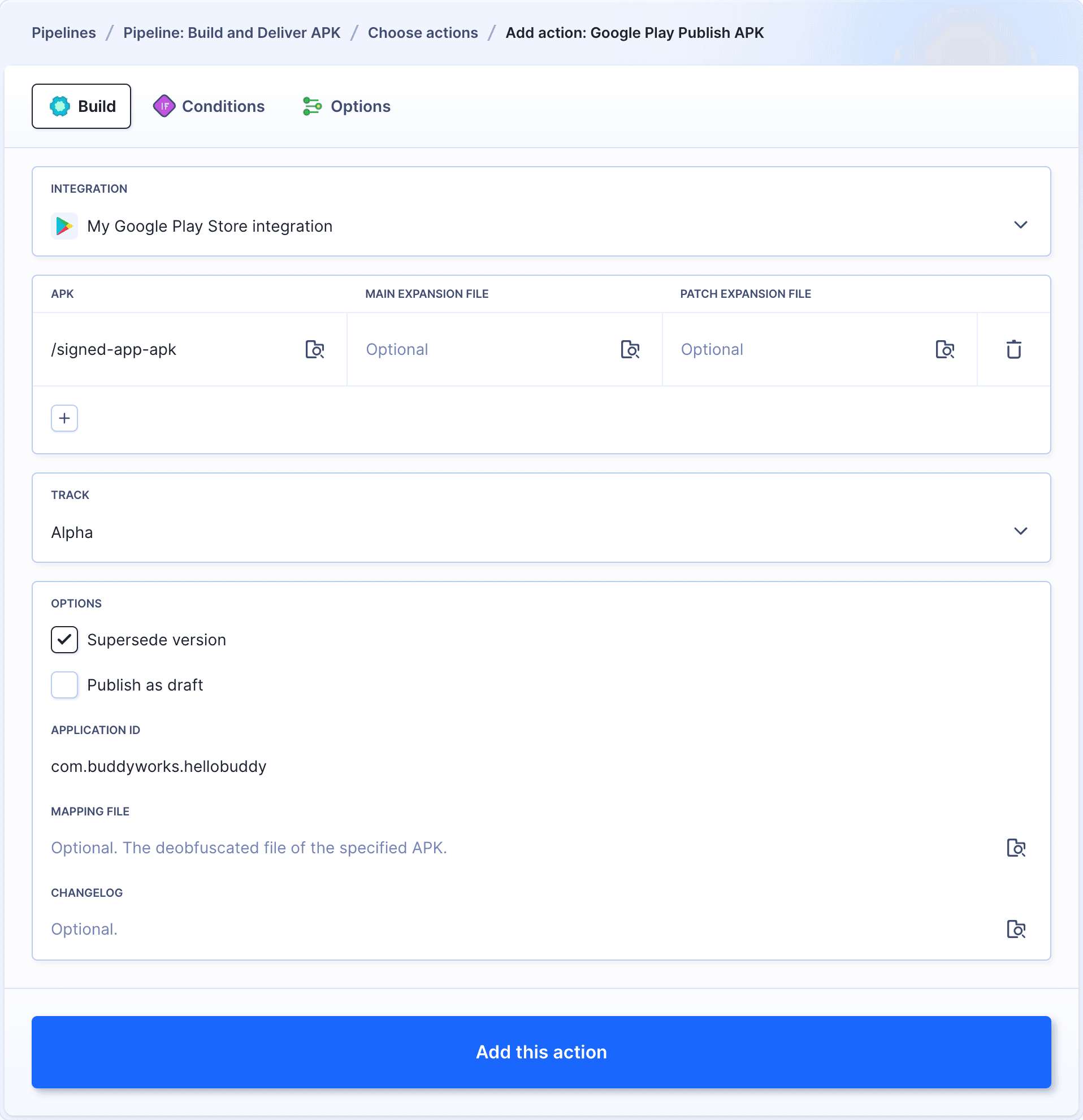
Success
Congratulations! You have just automated the entire Build → Sign → Publish process. 😎🎉
4.4 (Optional) Send notification to Slack
You can configure Buddy to send your team a message after a new package is released. In this example we'll use Slack:
Image loading...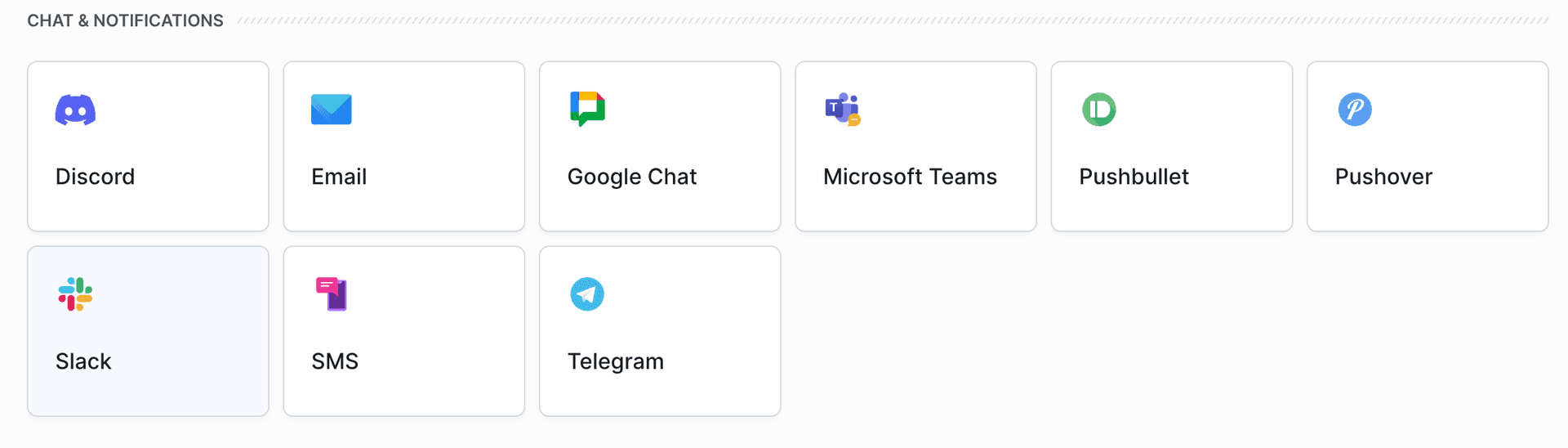
Info
If you add this action in the
On Failure tab, Buddy will only send the message if something goes wrong with your build or deployment.
Image loading...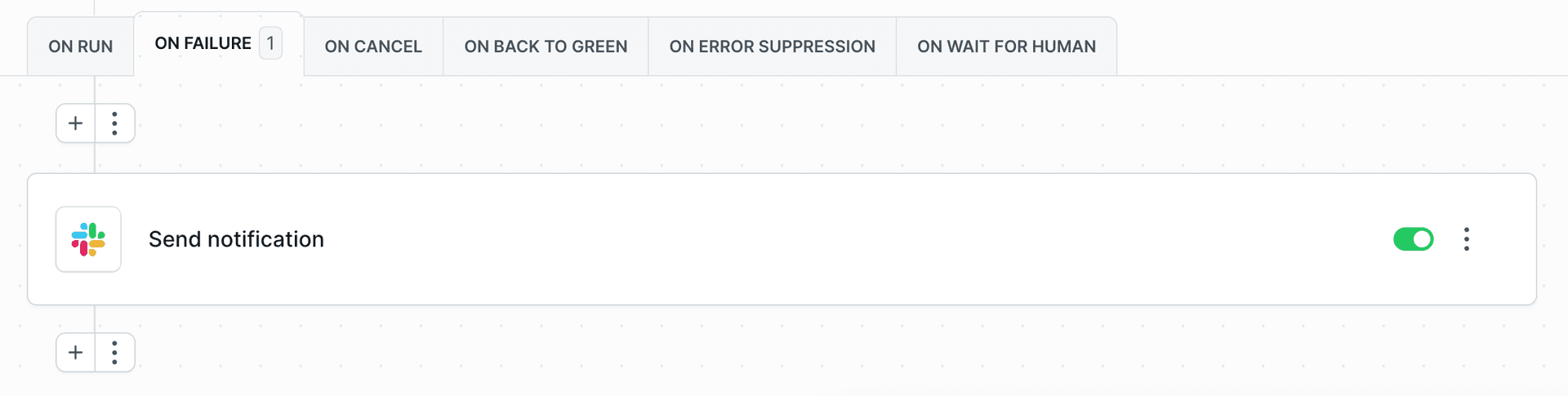
Success
Bear in mind that this article is only a brief example of what Buddy can do. You can create additional pipelines for staging and production environments, integrate with your favorite services (AWS, Google, Azure), trigger tests on pull requests, build Docker images, and push them to the registry—the possibilities are unlimited.
Tip
If you want us to create a delivery pipeline for your project, drop a line to support@buddy.works – we'll be happy to help!