Booking.com lists tens of millions of properties across 220+ countries, from chain hotels to boats and yurts. That's a huge public dataset with value for price monitoring, market research, competitor analysis, and travel product development, but getting the data out is challenging:
- The Booking.com Connectivity APIs are built for property partners managing rates, reservations, and availability, not for anyone looking to pull listings at scale.
- Booking.com applies anti-scraping measures, including a hard cap of 1,000 results per search.
With Apify’s Booking Scraper, you don't need partner API access or a custom crawler that handles proxies, CAPTCHAs, and blocks. It connects with almost any cloud service or web app, including Make, Zapier, Google Sheets, and more. Copy URLs or type a destination, run the scraper, and download the results. Here's how to do it.
Prefer video? Watch the tutorial.
Step-by-step guide to scraping Booking.com
Running Booking Scraper takes just a few steps, from setup to exporting data. You don't need to write any code or configure proxies to follow along.
ℹ️
Apify is the largest marketplace of tools for AI, with thousands of Actors that automate everything from filling out web forms and sending emails to crawling millions of pages and transforming large datasets.
Actors have access to platform features such as built-in proxy management, anti-bot evasion support, integrated storage with structured CSV/Excel/JSON exports, and standardized input parameters.
Step 1. Go to Booking Scraper
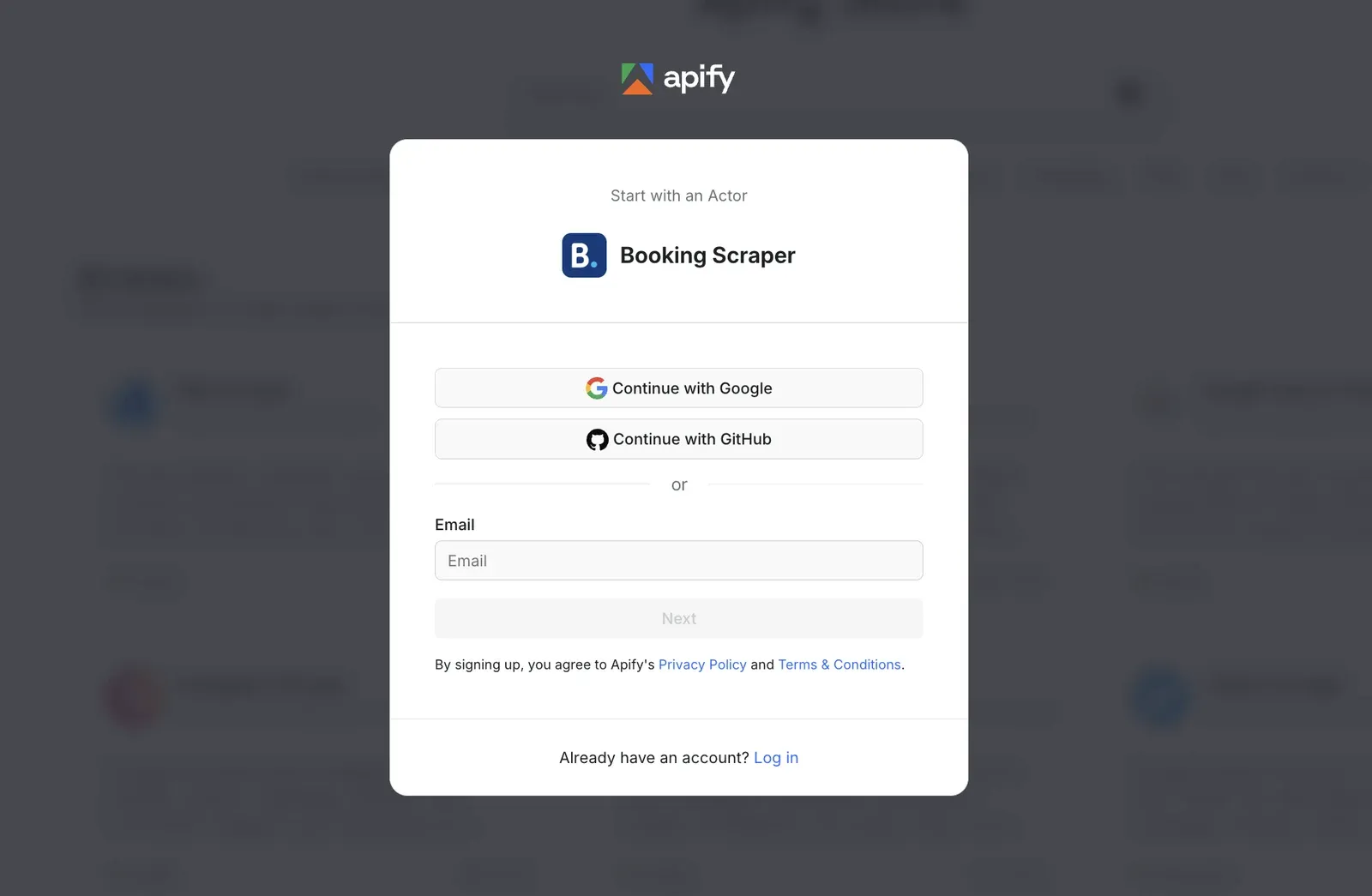
Find Booking Scraper on Apify Store and try it for free. Apify provides $5 in free usage every month on the Apify Free plan, so you can get your first dataset at no cost. If you don't have an Apify account yet, sign up with your GitHub, Google, or email. You'll enter Apify Console, a workspace to run or build AI tools for any website, including Booking.com.
Step 2. Configure the Actor
Decide what data you want to collect. You can either search by destination or paste specific Booking.com URLs.
Search by destination
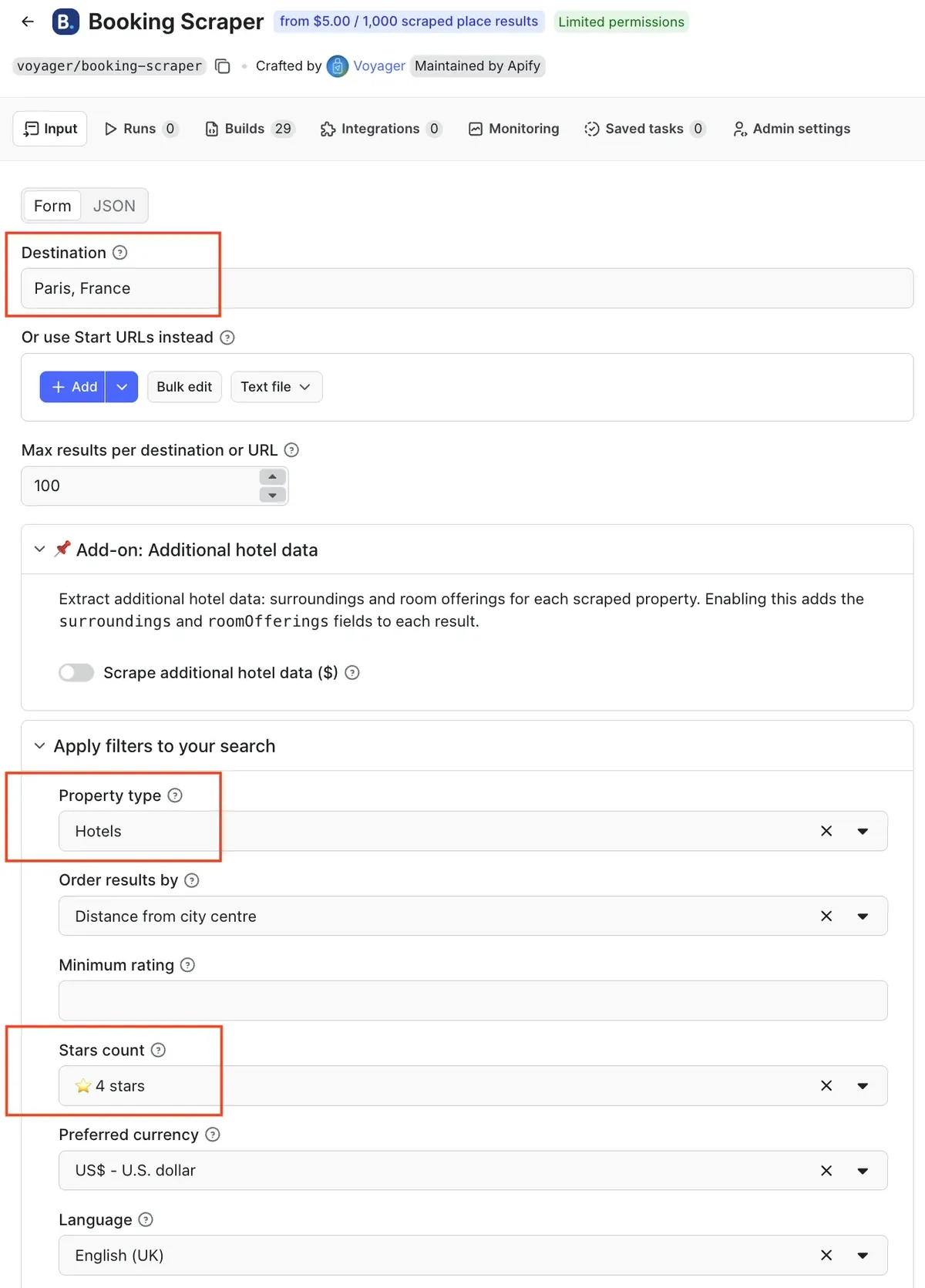
Type in a destination and the number of hotels you want. To narrow results further, add check-in / check-out dates and filters. You can specify the property type, minimum Booking.com rating, star rating, or number of rooms. In this example, we’re looking for 4-star hotels in Paris.
Search by URL
Alternatively, go to Booking.com, run your search with the filters and dates you want, and paste the resulting URL into the Start URLs field. You can paste multiple URLs or import a prepared list. You can also use shared list URLs. These links are generated for properties you saved in your Booking account.
There’s also an add-on to scrape additional fields for each hotel: surroundings (nearby points of interest and distances) and roomOfferings (available room types with their details) at $5.00 per 1,000 properties.
🔖
If you specifically need review data, use Booking Reviews Scraper instead. This Actor extracts review text, ratings, reviewer info, length of stay, and more.
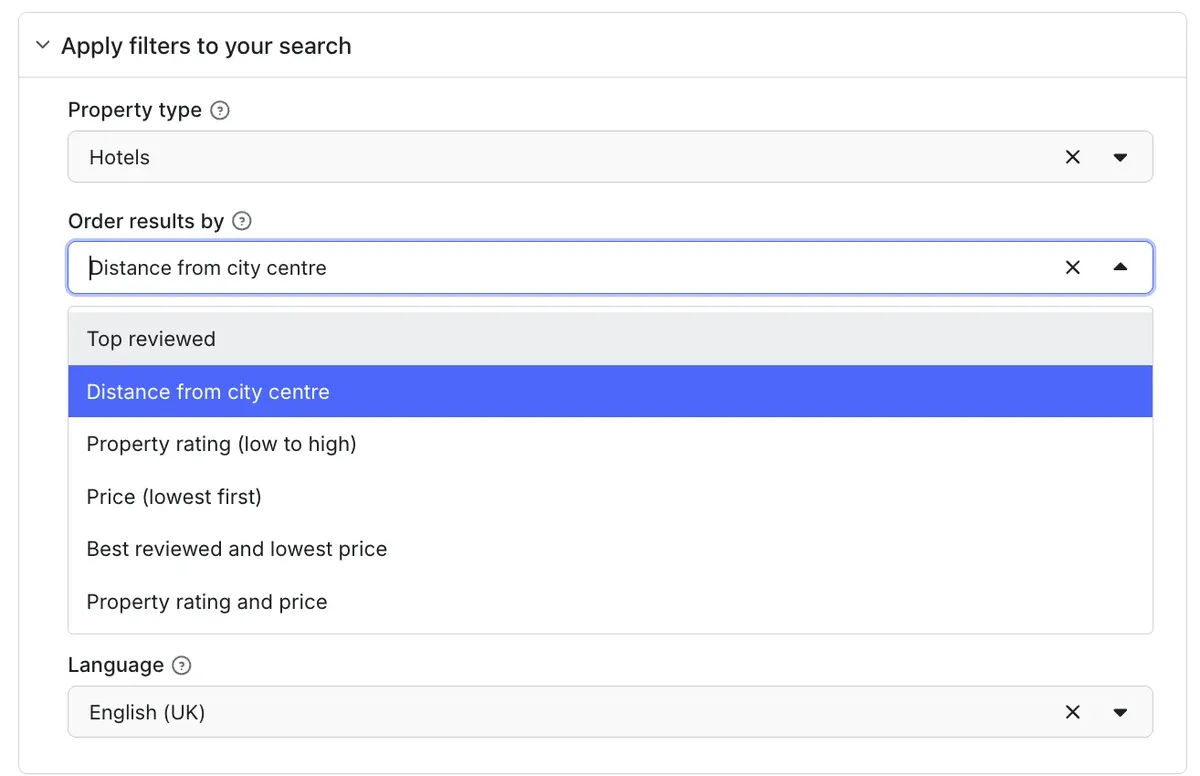
You can also sort your results - in this case, the results will be ordered by the distance from the city center.
Step 3. Run the scraper by clicking Start
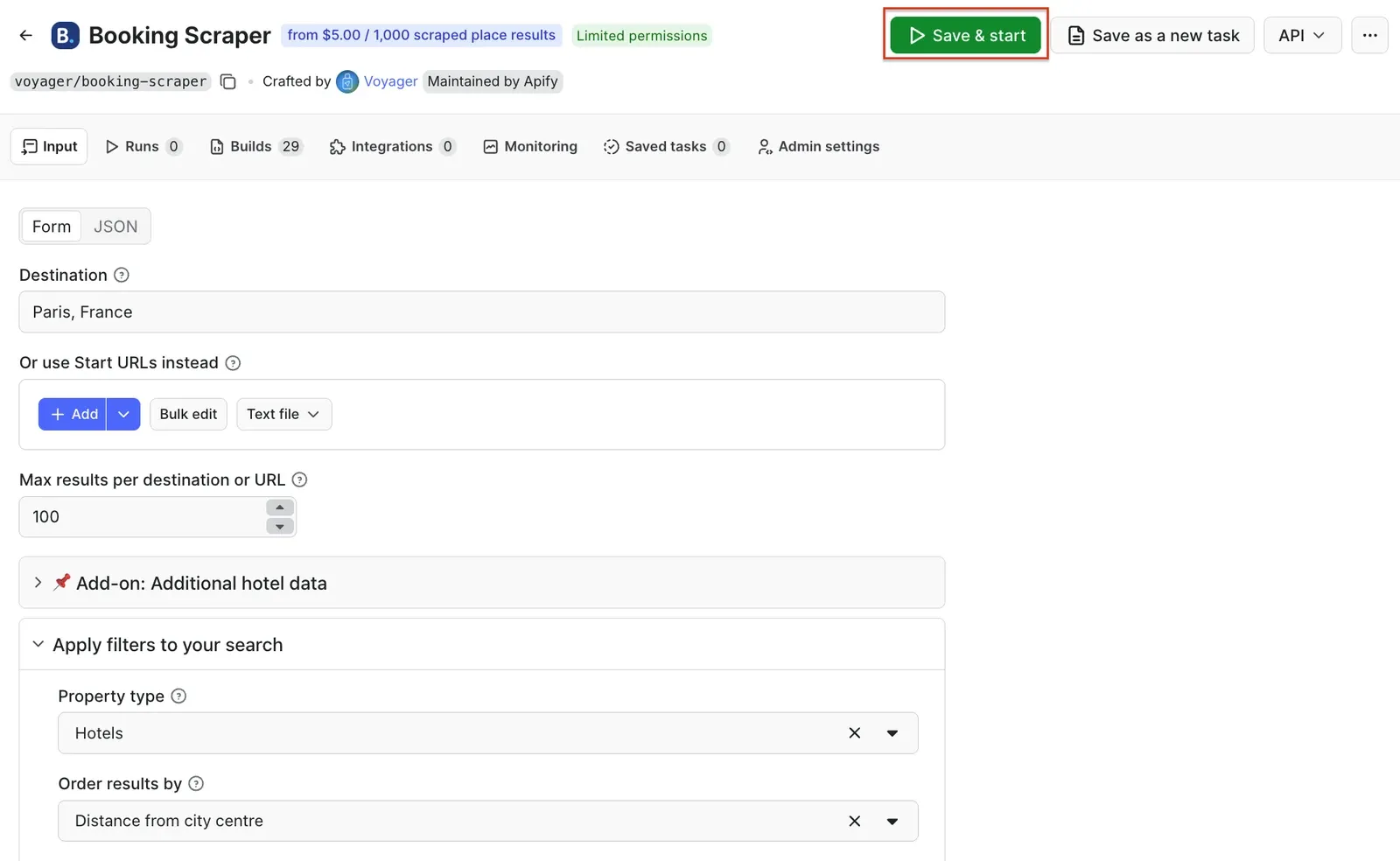
Once you're ready, click the Save & start button. The status will change to Running, and you'll need to wait until the process is complete.
Step 4. Download your Booking.com data
You can export the data in various formats such as JSON, CSV, Excel, or XML. Preview the dataset in the Storage tab, and click the Export button in the top right corner. You can also select specific fields to reduce the information noise.
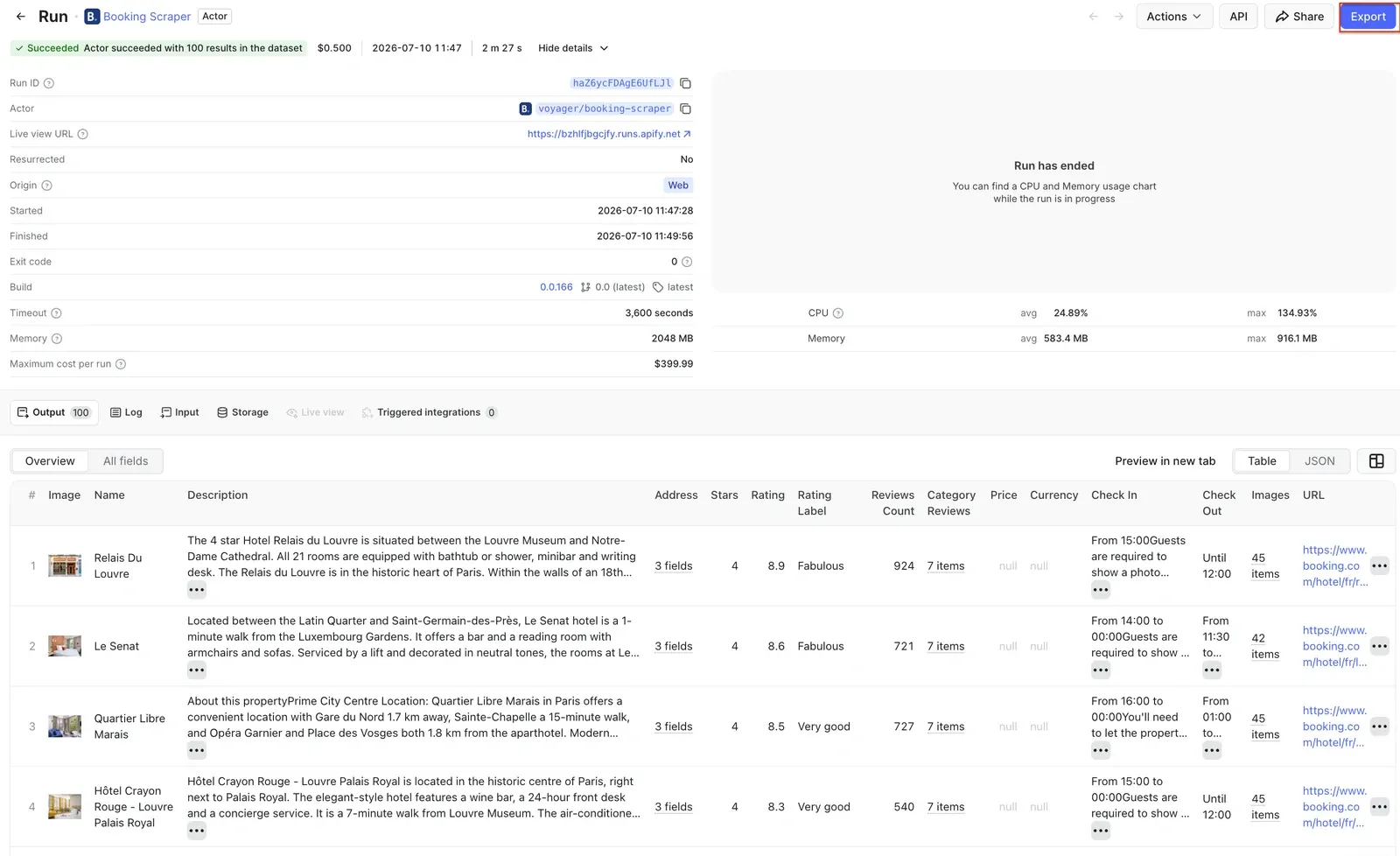
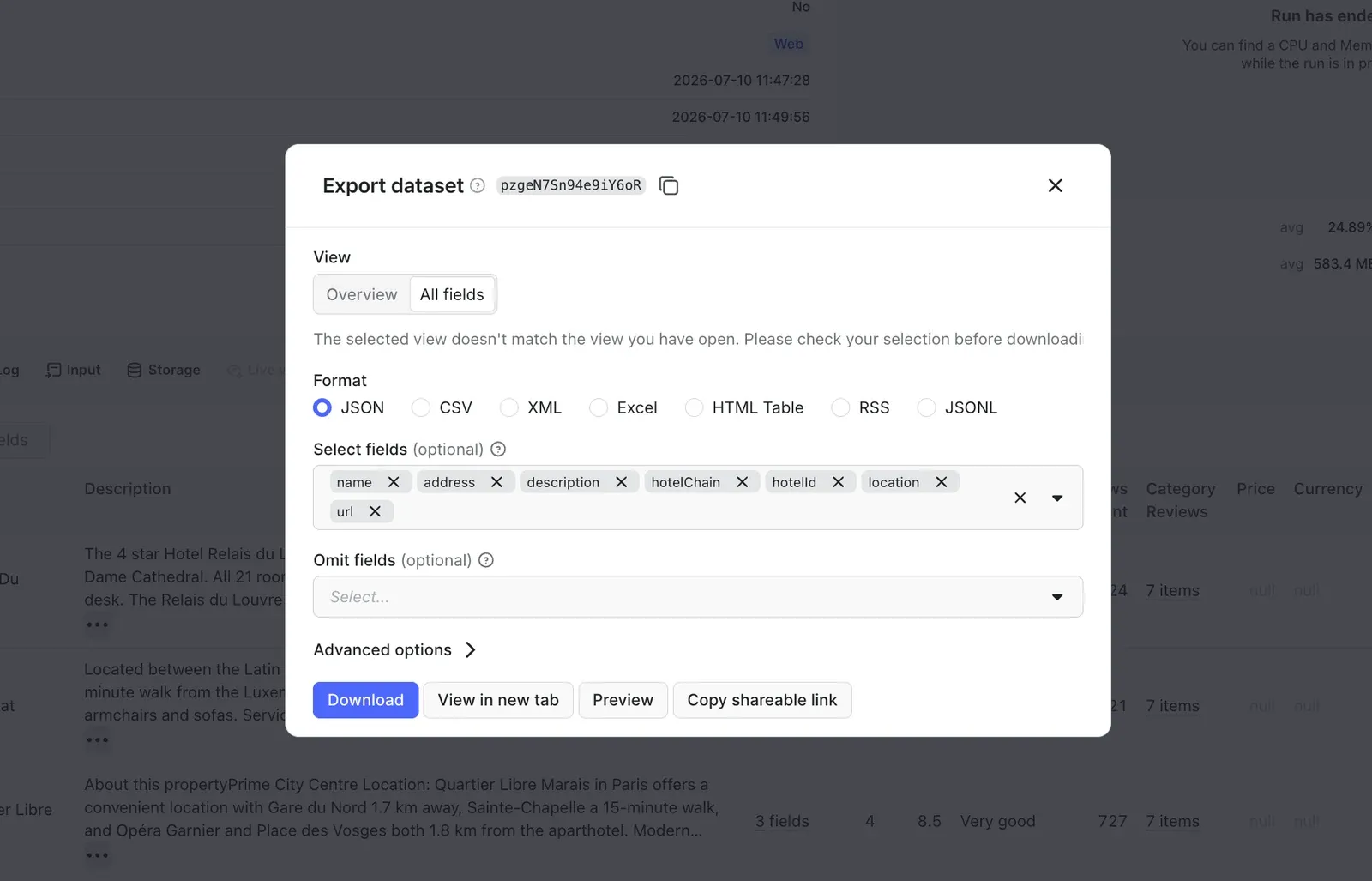
That's it! You can now collect Booking.com data without code.
Step 5 (optional). Send results to Google Sheets
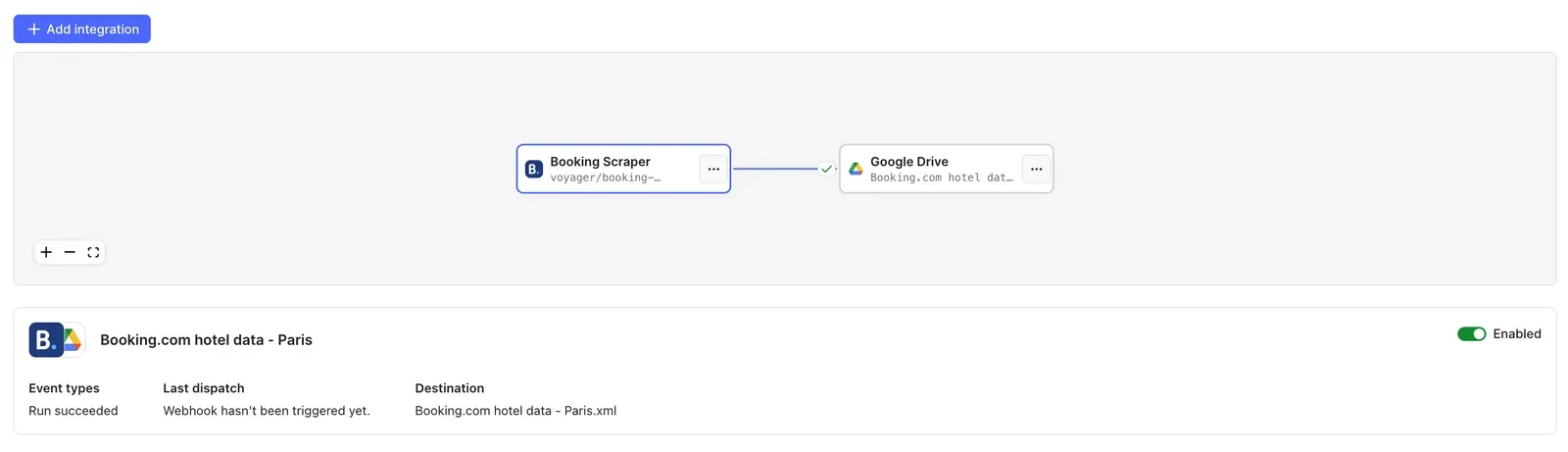
You can also send data directly to your Google Drive. Go back to the Actor's page and select the Integrations tab. Start typing “GDrive” in the search bar, or select the Upload results to GDrive integration directly.
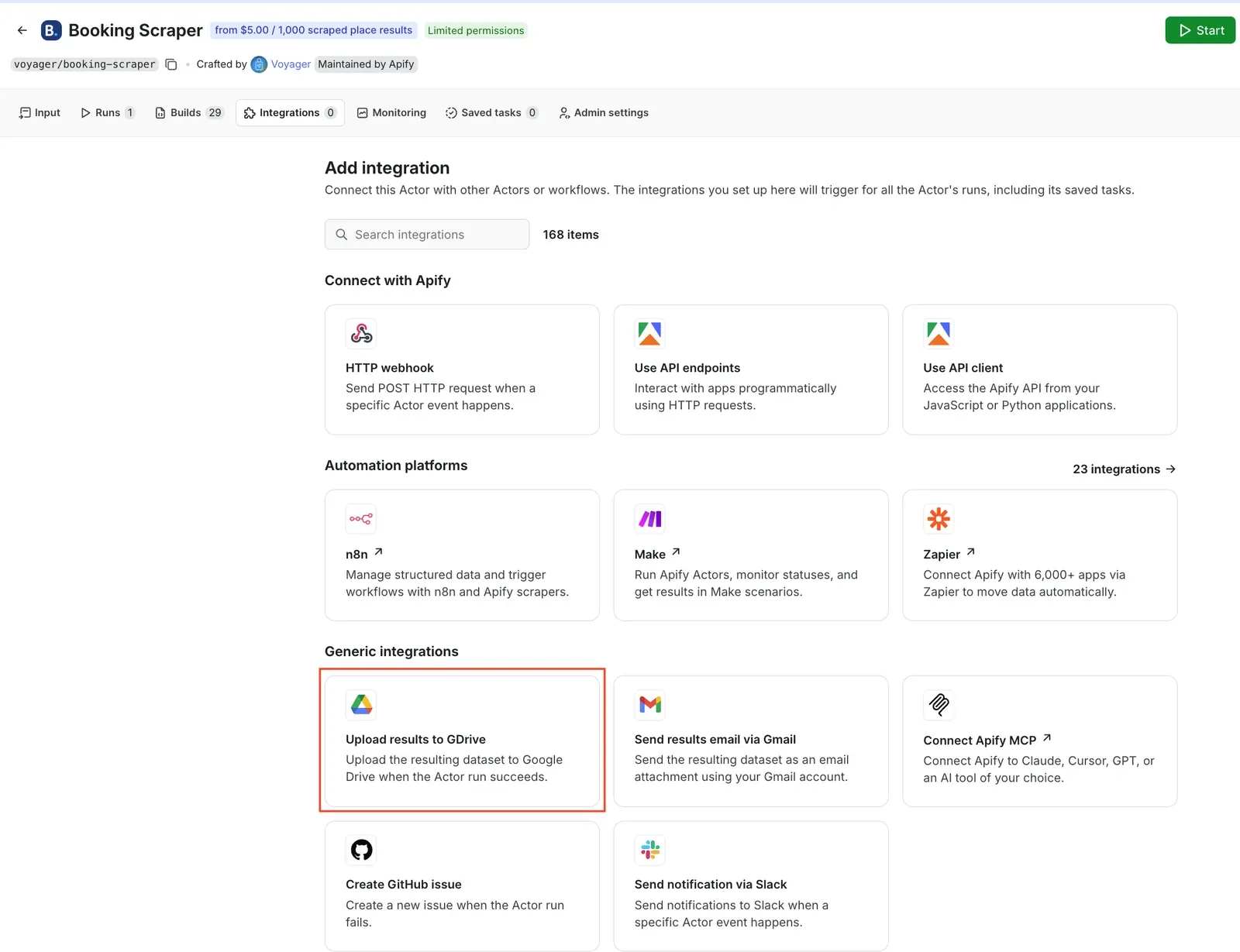
Give the integration a unique name. In our example, we’ll use Booking.com hotel data - Paris. Click Save to continue and connect your Google account. If you’re using your Google account with Apify Console, your email address might already be on the list of accounts to select.
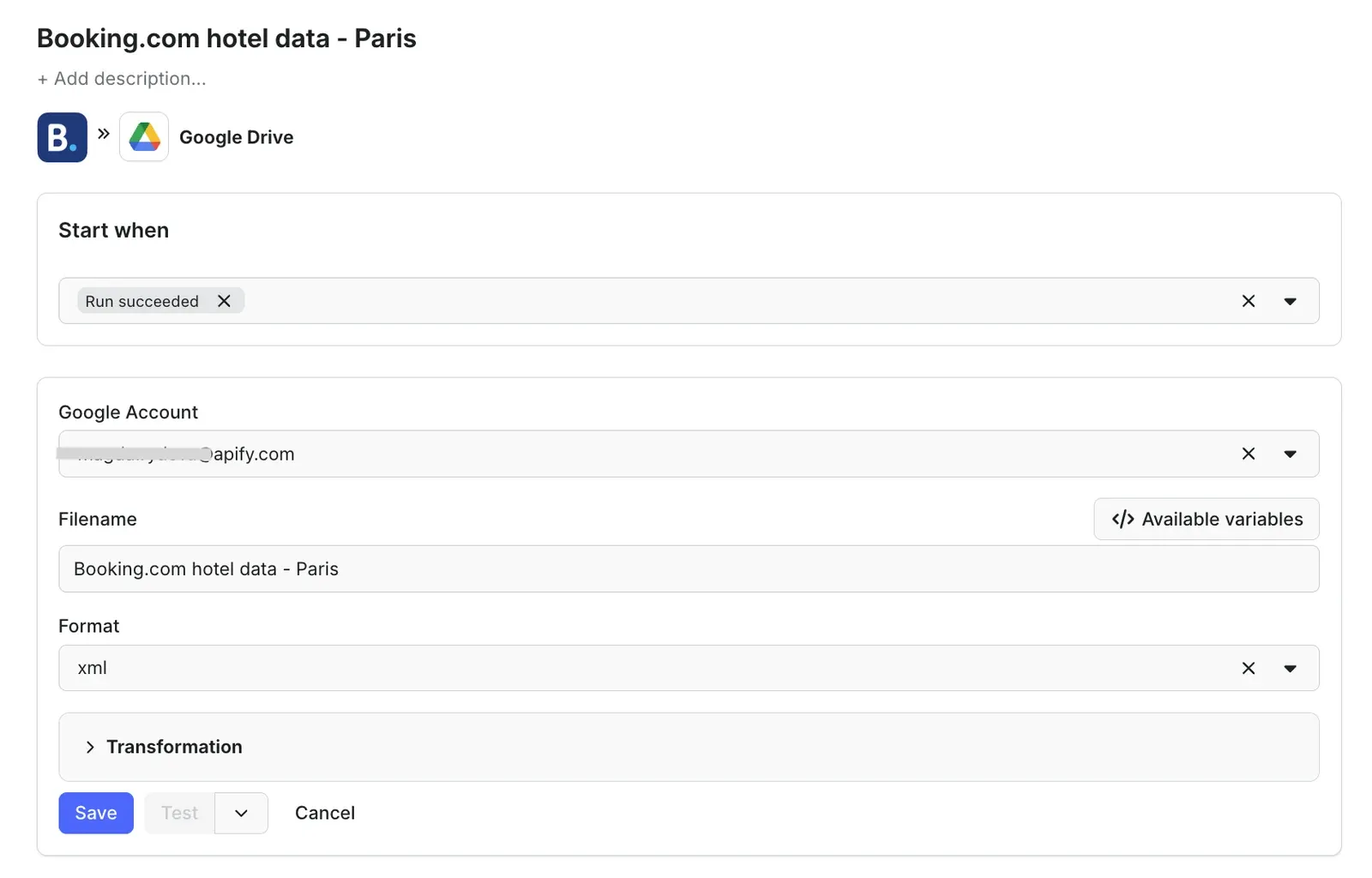
Since we want the data to be sent to the spreadsheet once the scraper finishes running, we’ll select Run succeeded as our starting point. Select a format of the Google Drive file that the Apify integration will create (we’ll go with the XML) and click Save.
The workflow is ready - from now on, every time you run a scraping session, a new file with scraped results will be created in your Google Drive automatically, ready to analyze and compare over time.
You can check if the integration is set up correctly by refreshing the Integrations tab.
Booking.com data supports a range of use cases across travel, hospitality, and adjacent industries:
- Price monitoring and dynamic pricing: track hotel rates over time and adjust your own pricing against competitors.
- Market research: analyze inventory, property distribution, and pricing patterns by location or season.
- Competitor analysis: benchmark your listings against comparable properties on ratings, amenities, and prices.
- Sentiment analysis: pair with Booking Reviews Scraper to understand what guests praise or complain about.
- Building travel products: power a metasearch site, a booking aggregator, or an internal database with structured hotel data.
Booking.com is one of the richest public datasets in travel, but the official APIs weren't built to unlock it. Booking Scraper handles the data collection for you, so you can focus on what the data actually tells you: where prices are moving, which properties dominate a market, and what travelers care about.

Try Apify today
Get $5 monthly usage and try Booking Scraper for free
FAQ
Is it legal to scrape Booking.com?
Web scraping publicly available data is generally legal, but personal data, such as reviewer names, is protected by GDPR in the EU and by other regulations elsewhere. Only scrape personal data if you have a legitimate reason to do so, and if you're unsure, consult a lawyer. For more, see Is web scraping legal?
Do I need proxies to scrape Booking.com?
Yes. Booking Scraper uses Apify Proxy by default, and every free Apify account includes a proxy trial, so you don't need to bring your own to get started.
No. Booking Scraper returns the number of reviews, but not the review text. For reviews, use Booking Reviews Scraper, which extracts review text, ratings, reviewer info, length of stay, liked and disliked aspects, and dates of stay.