We used a real problem — job hunting — to make a bigger point: LLMs like Claude can do much more than answer questions in a chat.
I identified three frustrating challenges with job searching (interpreting vague postings, summarizing long descriptions, and figuring out if a role actually fits my profile and interests), and built a structured framework to tackle them. The twist? Before touching any tool, I had to get clear on my own strengths, skills, and non-negotiables — because automation starts with self-knowledge: knowing what we want, our workflows, and how to structure them so LLMs can actually understand them.
We tested the whole thing directly in Claude. It worked.
But that was just the beginning… 🙂
TL;DR: We turn the job analysis experiment from Part 1 into a real Claude Skill — complete with a JSON profile file and a structured prompt. We hit an unexpected wall with the Chrome Extension, find two practical workarounds, and discover that pasting a LinkedIn URL is all Claude needs to analyze a job posting directly. By the end, we have two small systems to maintain and a genuine question for you: which approach would you actually use?

In Part 1 (link), we did two things: produced a structured document with our job preferences, strengths, and non-negotiables, and tested a prompt to see how Claude evaluates a job posting against that profile. Both worked.
Now we package them into an actual Skill.
Open a new Claude chat to start fresh, and use the following prompt to instruct Claude to use the result of what we did as a skill.
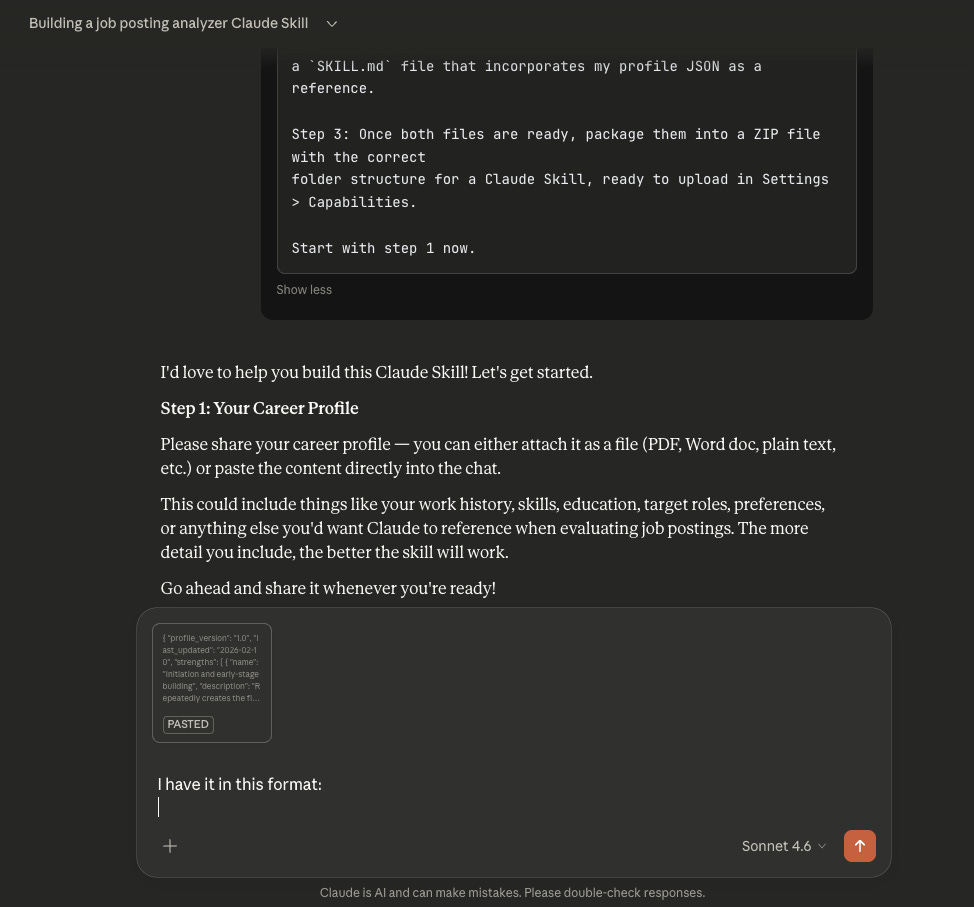
When Claude completes step 1 and asks for the scoring prompt, paste this:
When Claude finishes, it will show you a screen like the one below. Save the ZIP file to your computer — you’ll need it in the next step to create the Skill.
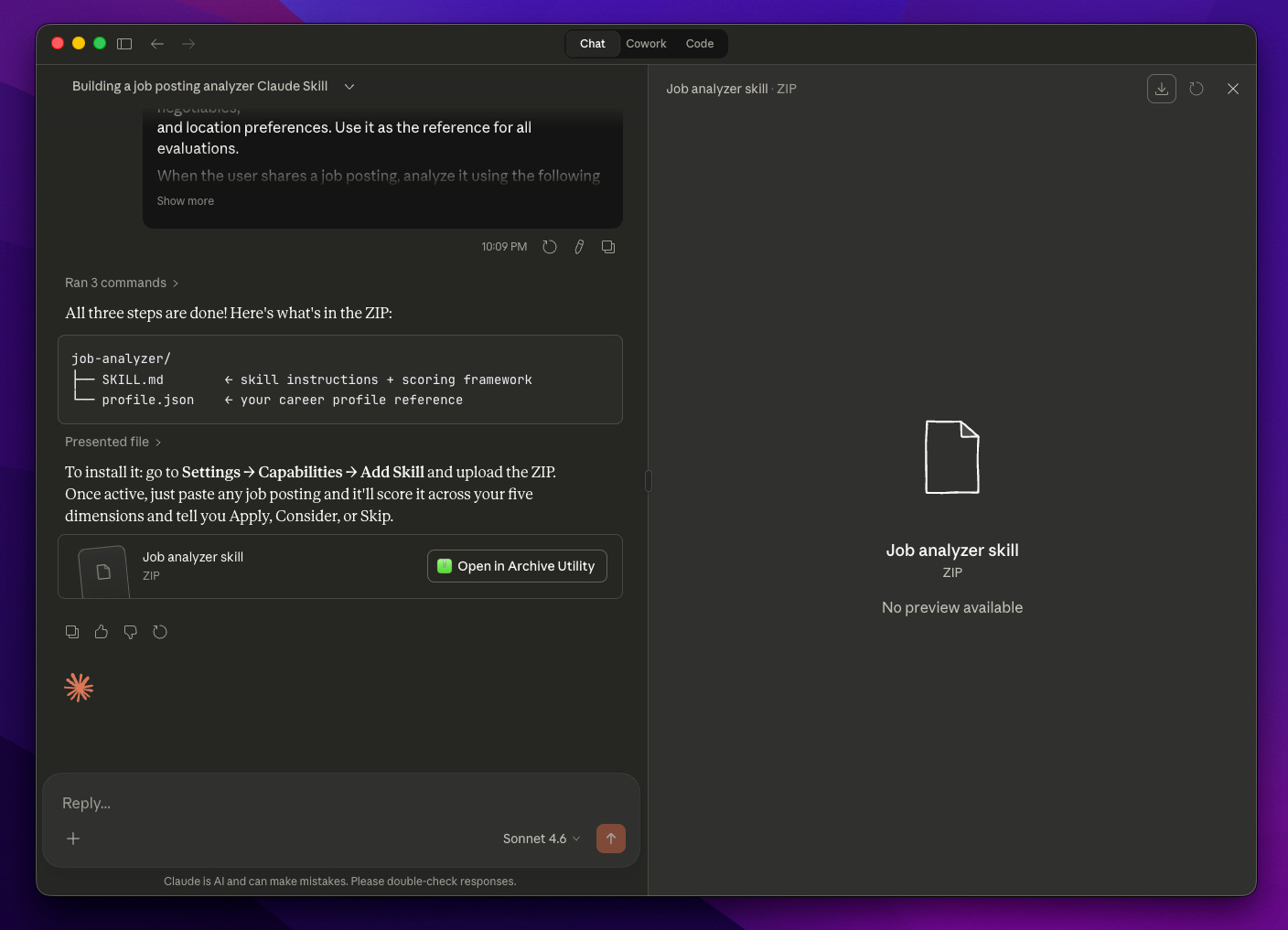
Now go to Settings → Capabilities, scroll down to the Skills section, and click Upload Skill. Select the ZIP file you just saved and upload it.
If everything went well, your new Skill will appear in the list. Toggle it on, and you’re ready to test it.
Once your Skill is active, you’ll need to copy the job posting text and paste it into Claude for the Skill to analyze it. Not very practical if you’re going through dozens of listings.
There’s a better way. If you have the Claude Chrome Extension installed, you can simply paste the URL of the job posting and ask Claude to open it. Claude will fetch the page, extract the content, and run the analysis automatically. No copy-pasting, no formatting headaches. Just a URL.
💡 Tip: Claude may not use the Extension automatically — you might need to explicitly ask it to open the URL using the browser extension.
Before writing Part 1, I had a chat with Claude and came away convinced that once you create a Skill, the Chrome Extension would automatically use it.
Wow, I thought. Game changer.
But I had misunderstood. The Chrome Extension doesn’t read Skills.
I had already pictured myself browsing LinkedIn, asking Claude via the Extension to analyze this job, then that one — efficiently, effortlessly. My dreams faded like fog.
But I’m stubborn. So I went looking for alternatives. And I found one.
It’s not perfect, but it works for me. It comes with a couple of quirks — but I’ll let you decide what works for you. And please, if you find a better way, share it in the comments. I’d love to know.
Here’s what I found.
The Claude Chrome Extension can work with “Shortcuts.”
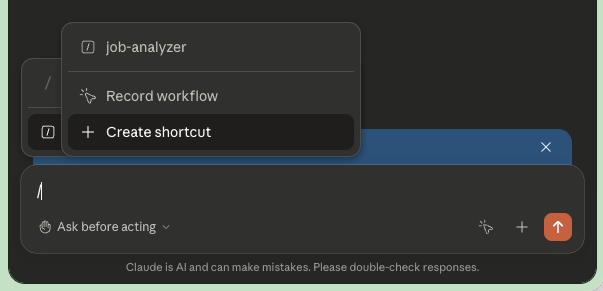
As you can see in the screenshot above, typing “/” in the Chrome Extension gives you two options: use an existing Shortcut or create a new one. In my case, I already have the job-analyzer Shortcut set up.
To use it, make sure your Chrome browser is open on a LinkedIn job posting that caught your eye. Type “/” in the Extension, select the job-analyzer Shortcut, and let Claude do the rest. It will look like this:
And this is the result. Claude analyzed the job posting directly from the LinkedIn page and produced a full-scored report — without a single copy-paste.
In this case, the Skill gave it a 22% overall match and a clear ✗ Skip recommendation. It even flagged a location mismatch automatically: the role requires on-site presence in Turin or Milan, while my profile specifies remote work from Slovenia. That’s exactly the kind of friction the Skill is designed to eliminate — you know in seconds whether a posting is worth your time.
So now you know how the Shortcut works — it’s not a Skill, but it delivers the results we need with an extra layer of practicality.
When creating a new Shortcut, you need to give it a name and write a prompt. But remember the two files we produced when building the Skill — one with your profile preferences and one with the evaluation rules? Here’s where we need to make a decision.
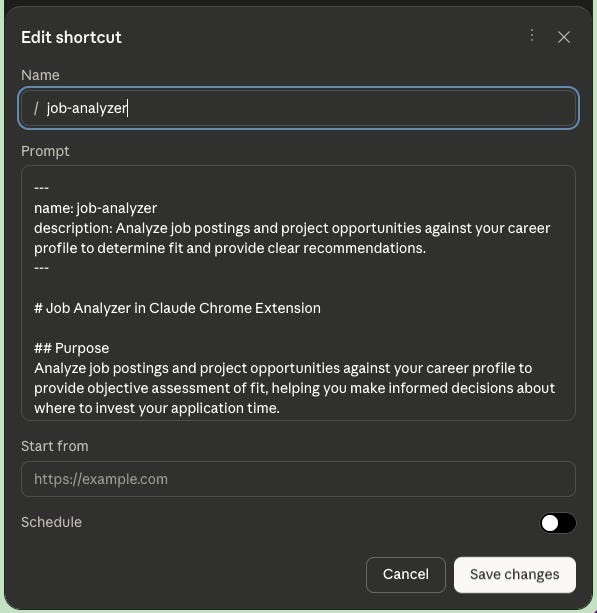
You have two options: merge both files into a single prompt, or host the JSON profile somewhere Claude can fetch it remotely. I went with the second option — I uploaded my JSON file to a GitHub Gist, so I can edit my preferences there anytime, and Claude will always work with the most up-to-date version.
Both approaches work. The all-in-one prompt is simpler to set up, but editing it means going back into the Shortcut every time. The GitHub Gist approach adds a small setup step upfront, but makes future updates much easier.
The following is the prompt you can use, and it includes the URL for pointing at your JSON file hosted in GitHub Gist. Find the [YOUR_GIST_URL_HERE] and replace it with yours.
💡 GitHub Gist is a free and simple way to host a text file online. Go to gist.github.com, paste your JSON profile, save it as a public Gist, and copy the “Raw” URL — that’s the link Claude will use to fetch your preferences every time you run the Shortcut.
If you followed along and this was your first time experimenting with Claude Skills, you now know how to build a meaningful one. But more than that, you discovered that the Chrome Extension lets Claude interact directly with your browser — including authenticated sites like LinkedIn. And that Shortcuts bring a whole new level of practicality to your daily workflow.
This is just the beginning. You can start creating Skills with multiple supporting files, find creative ways to combine them, and explore how far this rabbit hole goes.
In my case, though, I created a small problem:
The Skill and the Shortcut are independent — if I update one, I have to remember to update the other. Not ideal. But what I gained is a clearer picture of my options, and I’ll keep experimenting until I find what works best for me.
Now I want to hear from you.
For those with more experience: do you know a better way to keep these two systems in sync? Any tips to make this workflow more efficient? Drop them in the comments.
For those just getting started: which approach would you use — the Skill, the Shortcut, or both?
love,
Jose from Automato
Part 1 of this series: