Welcome to my new series Emacs From Scratch. I’m far from an Emacs expert, so join me in my quest to figure out how to create a useful Emacs setup from nothing1.
In this part, we’ll install Emacs, set up sane defaults, packaging and do some basic UI tweaks to build a solid foundation.
Table of Contents
- Install Emacs
- Remove UI elements
- Configure the package manager
- Set sane defaults
- Become evil
- Set font and theme
- Add a nicer modeline
- Conclusion
Install Emacs
On macOS, everyone recommends Emacs Plus. For other systems, check out Doom’s Emacs & dependencies documentation.
We’re running this command:
brew reinstall emacs-plus \
  --with-savchenkovaleriy-big-sur-icon \
  --with-native-comp
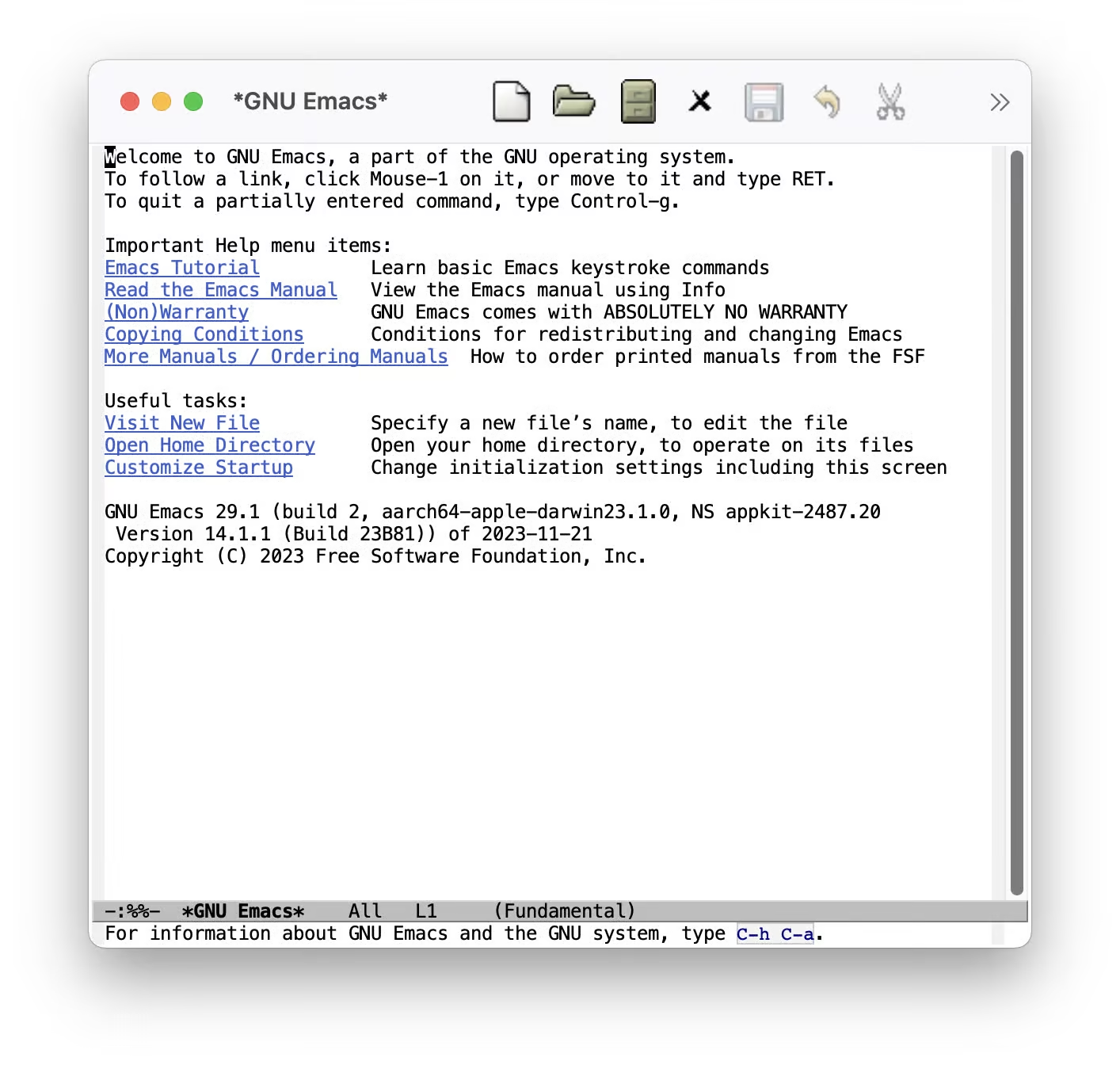
And this is what it looks like when we start Emacs for the first time:
Remove UI elements
We want to remove everything but the text. To do so, we first create a file in
$HOME/.emacs.d/init.el.
(tool-bar-mode -1)             ; Hide the outdated icons
(scroll-bar-mode -1)           ; Hide the always-visible scrollbar
(setq inhibit-splash-screen t) ; Remove the "Welcome to GNU Emacs" splash screen
(setq use-file-dialog nil)      ; Ask for textual confirmation instead of GUI
If you start Emacs now, you’ll see the GUI elements for a few milliseconds.
Let’s fix that by adding these lines to $HOME/.emacs.d/early-init.el2:
(push '(menu-bar-lines . 0) default-frame-alist)
(push '(tool-bar-lines . 0) default-frame-alist)
(push '(vertical-scroll-bars) default-frame-alist)
This is better:
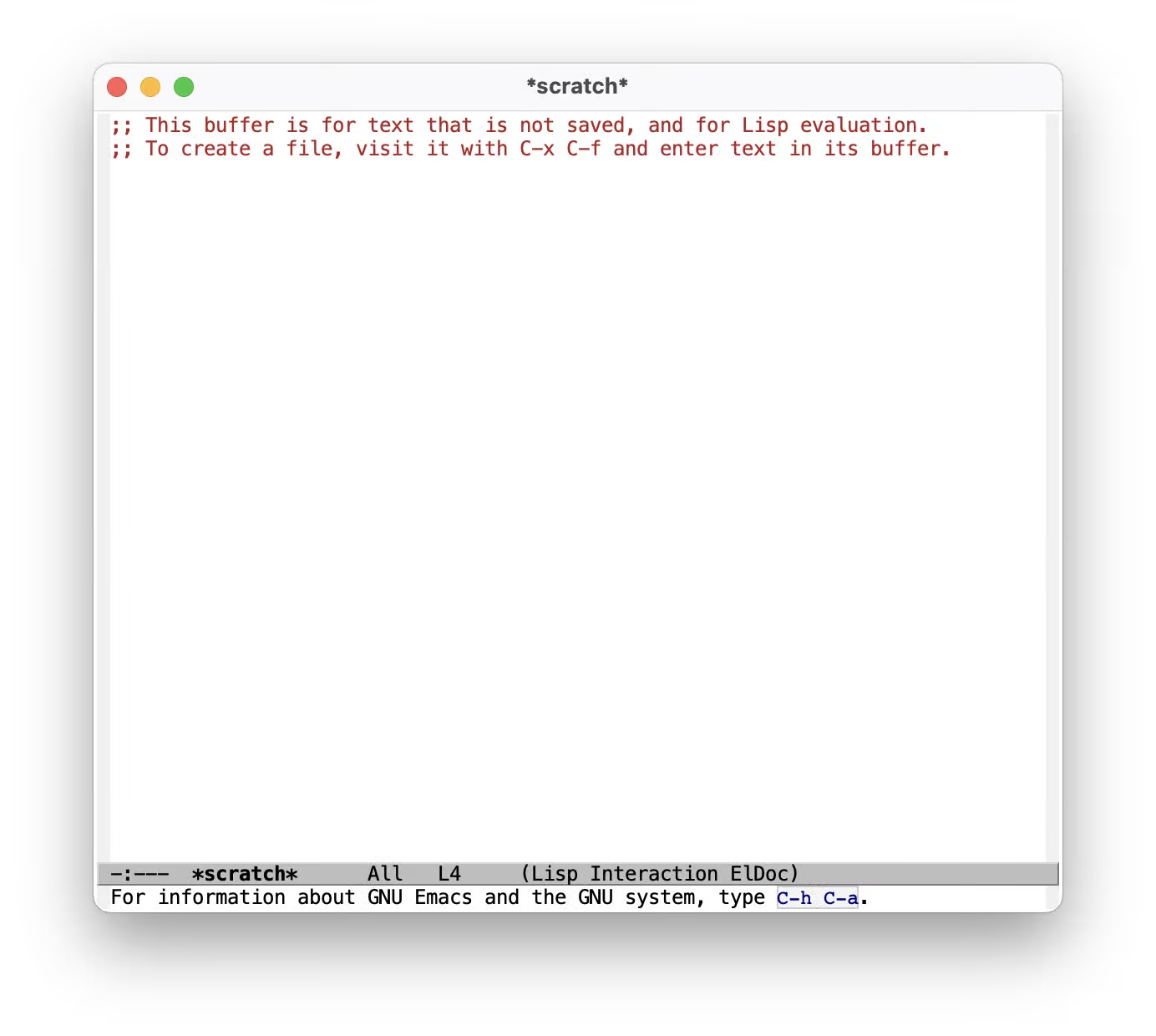
We’ll take care of the default scratch text and the C-h C-a hint down below.
Configure the package manager
We’ll be using straight.el
for package management.
This is the installation code from the straight.el README:
(defvar bootstrap-version)
(let ((bootstrap-file
    (expand-file-name
      "straight/repos/straight.el/bootstrap.el"
      (or (bound-and-true-p straight-base-dir)
        user-emacs-directory)))
    (bootstrap-version 7))
  (unless (file-exists-p bootstrap-file)
    (with-current-buffer
      (url-retrieve-synchronously
       "https://raw.githubusercontent.com/radian-software/straight.el/develop/install.el"
       'silent 'inhibit-cookies)
    (goto-char (point-max))
    (eval-print-last-sexp)))
  (load bootstrap-file nil 'nomessage))
The docs also recommend adding this to our early-init.el to prevent
package.el from loading:
(setq package-enable-at-startup nil)
Next we’ll install use-package for tidier specification and better performance:
(straight-use-package 'use-package)
Then we’ll make use-package use straight.el by default and always :defer t
for lazy loading:
(setq straight-use-package-by-default t)
(setq use-package-always-defer t)
Set sane defaults
It’s good practice to specify Emacs-specific settings in a use-package block,
even though this doesn’t change anything functionally.
In the following, I’ll repeat the use-package emacs function, but you can,
and probably should, move these all into a single use-package block.
Let’s start without the default scratch message and the text at the
bottom saying “For information about GNU Emacs and the GNU system, type
C-h C-a”:
(use-package emacs
  :init
  (setq initial-scratch-message nil)
  (defun display-startup-echo-area-message ()
    (message "")))
In confirmation dialogs, we want to be able to type y and n instead of
having to spell the whole words:
(use-package emacs
  :init
  (defalias 'yes-or-no-p 'y-or-n-p))
Make everything use UTF-8:
(use-package emacs
  :init
  (set-charset-priority 'unicode)
  (setq locale-coding-system 'utf-8
        coding-system-for-read 'utf-8
        coding-system-for-write 'utf-8)
  (set-terminal-coding-system 'utf-8)
  (set-keyboard-coding-system 'utf-8)
  (set-selection-coding-system 'utf-8)
  (prefer-coding-system 'utf-8)
  (setq default-process-coding-system '(utf-8-unix . utf-8-unix)))
Use spaces, but configure tab-width for modes that use tabs (looking at you, Go):
(use-package emacs
  :init
  (setq-default indent-tabs-mode nil)
  (setq-default tab-width 2))
Map the correct keybindings for macOS:
(use-package emacs
  :init
	(when (eq system-type 'darwin)
		(setq mac-command-modifier 'super)
		(setq mac-option-modifier 'meta)
		(setq mac-control-modifier 'control)))
Become evil
I’m used to Vim keybindings and want to keep them, so we’ll use evil:
(use-package evil
  :demand ; No lazy loading
  :config
  (evil-mode 1))
Set font and theme
We’ll be using the PragmataPro typeface:
(use-package emacs
  :init
  (set-face-attribute 'default nil
    :font "PragmataPro Mono Liga"
    :height 160))
For themes, I can recommend the
Doom Themes, we’ll be using
doom-challenger-deep3:
(use-package doom-themes
  :demand
  :config
  (load-theme 'doom-challenger-deep t))
Finally, we want relative line numbers in prog mode:
(use-package emacs
  :init
  (defun ab/enable-line-numbers ()
    "Enable relative line numbers"
    (interactive)
    (display-line-numbers-mode)
    (setq display-line-numbers 'relative))
  (add-hook 'prog-mode-hook #'ab/enable-line-numbers))
Add a nicer modeline
We’ll install doom-modeline:
(use-package doom-modeline
  :ensure t
  :init (doom-modeline-mode 1))
For pretty icons, we need to install nerd-icons as well:
(use-package nerd-icons)
After restarting Emacs, run M-x nerd-icons-install-fonts (Option-x on
macOS) to install the icon font.
And we’ll install Nyan Mode, a minor mode which shows a Nyan Cat (which is 12 years old at the point of writing this) in your modeline to indicate position in the open buffer.
(use-package nyan-mode
  :init
  (nyan-mode))
Conclusion
This is what looks like:
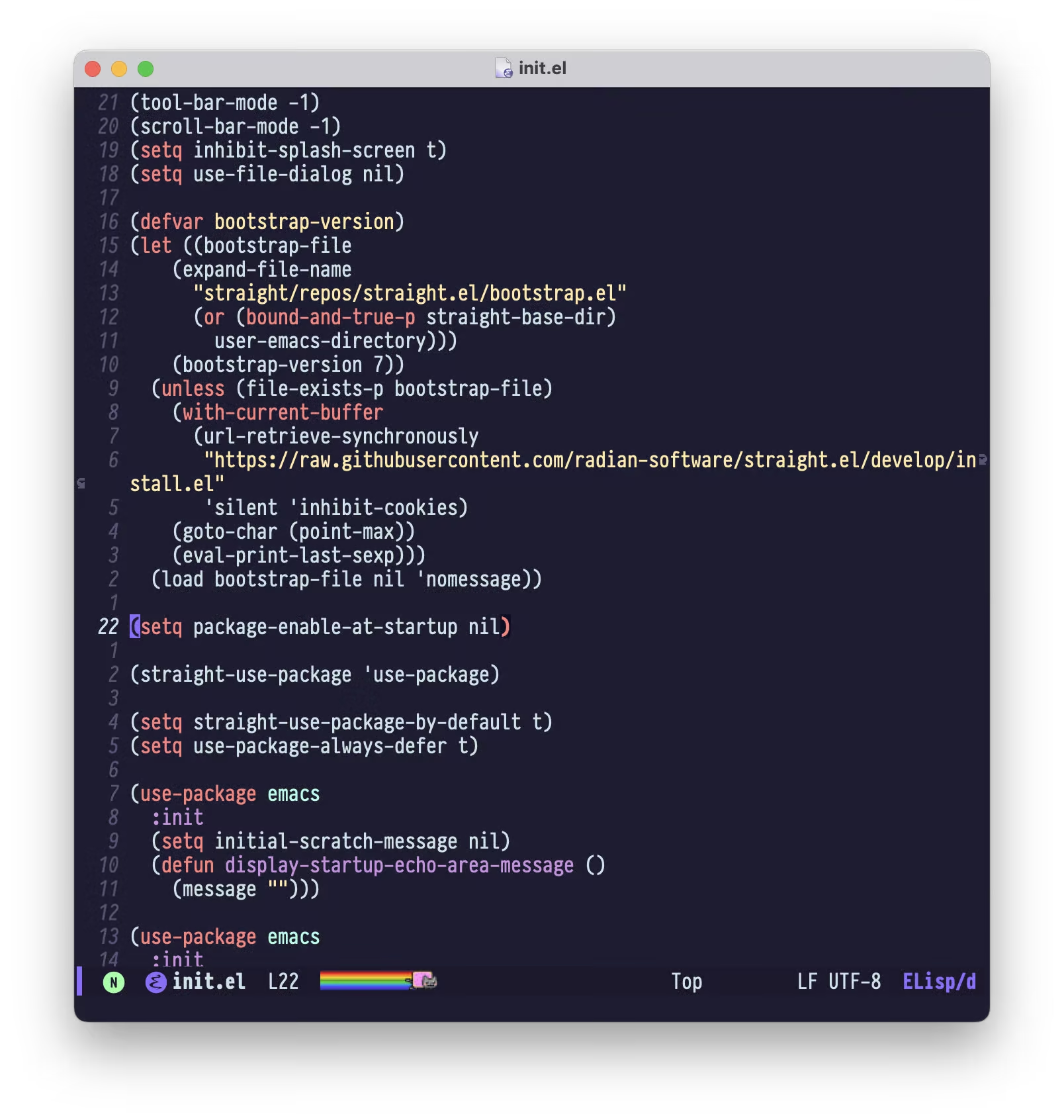
We have sane defaults, we can open a file with :e, navigate around and we
have a nice color scheme4 and modeline.
Here’s the the final init.el
and early-init.el
In part 2, we’ll add a project manager, our own keybindings, the best Git TUI, a handy shortcut to restart Emacs and a ton of small tweaks.
Subscribe to the RSS Feed so you don’t miss the following parts, and let me know if I missed anything foundational!
-
If you don’t want to have to configure everything and just want an editor that, works,
use VS Codecheck out Doom Emacs. ↩ -
early-init.elis loaded during startup, see The Early Init File. Unless explicitly noted, configuration should go ininit.el. ↩ -
Derived from the incredible original ↩
-
Yes, I know that’s what they’re called in Vim. ↩