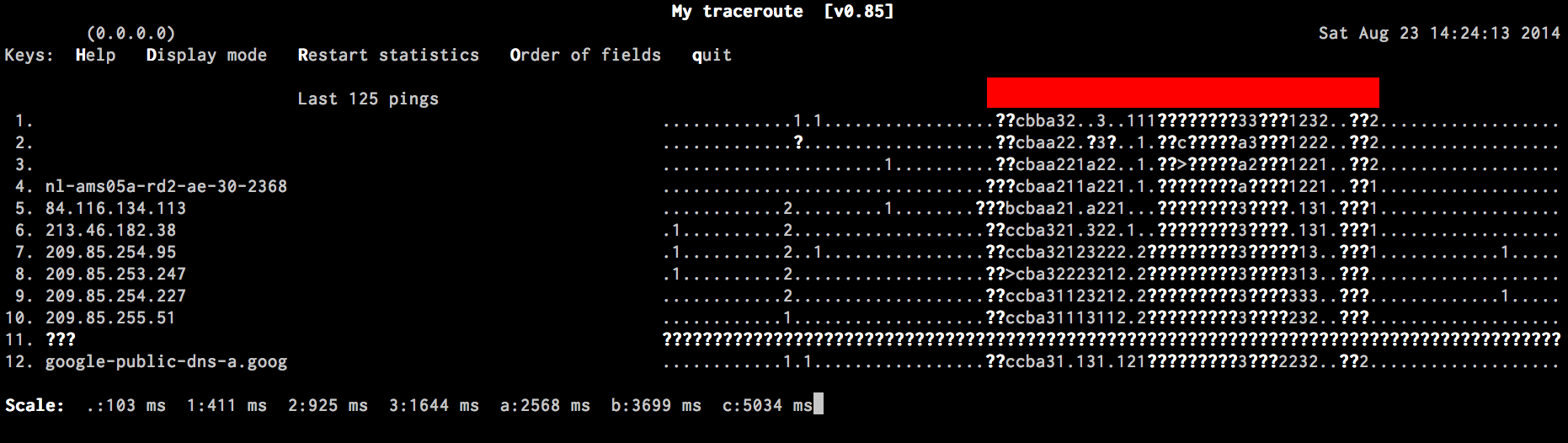
In the image below you can see the mtr output while connecting the screen, the red part is where the monitor is connected. The monitor works just fine and has no problems with other computers, it's just that the macbook is apparently slightly crazy.
The wireless connection appears to be working just fine, but the connection has over 80% packet loss and/or have a latency of multiple seconds when the monitor is connected. The access point is a 2013 time capsule which has no problems as far as I know.
Specs:
- Monitor: Dell 2007FP connected through DVI with the converter shown below
- Laptop: Macbook Pro Retina 15" 2012
- Thunderbolt to DVI/HDMI/Displayport converter (http://www.amazon.co.uk/Mini-Displayport-Adapter-Cable-Thunderbolt/dp/B0093UCXEO)
asked Aug 23, 2014 at 12:28

6
This helped: https://www.youtube.com/watch?v=jObj6YnK44Q
- ALU foil around the cable (up to the tip)
- Bend the cable backwards (make it perpendicular to the screen)
and you're back online.
answered Sep 30, 2018 at 10:04

10
I had the same problem with a secondary dell monitor. Changing the frequency of the dell display from 60Hz to 50Hz solved the seems to have solved the issue. My guess is that wifi on the recent MacBooks have wifi antenna built into the display module and connecting HDMI with my dell display somehow causes EMC interference which hampers wifi performance. Lowering the frequency seems to fix that problem.

1
It took a while for a new mini-displayport to DVI adapter to ship, but I have a new one now and no more problems. Apparently these type of converters can cause problems with Macbooks (the entire machine was hanging at times).
So if anyone has problems when connecting something through mini-displayport, know that it might just be low quality stuff and your apple might not like it ;)
UPDATE
Turns out that the new adapter didn't solve everything yet and it was also a hardware defect. Apple replaced pretty much all of the parts in the laptop (only component that wasn't replaced was the ssd) and after that it has been working with a lot less problems. The current wifi issues that I have are probably just related to Yosemite which appears unable to keep a stable connection for more than a few hours.
Had similar issue, MacBook Pro would lose internet (wifi) connection once I plugged into Dell monitor via HDMI connection. After some trial and error, found that changing the Thunderbolt Display (2) setting Resolution to "default for display" solved the issue.
answered Jan 23, 2019 at 15:44

1
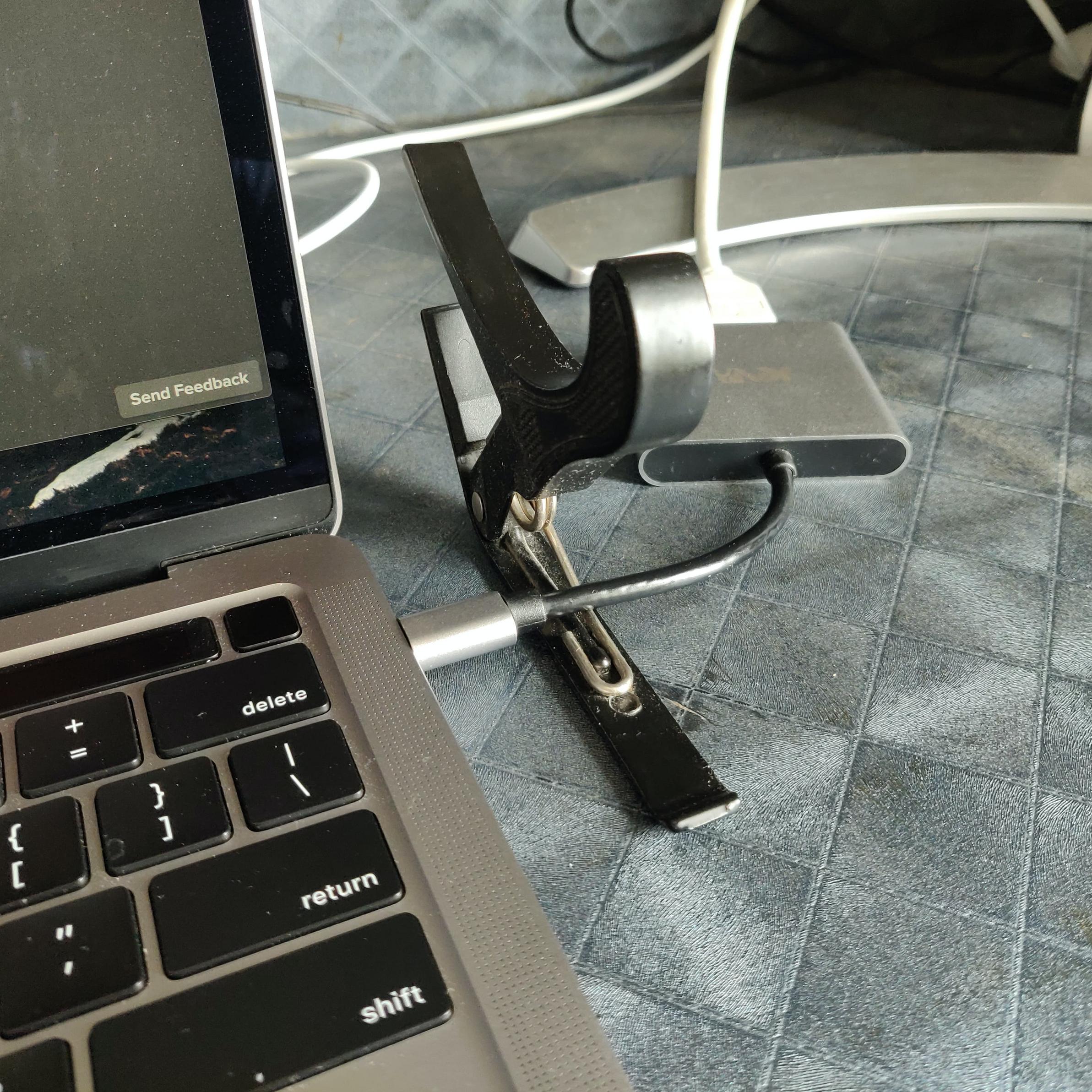
The problem is due to interference as pointed by some answers above between ShitBook's wifi and dongle/adapter/monitor/cable. I resolved it by using my cappo as a ferrite core (needs to be metallic though).
answered Sep 21, 2020 at 5:52

I was having the same issue with a Mini-Displayport to DVI adapter. Based on some odd advice on the apple forums I tried this: Switched DVI display from native resolution to next step lower. Boom, internet turns back on. Weird stuff, but posting here in case anyone else has this issue.
answered Mar 31, 2016 at 0:09

Try changing the wifi channel. Worked for me. https://discussions.apple.com/thread/4155096?start=60&tstart=0
Mine was also fixed by changing to channel 1 (D-Link router was set to auto-select and was using channel 5). I'm NOT using thunderbolt. My old configuration:
-MacBook 3,1 (that's right 2007!)
-Mini-DVI to DVI to Dell2001FP (lid not closed--spanned, not mirrored)
Wifi immediately stops working with external monitor connected with native 1600x1200 60Hz. Lowered to 1344x1008 60Hz, still does not work. Lowered to 1280x1024 75Hz and it works. Changed router to channel 1 and native resolution works!
answered Jan 5, 2017 at 19:59

1
I do not know what is it that you trying to do.
The HDMI cabled external monitor has nothing to do with the Network (Internet).
Also the "My Trace route" applications is bit out of date.
I would suggest to use the build in app called Network Utility to check the internet connection parameters including the trace route.
The Network Utility app is located in the /System/Library/CoreServices/Applications

12
I just had the same problem. But after trying everything everyone has said I plug into the internet through ethernet cable and it fixed it.
answered Aug 7, 2019 at 23:14
After many days of tryna fix it, I tried the "wrapping the wire with a foil" method but it didn't work. What worked though is instead of plugging the usb c hub on the left side of my Macbook Pro '15 2017, I plugged it on the right side and it all worked. The wifi was working again and internet was fast. I'm charging it on the left side though.
It's just weird cause literally back when I was plugging it on the left side, the wifi/ internet would stop working automatically and once I unplug my macbook pro to my monitor, wifi would come back... I wonder if it's like a factory defect on macbooks or just the usb hub itseld idk lol. Anyway, glad I fixed it and hopefully this helps!
answered Jun 17, 2020 at 16:40

In my case I was hanging the HDMI adapter to the side of the table. When I put it on a flat surface with wire parallel to my mac, it started working.
answered Dec 18, 2021 at 4:38

I had the same issue with Dell monitor with DVI output port. I was using an DVI-HDMI cable and a HDMI-USB-C adapter as I have the 2018 MacBookPro. I discovered that was because of the adapter HDMI-USB-C I was using which was not from Apple but from 'NetworkX'. I bought the apple adaptor HDMI to USB-C and use same cheap cable DVI-HDMI and worked. I think that that Apple has also DVI-HDMI cable but didn't try yet. It might be worth trying also with a cheaper adapter from ICY for instances, given that my MacBook Pro is working well with such an adaptor on the HP monitor but with an HDMI output port.
answered Feb 3, 2020 at 14:24

I had the exact same problem - 2017 i7 MacBook Pro as soon as I upgraded to a 4k display and WiFi stopped working. It was the dongle - I didn't even change the brand - I switched from the dedicated StarTech Thunderbolt 3 to DP that I had "borrowed" from my old HD display (which obviously caused problems) to the newer one I carry around with me (an all-in-one StarTech version that has all different types of outputs). I used it as a Thunderbolt 3 to mini DP dongle and it worked fine. The newer StarTech dongle is a rather bulky one with 4 outputs and because of its size, it probably has more shielding and therefore works well.
answered Mar 21, 2020 at 8:52

I would suggest looking at the Service Order in System Preferences > Network.
It's possible that MacOS sees these Thunderbolt adaptors as a Thunderbolt Bridge network connection, and that this takes priority over WiFi, even if not a viable connection.

That's the only way I can think of that a video connector could affect the network.

I came across this same issue on my 2016 MBP. I have had a two monitor plus laptop setup for years with no connectivity issues, then updated to MacOS Monterey 12.6 and suddenly could not get any wifi signal with either monitor plugged in. Tried all of the above suggestions (tin foil, ferrous core, changing sides and adapters, adjusting resolution/frequency of monitors, changing router channel) to no avail.
However, I tried a NVRAM (non-volatile RAM) reset by holding Command+Option+P+R on restart and this did the trick. Glad to have finally got my internet back and hope this helps someone else!
answered Nov 2, 2022 at 9:12

I just upgraded from a MacBook Pro 15" 2014 to a MacBook Pro 16" 2023 with M2 Pro and I am having this issue lol.
Going to try another cable as the HDMI cord I am using now is some knock-off 3-foot cable.
answered Feb 9, 2023 at 15:06

1
I had the same problem. I run two monitors and had a dongle plugged into both sides one for the left monitor and one for the right monitor. I ended up plugging them both into the right and that resolved the issue.
answered Nov 27, 2023 at 15:54
One fine moment as soon as i unplugged the external display connected via an vga to type c adapter the internet started working. I don't know the theory behind this but its a truth that the adapter can cause the issue.

109k43 gold badges231 silver badges293 bronze badges
answered Apr 30, 2020 at 11:11

You must log in to answer this question.
Explore related questions
See similar questions with these tags.