Run your coding agents in one visual workspace.
Orchestrate Claude Code, Codex, Cursor, and six more harnesses. They all talk to each other. Bring your own subscription. No second meter.
ClaudeCodexOpenCodeAntigravityKimiGrokDevinCursorPi
Works with the subscriptions you already have
macOS · Windows · Linux
“I can't even tell you how big of a deal AgentGrid has been for me! Thank you for making it”
“Met the AgentGrid guys a few days ago—loving it so far.”
souren@ubuntu:~/agent-grid$ pnpm run dev
▲ Next.js 16.1.7 (Turbopack)
- Local: http://localhost:3000
✓ Ready in 2.6s
ShellMCPpane-termagent-grid
▎ Using Opus 4.8 (from .claude\settings.json) · /model
❯
http://localhost:3000/pre-seed
AGENTGRID
Let's re-standardize how the world ships software.
souren@agentgrid.sh
COVERTEAMPRODUCTPROBLEMUSERSUSAGERETENTIONGROWTHMODELMARKETASKEND
94 instances / Inserted
Canvas
Product demo.
See AgentGrid in action.
One visual workspace per project. Pan, zoom, arrange, and launch agents.
- Create spaces with ⌘T
- Launch agents with ⌘1–9
- Search with ⌘F
- Navigate with the minimap and undo close
Persistence
Restart without losing your work.
Everything reopens.
After an OS update or restart, reopen AgentGrid without worrying about lost sessions.
- Save sessions to disk in .agent-grid
- Keep work through updates and restarts
- Resume agents mid-task
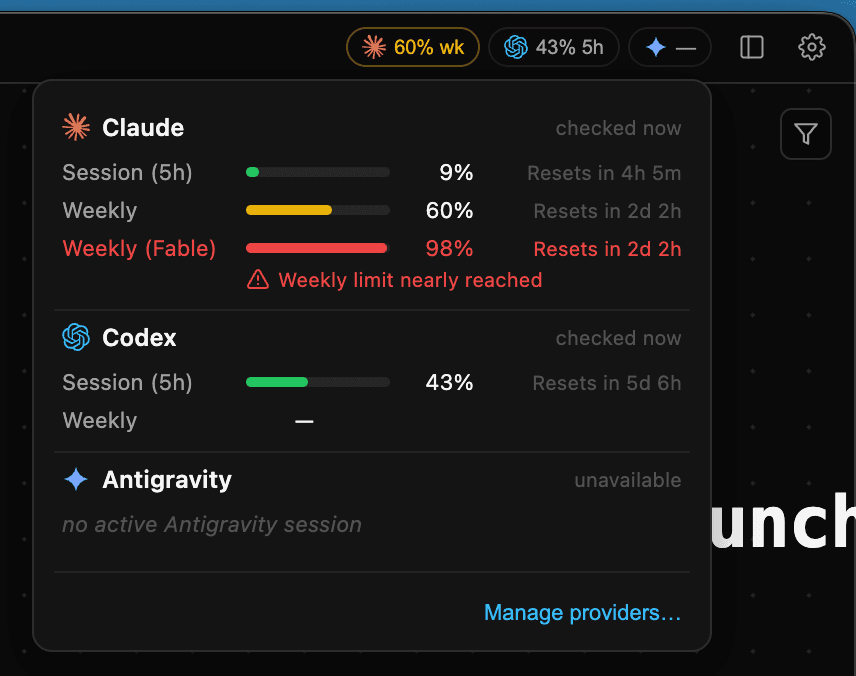
Usage
See your AI usage.
Limits and reset times.
See provider limits, reset times, and low-usage warnings in one place.
- See each provider's current limit
- Know when a usage window resets
- Get a warning before work is interrupted
Unblock
Hit a limit?
Switch agents. Keep going.
When Claude or another provider reaches a usage or session limit, open another agent in the same project, show it the visible work, and continue.
- See the provider limit before work stops
- Open another agent in the same project
- Ask it to review the visible work and continue
Smart workspace
Agents can see the whole workspace.
Not just their own chat.
Agents can read notes, terminal output, and other panes in the workspace.
- Read notes and plans
- See terminal output
- Use context from other panes
- Hand off without copy-paste
AI Agents
Run any supported harness
side by side.
Choose from nine supported coding harnesses and keep every agent in one visual workspace.
- Choose the best harness for each task
- Run different harnesses side by side
- Switch harnesses without leaving the project
Orchestration
Delegate work.
Keep every worker visible.
Ask a master agent to split the work, read full worker conversations, and send follow-ups when needed.
- See every worker on the canvas
- Read the full worker conversation
- Send follow-ups directly
Agentic SDLC
Plan. Implement. Review.
Your software factory, visible.
Move work through a clear loop: make a plan, delegate implementation, then inspect the diff and decide what happens next.
- Plan work in a note or master conversation
- Delegate implementation to visible workers
- Review results, approve, or send a follow-up
Developer tools
Use your dev tools beside
your agents.
Use terminal, VS Code, git, and Chromium with DevTools beside the agent working on your task.
- Run commands in a real terminal
- Open VS Code beside your agent
- Stage, diff, and commit with git
- Chromium with DevTools
Agent calls
Call your agents.
Talk through the work.
Start a live call from an agent pane and continue the same development conversation while the agent works.
- Start a live call from an agent pane
- Keep the same conversation and context
- Hand off the next task during the call
Cross-deviceMobile beta
Continue on desktop or mobile.
Same project. Same layout.
Open the same project and canvas on desktop, iPhone, or Android.
- Open shared projects on desktop, iPhone, and Android
- Keep the same canvas layout on every device