I recently switched from Linux to OS X and Python to Javascript. To complete my fall from the Light, I've switched from Emacs to Vim. Actually I just switched to Evil Mode and Spacemacs. This is how I came to switch:
- I discovered OS X uses many Emacs key bindings by default and I could set even more.
- I went back to the default key bindings in Emacs to be consistent with OS X.1
- I remapped Return to Control and started using both Control keys to help use the default Emacs key bindings. Using both Control keys felt amazing compared to just one...
- ...until I began feeling Emacs Pinky since Return was slightly farther than Caps Lock.2
- I tried remapping Spacebar to Control and this felt even more amazing...
- ...until I tried to type a sentence at normal speed.
- I decided I didn't want to buy a foot pedal.
- I tried Spacemacs.
- I set bash and Karabiner to Vim mode.3
- I set Caps Lock to Escape and Control.
- I started looking for Vim screencasts.4
Even after 3 months, I'm still working a lot slower, but I'm hoping it's a good investment. One thing I've noticed is that Vim seems to use a lot of number and symbol keys. I need to learn to touch type my numbers! Update 2017-07-31: After 1.5 years, I'm still enjoying Spacemacs and Vim key bindings (and I've gotten better at my numbers). I find Vim mode more relaxing compared to the many key chords used in Emacs. A few of my favorite commands are f/t to jump to a character on a line and . and ; to repeat commands.
Spacemacs
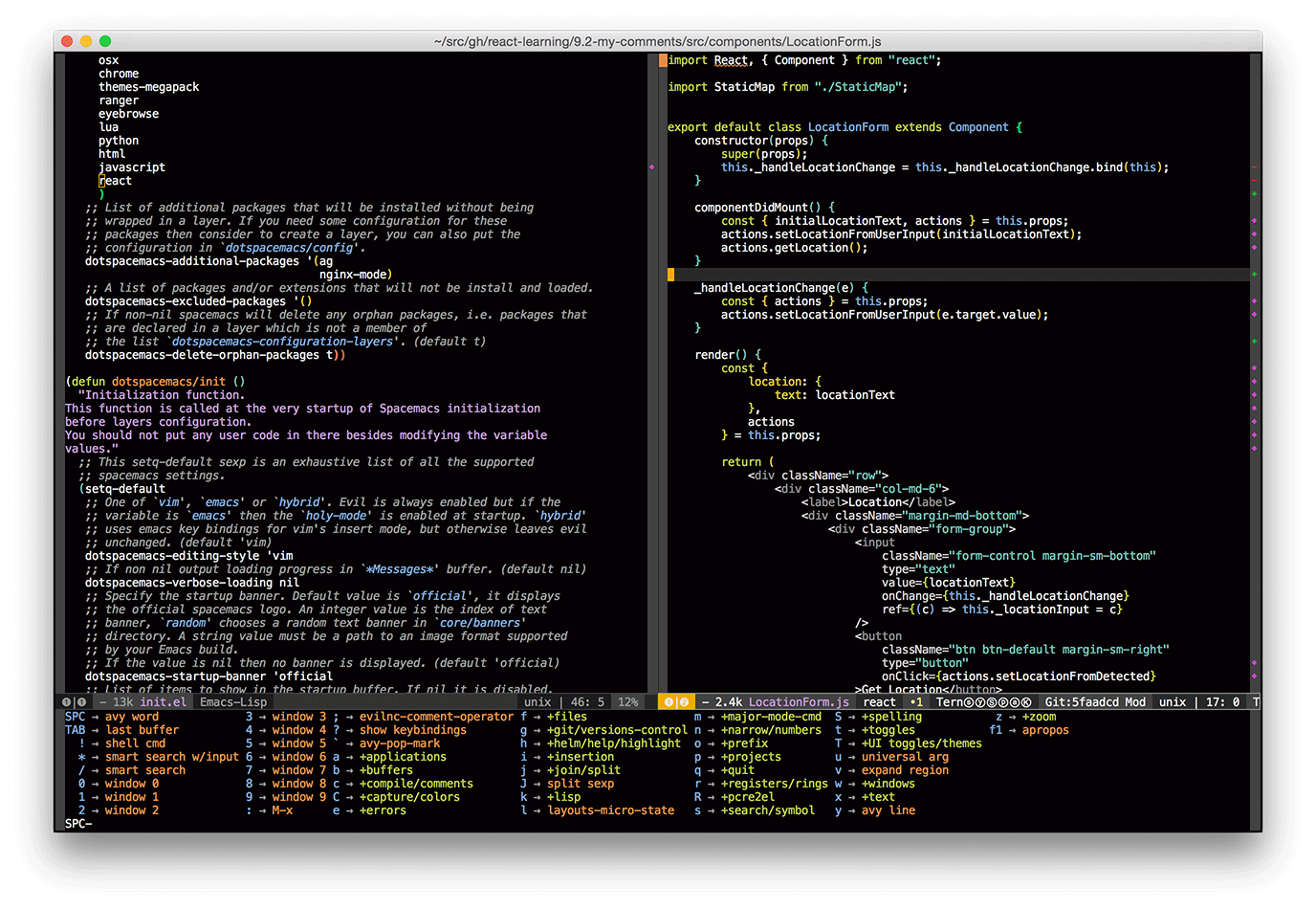
Spacemacs is an Emacs starter kit5 (like Emacs Prelude) optimized for Vim key bindings. It provides the "best of both worlds" – the efficiency of Vim's modal editing and the extensibility of Emacs Lisp.
Spacemacs replaces many Emacs modifier combinations by setting a leader key to the Spacebar (hence the name spacemacs). To open a file, use SPC f f instead of C-x C-f. Spacemacs makes commands easily discoverable using which-key. Just press SPC to see a list of commands, press a key and see more commands.
Spacemacs has a good out-of-the-box configuration for Javascript and React development. It uses js2-mode, web-mode6 for JSX, flycheck w/ eslint, tern, and some things I haven't used.
Install Spacemacs
Here's how to install Spacemacs on OS X.
- Install Emacs
$ brew install emacs --with-cocoa --with-gnutls --with-imagemagick - Install Spacemacs
$ mv ~/.emacs.d ~/.emacs.d.bak  # if you have an exisiting .emacs.d directory
$ git clone https://github.com/syl20bnr/spacemacs ~/.emacs.d
- Start Emacs (in terminal mode). This will download and compile packages and ask if you want to use vim mode or emacs mode.
Start Emacs in client/server mode
- Start the Emacs server
- Start an Emacs client in the terminal
- Start a graphical Emacs client
Spacemacs config
Spacemacs has its own configuration file located at ~/.spacemacs or ~/.spacemacs.d/init.el. For more information, see the configuration documentation. My personal Spacemacs configuration is on github.
Useful Spacemacs commands
SPC q q - quit
SPC w / - split window vertically
SPC w - - split window horizontally
SPC 1   - switch to window 1
SPC 2   - switch to window 2
SPC w d - delete current window
SPC TAB - switch to previous buffer
SPC b b - switch buffers
SPC f f - find a file
SPC f s - save a file (:w also works)
SPC p p - open project
SPC p h - find a file in current project
SPC b d - delete current buffer
SPC b M - move buffer to another window
SPC v   - enter expand-region mode
Useful Vim key bindings
movement
--------
0 - beginning of line
^ - beginning of non-whitespace
$ - end of line
9j - move down 9 lines
w - move forward by word
b - move backward by word
gg - first line
G - last line
C-u - up half page
C-d - down half page
f/ - move forward to first "/" character
t/ - move forward right before the first "/" character
; - repeat that command again
H - head of the screen
M - middle of the screen
L - last of the screen
} - move forward by paragraph or block
{ - move backwards by paragraph or block
* - search for word under the cursor
    n - search again forward
    N - search again backwards
# - search backwards for word under cursor
/ - search forward
? - search backward
% - find matching brace, paren, etc
ma - mark a line in a file with marker "a"
`a - after moving around, go back to the exact position of marker "a"
'a - after moving around, go back to line of marker "a"
:marks - view all the marks
'' - go to the last place you were
[{ - jump back to the "{" at the beginning of the current code block

editing
-------
x - delete char under cursor
X - delete char before cursor
A - add to end of line
I - insert at the beginning of the line
dd - delete line
D - delete from cursor to end of line
di' - delete text inside single quotes
yy - copy line
Y - copy from cursor to end of line
cc - change line
C - change from cursor to end of line
cit - change text inside html tag
ci' - change text inside single quotes
ci{ - change text inside curly brackets.
ci... - etc
p - paste after cursor
P = paste before cursor
o - add line below
O - add line above
. = repeat last comment
r - replace character
R - replace. (overwrite) (good for columns of text)
J - join line (cursor can be anywhere on line)

visual mode
-----------
v - visual char mode
V - visual line mode
C-v - block visual mode