WordPress needs no formal introduction. It’s a top pick for website creators, powering a massive 835 million websites and holding the title of the most popular CMS around.
WordPress, released first in 2003, has seen over 550 versions in its 20-year history, with the latest version being 6.8, surpassing 6.3.
It should be a no-brainer to use the latest WordPress version in 2025 to expect optimum website performance or perfect user experience.
In this piece, you’ll learn how to check what WordPress version you’re currently running and how to upgrade or downgrade to a version that suits your requirements.
I’ll also explain why WordPress updates are so frequent, the history of WordPress versions, and notable changes in its major updates.
If you want to jump to any specific section of this guide, feel free to check out the table of contents below.
- Why Does WordPress Release Frequent Updates?
- The Importance of Checking Your WordPress Version
- WordPress Versions: Major vs. Minor
- How to Check Your Current WordPress Version [Easy Methods]
- How to Upgrade to the Latest WordPress Version?
- How to Upgrade WordPress Version With FTP?
- How to Downgrade WordPress to a Previous Version [Using a Plugin]
- How to Enable Auto-Update for WordPress Core, Plugins, and Themes?
- How to Enable or Disable WordPress Auto-Updates Manually?
- How to Hide WordPress Version Number?
- Troubleshooting Conflicts After Updating or Downgrading WordPress
- What Is WordPress’ Latest Version: What’s New?
- List of WordPress Versions [Notable Releases]
- Summary
Why Does WordPress Release Frequent Updates?
While it might seem like a chore to keep up with the latest releases, outdated sites are particularly vulnerable to hackers and bugs.
With each new version, WordPress developers bring updates that tackle vulnerabilities identified by the community and themselves. Every minor update thus eliminates errors, glitches, or security vulnerabilities in the previous version.
While most updates contain security improvements, many updates are performance-focused, which can be more subtle to notice.
Some WordPress version releases may include a slight change, and some may change how things work. All these additions are mapped according to time needs and simplify the user experience.
The Importance of Checking Your WordPress Version
Checking your WordPress version is crucial to keeping your website updated and enhancing its security and performance. It also helps assess the compatibility of themes and plugins with your site.
WordPress regularly issues updates, addressing security concerns and boosting page speed and overall performance. Ignoring these updates may result in compatibility issues, jeopardizing your site’s functionality and security.
Always keep your WordPress version up-to-date to avoid potential risks and ensure optimal site performance by staying informed through regular checks of WordPress’s released versions list, comparing it with your site’s version, and anticipating upcoming updates.
Upgrade to WordPress 6.2.2 on Cloudways with 1-Click
Run one of the latest versions on our ultra-fast, fully managed WordPress hosting with zero downtime and built-in performance boosts.
WordPress Versions: Major vs. Minor
WordPress ensures that it’s up-to-date by frequently releasing new updates and improving security, performance, and user experience with each update.
Major updates bring significant changes, such as the introduction of Gutenberg in WordPress 5.0 and enhanced Full Site Editing in WordPress 6.0.. On the other hand, minor updates include small features, tweaks, or bug fixes.
WordPress Major Versions
WordPress’ major version release indicates a critical change or improvement in the core software. Each major update generally comes 4 to 6 months after the previous release, and a beta version is made available to the users prior to the actual release.
There have been 52 major WordPress releases to date, each named after a Jazz musician, with the latest WordPress 6.8 (released in April 2025) named after jazz pianist Cecil Taylor.
These major releases span from 1.0, 1.2, 1.5, and 2.0 up to the current major WordPress version, 6.8.
The noteworthy aspect is that WordPress users are not obligated to upgrade to the latest version and have the freedom to continue running on their preferred versions.
WordPress Minor Versions
Unlike the major releases, WordPress minor versions generally do not introduce new features or core updates. They mainly focus on bug fixes and minor improvements, so they are automatically installed.
Minor releases are frequent, and they keep coming time after time, even for the earlier versions. For example, the 3.8 version came out in December 2013 but had its latest minor release, 3.8.37, on 6 January 2022. Similarly, WordPress 6.4 was followed just two days later by 6.4.1 to quickly patch early bugs and improve stability.
WordPress has given over 500 minor (patch/security) releases to date. Some major versions may have only a few minor releases, while others, like 3.7 and 3.8, have as many as 38 minor releases.
How to Check Your Current WordPress Version [Easy Methods]
If you have a WordPress site, it’s essential to know its version.
Why?
Well, older WordPress versions are more susceptible to security breaches.
Luckily, checking your website’s version is easy, and in this section, I’ll walk you through three quick methods to get it done.
- Check Your WordPress Version via the Admin Dashboard
- Check Your WordPress Version via Page Source
- Check Your WordPress Version via RSS Feed
- Check Your WordPress Version by Accessing the version.php File
- Check Your WordPress Using WP-CLI
Method #1: How to Check Your WordPress Version via Admin Dashboard?
You can check your site’s current WordPress version from several places in the admin dashboard. Of course, this requires you to have the dashboard’s admin credentials. Follow the steps below:
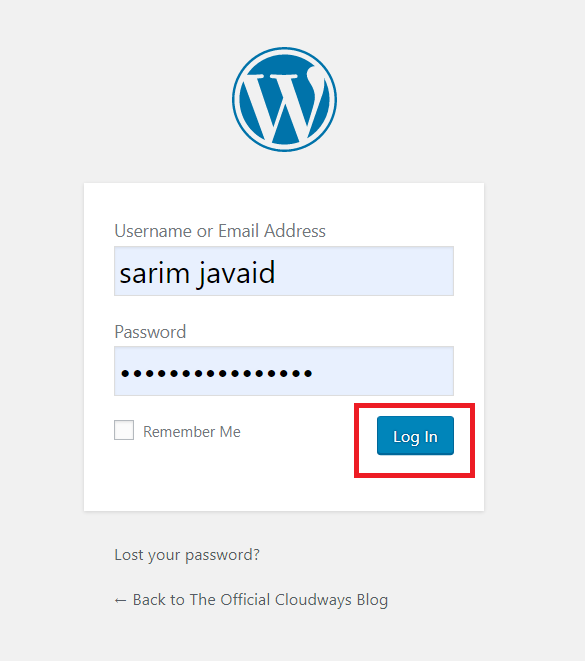
- Log in to your site’s WordPress Dashboard.
- Locate the “At a Glance” section on the top left of your dashboard.
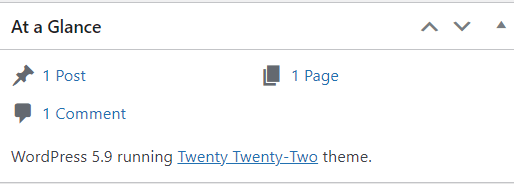
- There, you will find your WordPress version.
- As this site isn’t running on the latest WordPress version, you will see the following message above the “At a Glance” section.

If the “At a Glance” widget is disabled on your site, there’s another way to check your current WordPress version.
Let’s check it on a WordPress site using the latest version.
- Scroll down to the bottom of your dashboard, and you’ll find the number in the footer.

There’s yet another quick way to check the version from your WordPress Dashboard:
- Navigate to the WordPress logo on the top left side of the dashboard.
- Click on “About WordPress.”
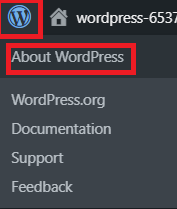
- You will find your current WordPress version on the screen.

Method #2: How to Check Your WordPress Version via Page Source?
What if you don’t have the admin credentials of a WordPress website but still want to find out its version? Well, you can do that via Page Source:
- Open the desired WordPress website on a browser.
- Right-click on the page, and click “View Page Source.”
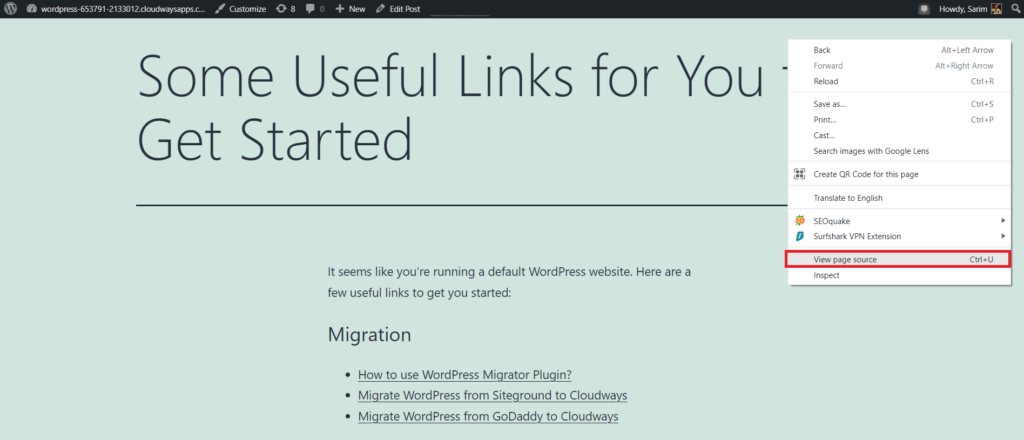
- Search for the term “generator.” If the generator tag is enabled, you will see something like this:
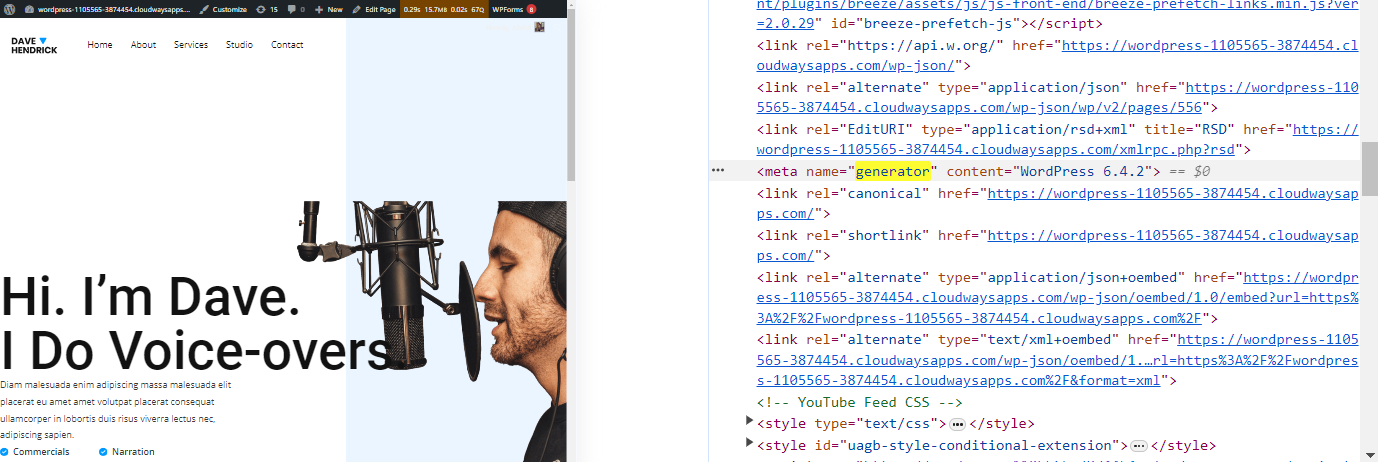
- Since I’ve updated to the latest version, the generator tag for my site is showing 6.4.2.
Launch WordPress Multisite 6.2.2 in Minutes
Easily manage multiple websites from one dashboard — hosted on blazing-fast Cloudways servers with built-in scalability.
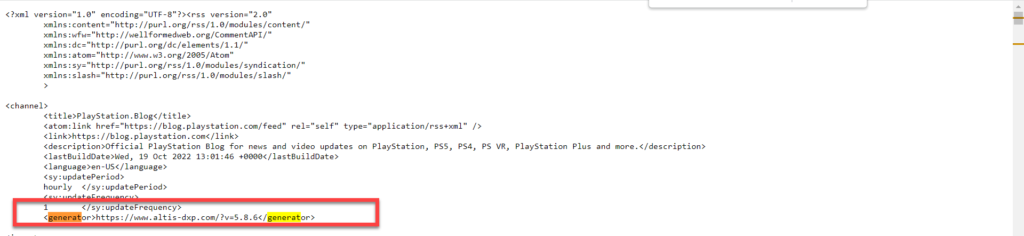
Apart from these, there’s another quick method to check the WordPress version of a site. This also uses the “generator” tag, but in a different way:
- Visit any WordPress website.

- Edit the URL and type “ /feed “ at the end.

- Hit the Enter key.
- Search for “generator,” and you will find the WordPress version used by that site.
Method #4: How to Check Your WordPress Version by Accessing the version.php File
To check your WordPress version through the version.php file, simply:
- Connect to your WordPress website using an FTP client like FileZilla. You can check out our guide to connecting to your application using SSH/SFTP if you’re new to this.
- Access public_html folder.
- Navigate to the wp-includes folder.
- Open the version.php file.

- Look for the line of code containing the variable $wp_version. You can also press ctrl+F to find it.
- To the right of the variable, you’ll see your WordPress version. For example: $wp_version = ‘6.8.1’.
- After confirming your WordPress version, close the connection and exit FileZilla.
Method #5: How to Check Your WordPress Using WP-CLI
Lastly, you can check your WordPress version using WP-CLI. This is a tool for developers to control WordPress from the command line, like using a command prompt on your computer.
Cloudways has a built-in SSH Terminal in its platform, so you can connect to your website without needing another program.

Here are the steps:
- Connect to your web host using SSH, which is a secure way to control your site remotely. I’m using Cloudways so I’ll just launch the SSH terminal from the Cloudways dashboard.
- Once connected, navigate to your application directory: cd applications.
- Then, move into the correct app folder (replace your_app_folder with the actual folder name — you can list them using ls): cd your_app_folder/public_html.
- Now, run the WP-CLI command: wp core version
You’ll now see the exact version of WordPress installed.

Running an older WordPress version? Upgrade it to use the CMS to its full potential.
While the decision to upgrade is entirely up to you, older WordPress versions leave your website vulnerable to unaddressed bugs.
Thankfully, WordPress offers quick version upgrades, given that your WordPress hosting provider supports the latest version.
Follow the steps below:
- Go to your WordPress admin dashboard.
- Locate the “At a Glance” widget.
- You’ll see your current WordPress version; if it’s outdated, you’ll see the “Update to 6.x.x” button right next to it.
- Click on the “update to 6.x.x” button.
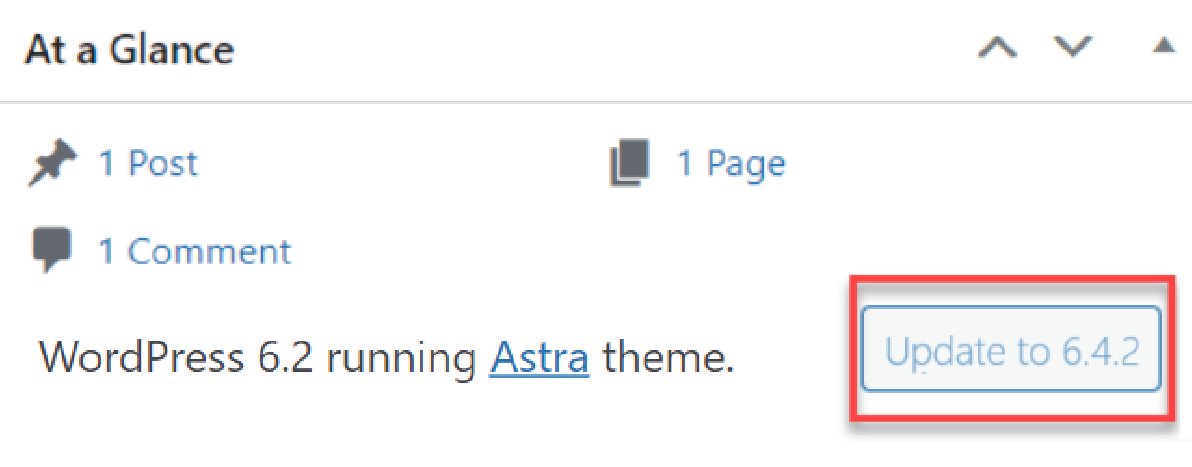
- Back up your database and files before updating your version. Visit the Updating WordPress documentation page for more information.
- Click the “Update Now” button.
- Your WordPress website will be updated to the 6.4.2 version in less than a minute.
High-end Performance Results on our Managed WordPress Hosting
Upgrade to the latest WordPress version in minutes on our managed platform.
How to Upgrade WordPress Version With FTP?
If you can’t access your WordPress dashboard or if the update button isn’t working, you can manually upgrade WordPress using FTP. It’s not as intimidating as it sounds.
Here’s how to do it:
Head over to WordPress.org/download and click the blue “Download WordPress” button. This gives you a .zip file with the latest WordPress core files.

Once it’s downloaded, right-click the zip file on your computer and choose “Extract All” to unzip it.

You’ll see a folder named WordPress with several files inside:
- wp-admin
- wp-includes
- wp-content
- and some PHP files.

Important: Delete the wp-content folder from the extracted files. This folder contains your themes and plugins, and uploading it would overwrite your custom setup. You don’t need it to update WordPress anyway.
Open FileZilla, and enter your FTP credentials (host, username, password, and port) at the top. You can usually find these in your hosting dashboard.

Once connected, your screen will be split into two sections:
- The left side shows files on your computer
- The right side shows your website’s files (the server)

On the right (server) side, navigate to your site’s root folder. It’s usually called public_html or might be named after your site. This folder contains your current WordPress files, like wp-admin, wp-content, and wp-includes.

Now, on the left (your computer), open the folder where you extracted the latest WordPress files — the one where you already deleted the wp-content folder.

Select everything inside (Ctrl + A), right-click, and choose Upload.

When FileZilla asks what to do with duplicate files, choose:
- Overwrite
- Check the box for “Always use this action”

Then click OK to begin uploading.
Finally, once the upload finishes, go to your site’s admin dashboard (yourdomain.com/wp-admin).
If WordPress needs a database update, it’ll prompt you with a message. Just click “Update WordPress Database”, and you’re done.

If you don’t see that message, congrats — your WordPress is now upgraded!
In my case, I didn’t get any prompt, but in the At a Glance section, I can see that my WordPress version is 6.81.
You can also downgrade the same way, in case you don’t prefer using the plugin method discussed next.
How to Downgrade WordPress to a Previous Version [Using a Plugin]
Want to downgrade your WordPress website to an older version of your choice? Well, it is very much possible.
While it’s recommended to use the latest WordPress version for security and performance reasons, incompatibility of some plugins or themes may force you to revert to an older WordPress version.
To downgrade the WordPress version, follow the steps below:
- Go to your WordPress admin dashboard.
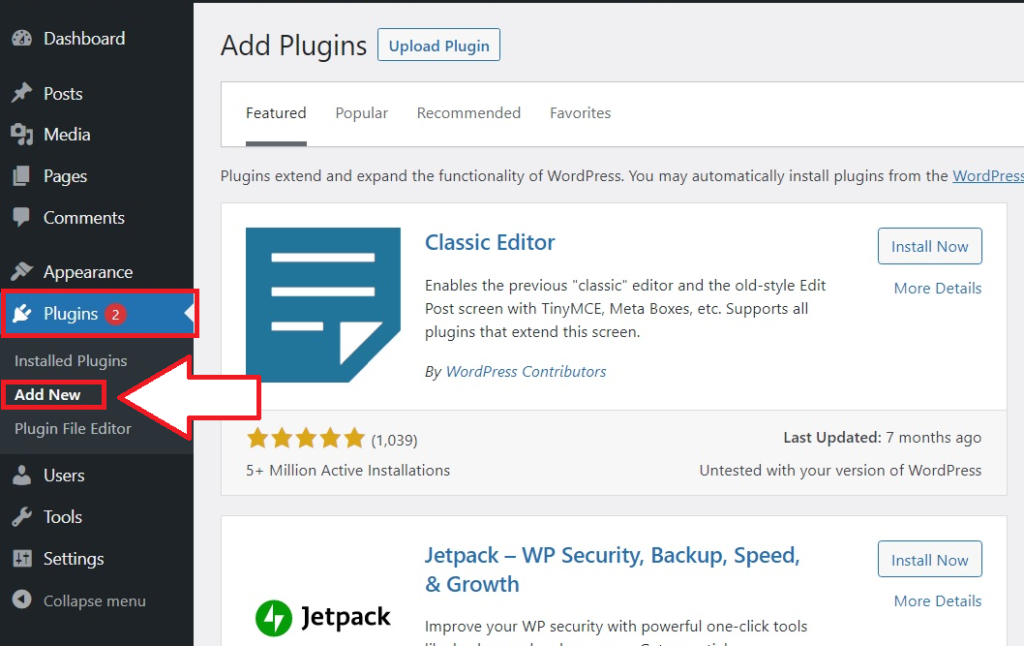
- Click Plugins > Add New.
- Type “WP downgrade” in the search bar.
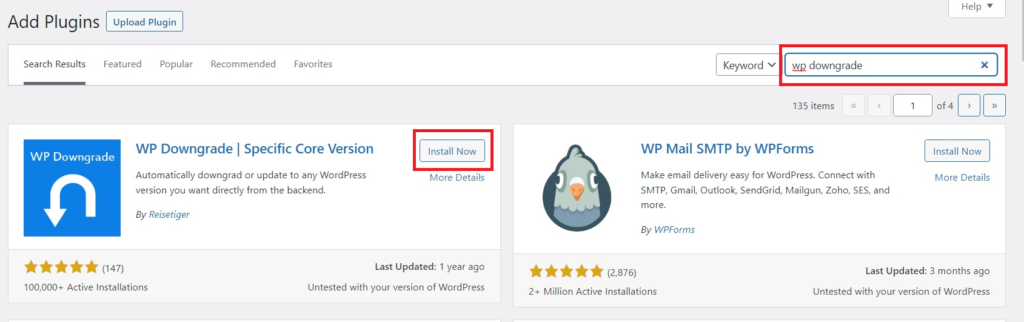
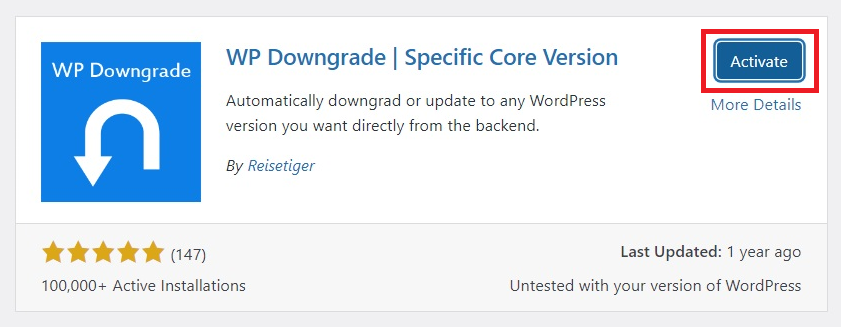
- Click on the Install button and activate the plugin.
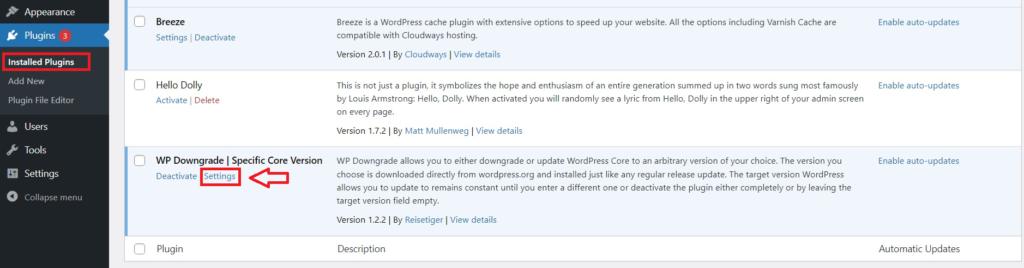
- Click “Installed Plugins” under the Plugins section.
- Locate the “WP Downgrade” plugin and click Settings.
- Type your desired WordPress version in the field next to “WordPress Target Version.” Here, I am selecting the 6.0 version.
- Click Save Changes.
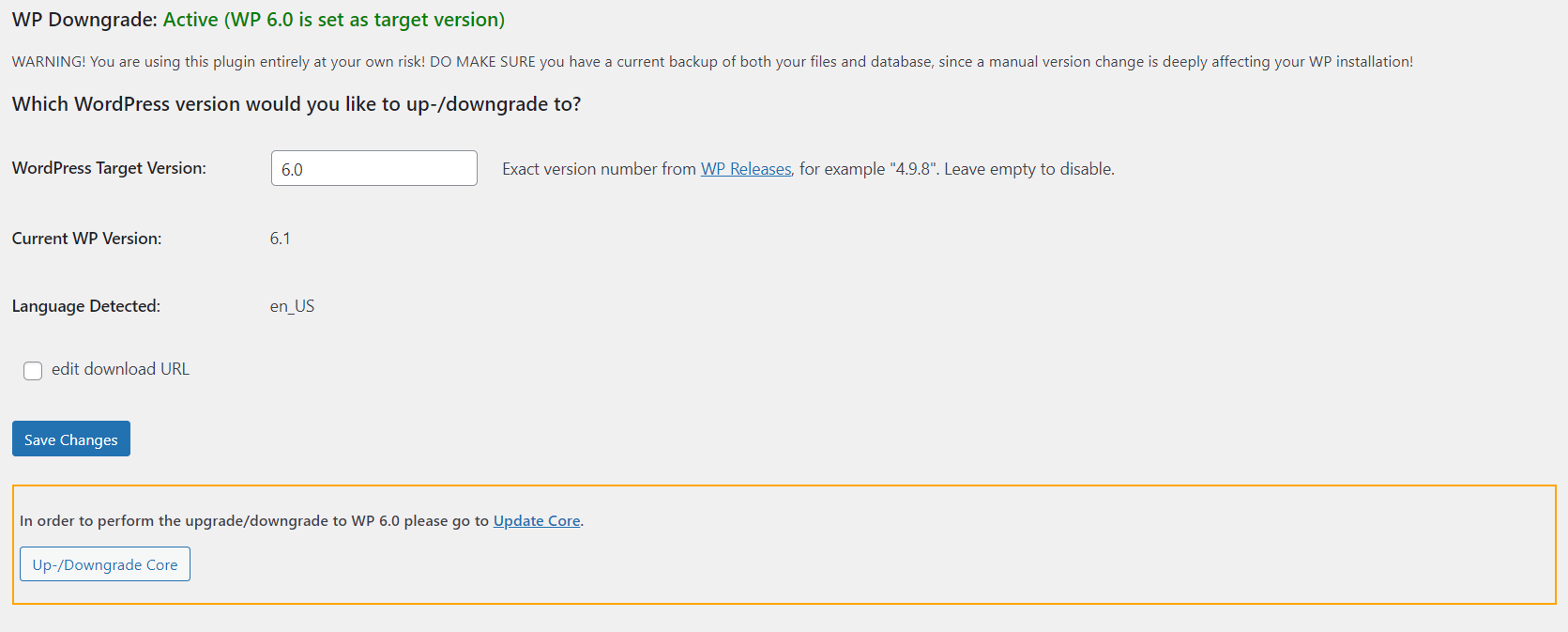
- Click Update Core under Save Settings.
- Click the “Update to version 6.0” button.
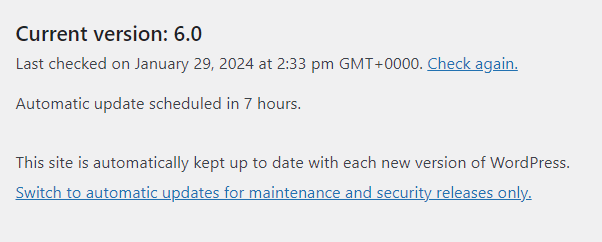
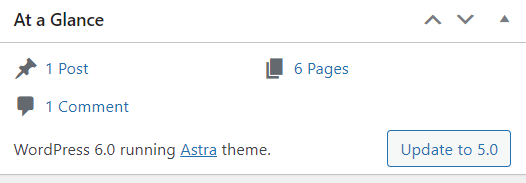
- Ta-da! You’ve successfully downgraded your WordPress version to a previous one.
How to Enable Auto-Update for WordPress Core, Plugins, and Themes?
Enabling auto-updates in WordPress can help reduce the time spent on routine maintenance. Core files, plugins, and themes can all be set to update automatically from the admin panel, which is useful if you want to avoid logging in frequently just to apply the latest patches.
But while convenient, this approach doesn’t offer any guarantees—there’s always the risk of updates breaking your site or clashing with custom configurations.
Cloudways offers a more reliable solution with its SafeUpdates addon. It automates the update process with multiple safeguards in place.
Instead of updating blindly, SafeUpdates tests each update in a staging environment before touching your live site. It performs backups, checks for errors, runs performance tests, and even compares visuals to ensure nothing breaks. If something’s off, it either halts the update or rolls everything back automatically.
The result? You’ll save up to 42 hours each month that would otherwise go into manual updates, troubleshooting, and rollbacks.
Step 1 – Activate SafeUpdates
- Log into your Cloudways account and head to the Applications tab.

- Choose your application, and then open the SafeUpdates tab.

- Switch on the SafeUpdates toggle to get started.

Step 2 – Choose How to Run Updates
Once activated, you can either trigger updates manually using the On-Demand tab or set them to run automatically via the Schedule tab.

- On-Demand Updates: Select the plugins, themes, or core updates you want to apply and click Update. SafeUpdates will handle the rest—creating a backup, testing in staging, and updating the live site only if everything checks out.
- Scheduled Updates: Toggle on automatic updates, choose the day and time, and optionally customize what gets updated. You can also add extra pages for Visual Regression Testing and enable update notifications.
How to Enable or Disable WordPress Auto-Updates Manually?
Although managing WordPress updates is much safer and more convenient with tools like our SafeUpdates addon, if you’re running WordPress on a traditional or self-hosted setup and want to take control of auto-updates, here’s how you can do it manually by tweaking your wp-config.php file.
You’ll need access to your site’s files—usually through FTP or your hosting control panel. Once there, locate the wp-config.php file in the root directory of your WordPress installation.

To enable auto-updates for the WordPress core, add this line:
define( 'WP_AUTO_UPDATE_CORE', true );
To disable all core auto-updates:
define( 'WP_AUTO_UPDATE_CORE', false );
You can also fine-tune auto-updates using filters in your functions.php file or through dedicated plugins if you prefer more flexibility.
Just keep in mind—while this method works, it doesn’t offer the rollback, visual testing, or backup safety net that comes with something like SafeUpdates. So use it carefully, and always back up your site before making changes.
How to Hide WordPress Version Number?
You can remove or hide your current WordPress version using multiple methods. Many people prefer doing it via a plugin, but you can also do it manually without any hassle.
Note: If you hide your WordPress version via this method, it will also limit anyone (including you) from checking the current version using the “RSS feed” or the “page source” method.
I prefer doing this process manually, as the plugins are not updated regularly, so your site can be left vulnerable to hackers.
Follow the steps below:
- Go to your WordPress dashboard.
- Click on Appearance > Theme File Editor.
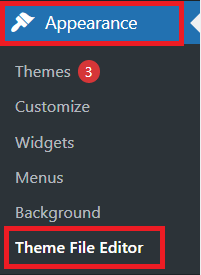
- Locate and click on the “functions.php” option under the Theme Files.
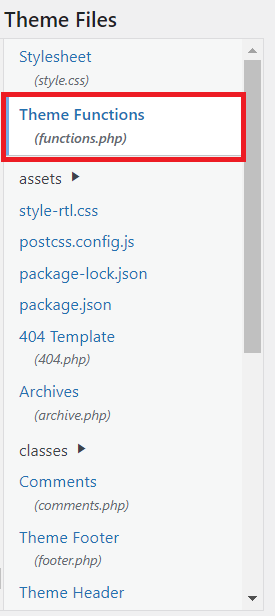
- Scroll down to the end of the code.
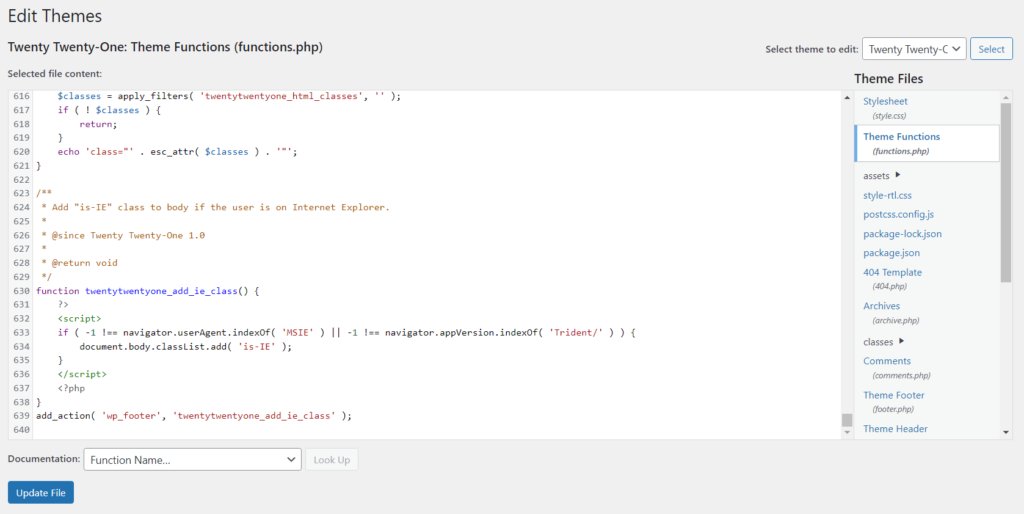
- Add these lines of code to the existing code.
function remove_wordpress_version() {
return '';
}
add_filter('the_generator', 'remove_wordpress_version');
- Click on the “Update File” button.
And you’re done. Check if you can see the version by the methods shared above, and you’ll notice that your site’s WordPress version won’t be visible to anyone who does not have admin credentials.
Troubleshooting Conflicts After Updating or Downgrading WordPress
After updating—or even downgrading—your WordPress version, your site may start behaving unexpectedly. This can be anything from broken layouts to backend errors or even a complete site crash.
The good news?
Most issues can be traced back to a handful of common culprits. Here’s what you should check first:
1. Plugin Compatibility Issues
Outdated or poorly maintained plugins are one of the most frequent reasons things break after a WordPress version change. If your site suddenly throws errors or certain features stop working, start here.
How to check:
- Go to Dashboard → Plugins → Installed Plugins

- Check for any available updates and apply them.
- For any problematic plugin, click “View Details” and look at the “Compatible up to” line to see if it matches your current WordPress version.
- Still stuck? Visit the plugin’s WordPress.org page or developer site and check their support forums or changelog.
2. Theme Incompatibility
Your theme may rely on functions that have changed or been deprecated in the newer (or older) WordPress version. This can lead to layout issues, missing elements, or even fatal errors.
How to check:
- Switch to a default WordPress theme like Twenty Twenty-Four.

- If the issue disappears, it’s likely your active theme needs updating or fixing.
- Check with the theme developer or marketplace where you got the theme for updates or compatibility notes.
3. Custom Code & Snippets
If your site uses custom PHP code through functions.php or a plugin like Code Snippets, some of that code might not be compatible with the WordPress version you’re now using.
How to check:
- Disable all custom snippets temporarily.
- Re-enable them one by one to isolate the one causing the issue.
- Make sure your code doesn’t use deprecated functions or hooks.
4. PHP Version Mismatch
WordPress core updates often go hand-in-hand with recommended PHP version changes. Running WordPress on a version of PHP that’s too old—or sometimes too new—can lead to compatibility problems.
How to check:
- Go to Tools → Site Health → Info → Server to view your current PHP version.
- Compare it with WordPress’s recommended version.
- Most hosting providers allow you to switch PHP versions from the control panel.
5. Caching & CDN Conflicts
Caching plugins or CDNs like Cloudflare can store old versions of your site’s code and assets. After a version change, this can result in your site displaying incorrectly or not reflecting any updates at all.
How to check:
- Clear your WordPress caching plugin cache.
- Clear server-side cache (if applicable).
- Purge your CDN cache to make sure nothing outdated is being served.
Also read: How to clear WordPress cache
6. File Permission Issues
Sometimes, a downgrade or manual update can alter file permissions, making certain core files unreadable or uneditable by WordPress.
How to check:
- Use an FTP client or your hosting file manager to check folder permissions (usually 755 for folders, 644 for files).
- Make sure wp-config.php, wp-content, and plugin/theme folders haven’t been accidentally restricted.
Always Back Up Before You Update
No matter how confident you are, always take a full backup of your site and database before changing your WordPress version. If something does go wrong, you’ll be able to restore a working version and troubleshoot calmly.
What Is WordPress’ Latest Version: What’s New?
The most recent major release is WordPress 6.8 “Cecil”, officially launched on April 15, 2025. Just a few weeks later, 6.8.1 was released on April 30, 2025, delivering important bug fixes.
Key Highlights of WordPress 6.8
- Improved Global Styles with Structured Style Book — Allows enhanced controls over site-wide design and supports classic themes.
- Speculative Loading for Faster Navigation — Boosts perceived speed by preloading links before users click.
- Stronger Security with bcrypt Hashing — Automatic switch to bcrypt improves password storage safety.
- Database Optimizations Under the Hood — Reduces query overhead and tightens overall performance.
The previous major version, WordPress 6.5 “Regina”, came out on April 2, 2024, introducing enhancements like the Font Library, Interactivity API, block list view improvements, and AVIF image support.
What’s Next: WordPress 6.9
The WordPress core team is already working on WordPress 6.9, tentatively scheduled for November 2025. While features are still under discussion, early development is focused on refining the block editor experience, further improving performance, and enhancing collaborative workflows.
List of WordPress Versions [Notable Releases]
Since there have been 550+ WordPress version releases, it’s not possible to cover every single one here, so I’ll only list the notable releases post the 5.0 version.
WordPress 5.0
- Musician: Bebo Valdés
- Release Date: December 6, 2018
- Latest Minor Release: 5.0.14 (January 6, 2022)
- Notable changes Introduced:
- New Block Editor
- New Default Theme: Twenty Nineteen
WordPress 5.1
- Musician: Betty Carter
- Release Date: February 21, 2019
- Latest Minor Release: 5.1.11 (January 6, 2022)
- Notable changes Introduced:
- Improved editor
- Site health
- Multisite metadata
- New JS build processes
WordPress 5.2
- Musician: Jaco Pastorius
- Release Date: May 7, 2019
- Latest Minor Release: 5.2.13 (January 6, 2022)
- Notable changes Introduced:
- 13 new dashboard icons
- PHP error protection
- Accessibility updates
- Plugin compatibility checks
- New body tag hook
WordPress 5.3
- Musician: Rahsaan Roland Kirk
- Release Date: November 12, 2019
- Latest Minor Release: 5.3.10 (January 6, 2022)
- Notable changes Introduced:
- 150 new features and improvements in the Block Editor
- New design tools.
- New Default Theme: Twenty Twenty
- Admin Email verification
- PHP 7.4 Compatibility
WordPress 5.4
- Musician: Nat Adderley
- Release Date: March 31, 2020
- Latest Minor Release: 5.4.9 (January 6, 2022)
- Notable changes Introduced:
- Two new blocks
- Clearer block navigation
- Ability to add custom fields to menu items
WordPress 5.5
- Musician: Billy Eckstine
- Release Date: August 11, 2020
- Latest Minor Release: 5.5.8 (January 6, 2022)
- Notable changes Introduced:
- New sitemap
- Lazy loading
- Auto-updates for Plugins and Themes
- New block patterns
- Inline image editing
WordPress 5.6
- Musician: Nina Simone
- Release Date: December 8, 2020
- Latest Minor Release: 5.6.7 (January 6, 2022)
- Notable changes Introduced:
- Greater layout flexibility
- New Default Theme: Twenty Twenty-One
- Built-in patterns
- REST API authentication with Application Passwords
- PHP 8 Support
WordPress 5.7
- Musician: Esperanza Spalding
- Release Date: March 9, 2021
- Latest Minor Release: 5.7.5 (January 6, 2022)
- Notable changes Introduced:
- Block Editor changes
- New color palette
- One-click switch from HTTP to HTTPS
- New Robots API
WordPress 5.8
- Musician: Art Tatum
- Release Date: July 20, 2021
- Latest Minor Release: 5.8.3 (January 6, 2022)
- Notable changes Introduced:
- Widgets management with blocks
- Page structure overview
- Images styling and colorization
- WebP support
WordPress 5.9
- Musician: Joséphine Baker
- Release Date: January 25, 2022
- Latest Minor Release: NILL
- Notable changes Introduced:
- Full site editing
- New Default Theme: Twenty Twenty-Two
- Personal paintbox
- Improved block controls
- Theme.json for child themes
WordPress 6.0
- Musician: Arturo O’Farrill
- Release Date: May 24, 2022
- Latest Minor Release: 6.0.3
- Notable changes Introduced:
- Improvements in full site editing
- An improved template browsing experience
- Web Fonts API
- Enhanced navigation blocks
- Alternative Global Styles
- New hooks
WordPress 6.1
- Musician: Mikhail “Misha” Alperin
- Release Date: November 1, 2022
- Latest Minor Release: 6.1.1
- Notable changes Introduced:
- Flexible typography and spacing
- Streamlined block editing with content-only blocks
- Enhanced block types
- Improved block editor with additional features
- New and improved building tools
- Twenty Twenty-Three theme improvements
- Developer-focused changes to the platform
- Flexible typography and spacing
WordPress 6.2
- Musician: Eric Allan Dolphy Jr.
- Release Date: March 29, 2023
- Latest Minor Release: 6.2.2
- Notable changes Introduced:
- Removal of the ‘Beta’ label from the Site Editor
- Improved template and template parts preview
- Division of block controls into “Styles” and “Settings”
- Introduction of distraction-free mode
- Color-coded labels for template parts and reusable blocks
- Enhanced navigation for menus
- Simplified block pattern insertion
WordPress 6.3
- Musician: Lionel Hampton
- Release Date: August 8, 2023
- Latest Minor Release: 6.3.2
- Notable changes Introduced:
- Site Editor Integration
- Block Theme Previews
- My Patterns for Block Reusability
- Command Palette for Faster Navigation
- New Design Controls
- Style Revisions for Design Changes
- Footnotes Block for Annotations
- Details Block for Show/Hide Content
- Performance Improvements (170+ updates)
- Accessibility Enhancements (50+ improvements)
WordPress 6.4
- Musician: Shirley Horn
- Release Date: November 7, 2023
- Latest Minor Release: 6.4.3
- Notable changes Introduced:
- Introduction of Twenty Twenty-Four Default Theme with 35 versatile patterns
- Enhanced block organization in List View with custom-named container blocks
- Improved toolbar positioning for Navigation, List, and Quote blocks
- Image block enhancements include an aspect ratio tool and a native lightbox feature
- Background image support for Container blocks (group, stack, and row blocks)
- Query Loop Pagination improvements for better control and client-side navigation
- Introduction of Block Hooks for automatically inserting blocks into similar blocks
- Recommended PHP versions upgraded to 8.1 or 8.2 for security and functionality
- Object caching improvements, including split queries for better handling and reduced load times
- Template loading enhancements with reduced file lookups and optimized block template lookup
- New admin notice functions for creating and displaying admin notices with improved consistency and customization
WordPress 6.5
- Musician: Regina Carter
- Release Date: April 2, 2024
- Latest Minor Release: 6.5.4
- Notable changes Introduced:
- Font Library to manage and add custom or Google Fonts directly from the Site Editor
- Block Bindings API for connecting custom fields to core blocks
- Interactivity API to create fast, dynamic UI elements without full page reloads
- Improved Data Views in Site and Post Editors with new grid/list modes and UI enhancements
WordPress 6.6
- Musician: Tommy Dorsey
- Release Date: July 16, 2024
- Latest Minor Release: 6.6.2
- Notable changes Introduced:
- Unified publish flow across post and site editors
- Enhanced Grid block with support for negative margins and advanced layout controls
- Pattern overrides for customizing synced patterns without breaking theme linkage
- Expanded style tools, including typography presets and section styling
WordPress 6.7
- Musician: Ella Fitzgerald
- Release Date: November 12, 2024
- Latest Minor Release: 6.7.1
- Notable changes Introduced:
- New default theme: Twenty Twenty-Five, a pattern-centric and flexible design system
- Zoom Out preview to help manage complex layouts visually in the Site Editor
- Media upgrades including HEIC/HEIF support, lightbox galleries, and background image controls
- Developer enhancements: Template Registration API, extended Block Bindings, and Data Views API
WordPress 6.8
- Musician: Cecil Taylor
- Release Date: April 15, 2025
- Latest Minor Release: 6.8.1
- Notable changes Introduced:
- Block Hooks support for classic themes – extends Gutenberg-like extensibility
- Style Book enabled in classic themes – preview and style page-wide design
- Speculative loading – preloads likely clicked links for faster navigation
- Bcrypt password hashing – beefed-up security for user logins
- Continued enhancements to the Interactivity API and admin UI
- Accessibility and localization improvements throughout
- Developer tools upgraded for blocks, themes, and plugins
Summary
WordPress continues to release regular updates to improve stability, fix bugs, and introduce new features. Keeping up with these versions helps maintain your site’s functionality and security.
This post explained how to check your current WordPress version, how to update or downgrade it when needed, and how to hide the version number if that’s something you want to do. We even looked at troubleshooting steps you might find helpful if you run into any issues.
We also discussed the difference between major and minor releases, along with a list of key versions released after 5.0.
Staying updated with these releases can help you avoid known issues and benefit from ongoing improvements.
Frequently Asked Questions
Q. What is the current version of WordPress?
A) As of June 2025, the latest stable version of WordPress is 6.8.1. This is a maintenance release that builds on the major 6.8 “Cecil” update, which introduced features like global style variations, enhanced font library controls, speculative loading for faster page transitions, and bcrypt support for password security.
Q. How do I install the latest version of WordPress?
- Go to your WordPress admin dashboard.
- Locate the “At a Glance” widget.
- Click on the “Update to 6.x.x” button.
- Click the “Update Now” button.
- Your website will be instantly updated to the latest WordPress version.
Q. How do I find my WordPress version code?
- Log in to your site’s WordPress Dashboard.
- Locate the “At a Glance” section on the top left of your dashboard.
- There, you will find your current WordPress version code.
Q. What is the latest version of WordPress in 2025?
A) The latest major WordPress release in 2025 is WordPress 6.8 “Cecil”, which launched on April 15, 2025. Along with enhancements like global style tools, speculative loading, and bcrypt password hashing, a follow-up maintenance release (6.8.1) arrived on April 30, 2025, to address early bugs.
Share your opinion in the comment section. COMMENT NOW
Share This Article

Sarim Javaid
Sarim Javaid is a Sr. Content Marketing Manager at Cloudways, where his role involves shaping compelling narratives and strategic content. Skilled at crafting cohesive stories from a flurry of ideas, Sarim's writing is driven by curiosity and a deep fascination with Google's evolving algorithms. Beyond the professional sphere, he's a music and art admirer and an overly-excited person.