An effective form is not only one that users fill out, but also one that returns the desired information. For this to happen, you have to control user input to prevent garbage output.
Garbage output can hurt businesses when the correct user info is necessary for successful transactions. Here are some field input techniques you should use, so that you don’t ever get undesired user info.
User Input Automation
Automating user input prevents user mistakes by cutting down the fields they need to fill out. The more you make users fill out, the more mistakes they can make. You can’t automate every field on your form, but there are a few you should.
Automate City & State from Zipcode
It’s unnecessary work to make users type in their city name and select their state from a select menu. Not automating these fields increases the chance for mistakes and garbage output. It’s easy to mistype city names and a long list of states in a select menu isn’t easy to choose from.
You should automate the city and state field by asking for the user’s ZIP code first. This is because every ZIP code correlates with a specific state. A tool like Ziptastic API will input the right city and state into the fields when the user types in their ZIP code. Here’s a tutorial on how to apply the API to your form: Autofill City & State from Zip Code with Ziptastic.

User types in zipcode to automate city and state fields
Automate Card Name from Credit Card Number
It’s easy for users that have many credit cards to confuse one with another when buying online. To avoid this confusion, automate credit card company names from the credit card number.
This jQuery credit card validator detects the card name by reading the unique numerical pattern of the card number. When users type in their card number, the card name will appear. The credit card company name is one less field users have to fill out.
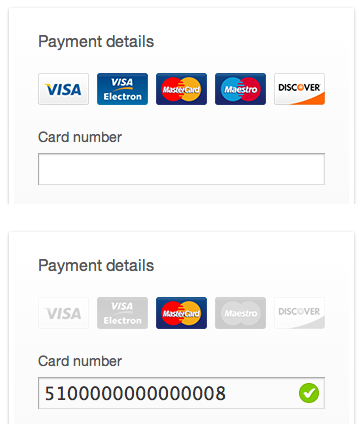
User types in credit card number, type of credit card is detected
Automate Billing Address from Shipping Address
Users have to type in their shipping and billing address on checkout forms. It’s unnecessary to make them type this info in twice if they’re both the same address.
Give your users a checkbox that copies their shipping address into the billing fields. Label it ‘same as my shipping address’ so that it’s clear what it does. Here’s a tutorial on how to do this: How to Use Javascript to Copy Text From One Field to Another

Checkbox copies shipping address into billing fields
Field Constraints
Another technique to control user input is to add field constraints. Accidental mistakes often happen on forms, but field constraints decreases the chance of this happening.
Allow Numbers Only from Phone & ZIP Code Fields
There are certain fields on a checkout form that will only contain numbers. Phone and ZIP code fields are two of them. Adding a numbers only constraint will prevent users from typing in letters on accident.
You can display an error message when they type in letters. Or, you can disable letters from appearing in those fields when they hit the key.

Error appears when letters are in phone number field
Break Name, Phone Number & Address Fields Apart
Sometimes users could leave out important information if your field labels aren’t specific enough. This often happens with the name, phone number and address fields.
If you want the user’s full name, it’s important that you break the ‘name’ field up into first and last name. A field labeled ‘name’ can lead to users only typing in their first name. Make sure to allow more characters for the last name field because last names can get long.

Break name field into first and last name
It’s important to make your phone number field specific too. Users need to know what type of phone number (ie. primary, mobile, home, work) you’re looking for. You should separate the area code from the phone number field so that you get their complete info.

Break phone number field into area code and primary phone
Users could also leave out important info in the address field if it’s not specific. Make it clear what you want from users by breaking the address field into a ‘street address’ and ‘apartment/suite/building’ number field.
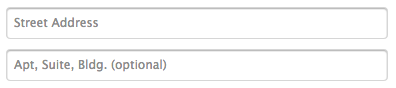
Break address field into street address and apt/suite/bldg
Use Select Menus for Known Input
Breaking fields out to more specific fields is a good way to constrain the user’s information. But another constraint is to use select menus for fields with known input.
Credit card expiration dates have a set number of months and years users can choose from. Select menus can prevent users from mixing the month and year fields and typing in the wrong numbers.

Use select menus when range of possible input is known
Give a Preview and Confirmation
The last technique to prevent garbage output is to give users a preview and confirmation. This is important because if the user’s credit card info is incorrect you won’t get the sale. If their shipping address is incorrect they won’t get their order. Allowing users to preview and confirm their input prevents this.
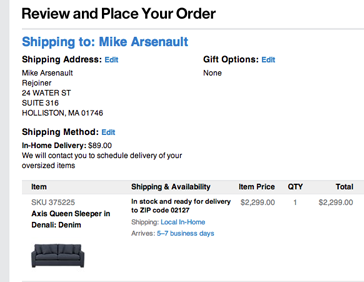
Preview and confirmation allows users to edit before placing order
Control User Input to Prevent Garbage Output
The best way to prevent garbage output is to control user input. You want users to fill out your form, but that doesn’t matter if they don’t give you the information you want. These techniques of field automation, constraints and confirmation, allow you to control user input. The quality of your form output is in your hands.
Affiliate