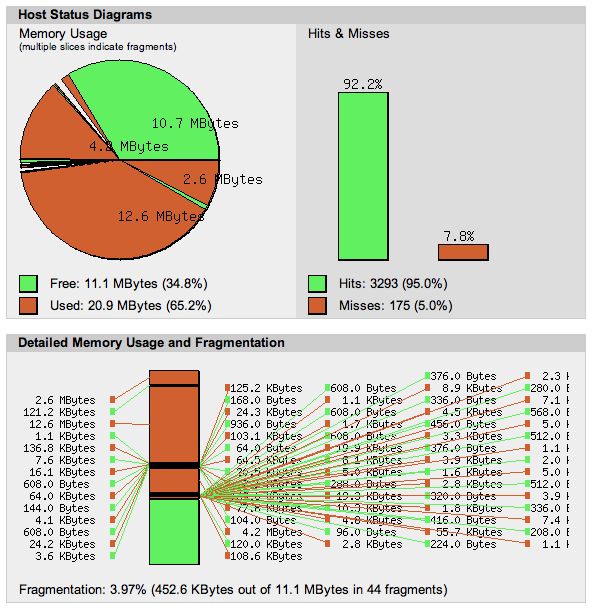
APC INFO Monitor
My Virtualmin Amazon Linux Server runs several virtual domains with PHP under FCGId using APC for opcode caching: Joomla, PHPbb, WordPress, etc . APC is somewhat challenging to configure properly with fcgid-enabled virtual domains, but it is quite helpful to optimize system resources and prevent traffic surges on one site from affecting overall server performance. Joomla and PHPbb have code that is pre-optimized with hooks for APC, but WordPress requires a plugin called W3 Total Cache.
First Things First
Please read my posts about APC on commodity virtual hosting servers and Apache and MySQL performance tuning before you begin.
If you are running your virtual servers under FCGId, then you should do so for all virtual servers on your machine. Why? Because then you do not need apache’s mod_php (php module). Less modules loaded, less wasted memory.
- Comment out:
LoadModule php5_module modules/libphp5.so
in /etc/httpd/conf.d/php.conf - Remove any php_memory_limit lines in httpd.conf’s virtual hosts section.
- restart apache
- do some performance testing and raise your server and thread limits to sane levels in httpd.conf
If possible, you may wish to run Apache with Worker MPM instead of Prefork MPM.
- More information about Apache Worker MPM vs. Prefork MPM »
Installation Suggestions and Modification of Defaults
Be sure to install the newest version of APC, 3.1.9 as of the last revision of this post (I assume you know how to install and configure all the packages mentioned in this post):
pecl install apc
Choose “no” for internal debugging, but choose “yes” for the other installation options, including the Experimental options.
For W3 Total Cache (WordPress plugin):
Page Cache: do not choose APC for the W3TC’s Page Cache, choose Enhanced Disk.
Minify: do not choose APC for Minify, use Disk.
Opcode Cache: choose APC for Opcode Cache
Database Cache: choose APC for Opcode Cache
For APC running on virtual servers for opcode caching:
Remove apc.ini from /etc/php.d. Do not add the APC configuration into /etc/php.ini (main php.ini which is probably a template used for creation of new virtual servers).
Instead, enable APC on a per-domain basis by modifying the respective /home/domainname.com/etc/php5/php.ini — your httpd.conf or virtual.conf should look something like this for each virtual domain.
<VirtualHost 99.88.177.288:80>
ServerName chrisgilligan.com
ServerAlias www.chrisgilligan.com
DocumentRoot /home/chris/public_html
ErrorLog /var/log/serversoftware/chrisgilligan.com_error_log
CustomLog /var/log/serversoftware/chrisgilligan.com_access_log combined
ScriptAlias /cgi-bin/ /home/chris/cgi-bin/
DirectoryIndex index.html index.htm index.php index.php4 index.php5
<Directory /home/chris/public_html>
Options Indexes IncludesNOEXEC FollowSymLinks ExecCGI
allow from all
AllowOverride All
AddHandler fcgid-script .php
AddHandler fcgid-script .php5
FCGIWrapper /home/chris/fcgi-bin/php5.fcgi .php
FCGIWrapper /home/chris/fcgi-bin/php5.fcgi .php5
</Directory>
<Directory /home/chris/cgi-bin>
allow from all
</Directory>
SuexecUserGroup "#987" "#756"
Options ExecCGI FollowSymLinks Includes IncludesNOEXEC -Indexes MultiViews SymLinksIfOwnerMatch
RemoveHandler .php
RemoveHandler .php5
IPCCommTimeout 12
</VirtualHost>
You must “babysit” the configuration: use the APC monitor (apc.php) to see how many files are being cached, and how much memory (apc.shm_size) is needed to avoid fragmentation, which will cause the 500 errors. If fragmentation rises quickly to 100%, memory usage is full, and cache full count rises above 0, you will almost surely see “500” errors.
If WordPress is the only PHP script software package on the domain, the following configuration will likely work for you; if you have more PHP software packages, you will need to raise apc.shm_size and raise the apc.user_entries_hint and apc.user_entries_hint settings, and possibly lower TTL values to allow cached files to expire and be replaced.
In general, you must double apc.shm_size in relation to APC’s highest reported Memory Usage to avoid fragmentation completely.
Configuration Suggestion for php.ini
in the virtual server’s /home/domainname.com/etc/php5/php.ini, add the following configuration:
(you may also install memcached, and should install fileinfo for full use of W3 Total Cache)
[memcached]
;memcached for distributed servers - e.g. mysql server on separate host
;extension=memcache.so

[fileinfo]
;fileinfo is included in PHP 5.3=>... uncomment the following line if using <=5.2
;extension=fileinfo.so

[APC]
extension = apc.so
apc.enabled = 1
apc.shm_segments = 1
apc.shm_size = 12M
apc.optimization = 0
apc.num_files_hint = 512
apc.user_entries_hint = 1024
apc.ttl = 0
apc.user_ttl = 0
apc.gc_ttl = 600
apc.cache_by_default = 0
apc.filters = "-/home/username/public_html/apc/apc\.php$"
apc.slam_defense = 0
apc.use_request_time = 1
apc.mmap_file_mask = /tmp/apc-accountname.XXXXXX
;OR apc.mmap_file_mask = /dev/zero
apc.file_update_protection = 2
apc.enable_cli = 0
apc.max_file_size = 2M
apc.stat = 1
apc.write_lock = 1
apc.report_autofilter = 0
apc.include_once_override = 0
apc.rfc1867 = 0
apc.rfc1867_prefix = "upload_"
apc.rfc1867_name = "APC_UPLOAD_PROGRESS"
apc.rfc1867_freq = 0
apc.localcache = 1
apc.localcache.size = 512
apc.coredump_unmap = 0
apc.stat_ctime = 0
Save php.ini, restart apache and then watch the APC Monitor to ensure fragmentation stays below 50% (it should remain less than 10% most of the time… if fragmentation rises quickly, you should add a few more MB’s of memory to apc.shm_size and restart apache).
Monitoring APC Performance and Detecting Errors
You should run apc.php in a password-protected directory in the domain’s public_html. Edit the apc.php code to allow passwordless access.
defaults('USE_AUTHENTICATION',0);
You can monitor errors with these commands:
tail -f -n 50 /var/log/httpd/error_log

tail -f -n 50 /home/domainname.com/logs/error_log
In the logs, you should see messages like the following:
mod_fcgid: process /home/username/public_html/scriptname.php(21272) exit(lifetime expired), terminated by calling exit(), return code: 0
... exit(server exited) ...
... exit(idle timeout) ...
if the cache is working well. If you see exit(communication error) then you have issues, probably cache full and fragmented.
Fragmentation Explained
Fragmentation is a measure of the non-available portion of apc.shm_size due to lack of contiguous memory large enough to accept new cache items. 100% fragmentation means the available memory is broken into hundreds of small pieces that are too small to accept new cache items. This occurs when cached items expire and new cached items fill their vacated memory slots; usually the new item is slightly smaller than the old item, and the leftover space may be too small for a new cache item.
Fragmentation can cause even a large amount of free memory to be unavailable for new cache items. That is why I say above you can avoid fragmentation by doubling the apc.shm_size in relation to the largest total memory usage you see. So you may want to start with 100MB, let the site run for a few hours during high traffic conditions, and then reduce shm_size to roughly double the highest amount of cache memory usage during that time.
Further Information and Suggestions
APC can have a very significant effect on minimizing overall server load and overall memory usage. It takes time to configure, and must be re-configured whenever PHP script software is added to a virtual server. The more plugins/mods/components you add to a PHP software package, the more scripts, database queries and objects will be cached.
If you have PHP scripts or plugins that do not need to be cached (low traffic pages such as contact forms, PHP scripts that do not have APC hooks and have their own caching schemes, dynamic image resizers, etc.), you can filter them out with simple RegEx:
apc.filters = "-/home/username/public_html/apc\.php$,-/home/username/public_html/wordpress/wp-content/themes/themename/thumb\.php$,-/usr/share/psa-horde/.*,+/home/username/public_html/phpmyadmin/.*"
TimThumb is a good example of a common WordPress theme plugin that may not need to be cached.
Because the apc.filters RegExp only works with filenames, it is not possible to filter out an entire PHP script package, component or plugin based on the directory where it resides. So if you do not wish to use APC cache on a particular script package, you should run it in a separate website. Some PHP script packages such as Gallery2 have an incredibly large number of .php, .inc and .class files which will be cached, so it is difficult to find them all and filter them all using apc.filters.
If you can’t raise apc.shm_size due to lack of available memory, try lowering the TTL’s (values in seconds, 0 is no limit, 600=10minutes, etc.). This will still have a good effect on high-traffic sites with many concurrent end users; caching is not at all necessary for low-traffic sites. However, be aware that lower TTL’s can cause more fragmentation.
During Testing or Debugging with CMS caching plugins or modules
While you are tweaking your opcode settings, and especially if you are using APC with a CMS like WordPress (w3 total cache) or phpbb or joomla, and you are experimenting with settings, or updating plugins or core, you should set apc.stat=1 (on). Restart the web server to load the new settings.
APC.Stat is the file change polling, which checks for file change every time a cached script or object is called. So, with polling turned off, your settings/configuration files will remain cached, and this will cause you a lot of frustration. W3 Total Cache in particular is difficult to get configured properly with apc.stat=0 because the config settings and files are dependent upon database and php, which will be cached as files or opcode.
After you have sorted out your opcode settings, you may switch apc.stat=0 and restart the web server to turn off polling for better performance.
If you cannot get APC to configured correctly for your WordPress sites, I suggest WP Super Cache and WP Minify… that combination will probably have a better effect, as it will serve pages very quickly and accellerate user experience for a small number of users. Joomla 1.5 and phpBB3 are much easier to work with, as their caching systems are built to use APC and other opcode caches. Apparently, Gallery3 now also supports opcode caching.
More advice:
- turn on apc.stat (documentation says, “not for production servers”, but W3TC requires stat polling to monitor file status, post revisions, plugin upgrades, etc.)
- turn off apc.optimization (experimental and unstable, may cache user session info, fubaring items which should not be cached, such as admin pages and logged-in site pages)
- turn off apc.include_once_override (use carefully; only useful with PHP scripts that do not have cache hooks, such as Joomla 1.0, phpBB2, etc.)
- turn off apc.slam_defense (may cause objects to be replaced with PHP warnings which are displayed to the user, especially on Joomla 1.5)
- set apc.user_ttl = 0 (allows your php scripts to set appropriate timeouts for queries and objects)
- set apc.mmap_file_mask = /tmp/apc-yourusernamehere.XXXXXX for file-backed mmap; make file mask unique by adding your unique string; XXXXXX (exactly 6 X’s) must remain to allow APC to add random string
OR set to /dev/zero for anonymous mmap if you can spare the memory
APC Manual: http://www.php.net/manual/en/book.apc.php
APC Runtime Configuration http://www.php.net/manual/en/apc.configuration.php
apache, apc, apc cache, apc fcgid, commodity web, Database, hooks, hosts section, ini, installation suggestions, memory limit, mpm, page cache, performance testing, php module, php.ini apc settings, server performance, system resources, traffic surges, virtual domains, virtual hosts, virtual private server, virtual servers, virtualmin, web hosting servers