Uptime Robot helps getting notified of any downtime so that any possible issues can be resolved quickly.
It is also a very good idea to share the statuses of the monitors with website visitors or teammates so that they know how the website/system performs too.
Such communication helps them to know “it is or it is not only them when they experience issues reaching the sites/servers”.
Last update: 12th April 2021 (updated screenshots, introduced redesigned status pages, customization options, custom domains CNAME DNS settings).
Content of this article:
- How to create a status page?
- How to connect a custom domain?
- Are you using Cloudflare?
- How to customize your status page?
- How can I use the “Subscribe to updates” feature?
- How can I track my visitors on the status page?
- How can I change the homepage URL?
- How can I add and remove password protection?
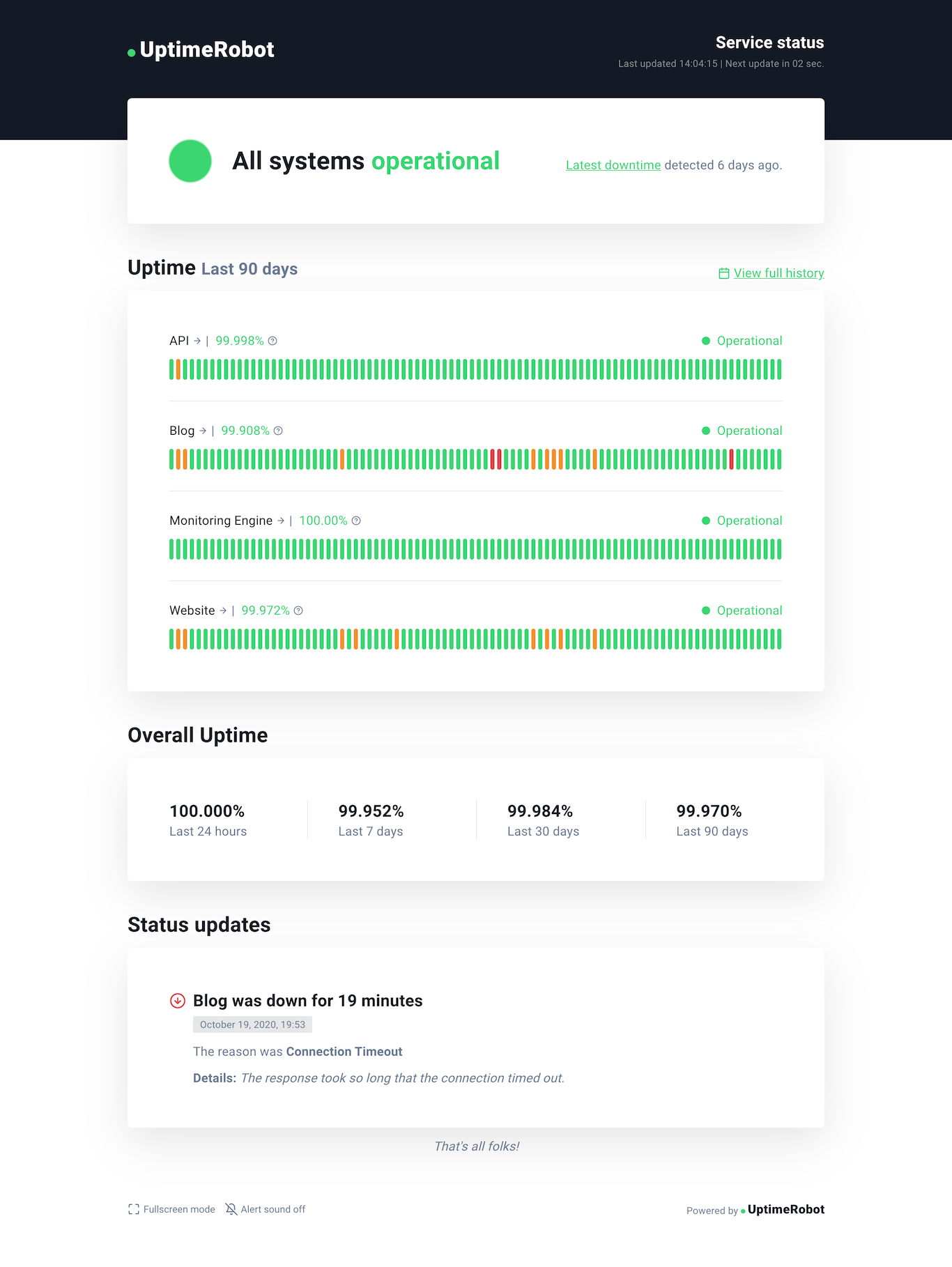
This new feature helps to create such a public status page in seconds where the page will be displaying all the major details needed (uptime status and ratio for the last 24 hours, 7/30/90 days, announcements, and UP/DOWN events).
With a PRO plan, your visitors can subscribe to updates and receive them via email.
Note: As a demo, check Uptime Robot’s status page.
How to create a status page?
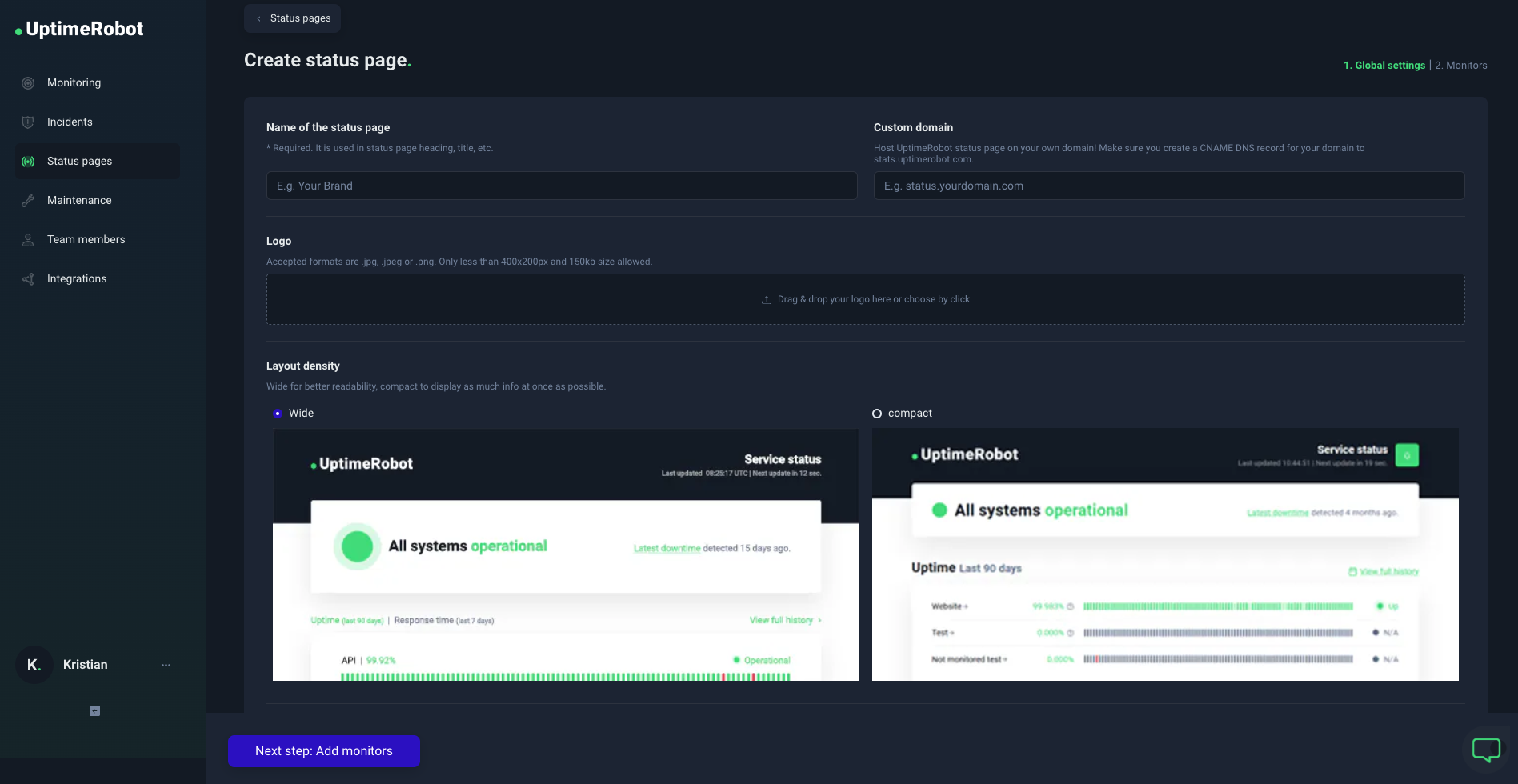
Here are the steps to create it:
1. Log in to your account at UptimeRobot.com and click on “Status Pages“.
2. click on “Add Status Page”.
3. Enter the name of your status page – this will be shown on your status page if you don’t add a logo.
4. Upload your logo, enter a custom domain, or protect it with a password (optional).
5. You can also hide our logo from your status page if using a PRO plan.
6. Add monitors to your status page – you can pick them or add all monitors. Click on the blue finish button and that’s it!
7. Your status page will be public with a unique UptimeRobot.com URL (custom domain is optional).
How to connect a custom domain?
You can use the status page on your own subdomain, for example, status.yourdomain.com.
What CNAME record should I use for the custom domain?
Make sure your CNAME DNS record is set and resolving correctly to stats.uptimerobot.com. Please, contact your domain/DNS provider if you don’t know how to set it.
We are using Lets’ Encrypt and ZeroSSL to issue SSL certificates for your custom domain. If you already have CAA records in place, you need to add the following CAA records to your DNS settings:
example.com. IN CAA 0 issue “letsencrypt.org”
example.com. IN CAA 0 issue “zerossl.com”
These records authorize Let’s Encrypt and ZeroSSL to issue certificates for your domain. If you do not have any existing CAA records, you may skip this part.
You can check if the CNAME DNS record is resolving already using available free tools like this from Google Admin Toolbox.
It might take up to 24 hours for your custom domain status page to become active. It will be protected with a Let’s Encrypt SSL certificate.
Are you using Cloudflare?
There are some additional simple steps when setting up a CNAME DNS record using the Cloudflare service.
You’ll find all the details on how to set up the UptimeRobot custom domain status page using Cloudflare in our blog post here.
The status page can be consumed with the unique link generated or under a custom domain by setting up a CNAME DNS record that points to stats.uptimerobot.com.
How to customize your status page?
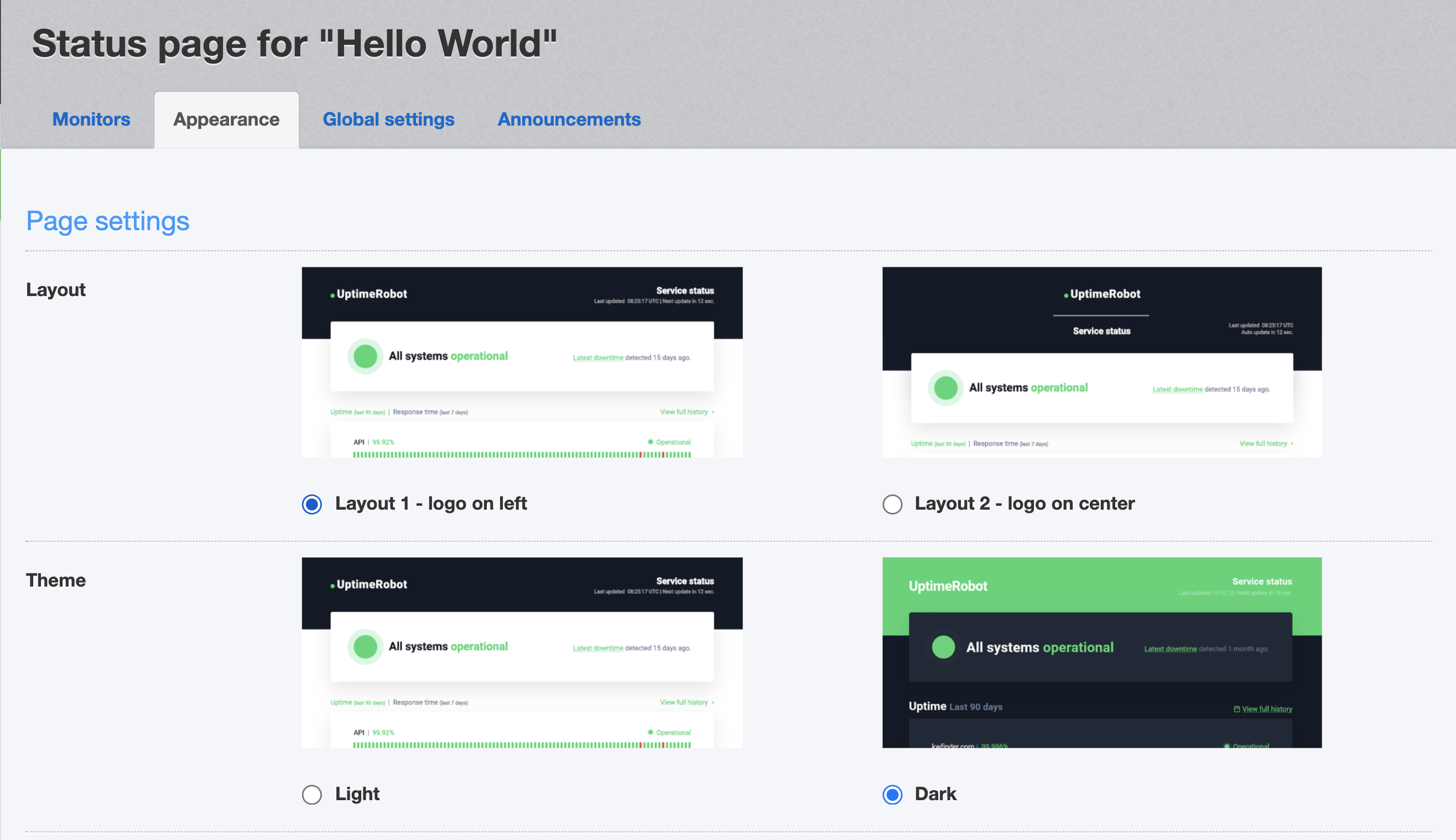
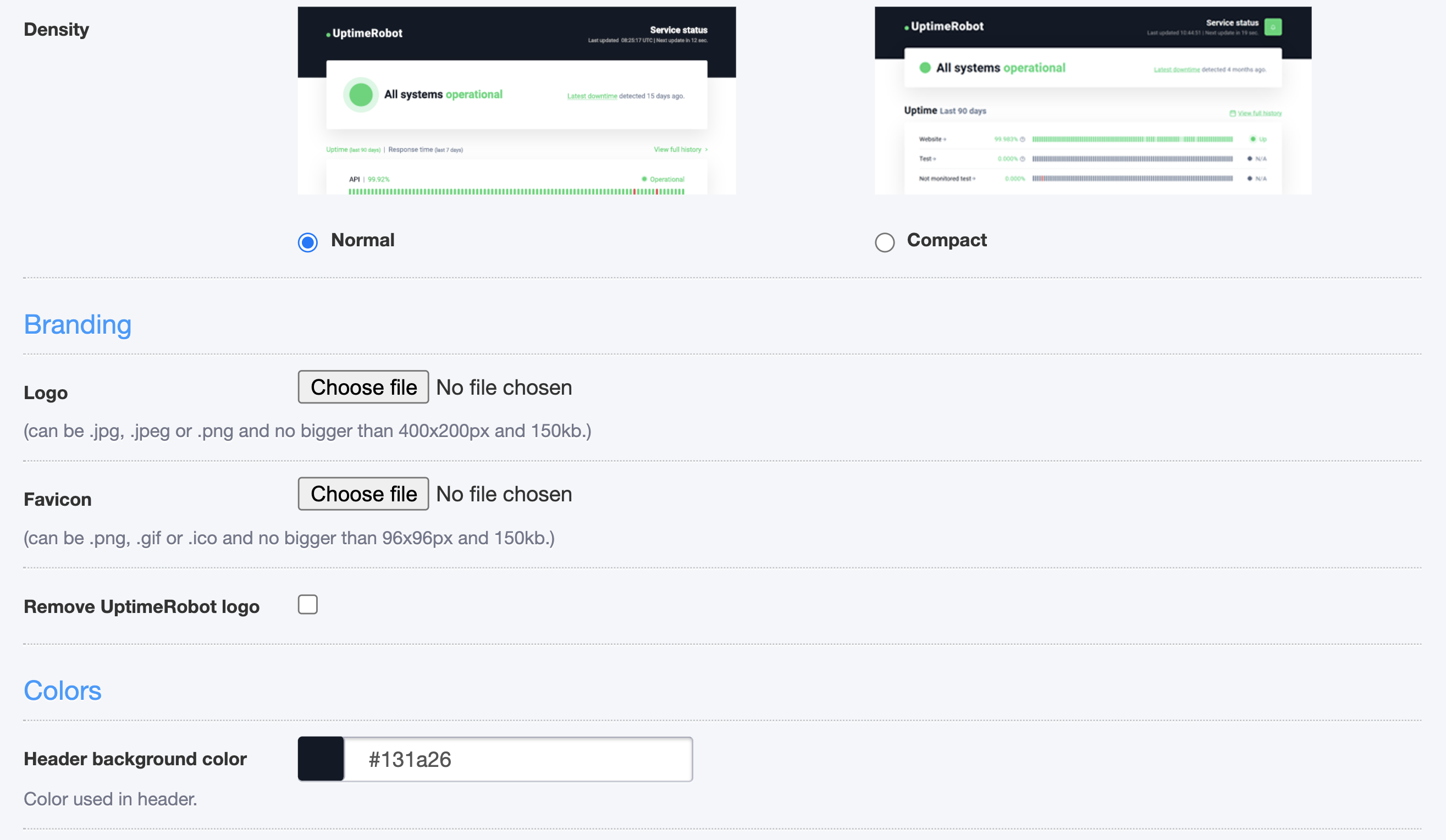
Change the layout, theme, or density of your status page. You can also upload your own logo and favicon.
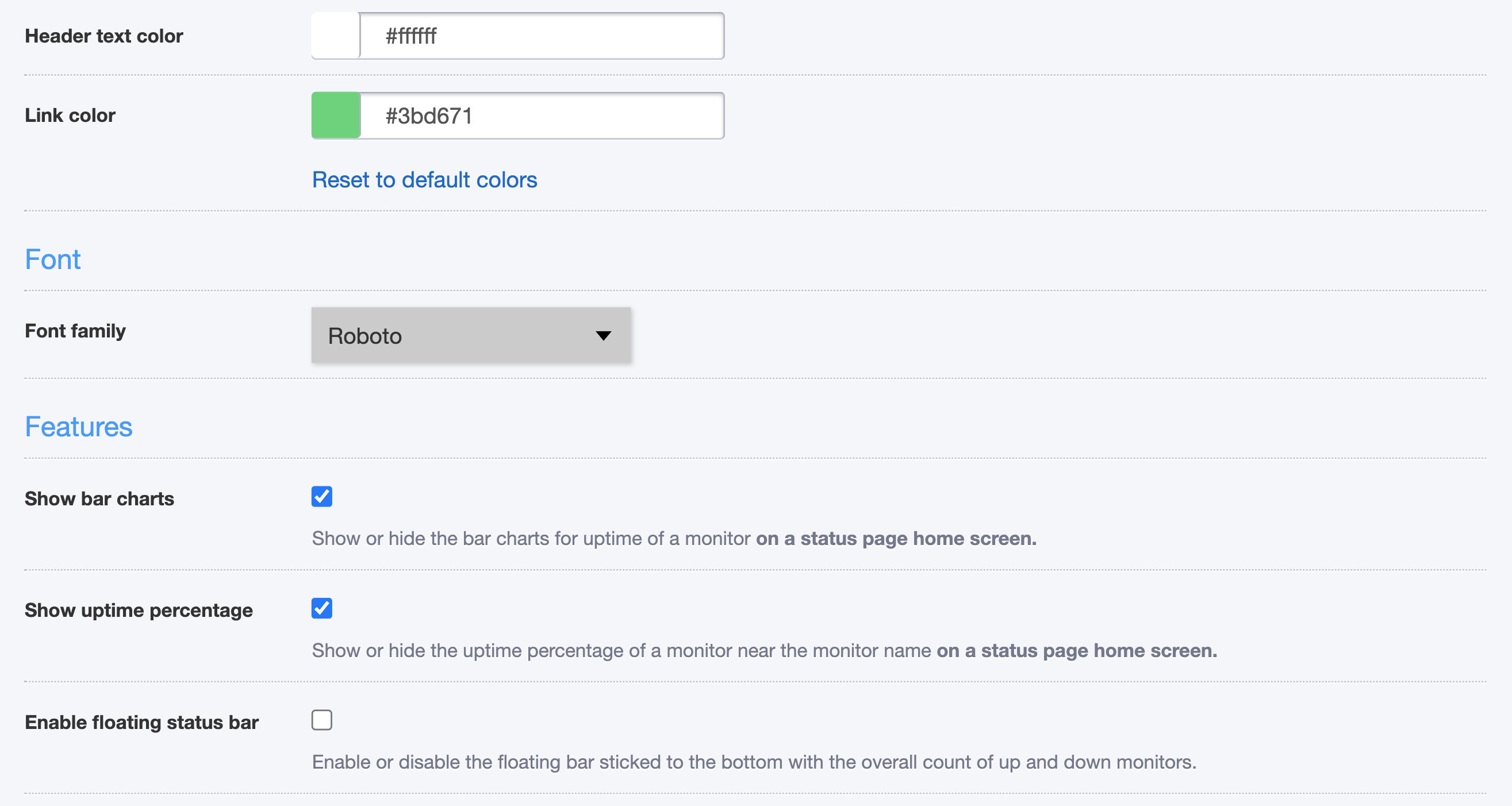
With a PRO plan, you can remove the UptimeRobot logo, change the colors or font of your status page and choose from different features.
How can I use the “Subscribe to updates” feature?
If using a PRO plan, you can enable this feature in your settings. Your subscribed visitors will receive announcements via emails.
Note: There are no limits on the number of subscribers and it’s not possible to add, remove or view them manually (they can unsubscribe from every announcement email).
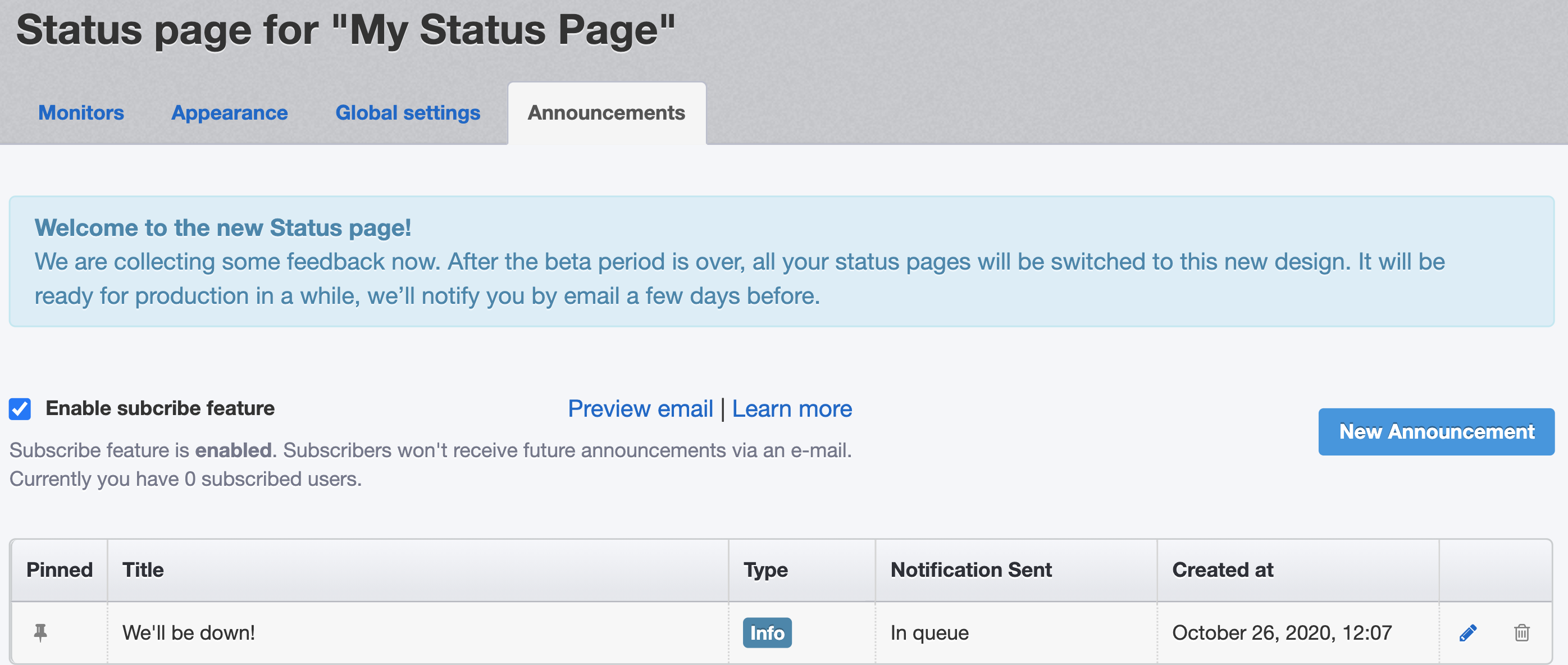
You can enable this feature under Status Pages > Announcements. You can also preview the email there. Please, make sure you’re using a future date.
Emails will be sent with a 5-minute delay, so you can still make any changes.
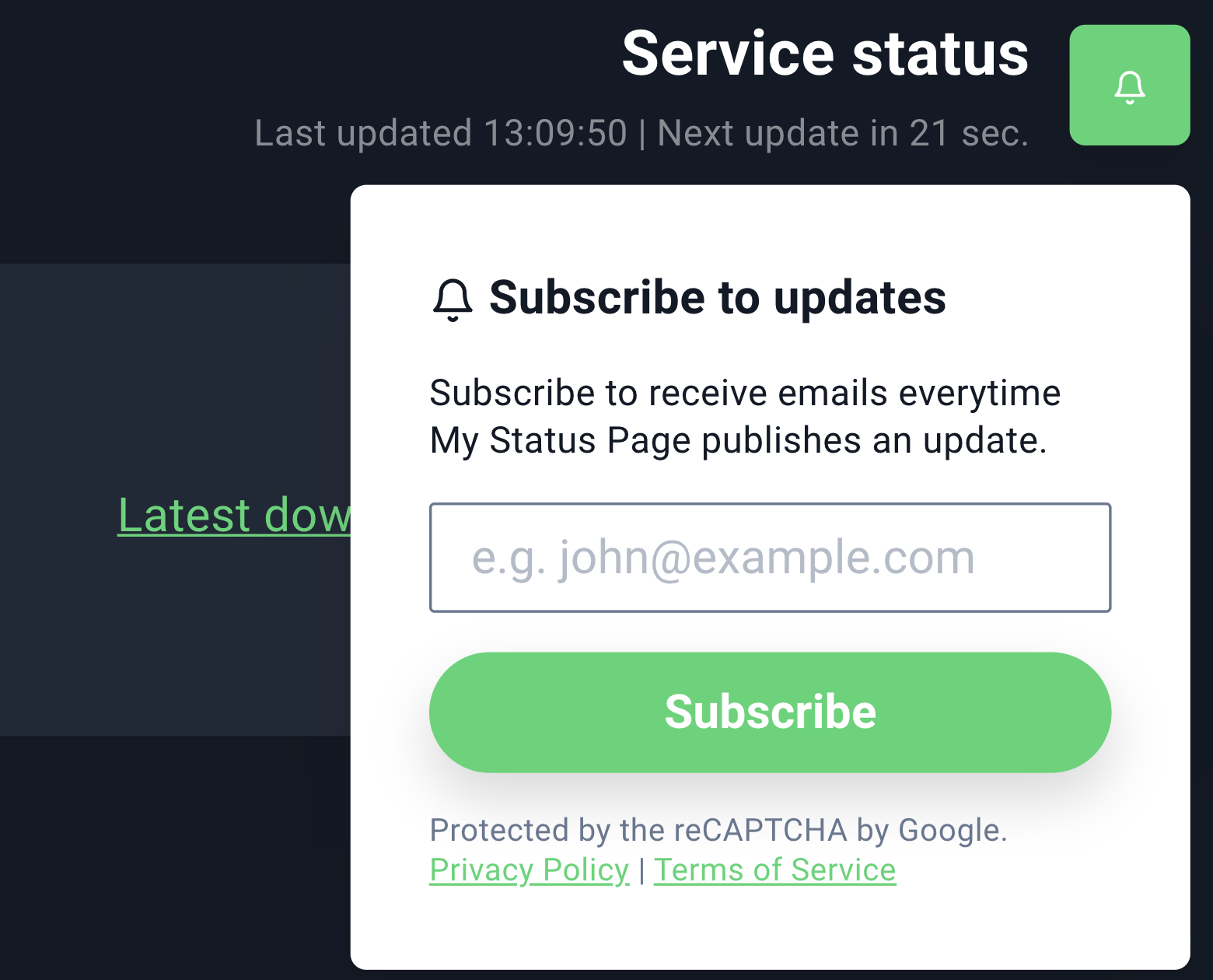
After you enable it, a subscribe button will appear in the top right corner of your status page:
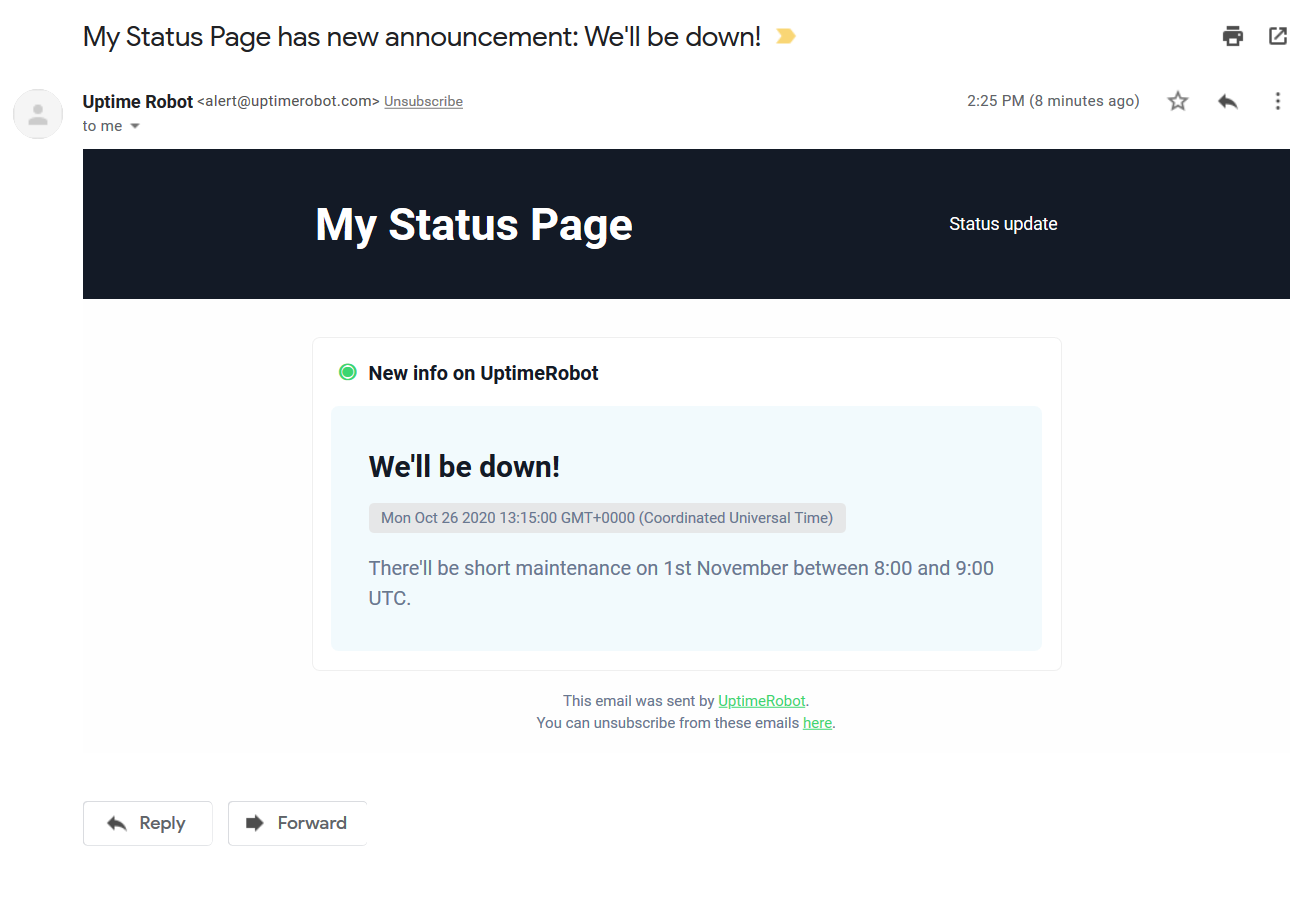
This is how the email will look like:
NOTE: If you want to send the notification please make sure you set the announcement start time to the future. It doesn’t work retrospectively. The announcement start time must always be bigger than the present time.
How can I track my visitors on the status page?
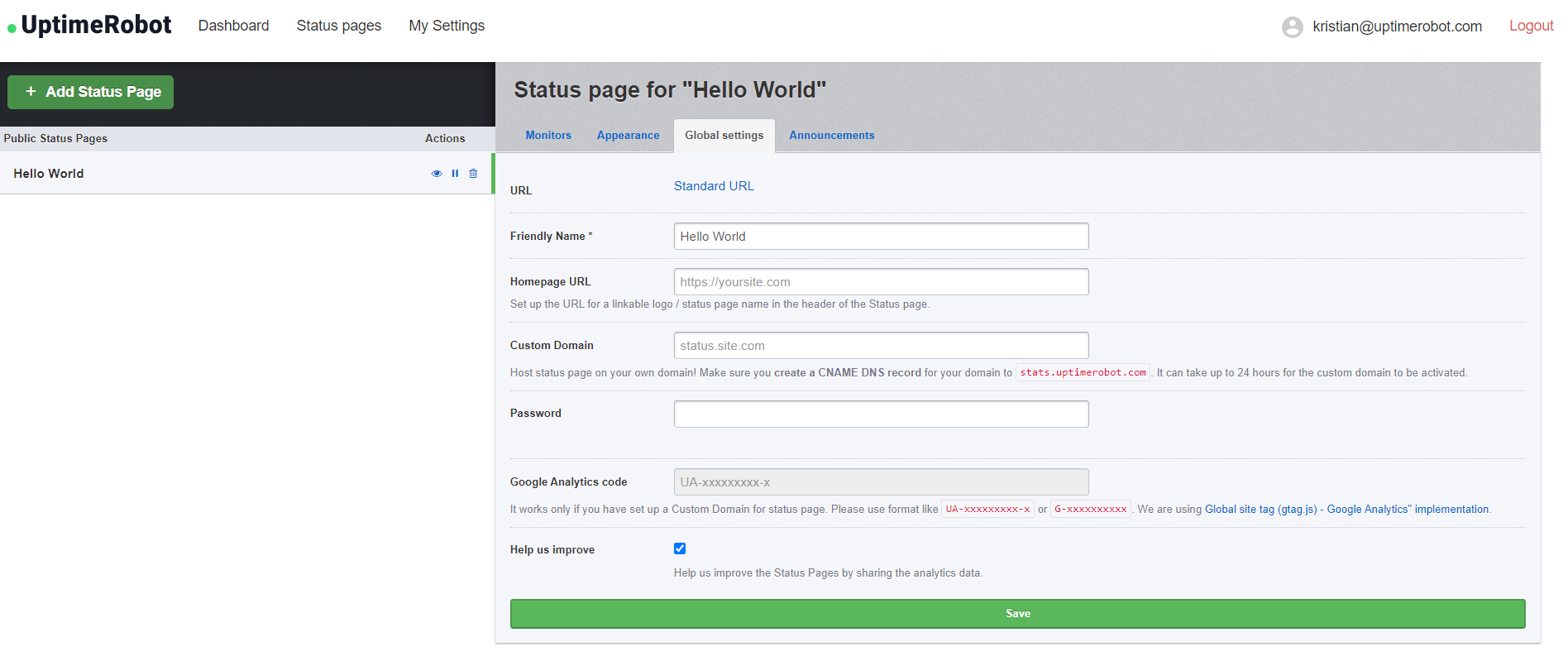
You can simply add your Google Analytics code under “Status page” > “Global settings”.
This is a PRO plan feature and you need to be using a custom domain.
How can I change the homepage URL?
As you might notice on the previous screenshot, you can also set up the URL of your logo or status page name in the header of your status page.
Add your URL under “Status page” > “Global settings” and click on the Save button.
How can I add and remove password protection?
Protect your status page with a password if you prefer it private.
Simply enter the password under “Status page” > “Global settings”.
If you wish to remove the password, click on “Change password” – the field will be empty. Click on the save button and the password protection will be removed.