It’s 2013; we’ve come a long way. But there are no jetpacks yet, and we still have to test websites in older versions of Internet Explorer. While many of you probably haven’t had to open IE6 in a while, IE7 and IE8 are still with us. At Typekit, we still test our web fonts in all three (along with all the other major browsers), but today we wanted to discuss a potential testing pitfall that some of our customers encounter.
IE9 has a feature called Browser Modes that attempts to simplify cross-browser testing by emulating how a site would render in a real copy of IE7 or IE8. It’s available within IE9’s Developer Tools. While it’s a good idea in theory, in practice these emulated Browser Modes create more trouble than benefit because they behave differently than real copies of IE7 and IE8 would. In the case of web fonts, the differences in behavior are drastic, and can lead to inaccurate and misleading conclusions about what your page and web fonts will look like in these older browsers.
Here’s an example of one way that IE9’s Browser Modes for IE7 and IE8 are completely different than the real thing when it comes to web fonts. When loading Typekit fonts on a site, we use @font-face under the hood. If more than one weight or style of a font is present, each one is listed in an individual @font-face rule, each with the same family name but different weight and style values. In actual copies of IE7 and IE8, as well as all other major browsers, the order of the @font-face rules for the various weights and styles in a family should not affect how that family renders in the browser.
However, when using IE9’s Browser Modes to emulate IE7 and IE8, IE will pick the first @font-face rule in the stylesheet and use that weight and style for all text on the page set in that font family; regardless of the weight/style CSS declarations that are applied to the elements on the page. One common symptom of this is seeing lots of text in the italic style instead of the normal style, since “italic” is alphabetized before “normal” and we include the @font-face rules in alphabetical order.
Below is a set of screenshots taken of the same test page, which features four weights and styles of Chapparal. Although the markup is exactly the same, the rendering in IE9’s IE8 Browser Mode and an actual install of IE8 are very different, as you can see.
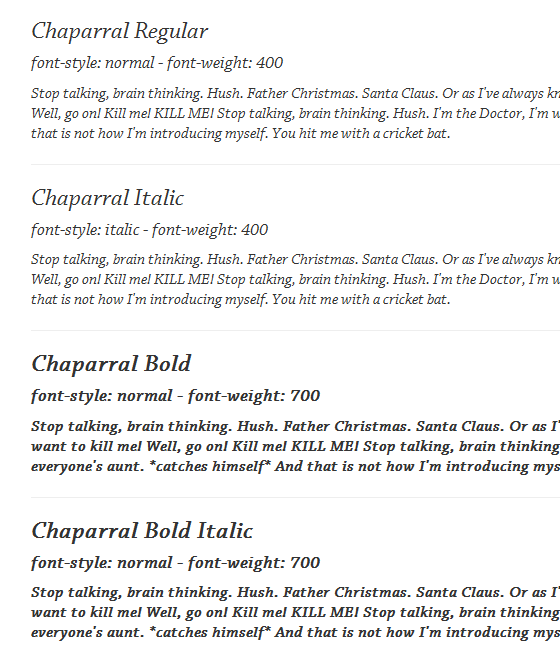
Chaparral Basic Styles: IE9 using IE8 Browser Mode. Testing with this Browser Mode, the normal styles of Chaparral appear italicized because of a rendering error in the IE8 emulator. Also, the bold weights shown here are faux-bold created by the browser instead of using the actual Bold and Bold Italic of Chaparral.
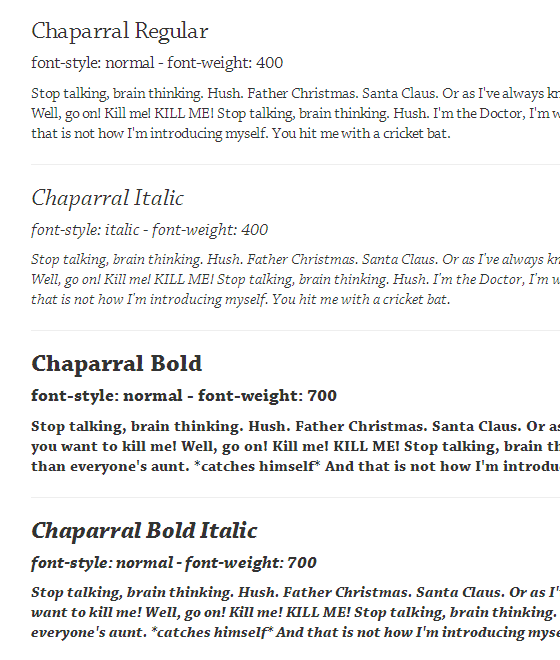
Chaparral Basic Styles: Installed IE8. Testing actual IE8, the normal styles show up as expected and the bold elements are using the actual Bold and Bold Italic for Chaparral. Much better.
On a related note: We’ve seen some sites using X-UA-Compatible meta tags to force more recent versions of IE to use one of these older emulated Browser Modes. This is a bad idea, as you’re opting all of your visitors that use IE into the the same buggy rendering that you would see while testing.
Older versions of IE have some interesting bugs when it comes to web fonts, but we shouldn’t add to them by using imperfectly emulated Browser Modes in IE9. To ensure that your sites look their best, we recommend that you avoid using IE9 Browser Modes as a cross-browser testing tool. Instead, you should test with real installed copies of IE7 and IE8, or try using a service like BrowserStack that can run real copies of those browsers for you.
Update: Several users have suggested modern.IE as a resource from Microsoft with tools and advice for testing sites in IE. We checked it out and it has some good information as well as a special offer for 3 months free testing with BrowserStack.