macOS screenshot tricks to impress your co-workers
sal.devHere is a key sequence I use very often. It takes a screenshot of a chosen window without the window's shadow.
- First, type command + shift + 4 (the mouse pointer turns into crosshair).
- Then type the space bar (the crosshair turns into a camera icon).
- Hover the mouse pointer (a camera icon now), to highlight the chosen window.
- Finally, hold the option key and click.
This sounds like a lot of steps but it becomes muscle memory pretty quickly.
I think Mac OS has the most inaccessible hidden hotkey shortcuts out of every OS I've used. Even essential functions like showing hidden files in a directory is uniquely done through an hidden shortcut in Mac OS.
Perhaps, but the aforementioned screenshot shortcut I learned just like OP because I wanted to take a screenshot, and it's muscle memory for me as well. I even thought to myself before I clicked on the article "I'm pretty sure they are going to have CMD + Shift + 4 or CMD + Shift + 5 as the focal point of the article". I would call it "inaccessible" in terms of natural discovery, sure. But it is definitely not "inaccessible" in terms of ease of use and memory when you do know about it. I had to google "how to screenshot on mac" once in my life and I've used the keyboard shortcuts on a near daily basis for more than half a decade.
Some of them are obscure but there's a big list of them somewhere in System Preferences and you can change them. You can also change keyboard shortcuts in your programs too. Definitely something I miss from Mac OS X.
> essential functions like showing hidden files in a directory
How is that an essential function? My mom has never needed it in 20 years of using Macs. And when I want to know about hidden files, I pop open a terminal and ls -la.
That is kind of hilarious: This GUI feature is very undiscoverable. No, no, "just" open a terminal instead and type this.
The entire point of these hidden files is that the user should never see them. Otherwise they’ll think, what’s this nonsense?, and delete them.
It should be difficult to see hidden files. And it is!
Precisely. Just as the "Go" menu in the Finder doesn't contain the Library folder, because the user generally doesn't need it. As an advanced user, you can pop open a Terminal and `open Library`, or you use a shortcut: press Option while in the Go menu.
MacOS is good because I have to open the terminal to do complex tasks. Linux is crap because I have to open the terminal to do complex tasks.
I know the devil is in the details, I'm just poking fun at the thing, but you gotta admit it's kind of funny.
As a lifetime Windows user who started using Macs for the day job about a decade ago, it was clear that Windows came from a keyboard-oriented background, and Macs come from a legacy of focusing on doing as much with a mouse as possible.
I have a lot of internal thoughts about why I like what I grew up with (particularly with respect to discoverable keyboard shortcuts), but it's just not worth the mental energy of exploring that with internet strangers. The bottom line for me is that a decade on, I still split it between a Macbook for work, Windows desktop for home/creative/gaming, and if I could reasonably work without MacOS I would, but I can't.
Just hours ago complained to a friend about how arcane some things in macOS are. Short of just pressing random key combinations, there is no way to discover that it's possible to paste/type a path into the standard file selection dialog.
(It's cmd-shift-g to get the text entry to appear, or simply forward slash to get it to appear with the slash already entered. Also, it says "Go to Folder", but if you direct it to a file, it will navigate to the folder the file is in and also select the file)
The file selection dialog looks like a Finder window. It could be more discoverable. But trying what works in Finder isn't random key combinations.
I learned I could do this for the first time reading your post.
If all features had their menu or button visible, that would make the interface more complex. Maybe they consider this as advanced features, that advanced users will find out anyway.
Your comment is somehow weird in this publication, because the article assumes (and many comments corroborate) that advanced users are not advanced enough to know all the hidden UI of the screenshot feature.
Seeing as you and I both know the shortcut, how is it inaccessible or hidden? Just because it’s not there cluttering up the visual interface doesn’t mean it’s hidden. For anyone who thinks they might want it, they can find it. For anyone else, they’ll never see it. Seems about right to me.
Be sure how would I even know this is a thing to Google unless I see tip lists like this?
If there was a MacOS shortcut list, grouped by category so that when I want to do something I can search if it is possible without installing a utility, that would be awesome.
Have you tried to google it? It’s the first result.
https://support.apple.com/en-us/HT201236
Screenshot shortcuts and functions are here.
https://support.apple.com/guide/mac-help/take-a-screenshot-o...
So that first page doesn't actually have the shortcut, it has a link to another page that contains the shortcut.
Secondly, it doesn't have the details on capturing without a shadow in an easy to read format.
Apple has only recently created the fancy screenshot utility. It used to only be 3-5 shortcuts for screenshots since I switched to Macs about 15 years ago.
Sweet irony:
"Apple's UI is not discoverable or even obvious."
"Just use Apple's biggest competitor to find them!"
I do not know this shortcut. Further, I do not what shortcuts I do not know about.
Probably the most succinct unintentional definition of poor discoverability in a UI I have seen.
If you were keen on the idea of finding some shortcuts, you would buy a book or search for docs or something though, right?
I fully agree. macOS is a nightmare of usability.
For showing hidden files and file extensions, there's a Terminal command you can run to permanently set it for every file. Of course, since it's only exposed through some command line utility, I forgot what it was and would have to search again.
“Usability nightmare” is objectively a bit of a stretch.
The example given isn’t really something most users need. Even when I did need to do that the answer was discovered and executed within 20 seconds of googling. This is the same for other things most people don’t need across all the prevalent OSes
Well I disagree, so I don’t think it’s objective. Another goodie is when installing an update, macOS only shows that you can cancel the update if you hover over the progress bar or where the cancel X would be. If you just look at the window, you think there’s no way to cancel and that you need to ride it out. You just have to happen to hover over the right element. There’s no reason for this. macOS is absolutely full of little things like this that are hidden in the OS. iOS does this as well. Going to the settings screen, you gotta pull down to see that there’s a search bar. Again no reason for that. Both macOS and iOS are very inconsistent and hide all sorts of settings, behaviors, etc. Another example is that I can’t even adjust my external monitor’s volume and brightness from the OS because Apple wants you to buy their monitors. And all that’s ignoring the portion of usability from things in the OS just not working or that break.
There is a really compelling reason on iOS: saving screen real estate. And the top-hidden search bar is convention now, just like the pull-to-refresh gesture. Discoverability is an issue though, I agree. But unnecessarily hidden? Disagree.
As for the monitor, just install Monitor Control: https://github.com/MonitorControl/MonitorControl
Or Lunar if you want more automated adaptive brightness than what MonitorControl offers: https://lunar.fyi
cmd + shift + . (that's a dot / period / full stop with cmd and shift) is the built in shortcut in Finder to toggle hidden files. Easy to remember as hidden files start with a dot.
The dot might be easy to remember, but the cmd+shift bit isn't for me. Mac shortcuts can be cmd+shift, or ctrl+shift, or ctrl+cmd, or just cmd, or sometimes there's an opt in there as well.
After using a Macbook for work for 4 years, I still have no intuitive idea which modifier keys should be used when, it seems to be random.
Features the typical user can't access/discover are wasted development effort.
So sad...
Most of the time Mac shortcuts also come with a more discoverable approach. I’m not at my desktop atm, but isn’t there also the “grab” application for taking screenshots?
> Even essential functions like showing hidden files in a directory is uniquely done through an hidden shortcut in Mac OS.
I'm fairly certain, it's in the menu bar too
Or is it? I can’t even find it with the search box in the help menu. FWIW, I didn’t know that shortcut before today, and I consider myself a well-versed Mac user since the intel switch
Huh, you’re right it’s not. My FTP client does expose it, maybe that’s what I had in mind
I have to look this one up every few months. just rare enough that it won't stay in long term memory.
Yeah, that's the other problem. And I just don't want to be bothered.
There should be a compilation of every hidden tricks and shortcuts.
Perhaps this will help: https://support.apple.com/en-au/HT201236
Of course, this can only cover Apple's own software and 3rd party software which adheres to Apple conventions.
They're not "hidden" when you know them.
Man, you guys are changing my life. LOL. I knew about cmd-shift-4 (and the ctrl version), but I never knew about hitting spacebar to make it do a window.
yeah that's a neat trick. of course you can do that with cmd-shift-5 too
FYI, Cmd + Shift + 5 encapsulates all the various options into one UI.
Cmd + Shift + 5 will also give you access to some of options (as noted in the article)
Then let you adjust the selection area in relaxed way
I always make sure to enable "Remember Last Selection", which is great when you're taking repeated screenshots of the same area. Once you've created the selection area you'll get exact sizes every time.
And you can press space to toggle between taking a screenshot of an area or of an entire window.
and adds screen recording functionality as a video
I’ve been using this to visually demonstrate features in pull requests. Combined with Gifski for gifs, it’s really nice.
Gitlab and GitHub both let you upload videos (and probably more). I still use ffmpeg to convert .mov to .mp4 to get a better file size. But either run circles around the quality and size of .gif
do they show them inline and play automatically?
the thing I love about gifs is that they play automatically so as soon as you open the issue you are seeing the animation of what the problem is.
They are shown inline but they don't play automatically. But they do let the reviewer pause and rewind to see something they've missed, rather than sit there and wait to hopefully catch what they missed.
I'm usually committing visual changes for reviewers without easy access to the environment, so I mark up the screenshots in my PRs. It's great
I used to use Kap for that to convert video to gif afterwards, but this just gives me one less app to use!
brew uninstall kapIf only it grabbed the audio too. Would have been a lifesaver. All the apps that do this (that I found) are cr*p or super pricey.
Quicktime Player has audio in the grab
I feel like the screengrab ui also has it too
Oh that’s cool! I always use QuickTime Player for that, something in the screenshot UI makes more sense
Yeah but it's nice to just press keys instead of point and click with CMD-SHIFT-5 options.
Cmd+space, "screenshot".
Add in the control key in the shortcut above and the screenshot will go to the clipboard instead of a file. Useful for pasting a screenshot into something like Messages or Slack.
Also there's no need to hold down Option when clicking. You can however hit Esc to cancel the screenshot action.
I just tested it -
Holding option seems to remove the gradient shadow of the application window in the screenshot. Not needed, but it’s better in my opinion.
I didn't lose the shadow when doing this. There's a setting ...
`defaults write com.apple.screencapture disable-shadow true`
Have you ever run that? Presumably changing to false gets you the shadow again.
after copying to clipboard, you can also paste it into an empty preview window by hitting ctrl-N (with preview in the foreground). you can paste additional clippings from the clipboard as impromptu layers that you can drag around on top of the first image.
in this way, folks (e.g., product managers) can quickly compose a mockup using components from a pre-existing UI without opening up photoshop/pixelmator/affinity.
Another option is when you press Command+Shift+5 select Options. From there select to Open in Preview. From then on any screenshot will open in preview automatically.
After hitting space to go to select window mode, click select the window and its shadow, option click select the window without its shadow. Not sure why you say the option key is not needed.
You've just saved me years of my life. I can't believe I didn't know this.
Dang, these little tricks are so useful!
Combination of CTRL+OPTION works too.
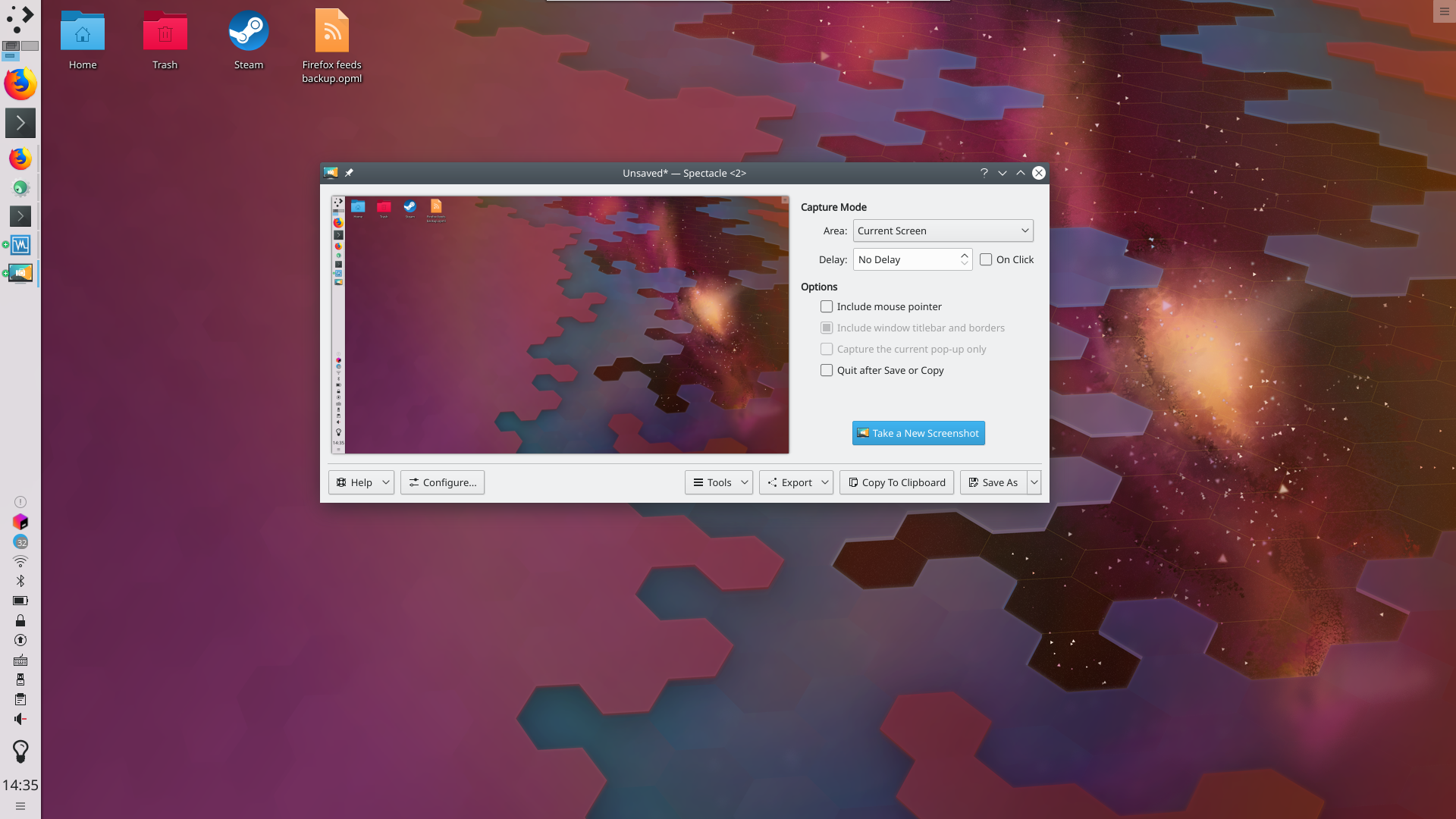
Just for comparison:
https://userbase.kde.org/images.userbase/4/4c/Spectacledefau...
The default kde screenshot app just has simple dropdown menus for all that. Is command+$, space, option+click really better than PrtScr, click?
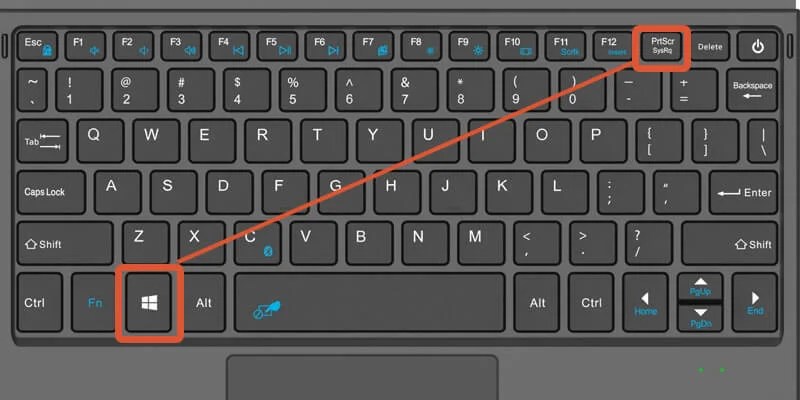
Please show me the PrtScr key on a laptop 60% keyboard.
https://i0.wp.com/accatech.com/wp-content/uploads/Screenshot...
It is the key with PrtScr written on it. Also, it is impressive by what a wide margin you missed the point.
I just figured out that these generate really nice transparent borders, which they use to add shadows. They look great when you put them in, e.g., Notion docs.
You can change the Screenshots icon to something else too. Mine looks like this:
https://i.postimg.cc/zX5f4fqN/1.png
Makes it easier to find visually.
How do you do that? I was trying to find the way to do that the other day but couldn't figure it out.
Edit: Of course I was 1 google search away from the answer: https://support.apple.com/guide/mac-help/change-icons-for-fi...
What does holding option do?
I think that's the part that removes the shadow.
It removes the shadow around the window.
You know, I'm looking at all the tips and suggestions here, and my thoughts keep going back to SnagIt from TechSmith -- these problems seem to all just go away with SnagIt.
Sure, it's cross platform, but I don't care about that. It works better for me on macOS than the native facilities, and provides much better post-screenshot editing.
If I want to do video capture, the industry gold standard here is Camtasia, also from TechSmith.
I know the standard provided functionality, and I just don't want to be bothered.
What does the option key do in this case? I'm familiar with all the other steps, but the option key's purpose eludes me.
Apparently it hides the shadows when you screenshot an individual window. Neat trick, although I think I'm going to apply the trick from the article, since I don't think I ever actually want the shadows.
I think the shadows look better when adding the screenshots into a document, but are a little much when sending a screenshot to someone via chat.
I tend to prefer to add the shadow in the doc itself rather than have it as part of the image
It captures the window without the drop shadow.
Nice one. I found that it only takes a separate window on the mac screen, but when I want to do it on additional display, it does not allow me to select a window - it highlights all the screen as a window.
> - Hover the mouse pointer (a camera icon now), to highlight the chosen window.
bruh, what, god tier shortcut here
Wow thanks! Never knew about pressing the spacebar to toggle to window capture mode.

One for people like me who love to get the padding just right: Hold spacebar while dragging a screenshot area to reposition the upper-left corner of the drag area.
Or hold option to keep the screenshot area in the same position and resize both corners at the same time.
Wow, I had no idea about this one! Thanks so much for this tip!
Can you explain the exact steps more? If I press spacebar, the mouse pointer turns into a camera.
Hold spacebar after you have started dragging your selection box. It will move the entire selection box.
command-shift-4 allows you to drag-select a rectangle. While dragging you can hold down spacebar to switch to moving the selection instead of resizing it. neat feature!
...or hold ⌥ to also move the opposite corner.
Which also works on resizing windows
That's one I'd never found before. Thank you!
Literally live changing for me. Thanks robenkleene.
I recommend against changing the format from png to jpg. The sample shows a picture of a dog, but most screenshots should be of applications (having a limited color palette) and must of the time the goal is readability (jpg compression drastically reduces text clarity relative to png)
If you need to reduce the size of a screenshot it's often better to keep it as a PNG and reduce the number of colors. 256 colors nearly always carries all the information needed without blurring the edges or the text. Often 128 or 64 is fine. Don't use dithering - it harms the compression ratio, so you may as well use a few more colors instead.
Often just applying lossless PNG optimisations using a tool like https://imageoptim.com/mac will sometimes save a large percentage, although it can take a minute or so for the tool to finish.
Just disable Zopfli which is the most time consuming compression method and typically they compress at an instant.
> (having a limited color palette)
With translucency and soft gradients everywhere I’m not sure how true that is anymore.
PNG should be just as good at gradients as it is at constant color: https://en.wikipedia.org/wiki/Portable_Network_Graphics#Filt...
It can encode the difference to the previous pixel either up or above (or some combination). In purely horizontal or vertical gradients that's just as efficient as encoding constant color (and in fact, the Wikipedia page shows an example). For gradients in other directions, it depends on how homogeneous the slope is (because it will zip the diff to the previous pixel, i.e. the slope).
Doesn't that example show that a 256-step gradient takes 256 bytes? A 256-step run of the same colour takes just a couple of bytes due to RLE, doesn't it? (Not an expert.)
I debated about adding "after the first row", but didn't (because it doesn't make sense for gradients in the other direction). Either way, both my and Wikipedia's point is that a simple gradient filling a 2D surface costs only a "1D amount" of bytes, which is going to beat JPEG (at "can still read text" levels of quality).
Wouldn’t that only work well with perfectly linear gradients? Translucency and dropshadows are usually based on Gaussian blur, so not linear at all.
I agree with you parent.
Also, I was surprised one common hack I used to see talked about a lot not dicussed given they delved into changes you can make on the CLI: you can change the default location (Eg to a "Screenshots" folder) instead of the default of cluttering the desktop
In terminal type "defaults write com.apple.screencapture location" where "location" is a path of your choosing.
(I'm fond of nesting a "screenshots" folder in the user directory pictures folder.)
The post mentions doing this through the UI (no need for the terminal command).
my bad
You can just hit the option key to take a screenshot of an app without the shadow. No need to go and change system wide defaults
If screenshots are a part of the daily workflow, changing the setting makes everything easier
Wish I could change copy/paste to always work without copying style.
Really wish this was the default, with an option to turn on "paste with formatting". It'd be interesting to see with telemetry how many users choose that.
FWIW, in my many decades of using computers, I've never once wanted to paste with styles as whatever app is getting pasted into inevitably (without exception, like 100% of the time) "guesses" the formatting incorrectly.
There were some amazing workarounds to the default discussed her recently. One suggested pasting into the browser url field then copying and pasting out of it.
The default is crazy.
Some kind of clipboard manager should be able to munge it that way (Ok, it's 15 years since I wrote clipboard code in "OS X") - a background app and clipboard manager that basically removes style info from the items on the clipboard.
Do you mean regular clipboard text? You can do that with: ⇧ ⌥ ⌘ V
This is not necessarily supported everywhere though...
You can add a global keyboard shortcut that makes this command much easier. I’ve done it and life is so much better now.
Oh you can usually for sure, it’s just a bit too close to a gymnastic manoeuvre.
I also believe it should be the copy that strips the style.
You can add a global keyboard shortcut that makes this command much easier. I’ve done it and life is so much better now.
There isn't that much practical reason to include the shadow though. In fact it tends to just make the important stuff smaller when sharing with someone because there's a bunch of border space surrounding the content, and whatever they're viewing in will show all of that unless they zoom in.
There's no contrast between a white window and a white background if you don't have the shadow.
This is the real tip.
Hold control to save to your clipboard instead of a folder/desktop.
FYI, Cmd + Shift + 5 encapsulates all the various options into one UI.
You can also launch the "Screenshot.app" app
Blew my mind, makes so much sense
whoa...
people love to talk about how many useful features MacOS has and how user-friendly it is but too many are buried behind a keyboard shortcut with no other way to access.
And no "read the manual" isn't it. From certain scale the manual should be out of the window and UI should accomodate for people to learn while using it.
I've been using computers too long to be able to "see" them through the eyes of a new user. But being user-friendly doesn't mean making every single feature user friendly or discoverable through visual manipulation. It means making the most common tasks user friendly and discoverable. The vast majority of users can be productive on macos without ever using a single keyboard shortcut.
I think macos does this better than pretty much any other desktop OS. Granted the bar isn't very high.
> being user-friendly doesn't mean making every single feature user friendly or discoverable through [using the software]
Why not?
> The vast majority of users can be productive on macos without ever using a single keyboard shortcut.
If you're not using keyboard shortcuts you definitely do not have flow. Again, why should the standard be so minimal ('can eventually complete a task') and not involve efficiency, fluidity, joy, mastery, etc.?
It's not hard to do better when you leverage searches that simultaneously expose functionality and alternative ways to invoke it (e.g., keybinds, menu paths, app names, etc.). The example that blew my mind is Emacs with a nice fuzzy filtering search like you get pre-configured with Spacemacs or Doom, but macOS also has two great examples built in: Spotlight and the global app menu search.
> The vast majority of users can be productive on macos without ever using a single keyboard shortcut.
I'd be interested to know what portion of users use copy/paste.
Me too. I'm sure a lot, but I bet not all. But copy paste shortcuts can be discovered via direct ui manipulation - you click the edit menu and it shows the keyboard shortcuts. I actually copy/past with a right click nearly as often as with a keyboard shortcut. But I guess right click could be considered a "hidden" feature.
A great thing is that they’re very seldom not also in one of the app menus. Memorizing cmd + ? (Help menu search, sorta like Spotlight for the app and can find any standard menu items) is often a lot easier than remembering a bunch of other commands, and great for discovering them.
Another great thing is they’re generally quite consistent across apps, so memorizing one is usually applicable system wide. And another great thing is that if you don’t like the defaults (or have a menu item you wish had a shortcut in the first place), they’re almost always configurable.
/System/Applications/Utilities/Screenshot.app
(the interface of which can also be reached via Cmd-Shift-5, allowing video recording and much more)
It isn't hidden behind a keyboard shortcut. CMD+Shift+5 exposes the full screenshot UI, and under the clearly-named Options button is a menu that lets you pick the clipboard as the place to save.
Holding CTRL is just a... well... "shortcut" for that.
That is literally the definition of "hidden behind a keyboard shortcut" - you have to be told or lookup CMD+Shift-5 before you can get to the full screenshot UI. It's been a while since I first used MacOS, but I don't remember it telling me how to do that.
> That is literally the definition of "hidden behind a keyboard shortcut" - you have to be told or lookup CMD+Shift-5 before you can get to the full screenshot UI.
Or more likely, new users search for "screenshot" in Spotlight the first few times, and if they do this enough maybe Google "mac screenshot shortcuts" (which leads them to https://support.apple.com/en-us/HT201361).
That's fair, particularly the "Googling it" part. Still don't think it falls under "intuitive" - it's not something I'd just try or figure out without somehow looking it up.
For sure. I wonder if there’s a better solution short of a “Screenshot” key.
You meant Print Screen?
Effectively, with a better name. This also strikes me a perfect use case for a Touch Bar since it’d be very helpful for a subset of users but wasted space for others.
There’s also just an app you can launch like any other, and it works exactly the same way, no keyboard shortcuts necessary.
> you have to be told or lookup CMD+Shift-5 before you can get to the full screenshot UI
No, you don't. You can either search in Spotlight or go to Apps->Utilities, and it is there, along with activity monitor(aka task manager)/terminal/etc.
How do you want them to inform you other than RTFM and word of mouth?
Do you want constant buttons on screen at all times for every possible OS-level functionality?
are you not familiar with the concept of onboarding? Many websites and apps have this tour thing that highlight things that user haven't used, when appropriate.
The Mac does have onboarding, and it covers the basics. If it got into every single feature that someone calls "unintuitive," the onboarding would be 27 hours long
> 27 hours
is it in the form of non interactive animation? Yikes. If not, there is no problem with 27h, you just don't be ridiculous to do it all at once, instead of contextually.
There's a continual onboarding process in iOS, the Tips app, which I think tries to tell you details when it sees you doing the basics of some feature.
I didn't give any value judgement to it and I don't have any suggestions as I really haven't spent a lot of time on that problem space. If I become an OS developer I'll give that problem some thought. But the idea that Mac is somehow "intuitive" is laughable, IMO (I say that as someone who has used a wide variety of computer OSes since the 80s).
The quality I take from it, is that the cmd/option/shift behaviours as modifiers, are policed well, and its like emacs: there's an overall consistency to what they want you to do, burned into muscle memory.
You cannot realistically make every single cmd+<letter> mnemonic. They do the best they can inside the circumstances, and then having chosen a base key, they say "ok. what do we bind to the alternates via option/shift" so it makes contextual sense.
I regard that as seeking intuitive behaviour. You are invited to (subconsciously) consider CMD+key as the base to learn, and then CMD+OPTION or CMD+SHIFT variants as the obvious alternates.
The key here, is ownership of the UI/UX: they police this. Much though Microsoft tries, it doesn't police this well enough across the independent app vendors outside of a tiny core of functions. Between Gnome and KDE, there is no policing.
I said emacs, because the basics of modifying lines of text in most things now, are emacs line modifiers by inheritance: because the X10-> X11 -> XOrg uplift means that the web omnibar and text boxes are inherently derived from X, the keystrokes to edit text are inherited from MIT X which inherited from MIT emacs.
As a VI user I just had to come to terms with this: Sure, you CAN force override them to VI friendly form, nobody does:
we're all emacs keystroke users in this narrow sense. Emacs won.
It's intuitive to do the basic stuff casual users need. If you want to go beyond that, you figure out how by doing some basic research. The OS isn't going to upload an entire reference manual into your brain as soon as you boot it for the first time.
And no one but you is claiming anything about manuals being beamed into brains. I disagree with the idea that MacOS is any more intuitive than any other modern OS (which is the claim that Apple and that I've heard others, make; I'm not saying you are making that claim necessarily). And to bring this back on point, to my very specific original comment, the poster I was responding too said this wasn't "hidden behind a keyboard shortcut" when it most definitely was. Not sure we need to delve into the nitty-gritty of how people learn OSes in this thread anymore than we have.
> And to bring this back on point, to my very specific original comment, the poster I was responding too said this wasn't "hidden behind a keyboard shortcut" when it most definitely was
I'm that original poster. The comment I responded to was clearly referring to holding "ctrl" in order to save to clipboard, not referring to the screenshot ability itself (which as others have mentioned, is not hidden behind a keyboard shortcut, but is an app in Applications/Utilities)
I maintain my comments and opinion, still "hidden behind a shortcut", even if you can find it as an app also. Or even if all you're referring to is the Ctrl modifier.
You and I have very different definitions of "hidden".
I agree with parent, for example even after pressing cmd+shift+5 there's no indicator or hint that you can press `space` to capture a single window. I don't see how any user would discover that functionality, and I regularly see people surprised they can do that here on HN.
Discoverability on macos is atrocious, and even after few years on it I sometimes struggle with basic things
But there's a button for "Capture Selected Window".
I use the non-UI snapshot feature a lot more often than video capture so didn't realize that. I guess it was just a more general comment that comes from things like the switching window/app hotkeys. In this instance, there is another issue with finding out holding CTRL does what it does.
There’s literally a screenshot app that you can launch with 0 shortcuts needed.
There’s also the built-in Grab app that does this: https://en.m.wikipedia.org/wiki/Grab_(software)
Also, you only need to hold ctrl when clicking to finish, so less finger twister.
Cmd-N in Preview to open a new window with the contents of your clipboard goes nicely with this.
Then in Preview you can hit cmd-shift-a to annotate the image. When you're done, cmd-a to select all, then paste wherever applicable. Nothing saved to disk!
you can also flip these keyboard shortcuts around, which I did for the cmd-shift-4, as I almost always want it to the clipboard without persisting as a file
Sounds great. How do you do that?
Ahh that’s nice
God damn, you just changed my life
How tf did I not know this. Thanks
Agreed. What I want to know is: how did folks even discover these modifier shortcuts?
macOS tip of the week.
It's not a very ergonomic hotkey, though. I click the preview that appears in the bottom right to open, CMD-C to copy, and then click the trash icon to not save.
Swap your caps lock with control for happier pinky finger. Or if you’re old enough to remember Sun keyboards!
With Karabiner I have q+l (hold q tap l) as an alias for that long and uneconomic shortcut.
Another cool trick: Acorn image editor can take screenshots of the whole desktop environment (all windows, menus, etc) and put them in separate layers. You can then rearrange them as you wish.
That's a great idea. Capture the data first, then sort it out.
The new GNONE screenshot tool is similar because it capurures everything as soon as you hit Print Screen, but it still forces you to decide what to save immediately. It would be nice if has an option to save everything so you can pick out what you want in post.
I also want something like this for audio. Record every audio stream on my machine as different tracks. Then I can select which ones I want later.
That is such a cool but obvious idea. Takes me back to trying to clone the functionality of HyperDock
not a designer but gotta appreciate this
Tip if you’re doing the ⌘⇧4+ space trick to capture a window: if you hold down command while selecting a window you can grab things like alerts that appear as part of the window.
If you need to do any image manipulations/highlight on your screenshots, two of the best tools I found are:
1) Monosnap (freemium) - https://monosnap.com
2) Cleanshot ($29) - https://cleanshot.com
Both tools also include large amount of extra functionality for taking screenshots and recordings.
a FOSS alternative is https://flameshot.org/
Amazing tool. And the best FOSS app I ever used on Ubuntu.
I haven't used it, but I really like their website. Describes the tool succinctly and clearly with a few key features highlighted and nothing else.
Cleanshot might be the best value for money I’ve ever had from a paid software utility.
It’s truly excellent and feels like a natural extension of the built-in functionality.
Huge +1 to CleanShot (and PixelSnap). Definitely worth the money considering I use CleanShot daily. Quick annotations, simple video capture and re-encoding. The integration with PixelSnap is really nice as my screenshots have consistent padding. A small thing, but it takes me zero effort and is aesthetically pleasing.
Worth noting however that just switching to Preview and Cmd-N will open it up with your screen shot from the clipboard, and then cmd-shift-a gets you annotation tools. So this is a pretty streamlined workflow already.
I like Pixelmator for even more manipulations (Photoshop-like). $19.99 gives you _a lot_ of value.
Really a great app. Fills in where basic Preview annotations leave off, and approaches Photoshop-level capability.
I couldn't find anything on their website, my workflow, which I hate is:
Screenshot section to file, click on preview before it disappears, markup on iPad with Apple Pencil, copy to clipboard, paste to Docs/Slack/GitHub, delete file.
I really wish I could eliminate the temporary files in this process.
Do you happen to know if Cleanshot can do iPad annotation?
I wonder what the cost benefit on that little popup window for preview is after the screenshot. Too often I find myself being annoyed because it went away before I was able to click on it and as a result I just take another screenshot to get the window to pop up again. Way less often do I find myself annoyed because it stuck around too long.
Doesn’t selecting Preview (instead of the folder, as suggested in the article) let you skip the saving-to-disk part?
If you click on it as soon as it's taken, it opens in an editor. The editor isn't Preview I don't think, but damned if I can tell what it is.
Just took a quick look and couldn't find any way to do it. That would be a great feature actually.
I felt $29 was a bit much considering greenshot and other free things on windows that do similar ... but I use it hundreds of times some days and it's overall great.
Love Cleanshot! It’s so fast and snappy. A rare treat.
If your screenshots are intended for documents, don't change the format to JPEG. Depending on the document (e.g. a PDF file) that compression can happen at a later stage. You can always compress a PNG into a JPEG (it's a lossy operation), but once it's done, you can't come back.
I often see JPEG screenshots in student reports (but not only), and they look really bad, as most of the time those are plots, drawings, and present very visible JPEG artefacts (e.g. colored noise around lines and text).
I thought this was going to about pranks
My favourite:
Take a full screenshot of your coworkers desktop - icons and everything. Include the taskbar.
Now rotate the screenshot left
Now set the taskbar to auto hide and rotate the screen settings (either on your monitor or the computer) to the right
Set that screenshot as your background
If you do it right it will LOOK like a normal desktop with taskbar and everything but the mouse will run in reverse and nothing of course will work well.
We were doing this at school when I was twelve.
Oh my goodness thank you so much macOS for giving us a set of awesome screenshot tools and a way to edit them immediately in Preview.app. (Capture to clipboard, then command-N in Preview defaulting to new-from-clipboard.)
It’s so blisteringly effective to grab a portion of the screen, draw on it, copy the whole thing again and paste it to a coworker in chat or a task tool.
I recently discovered that with my trusty Logitech G203 I can write cursive on my images with about the same legibility as I can on a whiteboard. Very pleasing.
I never found screenshotting on macOS intuitive. Using ShareX on Windows is like night and day. No need to memorize different shortcuts for each kind of screenshot. Just a single shortcut to enter screenshot mode. Then it's
* left click to capture full screen
* hover over a window and left click to capture a specific window
* click and drag to capture a region
* right click to cancel
There's also annotation and drawing tools directly in the screenshot mode. Imo this is way better than how macOS opens the editor afterwards. Because for the times you don't need to annotate, you still have to close the preview window. In other words:
MacOS
* annotation flow: start => capture => annotate
* normal flow: start => capture => close preview
ShareX
* annotation flow: start => annotate => capture
* normal flow: start => capture
ShareX also supports a ton of different other workflows. After capture it can automatically add the image to your clipboard, or open it in an external image editor, or upload it to imgur and add the link to your clipboard, etc etc.
(On Linux the closest thing I have found to ShareX is ksnip [2]. Takes a bit of configuring, for example I recommend disabling tabs, but overall it's good enough for me)
> No need to memorize different shortcuts for each kind of screenshot. Just a single shortcut to enter screenshot mode
You don't need to memorize any shortcuts on macOS to take a screenshot. Just open up "Screenshot.app". It's in /Applications/Utilities/
That's a single entry point to all of the screenshot features as well.
iirc that just shows a toolbar with the different screenshot modes. You still need to manually select a mode, which is not as fast and intuitive as ShareX which combines most of the modes into one
Then you are back to the macOS key combo shortcuts, surely? Memorise the one you want and then it's comparable.
Maybe I'm misunderstanding something. ShareX only requires you to memorize one keyboard shortcut, and then its a single click to either do a full screen capture, window capture, or region capture. For MacOS you either memorize multiple shortcuts, or you use one shortcut to show the toolbar, then you select a mode, and then you capture (well aside from full screen capture which is automatic). Overall it seems like MacOS requires either more memorization or more clicks.
Edit: here's a quick demo of ShareX for people who haven't used it [1]. You can see me enter capture mode (via keyboard shortcut), which starts in fullscreen capture mode, then I hover over the calculator to switch to window capture mode, then I move it away to switch back to fullscreen capture mode, then I click and drag to do a region capture and release to complete the capture. You can also see the annotation tools at top that can be used during capture.
[1]: https://giant.gfycat.com/WellwornSizzlingIrukandjijellyfish....
That sounds like a lot of other third-party screen shot tools on Mac OS, too. The basic, built-in screen shot on Mac OS has a lot of features but it comes from a system-tool standpoint. It works efficiently for those with some experience, but it can be a little hard for new users to learn. The third-party tools add a more visual layer on top of that for beginners.
When I boot into Windows and want to snip a portion of the screen I am going into a menu and opening a dedicated UI program (snipping tool). Then I manually save it to the desktop again through menus. Then I can access the snip. It's insanity compared to what I do on macOS.
CMD+SHIFT+5 also gives you clear options to "tap to do X" like you say.
Annotation directly yes, that is nice. And I know some people dislike the "floating screenshot in corner" feature of macOS, but if you allow it to start you get instant annotation right after taking a screenshot without having to open the IMO clunky preview app.
There are also other 3rd party tools for annotation for macOS that can pipe together flows, probably as advanced to what you mention.
> Using ShareX on Windows is like night and day.
Because you are literally comparing a dedicated tool to a built in implementation (which I kind of feel you have not explored all that well lately).
It’s so blisteringly effective to grab a portion of the screen, draw on it, copy the whole thing again and paste it to a coworker in chat or a task tool.
You can make it even faster by cutting out the Preview step. When the thumbnail of the screenshot appears in the lower-right corner of the screen, click it, and then you can use Markup to annotate the image right there, and then share it as needed.
Since I don't have your Logitech, I don't know if this method will support your hand-writing step. But it's worth a try, and is still useful for drawing circles and arrows and things on screenshots before firing them off to a coworker.
You say share as needed, but I’ve not found a great way to just grab it to the clipboard or get the file handle from there.
My go to workaround is to screenshot, annotate, screenshot the annotation tool into clipboard and paste that. (I know)
The two ways I do it are:
1. If the program I'm trying to share with is available in the Share control, I use that.
2. Since I already have a Screenshots folder in my dock that displays as a fan, and is sorted by most recently added, I click "done" on the annotated screenshot, then I can click on that folder in the dock, and it's right there, ready to be dragged into any other application.
This is a reasonable way of dealing with it. I've just created the dock folder and now it's a lot easier to get to (except that I have dock as minimal as possible, so it's still a little fiddly). It does feel like just hitting ctrl-c in annotations should copy to clipboard.
I know pretty much every other combination of screenshot shortcut mentioned here, but this workflow has irked me ever since they added the annotation tools. I can work with this, thanks!
⌘c after annotating in the way GP mentioned copies the annotated screenshot to the clipboard, you don't need to screenshot the tool.
I couldn’t get that to work. So annotate, and with Lou t doing anything else, just cmd-c?
Pretty much, yeah. Oh, you might need to deselect any annotations you have added (click on background) before pressing ⌘c.
You are in good company. I often screenshot two things, arrange the windows next to or on top of each other, screenshot that and use it as the backdrop for my world domination plans / next releng planning meeting.
> When the thumbnail of the screenshot appears in the lower-right corner of the screen, click it
What's this app called? I'm embarrassed to admit I can't tell, even after trawling activity monitor.
Not sure if I am missing something. But it is the default implementation in macOS. Just make sure "show floating thumbnail" is turned on (CMD+SHIFT+5 then click options).
I can open it, and take screenshots. But when you edit the image I can’t tell what the app is. Am I still in the screenshot application?
I understand, that’s a good question actually.
its confusing & painful as heck to me that these are different tools with different interfaces & capabilities.
I was a Windows guy for a long time, most of my life actually. Then circumstances forced me to use a Mac for a period of time and I switched. Now I can barely remember half of what I used to jump around Windows. Our cognitive load really isn't built to handle mastery of multiple wildly different operating systems, IMO. Not many people claim to be both Windows and Mac power users, though I'm certain some of those do exist.
Windows-only recommendation so this is only somewhat related - but if you want a powerful, (mostly) well-thought-out, (seemingly) lightweight screenshot taker + editor on Windows, do have a look at ShareX[1].
It's completely free and you can tweak various workflows and map them to key combinations. I've had a "manual screenshot -> optional editing -> upload to imgur/save to clipboard" workflow bound to a mouse button (Logitech G600) for over 5 years and use it multiple times a day.
I downloaded it through Steam but whatever other download options they have should auto-update just fine as well, I would guess.
I only see this now but apparently the program is open-source. Never even knew that.
Windows has the built in Snipping Tool which is quite similar to what macOS has: https://support.microsoft.com/en-us/windows/use-snipping-too...
Windows + Shift + S is what I used daily on Windows. The screenshot is saved to the clipboard and can be pasted straight into your chat app.
I have Command + Shift + 4 configured to save to clipboard aswell now.
This isn't totally screenshot related, but TextSniper is nice for quickly getting OCRed text from a selection on your screen, directly into your clipboard.
If you're on macOS 12 or iOS 15, you can also use the built in live text functionality in Safari, Preview or Photos
True but that only applies to images displayed using the standard image library. TextSniper will capture text from any text displayed on screen, not just within an image. I use it often to pull text from things shared in Zoom. You can do it with the built-in Livetext but you have to do a screen shot, them bring that up in preview to get the text OCRd. TextSniper makes it a single operation.
This only works on M1~ macs. Intel mac don't have OCR for some Apple-ish reason
When the beta containing Live Text was first released it was M1 only but by the time it was released, Intel support was included. A lot of people only remember the first impression.
It does work on Intel Macs. I've used it plenty of times.
Similar tool, but open source - https://github.com/amebalabs/TRex
I use macOCR[1] from the terminal for that.
You can also easily stitch something like that together yourself.
After `brew install pngpaste tesseract` (the latter is a dependency of the great OCRmyPDF tool btw), you can set `alias ocr="pngpaste - | tesseract -c debug_file=/dev/null stdin stdout | pbcopy; pbpaste"`.
I like having this alias better than macOCR because the workflow feels more ergonomic: You first cmd + shift + 4 to select text and then type `ocr` with the result being printed to stdout and being saved in your clipboard. With macOCR I have to go to the terminal first to initiate the process, then go back to what I want to screenshot etc.
For linux (or GNOME more specifically) there is Frog[1]. It uses Tesseract OCR[2] under the hood.
[1]: https://flathub.org/apps/details/com.github.tenderowl.frog
There's a bunch of similar tools on Windows, usually for machine translating video games that haven't been localized.
Yeah, this tool has become indispensable for me.
Y'all definitely need to check out Shottr too, it has built in annotation and OCR and doesn't cost anything unlike CleanShot (which admittedly, is great too!)
Posting today on HN about Shottr https://news.ycombinator.com/item?id=31773863
Thanks for this. Well I already bought cleanshot but always good to know !
Isn't OCR now a systemwide feature in macOS and iOS?
"Only" for M1 Macs.
I never thought about changing the save directory to another folder. I’m blown away at the simpleness of it.
Screenshots folder in the Dock FTW!!
I must confess, I was pretty sure I’d learn nothing by clicking in. I was pleasantly surprised, thanks!
You're welcome! I'm glad it was helpful.
If one uses Dropbox too, letting Dropbox to manage screenshots is a clean way. I wrote about my steps at https://brajeshwar.com/2015/setup-dropbox-to-manage-your-scr...
Want a quick measurement in px for something on your screen? CMD + SHIFT + 4 for the crosshairs, drag from origin to destination, observe the measurement in px. Press ESC to not capture anything.
(Only works for horizontal or vertical measurements, unless you're good at doing pythagorean theorem in your head)
Free Ruler (https://apps.apple.com/us/app/free-ruler/id1483172210?mt=12) is handy to have if you find yourself needing this functionality often.
This week's "superfluous" automation: quick screenshots from an Android device, to run with Alfred:
    #!/usr/bin/env bash

    if ! /usr/local/bin/adb devices | grep '\<device\>'; then
        echo "No phone connected!"
        exit 1
    fi

    phonemodel=$(/usr/local/bin/adb shell getprop ro.product.model | tr '-' '_')
    timestamp=$(date +"%Y_%m_%d_%Hh%Mm%Ss")
    output_file="Screenshot_${phonemodel}_${timestamp}.png"
    /usr/local/bin/adb exec-out screencap -p >$output_file

    #open -R $output_file # select in finder
open -a Yoink $output_file # show in yoinkWhy is cmd + shift + 4 the default that folks use/recommend? I've always used cmd + shift+ 5 which is the short cut to launch the full-blown screenshot app.
It remembers what you had set last time as well like capturing to clipboard and everything.
If you're in the cmd-shift-4 screenshot snipping mode and you've already started drawing your rectangle, you can press+hold space and drag around to keep your rectangle the same size and move it around.
The ones I use:
⌘⇧3: Full-screen screenshot
⌘⇧4: Select a screen region to screenshot
⌘⇧6: "Screenshot" of your TouchBar.
The last one is useful to me because I use the TouchBar as a tiny screen to output status and debugging information.
I use ⌘⇧4 followed by space to capture a single window quite often, as well. Did not know about the TouchBar shortcut, as I've never owned a Mac with that Bar.
You might enjoy this one: https://github.com/sindresorhus/touch-bar-simulator
It creates a touchbar as a movable floating window on your desktop.
I use CleanShot X, which gives me a ton of easier options for this stuff (and the nostalgia from Skitch) -- highly recommend, included with Setapp too.
Another free screenshot tool from Zapier: https://zapier.com/zappy
Here's how to set screenshots to save in your Downloads folder:
defaults write com.apple.screencapture location ~/Downloads && killall SystemUIServer
Or press command+shift+5 click the "Options" button, and then the "Other Location..." option in the "Save to" menu, like it shows in the article.
TinkerTool lets you edit the Destination Folder, Format and some additional screenshot settings. I much prefer this because it allows me to quickly check the current setting as opposed to a "black box" CLI command.
Maybe?
defaults read com.apple.screencapture location
Since we're all sharing here, another tool I often use is Paparazzi – you give it a URL and it creates a screenshot of the site (including scrolling as needed). A nice way to keep a visual snapshot of a site for future reference. Its on the App Store or at https://derailer.org/paparazzi/
Ha, i just turned off my desktop so you can't see them all hiding there!
`defaults write com.apple.finder CreateDesktop -bool false` `killall Finder`
Just pony up for Cleanshot - it's an absolute joy to use, extremely customisable and they ship updates at an impressive rate.
You might also try out https://shottr.cc (free, and I think Open Source).
Random, related wish: I've always wanted a screenshot utility that captured windows/screens as PDFs (or SVGs), with each element as separate objects at their highest-available resolutions. For example, icons would be 512×512px objects. Vector representations would be created for controls like windows, menus, and buttons.
According to this comment, Acorn does that? https://news.ycombinator.com/item?id=31769907
Screenshot folder was badass! Set it up ASAP!
If you want another tip, put your Downloads folder there as well. Easy access to all files recently downloaded, which you probably want to do something with. Airdropped files also end up there which is nice.
> How can you make full-app screenshots (⌘ ⇧ 5 then space bar)
Ahem, cough ... Mr Testa, its 4, not 5 for full-app screenshots. ;-)
Fixed! Thanks for the help. I think 4 might technically work, but I meant to say "4", not "5".
I was just talking about DJ9 the other day. You are missed!
Awwwww! Thank you!
4 is cropping
Right, but when you press the spacebar it lets you select a window.
Related trick for changing an image's size, aspect ratio, or combining multiple images:
1. Open Preview.app.
2. Select the whole image and copy it [⌘-a ⌘-c].
3. Menu bar > Tools > Adjust Size then click the lock icon. Set to desired dimensions and save.
4. Paste the image over the distorted image. Do what you will with the extra space.
Many people do not use the power of Preview enough. It is pretty powerful to get most simple editing done easily - Crop, Mark/Scribble, Highlight, edit/arrange/fill in PDFs.
My workflow is take it, mark it up with Skitch if necessary, drop it in Slack or Trello and delete it.
I second Skitch. I wish there was a tool as good as it for Linux. Deepin Screenshots come close but it has (had?) issues with Wayland.
The annotation tool in macOS is the worst. The amount of clicks it takes to add an arrow, position it, then add text by the arrow is insane.
I wish more people would be annoyed by this, but they’re not, so Apple will never fix it.
I still use Quicksilver, so I press the activation shortcut and type "sc" then enter and I'm into the screenshot app with it's UI available. I can't live without QS!
Is there any trick to record a video of a given app window only (or that covers area of a window)? Making screenshot is easy with pressing `space`, is there an equivalent for videos?
Doesn't record a video, but I've been a happy user of LICEcap to make animated gifs of a portion of the screen that I share with co-workers (to github, slack, etc.)
Yes, Cmd+Shift+5 and “record selected portion”.
I think the goal was to record just the window, rather than a region of the screen.
That's the "Capture Selected Window" option.
but specifically for video it doesn't exist
Is there any trick to record a video of a given app window only
Quicktime Player does this.
New Screen Recording → Capture Selected Window
note that this is just a proxy for Cmd-Shift-5, and only takes a screenshot (not a recording)
Not a trick per se, but I use Giphy Capture for this kind of thing.
I usually use the screencapture command to take screenshots since it lets me specify an output file, e.g.
screencapture -ow /tmp/myapplication.pngThis is what Cmd + Shift + 3|4|5 is using under the hood. It's great to use for bash scripting if you need a precise type of screenshot
defaults write com.apple.screencapture disable-shadow -bool true; killall SystemUIServer
Tip, May be not a pro tip for people who can’t remember hot keys:
CMD + Space Screenshot enter
You can do everything from here. CMD shift 4, CMD shift 5, etc are all accessible through here.
Shameless question: is there a special trick to specify a filename for my screenshots in macOS? I manually rename after, and it's cumbersome.
Is entering the name in advance as you're requesting really any less cumbersome than renaming a generically named file after the fact?
In your request, you must provide a file name every time. In the current method, you can just take the snap and not waste time with the filename unless you really just need/want to do it for reasons.
I didn't say in advance. After the fact is likely best, but in a seamless flow that doesn't require using Finder, the terminal, or any other tool. Indeed Gnome solves after the fact, allowing you to just accept the default generated filename, or specify your own, with zero friction.
As others in the thread mention, once you've taken the screenshot, it helpfully dumps you in "the editor" (is this Preview.app? I don't know because it doesn't have a title bar..). In the editor, I am give then option to do a bunch of things, but no option to rename the screenshot. This is disappointing. Hence I was hoping somebody here could fill me in on the trick that will make me happy..
(my complaint scoped to Big Sur btw)
In Preview, just click on the name in the Title Bar & you can change it there. This works in most Mac apps.
MacOS Big Sur out of the box does not show a title bar for the after-screenshot editor. How do I configure it to show a title bar so I can use your tip?
The dock folder is a nice touch. I’m still stuck in a GNU/Linux style mindset, which is a ~/Screenshots directory pinned to Finder.
MacOS screenshot tool on steroids: https://cleanshot.com/
It's interesting that all of the good stuff on macs tend to be paid software - ditto with the iOS stuff too.
Sometimes i hate that windows have conditioned me to expect freeware.
Windows folks : just get ShareX[1]
I usually use COMMAND+SHIFT+4 to select an area to take a screenshot of and then "Save to Clipboard".
When you are selecting an area you can hold option when dragging to move the top and left sides of the rectangle. This is useful to select exactly the right area.
I dunno. I think the shadow looks good
As for tip 2, just hold down alt. Takes a full window screenshot without the shadow.
nice. one blog post per year. this one is certainly once-a-year worthy.
the imagemagick trick was even useful to us linux aficionados
Thank you! It's a fun tradition.
OT but OP has same name as a notorious Philly mobster
I swear, I have zero understanding of why Mac users are so delighted when they discover previously-unknown features.
These features should be easily discoverable.
But maybe I'm missing a trick. Maybe there's a deliberate effort in Apple to make only a minimal viable subset of features easily discoverable. Maybe some features have their documentation hidden a little deeper. And maybe accidental discovery gives Mac users a little dose of feel-good neurotransmitters that keeps them passing over the odds for the products.
Honestly, it's a mystery to me.
Anyone from Apple product design here? Why is function discovery in Mac so opaque?
I just thought of the recent iPhone my partner upgraded to. No button. It's just a blank slate. Tap? Long press? Swipe down? Swipe up? Aah swipe up!
I swear, I find this shit absolutely infuriating.
Anything as complex as an operating system is going to have far too many features for them ALL to be easily discoverable. For something that complex, you want the most fundamental features and the most-used features to be easily discoverable, and everything else doesn't necessarily need to be. I've used many different versions of the major operating systems, and this seems to be true of them all, and is not macOS-specific.
As to why "Mac users are so delighted when they discover previously-unknown features"... I think it's partly because Apple (usually) does a good job at adding features. It often feels like they've refined the OS, not like they've simply jammed more things in.
Also, I think it's in part because when you get used to using a particular version of the OS, you might get used to not having certain features built into the OS. So when you discover that something you had previously been relying on a third-party app for is now built in to the OS, it's a pleasant surprise. While this isn't actually a Mac-specific thing, I do feel like Apple puts a lot of features into their OS that other OSes rely on apps (or even third-party apps) for, so maybe mac users might have more occasion to discover that something is now built in?
Easy to use technologies are simple. Powerful technologies are not.
Apple’s trick is to make powerful things seem simple. They do this by, basically, hiding a lot of features. This makes it easy for unsophisticated users to get going. And power users are willing put in the effort to learn more (that’s what defines a power user).
Apple is hardly alone in this. The “full-page screenshot” feature of Chrome is hidden like 3 clicks deep inside the inspector.
If you just use the system app, Screenshot.app, then all of these shortcuts are first-class menu items within that app.
You can configure the mapping of cmd-shift-4 (or whatever it is) to the screenshot function, within System Preferences. Along with whatever other specific keybindings you want. It’s not emacs-level customizable, but it’s functional.
It’s actually pretty standard keybinding config stuff.
My reaction when I discovered these shortcuts as a Mac user coming from Plasma was the same as yours, 'what a bizarre, undiscoverable way to do things'.
When macOS finally got a flexible screen capturing app (now bound to Cmd+Shift+5) Mac users were rightly very pleased. But we'd had that as the default, highly discoverable behavior on Plasma for more than a decade, and the equivalent on Windows was already old news, too.
Maybe it was just hyped too much, and maybe the similarities to Linux just put it in a sort of uncanny valley for me that spoiled what could have been fun. Maybe it was the pressure of trying to learn an OS while onboarding at a new job that stopped me from learning macOS at my own pace that really drove my frustration. But I was left feeling very disappointed by the much fabled UX and design of macOS.
They are perfectly discoverable, what with the Screenshots being done through an app named - you guessed it - "Screenshots". These kind of bloggers just like to pretend they're hidden in order to sell their "expertise".
what do you want for "discoverability"? some random popup when taking a screen shot is the furthest thing from your mind? things like this are simple to find. just open the list of keyboard shortcuts or search in help for what you want to do. i like these simple features because the functionality is there when i need it, it isn't thrown in my face when i dont, it has enough configurability to make it fit my workflow, and i dont need to install additional software to do what i want.
windows has the best screenshot shortcut and it saves to clipboard it's so much faster
1) Are you going to share the shortcut?
2) macOS does the clipboard thing (helluva chord): shift + ctrl + cmd + 4
Win+shift+S brings up the screenshot tool, then you can just box around whatever you want and it auto-throws that into the annotation tool. You are also able to paste either the pre-annotated screenshot or the post annotated screenshot from the clipboard into other apps without any fiddling about. No need to change default behavior for this extremely common use case. If you are doing it over video, it conveniently freezes the output for the purpose of the screenshot at the exact moment you hit the key combo (without pausing the video or game in real time). It's miles better than the macOS workflow.
And on Mac you just press Cmd + Shift + 5. You get every option you want. Send to clipboard, documents, desktop, Preview.app (to annotate, make changes, whatever), Photoshop (if you have it). Draw boxes of what you want, select individual windows, select the whole desktop, even record video.
On Mac you can have exactly the same (and actually more feature rich) workflow.
Edit: Oh and I forgot one feature which is actually incredibly useful, you can even set a timer until it takes the screenshot. This is great if you need to interact with the window or show state with a highlight for example.
The default is the same on Plasma. By default it's bound to the PrintScreen key, and I think to at least one alternative binding.
THERE ARE SCREENSHOTS SETTINGS?!
This is the reaction I hope to get from my co-workers.
The linked content feels very much like a "your first Mac" article. Do we really need this "hey if you bother to actually go into the settings of an app, you can change how the app works" type of content to hit the HN front page?